Message everyone on a waitlist
Send one email to a group of people on a waitlist, such as news about the launch date. You also choose the email's button, and you see the real email before you send it. Then check the result on the same page. Choosing the group and sending takes a few minutes.
Who can use it
Owners and admins can do everything a Manager can, including every step below. A Manager can send a message to a waitlist. Other team members who have access to the product can open the Messages page and read what was sent, but they cannot send a message.
Open the Messages page
- Open your product.
- Select Waitlists in the console menu.
- Select Manage waitlist on the card of the waitlist.
- Select Messages in the list of pages.
In a window narrower than 1,200 pixels, select Waitlist page first to open the list. You can also select the Last message line under the waitlist's figures. It opens the Messages page too.
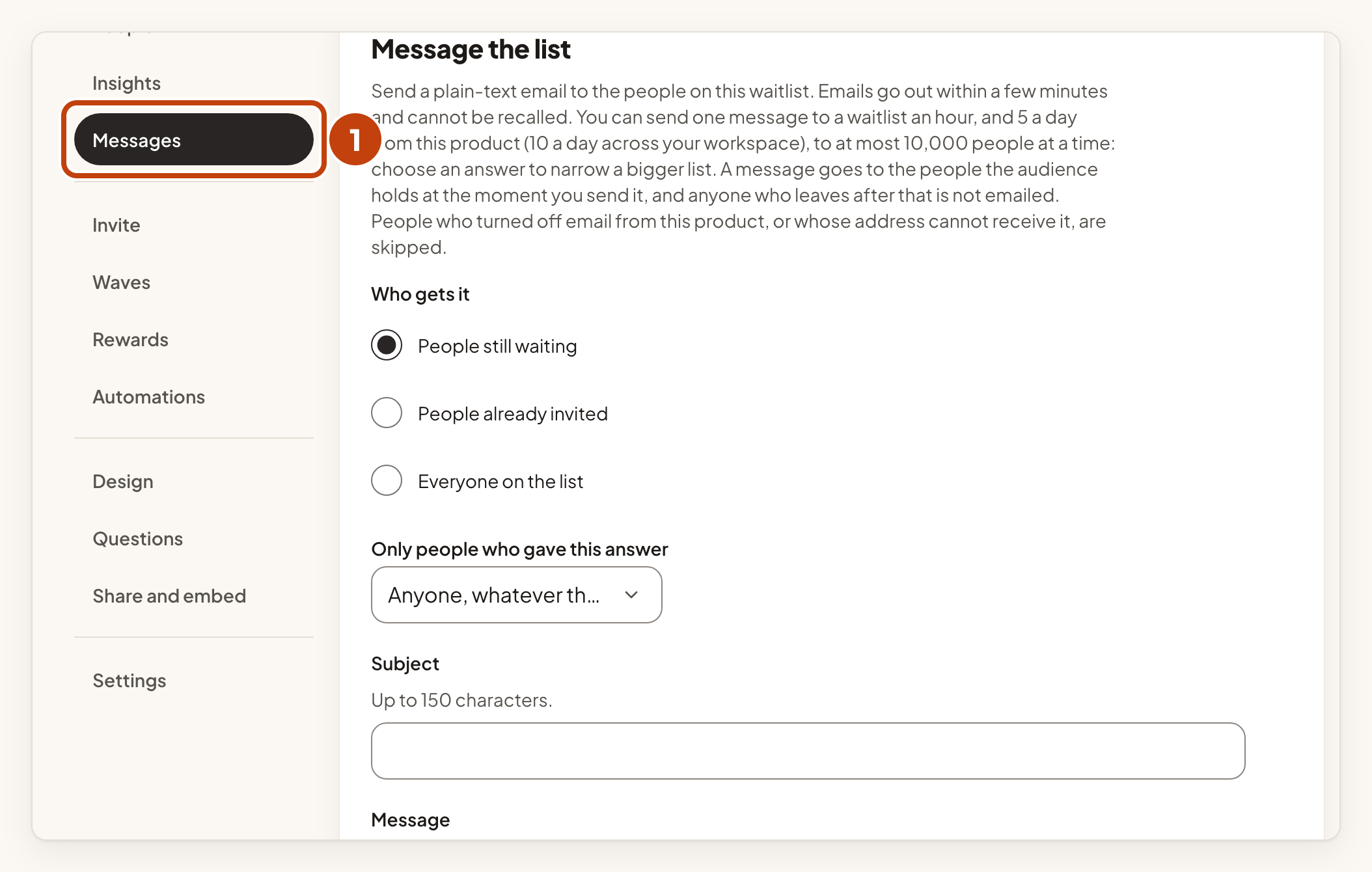
Write and send a message
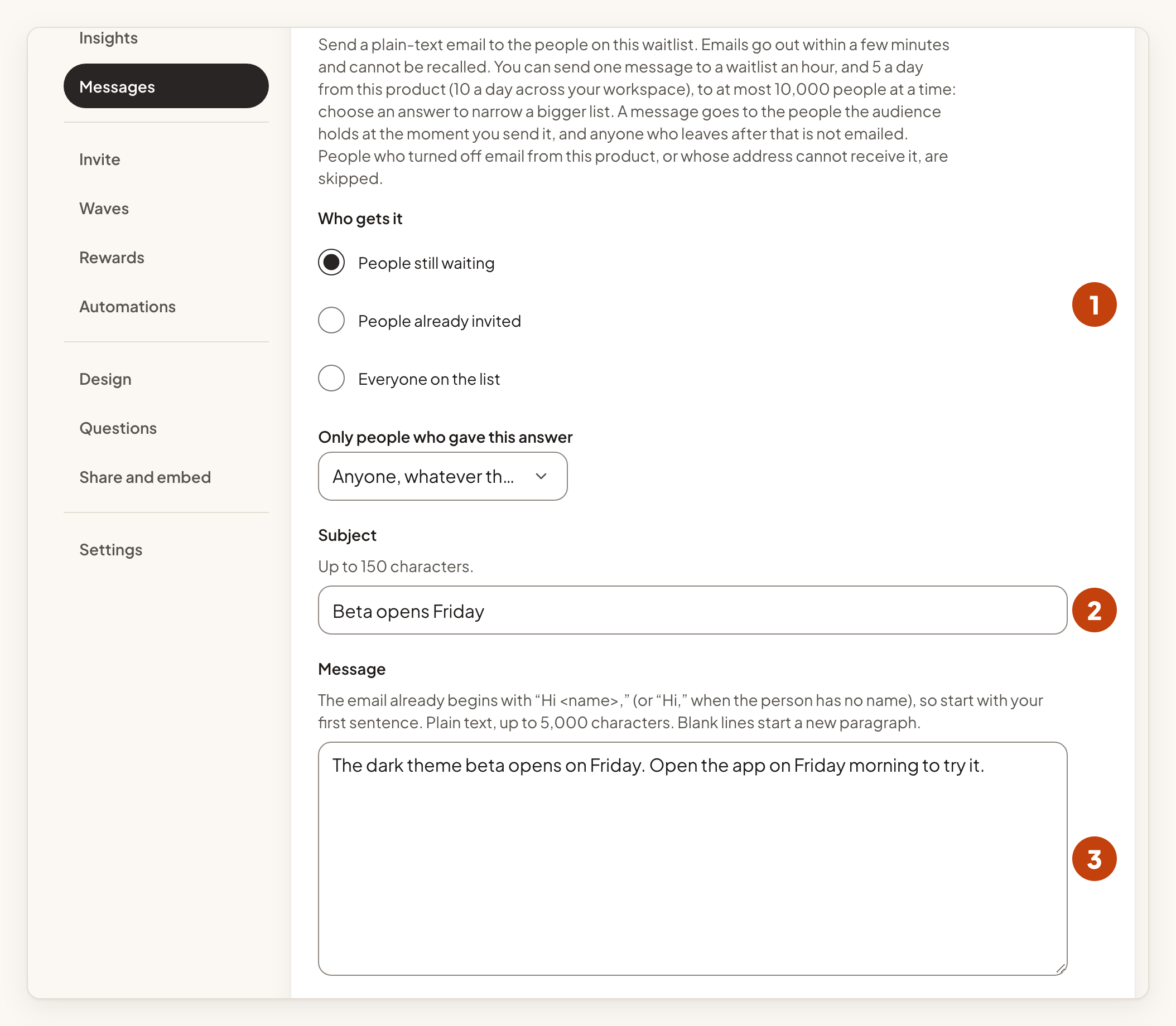
- Choose who gets the message in Who gets it: People still waiting, People already invited or Everyone on the list.
- Enter a Subject.
- Enter the Message. The email already begins with "Hi <name>," or "Hi," when the person has no name, so start with your first sentence. The message is plain text. A blank line starts a new paragraph.
- Choose the email's button under Button. The next section explains the three choices.
- Check the email in What they receive. The section after the next one explains it.
- Select Check who this reaches to see who the message reaches.
- Select Send message, then select Send now in the confirmation. The confirmation names the button, for example "Button: See what is new, acmenotes.example" or "No button".
If the waitlist asks questions, you can narrow the audience with Only people who gave this answer, or keep Anyone, whatever they answered.
Choose the button
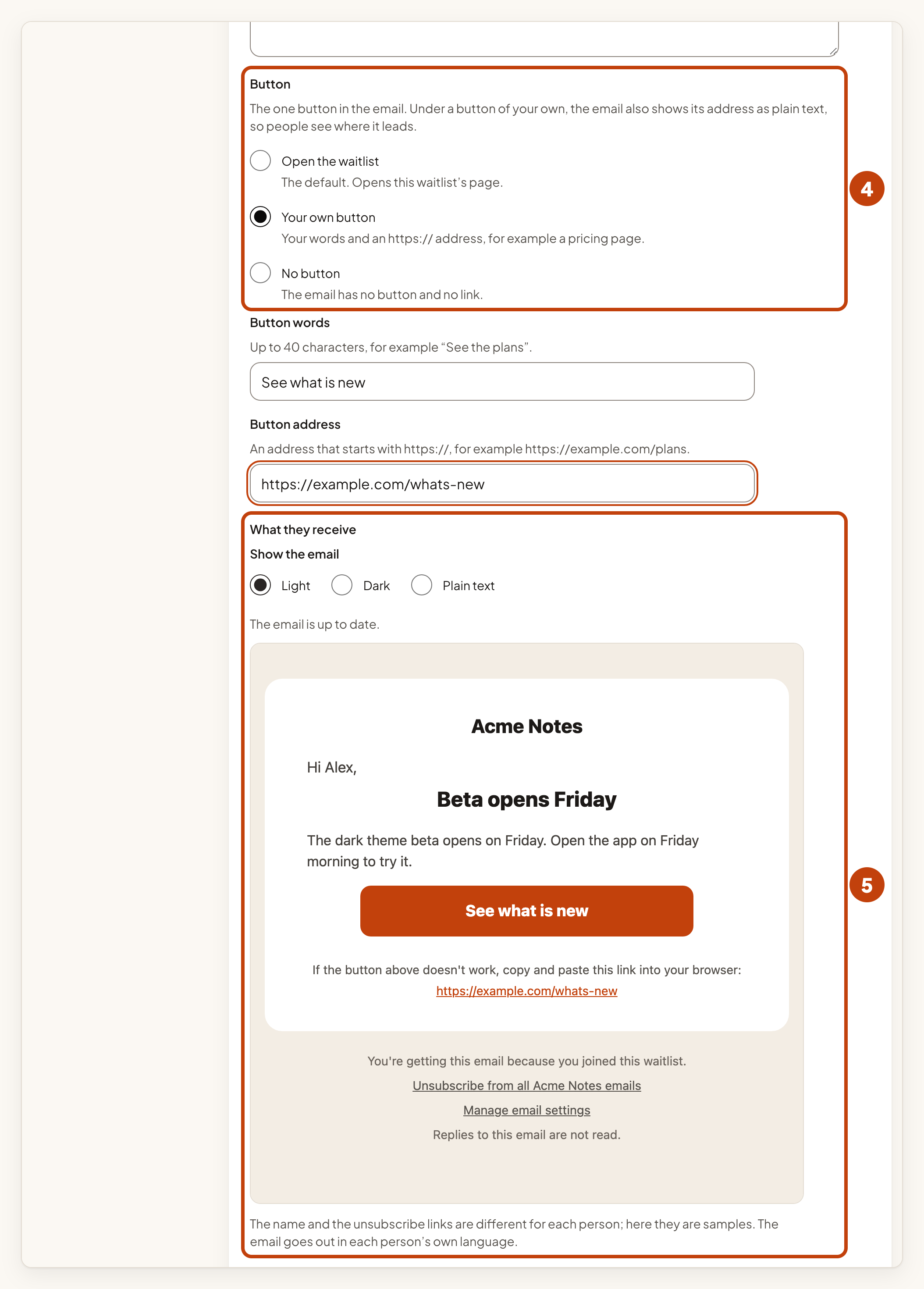
The email has one button. Choose one of three choices under Button:
- Open the waitlist: the default. It opens this waitlist's page.
- Your own button: your words and an https:// address, for example a pricing page. Enter the Button words, up to 40 characters, for example "See the plans". Enter the Button address, which starts with https://, for example https://example.com/plans. Under a button of your own, the email also shows its address as plain text, so people see where it leads. If the words or the address are not accepted, the form says what to change.
- No button: the email has no button and no link.
See the email before you send it
What they receive shows the email as the people on the list receive it. It updates as you type. Under Show the email, choose Light, Dark or Plain text.
The name and the unsubscribe links are different for each person, so the preview shows samples. Each person gets the email in their own language. The greeting and your paragraphs are left-aligned, while the heading, the button and the footer are centred.
If the preview cannot be drawn, the page shows a short summary instead. You can still send the message.
What happens after
After a send, the page says "Message sent to N people." If some people will not get the email, it adds "N will not get the email."
Unless the audience was People already invited, the page also says: "They stay on the waiting list. To move people to Invited, use Invite." A message does not change anyone's place or state. People stay Waiting until you invite them. To invite them, see Waitlists for early access.
On the People page, each person's Last email cell then shows the message, with its subject and its state. See See who is on a waitlist.
Limits
The page states these limits:
- One message to each waitlist an hour.
- 5 messages a day for each product.
- 10 messages a day across the workspace.
- At most 10,000 people at a time.
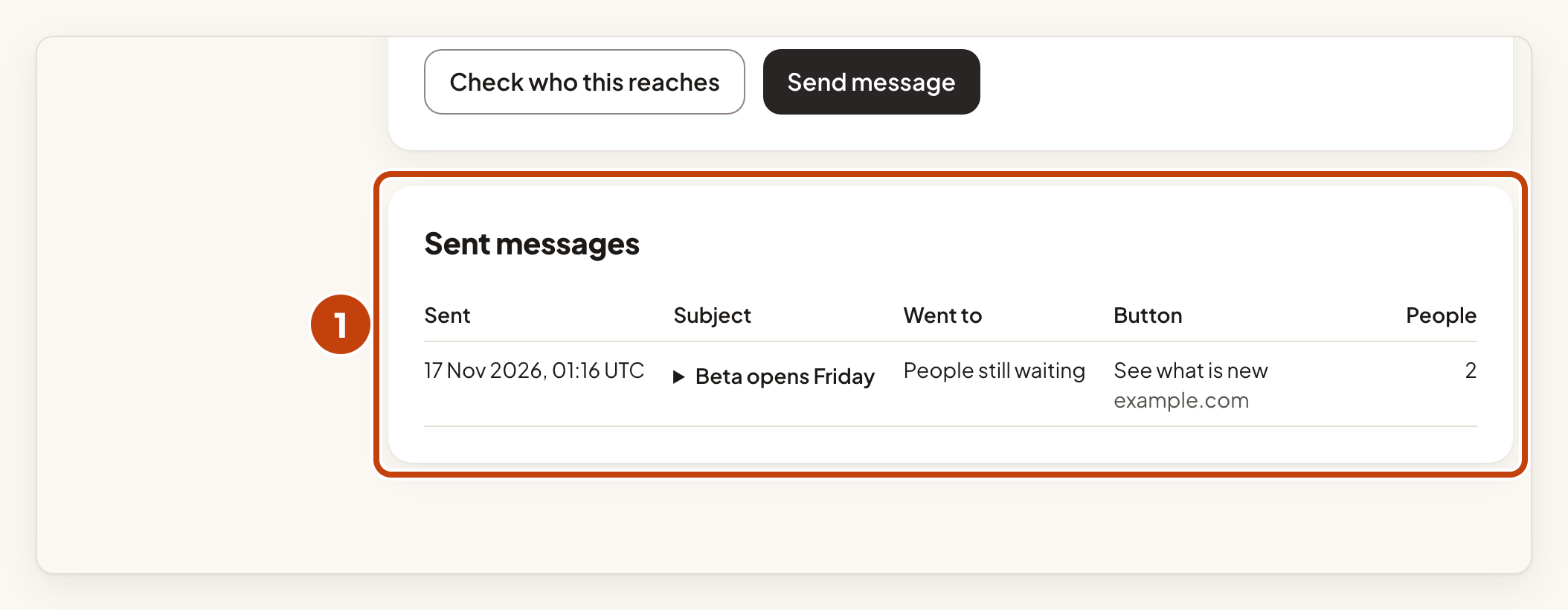
Sent messages
The Sent messages list at the foot of the page shows the messages sent to this waitlist. Its columns are Sent, Subject, Went to, Button and People. The Button column says "Open the waitlist", "No button", or the words of your own button, with its website name under them.
Example
For example, Sam Taylor, a manager of Acme Labs, opens the Messages page of "Dark mode beta" in Acme Notes. Sam chooses People still waiting in Who gets it and keeps Anyone, whatever they answered. Sam enters the subject "Beta opens Friday" and writes a short message about the beta opening. Sam chooses Your own button, enters "See what is new" and https://acmenotes.example/beta, and checks the email in What they receive. Then Sam selects Send message and Send now. The page says "Message sent to 42 people." and "They stay on the waiting list. To move people to Invited, use Invite."
If nothing shows
- If you cannot send, the page says "Sending messages to the list needs manager access. You can read what was sent below." The Sent messages list still shows what was sent.
- If nothing has been sent, the Last message line under the figures says "No message yet".