Your setup checklist and the workspace chooser
This article explains the setup checklist on your workspace overview, and the workspace chooser you see when you sign in. Reading it takes about five minutes.
Who can use it
Everyone who signs in sees the workspace chooser. Owners and admins see the setup checklist. A team member does not see it. An invitation appears only to the person whose confirmed email address it was sent to.
The setup checklist
The checklist is a card called Set up your workspace. It sits near the top of your workspace overview. A line in the card counts the steps you have done, for example "2 of 5 steps done". Company address lines, described below, count as steps too.
Each step is a line in the card. A step you have done has a tick and a line through its name. You cannot tick a step by hand. IvaBoard ticks it when the thing exists.
A step you still have to do is a link. Select its name to open the page where you do it.
The steps appear in this order. Your plan decides whether two of them appear.
- Create your first product: done when you have a product that is not scheduled for deletion. Opens Products.
- Make a product’s portal public: done when a product's portal is public. Opens that product's settings.
- Add the first idea: done when any product has an idea, whatever its status or where it came from. Opens that product's inbox.
- Invite a teammate: done when your workspace has a second member, or an invitation is open and has not ended. Opens Team.
- Connect an email provider: appears only on a plan that does not send email through IvaBoard. Done when an email connection that can send is set up for a live product. Opens your email provider settings.
- Add a custom domain: appears only on a plan that includes custom domains. Done when one of your products has an active custom domain. Opens that product's domain settings.
- Publish a changelog entry: done when a product has a published changelog entry. Opens a new changelog entry for your first product.
If you have no product yet, the steps that need one open Products instead.
Owners and admins can also see one more line for each product that has no company address for its participant emails. The line reads, for example, "Add the company name and postal address for Acme Notes’s participant emails". Select it to open that product's settings at the Company name and postal address field. No task ticks this line. It goes away when the field is filled in.
If the card cannot load, your overview shows without it.
Hide the setup checklist
- Select Hide at the top right of the card.
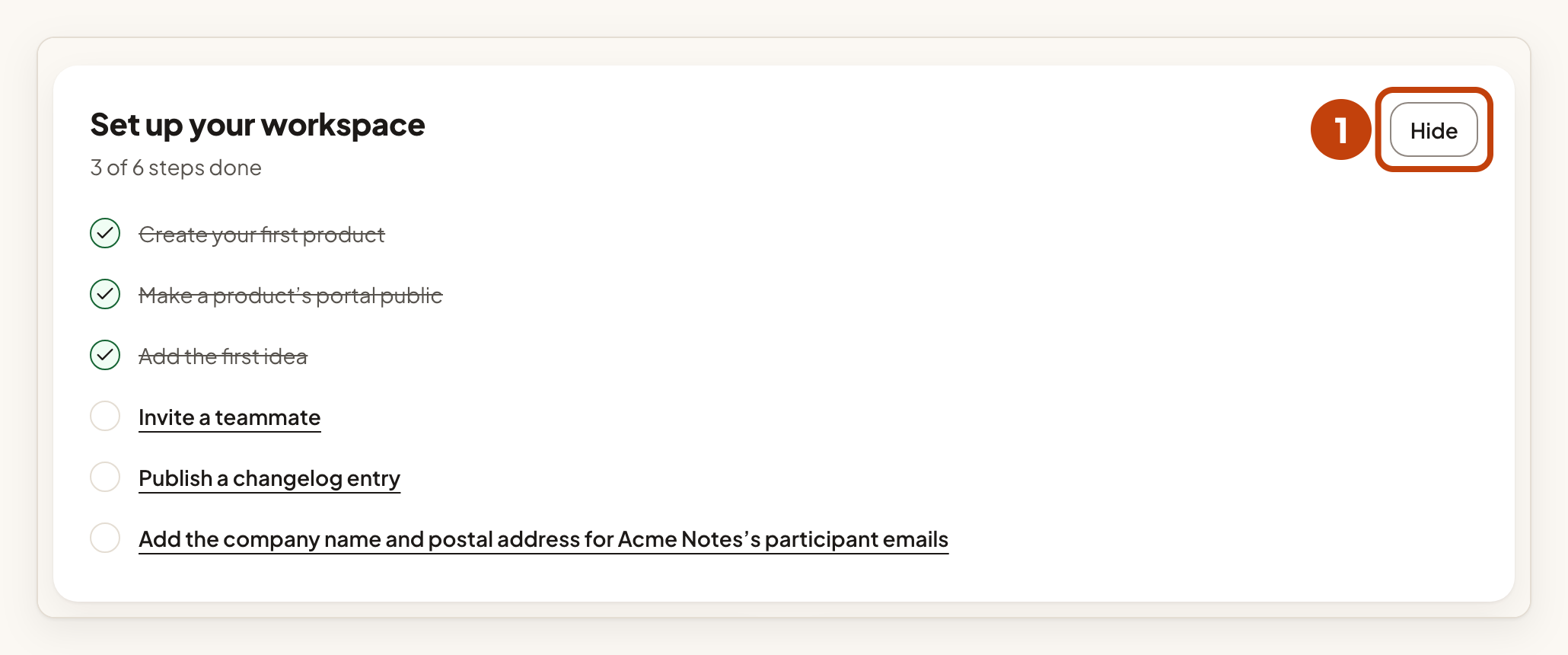
The card goes away on this device. It stays hidden in this browser for a year, or until you clear IvaBoard's cookies. There is no button to show it again. Another browser or device shows the card again. The card also stops showing once every step is done and no company address line is left.
When the workspace chooser shows
IvaBoard opens your workspace straight away in two cases. You belong to one workspace, and no invitation is waiting for you. Or you belong to several, and you used one of them last on this device and still belong to it.
In every other case you see the chooser. It shows when you have several workspaces and IvaBoard does not know which one to open. It also shows when you have none, and when an invitation is waiting. An invitation keeps the chooser open even if you have one workspace.
To open the chooser later, select IvaBoard at the top of the sidebar.
The workspace chooser
The page title is Choose a workspace. Under the title, the page says "Everything in the console happens inside a workspace."
Under "Your workspace", or "Your workspaces" if you have several, each row shows a workspace name and your role: Owner, Admin or Member. Select the workspace name to open its overview.
If IvaBoard has allowed your account to create a workspace, the list ends with Create a workspace. Otherwise it ends with Buy another workspace. That opens the plans and pricing page in a new tab.
If the list cannot load, the page says "We could not load your workspaces" and shows a reference number. Try again later.
If you have no workspace yet, the page says "You are not a member of a workspace yet". It explains that a workspace opens from the email we sent you. It also tells you to check your spam folder and gives the support email address. If an invitation is waiting for you, the page says "You are not in a workspace yet. Accept an invitation above to join one." instead.
Invitations on the chooser
When someone invites you to a workspace, the invitation appears above your workspace list. The heading says how many invitations are waiting.
Each invitation shows the workspace name and your role. It also shows where the invitation came from: "From your purchase" or "From a team member". A line that starts with "Expires" gives the end date in your own time zone.
Only invitations sent to the address you signed in with appear, and only once that address is confirmed. Invitations that were withdrawn, already used or have ended do not appear.
Accept an invitation
- Select Accept on the invitation row.

The row shows Accept when your account was made after the invitation. If your account is older, the row shows Email me the link instead. Under it, the line reads "The link goes to the address you signed in with." Use the steps below for that case.
Get the link by email
- Select Email me the link on the invitation row.
- Open the email from IvaBoard and select Accept invitation in it.
- Select Accept invitation on the page the link opens.
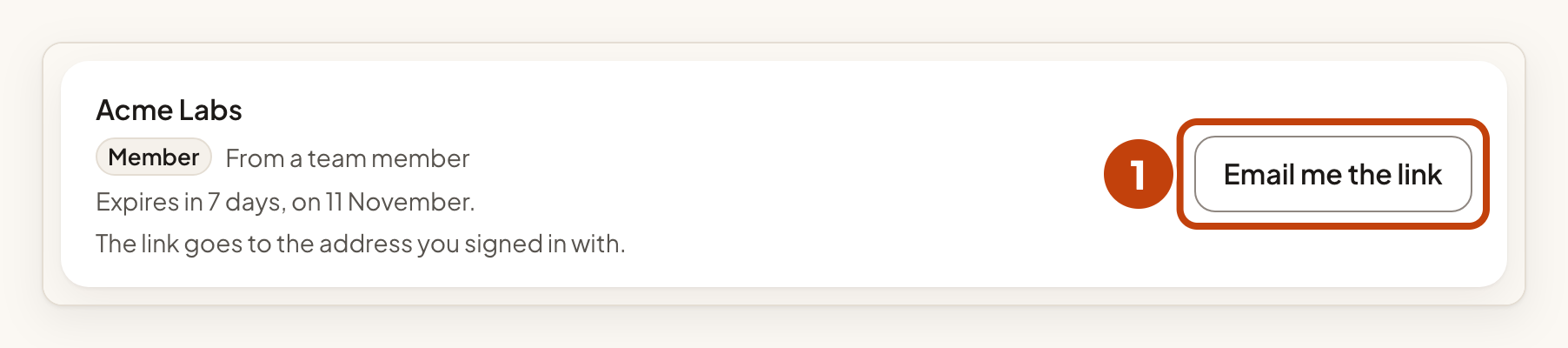
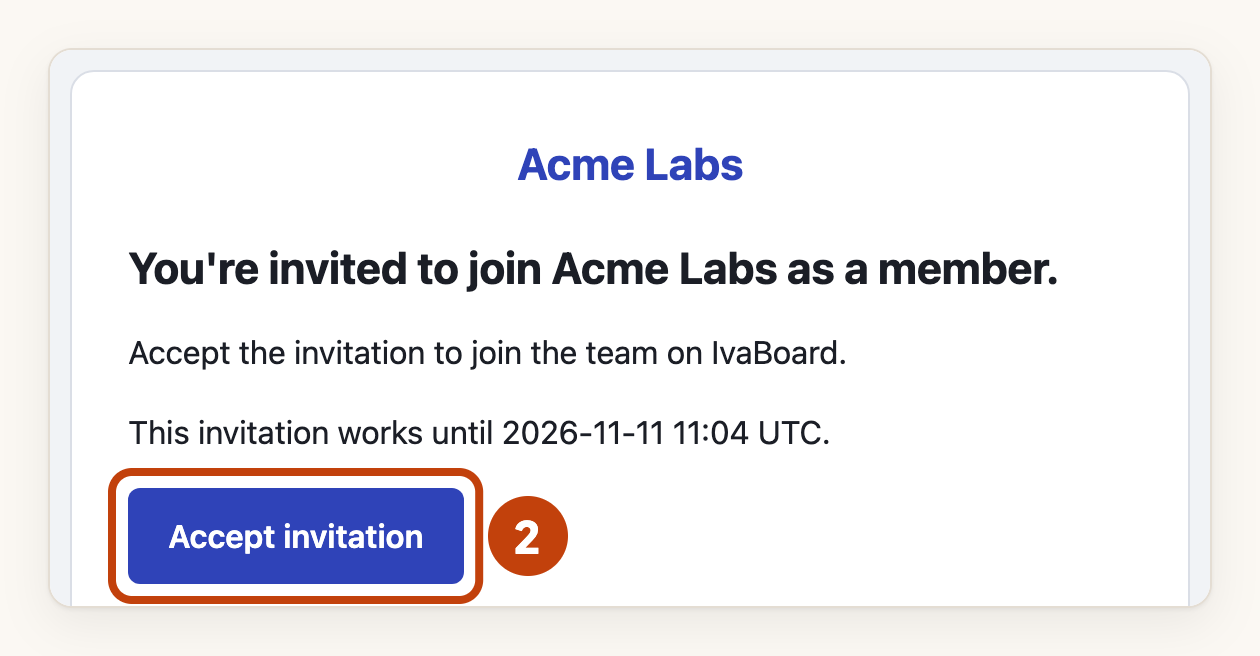
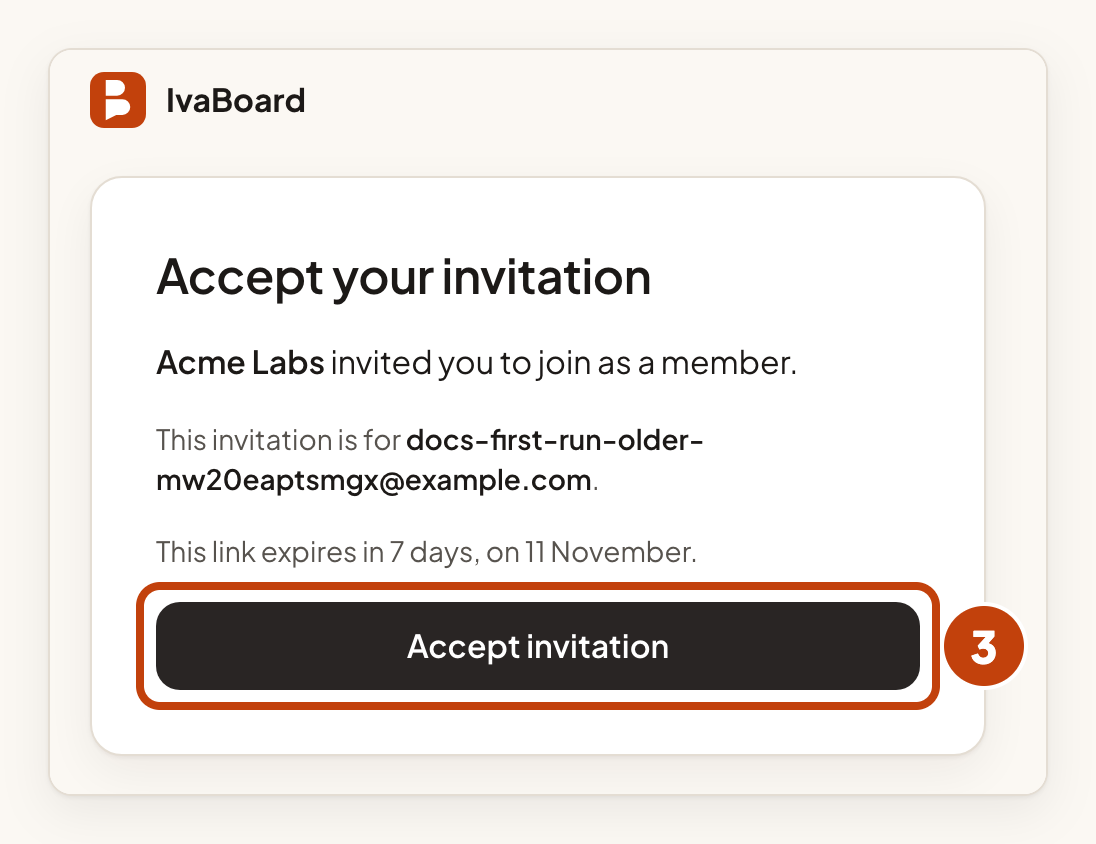
After step 1, the top of the chooser says "We sent the link to your email. Open it to accept." If you are signed out when the link opens, the page offers Create your account. If you already have an account, select I already have an account: sign in and use the invited address.
Two-factor authentication for owners and admins
If you are an owner or an admin in any workspace, IvaBoard asks you to set up two-factor authentication. Until you do, every console page opens the two-factor page first. After you set it up, you go back to the page you wanted.
On the invitation page, the button reads Set up two-factor authentication until you have done that. Above it, the note reads "Owners need two-factor authentication. You set it up once, then you come straight back here to finish." For an admin, the same note says "Admins" instead.
Decline an invitation
The chooser has no decline button. Leave the invitation alone. It stops working when its end date passes. An owner or an admin can revoke it on the Team page.
If an invitation has ended
If an invitation has ended when you select Accept or Email me the link, a notice appears at the top. It says "That invitation is no longer open." An old link from your email shows a different message:
- An expired invitation: "This invitation has expired. Ask the person who invited you to send a new one."
- A used invitation: "This invitation has already been used. If you accepted it, sign in to open the workspace."
- A withdrawn invitation: "This invitation link isn't valid. It may have been withdrawn or replaced by a newer one. Ask the person who invited you to send a new invitation."
If you press Accept twice, IvaBoard opens the workspace. An email link you open after accepting shows the "already been used" message above.
You can ask for a new link once every ten minutes. If you ask too soon, the page says "We sent the link a few minutes ago. Check your email, or try again later." After three requests in 24 hours, it says "You can ask for the link 3 times a day. Try again tomorrow, or ask the person who invited you."
Example
For example, Sam Taylor, an owner of Acme Labs, invites [email protected] as a member. Alex made the account after the invitation, so the row shows Accept. Alex selects Accept, and the Acme Labs overview opens. Alex is a member, so Alex does not see the setup checklist.
