Emails your users get, and how they unsubscribe
When something happens to an idea a person follows, they hear about it in two places: a list of notifications in your portal, and an email. This article explains which emails go out, who gets them, how people stop them, and which settings you control.
Who can use it
Starter, Growth and Scale include a monthly allowance of emails to your users. On a Lifetime plan, your own provider must send them; until one is ready, they are not sent. Owners and admins, and team members with Manager access to a product, can change which events send email and the sender details. Your users manage their own preferences.
The emails your users get
There are three kinds of email:
| Kind | Sent when |
|---|---|
| Comments and replies | Someone comments on an idea, or replies to a comment |
| Status changes | The status of an idea changes |
| Release notes | You publish a changelog update that mentions the idea |
People also get an email when you invite them from a waitlist. See Waitlists for early access.
Your users never hear about their own actions. They stop getting emails when they no longer have a reason to receive them, for example after they unfollow an idea.
Who gets which email
People follow an idea when they post it, comment, vote with the notification choice on, or select the follow button. See Following ideas.
- Comment and reply emails go to people who follow the idea, except people who only voted for it.
- A person who only voted gets status and release emails, but not comment emails.
- Anyone can choose to get every release announcement, even for ideas they do not follow.
When emails are sent
Emails leave about two minutes after the change. That gives you time to undo a mistake before anyone is emailed. When an idea moves to a finished status such as Done, each person gets one email for the product, not one email for each idea.
How your users stop emails
Every email says why it was sent and has links to stop it. People can stop updates about one idea, one kind of message, or all emails from your product. The link opens a page with a Confirm button. They do not need to sign in.
People can also sign in to your portal and open Notification preferences. There they can:
- Turn Email me about products I follow on or off.
- Choose under Which emails to get: Comments and replies, Status changes and Release notes.
- Turn on Email me every release announcement.
- Select Stop updates next to an idea under Posts you follow.
They select Save preferences to keep their choices.
Set which events send email
Owners, admins and team members with Manager access to the product can change these settings. The settings open on Product details.
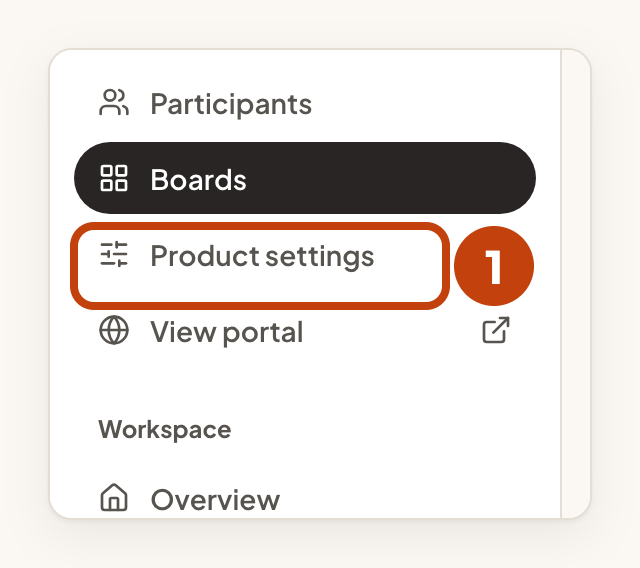
- Select Product settings in the sidebar.
- Under Notifications, tick or untick Email for each event: New comment, New reply and Status change.
- Select Save notification settings.
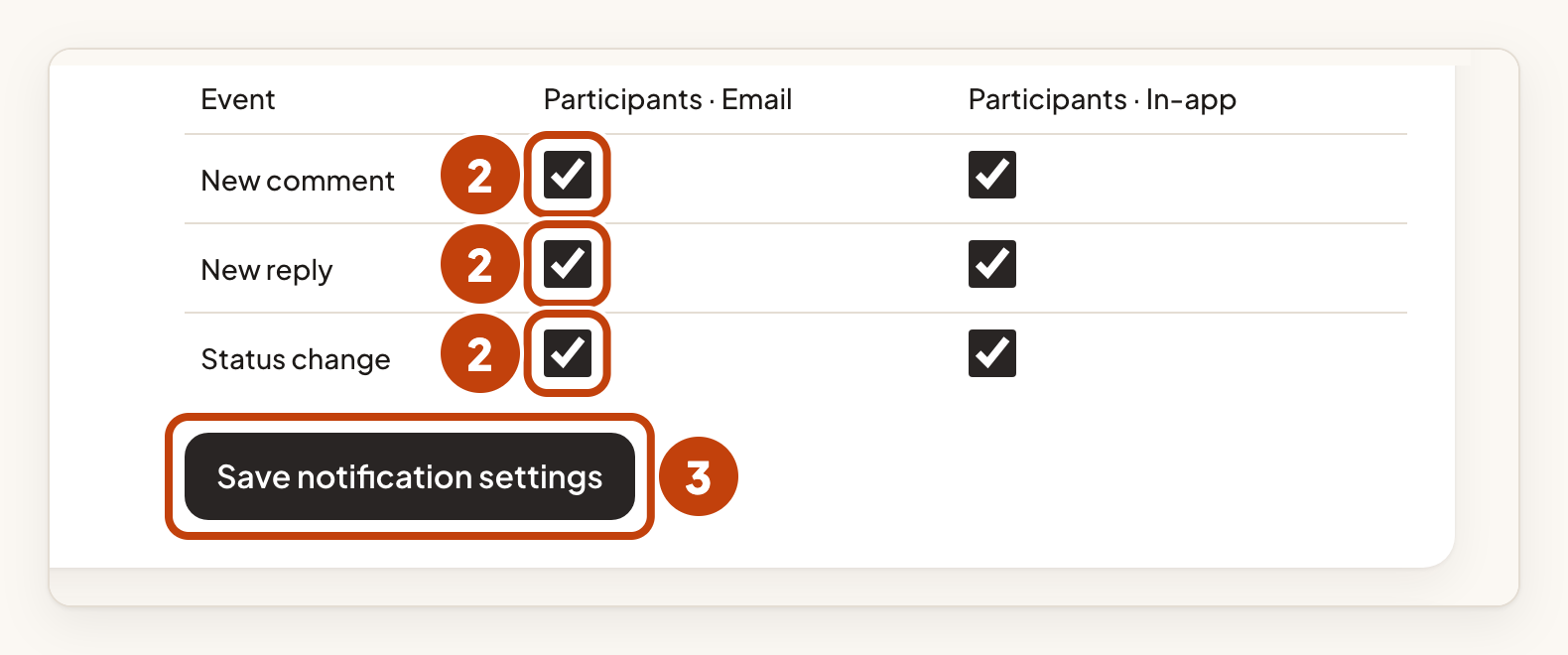
The In-app column controls the list inside the portal.
Set the sender name and company details
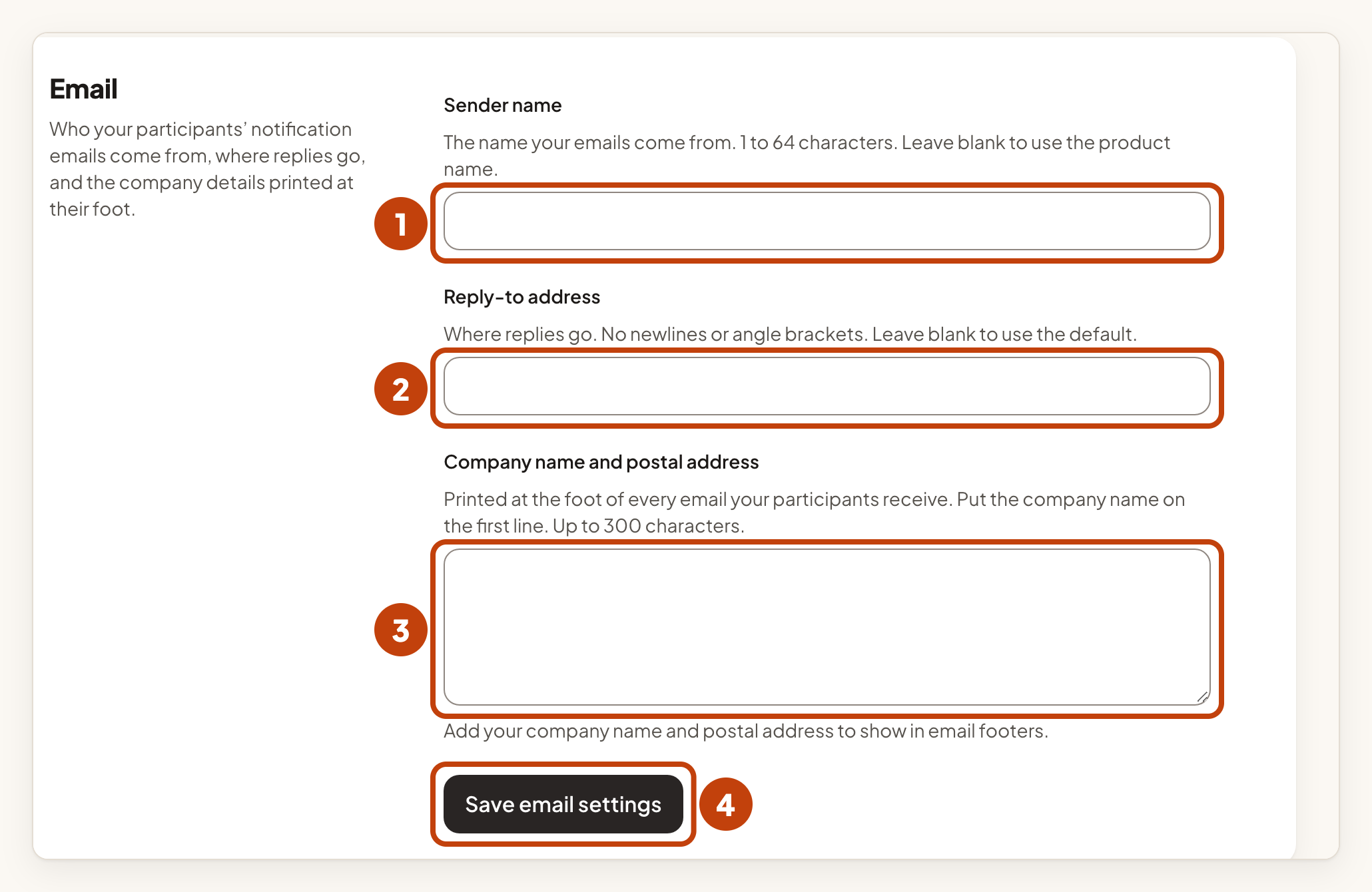
Under Email, on the same page, you set how your emails look.
- Enter a Sender name of up to 64 characters. Leave it empty to use the product name.
- Enter a Reply-to address for replies.
- Enter your Company name and postal address. It is printed at the foot of every email, up to 300 characters.
- Select Save email settings.
When you change an idea's status
Email followers about this change is ticked by default. Untick it to skip the email for that change. A status whose badge is hidden on public boards sends no email.
On plans with white-label, emails can come from your own domain. See Send portal emails from your own domain.
Worked example
Sam Taylor is an admin at Acme Labs. Sam changes the status of "Dark mode for the mobile app" in Acme Notes to Done and leaves Email followers about this change ticked. Ten people follow the idea. Each of them gets one email about two minutes later.
