Connect Lettermint
Send emails to your users through Lettermint, a European transactional email service. This page covers the steps that are specific to Lettermint. Read Connect your email provider first for the steps that apply to every provider.
Who can use it
Only a workspace owner or admin can connect Lettermint. Other team members cannot open the Email providers page.
Get your API token from Lettermint
- Copy the sending API token of your Lettermint project.
- Verify the domain of your From address in Lettermint. Lettermint only sends from addresses and domains you have verified.
Connect Lettermint in IvaBoard
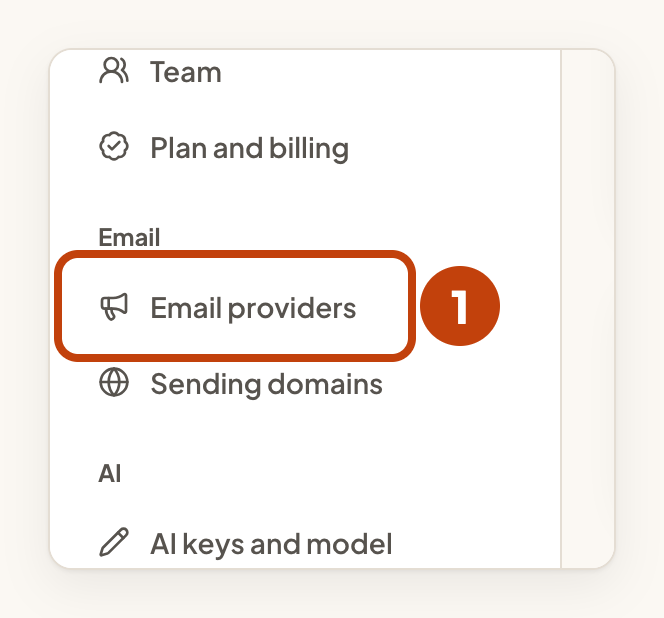
- Open Email providers in your workspace settings.
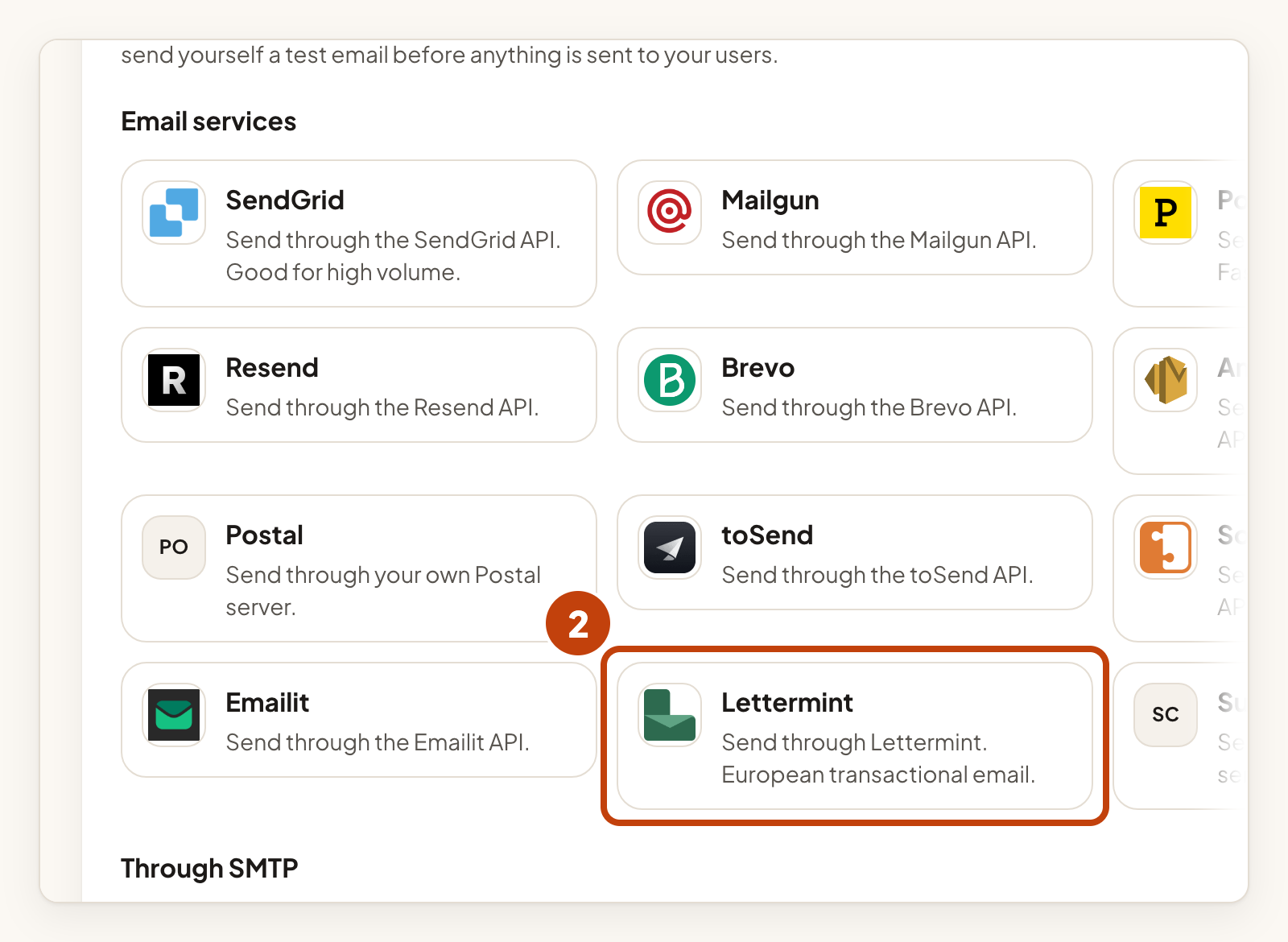
- Under Email services, select Lettermint.
- Type a short name in Name, such as Acme Lettermint.
- Type the address your users see in From address.
- Optional: type the name your users see beside the address in From name.
- Paste the sending API token in API token.
- Select Connect provider.
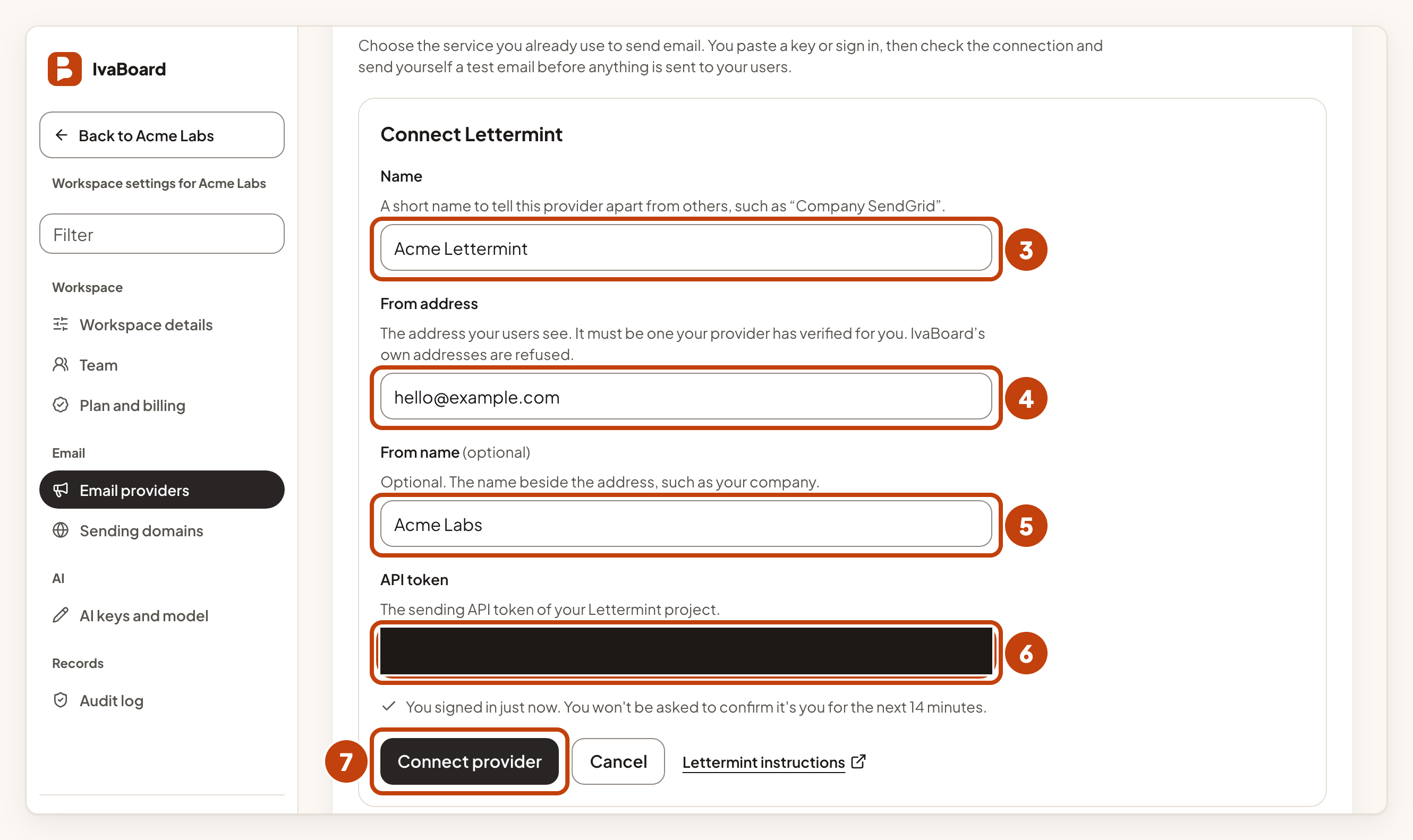
IvaBoard saves the token securely. Afterwards the card shows at most its last 4 characters. The card shows Waiting for a check.
IvaBoard refuses From addresses on its own domains.
Check the connection and send a test email
- Select Check connection on the Lettermint card.
- The result shows on the card within about a minute. If it does not, reload the page.
- Select Send a test email on the same card.
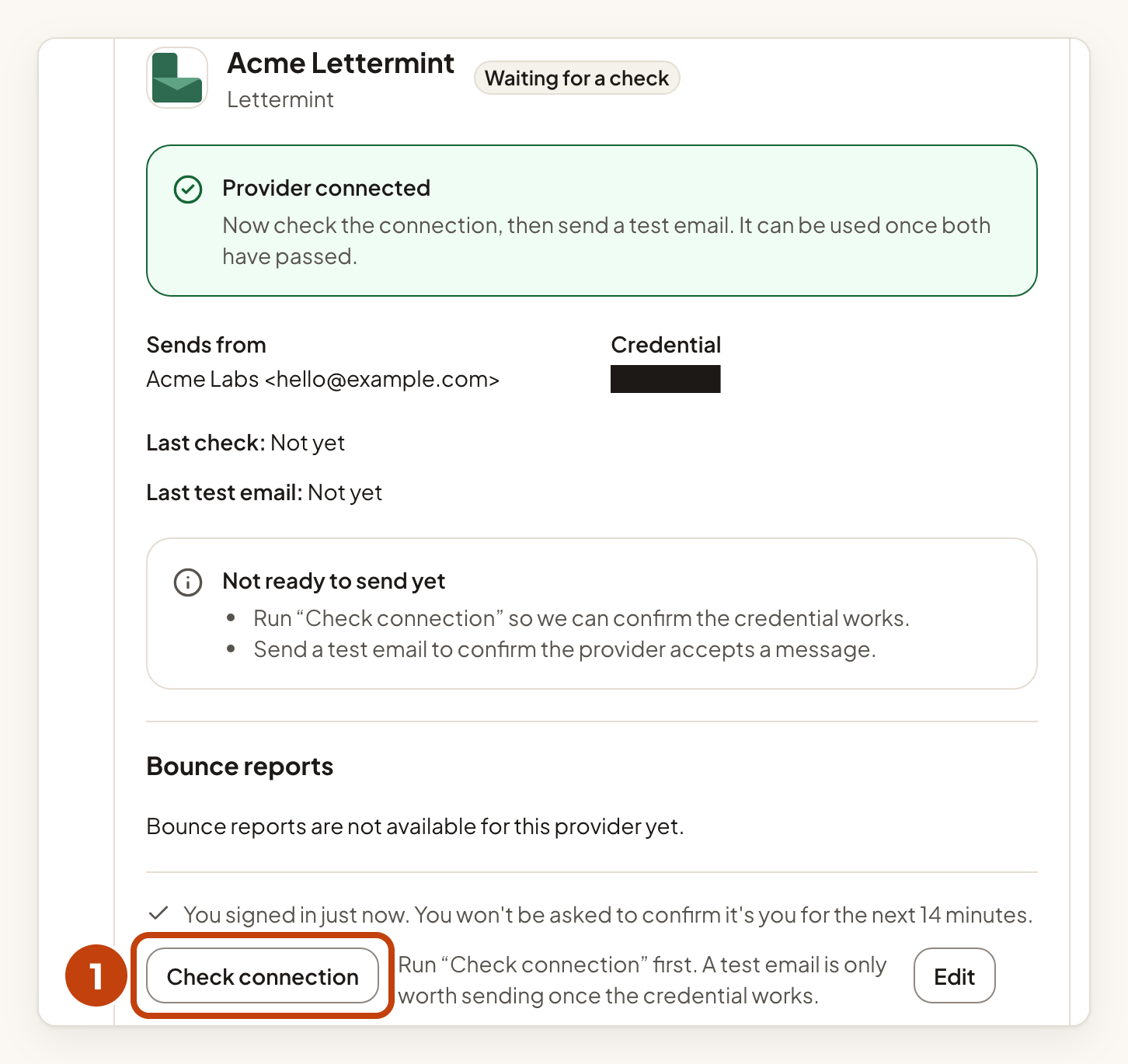
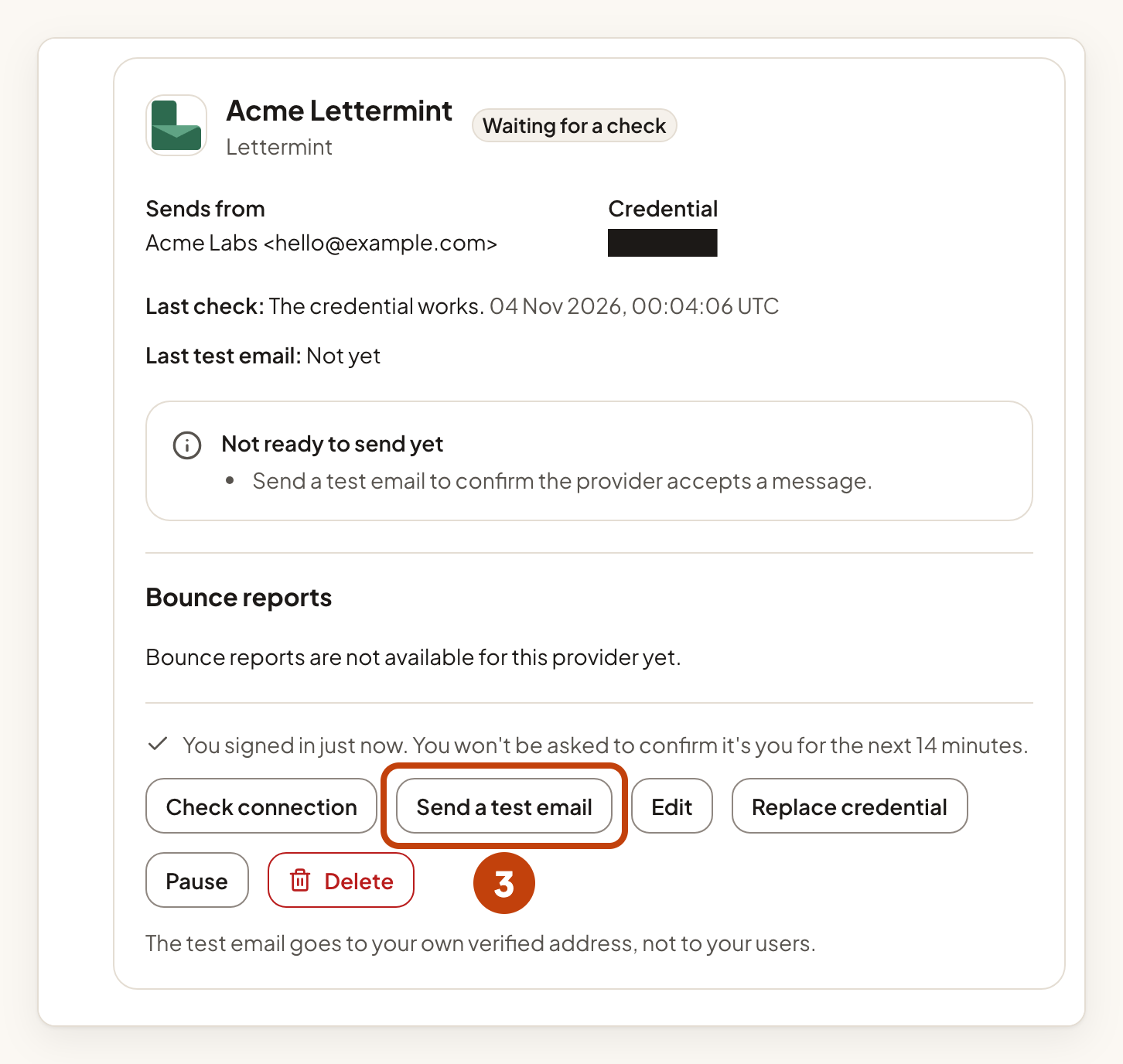
Send a test email appears after the check passes. The test email goes to your own verified address, not to your users. A provider that accepts the test has taken the message. That is not the same as the email reaching an inbox, so look in your inbox too.
When both pass, the card says "Ready. A product can choose this provider in its email sender settings."
Bounce reports
The Bounce reports part of the card says that bounce reports are not available for this provider yet.
Example
For example, Sam is an owner of the Acme Labs workspace. Sam connects Lettermint with the name Acme Lettermint and the From address [email protected]. Lettermint has verified that address. Sam pastes the sending API token, selects Connect provider, and then runs Check connection and Send a test email. After both pass, Sam chooses Acme Lettermint in the email sender settings of Acme Notes.
If something goes wrong
- The card says "The provider refused the credential." Create a new sending API token in Lettermint. Select Replace credential, paste the new token in API token, select Save new credential, and check the connection again.
- The card says "The provider refused the From address." Verify the address or its domain in Lettermint. Or select Edit, change the From address, and check and test again.
More messages and fixes are in Troubleshooting email.
