Send your portal users to SureContact
Connect SureContact to your product. IvaBoard then adds the people on your portal to SureContact as contacts, tagged by what they did, so your SureContact automations can follow up.
Who can use it
Every plan. Only workspace owners and admins can connect SureContact, change its rules or disconnect it. Adding or replacing a key may ask you to sign in again first.
Before you start
In SureContact, create an API key that can read and write. Treat it like a password.
Connect SureContact
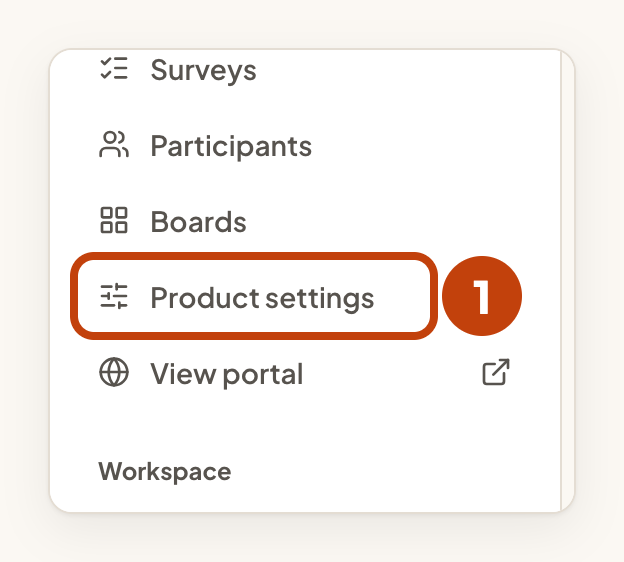
- Open Product settings for your product.
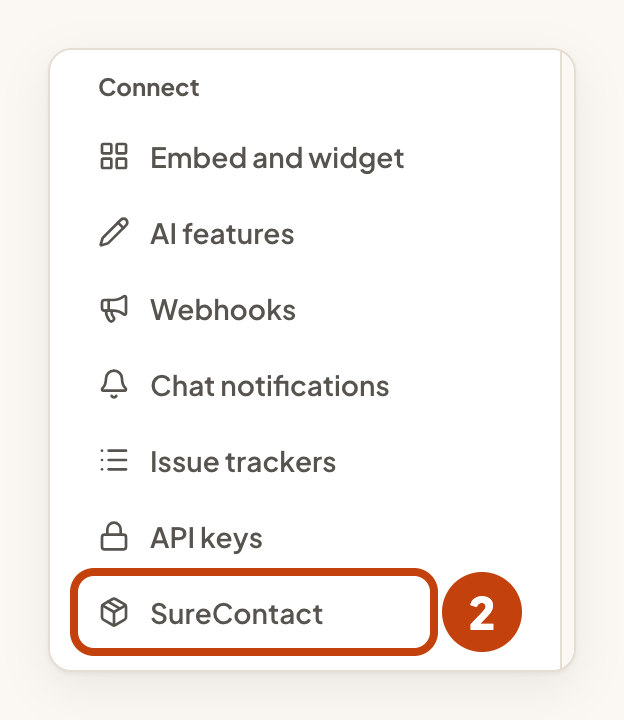
- Under Connect, select SureContact.
- Paste the key into SureContact API key.
- Under People SureContact does not know yet, keep Don’t subscribe them (recommended) selected.
- Select Connect SureContact.
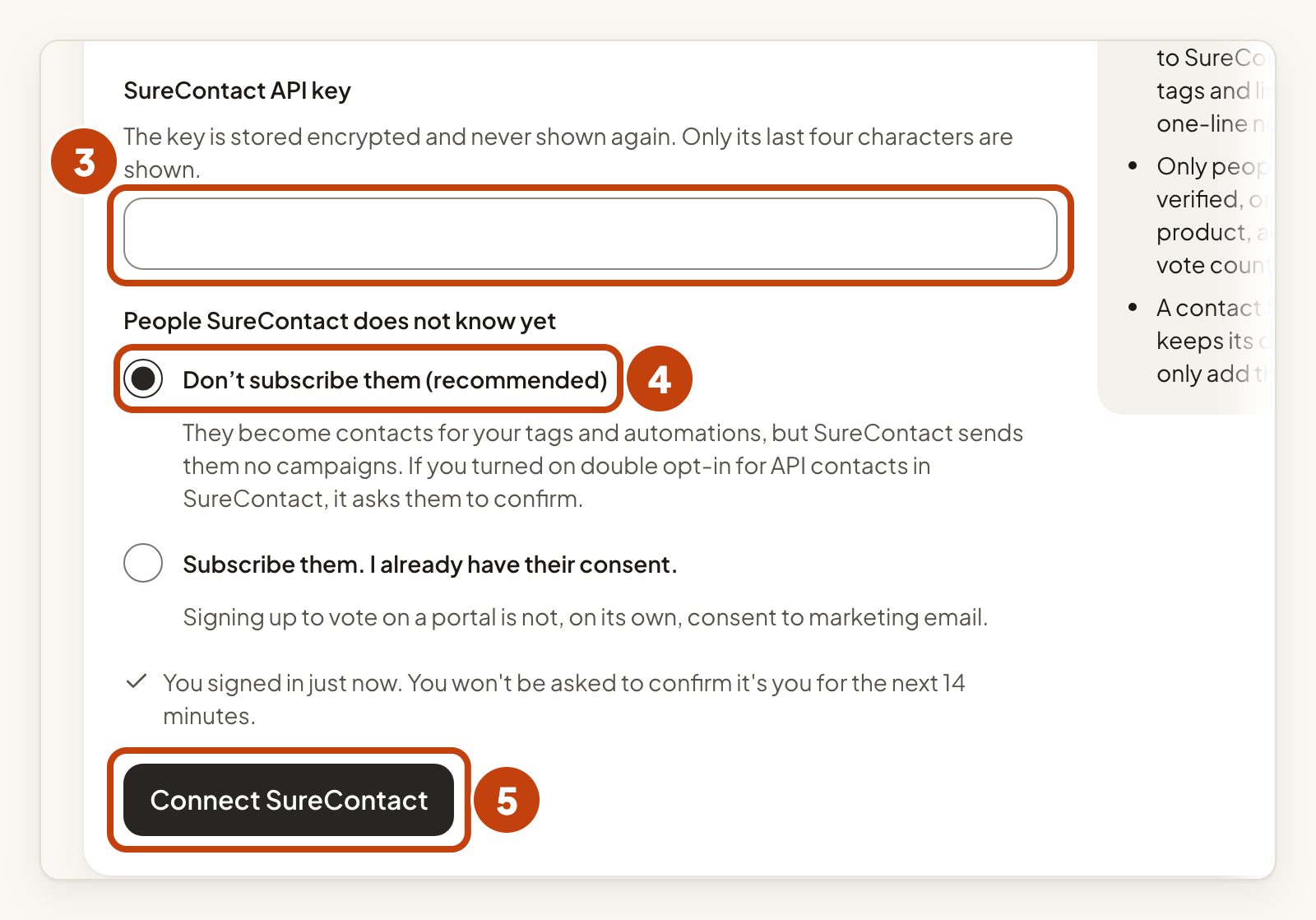
Don’t subscribe them (recommended) keeps new contacts out of campaigns. SureContact still stores them, so your tags and automations can use them. SureContact sends them no campaigns.
To subscribe new people instead, select Subscribe them. I already have their consent. Then tick I confirm I have a lawful basis to send these people marketing email, such as their consent. Signing up to vote is not, on its own, consent to marketing email.
A contact that SureContact already knows keeps its subscription. IvaBoard adds the tags and lists you choose. It changes the contact's name only if you tick Keep contact names up to date.
Choose what each event does
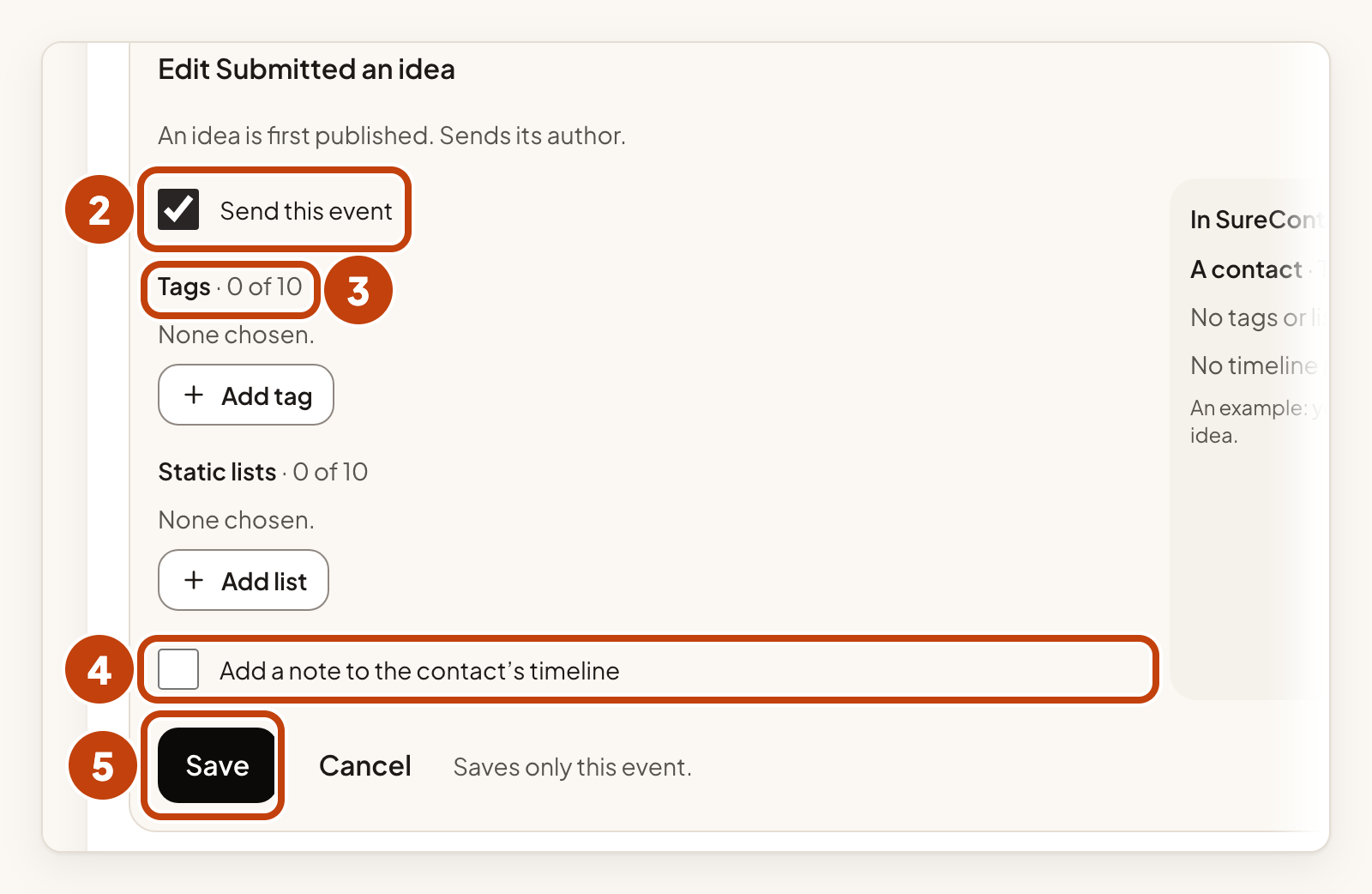
Each event has its own rule. Select Edit on the event, then:
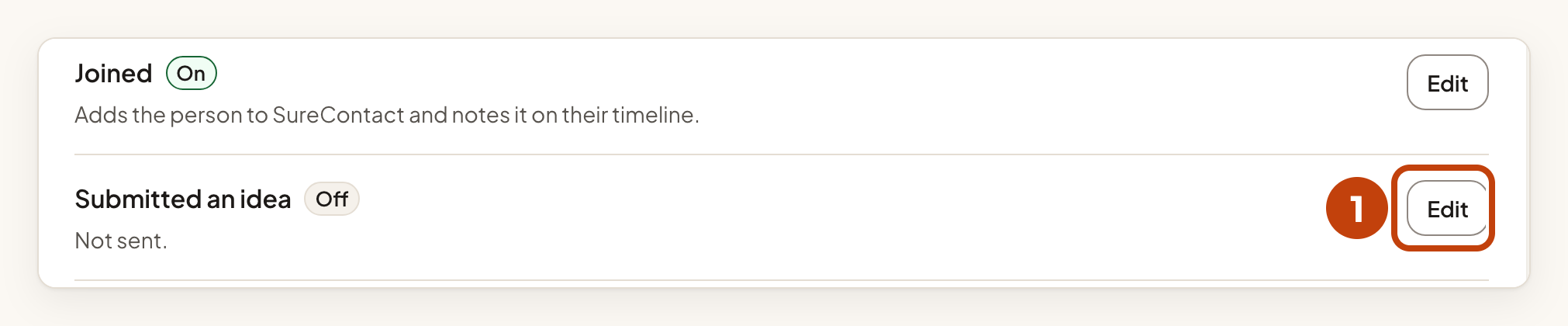
- Select Edit on the event, for example Submitted an idea.
- Tick Send this event.
- Choose up to ten tags under Tags, and up to ten lists under Static lists.
- Tick Add a note to the contact’s timeline if you want a one-line note on the contact.
- Select Save.
| Event | Who is sent |
|---|---|
| Joined | Someone who joins the portal |
| Submitted an idea | The author, once the idea is published |
| Voted | The voter |
| Commented | The commenter, once the comment is public |
| When an idea moves to a status | The author, voters and followers, for up to ten statuses you choose |
For a status, select Add a status rule, then choose the Status.
If you add or rename a tag or list in SureContact, select Refresh tags and lists so IvaBoard can see it. You can refresh once every 30 seconds.
Bring in existing people
Select Sync existing participants to send everyone already on the portal who is eligible. IvaBoard uses the tags, lists and note from the Joined rule. Past votes, ideas and comments are not sent.
What is sent
IvaBoard sends only people whose email address is verified, or whom your own product vouched for. People you added yourself, or imported, are not sent. Anyone who erased their data or opted out of email is not sent either.
Ideas that are pending, declined, hidden or merged send nothing. Comment text and vote counts stay in IvaBoard. A timeline note, if you ticked it, names the idea for idea, vote, comment and status events. A Joined note names the product.
Pause, check and disconnect
Under Recent syncs, select Show the last 20 to see the latest results.
- Select Pause syncing to stop sending. Nothing that happens while paused is sent later.
- Select Resume syncing to start again.
- After ten failed syncs in a row, syncing stops and the page says why. Check Recent syncs, fix the cause, then select Resume syncing.
| You see | What to do |
|---|---|
| SureContact rejected the API key | Create a new key in SureContact, then replace the key. |
| The API key cannot write to SureContact | Give the key write access in SureContact, or replace it. |
| A tag no longer in SureContact, or a list no longer in SureContact | Select Refresh tags and lists, fix the rules and save. |
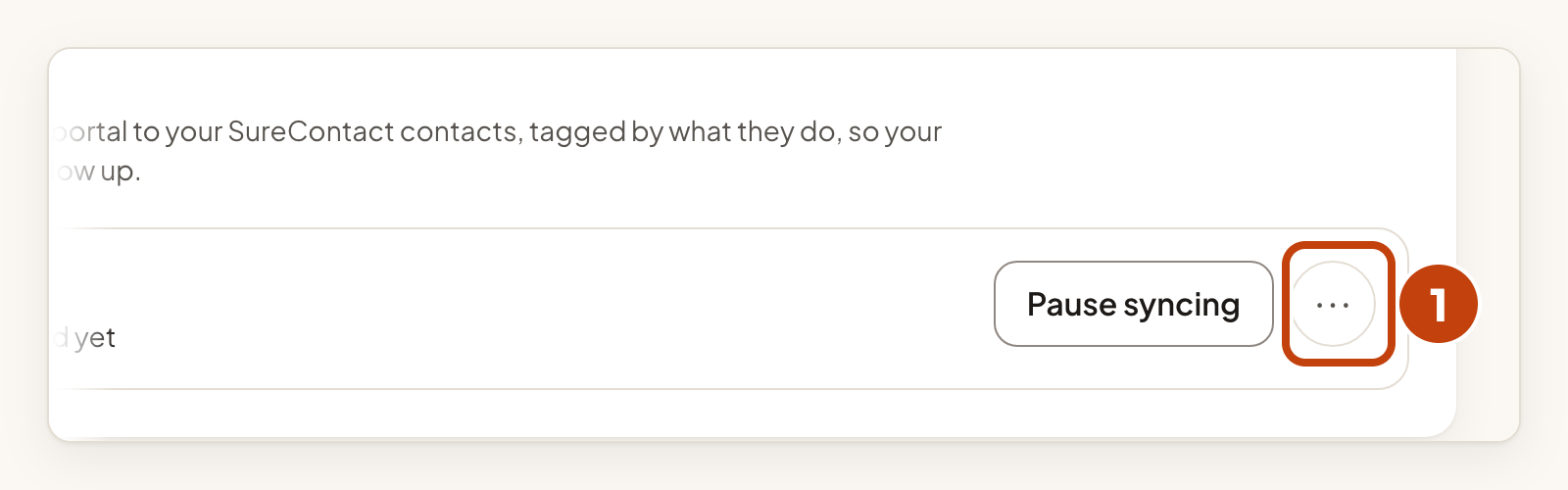
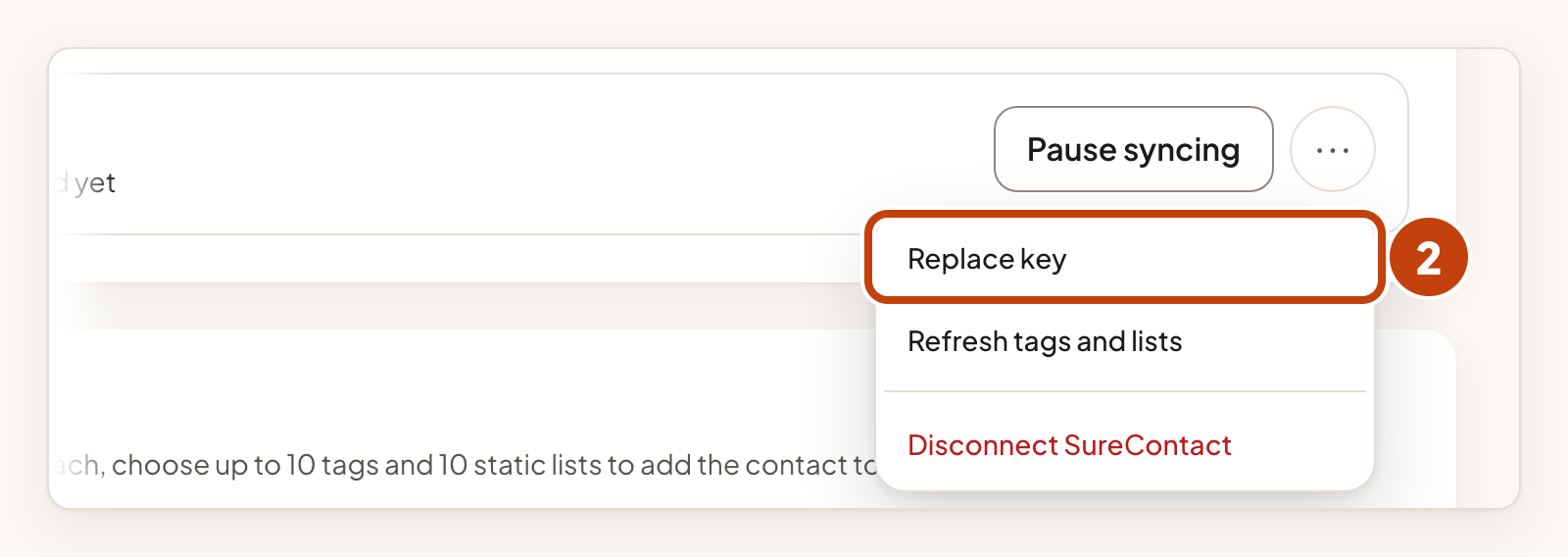
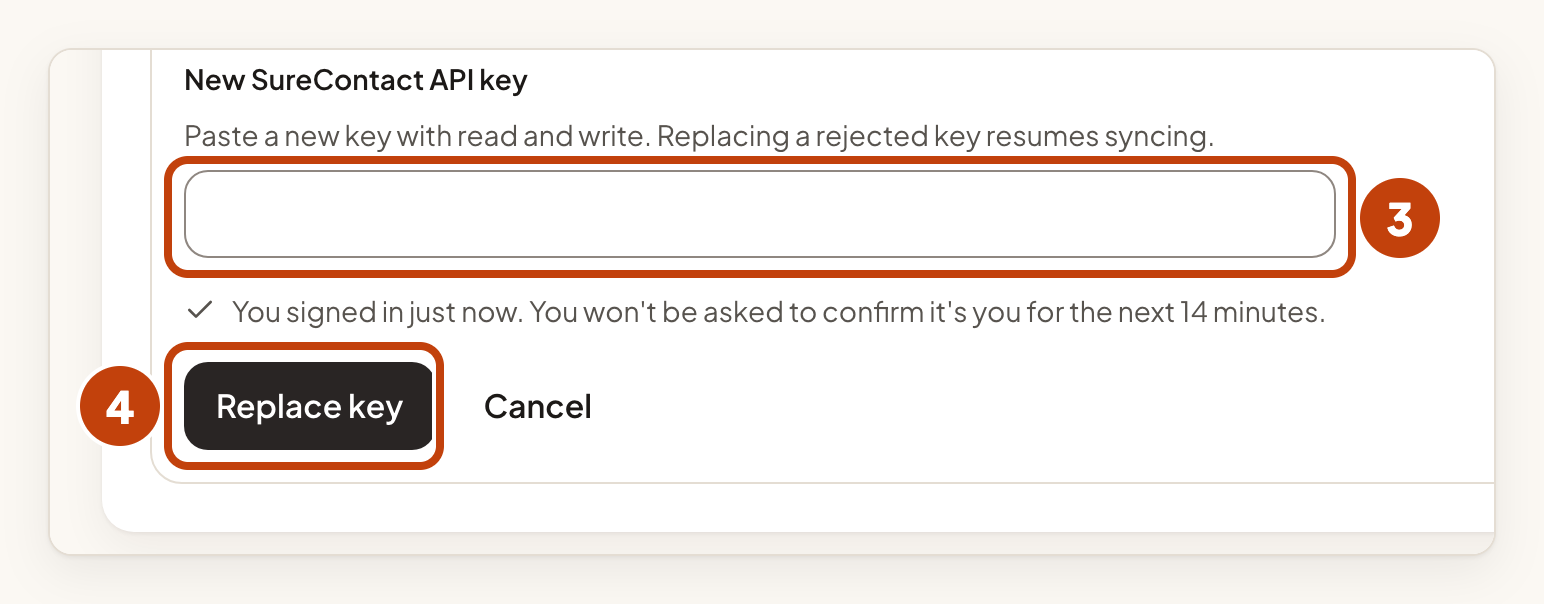
To replace the key, take these steps.
- Select More actions (the three dots) on the connection.
- Select Replace key.
- Paste the new key into New SureContact API key.
- Select Replace key.
To disconnect, select More actions, then Disconnect SureContact, then Disconnect. This removes the key, the rules and the sync history from IvaBoard. Nothing in SureContact is deleted.
Example
Sam Taylor connects SureContact for Acme Notes with a read and write key. Sam keeps Don’t subscribe them (recommended) selected and selects Connect SureContact. Later, Sam selects Edit on Voted, ticks Send this event and adds the tag acme-voter. Sam then selects Save.
