Ask your customers with surveys
A survey asks your customers a few short questions, such as a Net Promoter Score (NPS) question. You can show a survey in your app, on your portal, on a shareable link or in an embed on one of your pages. You can turn a useful answer into an idea on your board.
Who can use it
Every plan. Owners, admins, and members with the Manager level create, change and publish surveys. Everyone who can see the product can read the surveys and their results. People with the Viewer level see the answers without names, emails or customer details.
Create a survey
Start with a template. It gives you questions in your portal's languages, and you can change any of them. The templates are Net Promoter Score (NPS), Customer satisfaction (CSAT), Customer effort (CES), Product-market fit, Feature feedback, Idea vote, How did you hear about us? and Why are you leaving?
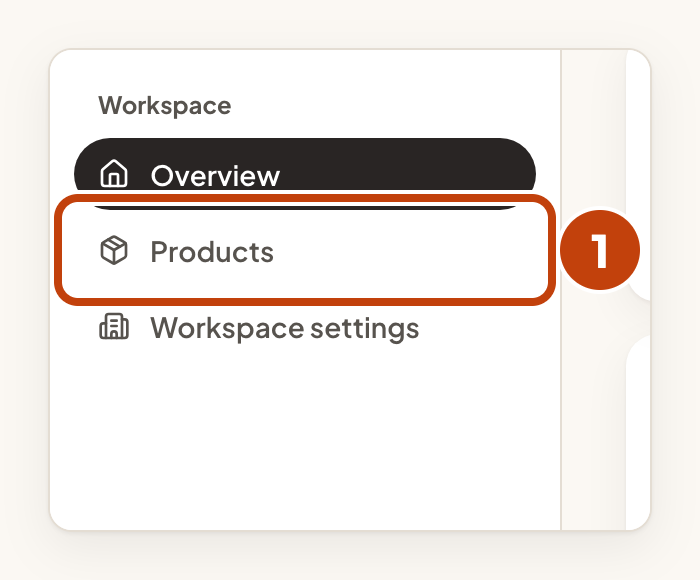
- Select Products in the sidebar.
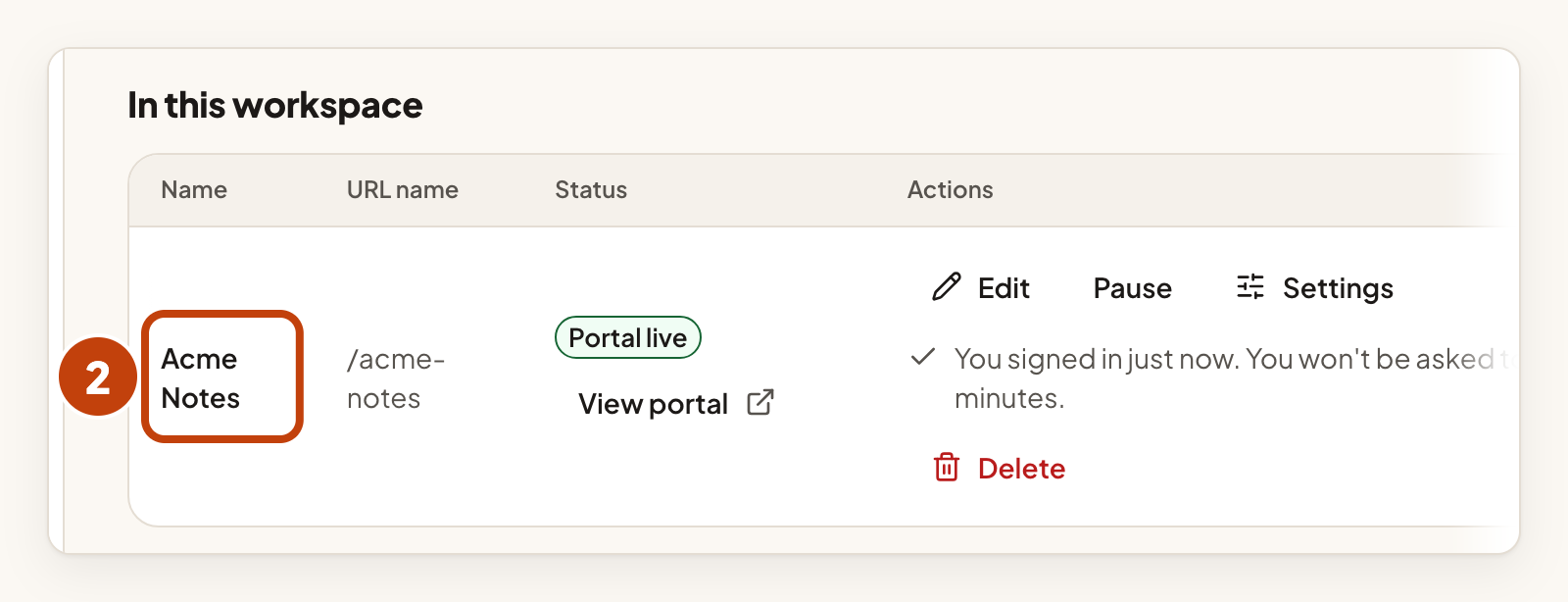
- Select your product's name.
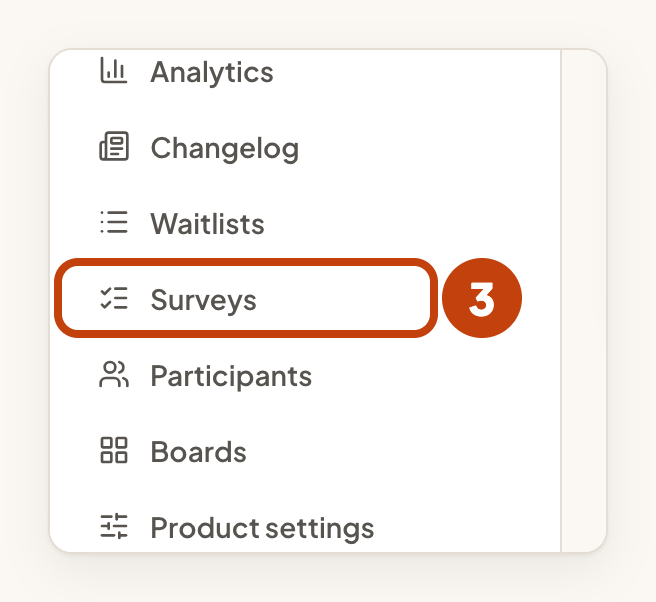
- Select Surveys in the sidebar.
- Select New survey.
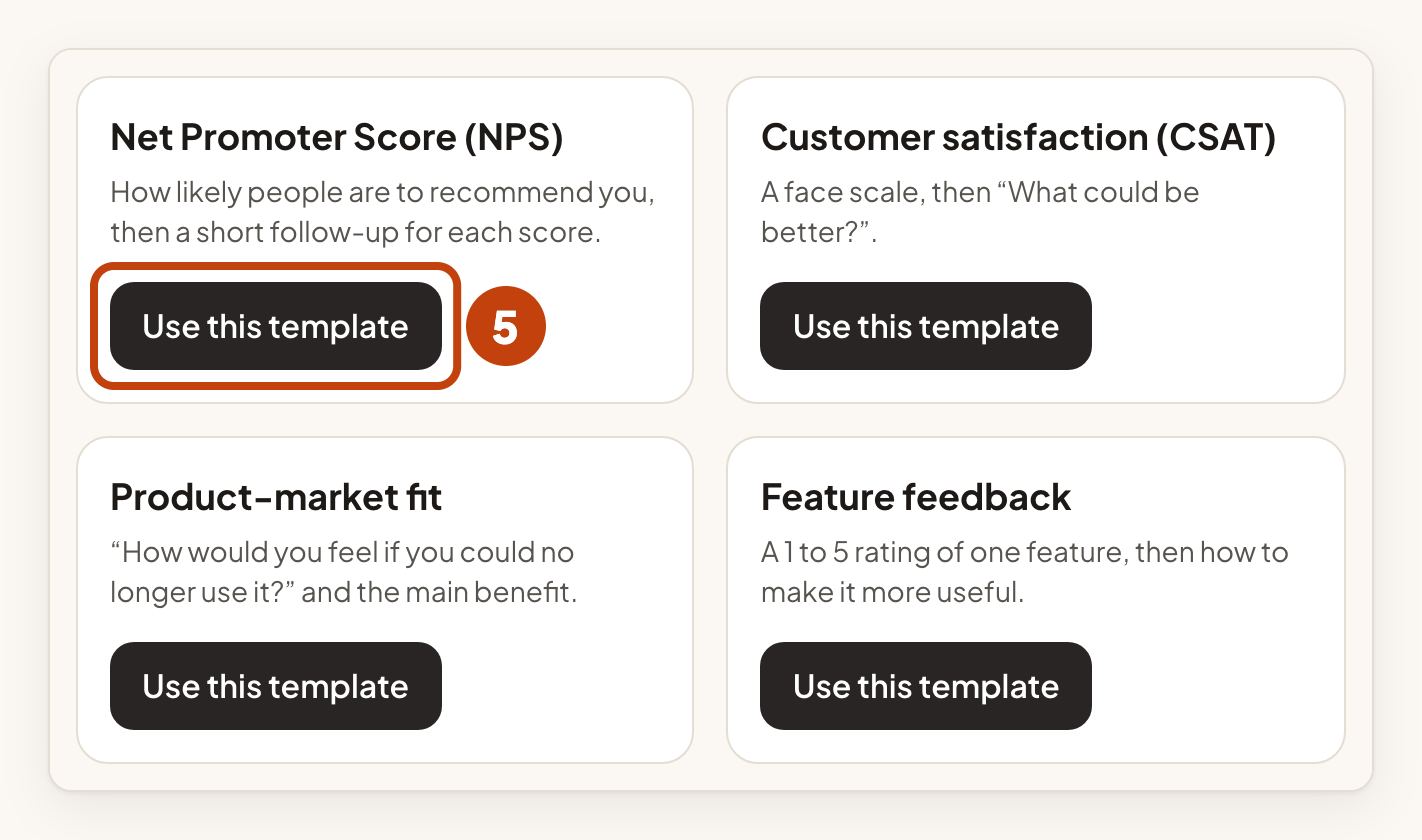
- Select Use this template under the template you want.
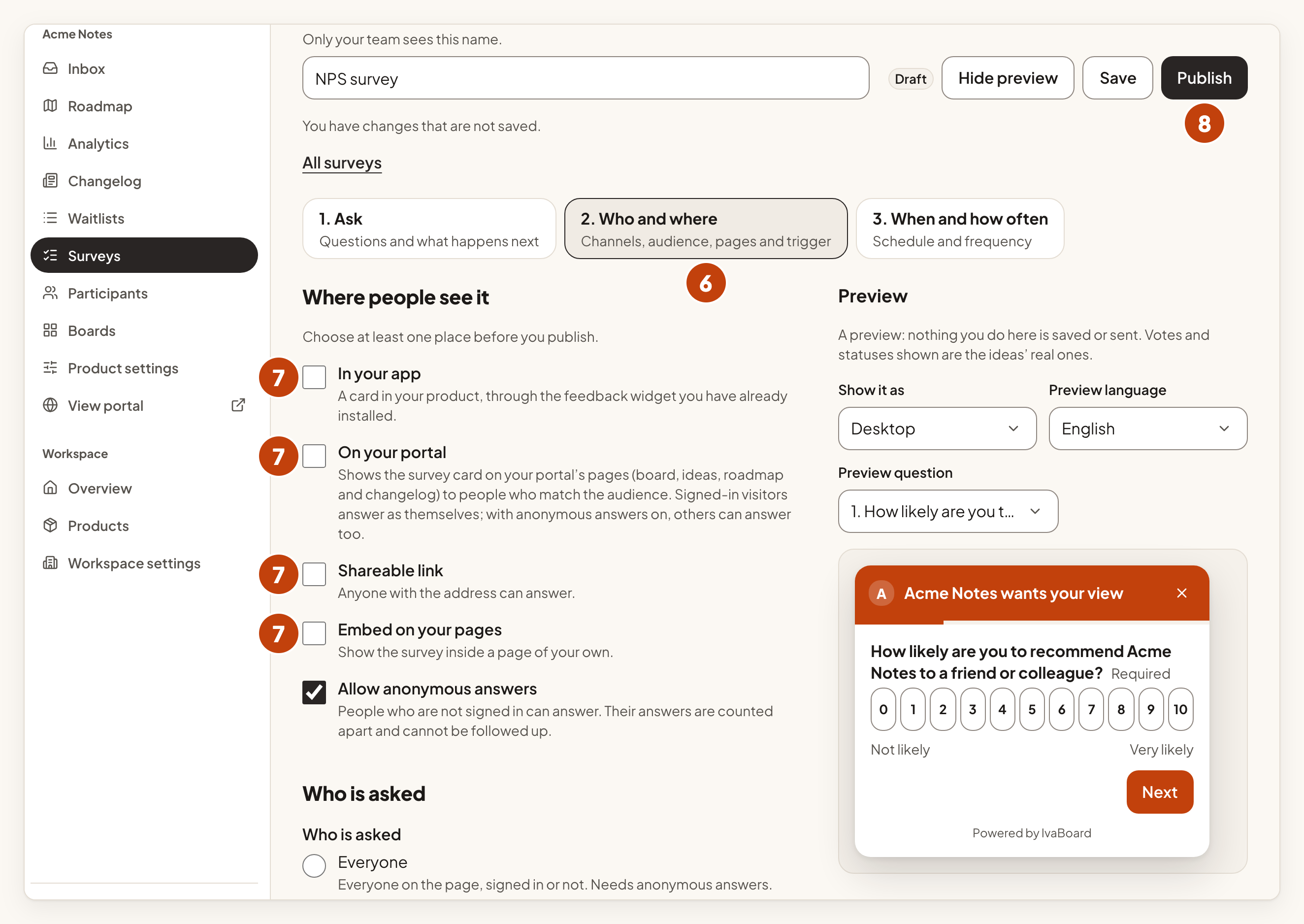
- Select 2. Who and where.
- Under Where people see it, select at least one place.
- Select Publish.

To start with one empty question, select Start from scratch in step 5 instead.
The places you can choose are:
- In your app, through the feedback widget you have already installed.
- On your portal, on the board, ideas, roadmap and changelog pages.
- Shareable link, which anyone with the address can answer.
- Embed on your pages, which shows the survey inside one of your own pages.
Each question can have a version in each language your portal offers. The default language is required, and the other languages are optional.
Until you publish a survey, nobody sees it. The survey list then shows Live.
The embed works only when Allow anonymous answers is on. A page on another site cannot sign people in to IvaBoard.
Read the answers
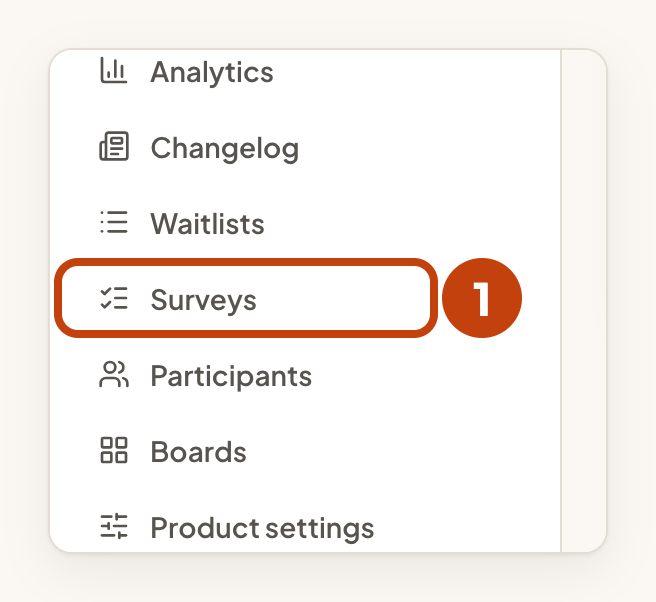
- Select Surveys in the sidebar.
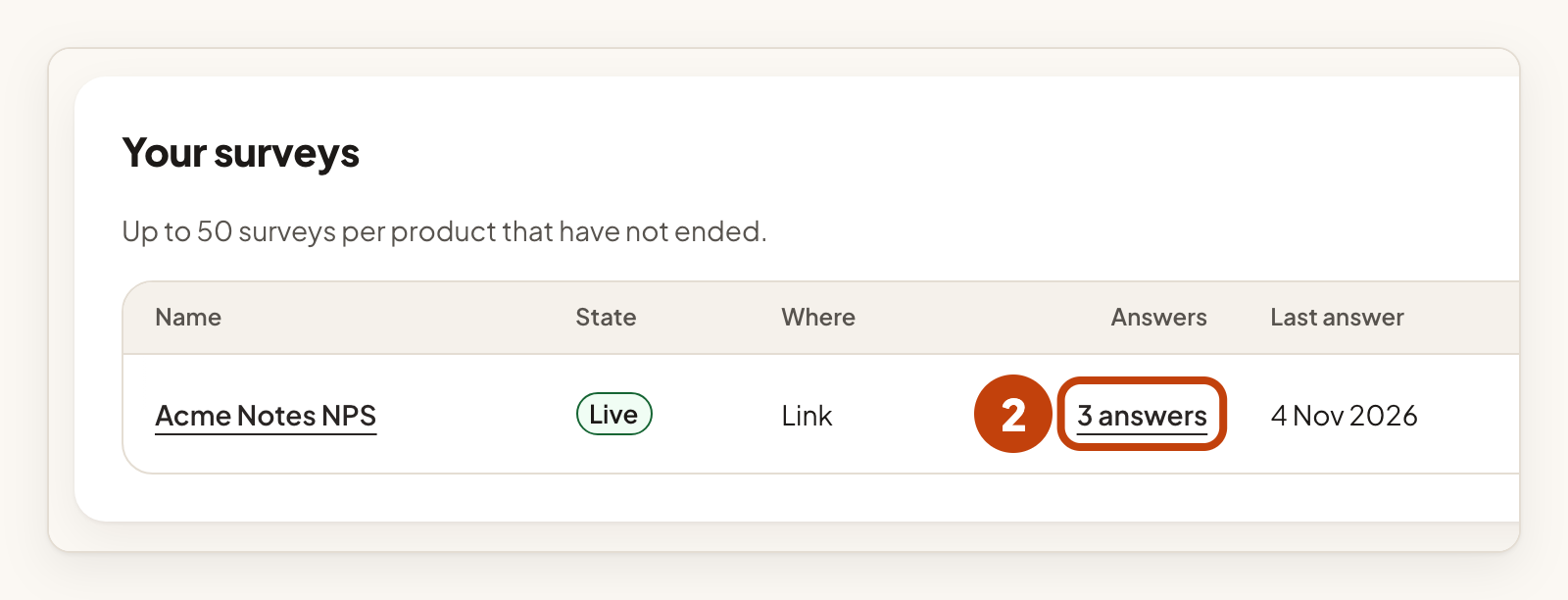
- Select the answer count on the survey's row, for example 3 answers.
- Select Answers to read each response.
- Set From and To to the dates you want.
- Select Apply filters.
- Select Download CSV to save the answers as a file.
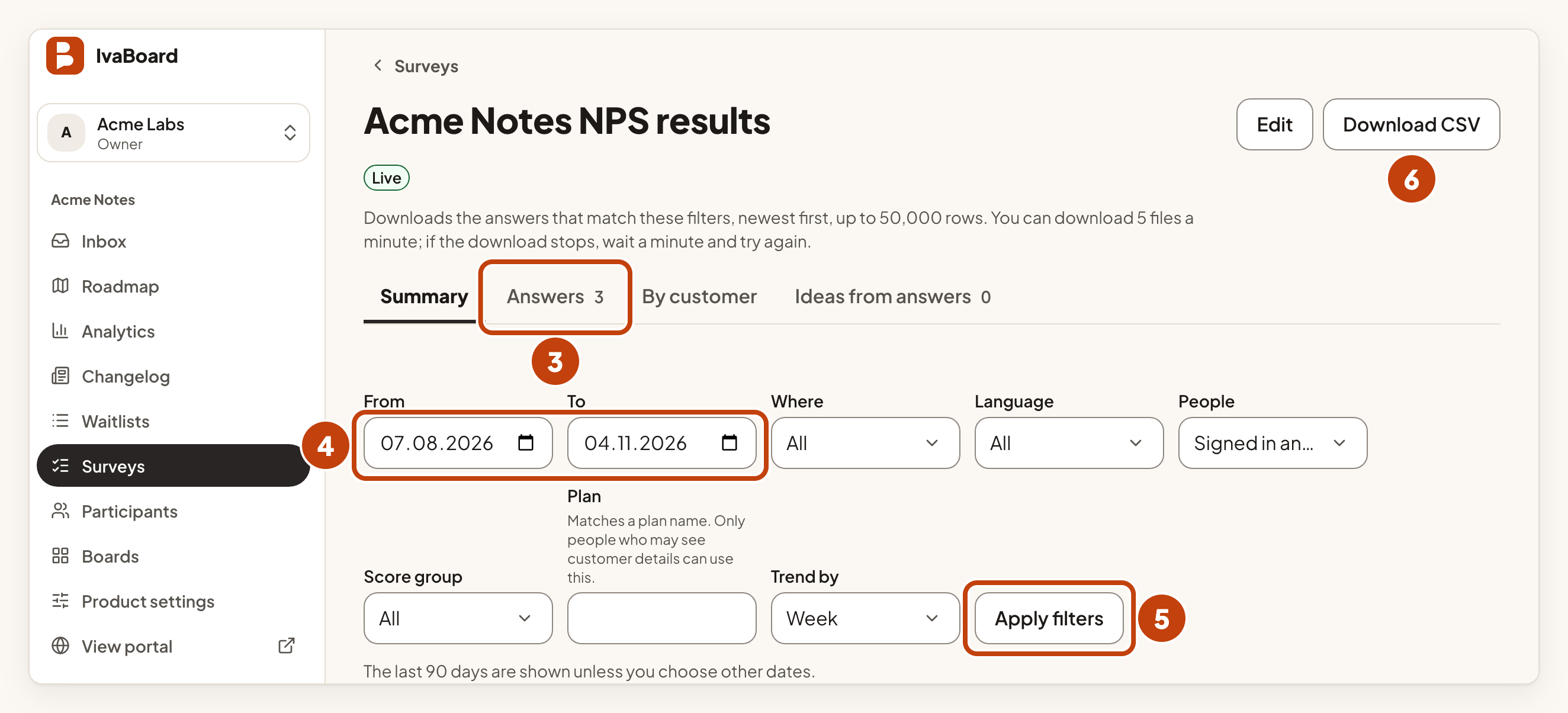
The Summary view shows the score, the trend over time and each question. The By customer view groups the answers by plan. You can also filter by Where, Language and Score group. Owners, admins and members with the Manager level see Download CSV.
Turn an answer into an idea
Open the Answers view of the survey's results first. Then follow these steps.
- Select Create idea on the answer you want to use.
- Under Board, choose the board for the idea.
- Type a title in Title.
- Select Create idea.
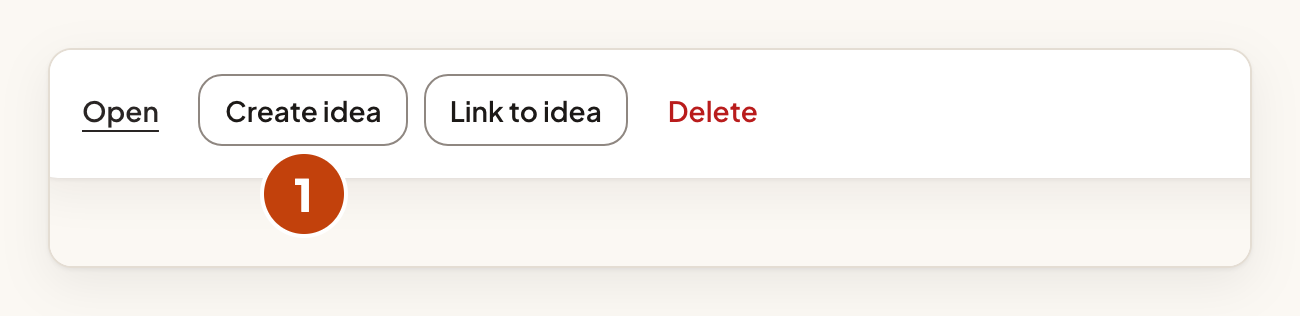
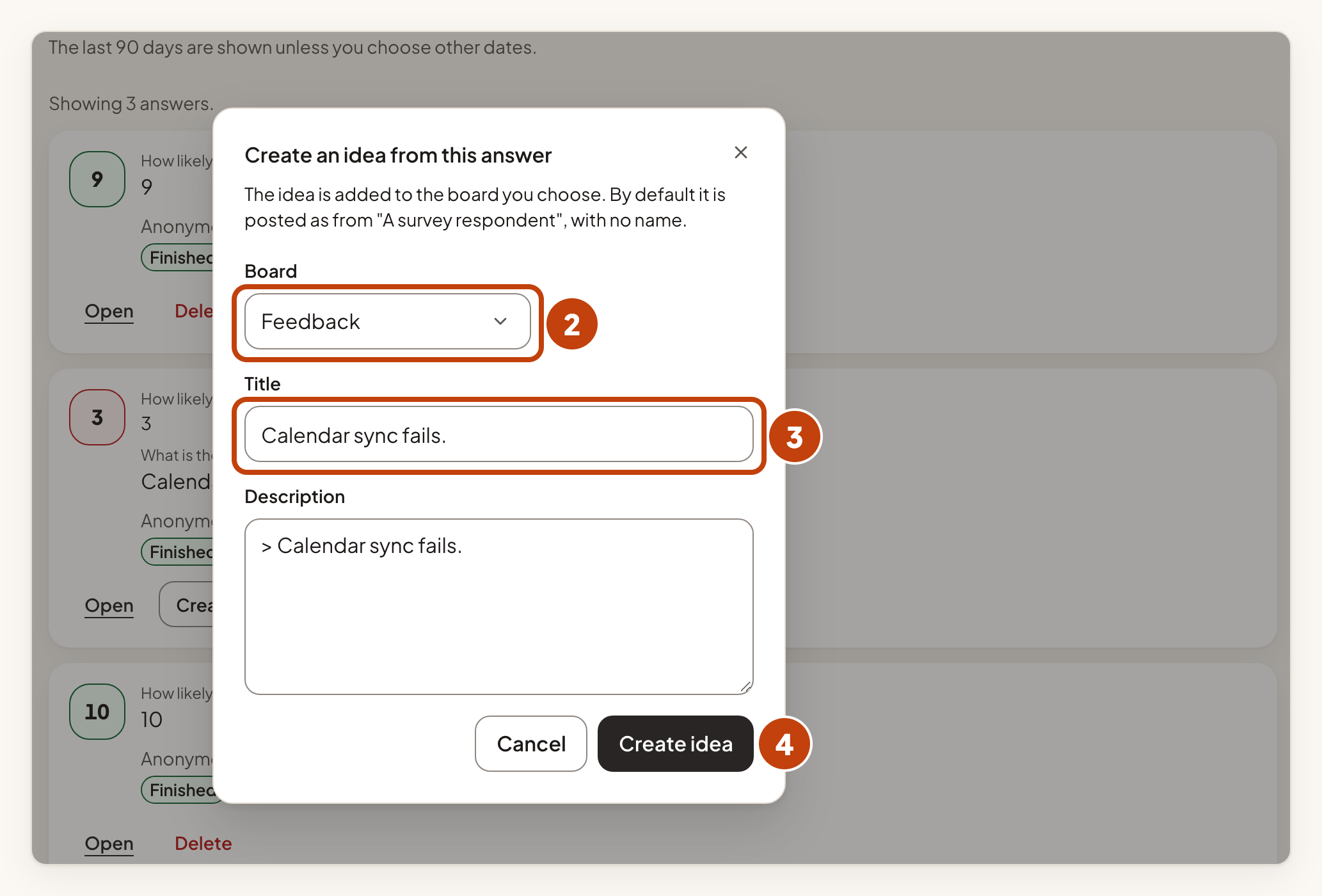
The new idea is posted as from "A survey respondent", with no name. To show the person's name, tick the box that credits the person as the author. To add the answer to an idea that already exists, select Link to idea instead. Only owners, admins, managers and moderators see Create idea and Link to idea.
Example
For example, Sam creates an NPS survey for Acme Notes and shows it In your app. A customer gives a score of 3 and writes that calendar sync fails. Sam opens Answers, selects Create idea on that answer, chooses the board Feedback, keeps the title "Calendar sync fails." and selects Create idea.
