Use your own domain for your portal
A custom domain shows your feedback board, roadmap and changelog at an address you own, such as feedback.example.com, instead of IvaBoard's address. You add the domain in the console, create the DNS records the page shows, and IvaBoard checks them and sets up the secure certificate. IvaBoard still runs the portal for you: a custom domain is not self-hosting. A custom domain does not remove IvaBoard's name. For that, see White-label.
Who can use it
Custom domains are included in Growth, Scale and every Lifetime White-label plan. Starter and the Lifetime Hosted plans do not include them. See the pricing page for the full list.
- Owners and admins can add, check, retry, make primary and remove domains.
- A product manager, a member with the Manager access level on the product, can see the domains and copy their DNS records. A product manager cannot change them.
- If the page says Custom domains are not enabled for this workspace, IvaBoard support turns them on. Select Email IvaBoard support to ask.
- If the page asks you to sign in again before a change, sign in. You come back to the page with what you entered.
Add a domain
Use a subdomain, such as feedback.example.com. A bare domain such as example.com is refused, and so is an IP address. You need access to the DNS settings of your domain, often at the company you bought it from or at a service such as Cloudflare.
- Select Product settings for your product.
- Select Domains and white label in the settings menu.
- Select Add a domain to open the form.
- In Domain, enter the address you want, such as
feedback.example.com. - Choose the role for this address.
- Select Add domain.
- At your DNS provider, create the Ownership record, which is a TXT record.
- At your DNS provider, create the Routing record that the page shows.
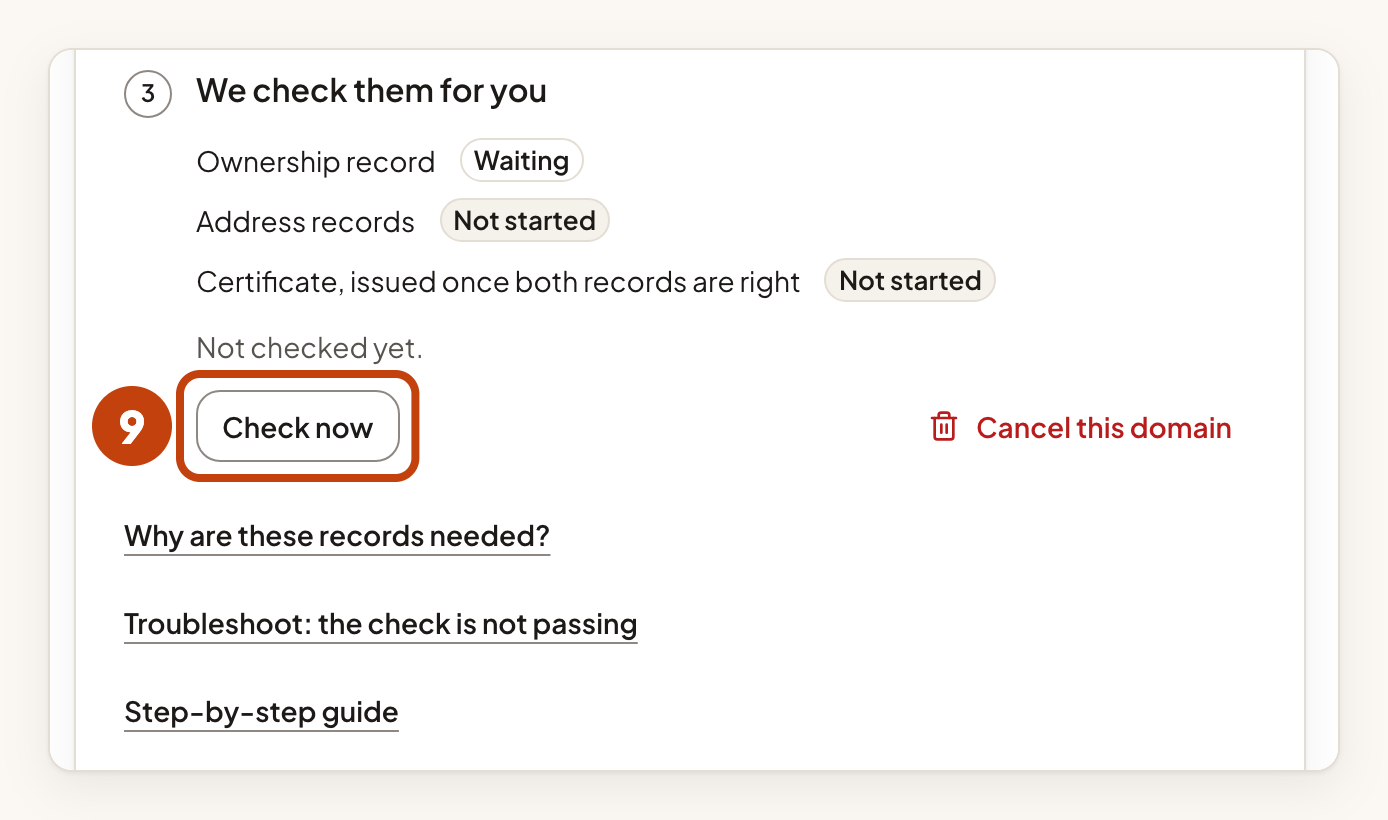
- Select Check now.
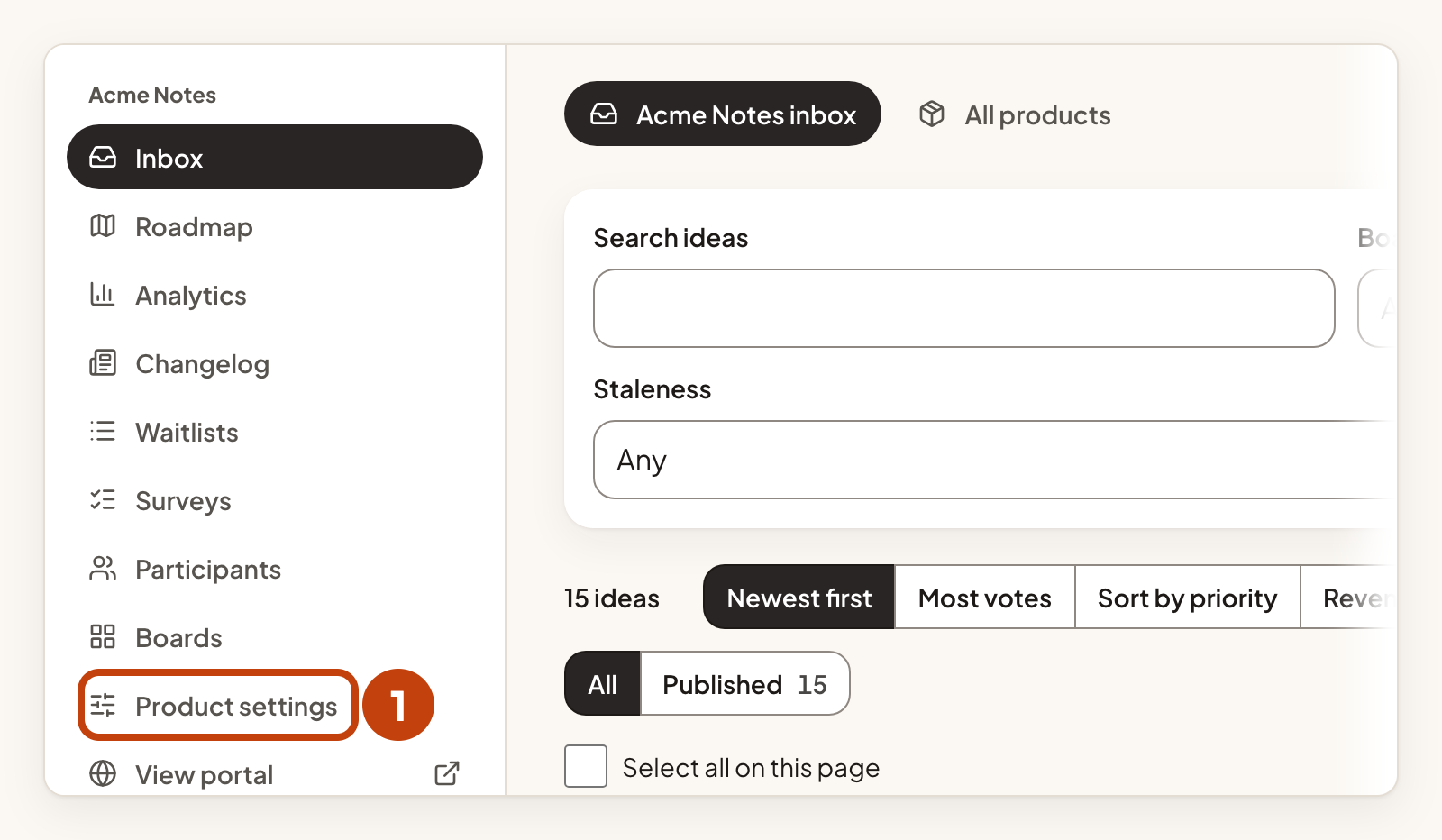
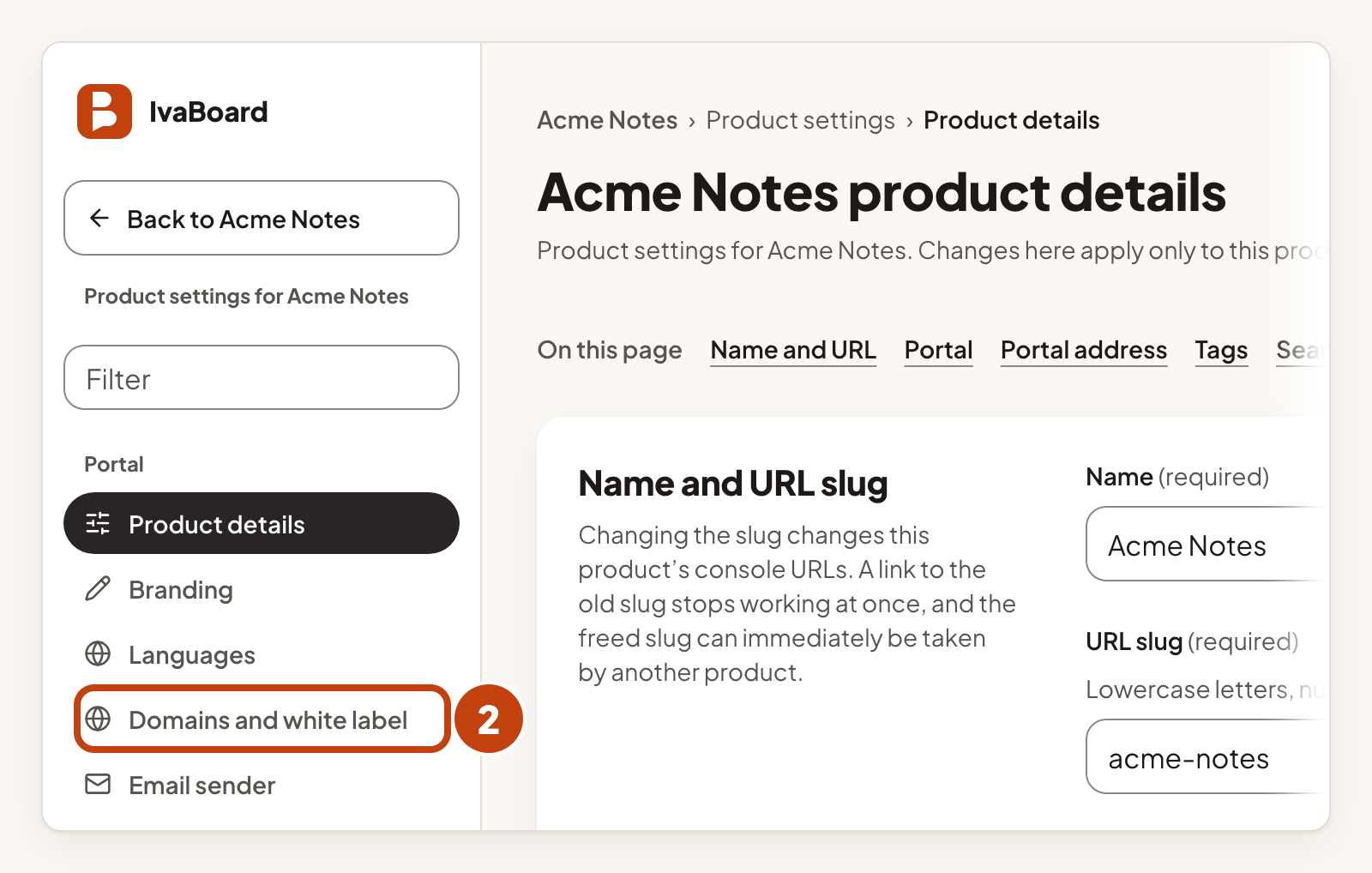
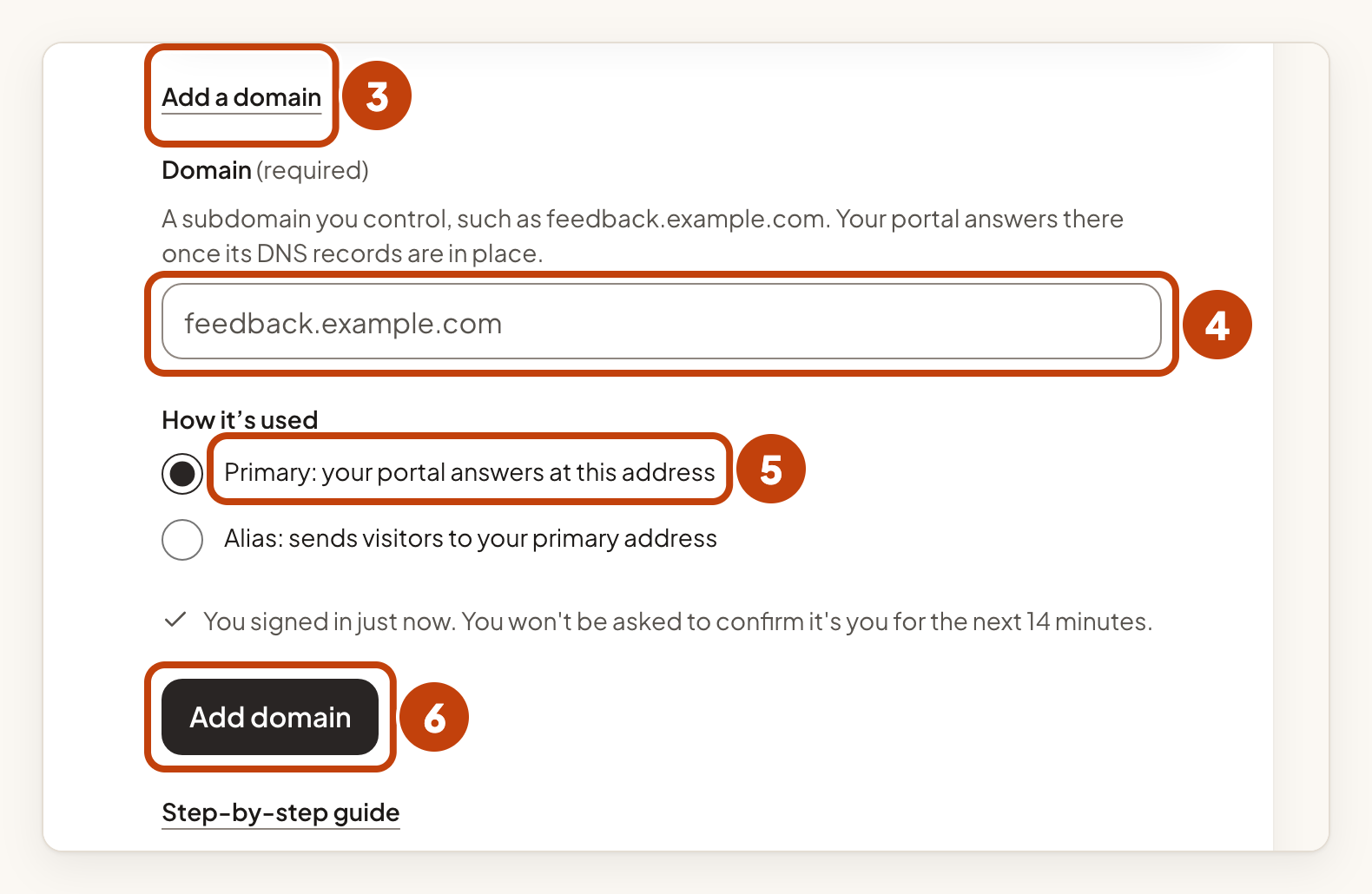
If you have no domains yet, the form is already open, so skip step 3. The role choice appears under How it’s used only when your product has no primary domain yet. Then choose Primary: your portal answers at this address for your main address. If the product already has a primary domain, the new domain is added as an alias, and you do not see the choice. An alias sends visitors to your primary address.
Create the DNS records
The page shows the records to create at your DNS provider. Copy each name and value exactly as shown. If the page shows a shorter name for your DNS zone, you can use that instead.
- The Ownership record is a TXT record. It proves the domain is yours. Keep it for as long as you use the domain.
- The Routing record points your address at IvaBoard. It is a CNAME record. Some setups show Address records instead.
If your DNS is at Cloudflare, the routing record (the CNAME) can be Proxied (the orange cloud) or DNS only (the grey cloud). The page links to Cloudflare's own explanation under If your DNS is at Cloudflare.
A short TTL, such as 5 minutes, lets a correction take effect sooner.
Wait for it to go live
IvaBoard checks automatically. Changes usually show within minutes, sometimes up to a day. The status badge reads Waiting for records until IvaBoard finds your TXT record. It then reads Verifying, and Active when your portal answers at the address. Suspended and Failed come with a reason on the page.
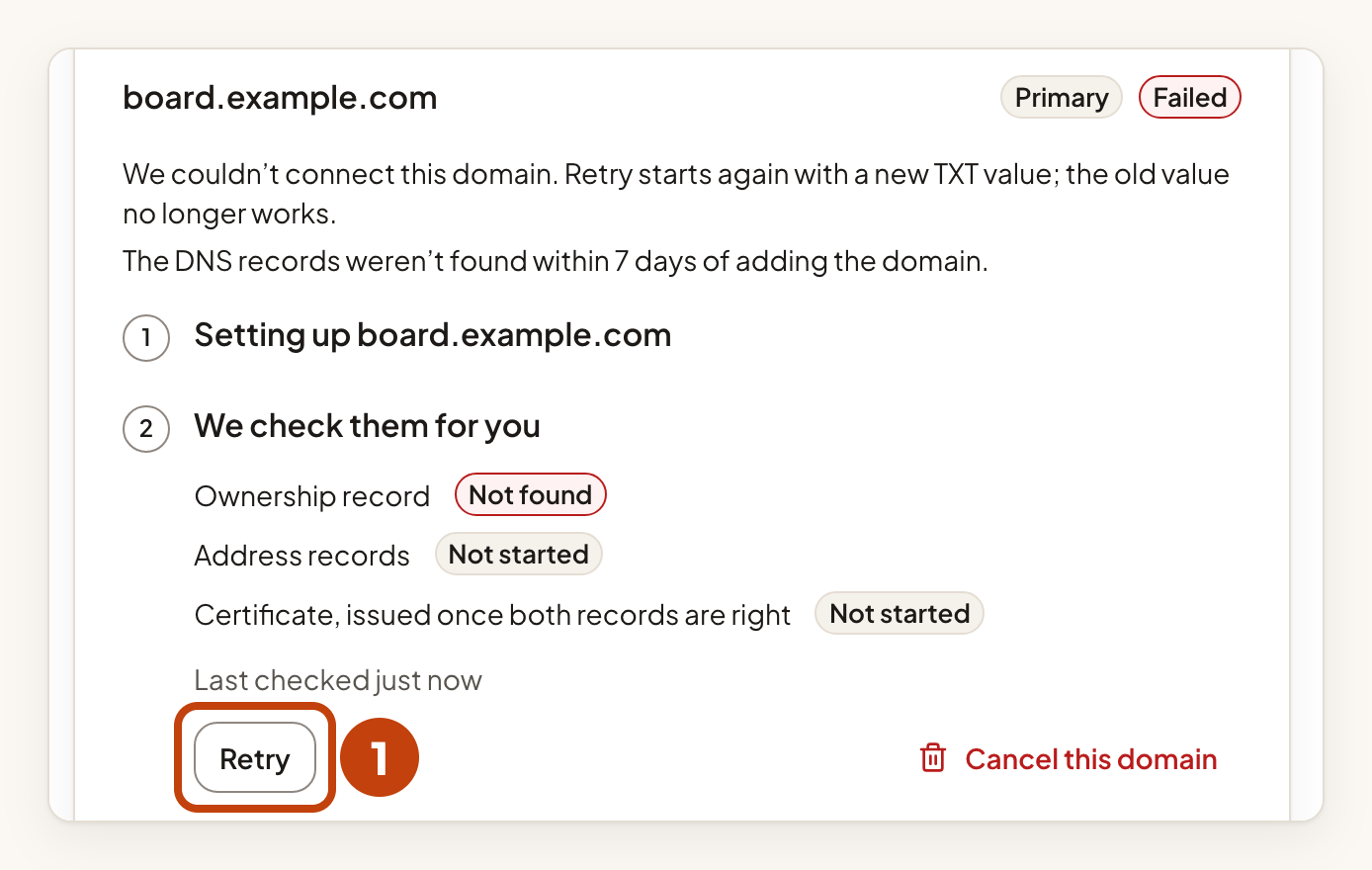
Select Check now to ask for a check sooner. Your workspace can add up to 10 new domains a day and ask for 30 checks an hour. If the TXT record is never found within 7 days, the attempt fails. Select Retry to start again with a new TXT value.
If a domain stops working
A domain is Suspended when its TXT record is missing from your DNS in two checks a day apart. Put the record back, then select Check now. A domain that stays suspended for 30 days is removed.
Manage a domain
Make a domain your primary
- Select More for the domain.
- Select Make primary.
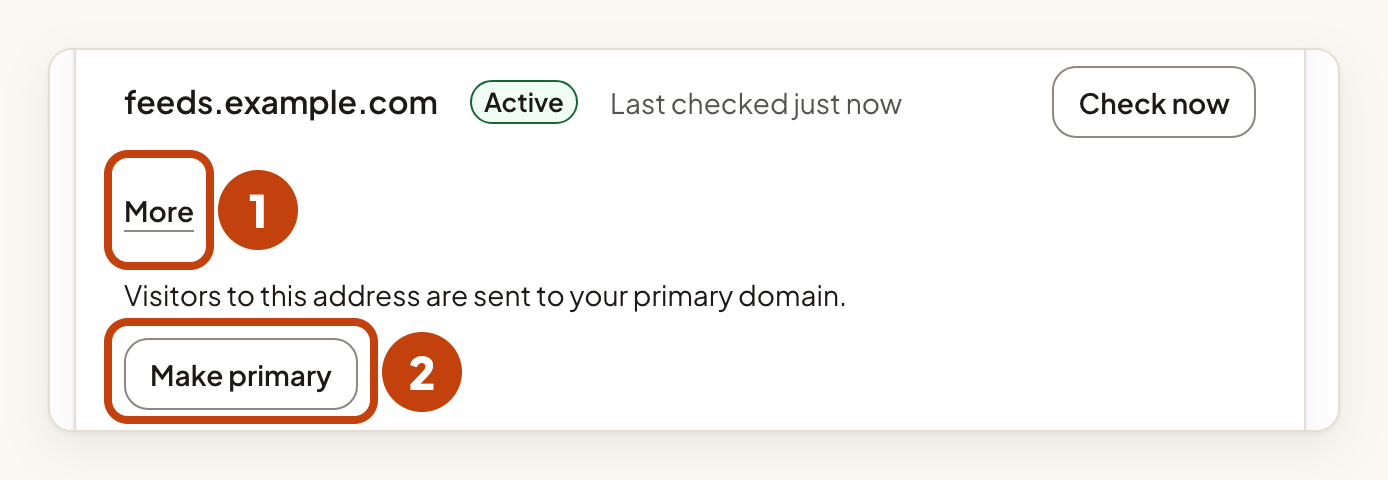
Make primary turns an alias into your main address. Any other domain of the product then sends visitors to it.
Remove a domain
- Select More for the domain.
- Select Remove.
- Select Remove domain to confirm.
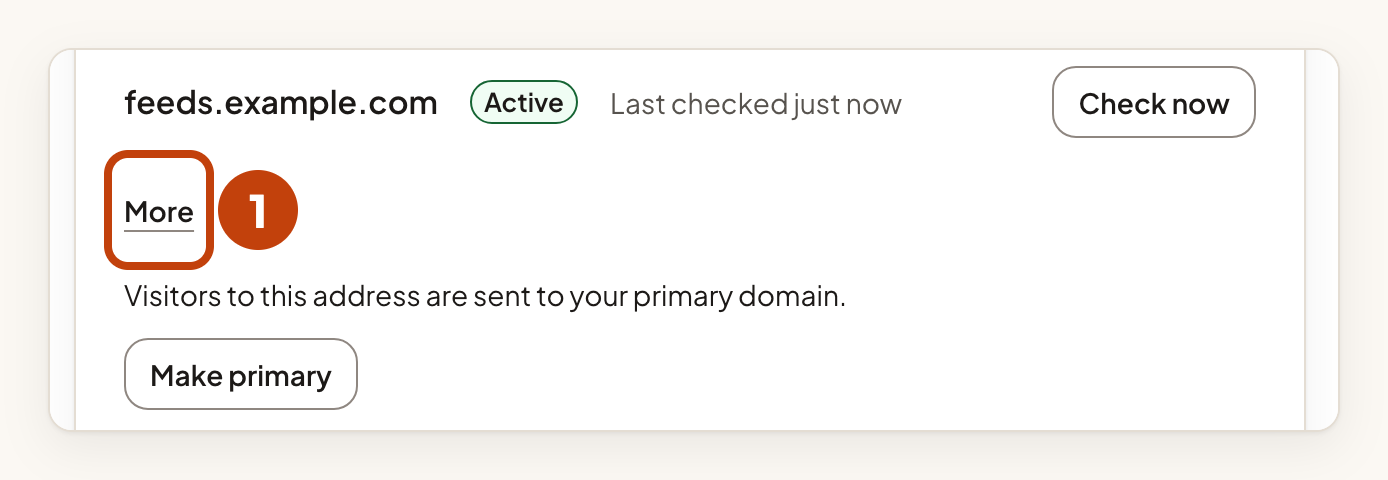
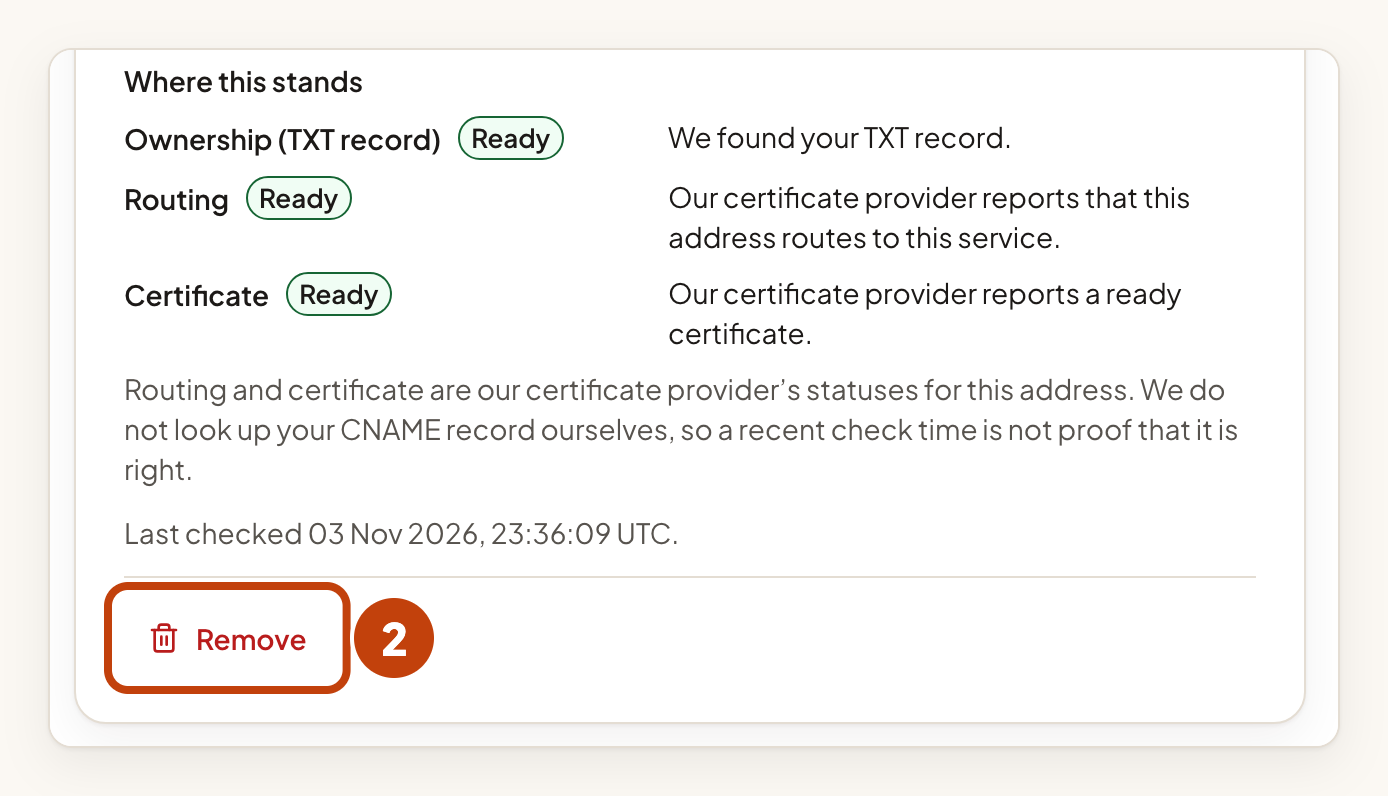
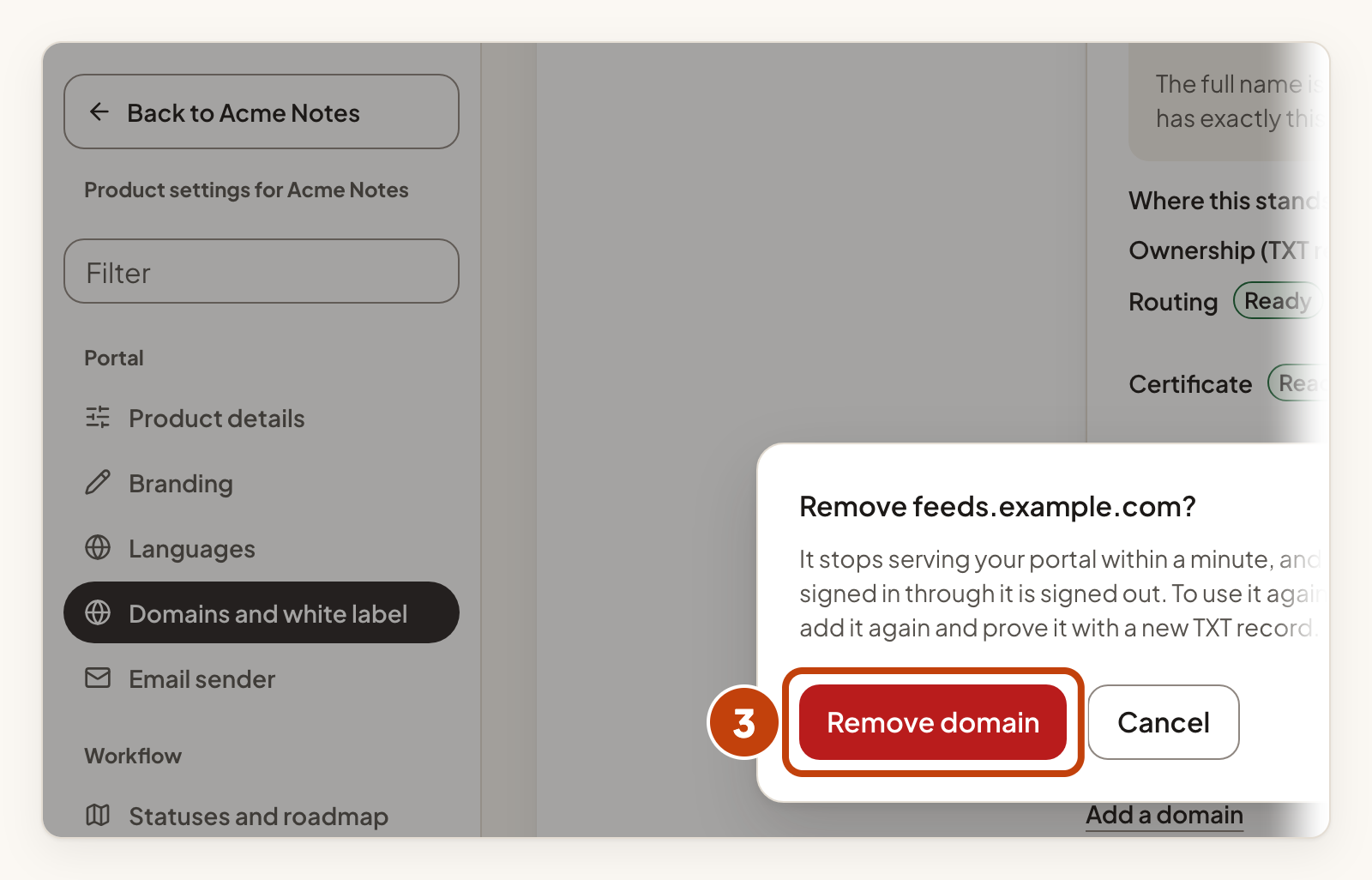
Removing a domain stops it serving your portal within a minute. Anyone signed in through it is signed out. To use the address again, add it again and prove it with a new TXT record.
For a domain that is still being set up, select Cancel this domain instead of Remove.
Start again after a failed check
- Select Retry for the domain.
- At your DNS provider, delete the old TXT record.
- At your DNS provider, create the new TXT record that the page shows.
Example
For example, Sam is an owner at Acme Labs. Sam wants the Acme Notes portal on feedback.example.com. Sam opens Product settings, then selects Domains and white label. Sam enters feedback.example.com in Domain and selects Add domain. Sam creates the two records at the DNS provider, then selects Check now until the badge reads Active.
