Sign your users in to the portal from your app
Your users already sign in to your product. With sign-in from your product, they select a button that reads Continue with and your provider name on your portal. Your server confirms each user with a one-time ticket, and they return to the portal signed in.
This article is for your developers. The full reference is on the developers page.
Who can use it
Every plan includes this. Only workspace owners and admins can set it up and create the key.
Set up sign-in
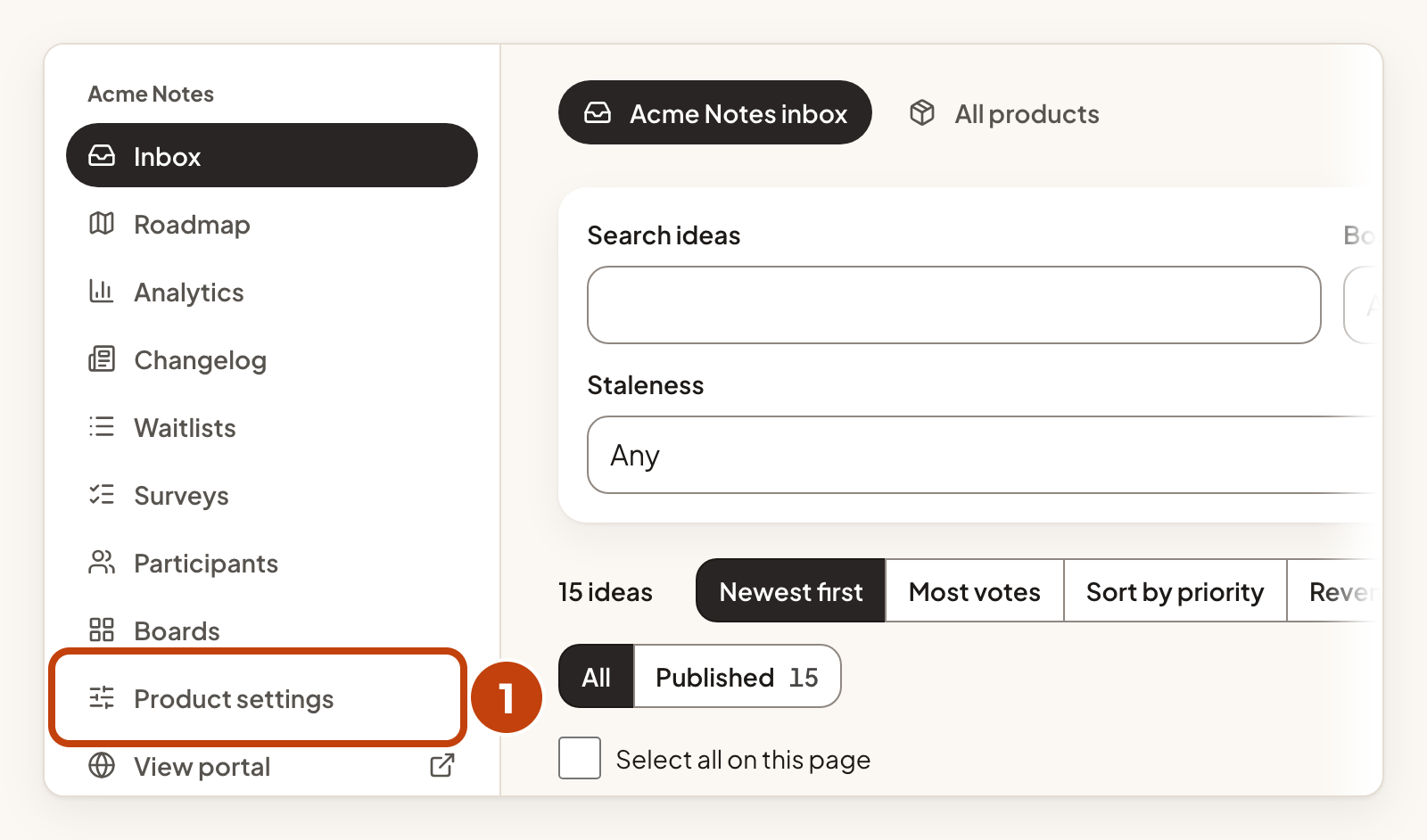
- Select Product settings under your product in the left menu.
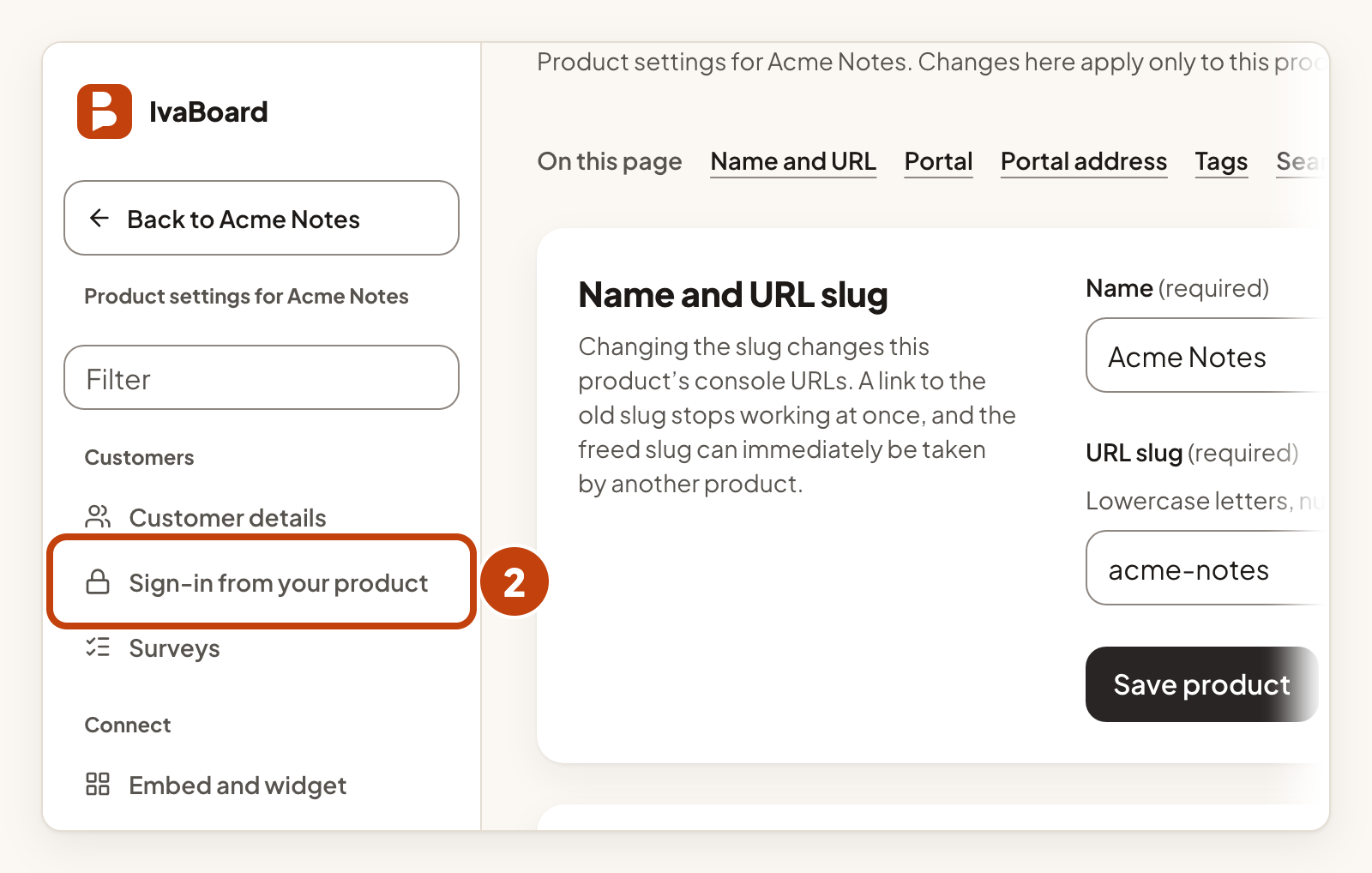
- In the Customers list, select Sign-in from your product.
- Enter a Provider name.
- Enter your Sign-in URL.
- Tick Active.
- Select Save.
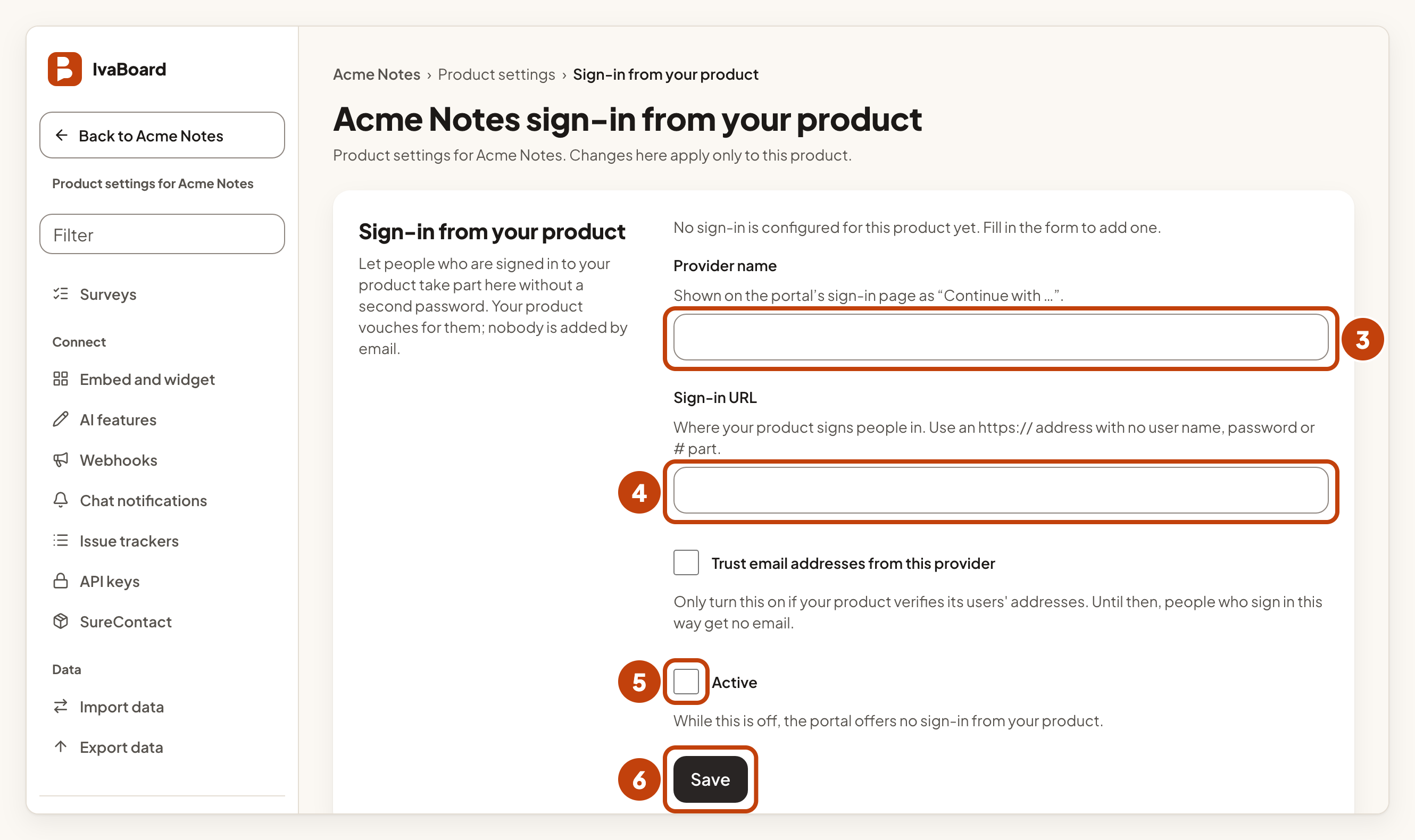
The provider name appears on the portal's sign-in page. The sign-in URL must start with https:// and must not contain a user name, a password or a # part. While Active is off, the portal offers no sign-in from your product. IvaBoard never calls your sign-in URL. Only the user's browser goes there.
Tick Trust email addresses from this provider only if your product checks that its users' addresses are real. Until then, people who sign in this way get no email, and no address is stored. An email address is never used to find or merge people.
Create the key
Sign-in uses its own kind of key. Create it from the API keys page.
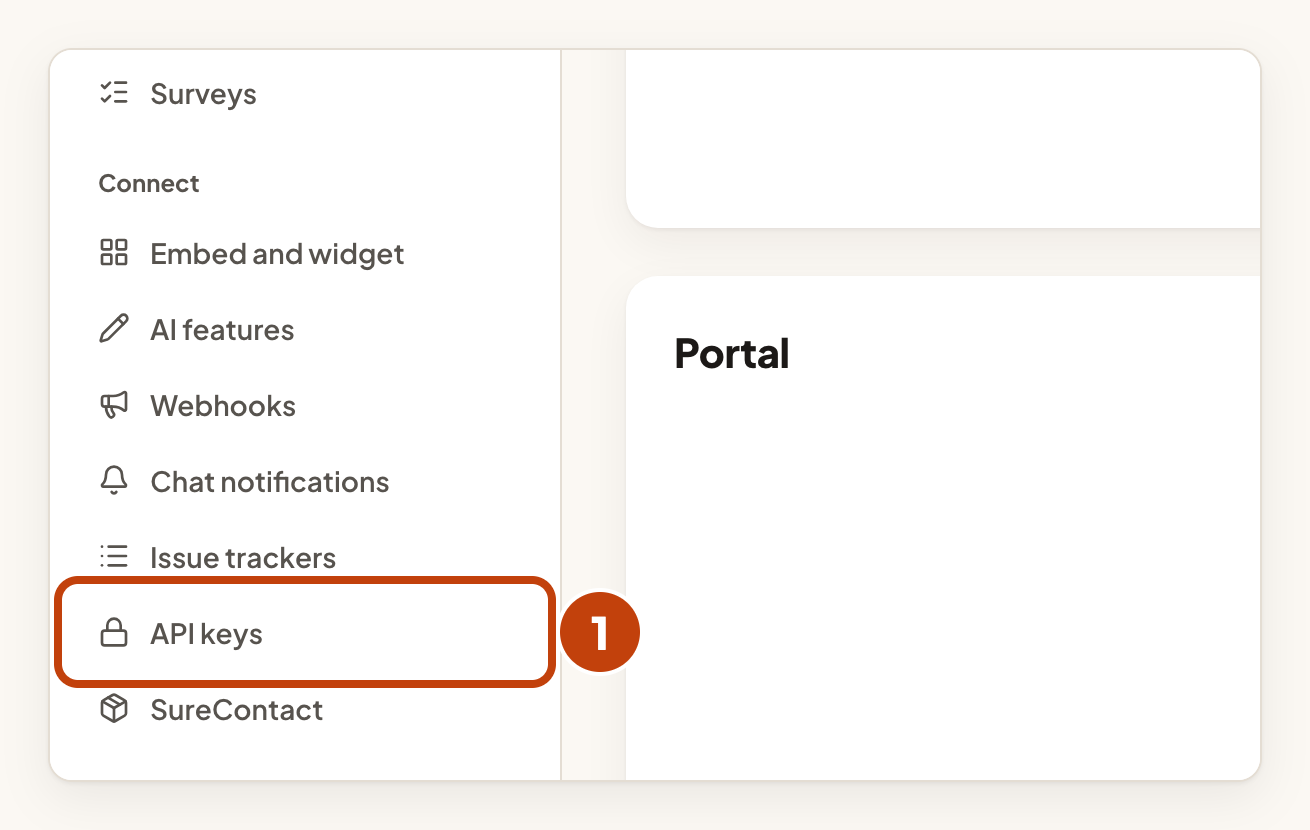
- In the Connect list, select API keys.
- Select New API key.
- Under What should it do?, select Sign people in from your product.
- Select Create API key.
- Select Copy key.
- Save the key in your server's secret settings.
- Select I saved it.
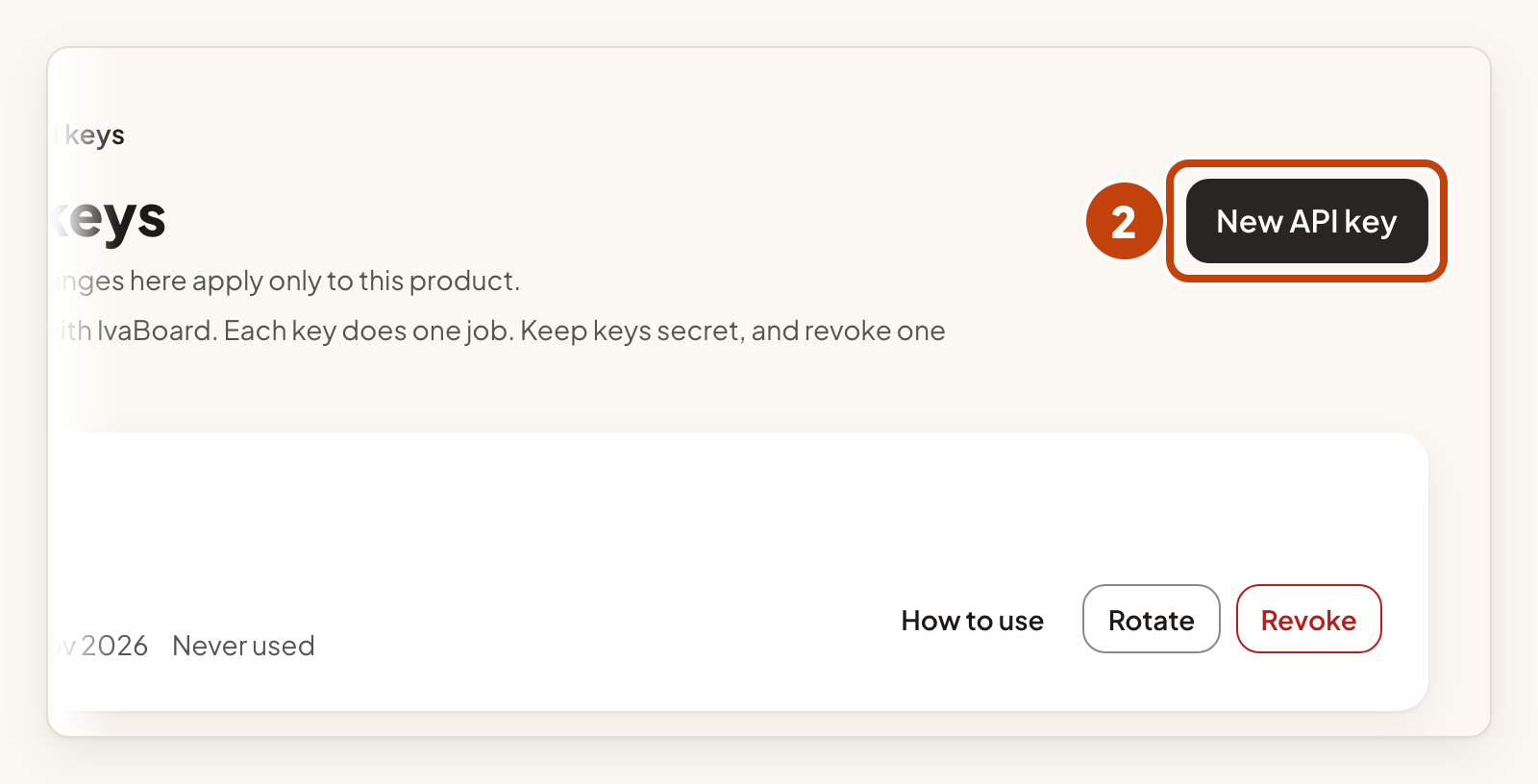
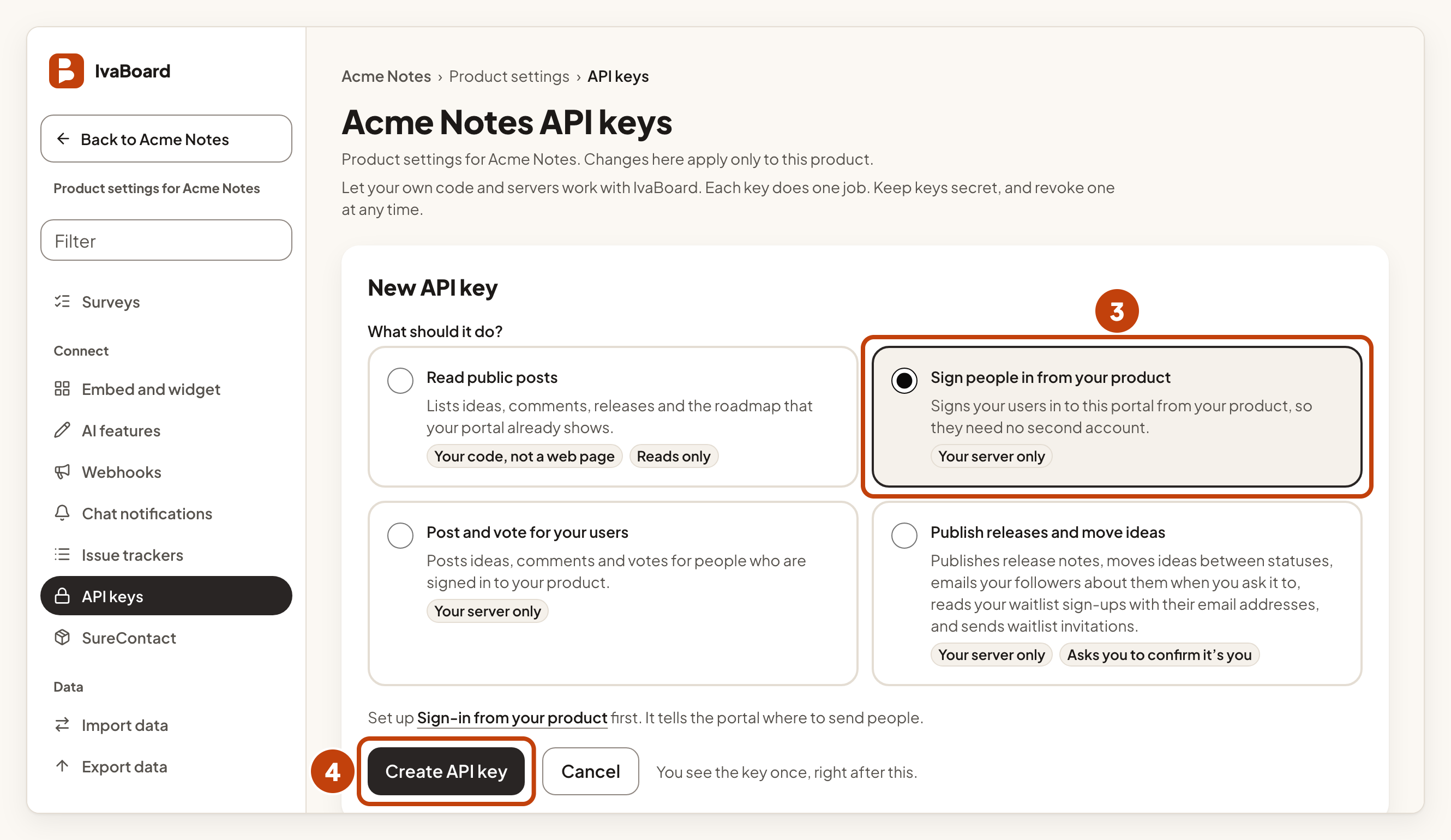
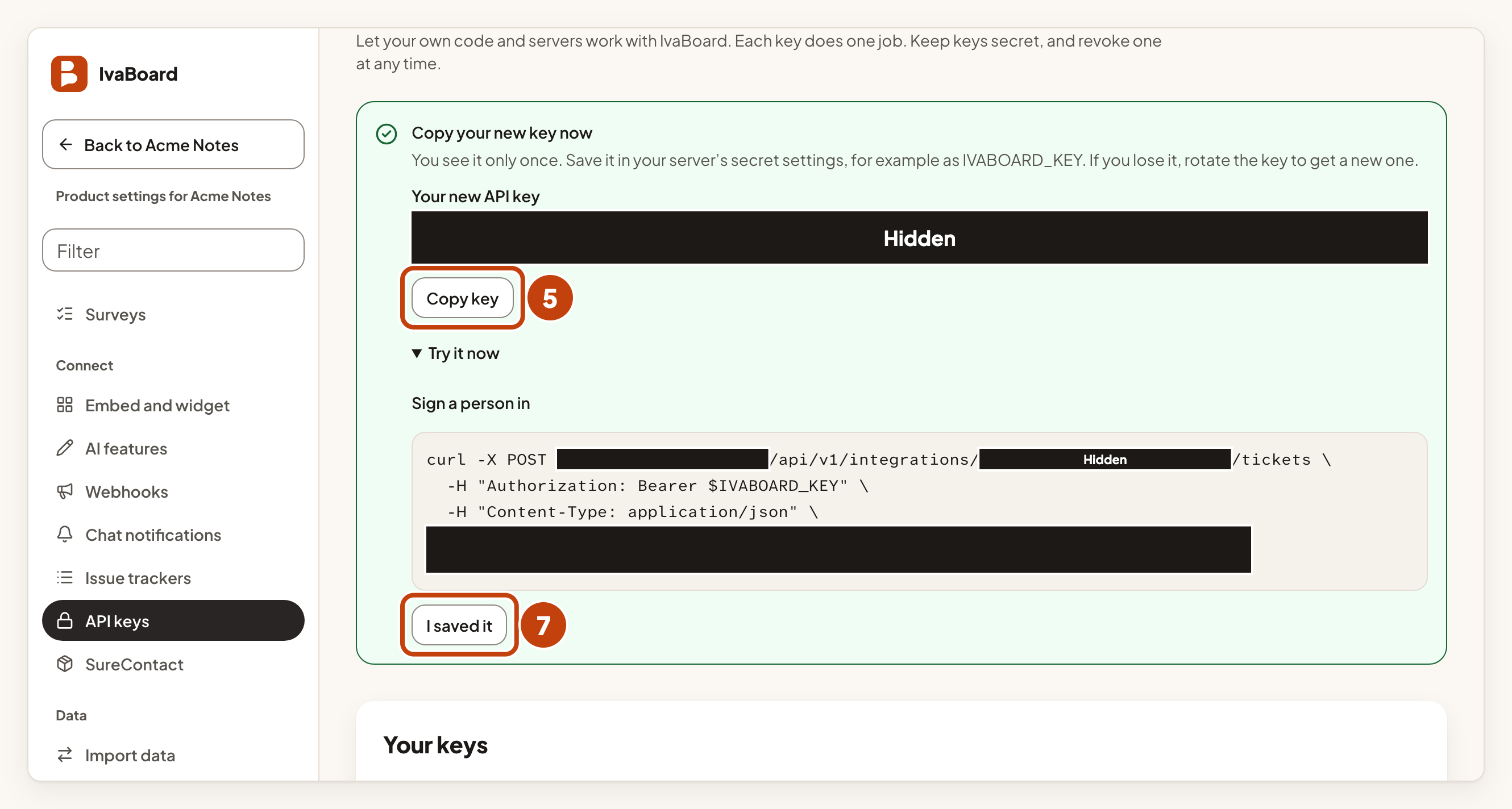
The key is shown only once, so save it before you select I saved it.
What your server does
When a user selects Continue with on the portal, the browser goes to your sign-in URL with a one-time state value added. Your server then does this:
- Sign the user in the way your product always does.
- Call the tickets address from your server.
- Check that
redeemUrlin the answer starts with your portal's address. - Redirect the browser to
redeemUrl.
The tickets address is POST https://app.ivaboard.com/api/v1/integrations/YOUR_PUBLIC_PRODUCT_KEY/tickets. Send the header Authorization: Bearer followed by your key, and a JSON body with these fields:
| Field | Required | Notes |
|---|---|---|
state | Yes | Exactly the value the browser brought. |
externalUserId | Yes | Your own stable id for the user, up to 255 characters. This is the identity. |
displayName | No | Shown on the portal, up to 60 characters. |
email | No | Kept only when Trust email addresses from this provider is ticked. |
The answer contains redeemUrl and expiresAt.
Your public product key is the part after /p/ in your portal address.
Do not log redeemUrl or show it to anyone. It carries the ticket.
How long things last
| What | Length |
|---|---|
| The ticket | 60 seconds, used once |
| The round trip through your product | 10 minutes |
| The portal session | 24 hours. After that, the user signs in again. |
When someone leaves your product
Call POST https://app.ivaboard.com/api/v1/integrations/YOUR_PUBLIC_PRODUCT_KEY/sessions/revoke with the same key and a body of { "externalUserId": "..." }. This ends the portal sessions that came from your product for that user.
Signing out of your product does not sign anyone out of the portal by itself. Call this from your own sign-out code if you want both to end.
Rules for the key
- It is for your server only. A request that carries a browser cookie next to the key is refused.
- It works for one product, and only for sign-in. It can create tickets and end sessions. It cannot read or write anything else.
- Calls are limited to 60 a minute per key.
- To replace the key without downtime, select Rotate on the API keys page. If the key may have leaked, select Revoke instead.
Example
For example, Sam at Acme Notes sets the Provider name to Acme Notes and the Sign-in URL to https://app.example.com/sign-in. A user who selects Continue with Acme Notes on the portal lands on Sam's sign-in page. After Sam's server signs the user in, it calls the tickets address and sends the browser to redeemUrl.
