Publish a changelog update
A changelog entry tells your customers what you have shipped. You write it as a draft, link it to the ideas it delivers, and publish it now or on a date you choose. Published entries appear on your portal's changelog page, newest first.
Who can use it
Every plan includes the changelog. An owner, an admin, or a team member with the Manager role on the product can write, edit and publish entries. A team member with the Moderator role can write and edit drafts but cannot publish. Anyone can read the published page.
Write an entry
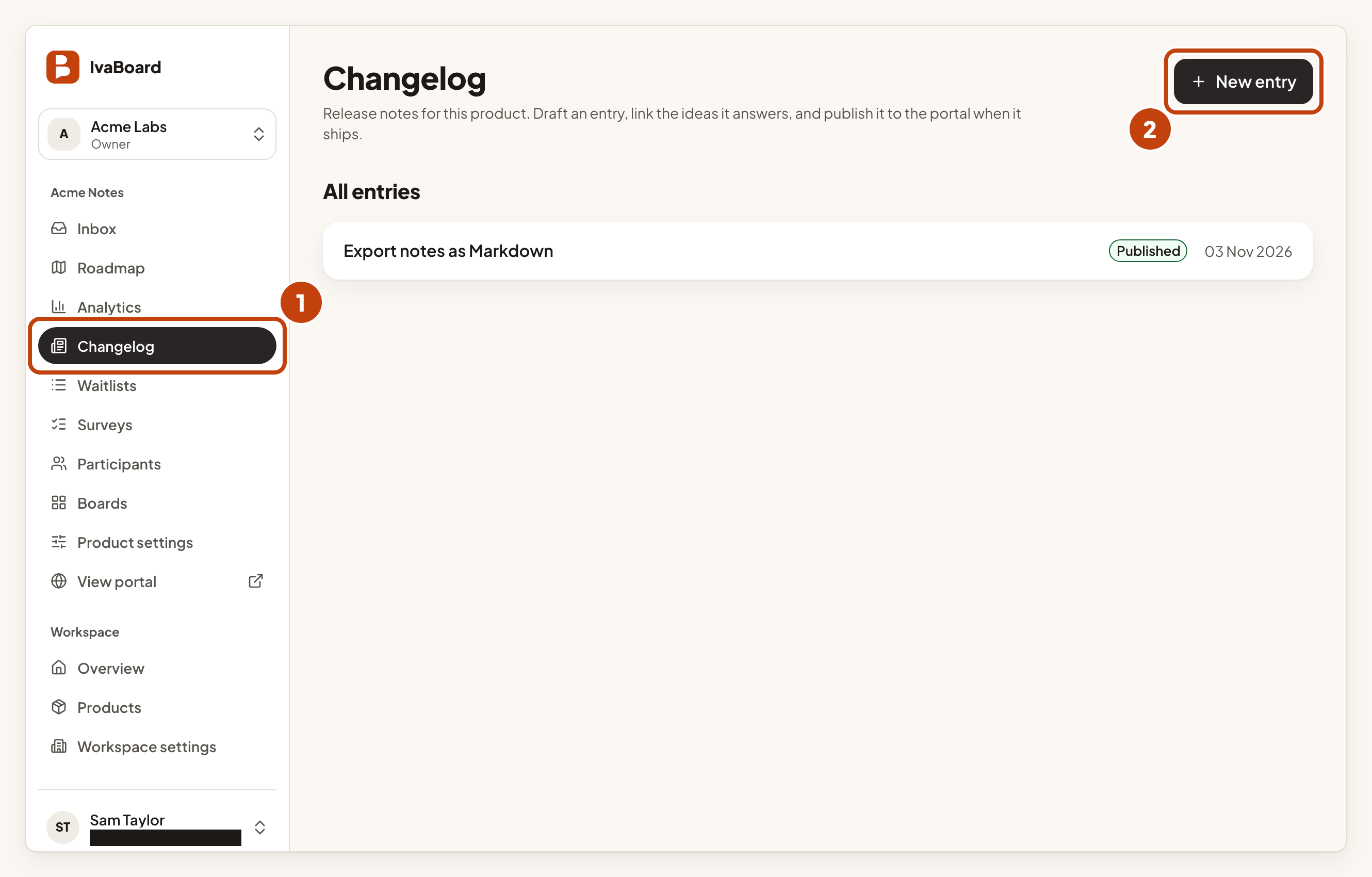
- Open Changelog in the console menu.
- Select New entry.
- Type a Title. It can be up to 200 characters.
- Look at the address under the title. It is the entry's public address, made from the title. To change it, select Edit.
- Write the update in the Update box. Visual shows the formatting the way readers will see it. Choose Markdown to type the formatting yourself. In Markdown mode the box is called Update (Markdown). You can use up to 24,000 characters.
- Under Linked ideas, search for the ideas this update delivers, then select each one. You can link up to 50 ideas. A private idea never shows as a link to readers.
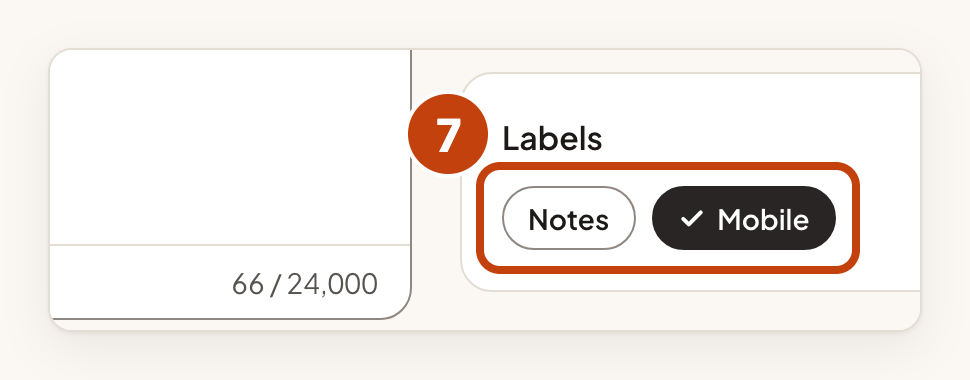
- Under Labels, select the labels you want. You can choose up to 20. Labels are the tags you set up in your product's settings.
- Select Save draft.
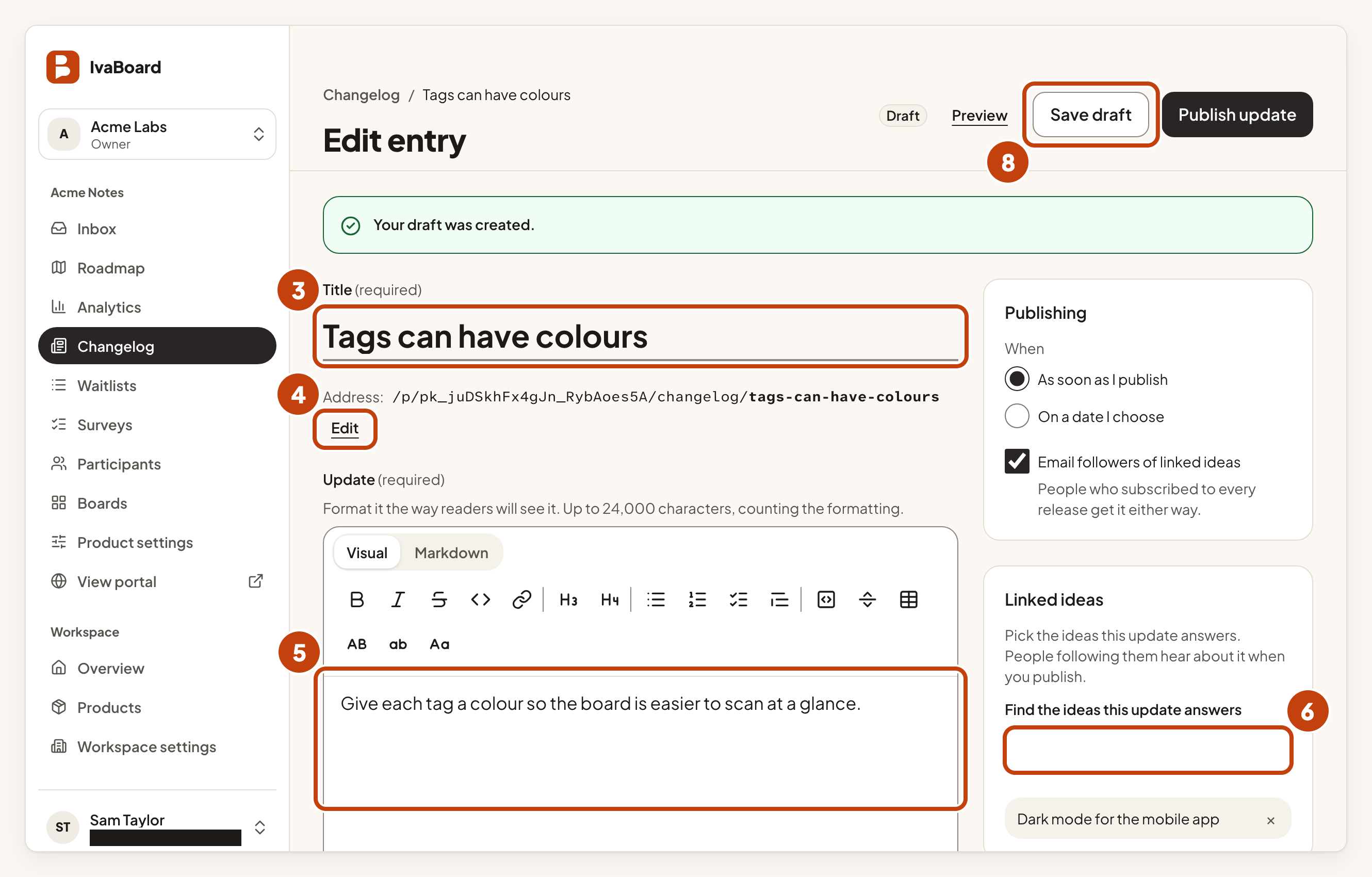
Your draft is saved, and only your team can see it. On a new entry, Publish update stays unavailable until you save the draft. An entry with an empty update cannot be published.
When an idea reaches a finished status such as Done, IvaBoard can start a draft entry for you. The draft is empty, so write the update before you publish.
Publish it
Open the saved draft. If you changed anything, select Save draft first, because publishing uses the last saved version. The Publishing card sits beside the editor. Only people who can publish see it.
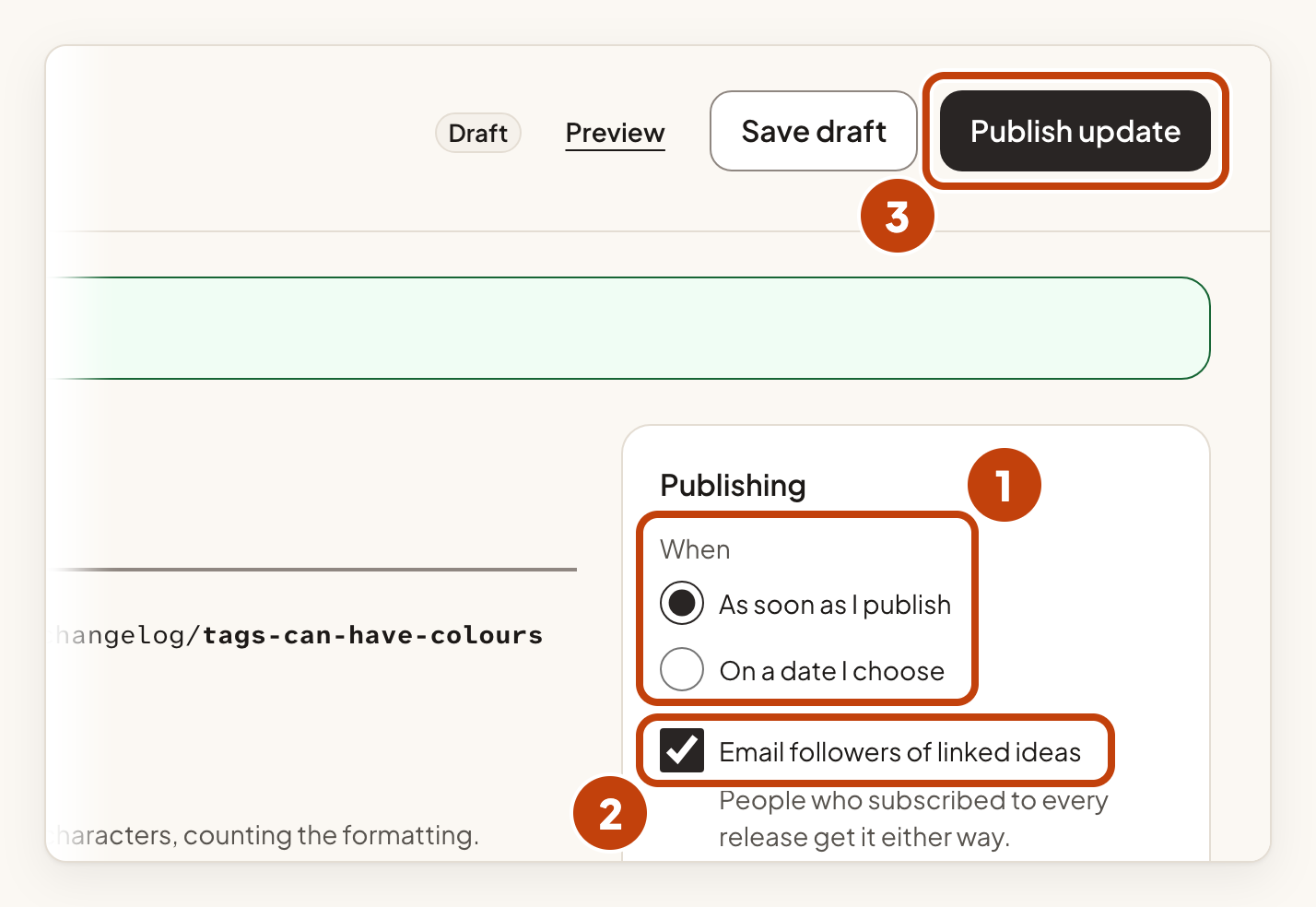
- Under When, choose As soon as I publish, or On a date I choose. For a date, fill in Date and time (UTC). The date must be in the future and no more than a year ahead.
- Decide whether to tick Email followers of linked ideas; it is ticked by default, and it shows only when the entry has a saved linked idea.
- Select Publish update. A box asks Publish this update?, or Schedule this update? if you chose a date. It shows an Email estimate.
- Select Publish now, or Schedule for a date. To back out, select Cancel.
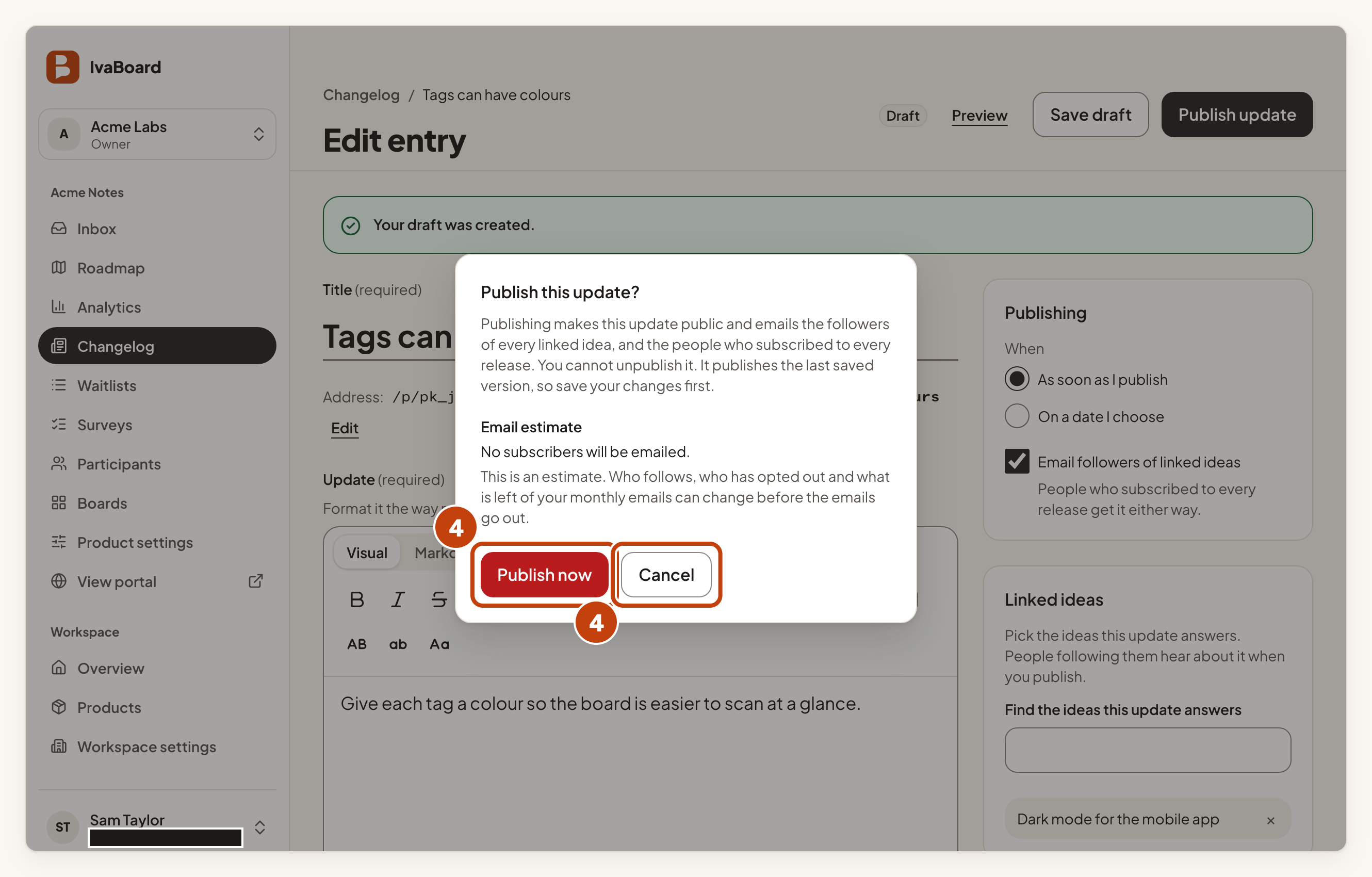
The Email estimate says who will be emailed, for example No subscribers will be emailed. It is an estimate, so the count can change before the emails go out.
You cannot unpublish an update once it is live, and you cannot cancel one once it is scheduled. Read it through before you publish.
Who is emailed
With Email followers of linked ideas ticked, people who follow the linked ideas are emailed. People who subscribed to every release are emailed either way. With the box unticked, followers of the linked ideas are not emailed.
What customers see
Your portal's changelog page lists published entries, newest first. A long entry is cut short in the list with a Read more link. Each entry shows its linked ideas under Shipped from these ideas. Customers can select Get release updates to choose release emails.
Example
For example, Sam Taylor writes the title "Tags can have colours". In Update, Sam writes "Give each tag a colour so the board is easier to scan at a glance." Sam selects Save draft, then Publish update, and then Publish now.
