Statuses and your public roadmap
Every idea has a status, such as Open, Planned, In progress, Done or Declined. Your public roadmap shows the statuses you choose as columns, so customers can see what you are working on. This article shows you how to change an idea's status and how to set up your statuses.
Who can use it
Every plan can use statuses and the roadmap. An owner or an admin can change an idea's status and set up the statuses. So can a team member with the Manager or Moderator role on the product. A team member with view-only access can see them but cannot change them. Customers can read the public roadmap.
The statuses you start with
Each product starts with Open, Planned, In progress, Done and Declined. The public roadmap hides Open and Declined, so customers see Planned, In progress and Done. You can rename statuses, add your own, and change their colours and order.
Change an idea's status
- Open Inbox in the console menu.
- Select the idea, for example Dark mode for the mobile app.
- Select the status button, for example Status: Planned.
- Select the new status, for example In progress.
- In the Change the status window, keep Email followers about this change ticked to email the people following the idea. Untick it to send no email.
- If you like, add a Note to followers (optional), up to 500 characters. It shows on the idea's public page, and it is sent in the status email when followers are emailed.
- Select Change status.
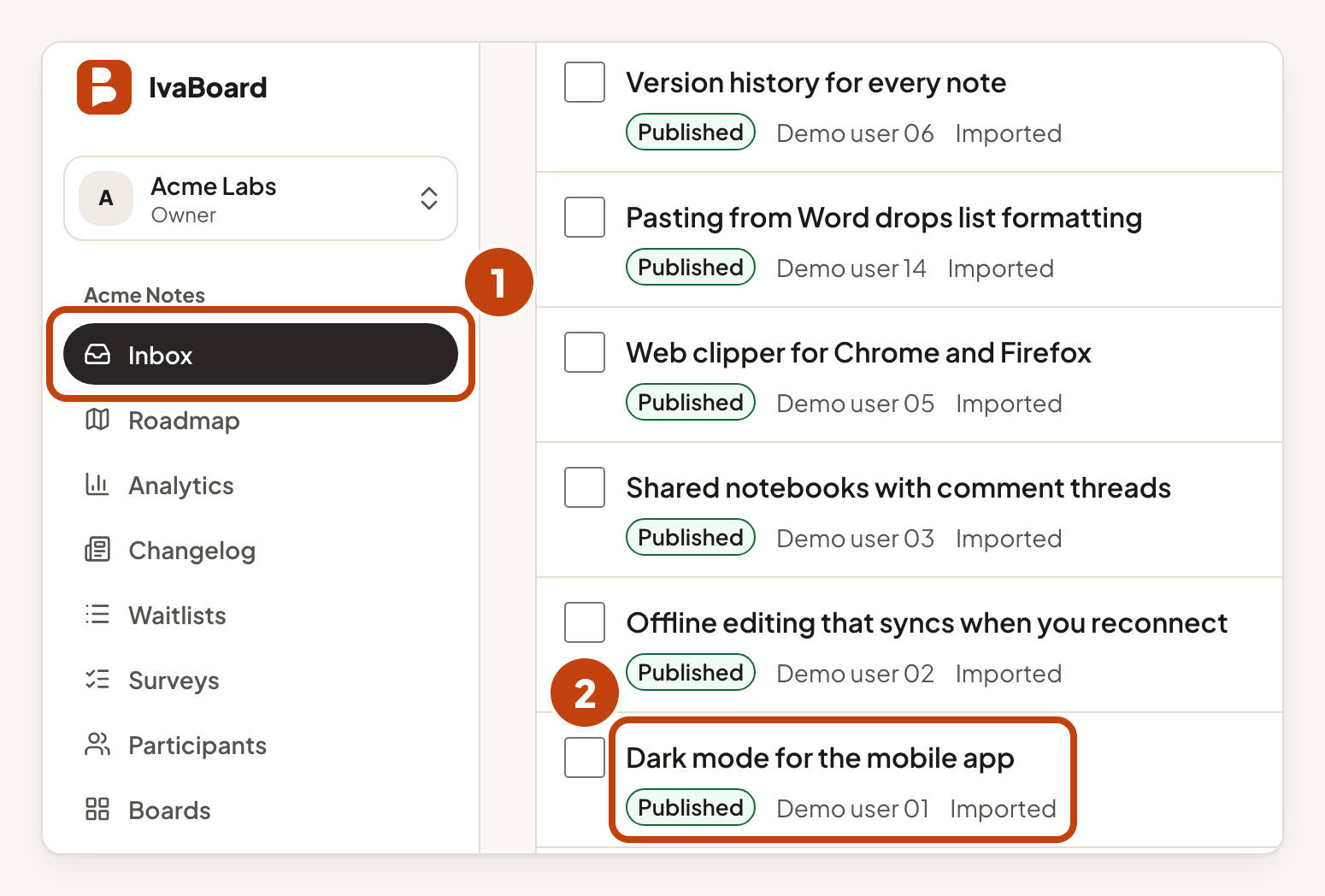
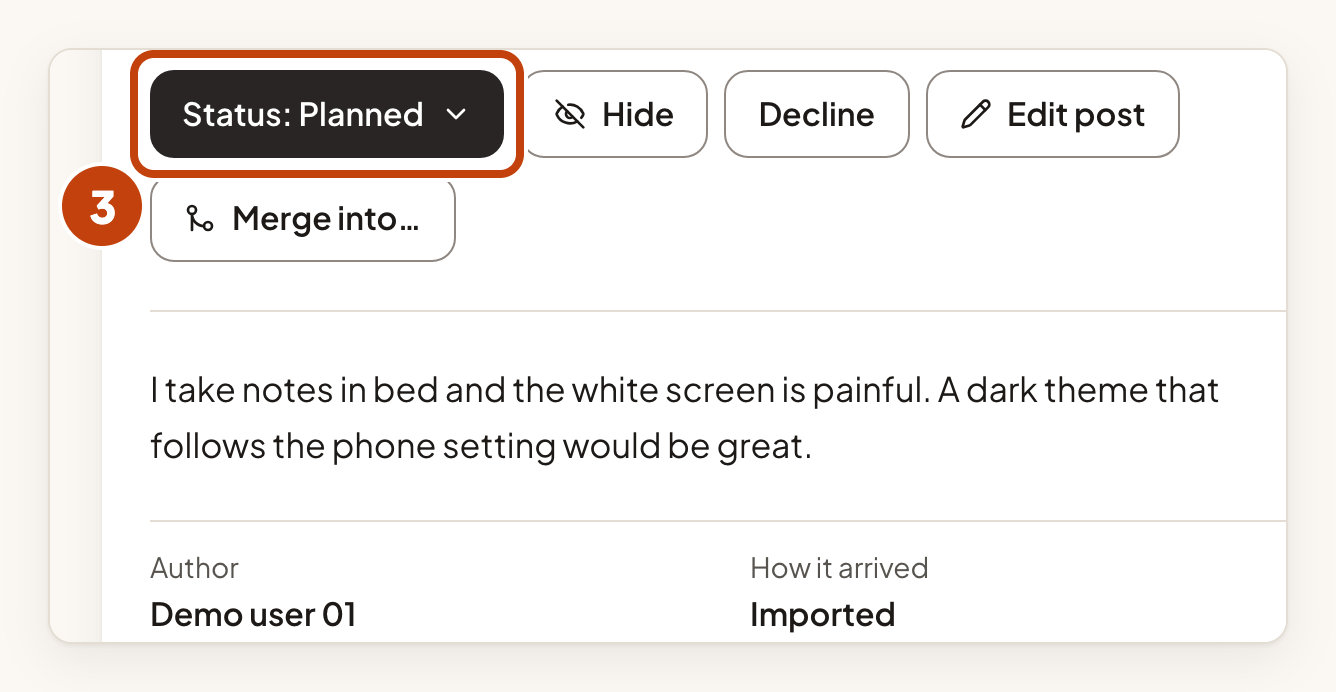
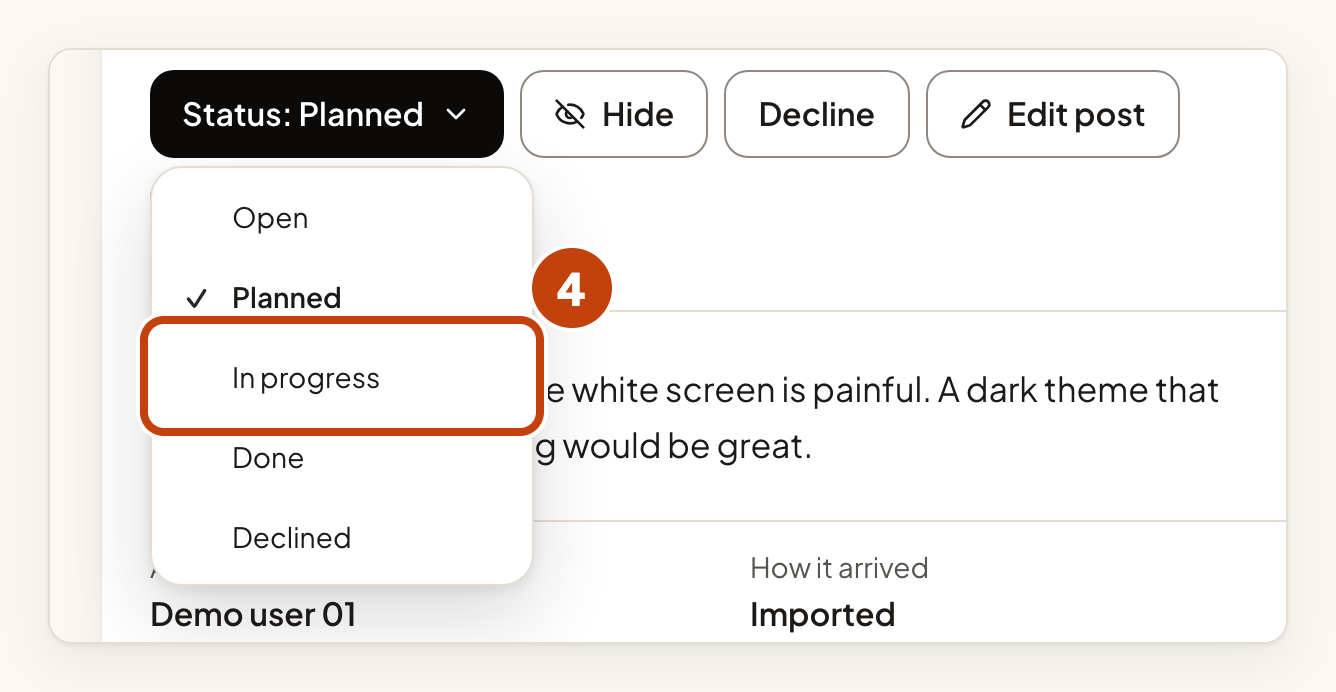
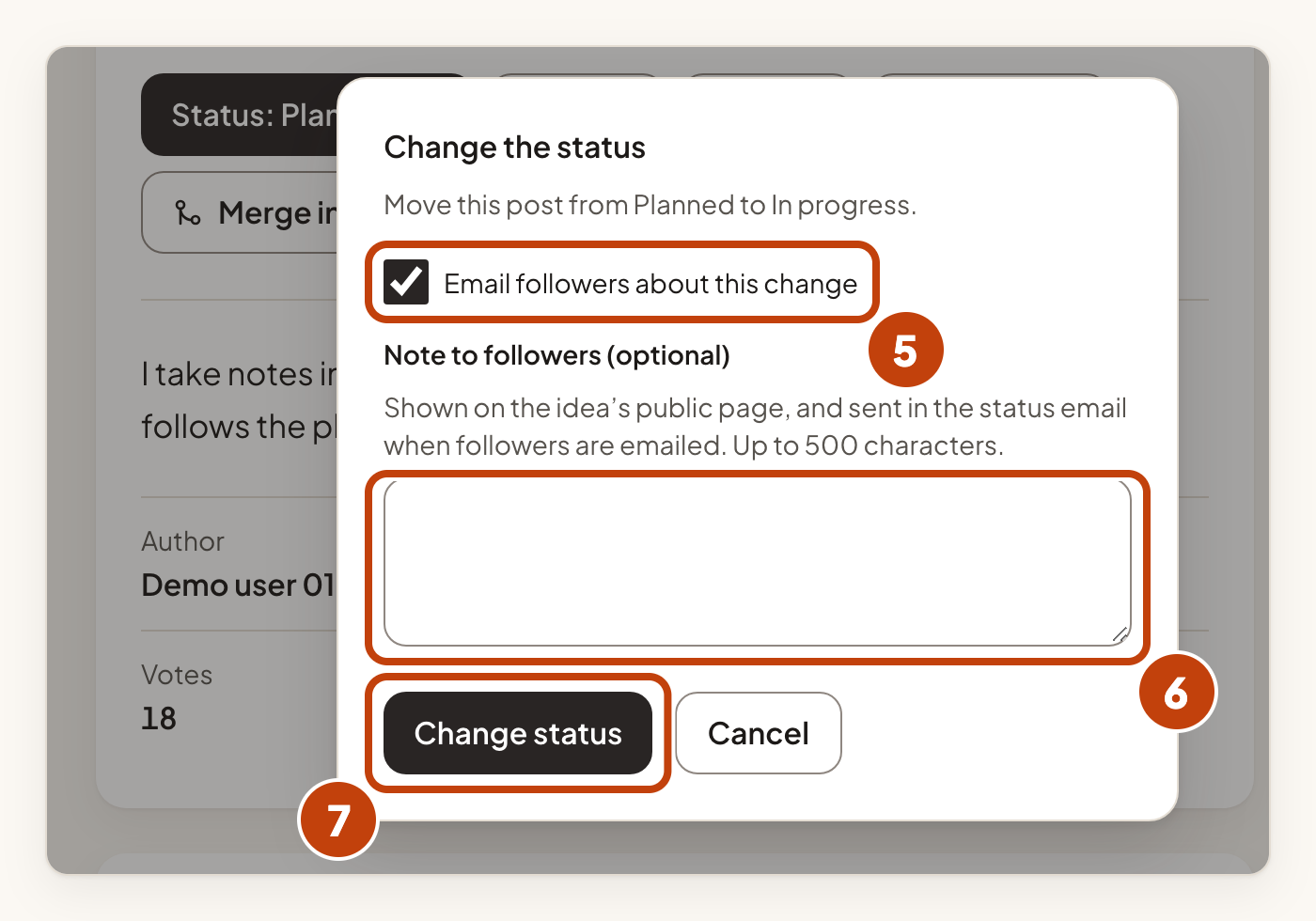
The idea then moves to its new column on your roadmap.
Set up your statuses
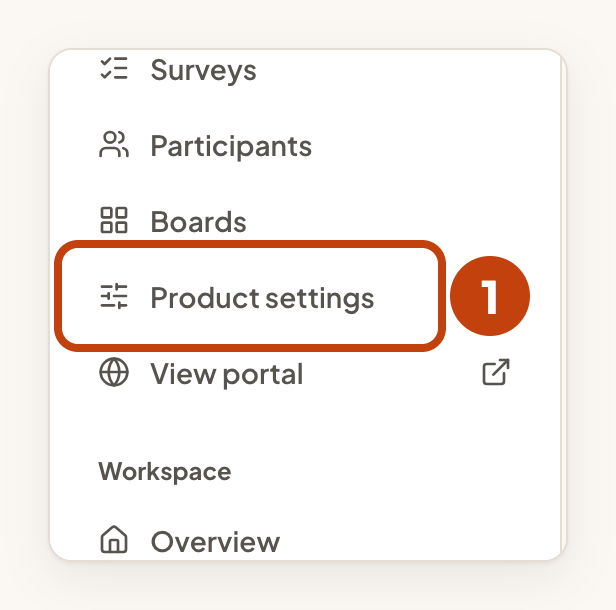
- Open Product settings in the console menu.
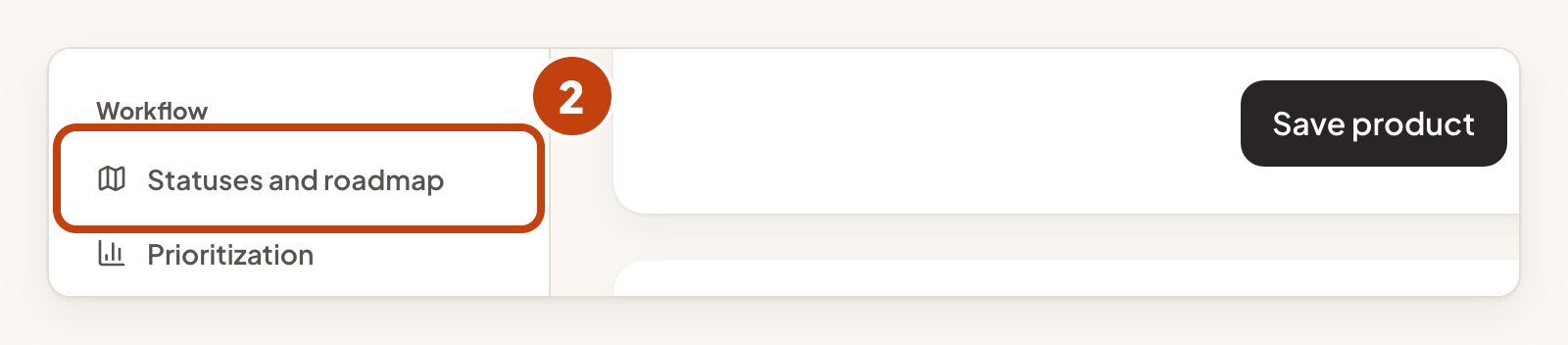
- Select Statuses and roadmap.
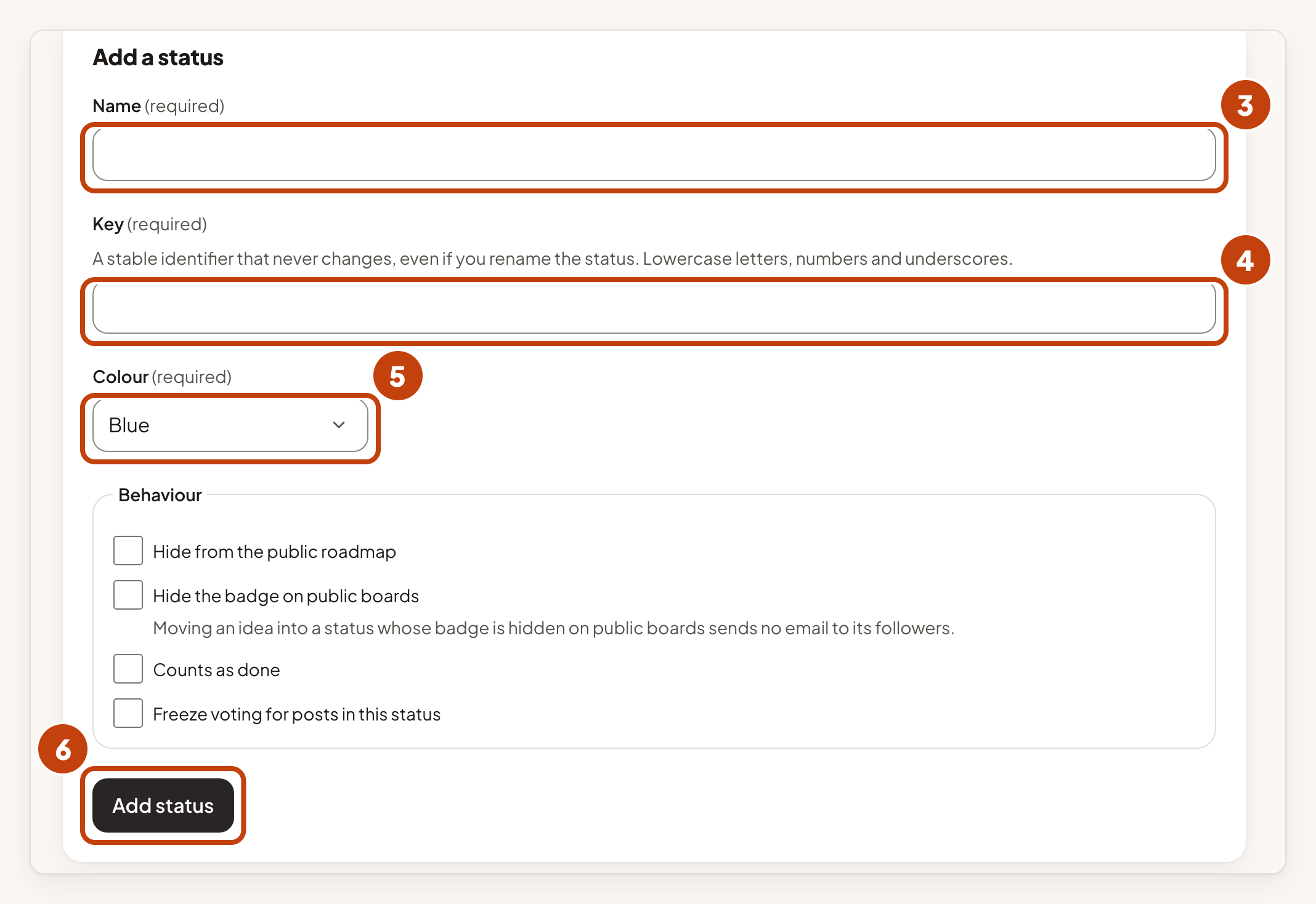
- Under Add a status, type a Name.
- Type a Key. It is a fixed identifier of lowercase letters, numbers and underscores. It never changes, even if you rename the status.
- Choose a Colour.
- Select Add status.
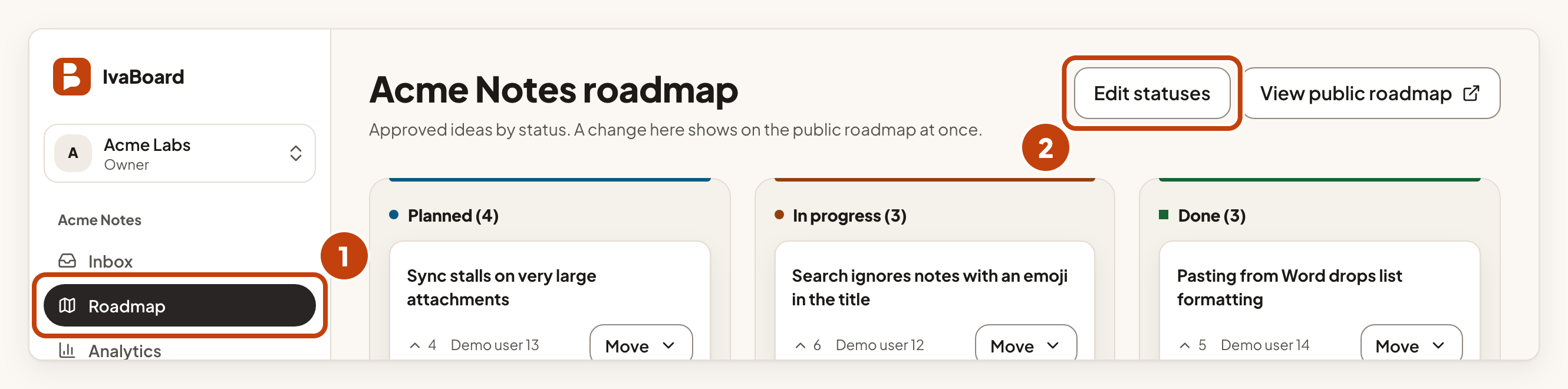
You can also open these settings from the roadmap:
- Open Roadmap in the console menu.
- Select Edit statuses.
Change a status
- Select Edit on the status's row.
- Change what you need: the name, the colour or the options under Behaviour.
- Select Save changes.
- To change the order, select Move up or Move down on the status's row.
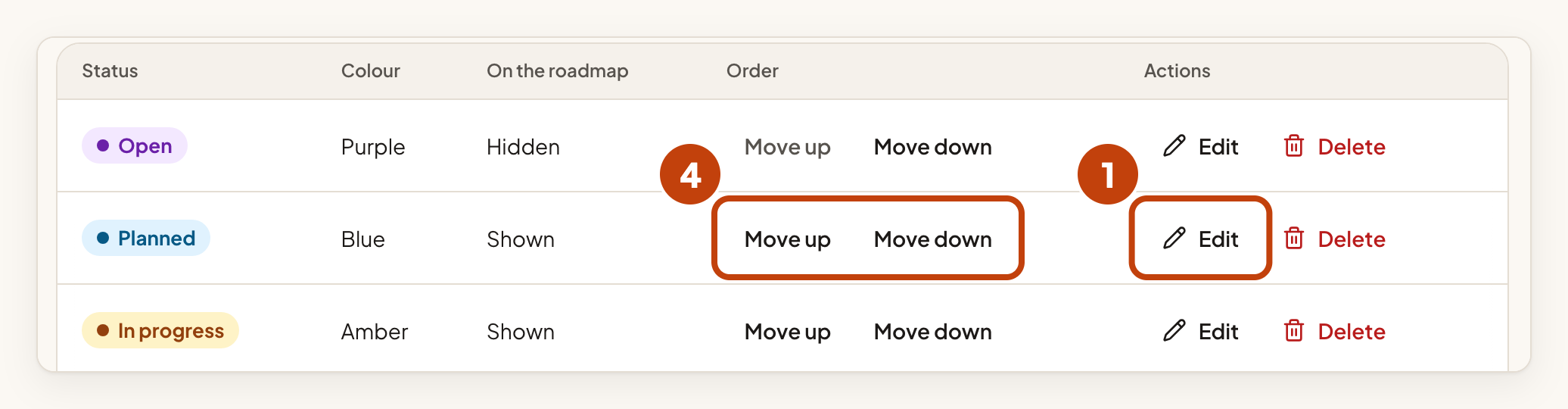
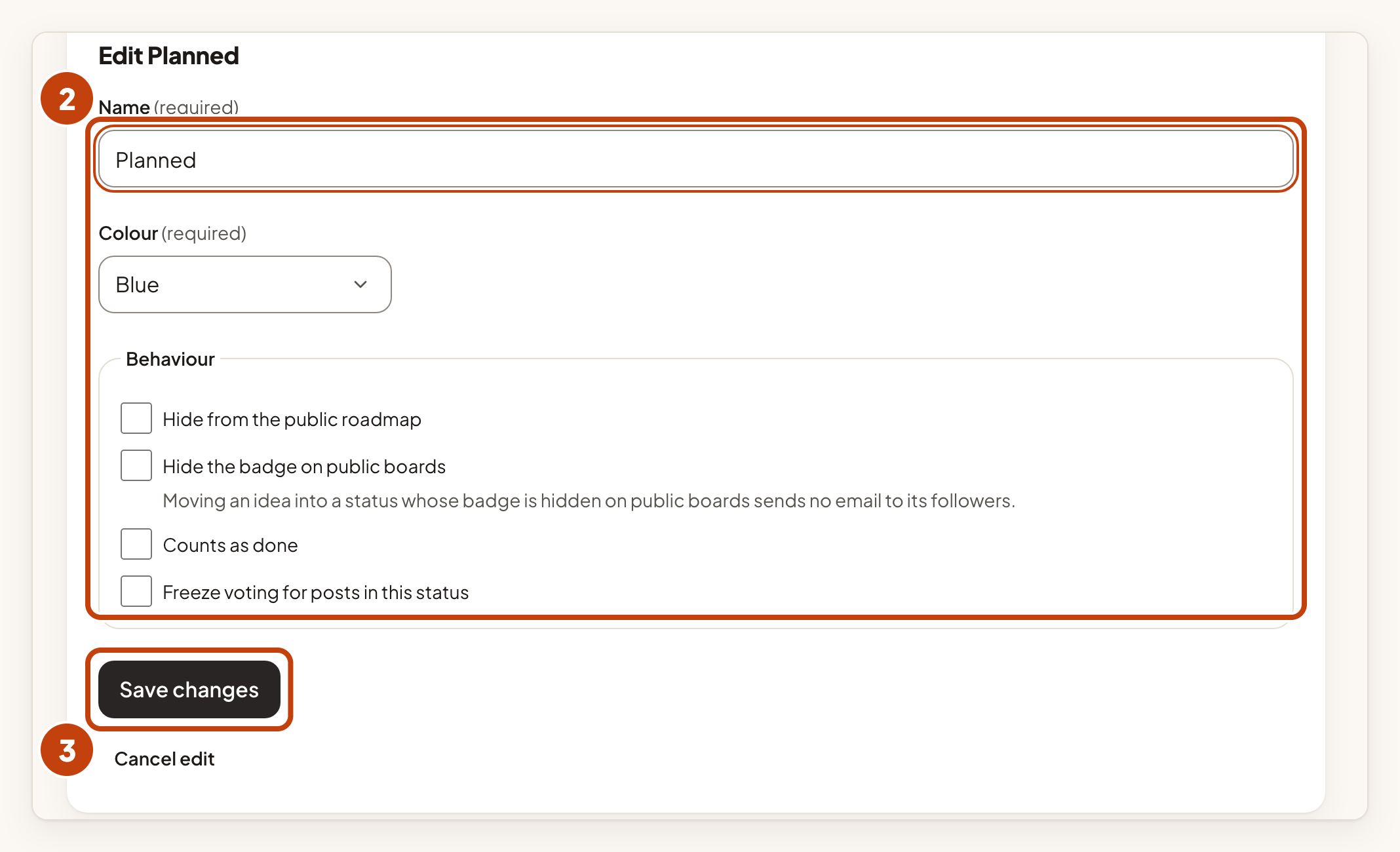
For each status, tick any of these options under Behaviour:
- Hide from the public roadmap: the status does not appear as a column on your public roadmap.
- Hide the badge on public boards: customers do not see the status label on the board. Moving an idea into this status sends no email to its followers.
- Counts as done: moving an idea here marks it as finished. It can also start a draft changelog entry for you to review.
- Freeze voting for posts in this status: customers can no longer vote on those ideas.
A product can have up to 20 statuses, and a name can have up to 32 characters. The last status cannot be deleted. To delete a status that has ideas in it, choose Move its posts to and pick another status first.
What customers see
Customers read your public roadmap on your portal. It shows only the columns you have not hidden, with the ideas in each. To open it from the console, select View public roadmap on the Roadmap page. To show the roadmap on your own website, see Embed your changelog or roadmap.
Example
For example, Sam Taylor opens the idea Dark mode for the mobile app in Acme Notes. The idea is Planned. Sam selects In progress, keeps Email followers about this change ticked, adds the note "Design work has started." and selects Change status. The idea moves to In progress on the roadmap.
