Team notification emails and the weekly digest
Team members can get an email when a new idea arrives, when an idea waits for review, and when someone comments. Every Monday they can also get a summary of their products. Each person chooses their own emails.
Who can use it
Every plan includes team notifications. Every team member, whether an Owner, an Admin or a Member, chooses their own emails. Nobody can change another person's emails.
Choose your emails
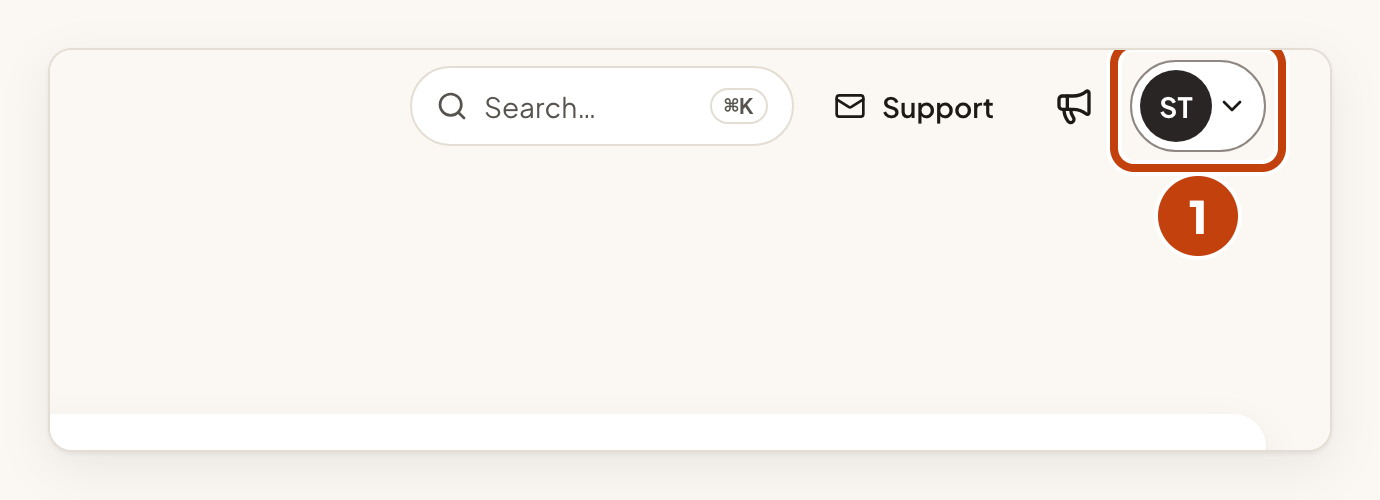
- Select your avatar at the top right of the page.
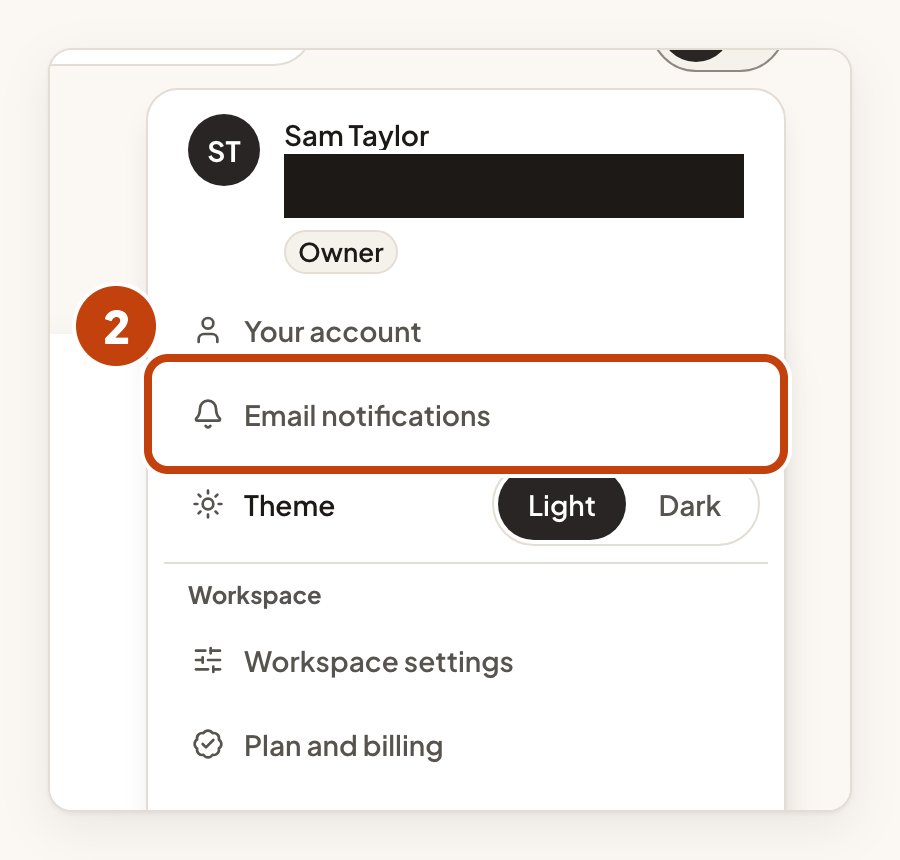
- Select Email notifications.
- Tick New ideas if you want an email when an idea is published in a product you can see.
- Tick Ideas awaiting moderation if you want an email when an idea waits for review.
- Tick New comments if you want an email when someone comments on an idea in a product you can see.
- Tick Weekly digest if you want a summary of your products every Monday.
- Select Save preferences.
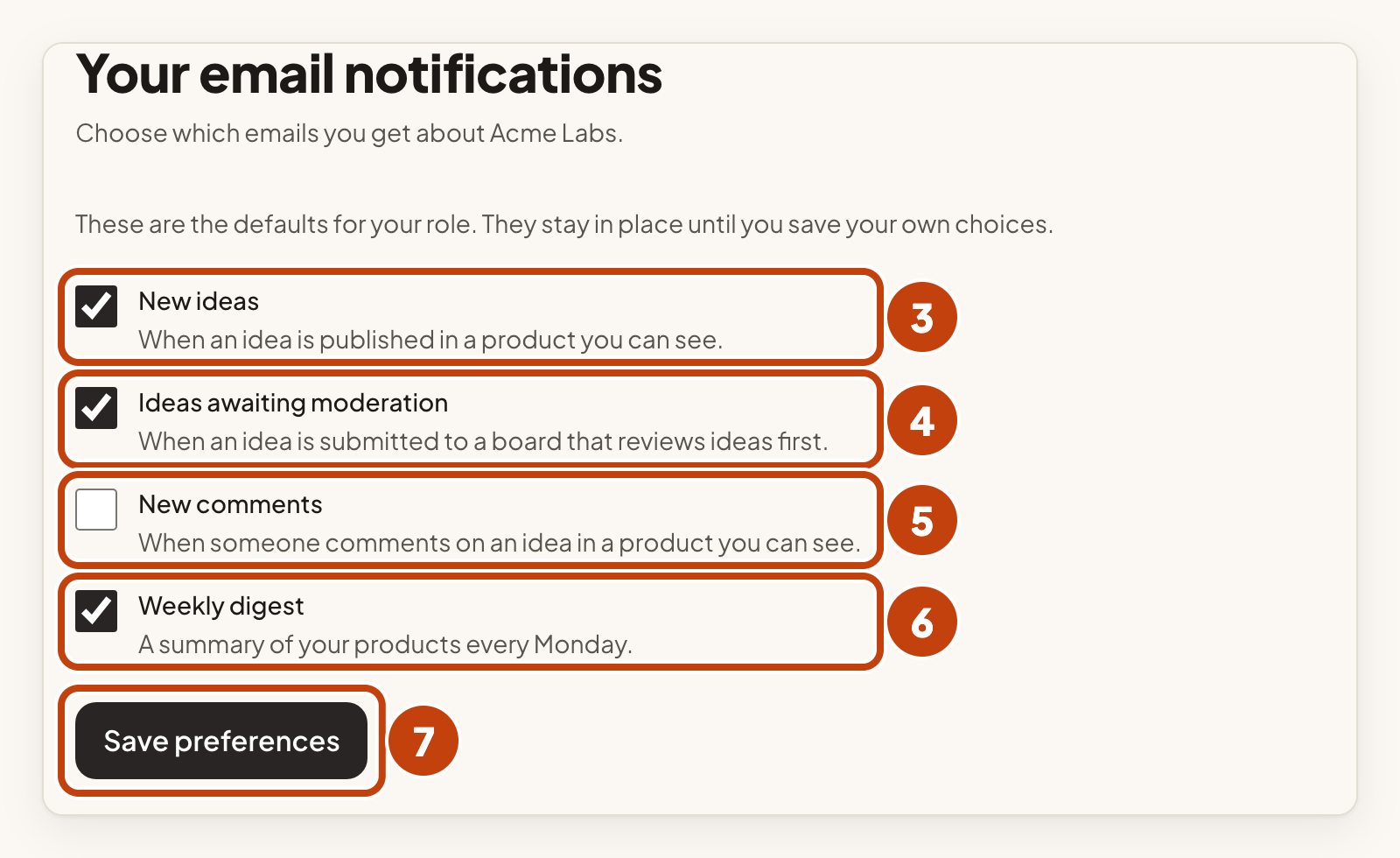
Until you save, the page shows the defaults for your role. Owners and admins start with New ideas, Ideas awaiting moderation (if they can moderate) and Weekly digest. Members start with Ideas awaiting moderation (if they can moderate) and Weekly digest. New comments is off for everyone at first.
Ideas awaiting moderation shows Not available if you do not moderate any product in the workspace. If you cannot see any product yet, none of these emails can reach you until you get access to a product.
What the emails contain
Idea and comment emails have one button that opens the item in the console: Open the idea, Open the comment or Review the idea. The button only opens a page. Clicking it never approves or changes anything.
Emails show only what you are allowed to see. They name people by their display name, never by email address. The footer of each email starts with a reason line, such as "You're getting this because new idea emails are on for you in Acme Labs."
The weekly digest
The digest arrives on Monday morning (UTC). It is split by product, covering the products you can see. Each section shows a count and, for New ideas and Waiting for review, the first three titles. The sections are:
- New ideas
- Waiting for review
- Changed status
- No update in 60 days
- No reply from the team
A product with nothing to report shows one line: "nothing to report this week". Owners and admins also see an Across the workspace section, which includes Background jobs that stopped retrying.
Turn an email off
Each email has a link that turns off that kind of email, such as "Turn off comment emails". The digest also has Stop the weekly digest. Every email has Manage your email settings.
The turn-off link opens a page with a Turn off button. You do not need to sign in to use it.
To turn emails back on, sign in and open Your email notifications.
Worked example
Sam Taylor is a member of Acme Labs who can moderate Acme Notes. Sam ticks New ideas and selects Save preferences. The next time someone publishes an idea in Acme Notes, Sam gets an email with an Open the idea button.
Not the same as your users' emails
These settings are for your team only. The emails your users receive are covered in Emails your users get.
Slack and Microsoft Teams notifications are separate. See Slack and Microsoft Teams notifications.
