The audit log
The audit log is a record of important actions in your workspace. It shows who joined or left the team, who was given or lost access to a product, who created or renamed a product, and similar changes. Use it to find out who changed something.
Who can use it
Owners and admins. Members do not see Audit log in the menu. If a member opens the page, it says that only owners and admins can read the audit log.
Open the log
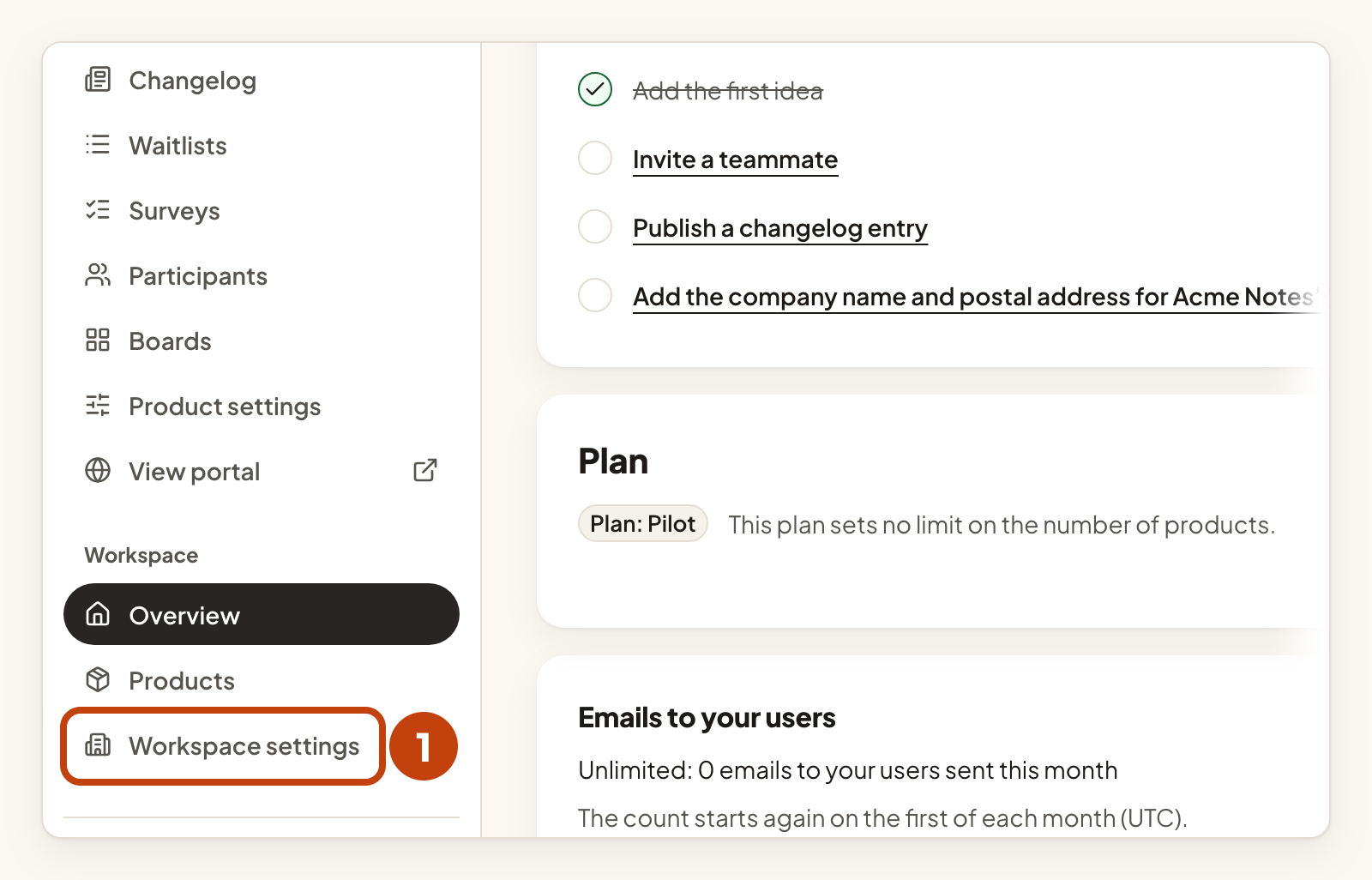
- Open Workspace settings in the sidebar.
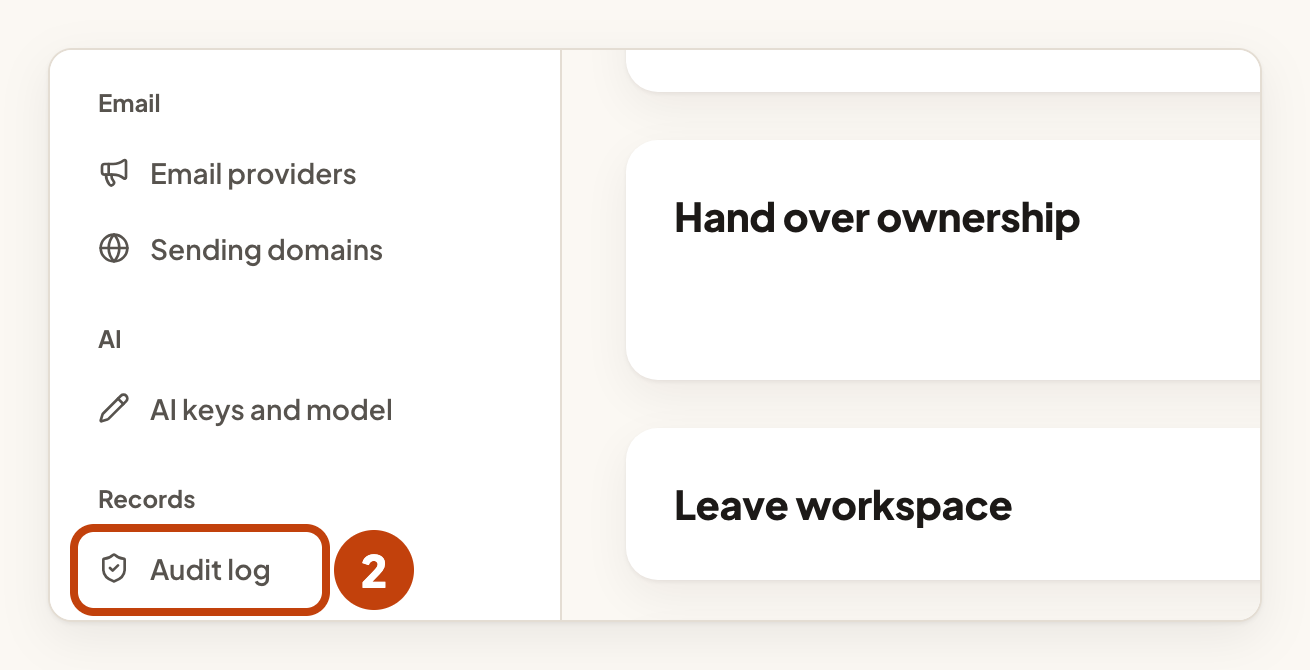
- In the settings menu, select Audit log.
The page is called Audit log. The table has five columns:
| Column | What it shows |
|---|---|
| When | The time of the action. |
| Action | What was done, for example a team change or an access change. |
| Actor | Who did it: a team member, an integration (such as an API key), or The system for changes made automatically. |
| Target | What the action was done to. Where the console has a page for it, the target is a link. |
| Product | The product it concerns. Workspace changes, such as team changes, show a dash. |
Events are listed newest first, 50 to a page. Select Older events for more.
Filter the log
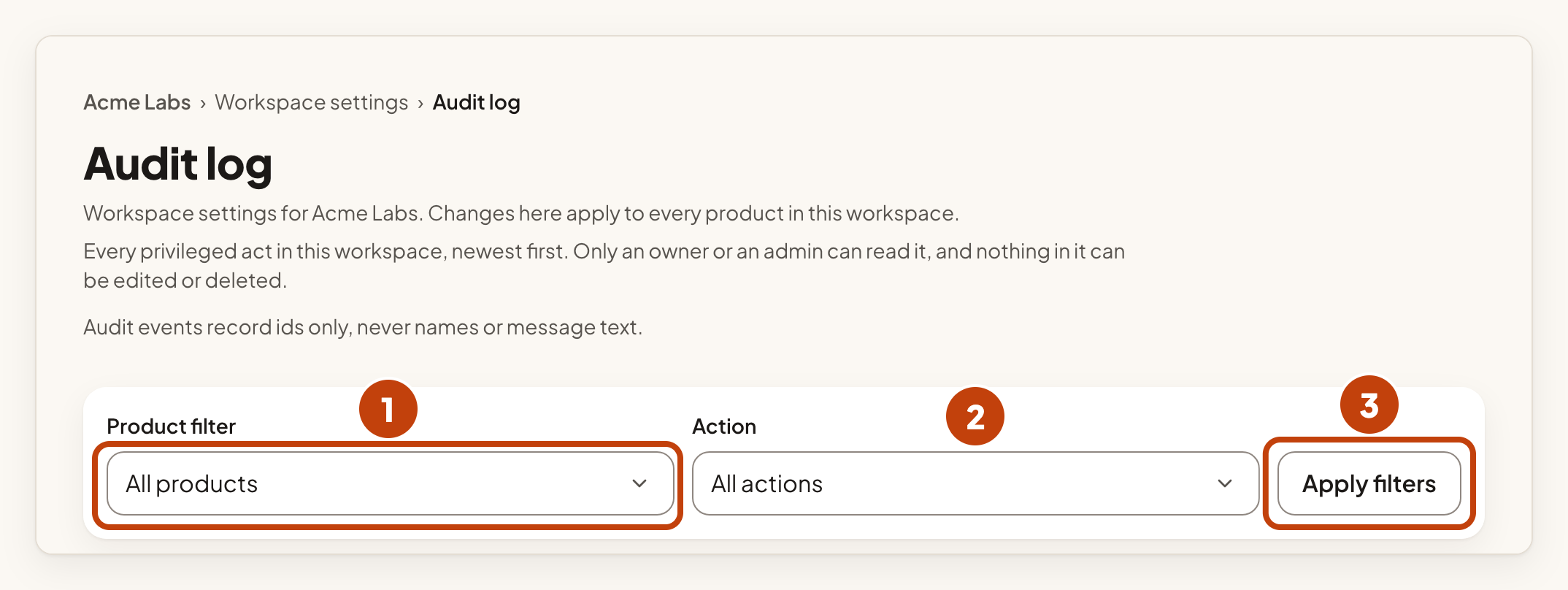
- Choose a product under Product filter, or keep All products.
- Choose an action under Action, or keep All actions.
- Select Apply filters.
Your filters appear as chips. Select a chip to remove that filter. Select Clear all filters to remove them all.
What the log never contains
The log stores ids, not names or message text. It does not hold the words people wrote, such as an idea's title or a comment. The page says: "Audit events record ids only, never names or message text."
When you open the page, the console looks up the names of team members and products, so the table can show who acted. Those names are not written into the log.
Nobody can edit or delete a single entry. Deleting the workspace deletes its audit log.
Example
For example, you want to know who gave Sam access to Acme Notes. Open the audit log, choose Acme Notes under Product filter, and select Apply filters. Look for the access row. The Actor column shows who gave the access.
