Webhooks
A webhook sends a signed message to an address on your server when something public happens on a product. For example, a new idea arrives or a status changes. Use it to update your own systems. The full reference is on the developers page.
Who can use it
Every plan includes webhooks. Only workspace owners and admins can add, pause, rotate or delete them. Other people see a note that says who can manage them.
Add a webhook
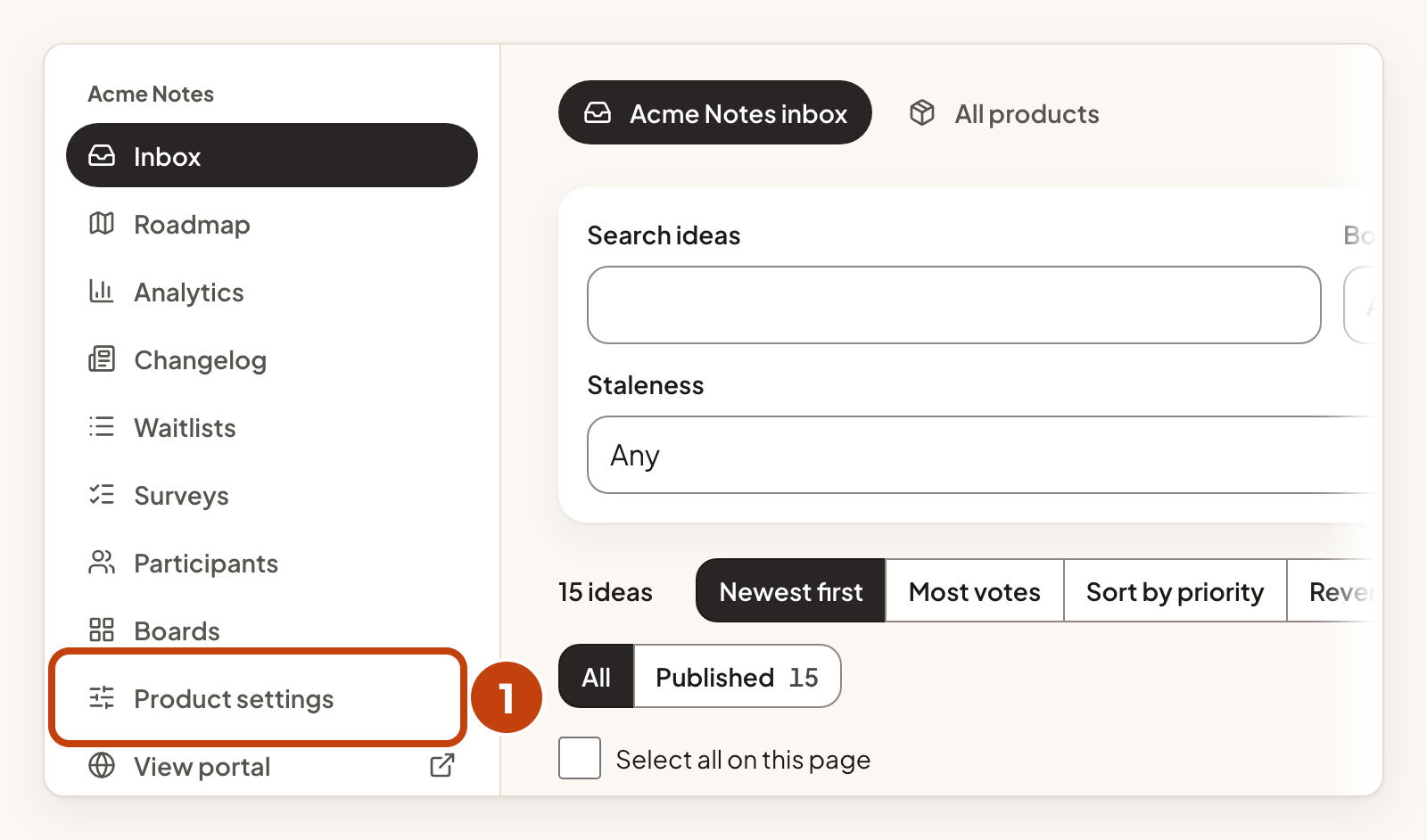
- Select Product settings under your product in the left menu.
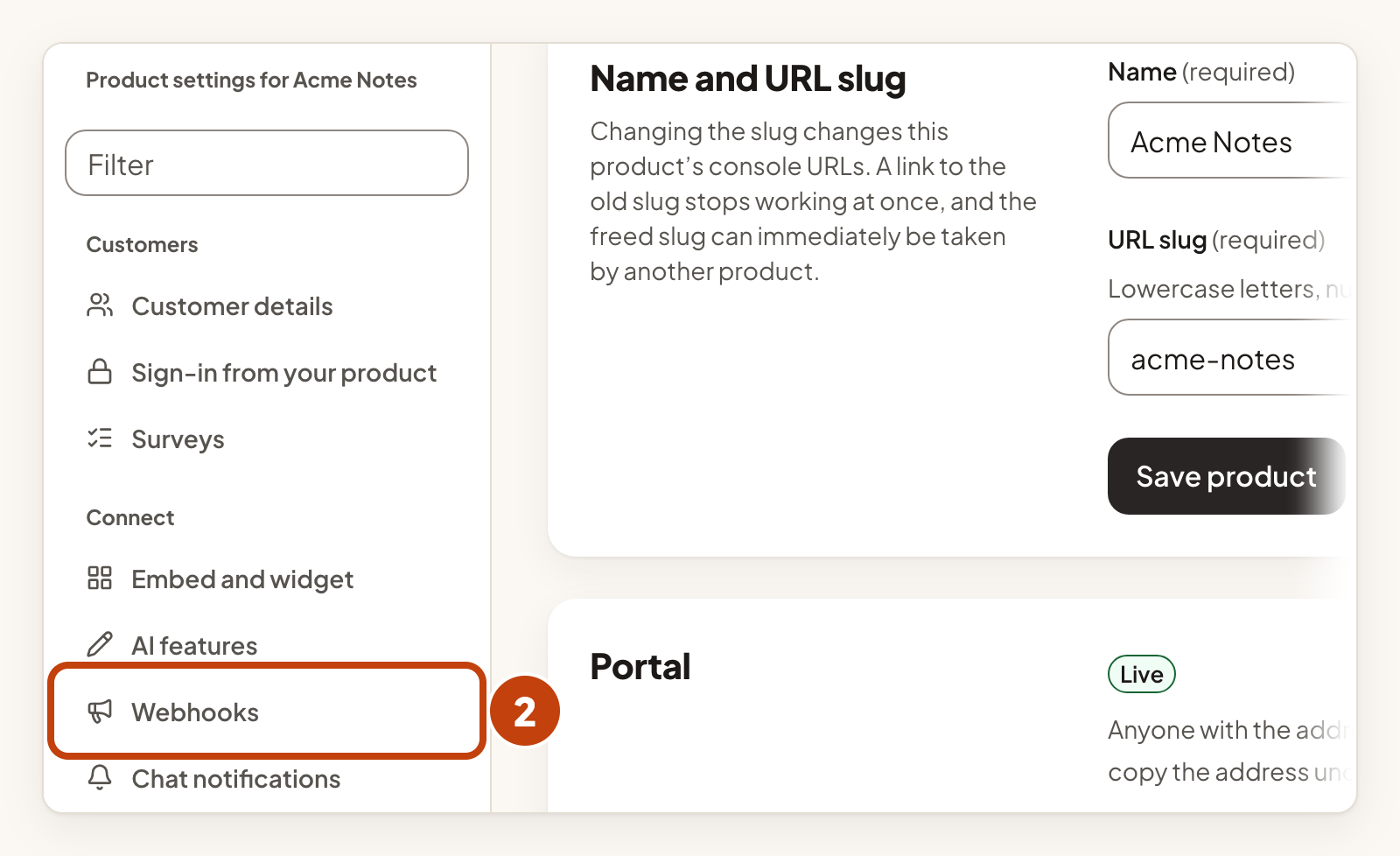
- In the Connect list, select Webhooks.
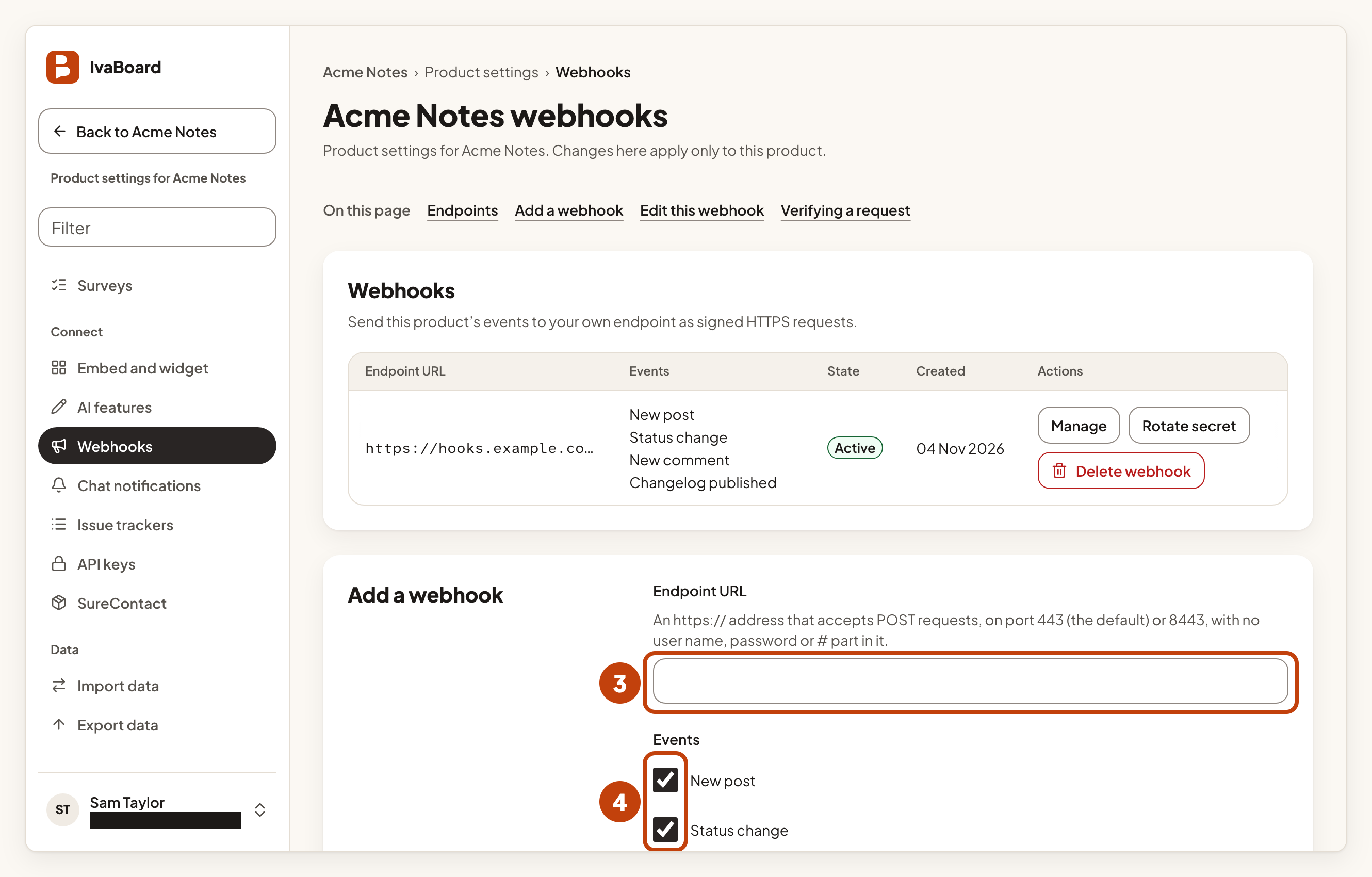
- Under Add a webhook, enter your server's address in Endpoint URL.
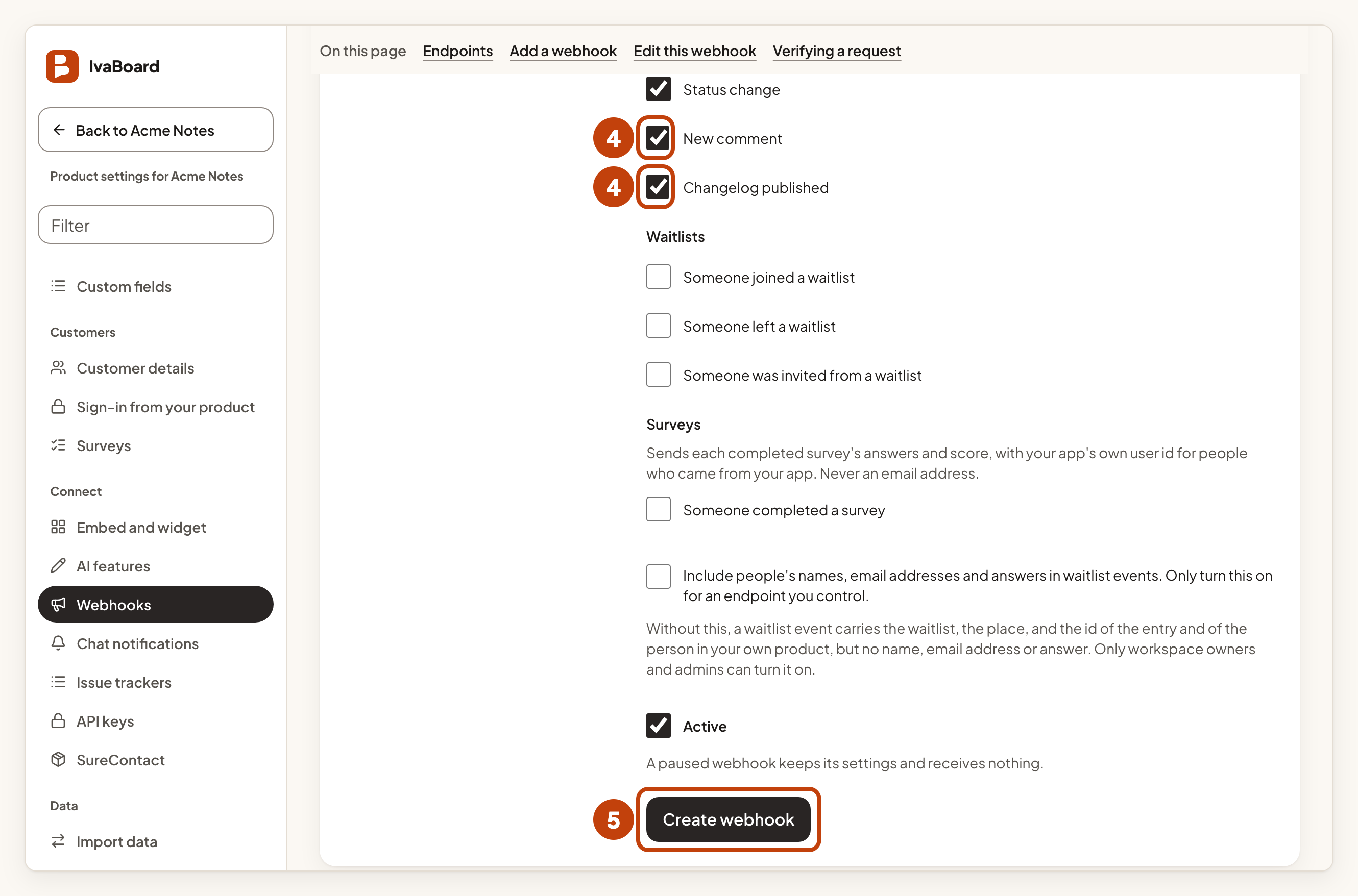
- Under Events, tick each event you want to receive, such as New post.
- Select Create webhook.
- Select Copy to copy the signing secret.
- Save the signing secret in your server's secret store. It is shown only once.
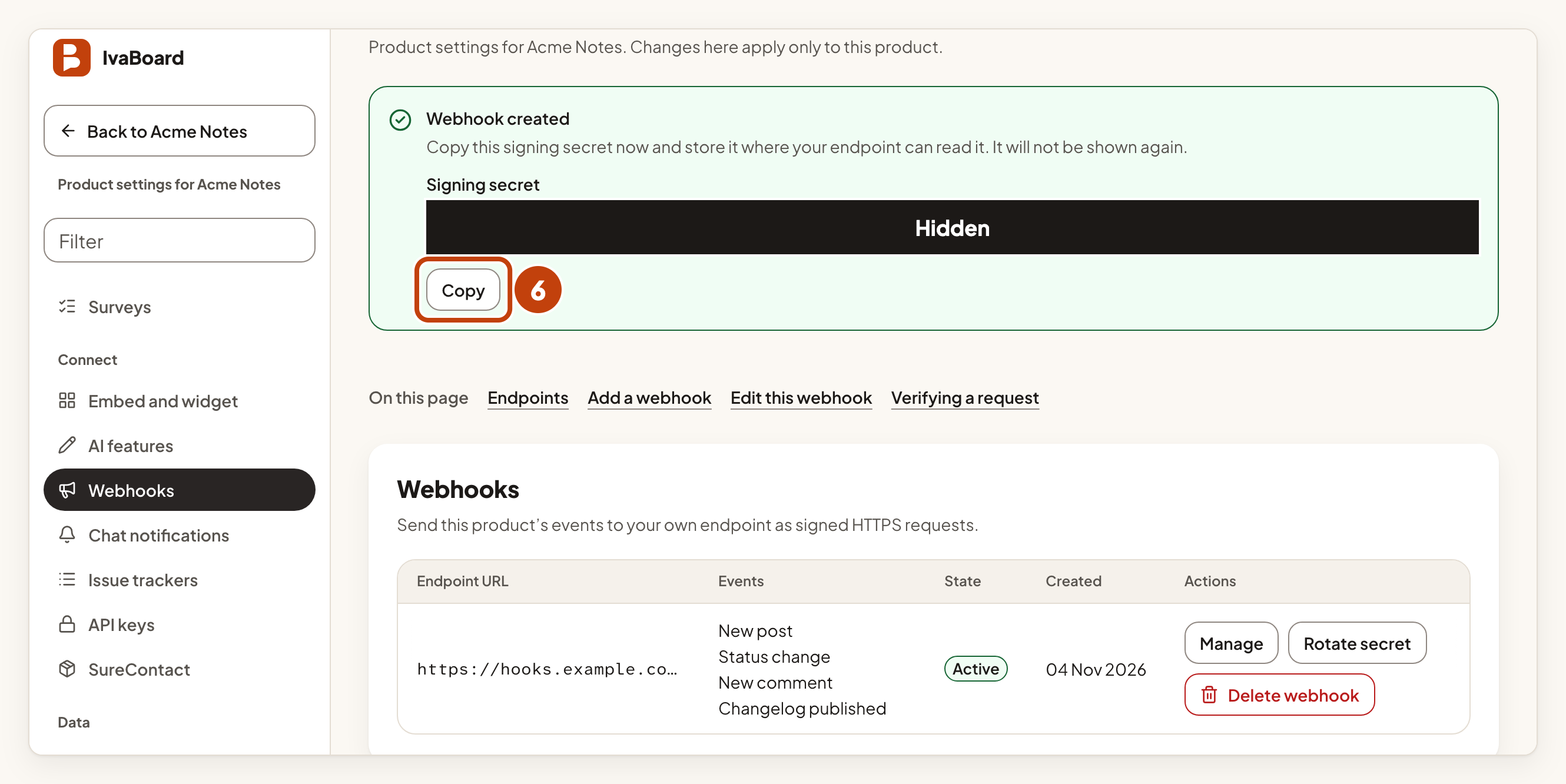
The signing secret is shown once. If you lose it, rotate the secret to get a new one.
Endpoint rules
The endpoint must be an https:// address that accepts POST requests. It must use port 443 (the default) or 8443, and it must be a public address. It cannot contain a user name, a password or a # part.
A product can have up to 10 webhooks. Clear Active to pause one. A paused webhook keeps its settings and receives nothing.
Events
| Event in the console | Sent when |
|---|---|
| New post | An idea posted on your portal is shown publicly for the first time. |
| Status change | An idea moves to a status that your board shows. |
| New comment | A public comment is added to an idea. |
| Changelog published | A release is published. |
Ideas that were imported, posted through the API or posted by your team on someone's behalf do not send New post.
The form also has a Waitlists group and a Surveys group. Their events are off until you tick them, because they are about people.
- Someone joined a waitlist, Someone left a waitlist and Someone was invited from a waitlist send the waitlist, the place and your own user id for the person. They send names, email addresses and answers only when you tick Include people's names, email addresses and answers in waitlist events. Only tick that for an endpoint you control.
- Someone completed a survey sends the survey answers and score, with your own user id where the person came from your app. It never sends an email address.
What is sent
A webhook sends only what your public portal shows. Nothing is sent while the portal is private, for a private board, for an idea that is pending or hidden, or for a move into a status the board hides. Waitlist events are the exception, because they are about the people on your own waitlists.
Each delivery is a POST with a JSON body like this. The values are samples:
{
  "id": "evt_sample_8f3a",
  "type": "post.status_changed",
  "occurredAt": "2026-10-15T09:30:00.000Z",
  "product": { "publicKey": "pk_sample" },
  "data": { "title": "Dark mode for the dashboard", "voteCount": 128 }
}
The data part holds the idea, comment or release, in the same form the public read API uses. In an idea, voteCount is a number, or null when the board hides its vote totals.
The event names are post.created, post.status_changed, comment.created, changelog.published, waitlist.joined, waitlist.left, waitlist.invited and survey.response_completed.
Check the signature
Every request has three headers:
| Header | Meaning |
|---|---|
x-fh-timestamp | When it was sent, in Unix seconds. |
x-fh-signature | One v1= value, followed by a hex HMAC-SHA256 of the timestamp, a dot and the raw request body, made with your signing secret. For 24 hours after a secret rotation it holds two values, the new one first. |
x-fh-event-id | A copy of the body's id. It is the same on every retry. It is not signed. |
To verify a delivery:
- Use the raw body exactly as it arrived, before any JSON parsing.
- Compute the HMAC-SHA256, in hex, of the timestamp, a dot and the raw body, using your signing secret.
- Split the
x-fh-signatureheader on commas, and ignore any value that does not start withv1=. - Accept the request if any value matches yours, compared in constant time. Never compare the whole header.
- Refuse a request whose timestamp is more than 5 minutes from your own clock.
- Skip any delivery whose body
idyou have already handled. - Refuse a delivery whose
x-fh-event-idheader differs from the body'sid.
Answer with any 2xx status to acknowledge a delivery. A redirect is never followed.
Retries and the delivery log
If your server does not answer with a 2xx status, IvaBoard retries up to five more times. Each wait is at least 30 seconds, then at least 60, 120, 240 and 480 seconds, and can run up to twice as long. After the last retry fails, a background job marks the delivery Abandoned, and it is not sent again. The Next attempt column in the log shows the earliest time of the next try.
To see deliveries, select Manage on the webhook. Its Delivery log lists each event, its state, its attempts and its last response. The states are Queued, Delivered, Failed, will retry and Abandoned. The log keeps 90 days. A daily clean-up removes older entries, so an entry can stay up to a day longer.
Rotate the secret
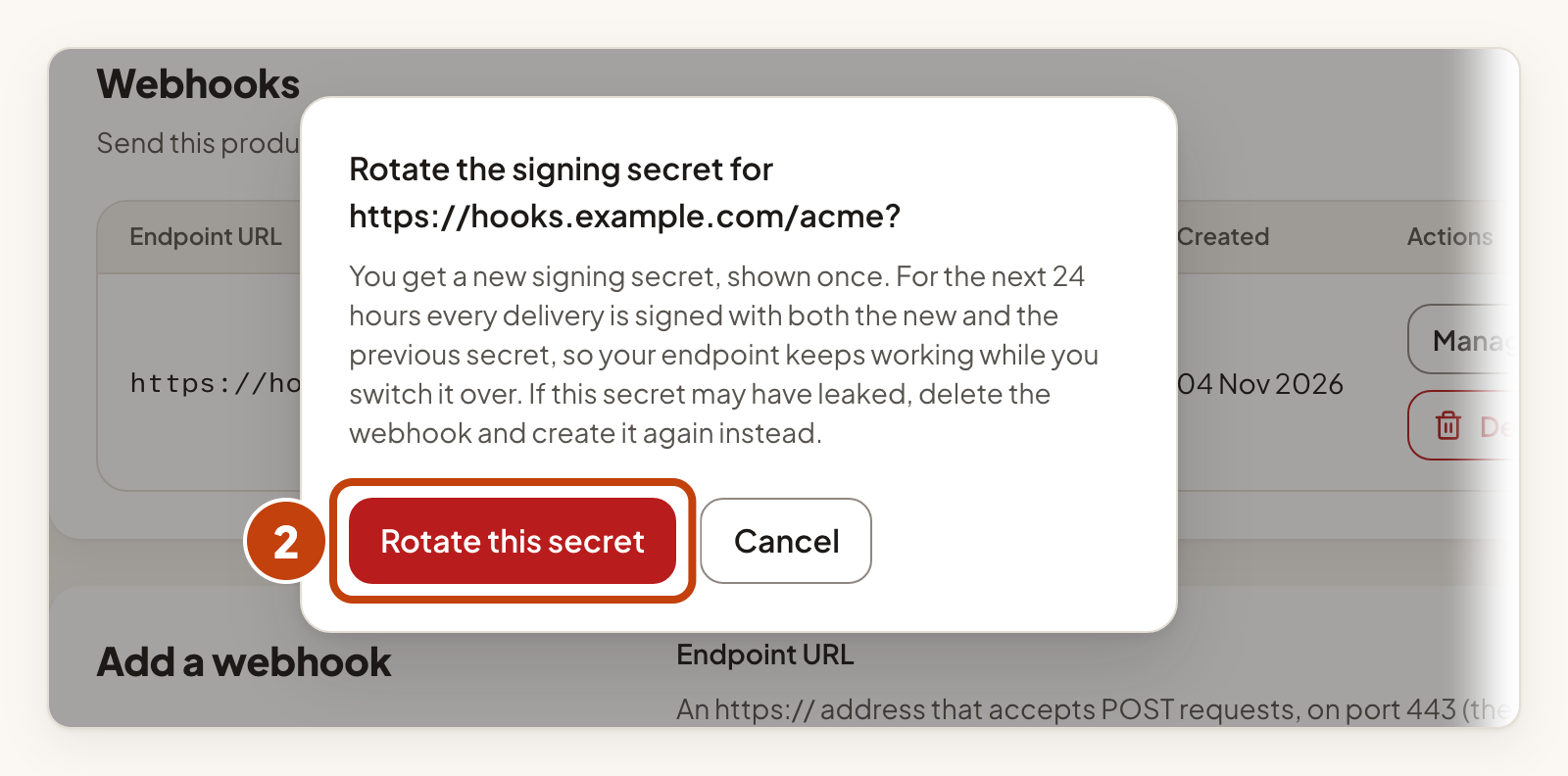
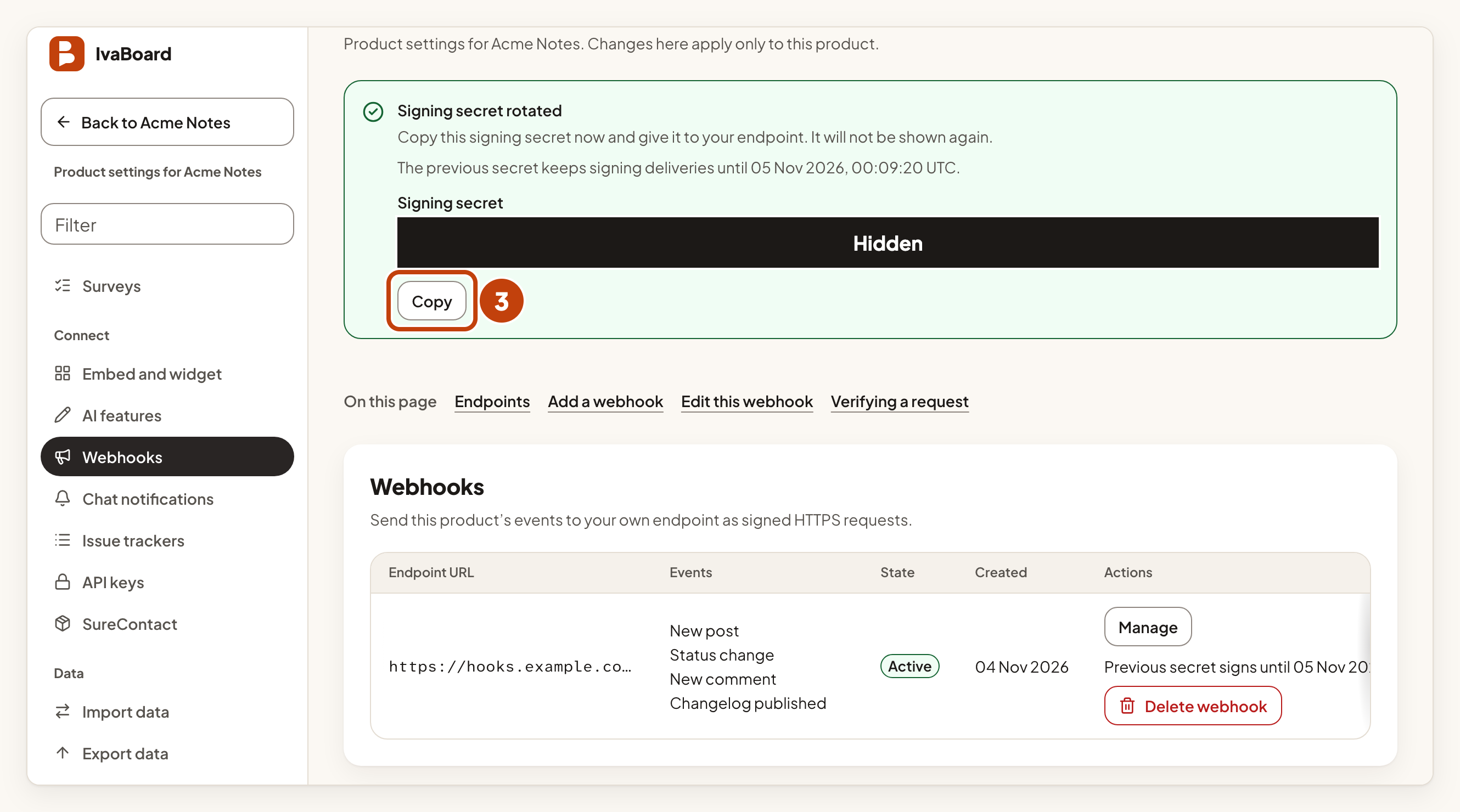
Rotating gives you a new signing secret. For 24 hours each delivery is signed with both the new secret and the old one, so your endpoint keeps working while you switch over. Your check must accept either value, as described above.
- Select Rotate secret on the webhook's row.
- Select Rotate this secret.
- Select Copy to copy the new signing secret.
- Save the new secret in your server's secret store.
- Deploy the new secret on your server within 24 hours.
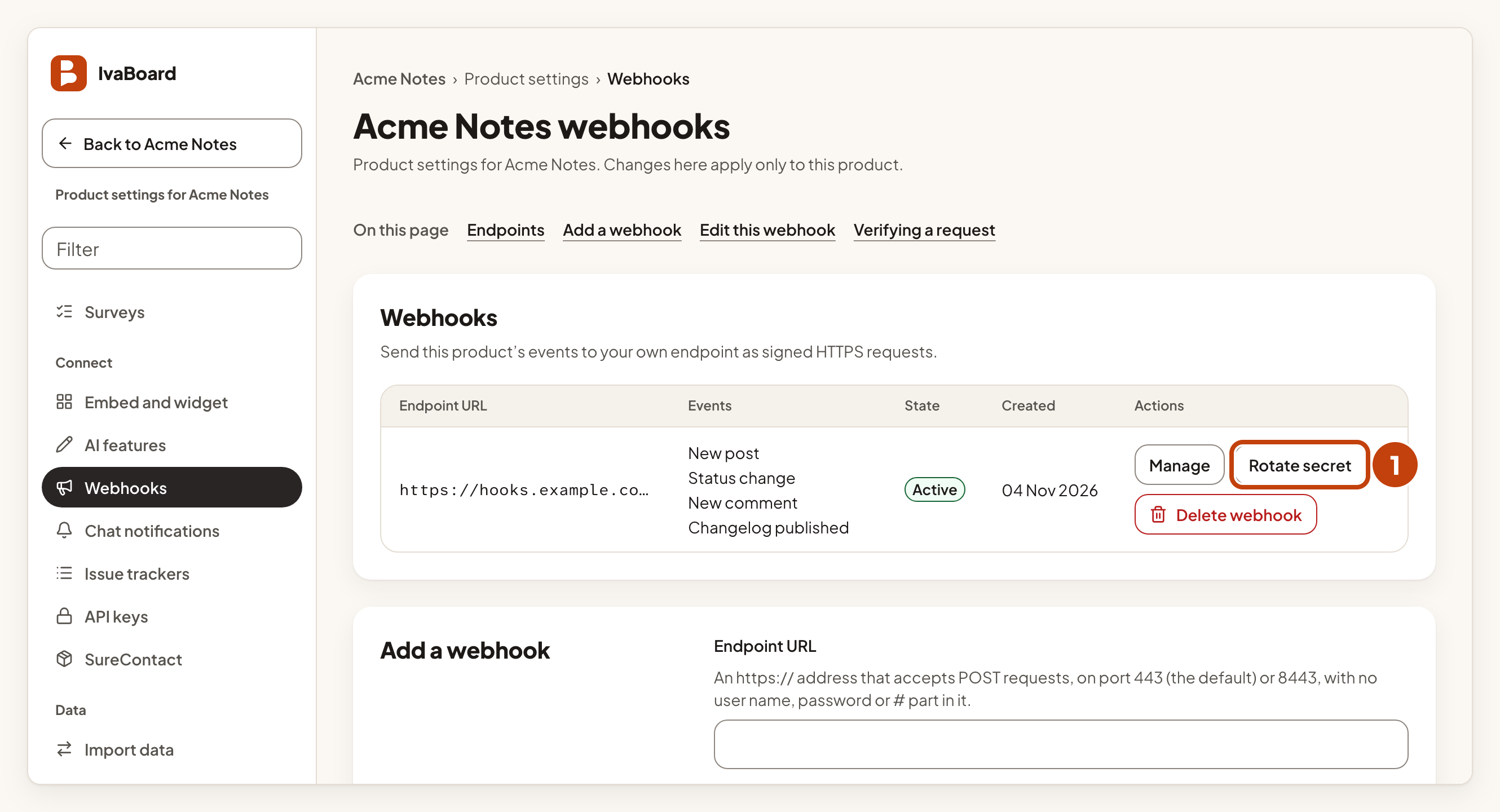
If a secret may have leaked, delete the webhook and create it again instead. Rotating would keep the old secret working for 24 hours.
Delete a webhook
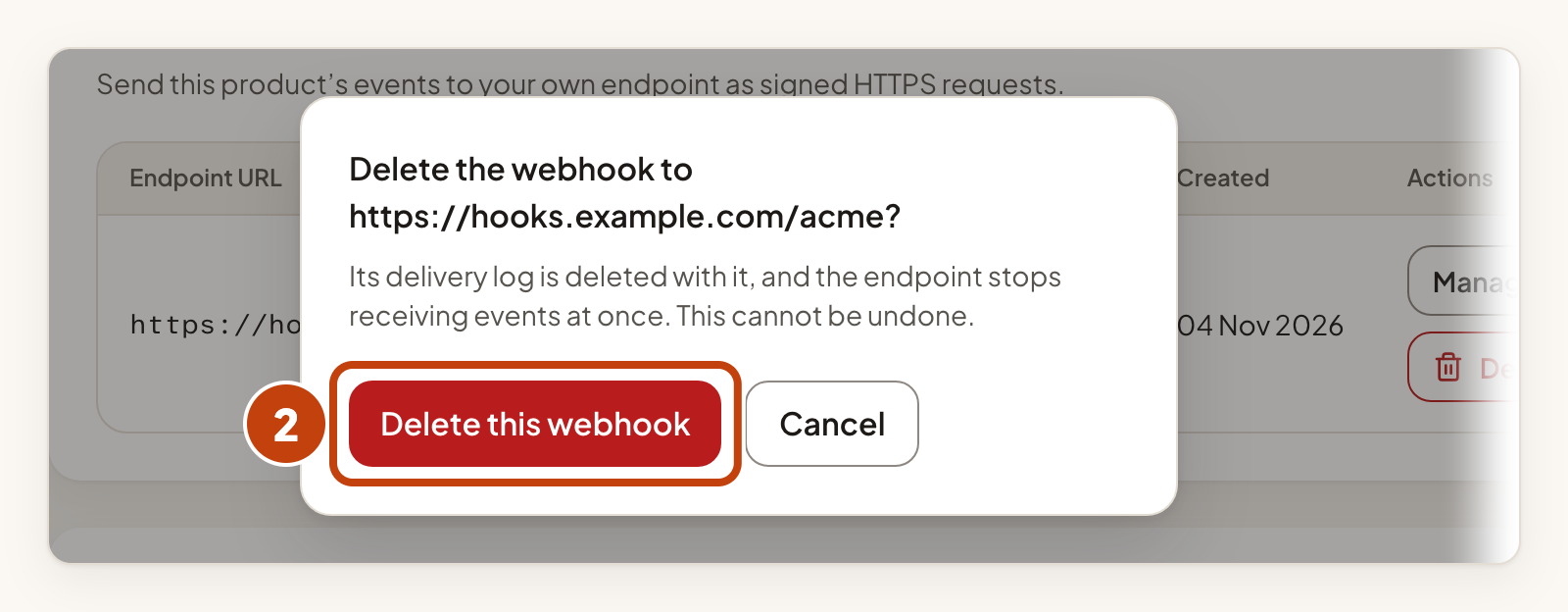
Deleting a webhook also deletes its delivery log, and the endpoint stops receiving events at once.
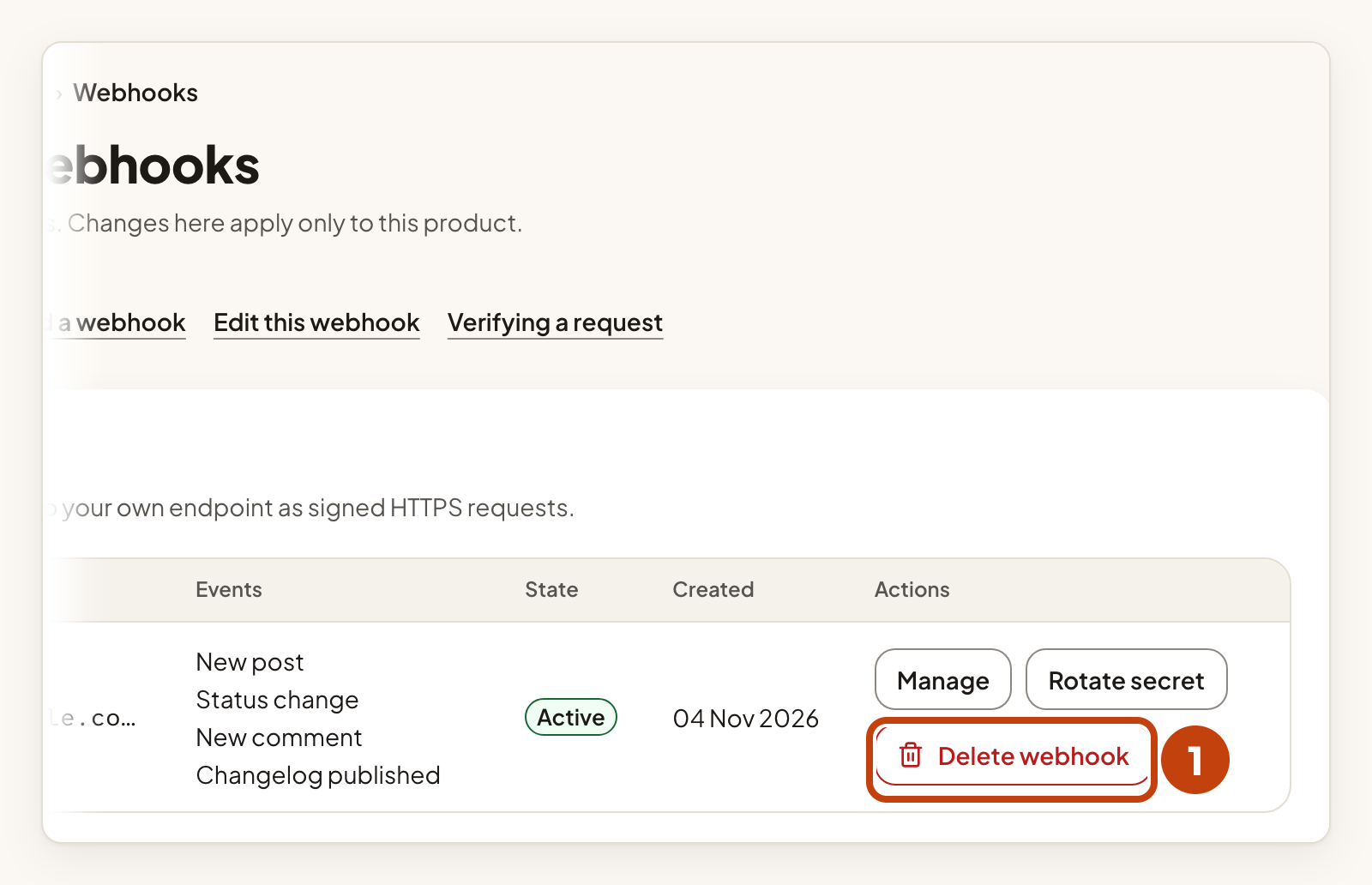
- Select Delete webhook on the webhook's row.
- Select Delete this webhook.
Deleting a webhook cannot be undone.
Example
For example, Sam at Acme Notes adds https://hooks.example.com/ivaboard as an endpoint. He ticks New post and Status change, then selects Create webhook. He copies the signing secret and saves it in his server's secret store.
