Voting and vote limits
Customers vote for the ideas they want most. Votes show you what matters to your customers, and you can see who voted for each idea.
Who can use it
All plans. A customer needs an account on your portal to vote, unless you turn on guest voting for a public board. On your team, owners, admins, and the Manager or Moderator of a product can remove a vote or add one for a customer. A Viewer can see the voter list, but not email addresses.
How customers vote
Each customer gets one vote per idea. Select Vote and the idea shows You voted. Select Vote again to take the vote back. A second press from the same customer never counts twice. Customers see the number of votes, not who voted.
A vote also follows the idea, so the customer gets updates about it. The customer can stop following on the idea's page. See Following ideas.
Let visitors vote as guests
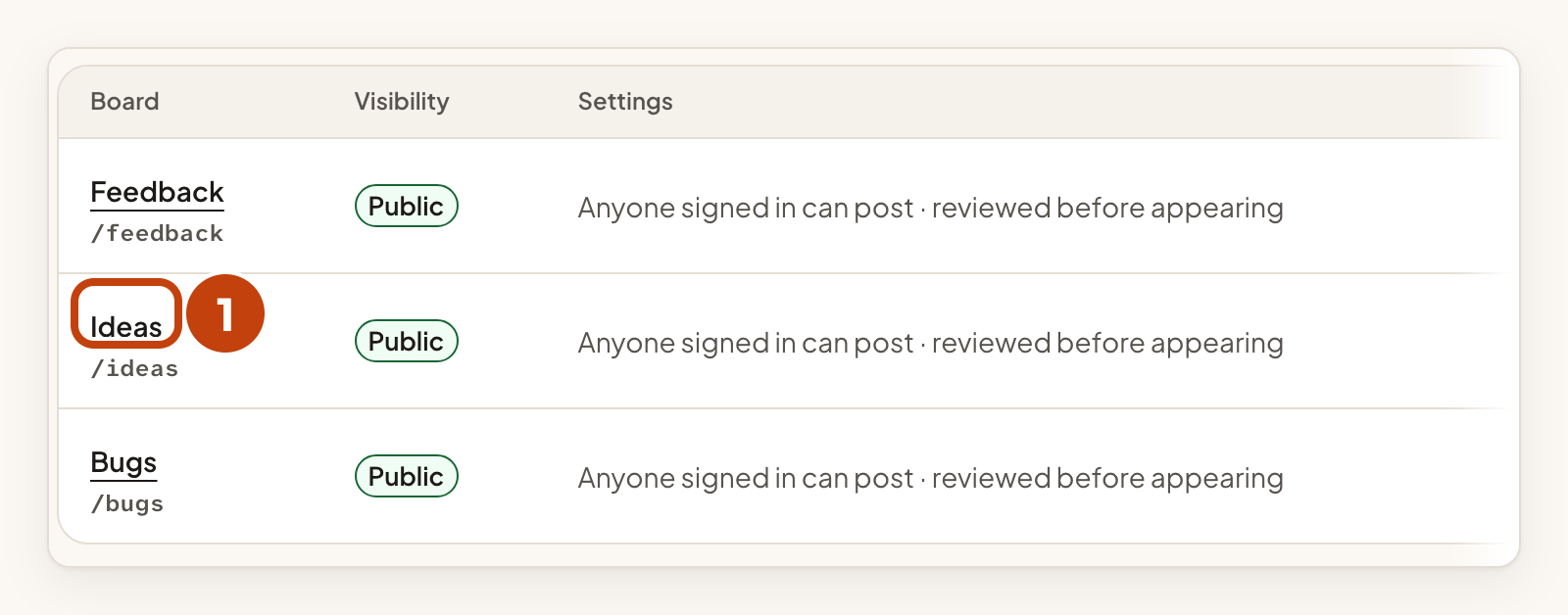
Guest voting is off by default. You turn it on for each board. It works only on public boards, and not when your portal accepts sign-in only from your own app.
- Select the board's name in the Boards list.
- Tick Guest voting. If the box is greyed out, make the board public first.
- Select Save board settings.
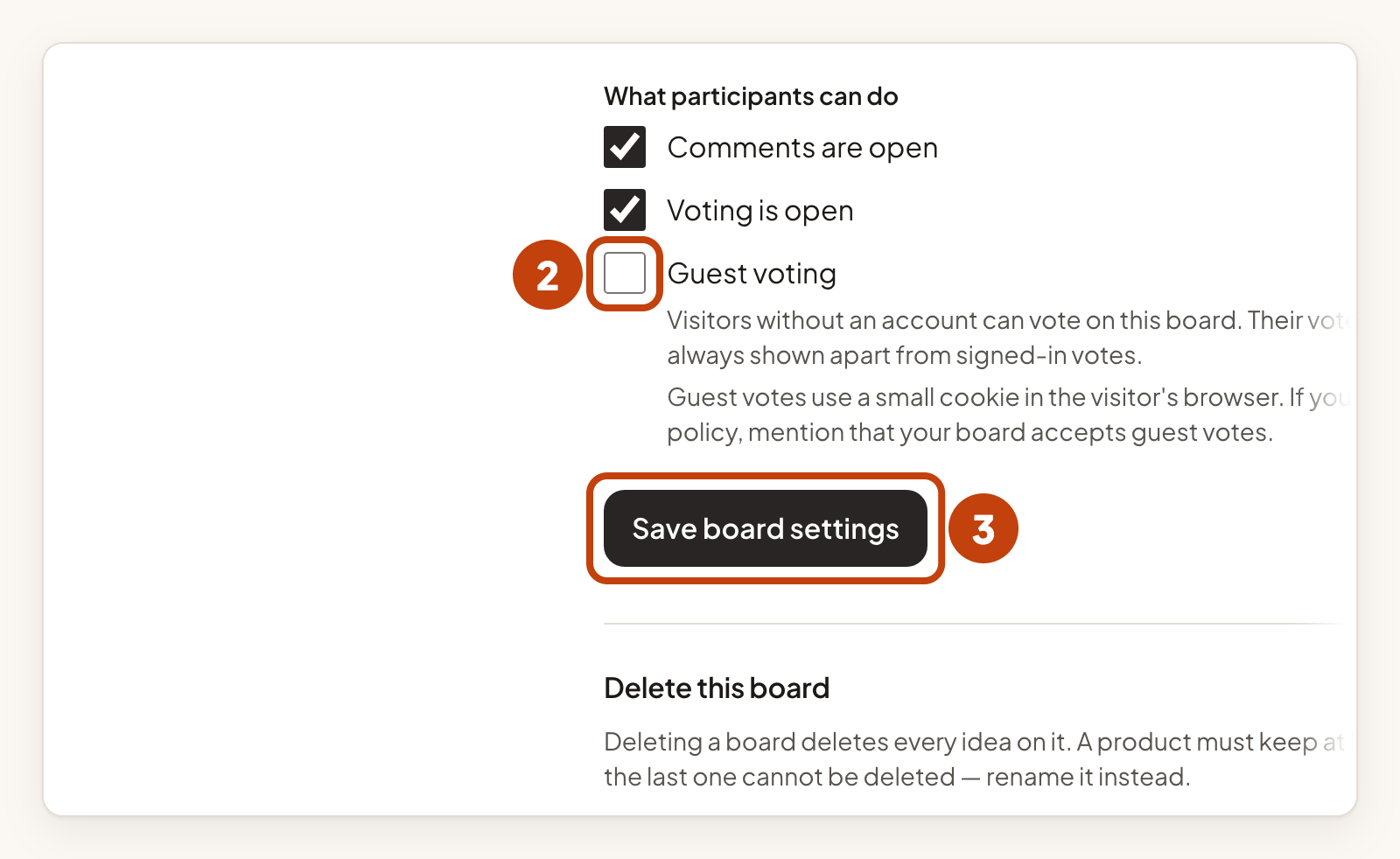
Guest votes save a small cookie in the visitor's browser. If you have your own privacy policy, mention that your board accepts guest votes.
Here is what visitors see:
- A visitor selects Vote. A short note explains the cookie. The visitor selects Vote as a guest to vote, or Sign in instead.
- A quick check in the browser keeps bots out. There is no picture puzzle.
- The portal shows guest votes apart from signed-in votes, for example 12 votes · 5 as guests.
- A guest can only add or take back a vote. Posting and commenting still need an account.
- A guest can select Remove my guest votes in the same browser to remove their guest votes.
- When a guest signs in, the portal offers to add their guest votes to their account. The visitor selects Add them.
One browser is not one person, so read guest votes as honest feedback, not as an election.
Review held guest votes
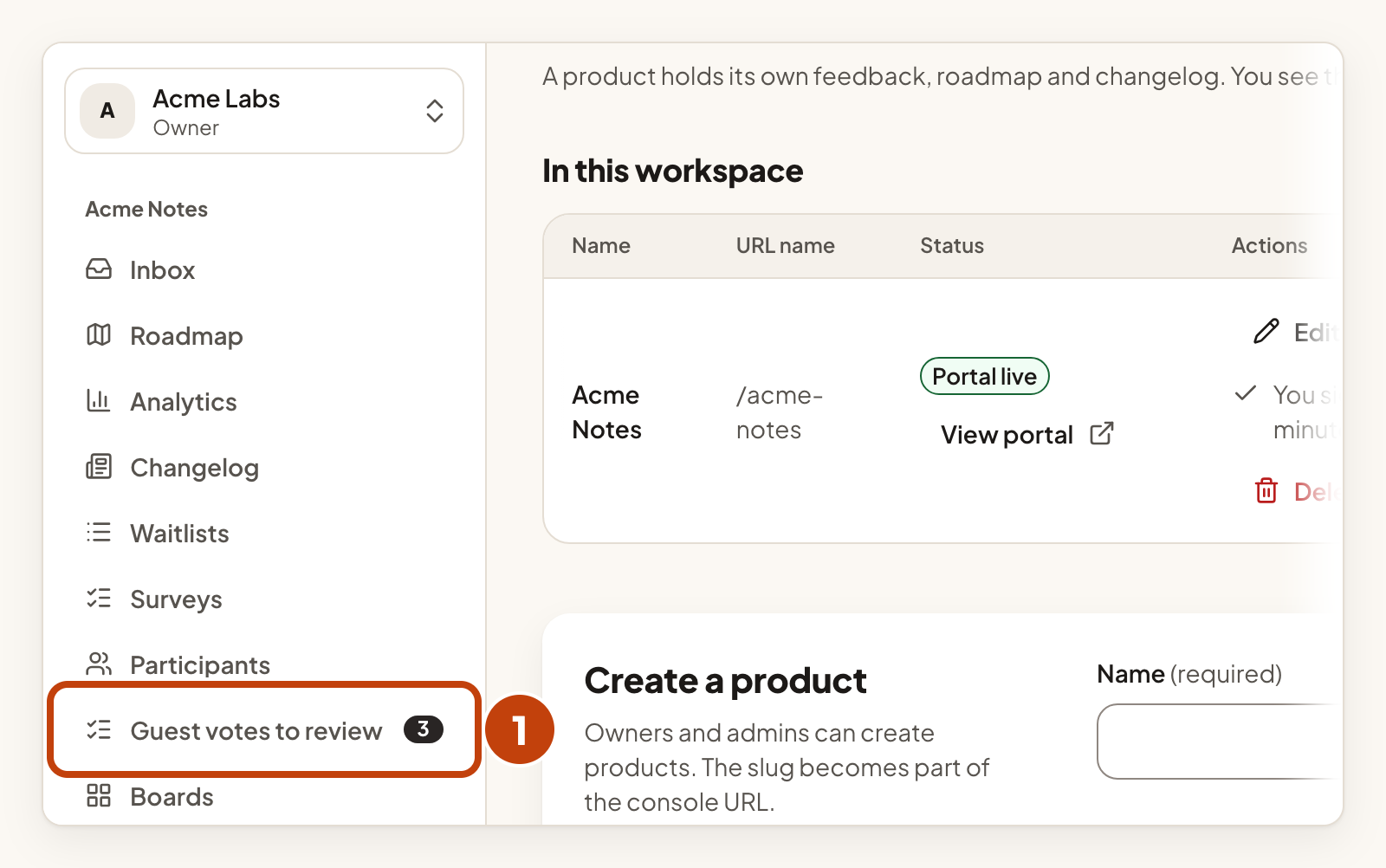
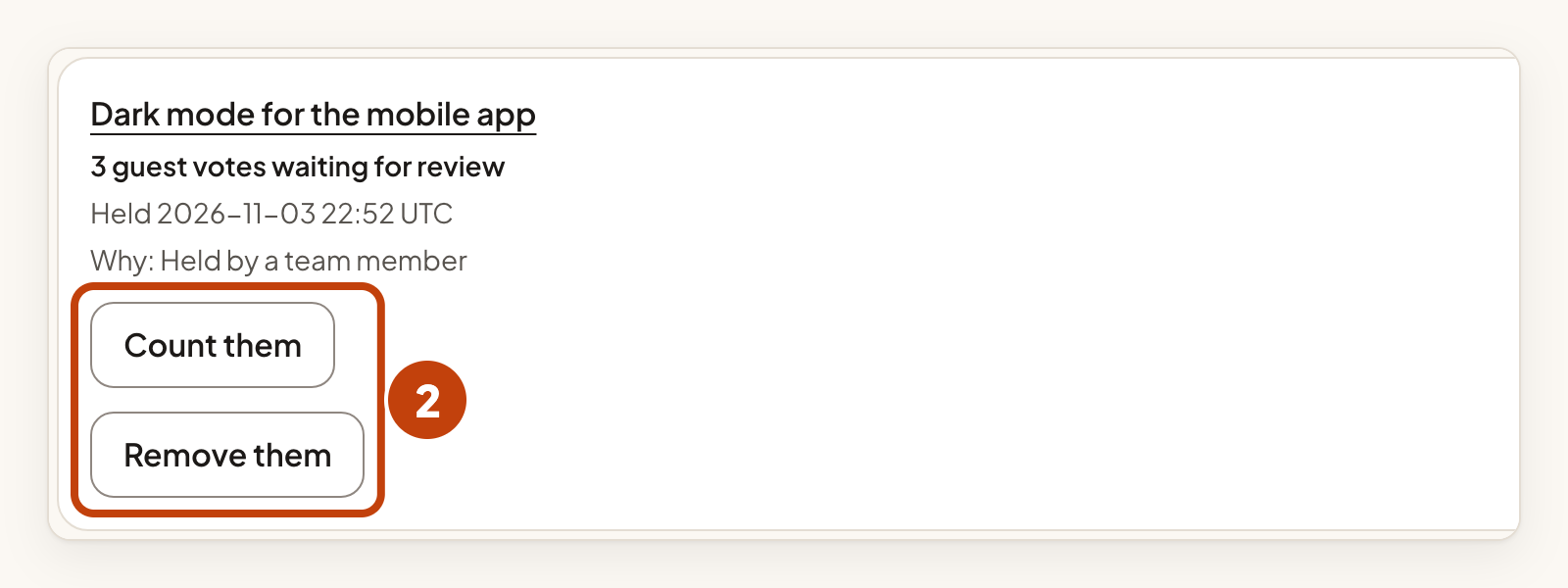
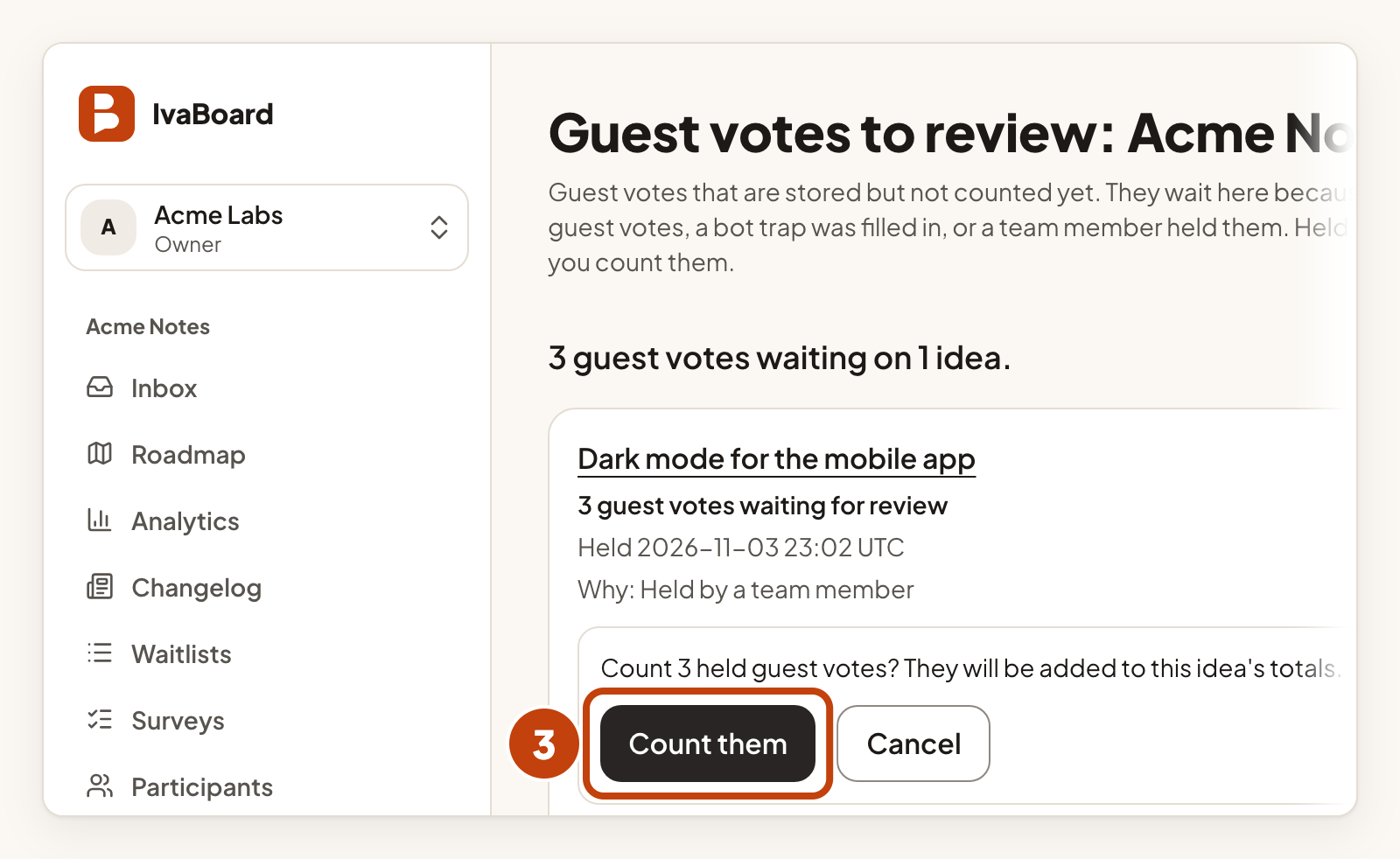
If many guest votes arrive for one idea in a short time, the new guest votes wait for review. They are not counted yet. Owners, admins, and the Manager or Moderator of a product review them.
- Open Guest votes to review.
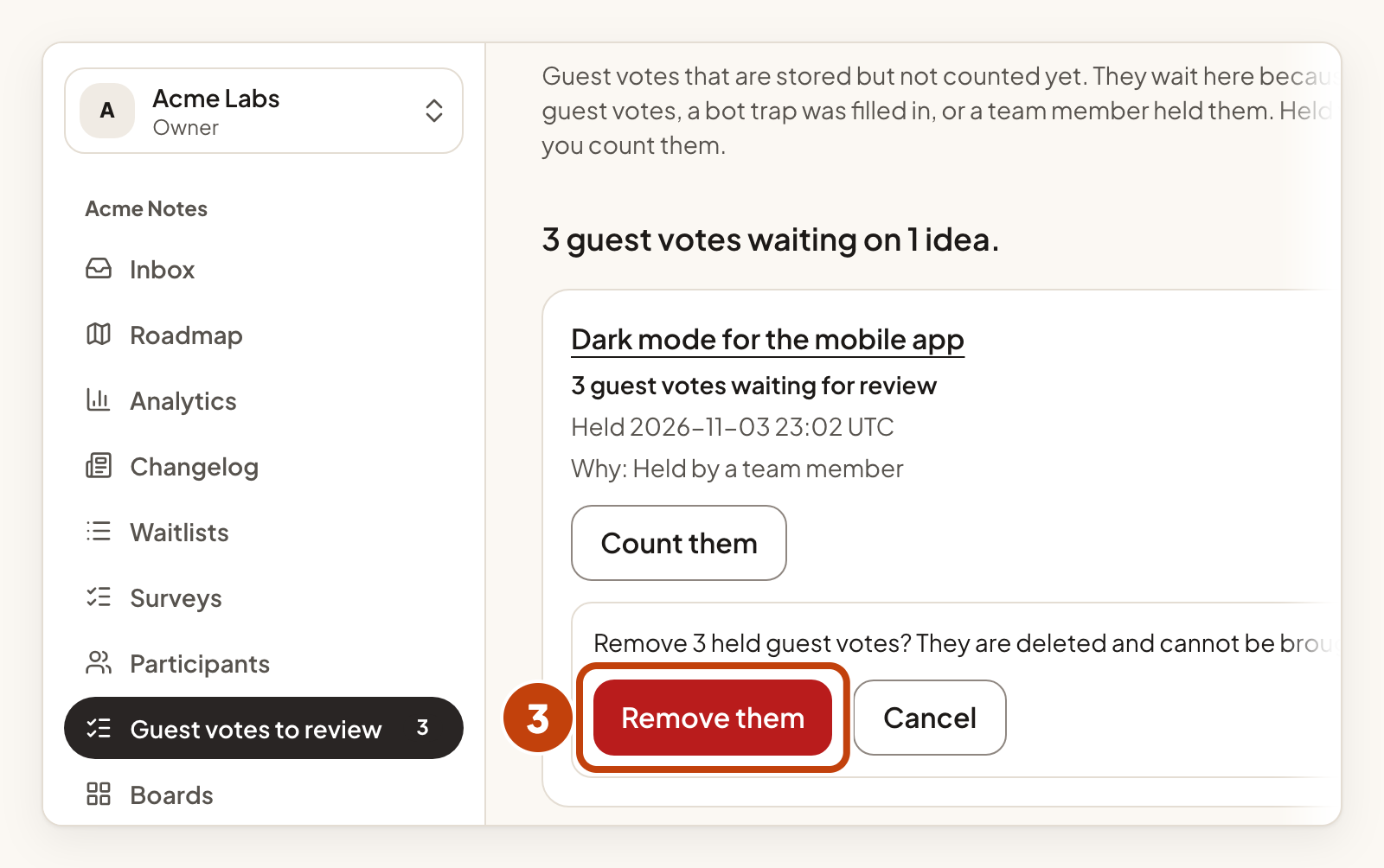
- For an idea, select Count them or Remove them.
- In the same row, select Count them or Remove them again to confirm.
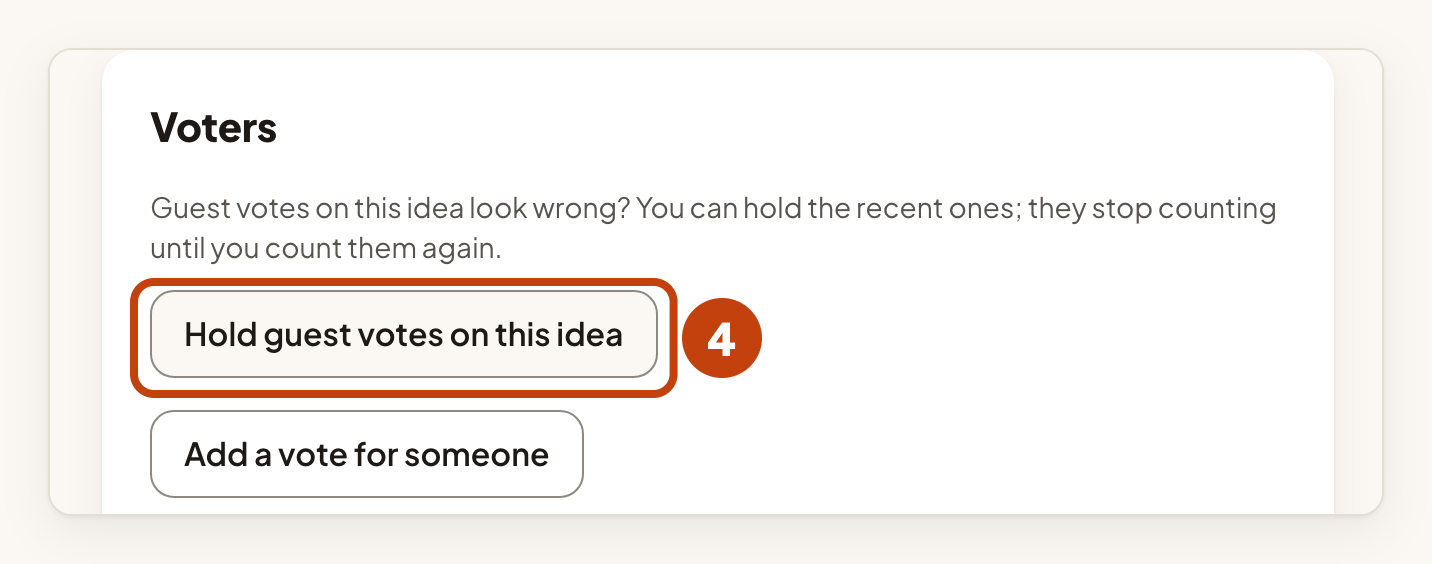
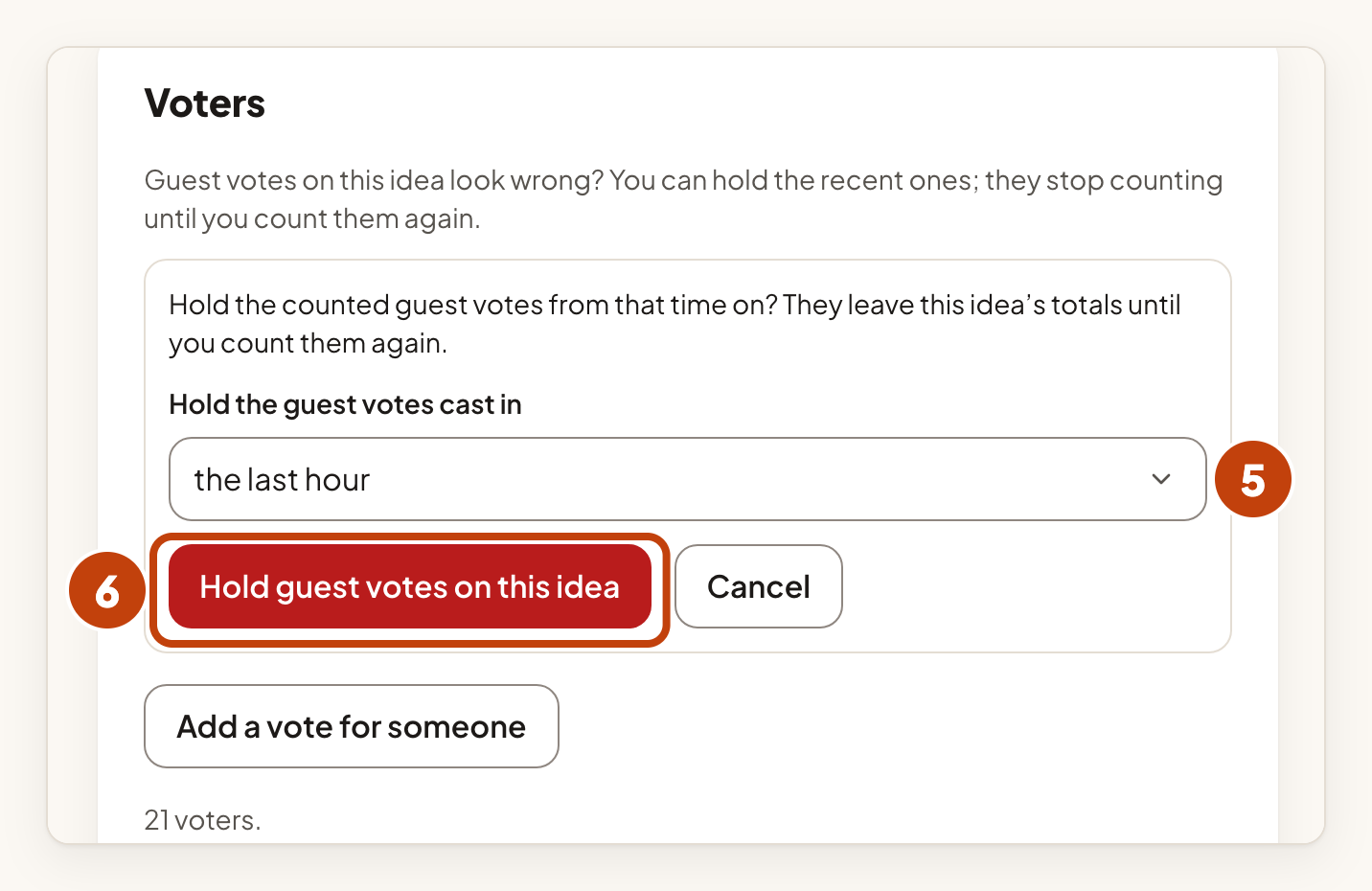
- To hold an idea's recent guest votes instead, select Hold guest votes on this idea on the idea page.
- Choose how far back to hold, such as the last hour.
- Select Hold guest votes on this idea again to confirm.
When voting is closed
Customers cannot vote on an idea when:
- the board's Voting is open box is not ticked,
- the idea's status closes voting. In the default statuses, Done and Declined do this. See Statuses and your public roadmap,
- the idea is waiting for review, declined, hidden or merged, because customers cannot see it to vote.
The portal tells the customer why they cannot vote, for example Voting closed or Voting off. The Add a vote for someone button hides for your team too.
Limits
To stop abuse, each signed-in person can change up to 100 votes a day on a product, and each guest up to 60. Adding a vote and taking one back both count. You do not need to set this up.
See who voted
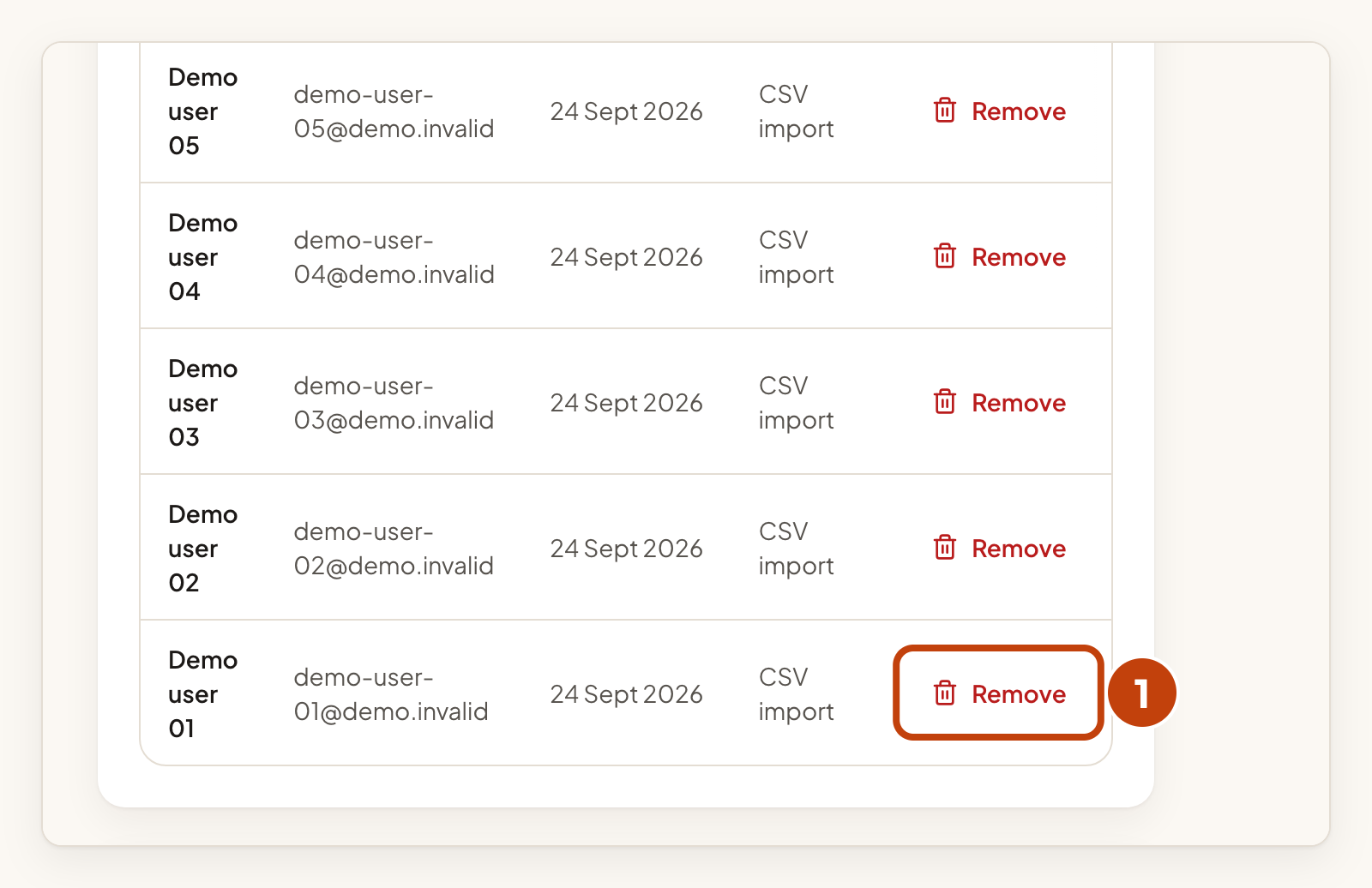
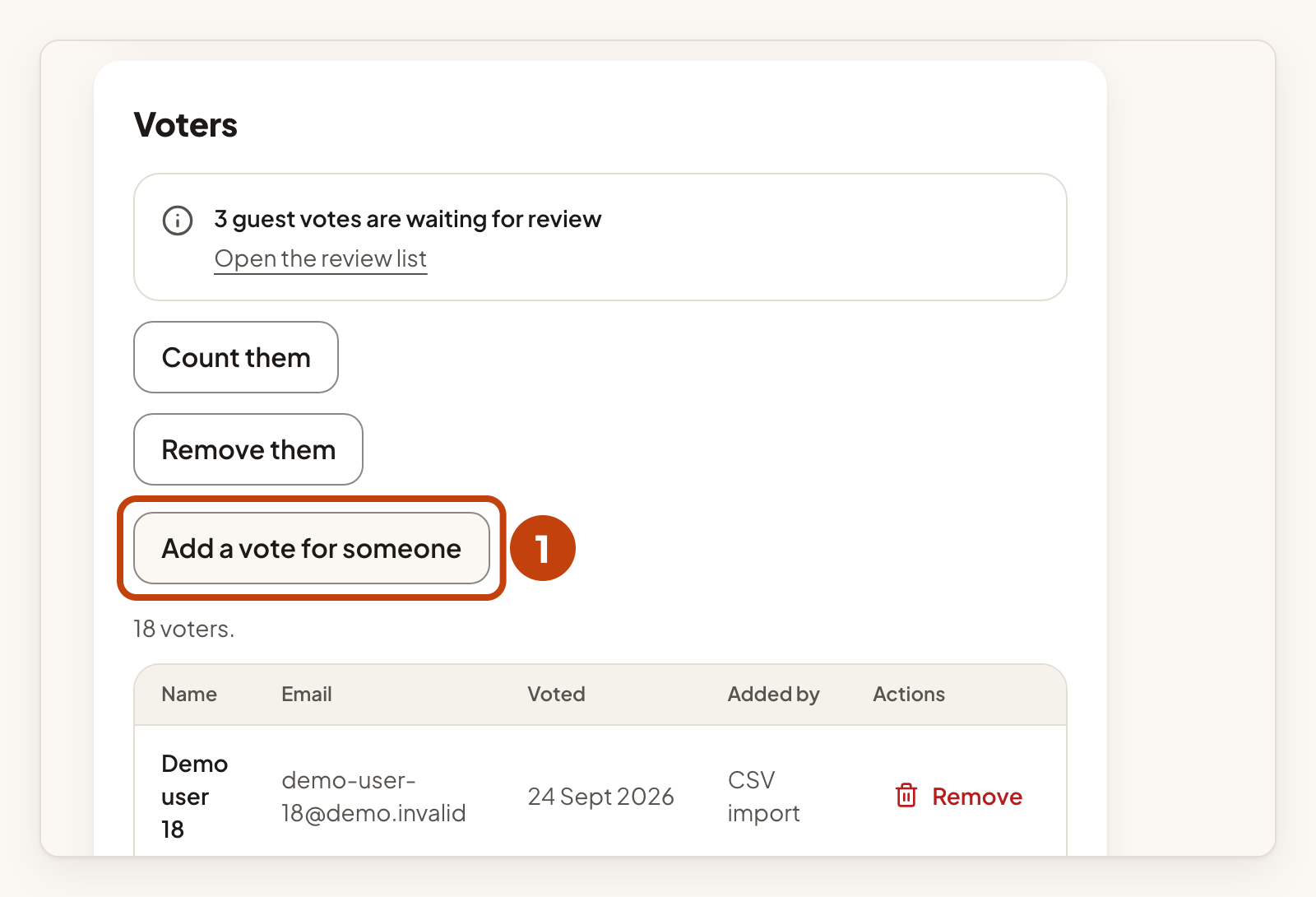
Open an idea and find Voters. The list shows Name, Email, Voted, Added by and Actions. Added by shows On the portal, Your product, A team member or CSV import. Viewers do not see email addresses.
Remove a vote
- In the Voters list, select the remove button in the person's row.
- Select Remove vote.
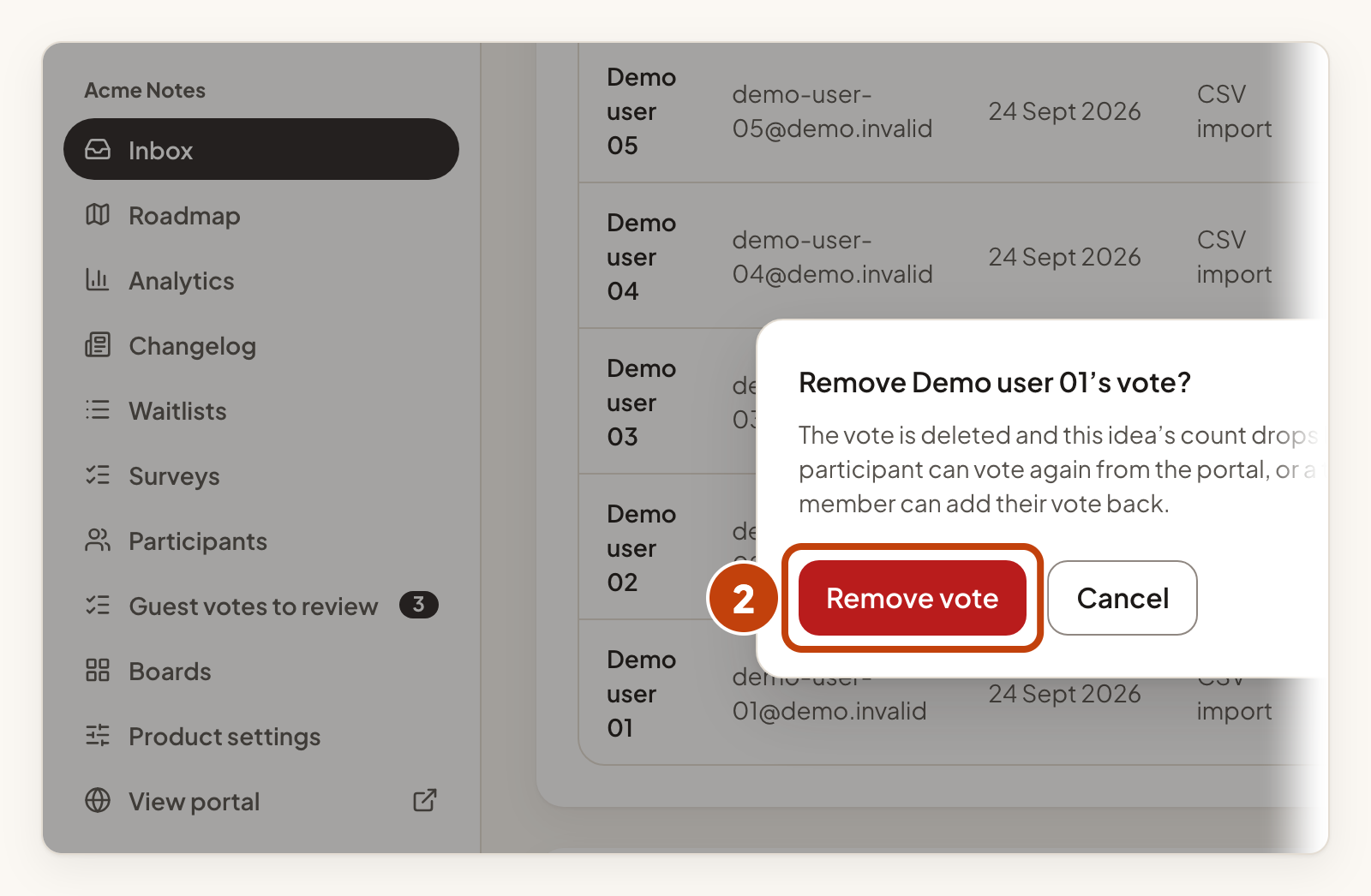
The count drops by one. The customer can vote again later.
Add a vote for someone
If a customer asked for an idea outside the portal, you can add their vote.
- On the idea, select Add a vote for someone. The button shows only while the board's voting is on and the idea's status takes votes.
- Under Who is this vote for?, choose the person. You can choose only people who have already joined your portal. To find someone who is not in the list, type part of their name under Find a person and select Search people. The search also matches their email address if you can see addresses.
- Select Add vote.
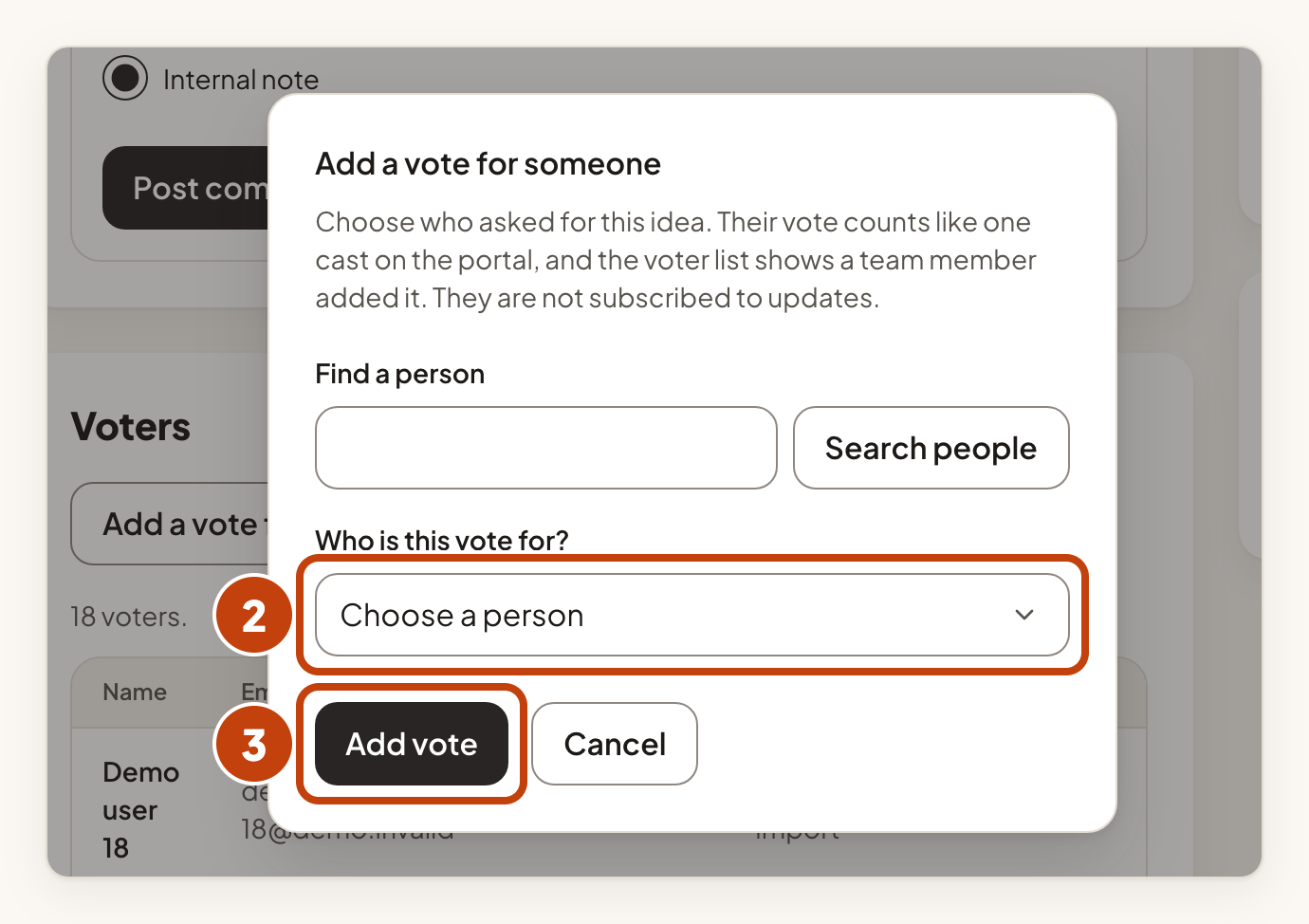
The vote counts like any other. The voter list shows A team member under Added by. The person does not follow the idea and gets no updates about it.
Example
For example, a customer named Alex Kim asks for dark mode by email. Sam Taylor opens the idea Dark mode for the mobile app, selects Add a vote for someone, chooses Alex Kim under Who is this vote for?, and selects Add vote. The count goes up by one, and the voter list shows A team member under Added by.
