Sign in and two-factor authentication
Your team signs in to the console at https://app.ivaboard.com with an email address and a password. Two-factor authentication adds a code from an authenticator app. Owners and admins must turn it on before they can use the console.
Who can use it
Every role signs in the same way and manages their own sign-in. An owner or an admin, in any workspace, must set up two-factor authentication. Until they do, the console stays closed to them.
Create your account and sign in
You can create an account only from an invitation. Your account is created when you accept one. See Invite your team.
You choose a password of 12 to 128 characters. Then you confirm your email address with the link we send. The link works for one hour.
To sign in, enter your email address and password. Select Sign in. If the console asks you to verify your email address first, open the link we sent you.
If you forget your password, select Forgot your password?. Then follow the link in the email. That link also works for one hour.
If you enter the wrong password many times in a short time, sign-in for your account pauses for about 15 minutes. The pause applies even if you then enter the right password. The sign-in page shows the same message as for a wrong password. Wait 15 minutes, then try again. If the message still appears, select Forgot your password? and set a new password.
If wrong passwords keep adding up, with no successful sign-in and no password reset in between, sign-in for your account stays locked. It stays locked until you set a new password with Forgot your password?.
While an account is paused or locked, browsers that are already signed in keep working. A finished password reset signs you out in every browser and clears the lock.
The same limits apply when a visitor signs in to a portal with a password.
Having an account does not put you on a team. Until someone invites you to a workspace, you see nothing in it.
Set up two-factor authentication
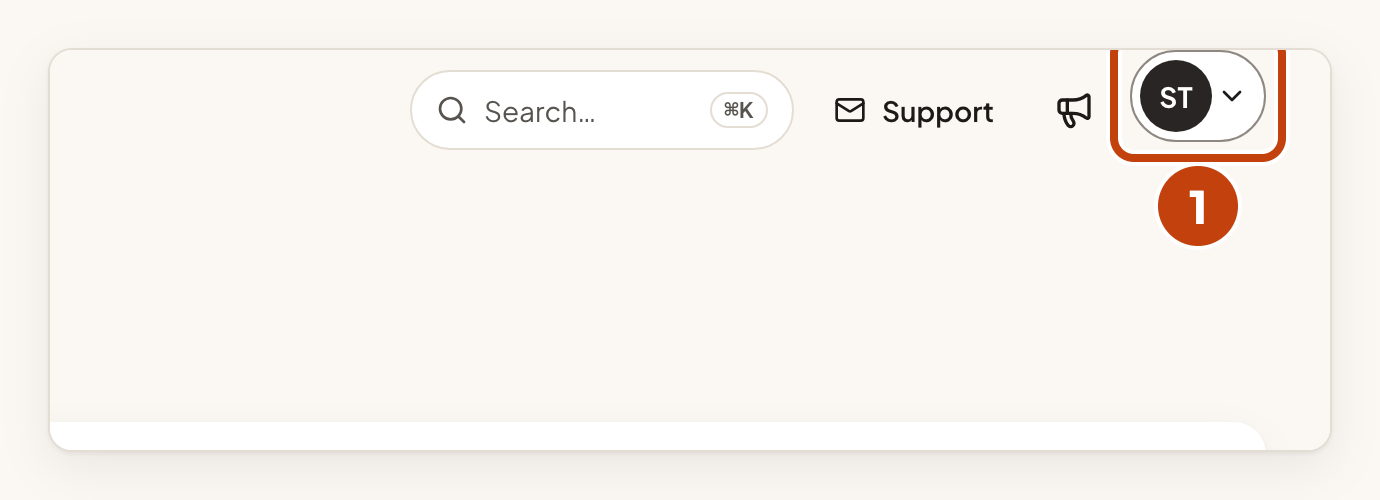
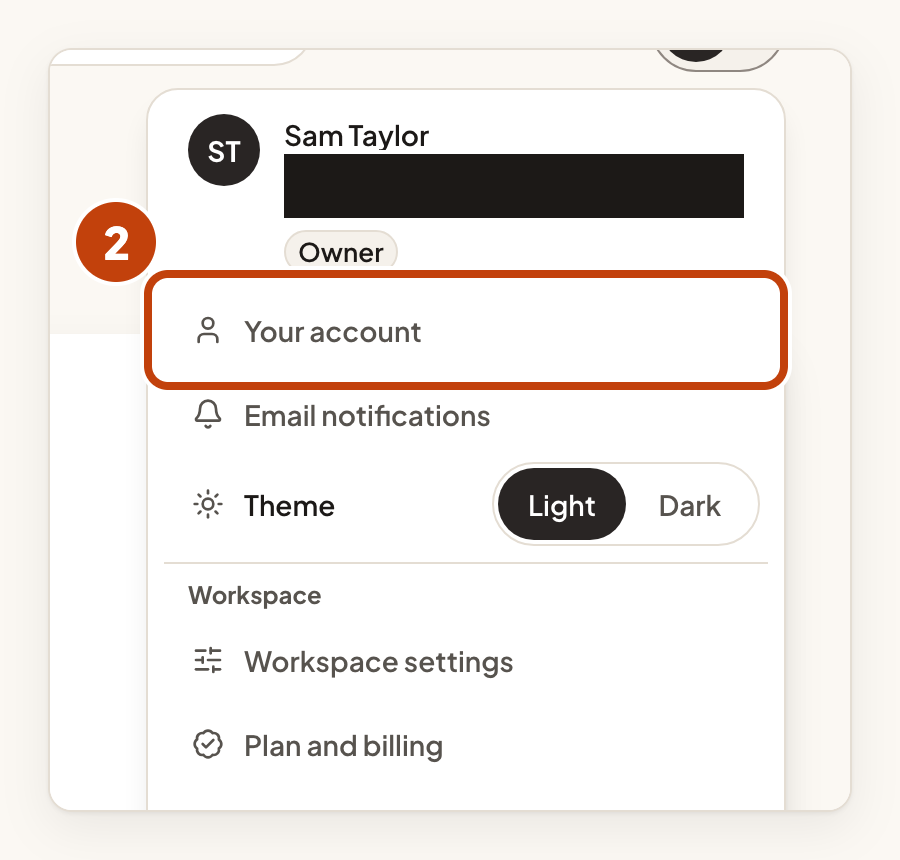
Owners and admins are taken to the Set up two-factor authentication page as soon as they open the console. They can skip steps 1 and 2 below.
- Open the account menu: select your avatar at the top right of the page.
- Select Your account.
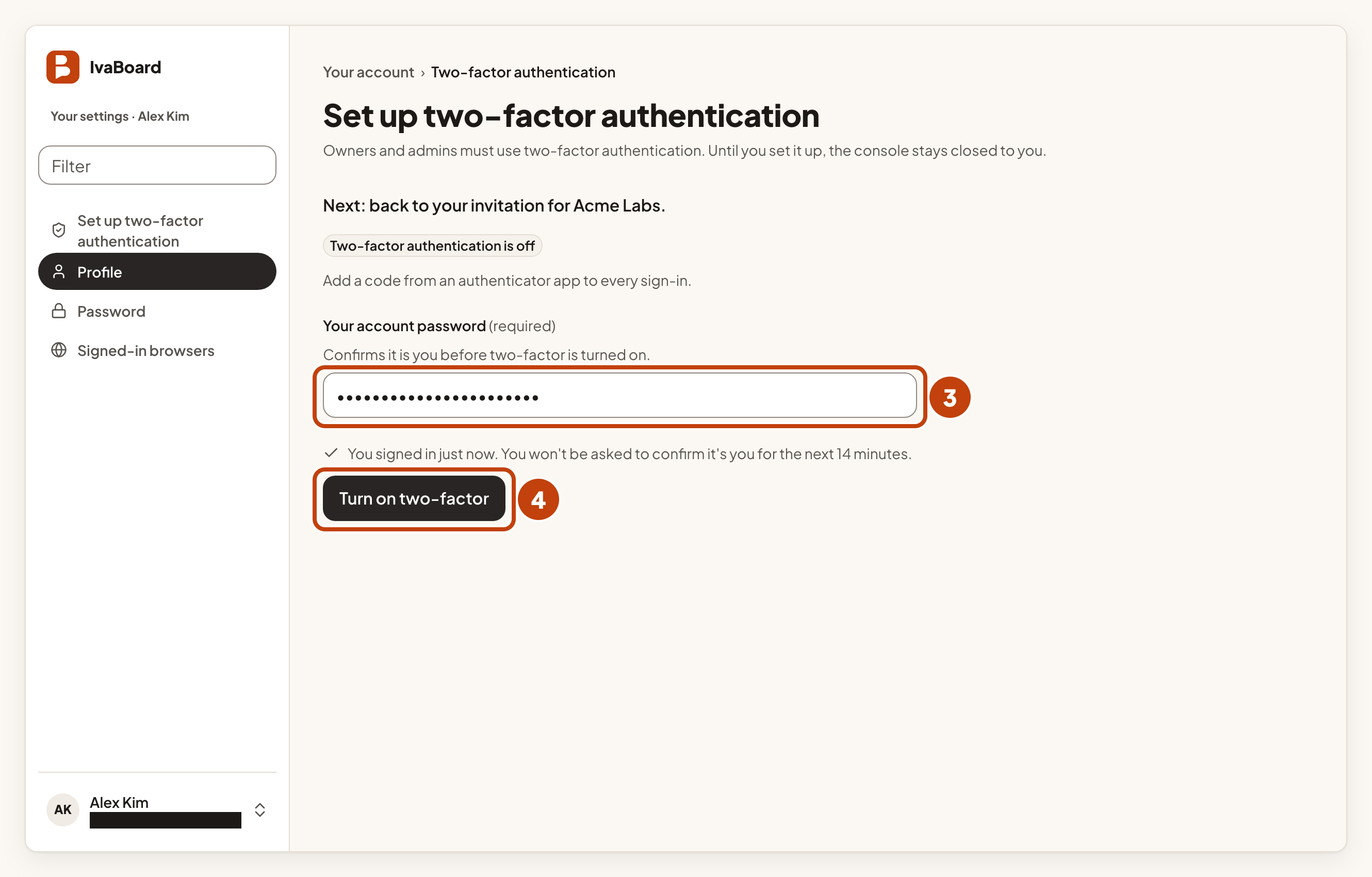
- Enter your password in Your account password.
- Select Turn on two-factor.
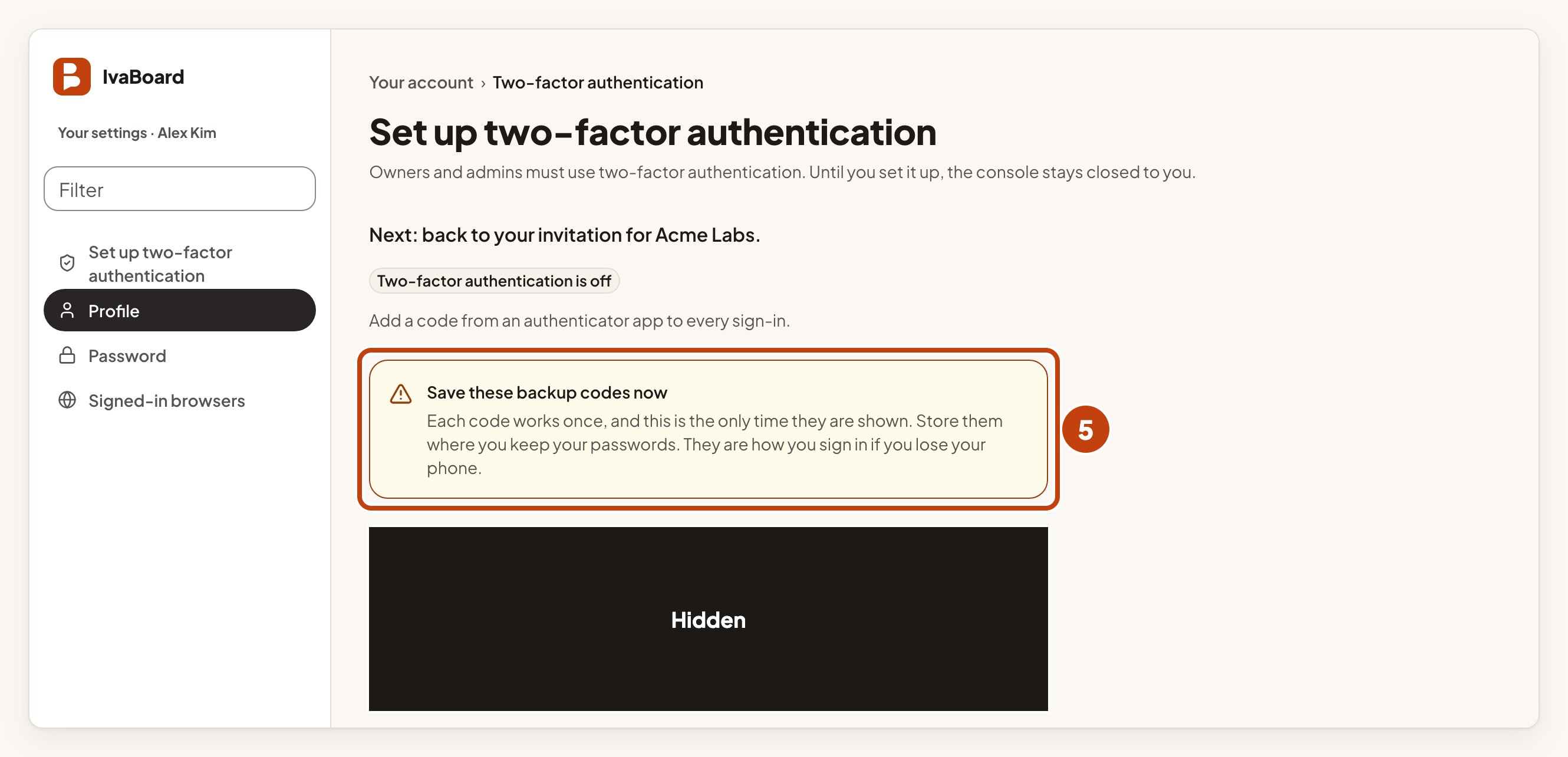
- Save the backup codes shown under Save these backup codes now.
- Scan the QR code with your authenticator app.
- Type the code your app shows into Code from your app.
- Select Finish turning on two-factor.
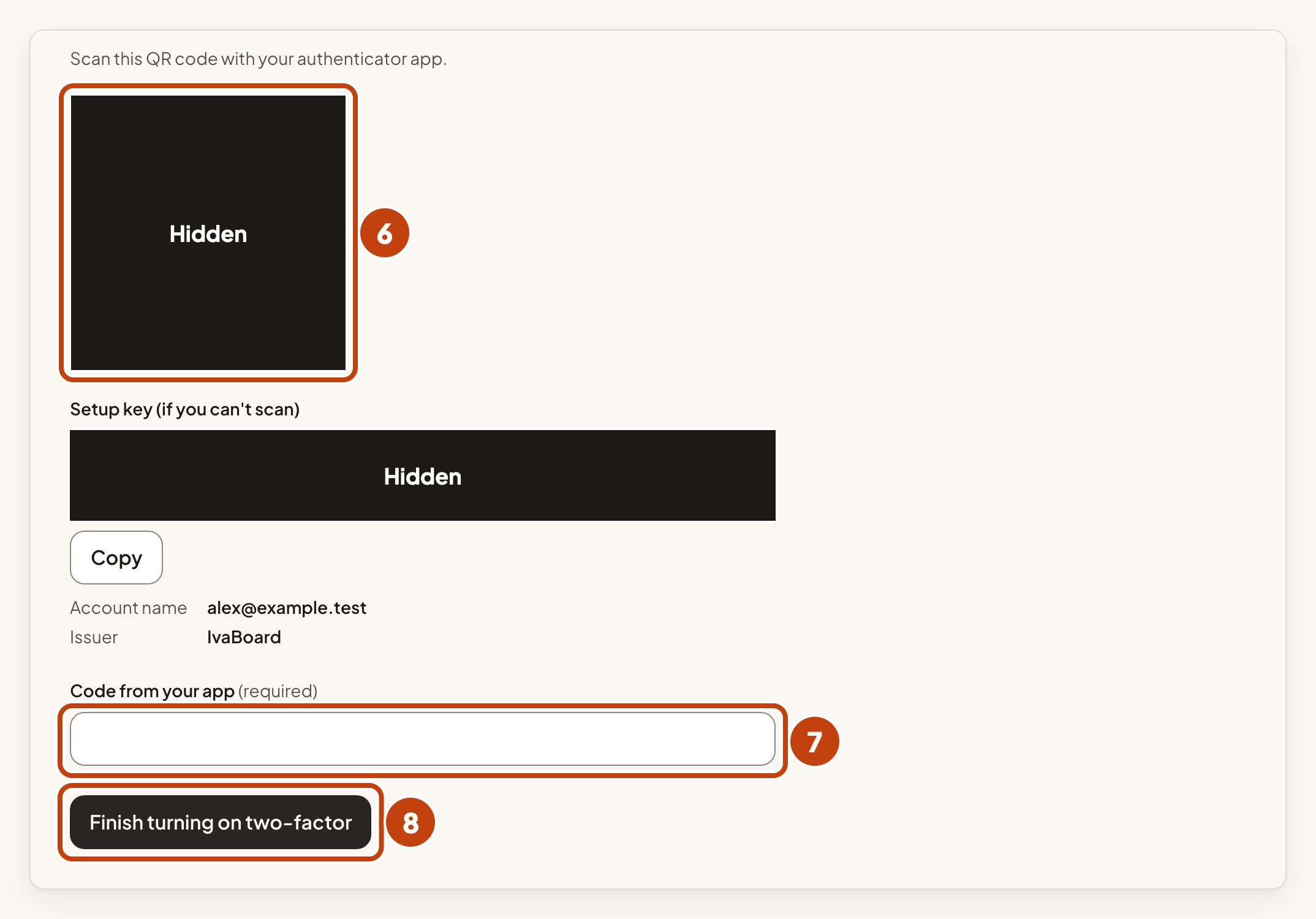
If you cannot scan the QR code, use the key under Setup key (if you can't scan) instead.
Save the backup codes before you finish. Each code works once, and the codes are shown only once. Store them where you keep your passwords.
Turning on two-factor signs out every other browser signed in to your account. The browser you turn it on in stays signed in. If the other browsers cannot be signed out, two-factor is not turned on. The console says so. Try again.
Sign in with two-factor authentication
After you turn it on, signing in asks for a code from your authenticator app. Codes in the app change every 30 seconds.
If you lose your phone, select Use a backup code instead. Enter one of your backup codes. Each backup code works once.
You can get new backup codes at any time from Get new backup codes on the Your account page. Your old codes stop working once you do.
Turn off two-factor authentication
Turning off two-factor authentication means signing in no longer asks for a code. If you are an owner or an admin, the console closes to you until you set it up again.
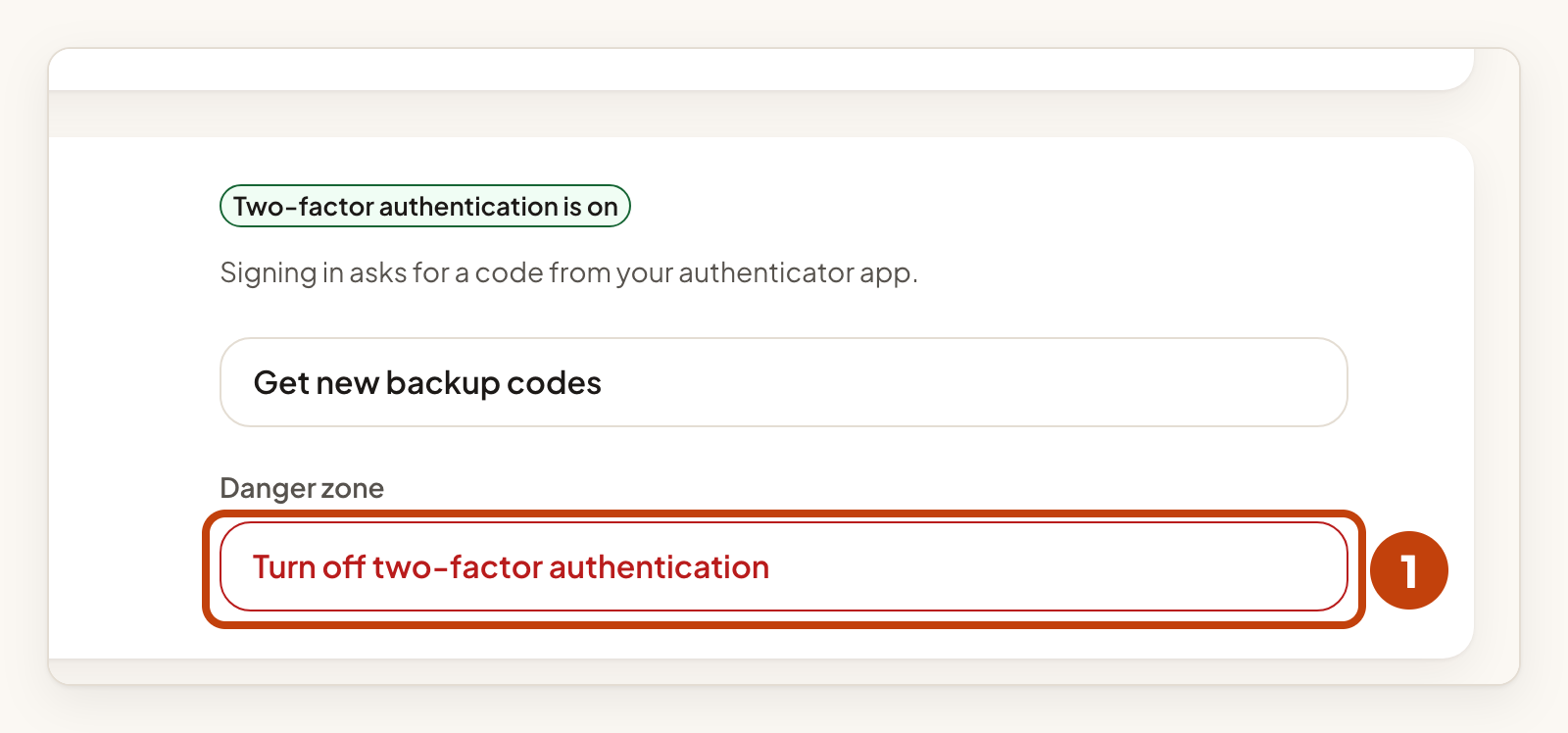
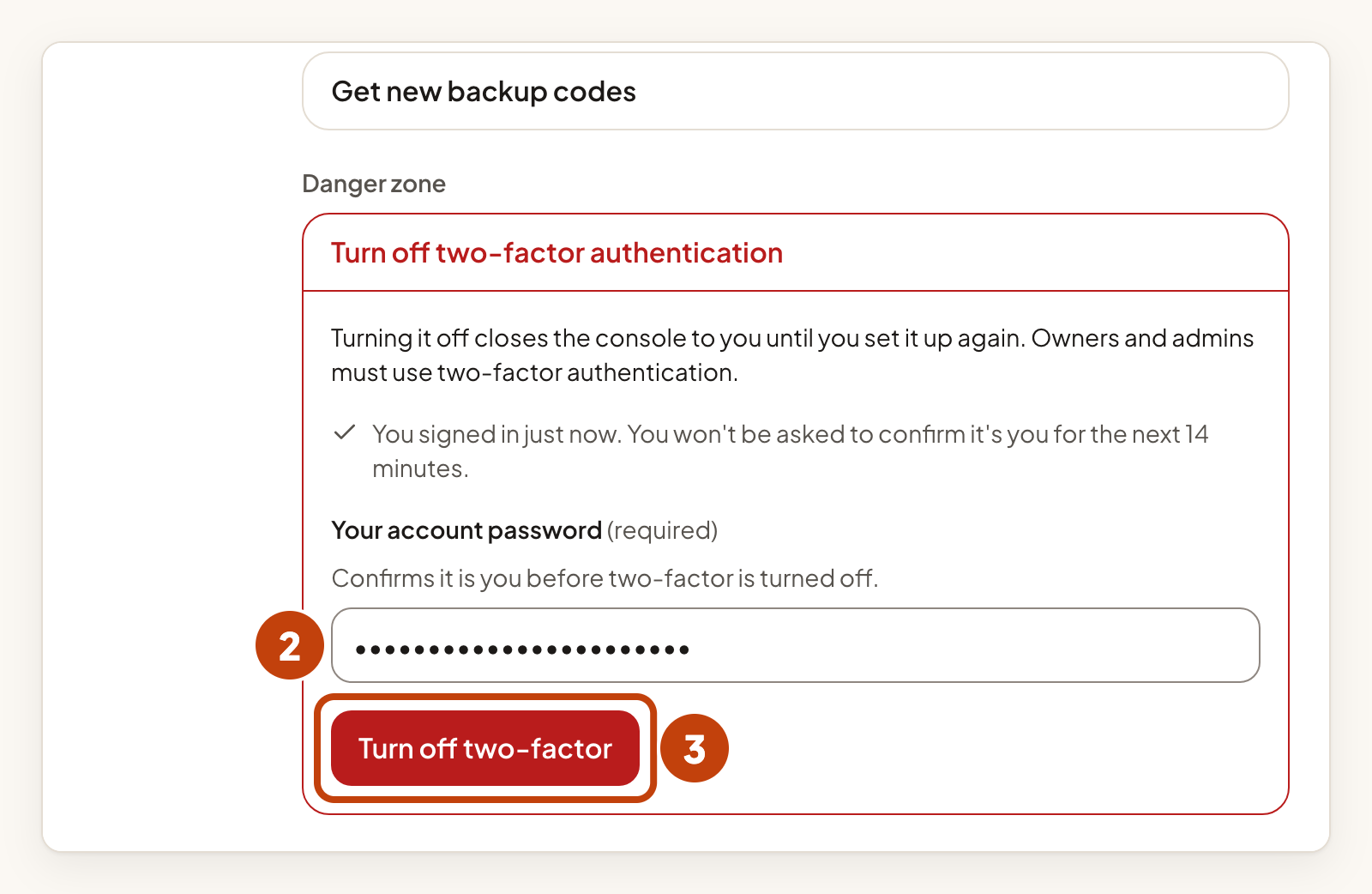
- On Your account, select Turn off two-factor authentication under Danger zone.
- Enter your password in Your account password.
- Select Turn off two-factor.
Change your password
- On Your account, go to the Password section.
- Enter your current password in Current password.
- Enter a new password of at least 12 characters in New password.
- Enter the same password in Confirm new password.
- Select Change password.
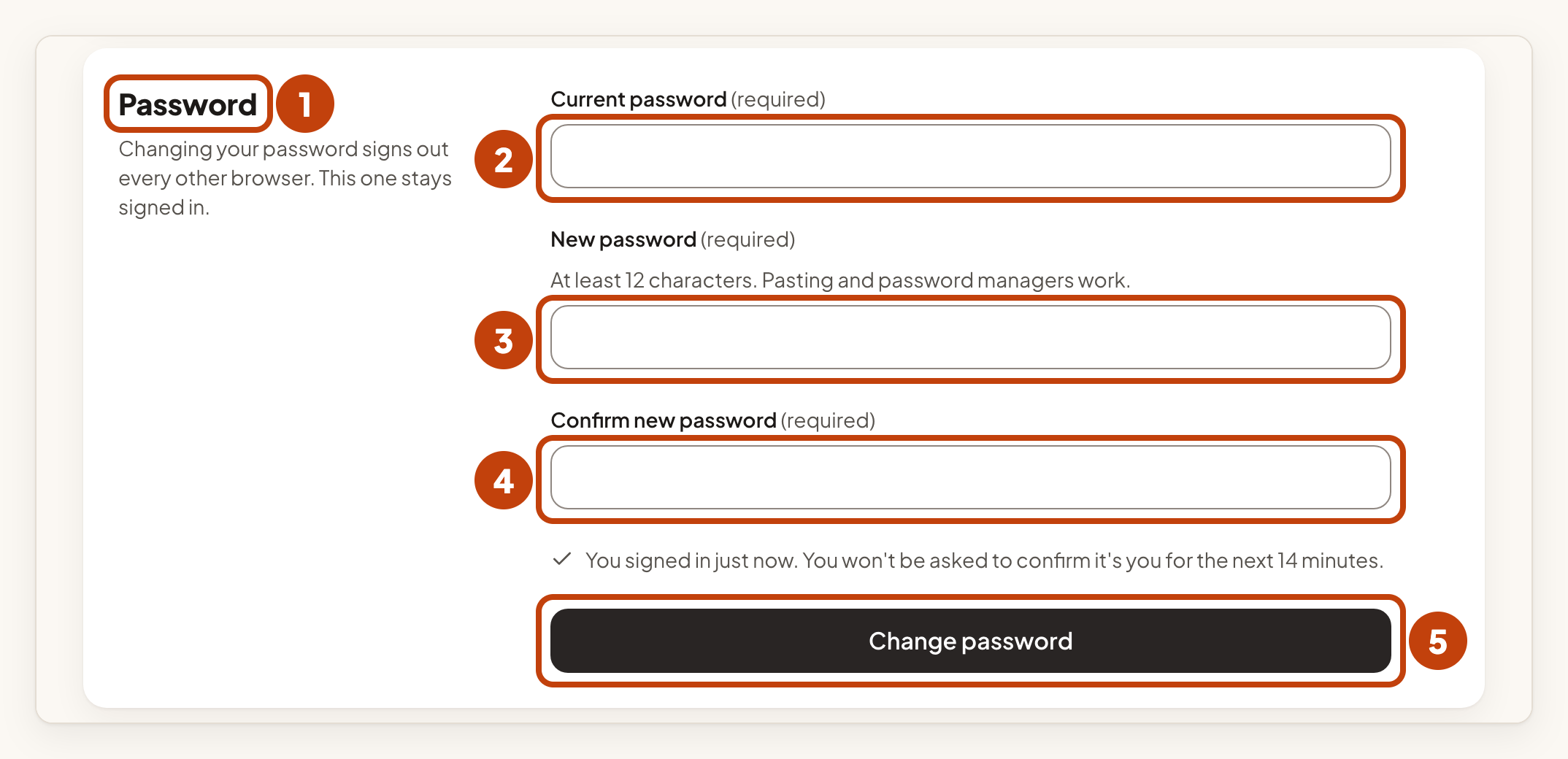
Changing your password signs out every other browser. This browser stays signed in.
See and end your sign-ins
Signed-in browsers on Your account lists the browsers signed in to your account. To end one, select Sign out on its row. To end every browser except this one, select Sign out the others. Confirm in the box that opens.
A browser you sign out stops working on its next request. A sign-in lasts up to seven days.
For sensitive changes, such as turning two-factor authentication on or off, or changing your password, your sign-in must be from the last 15 minutes. If the console asks you to sign in again, select Sign in again. Sign in. Try the change again.
Example
For example, Sam Taylor is an owner of Acme Labs. Sam sets up two-factor authentication with an app on Sam's phone. Sam saves the backup codes in a password manager. From then on, Sam signs in with [email protected], a password and a code from the app.
