Score your ideas next to their votes
Votes show what customers want. They do not show what an idea costs to build. Scoring puts a number next to each idea, so you can weigh demand against effort.
Who can use it
An owner, an admin or a product manager can choose the scoring method and score ideas. A moderator can score ideas but cannot change the method. A viewer can see scores but cannot change them. Every plan includes scoring.
Scores are only for your team. People who use your portal never see them, and scores are not in your emails or exports.
Choose a scoring method
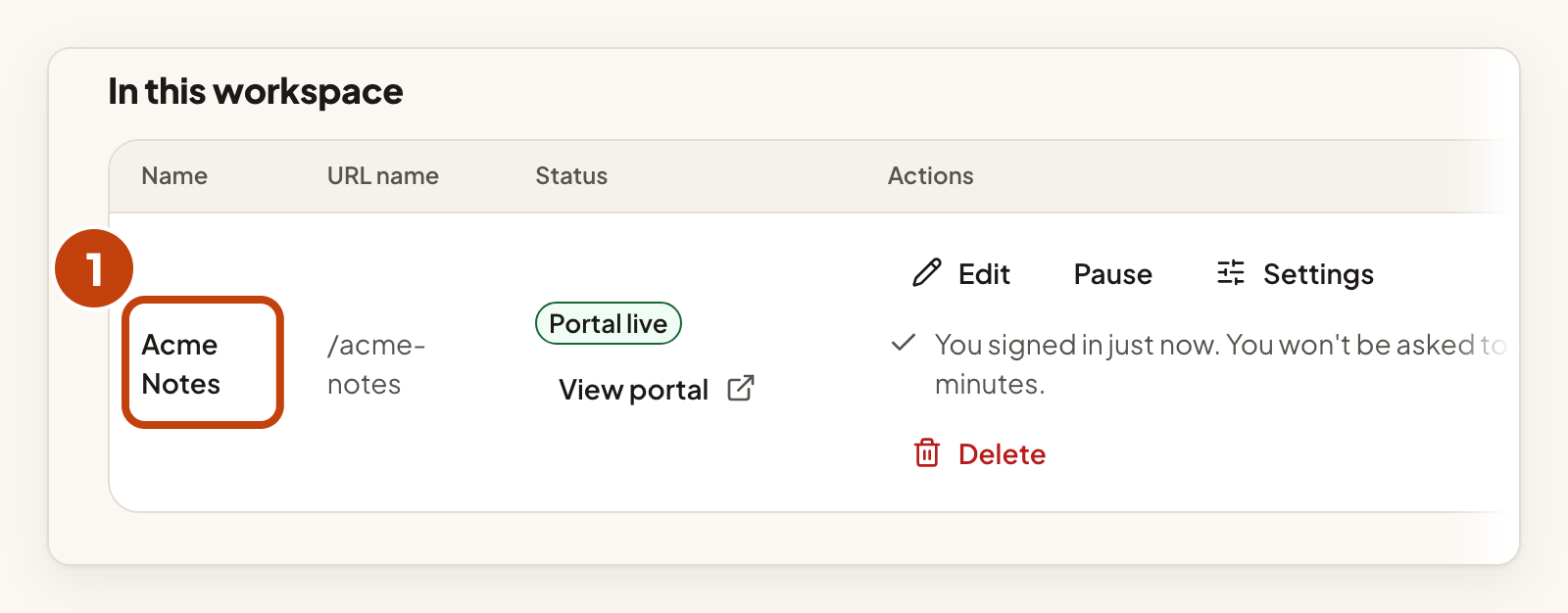
- Open your product.
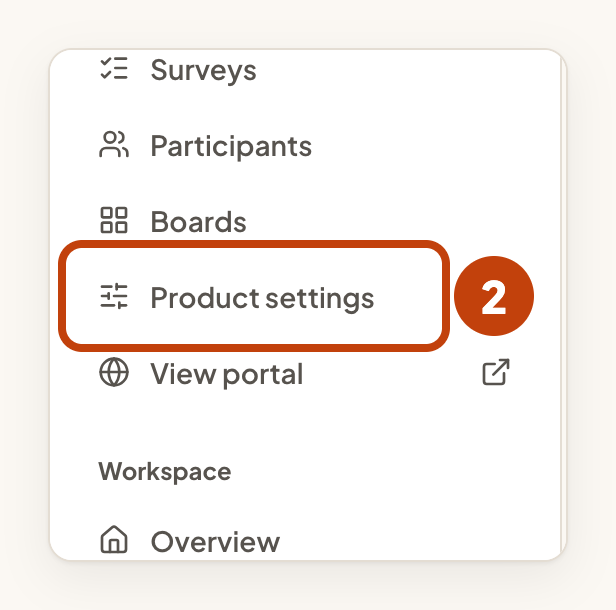
- Select Product settings in the console menu.
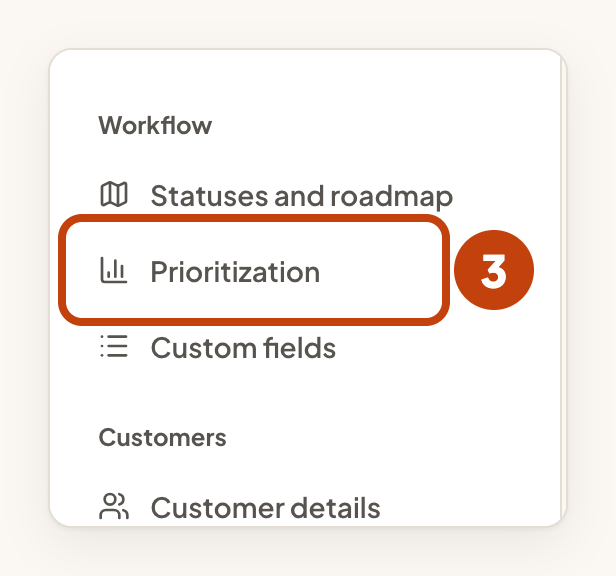
- Select Prioritization.
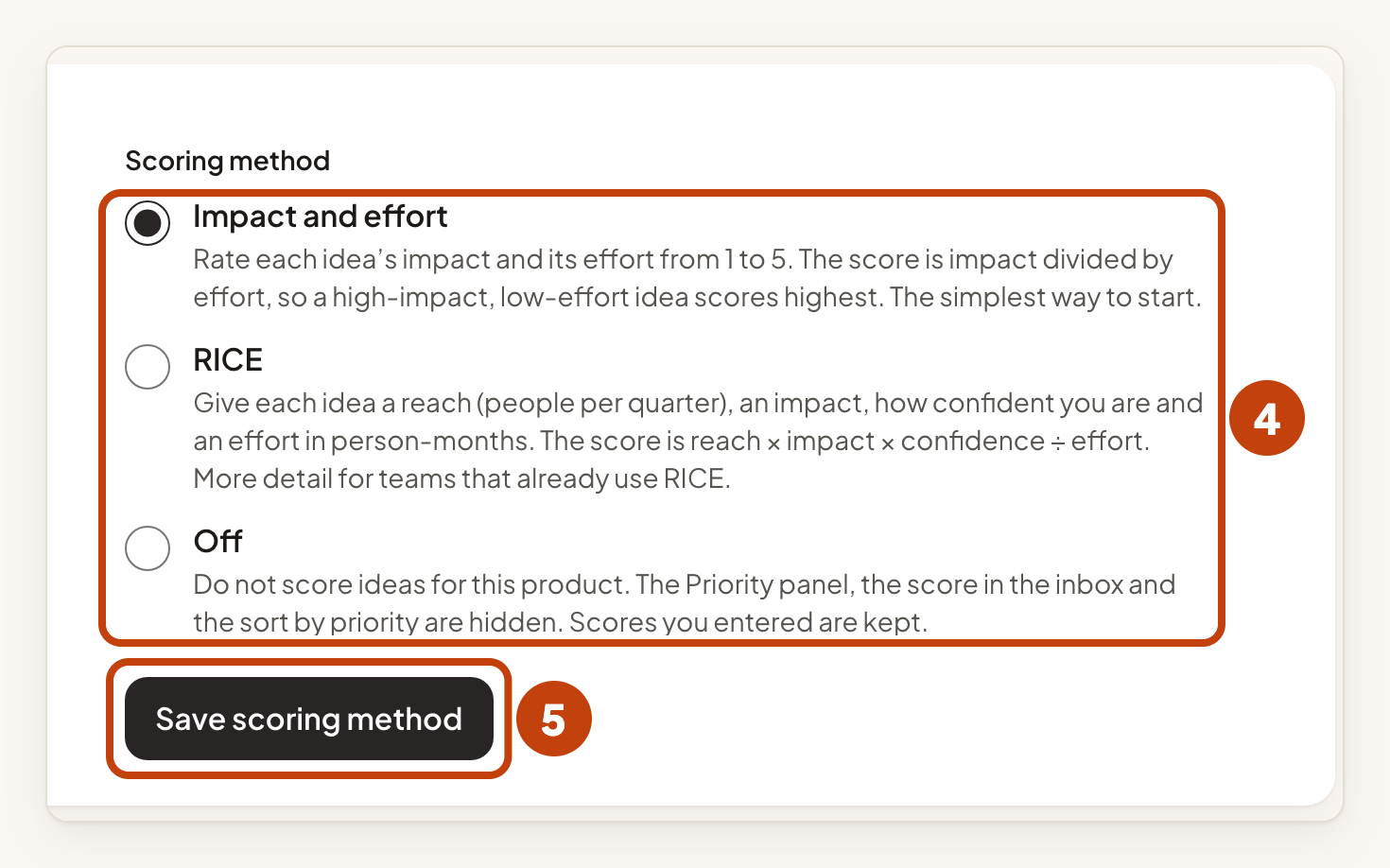
- Under Scoring method, select one of the three options.
- Select Save scoring method.
| Method | How the score works |
|---|---|
| Impact and effort | Rate impact and effort from 1 to 5. The score is impact divided by effort. This is the simplest way to start. |
| RICE | Give reach, impact, confidence and effort. The score is reach times impact times confidence, divided by effort. |
| Off | Ideas are not scored. The Priority panel, the score in the inbox and the sort by priority are hidden. Scores you entered are kept. |
For RICE, reach is the number of people per quarter, confidence is a percentage, and effort is in person-months.
Before you save, the page explains what the change does. Switching never deletes a score. Ideas show Not scored until you score them with the new method. Switching back brings the old scores back.
Score an idea
- Open the idea from your product's Inbox.
- In the Priority panel, choose a rating for Impact.
- Choose a rating for Effort.
- Check Score preview under the fields.
- Select Save score. An idea that already has a score shows Update score instead.

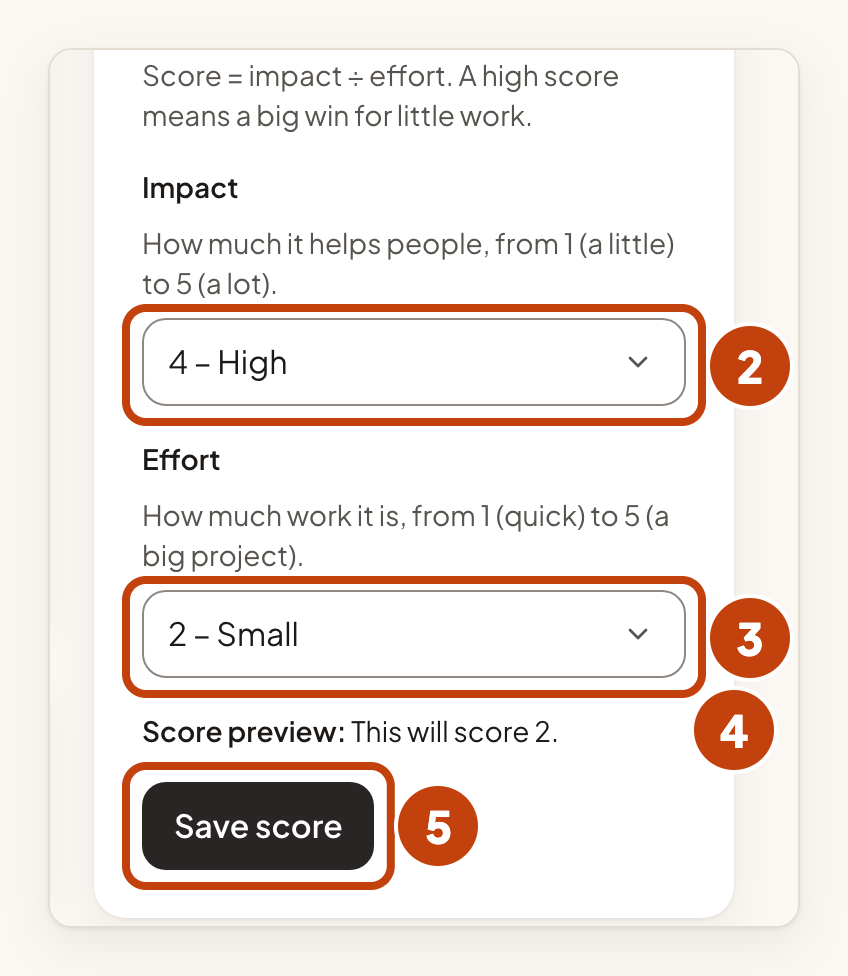
For RICE, fill in Reach, Impact, Confidence (%) and Effort (person-months) in the same panel.
To remove a score, select Clear score. Ideas without a score show Not scored.
Sort by priority
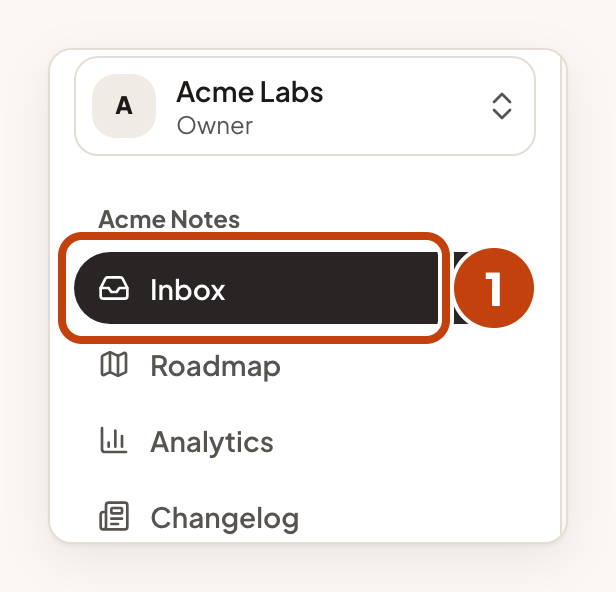
- Select Inbox in your product's console menu.
- Under Sort the inbox, select Sort by priority.
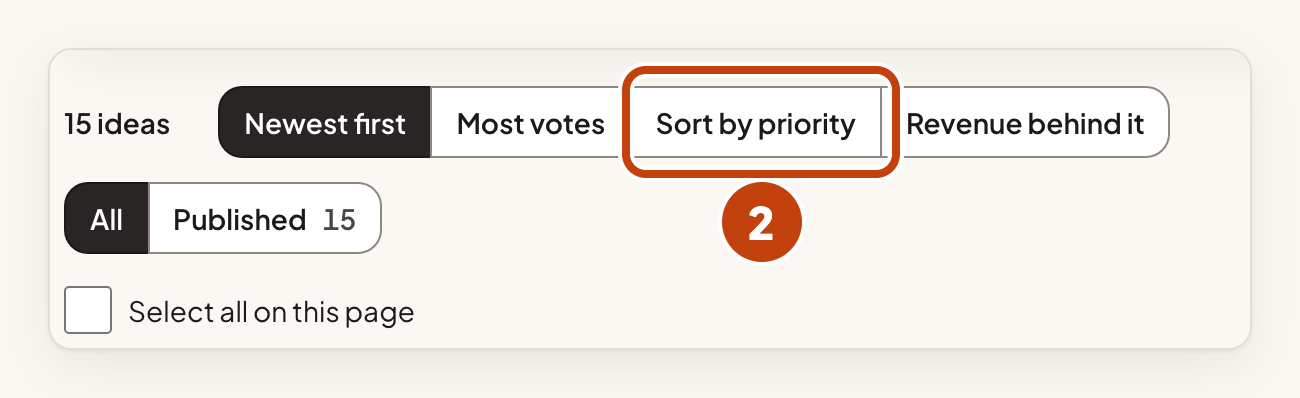
The highest scores come first. Ideas you have not scored stay at the end. The sort is offered in one product's inbox, not in the inbox for all products.
Example
For example, Sam on the Acme Notes team gives "Dark mode for the mobile app" an Impact of 4 and an Effort of 2. The Score preview reads "This will score 2." Sam selects Save score, and the idea then shows its score in the inbox.
