Add the feedback widget to your app
The feedback widget puts your board in a panel over your own app. In the console, it is the Feedback button. Your users can browse and search ideas, vote, comment and post a new idea without leaving your product. If your server tells IvaBoard who they are, they act as themselves with no second sign-in.
Who can use it
Every plan includes the widget. Owners, admins and product managers can list the websites that may show it. An owner or admin creates the sign-in key if you want your users signed in.
Allow your website
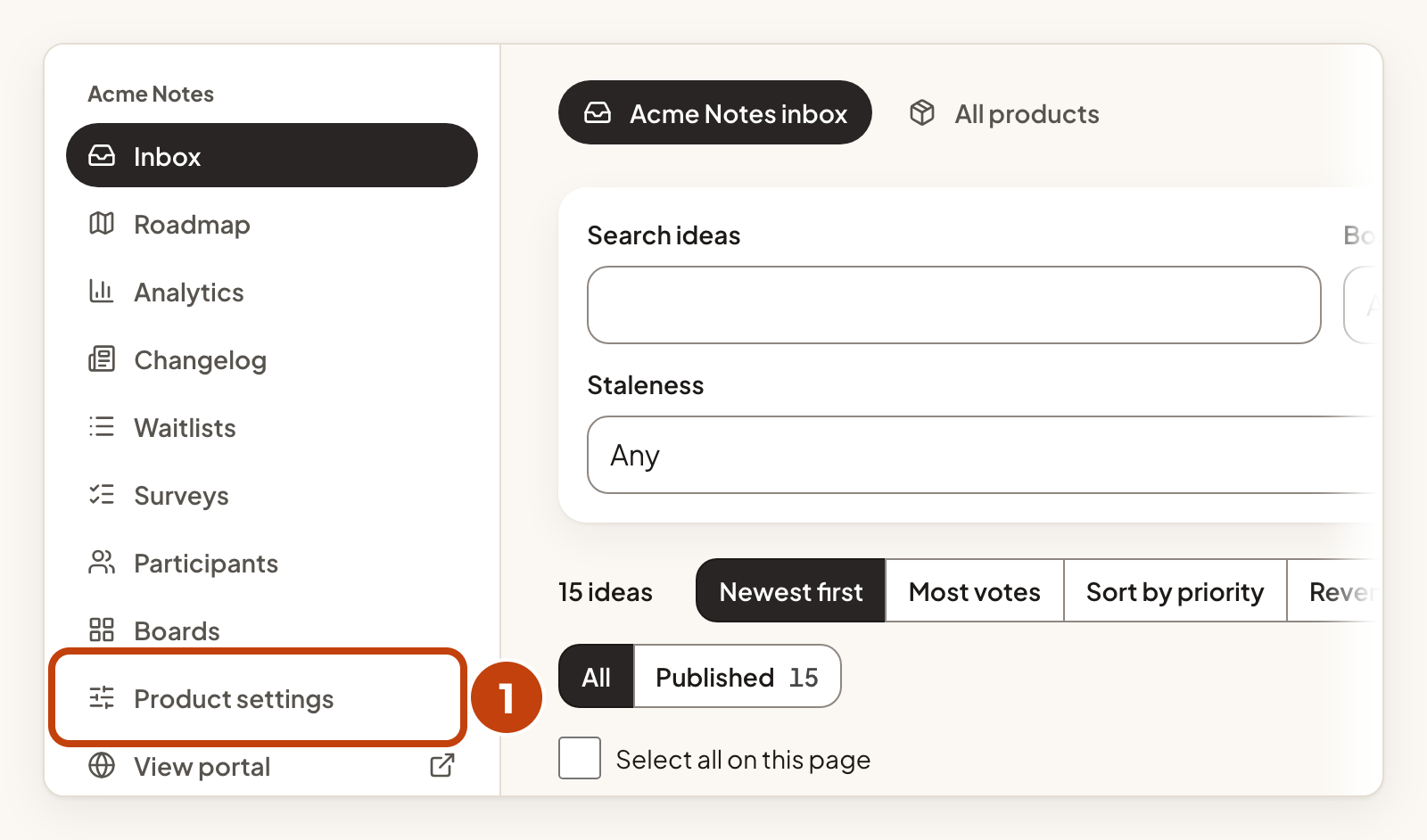
- Select Product settings under your product in the left menu.
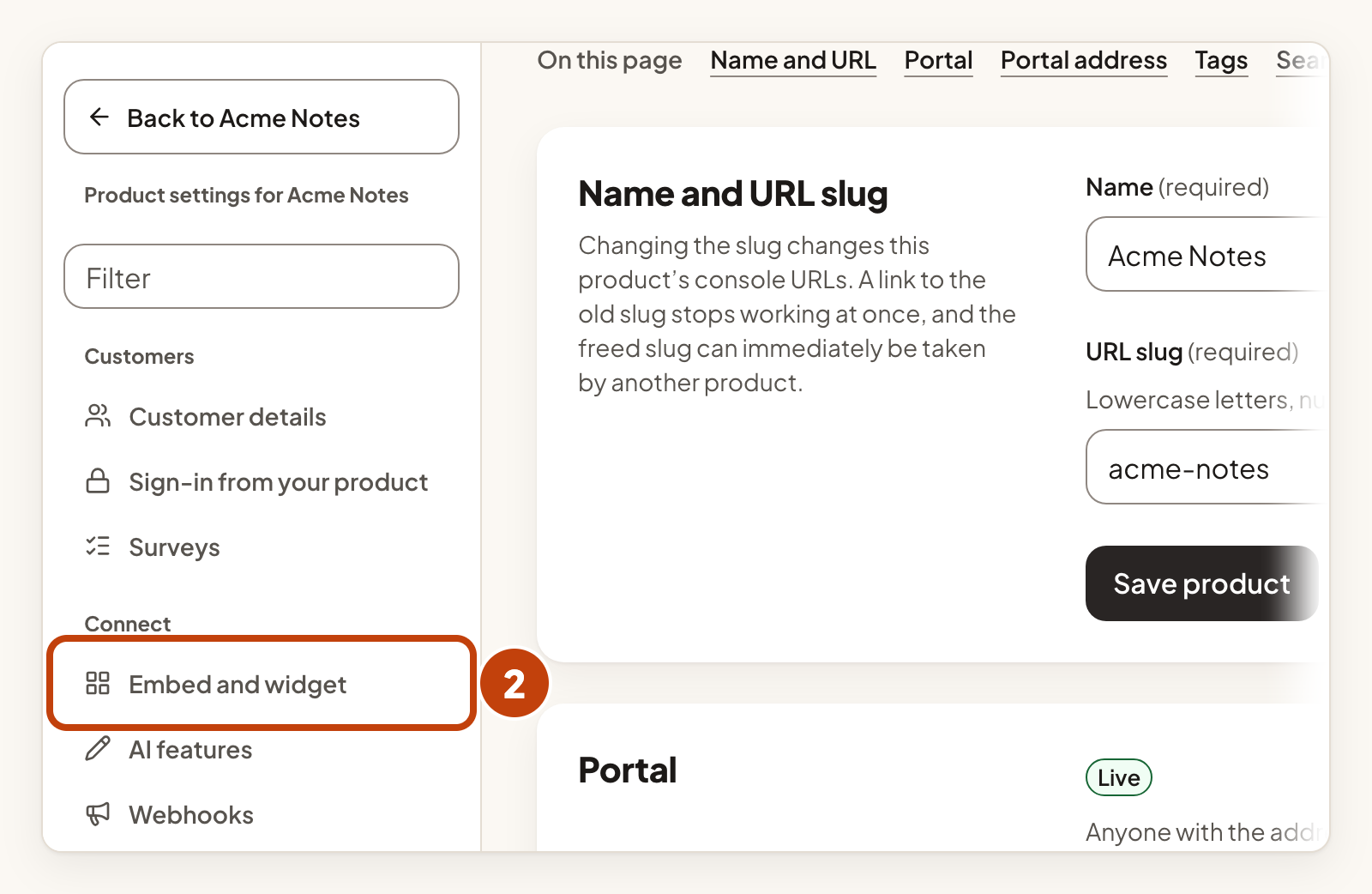
- In the Connect list, select Embed and widget.
- Under Your websites, enter the address in Website address, such as
https://app.example.com. - Select Add website.
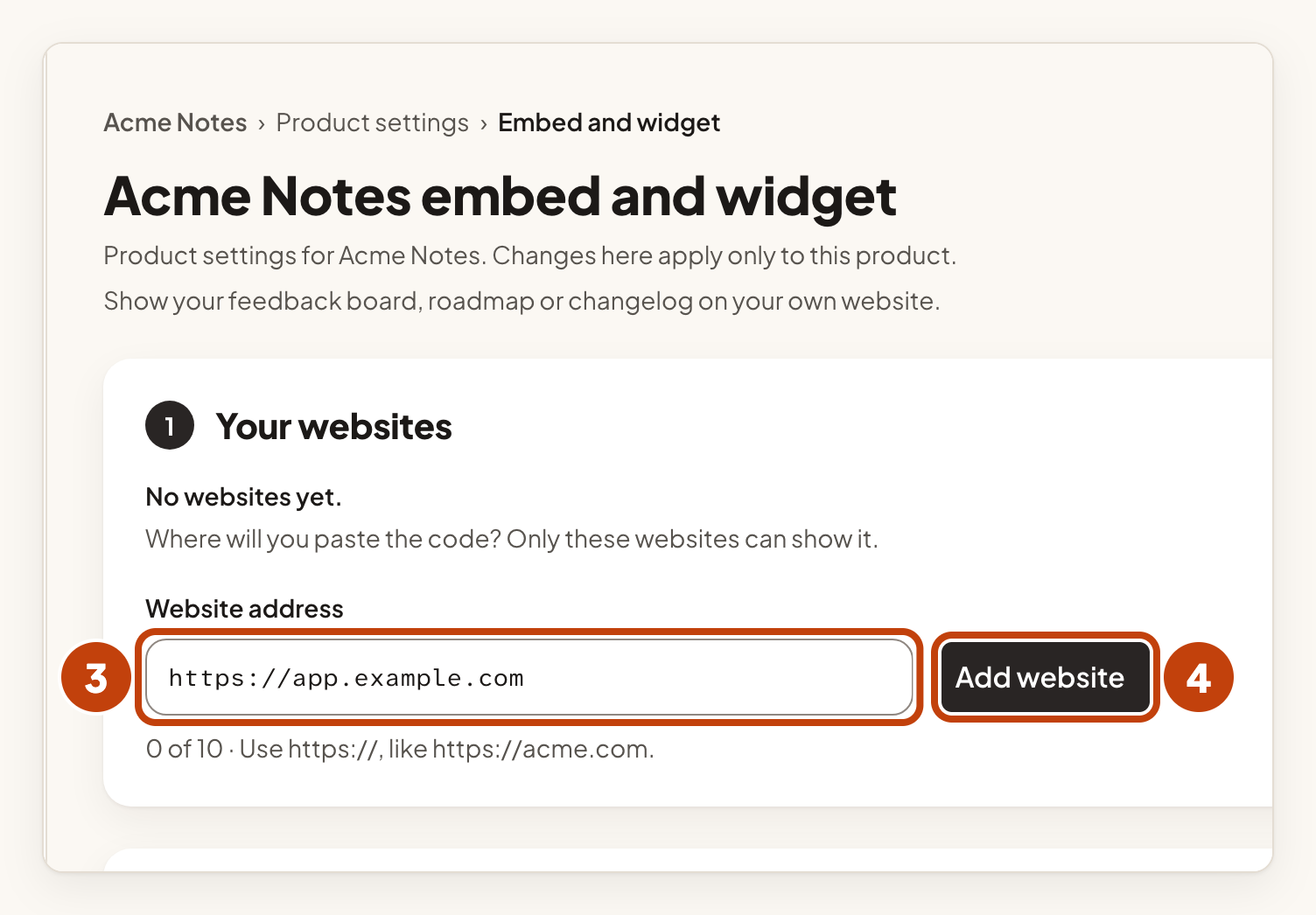
Add each website one at a time. You can list up to ten. The widget shows nothing on a website that is not on this list. Enter each address with https:// and no path.
Copy the code
- Under What do you want to add?, select Feedback button.
- Select Copy next to HTML, above the code.
- Paste the code before the closing
</body>tag on every page of your website.
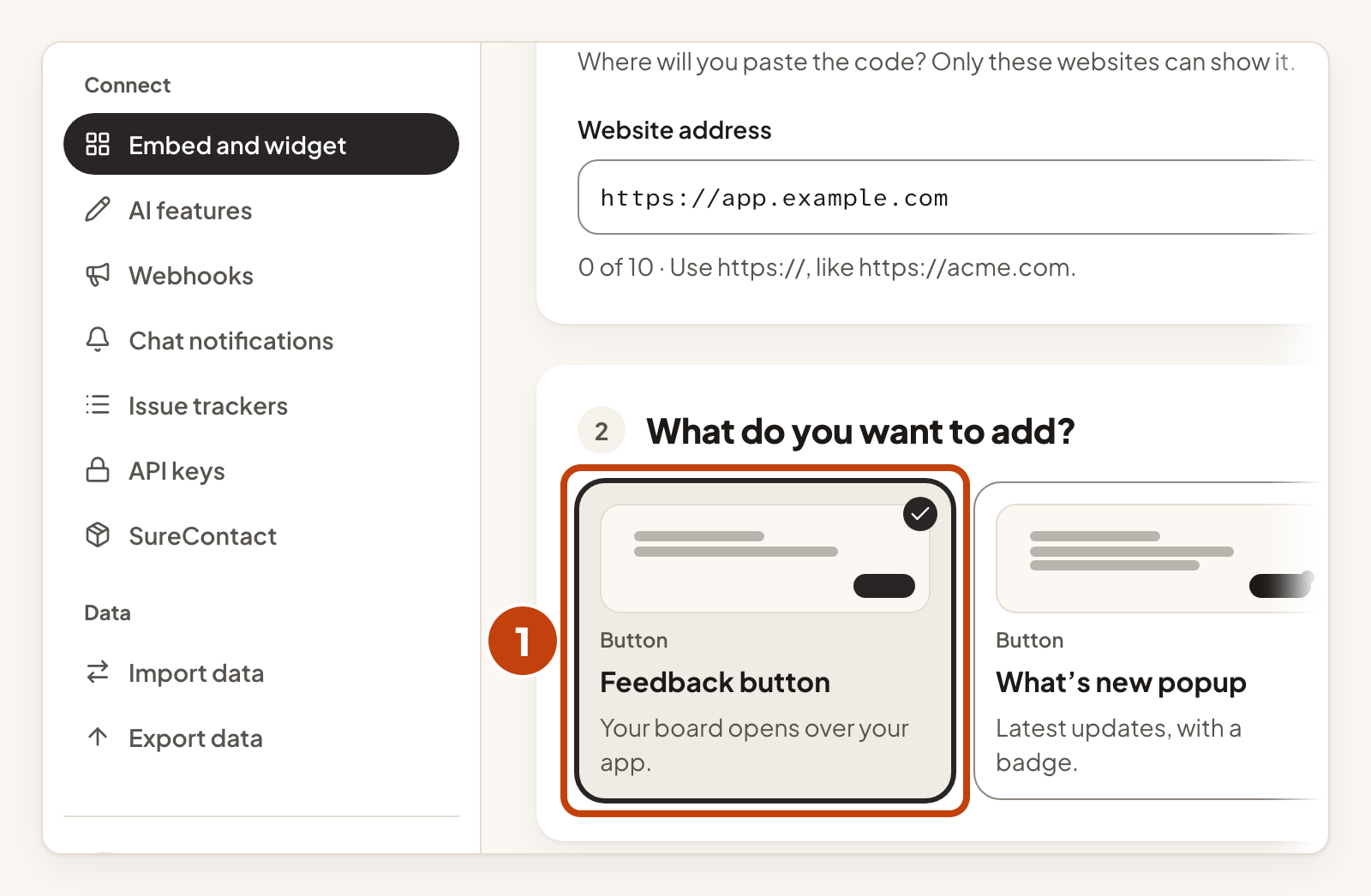
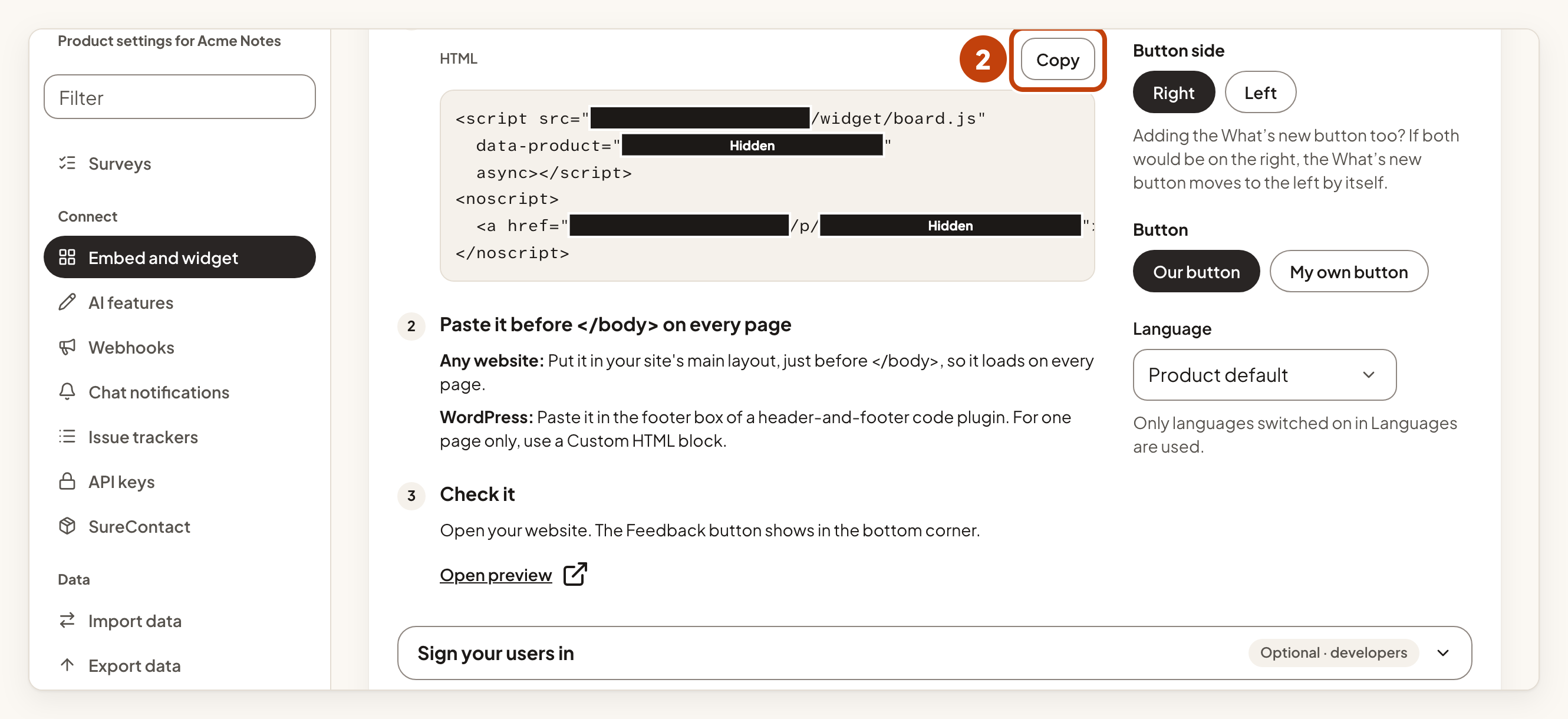
Copy the exact code from the console. It holds your own values. The code looks like this:
<script src="https://app.ivaboard.com/widget/board.js" data-product="YOUR_PUBLIC_PRODUCT_KEY" async></script>
<noscript><a href="YOUR_PORTAL_ADDRESS">Open the feedback board</a></noscript>
The public product key is the part after /p/ in your portal address. It is an address, not a secret. The link inside noscript is what people see if scripts are blocked.
Options on the script tag
| Attribute | What it does |
|---|---|
data-position="left" | Puts the button on the left. The default is the right. |
data-launcher="off" | Hides the built-in button, so you open the panel from your own button. |
data-locale="auto" | Shows the widget in the visitor's browser language. Use a language code from your portal's languages to pick one language. |
data-identify-url="/your/endpoint" | Your endpoint that signs the user in. See below. |
The button label and colour come from your portal's appearance settings.
Open it from your own button
Give any element the attribute data-ivaboard-widget-trigger. Add data-view="new" to open the new idea form straight away.
<button data-ivaboard-widget-trigger data-view="new">Suggest a feature</button>From your own code, use these calls:
window.IvaBoardWidget.open();
window.IvaBoardWidget.open({ view: 'new' });
window.IvaBoardWidget.close();
The views are board, new, idea (with an idea id in data-idea) and changelog. A board view can name a board by its slug in data-board.
Surveys on your site use two more calls. track('event_name') tells a waiting survey that something happened. showSurvey('survey key') shows one survey now.
Sign your users in (optional)
Without this step the widget is anonymous. People can browse and search. To vote, comment or share an idea, they sign in on your board in a new tab. With it, people signed in to your app act as themselves.
First set up sign-in from your product and create a key for it. Sign your users in to the portal from your app explains how.
- Add an endpoint on your server that checks the user is signed in to your app.
- From that endpoint, call the tickets address with your key.
- Take the
ticketvalue from theredeemUrlin the answer. - Return only
{ "token": "..." }to the widget. - Tell the widget where the endpoint is, as shown below.
The tickets call sends the state value the widget sent, and your own user id as externalUserId. Never return your key or the whole URL to the widget.
Tell the widget about the endpoint in one of two ways. Set data-identify-url on the script tag:
<script src="https://app.ivaboard.com/widget/board.js" data-product="YOUR_PUBLIC_PRODUCT_KEY" data-identify-url="/your/endpoint" async></script>Or define a function before the widget code loads. Return null when nobody is signed in:
window.IvaBoardWidget = {
  identify: async (state) => {
    const res = await fetch('/your/endpoint', {
      method: 'POST',
      headers: { 'content-type': 'application/json' },
      body: JSON.stringify({ state }),
    });
    return res.ok ? await res.json() : null;
  },
};
The endpoint must be on the same website as the page. The ticket works once and expires after 60 seconds. The widget asks for one when the panel first opens on a page. Reopening the panel on the same page uses the session it already has, so it spends no new ticket. Your server may make up to 60 ticket calls a minute per key.
When a user logs out or switches account, call window.IvaBoardWidget.signOut(). To end someone's sessions everywhere, revoke them from your server. The sign-in article shows the call.
Keep the key on your server. Never put it in the page or in the script tag.
Stop the widget
To stop the widget on a website, select Remove next to that website under Your websites.
Example
For example, Sam at Acme Notes adds https://app.example.com under Your websites. He selects Feedback button, selects Copy, and pastes the code before the closing </body> tag. The Feedback button then shows in the bottom corner of every page on that website.
