Create and manage boards
A board is a place where your customers post ideas for one product, such as Feedback or Feature requests. Every product starts with a board called Feedback. This article shows you how to add a board, change its settings, put it in order and delete it.
Who can use it
All plans can use boards. The Starter plan allows three boards for each product. Growth, Scale and the lifetime plans have no limit.
Owners and admins can create, change, reorder and delete boards. So can a Manager of the product. A Moderator or a Viewer can see the boards, but cannot change them.
Create a board
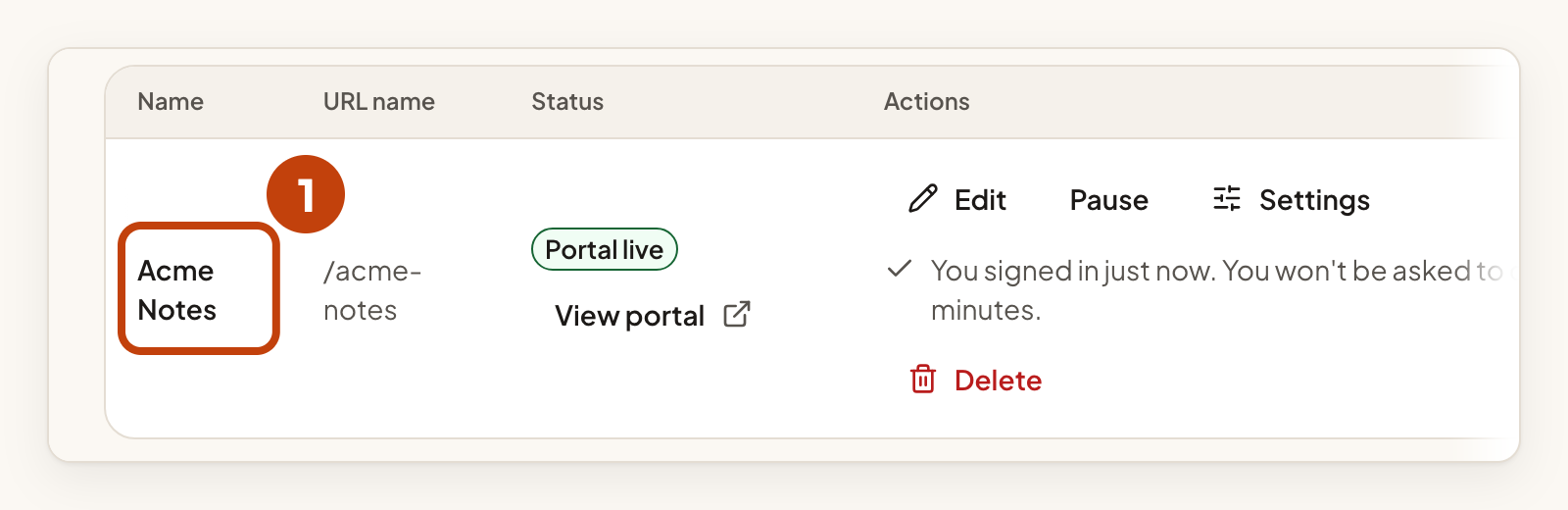
- Open your product.
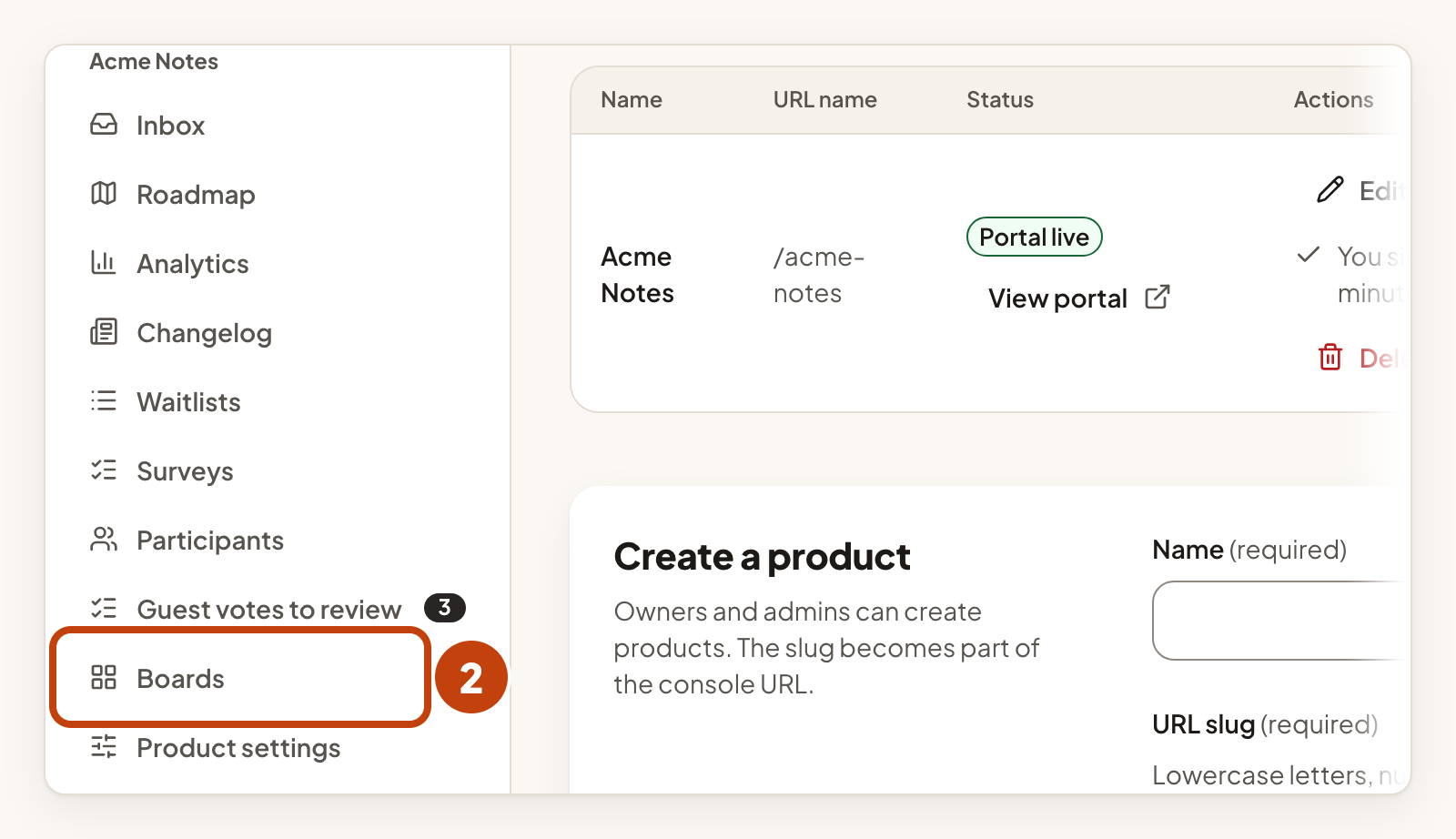
- Select Boards in the product menu.
- In the Create a board form, type a Name. Use up to 120 characters.
- Change the URL slug if you want a different address. It fills in from the name.
- Optional: type a Submission template. It can hold up to 2000 characters.
- Select Create board.
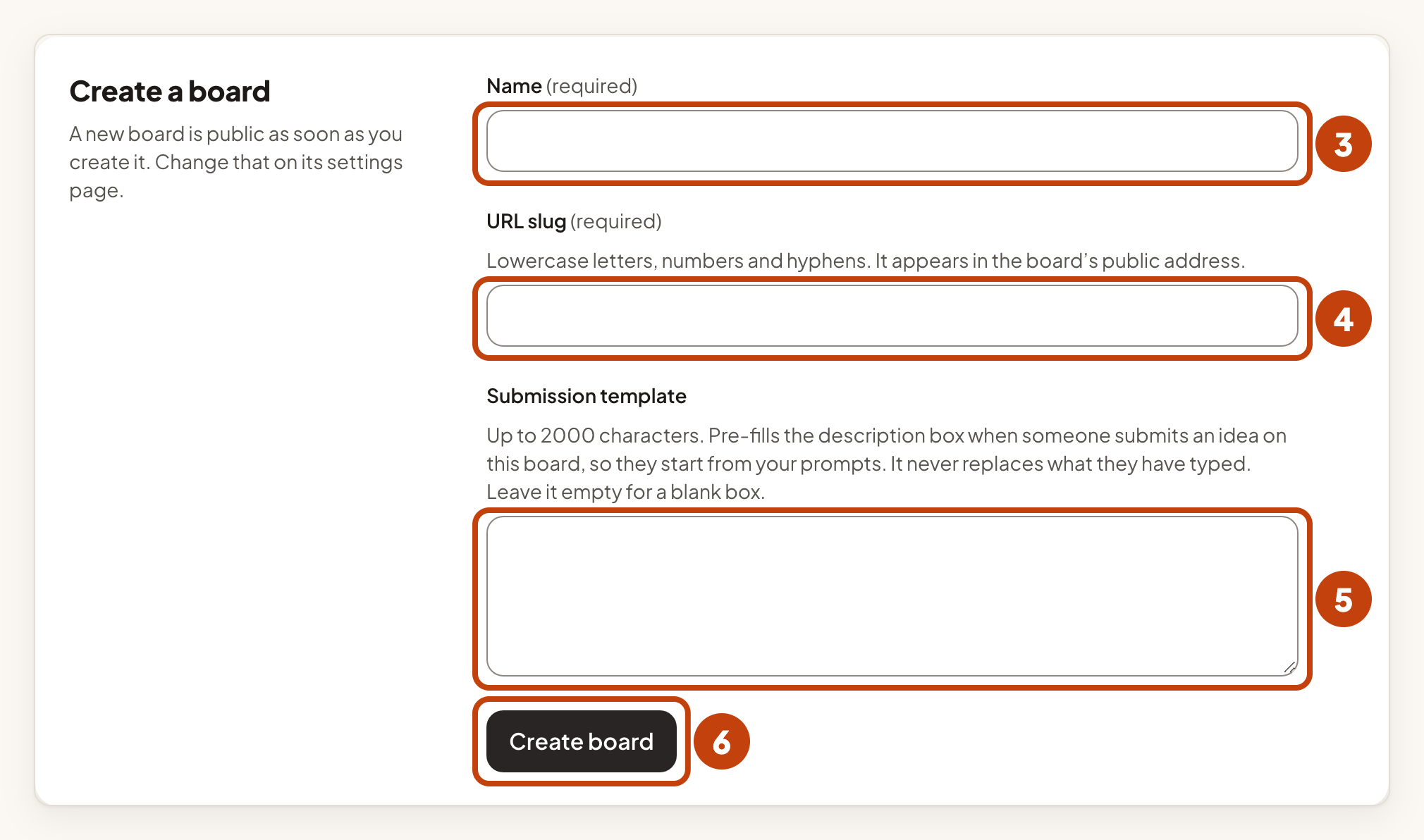
The new board appears in the Boards list. The submission template fills the description box when a customer starts a new idea. It never replaces what the customer has already typed.
Change a board's settings
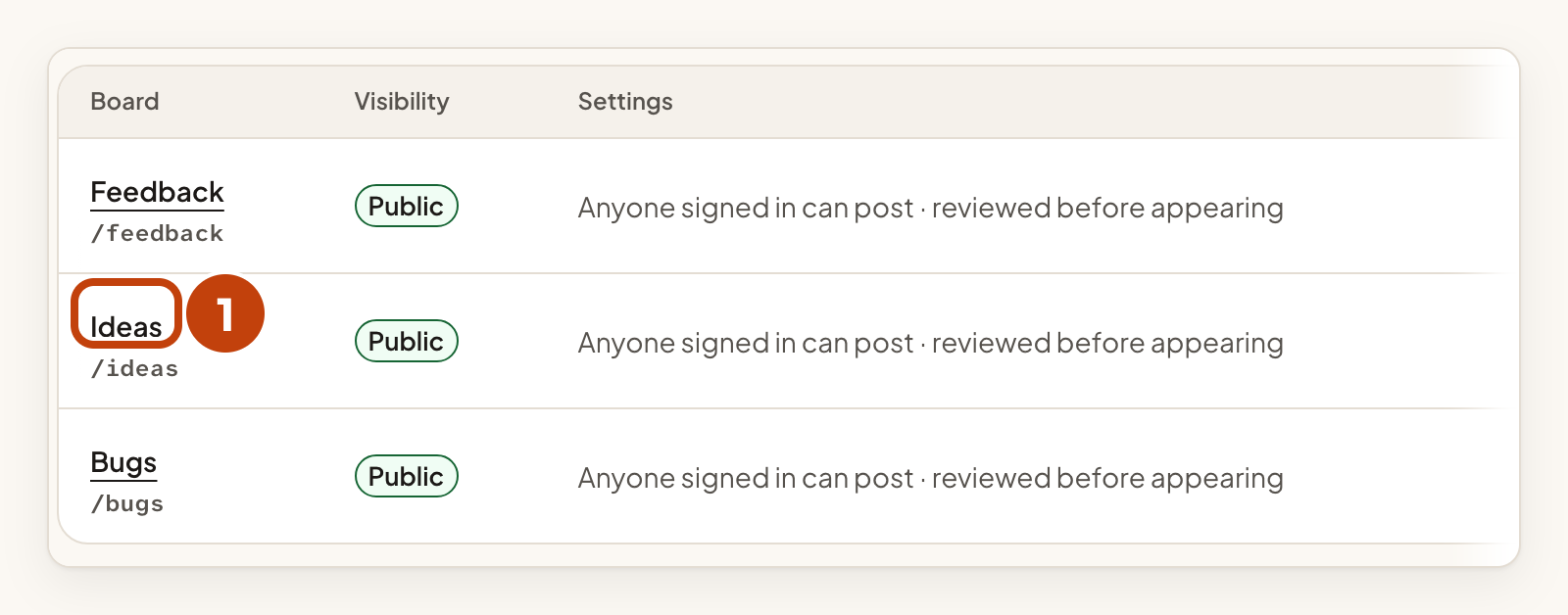
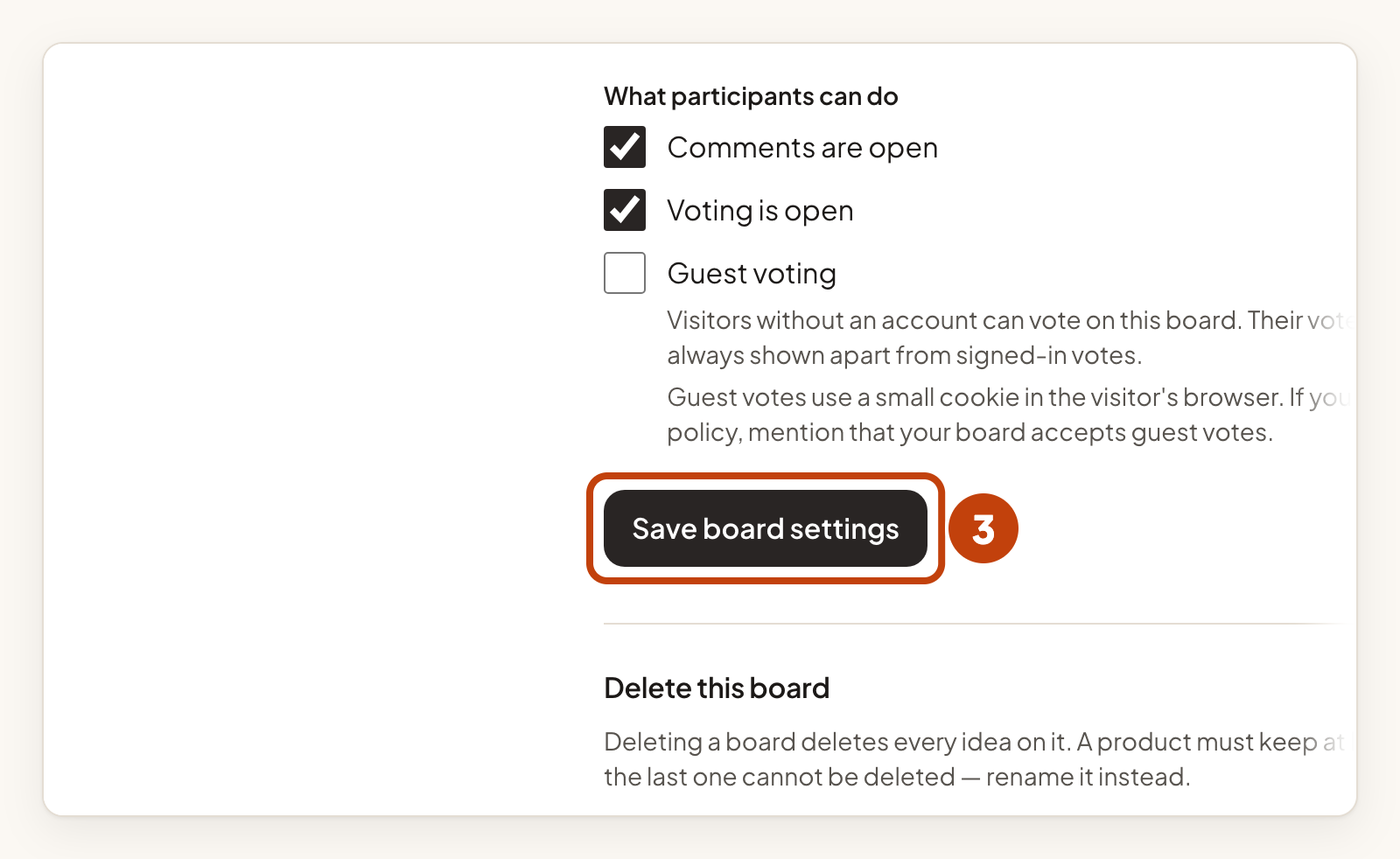
- Select the board's name in the Boards list.
- Change the setting you need. The options are listed below.
- Select Save board settings.

What you can change
- Name, URL slug, Description and Submission template.
- Visibility. Choose Public (anyone can read the board on your portal), Private (only your team can see it) or Chosen customers and email domains. Share a board with chosen customers explains the last choice.
- Who may post. Choose Anyone signed in to the portal may post, Only staff may post, on someone’s behalf or Nobody may post.
- New ideas. Choose Publish immediately, Review before it appears or Review before it appears, unless it comes from your product. The last choice publishes ideas that your own product sends in, and ideas from people who opened your portal from inside your product. Everything else waits for your review. See Ideas and the review inbox.
- Under What participants can do, tick or untick Comments are open, Voting is open and Guest voting. Guest voting lets visitors without an account vote, and works on public boards only. See Voting and vote limits.
A private board does not exist for visitors. They cannot find it, even by guessing its address.
If the board changed while you were editing, you see a warning. Reload the page, then make your change again.
Change the order
- Find the board in the Order column of the Boards list.
- Select the up arrow or the down arrow to move the board.
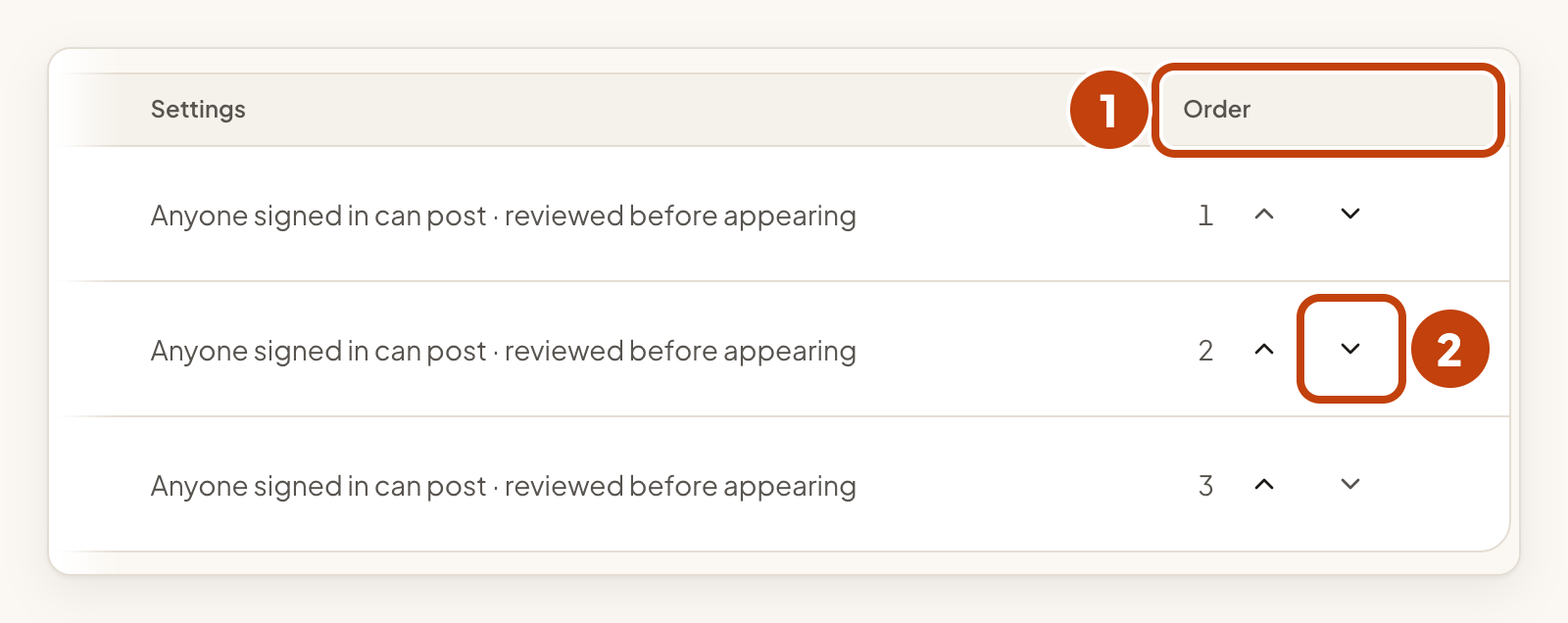
The order you set is the order your portal shows.
Delete a board
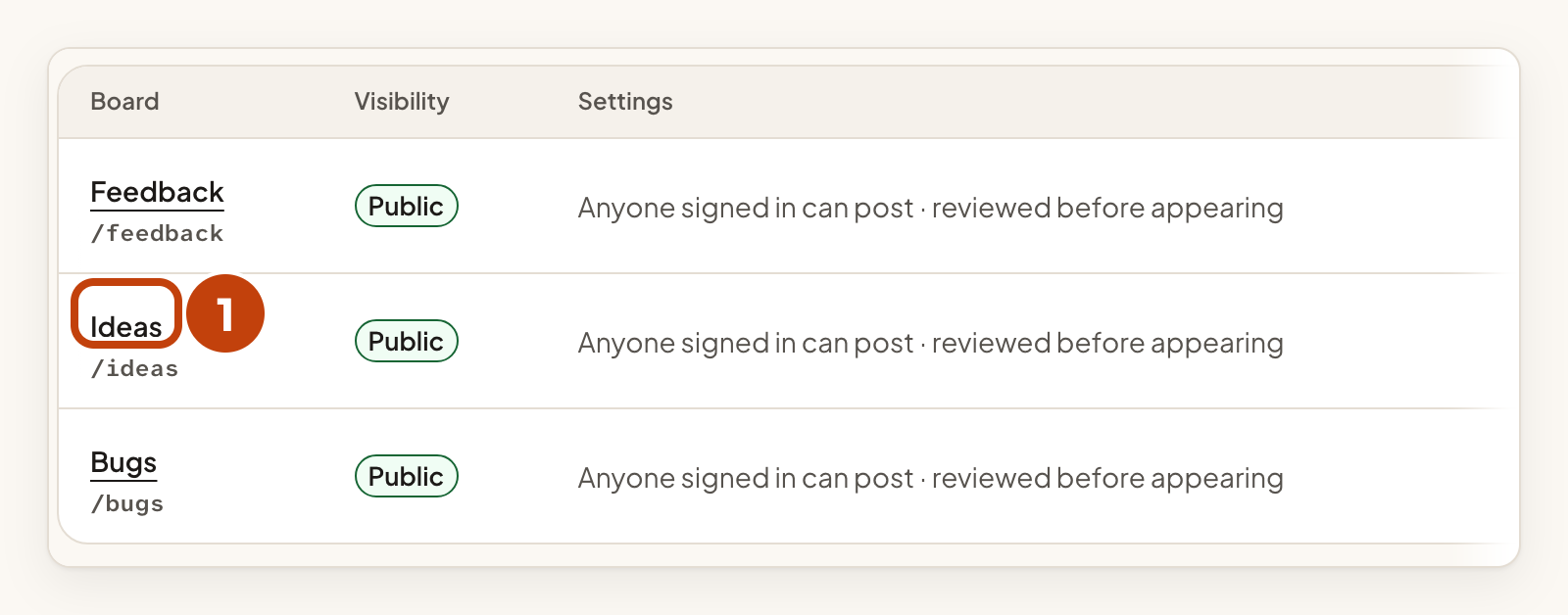
- Select the board's name in the Boards list.
- Under Delete this board, select the Delete button that shows your board's name, for example Delete Ideas.
- In the dialog, select Delete board.
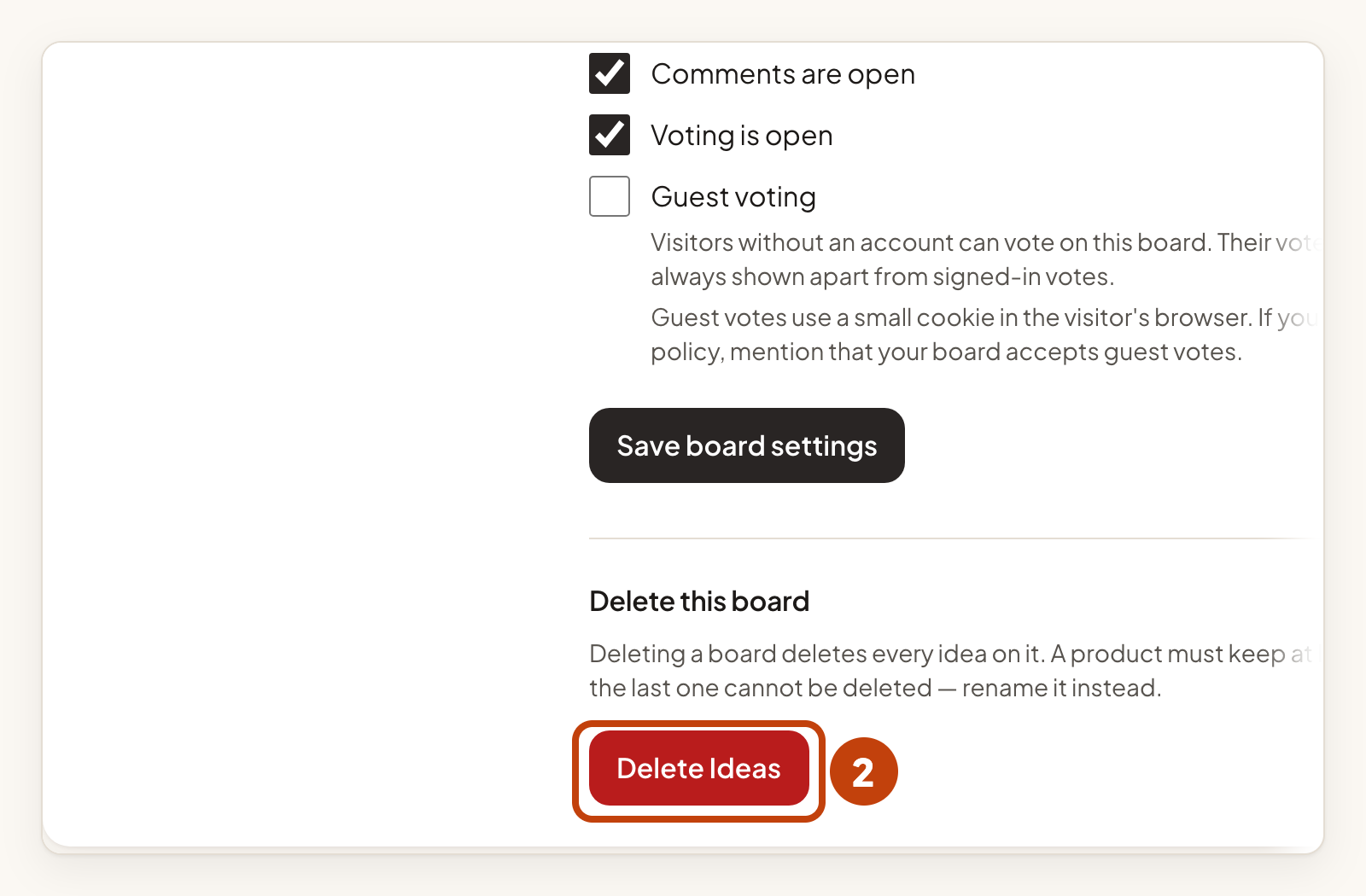
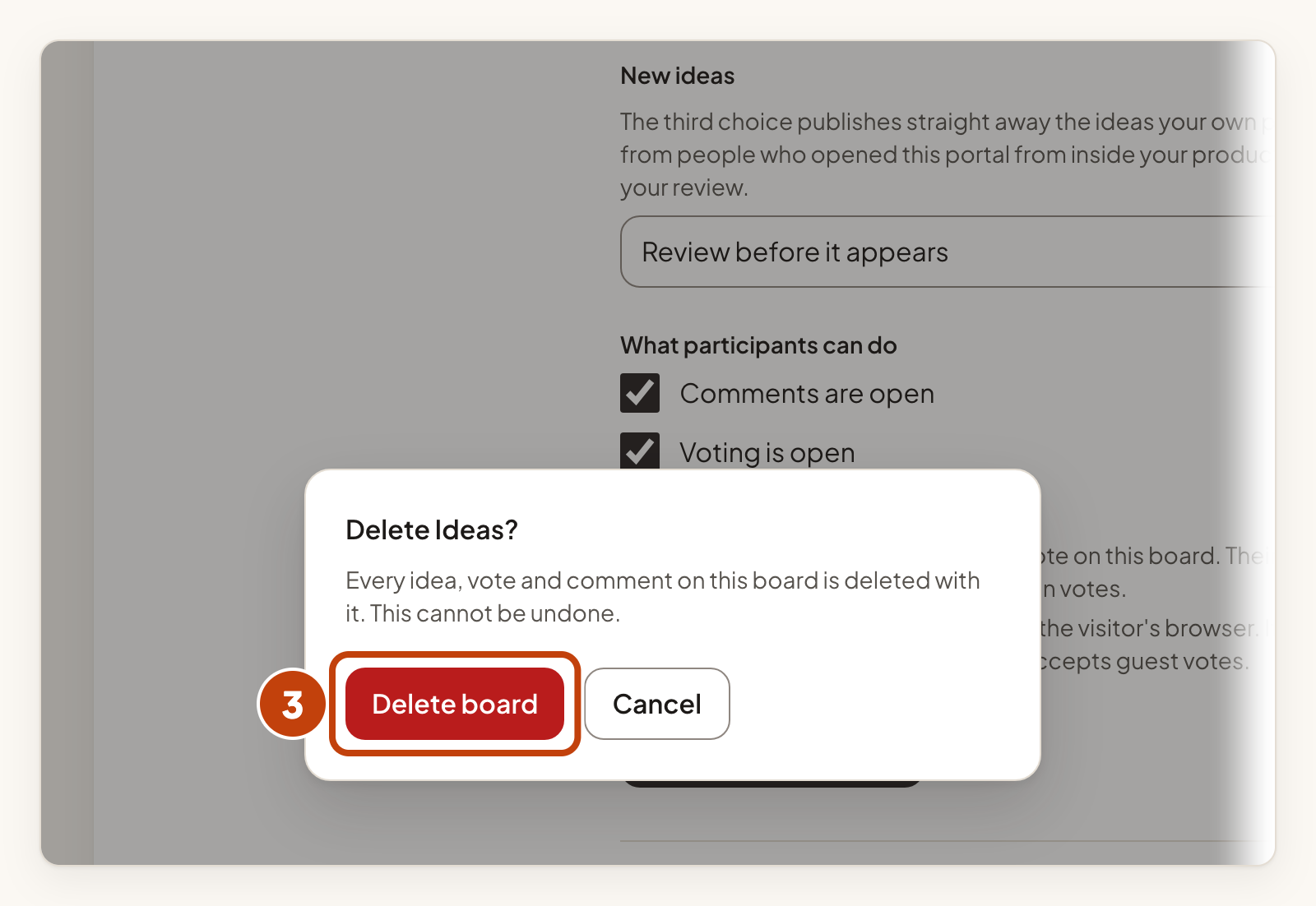
Deleting a board deletes every idea, vote and comment on it. This cannot be undone. A product must keep at least one board, so you cannot delete the last one. Rename it instead.
Example
For example, Sam Taylor at Acme Notes wants new ideas checked before they appear on a mobile board. Sam selects Boards, types Mobile ideas in Name and selects Create board. The URL slug fills in as mobile-ideas. Then Sam selects the Mobile ideas board, chooses Review before it appears under New ideas, and selects Save board settings.
