Connect an SMTP server
SMTP is the standard way mail programs hand email to a mail service. Use it when your service offers SMTP and you prefer it, or when you run your own mail server.
Before you start, read Connect your email provider. This article covers what is specific to SMTP.
If your service has its own entry under Email services, that is usually the simpler choice. SendGrid, Mailgun, Postmark and Amazon SES all have one.
Your SMTP service only sends mail from addresses and domains that it has verified for you. Verify your From address with the service first. IvaBoard refuses From addresses on its own domains.
Who can use it
Only a workspace owner or admin can connect a provider. Only workspace owners and admins can open Email providers.
Connect another SMTP server
This example uses Other SMTP server. For the ready-made options, see the table below.
- Open Email providers in your workspace settings.
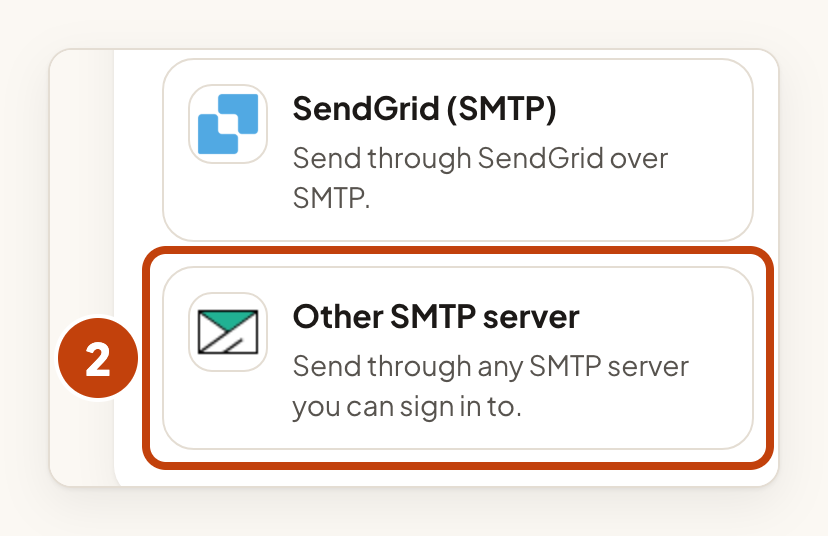
- Select Other SMTP server under Through SMTP.
- Type a short name in Name.
- Type the address your users see in From address.
- Type the host name of your server, such as smtp.example.com, in Server host name.
- Choose the port in Port. Most servers use 587.
- Choose STARTTLS or TLS from the start in Security.
- Type the user name your server asks for in User name (optional). Leave it empty if your server needs none.
- Type the password your server asks for in Password (optional). Leave it empty if your server needs none.
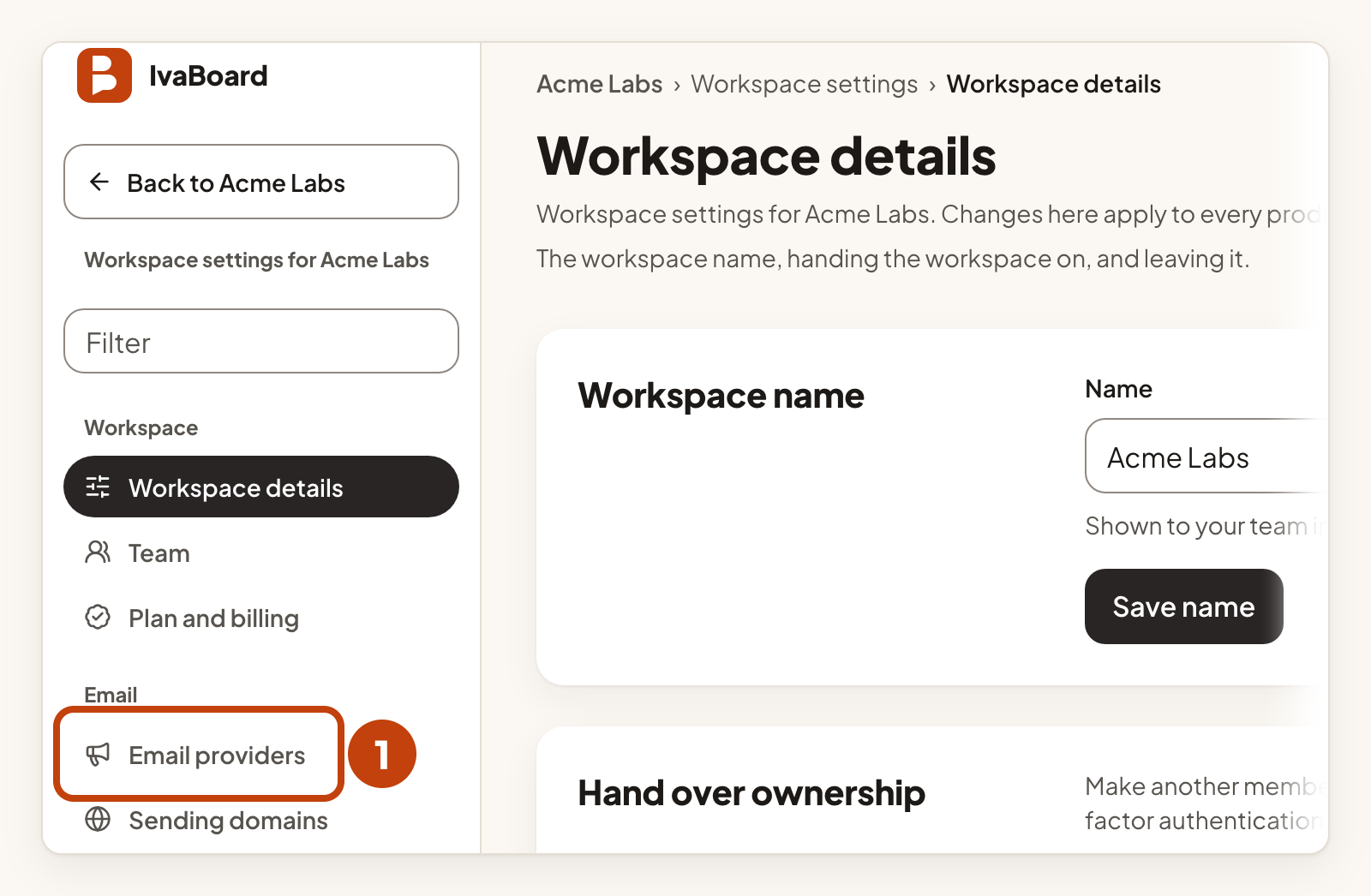
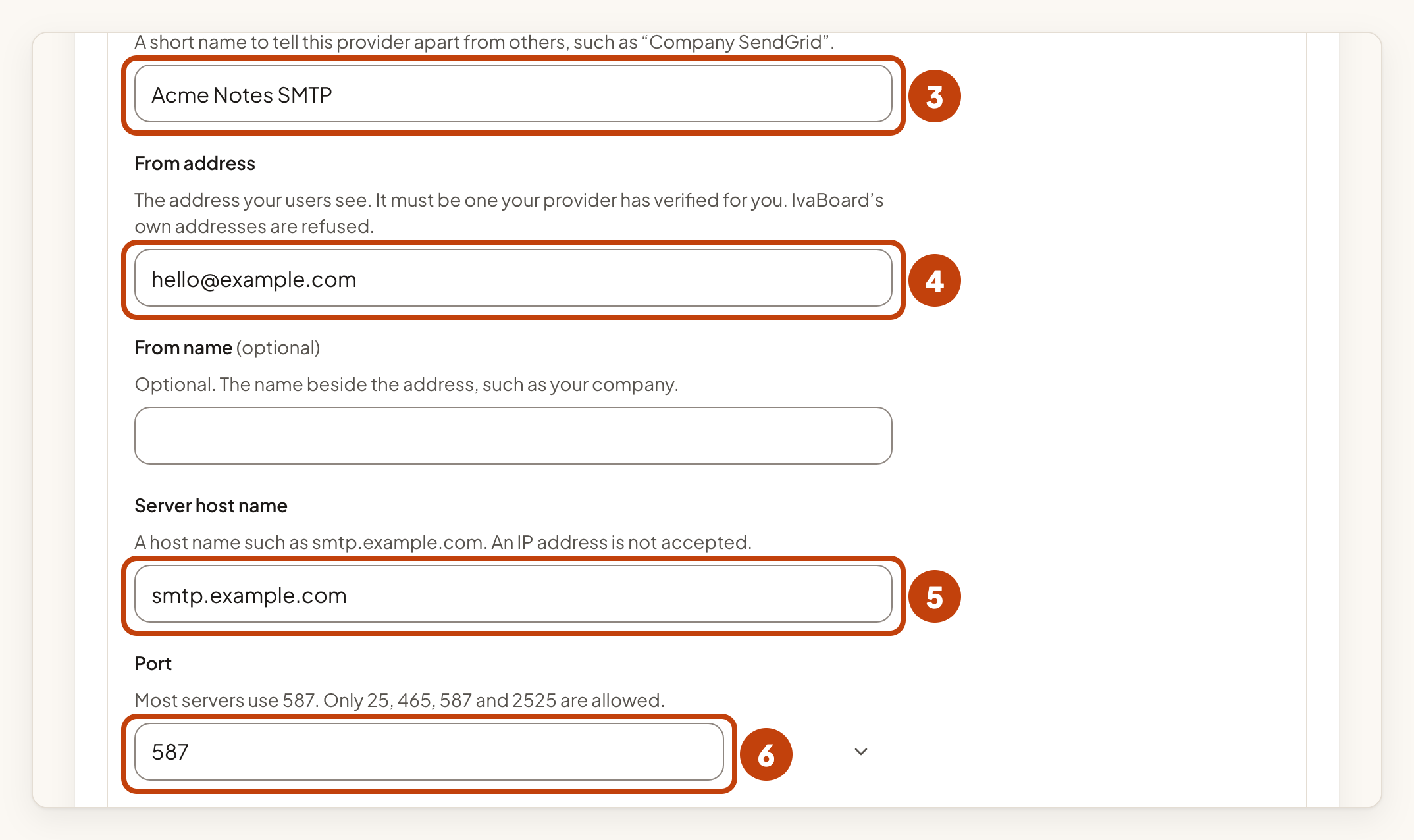
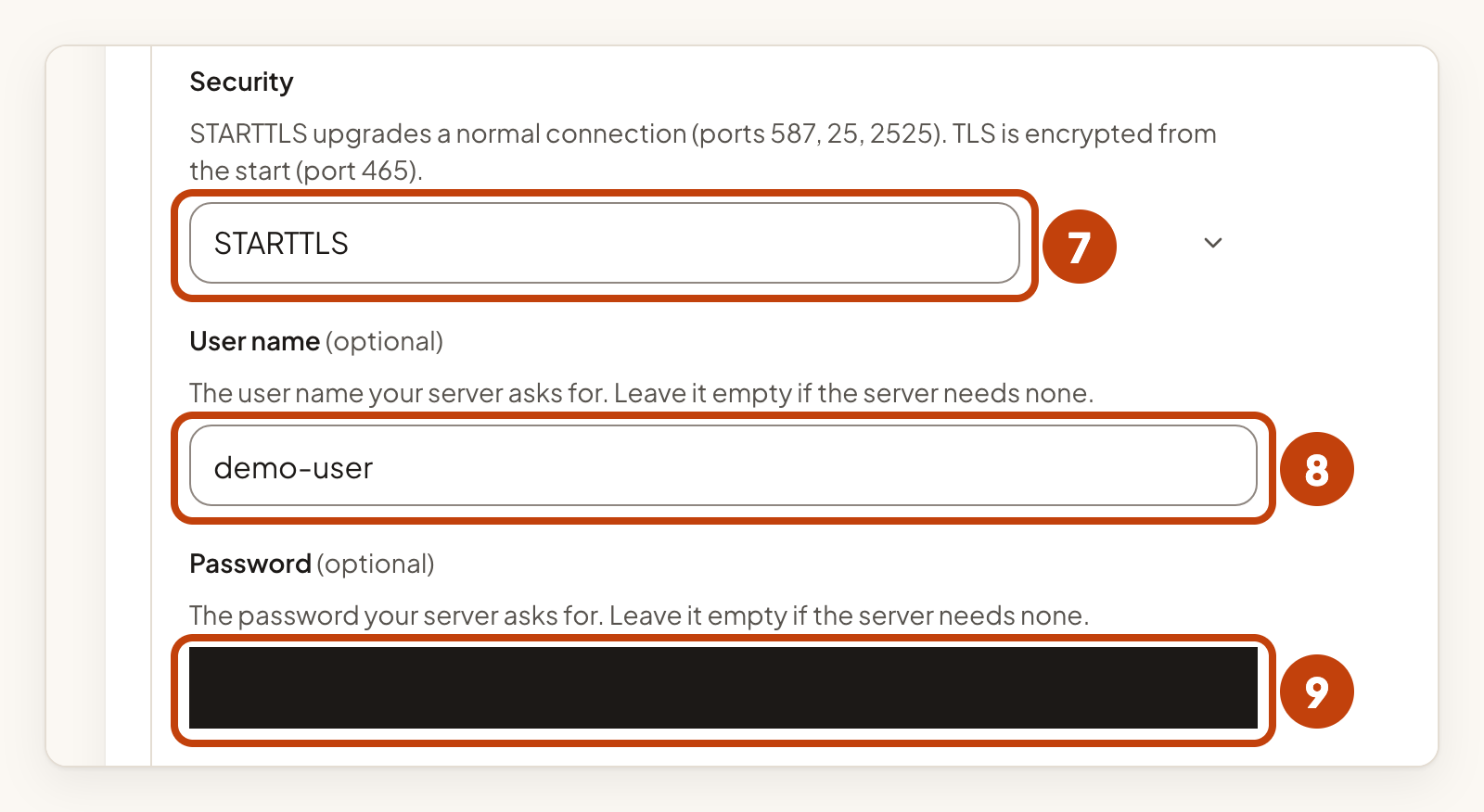
You can also type a From name (optional), the name beside the address. An IP address is not accepted as the host name. Only ports 25, 465, 587 and 2525 are allowed. STARTTLS works on ports 587, 25 and 2525. TLS from the start is for port 465. IvaBoard always checks the server's certificate, so a server with an expired, self-signed or mismatched certificate cannot be used.
Connect and check
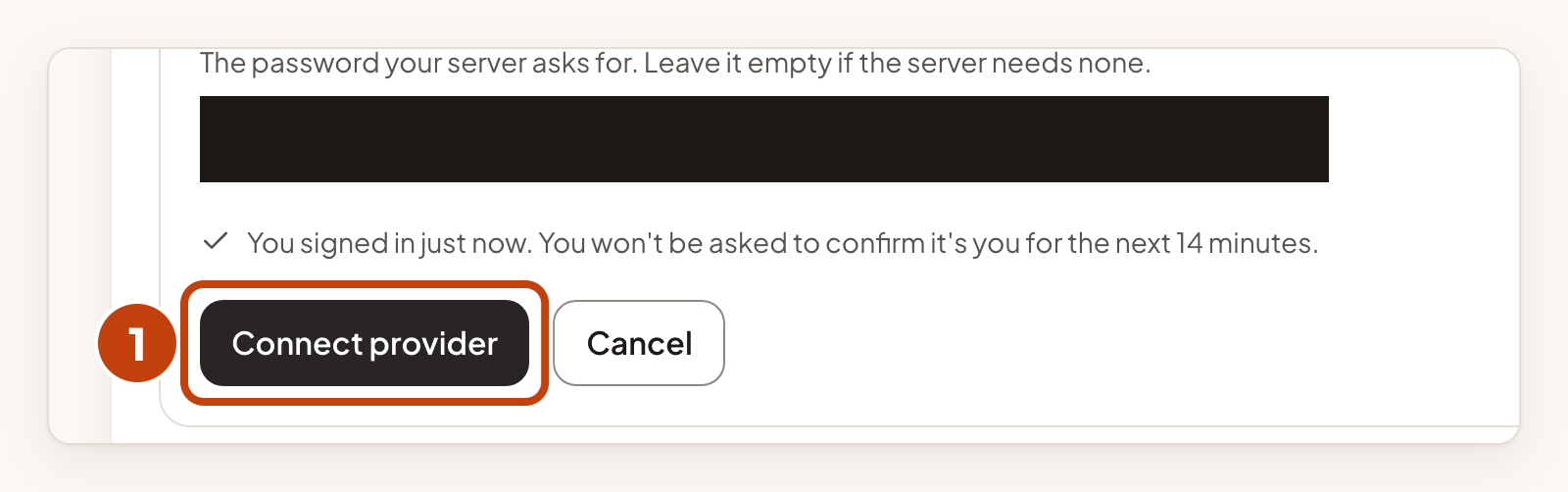
- Select Connect provider.
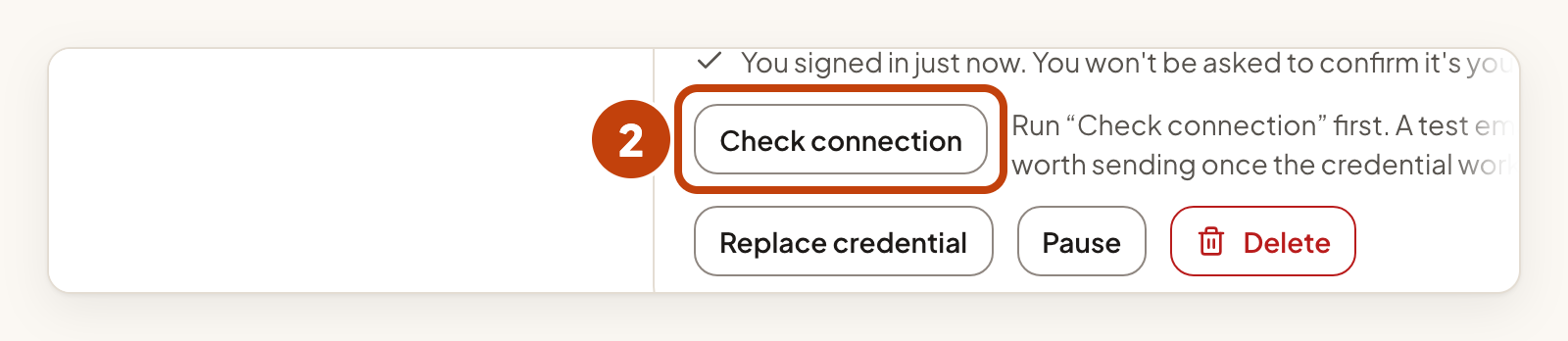
- Select Check connection on your SMTP card.
- The result shows on the card within about a minute. If it does not, reload the page.
- Select Send a test email once the check has passed.
- Reload the page to see the result.
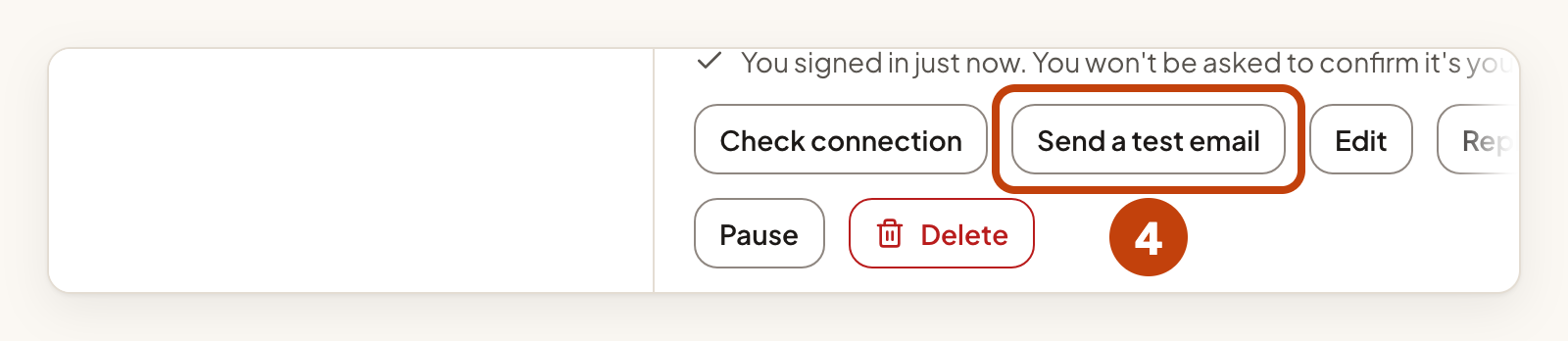
The test email goes to your own verified address, not to your users. When both pass, the card shows Active. Then choose the provider for a product in its email sender settings. Connect your email provider explains how.
Ready-made options
Under Through SMTP, these options already know the server address, port and security setting, so you do not enter them. Each one still asks for Name and From address.
| Option | You fill in | Where to find it |
|---|---|---|
| Gmail (app password) | Gmail address, App password | Use an app password, not your Gmail password. Create one at myaccount.google.com/apppasswords. |
| Amazon SES (SMTP) | AWS region, SMTP username, SMTP password | Your AWS SMTP credentials. |
| Mailjet (SMTP) | API key, Secret key | Your Mailjet API key (the public one) and secret key (the private one). |
| SMTP2GO | SMTP username, SMTP password | Your SMTP2GO SMTP user name and password. |
| Postmark (SMTP) | Server API token | Postmark uses the server API token as both user name and password, so you enter it once. Find it under your server's API Tokens tab. |
| MailerSend (SMTP) | SMTP username, SMTP password | From your MailerSend domain settings. Create an SMTP user under Domains, then SMTP in MailerSend. |
| SendGrid (SMTP) | API key | Create it at app.sendgrid.com/settings/api_keys. The user name is always "apikey", so you do not enter it. |
| Mailgun US (SMTP) | SMTP username, SMTP password | Found in your Mailgun domain settings. |
| Mailgun EU (SMTP) | SMTP username, SMTP password | The same, for a Mailgun account in Europe. |
Bounce reports
Bounce reports are not available for this provider yet. The provider's own suppression list applies.
Example
For example, Sam connects a mail server for Acme Notes. Sam selects Other SMTP server under Through SMTP, types Acme Notes SMTP in Name and [email protected] in From address. Then Sam types smtp.example.com in Server host name, chooses 587 in Port and STARTTLS in Security, and types the user name and password that the server gave. Sam selects Connect provider and checks the connection.
