Rename, leave or hand over a workspace
Use the Workspace details page to change your workspace name, hand ownership to another member, or leave the workspace. Each task takes a few steps.
Who can use it
- An owner can rename the workspace, hand over ownership and leave.
- An admin can rename the workspace and leave. Only an owner can hand over ownership.
- A member can leave. A member sees the name but cannot change it.
Owners and admins must turn on two-factor authentication. See Sign in and two-factor authentication.
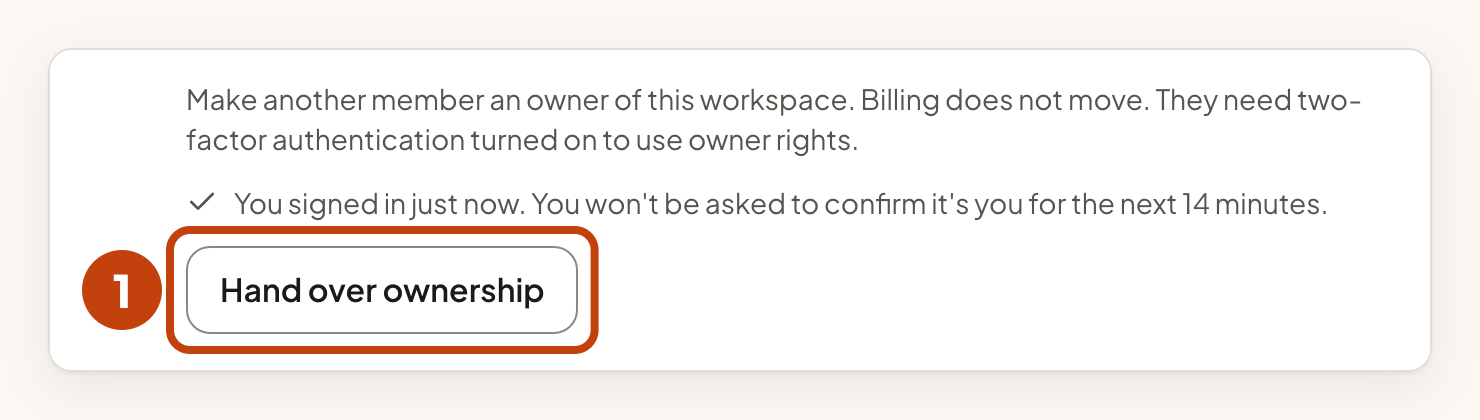
An owner may be asked to confirm it's you before handing over ownership or leaving. Enter your password, and your authenticator code if you use one, then select Confirm. On the page, a line above the Hand over ownership and Leave workspace buttons shows when you signed in. It also shows how long until you are asked again.
Open the Workspace details page
- In the sidebar, select Workspace settings. The Workspace details page opens.
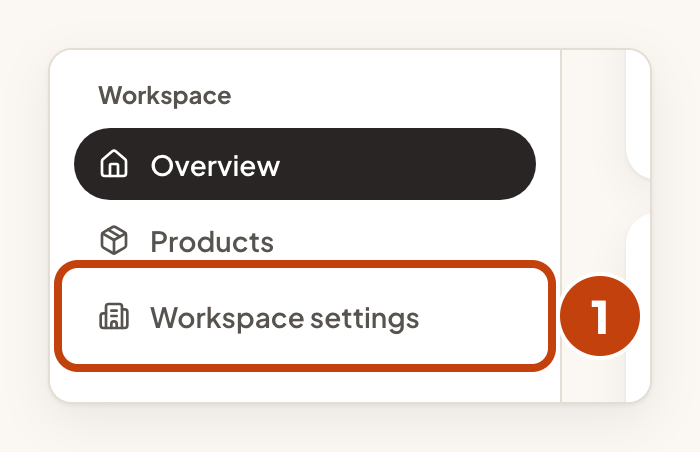
Every member sees Workspace settings in the sidebar, and it opens the same page. As a member, you can read the name and leave the workspace. You cannot change the name or hand over ownership.
The page has these sections: Workspace name, Hand over ownership and Leave workspace. Owners also see Delete workspace. A section shows a sentence instead of a button when your role does not allow the action.
Rename the workspace
The name can be 1 to 120 characters. It must have at least one visible character, and it cannot contain hidden or control characters. The web address does not change.
- Change the text in Name to the new name.
- Select Save name.
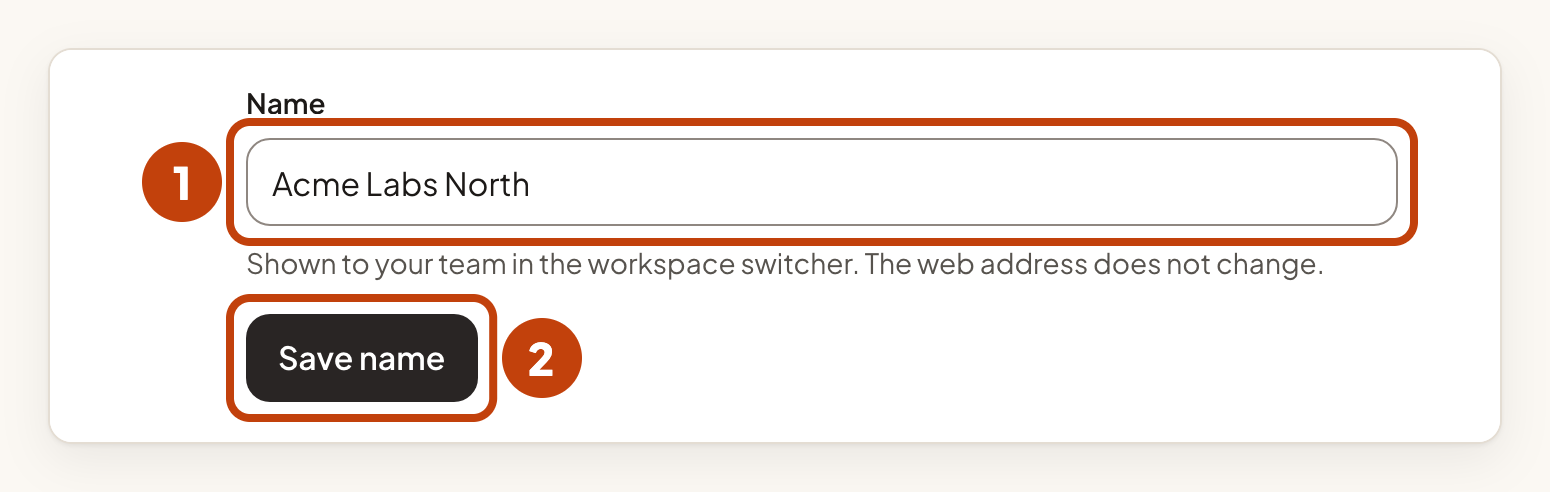
The page shows Workspace name saved. Your team sees the new name.
This changes the workspace name only. To rename a product, see Add and manage products.
Hand over ownership
Only an owner can hand over ownership. The new owner must already be a member of the workspace, with a verified email address. If nobody else is on the team yet, invite someone first with Invite your team.
- Select the Hand over ownership button. The Hand over ownership? dialog opens.
- Choose a member under New owner. The list shows their email addresses.
- Choose Stay as an admin, Stay as a member or Leave the workspace under Afterwards, you.
- Select Hand over.
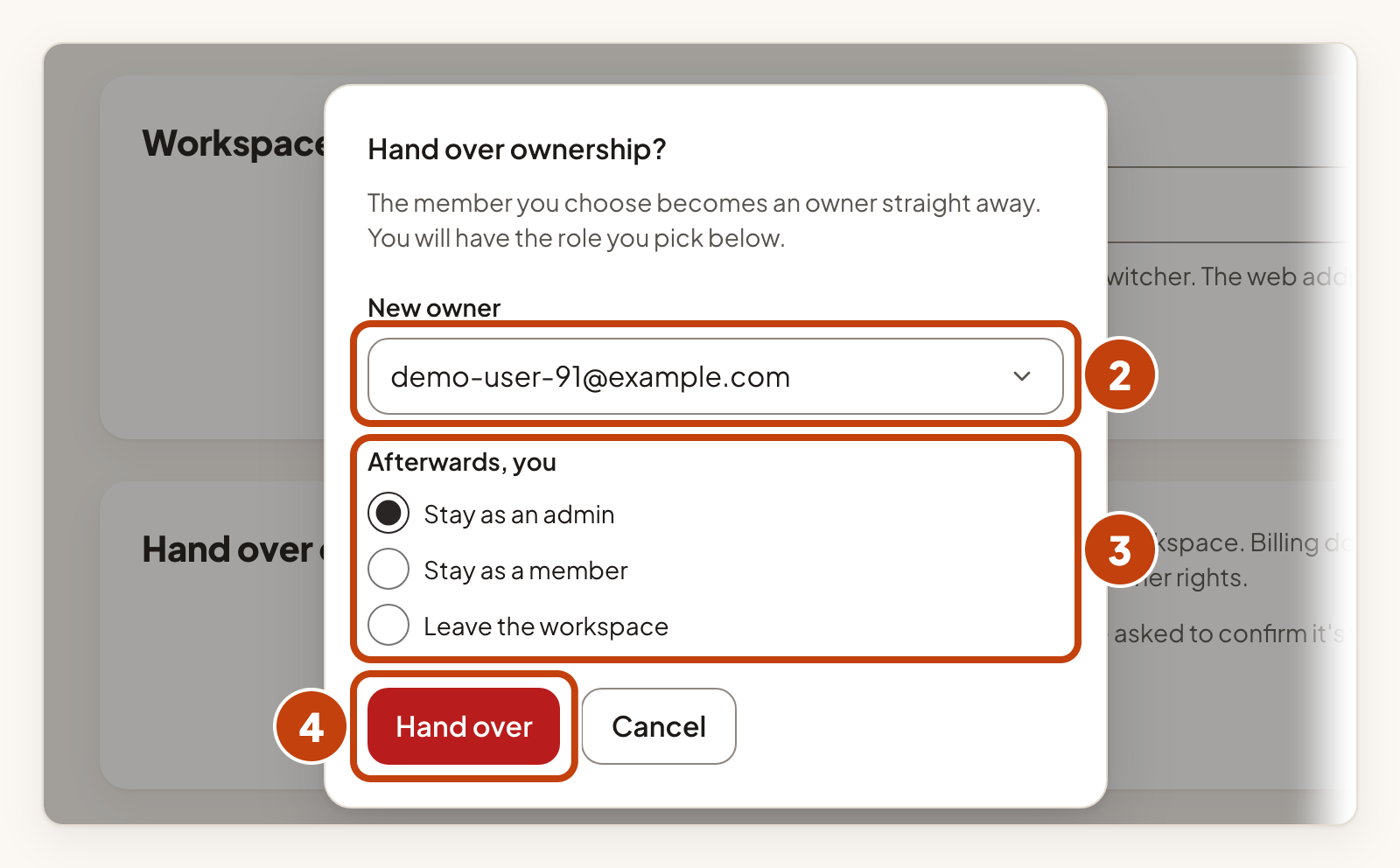
The member you choose becomes an owner straight away. Billing does not move. If they have not turned on two-factor authentication, they need to set it up before they can use the console again. IvaBoard emails both of you, and the audit log records the change.
Leave the workspace
Any member can leave. You lose access to this workspace and its products straight away. You need a new invitation to come back. What you wrote stays with the team. If you were signed in on a product portal as a team member, those sessions end too.
An owner can leave only when another owner exists. If you are the only owner, the section says "You are the only owner. Make someone else an owner first." and shows no button.
- Select the Leave workspace button.
- In the Leave this workspace? dialog, select Leave workspace.
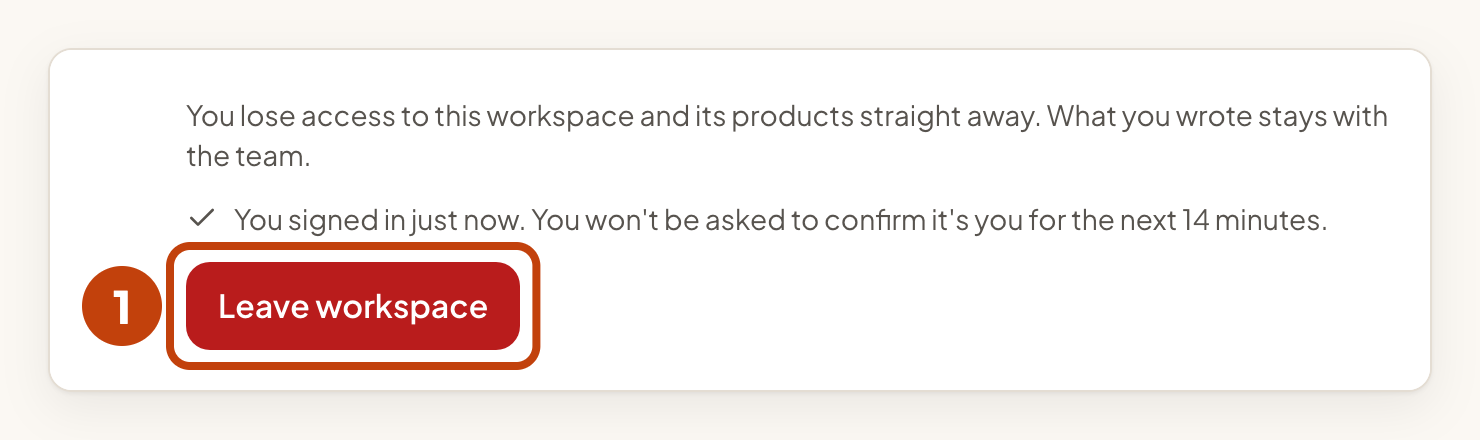
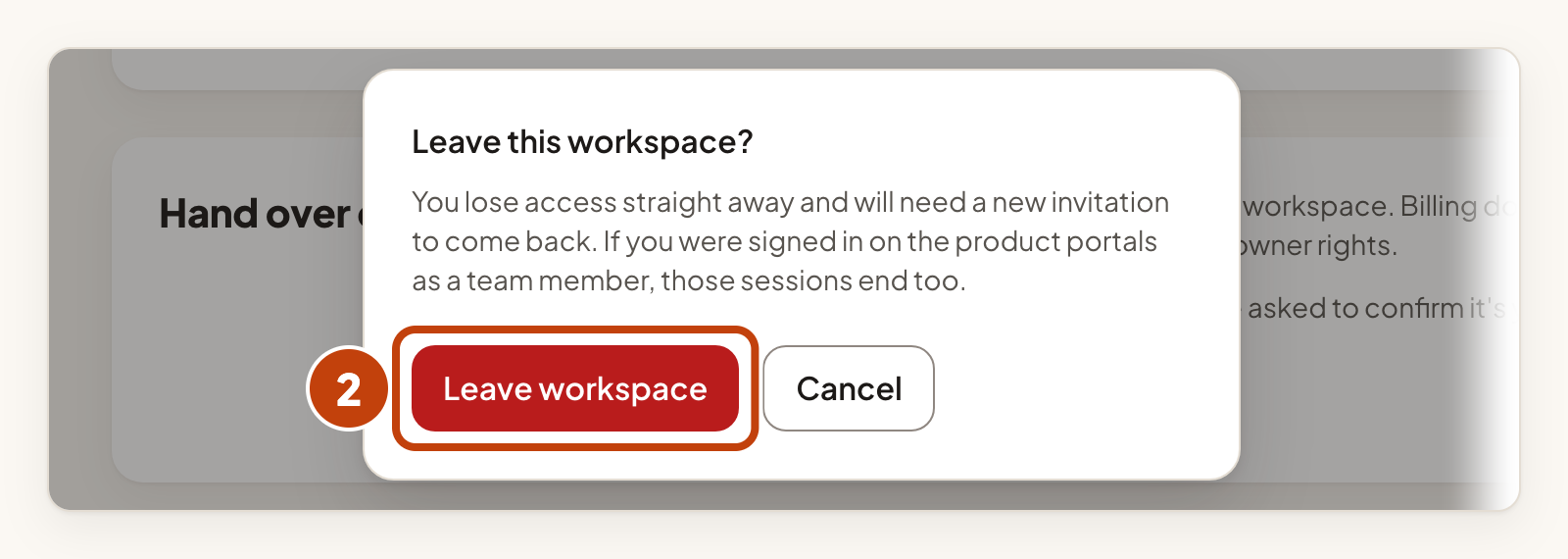
IvaBoard takes you out of the workspace. It does not email anyone when you leave. The audit log records it.
Example
For example, Sam Taylor is an owner of Acme Labs. Sam selects Hand over ownership, chooses [email protected] under New owner, and selects Stay as an admin. Sam then selects Hand over. Alex gets an email that says they are now an owner. Sam is now an admin of Acme Labs.
If the screen shows a message
| The screen says | What it means and what to do |
|---|---|
| "Enter a name of 1 to 120 characters, with at least one visible character and no invisible or control characters." | The name is empty, too long, or contains characters that are not allowed. Change the name and select Save name again. |
| "Someone else changed the name while you were editing. The current name is shown below." | Someone else renamed the workspace at the same time. Check the name and save again. |
| "Only an owner or an admin can rename the workspace." | You are a member. Ask an owner or an admin. |
| "Only an owner can hand over ownership." | You are not an owner. Ask an owner. |
| "There is no other member to hand the workspace to. Invite someone first." | Invite a member, then try again. See Invite your team. |
| "That member has not verified their email address yet, so they cannot become the owner." | Choose another member. The member must verify their email address first. |
| "That person is no longer a member of this workspace. Reload and choose again." | Reload the page and choose the member again. |
| "You are the only owner. Make someone else an owner first." | You cannot leave yet. Hand over ownership to another member, or make another member an owner on the Team page. See Roles and product access. If nobody else is in the workspace, delete it instead. See Delete your workspace. |
| "You are the only member, so you cannot leave. Delete the workspace instead." | Nobody else is in the workspace. Use Delete workspace instead. See Delete your workspace. |
| "You pay for this plan and it still renews. Stop the renewal under Plan and billing first." | You pay for this plan. Stop the renewal first, then try again. The message links to Plan and billing. |
| "Your role needs two-factor authentication. Set it up to continue." | Owners and admins must turn on two-factor authentication. Select the link in the message to set it up. |
| "This workspace is scheduled for deletion, so changes are paused. An owner can cancel the deletion to make changes again." | Ask an owner to cancel the deletion. See Delete your workspace. |
| "This workspace is read-only because its plan has ended. You can still download your data." | The plan has ended, so the workspace is read-only. |
| "This workspace is closed. Renew your plan to make changes." | Renew your plan to make changes. |
| "You are doing that too often. Wait a minute and try again." | Wait a minute, then try again. |
| "We could not do that. Try again in a moment." | Try again in a moment. |
