Show "What's new" inside your app
The What’s new popup puts your latest changelog entries inside your own website or app. Visitors see a small button with a badge when you have published something new. Pressing it opens a panel with your newest entries, without leaving the page.
Who can use it
Every plan includes the popup. An owner, an admin or a product manager can set it up. The popup shows nothing until your portal is launched.
Add the popup to your website
The popup shows only on websites listed under Your websites.
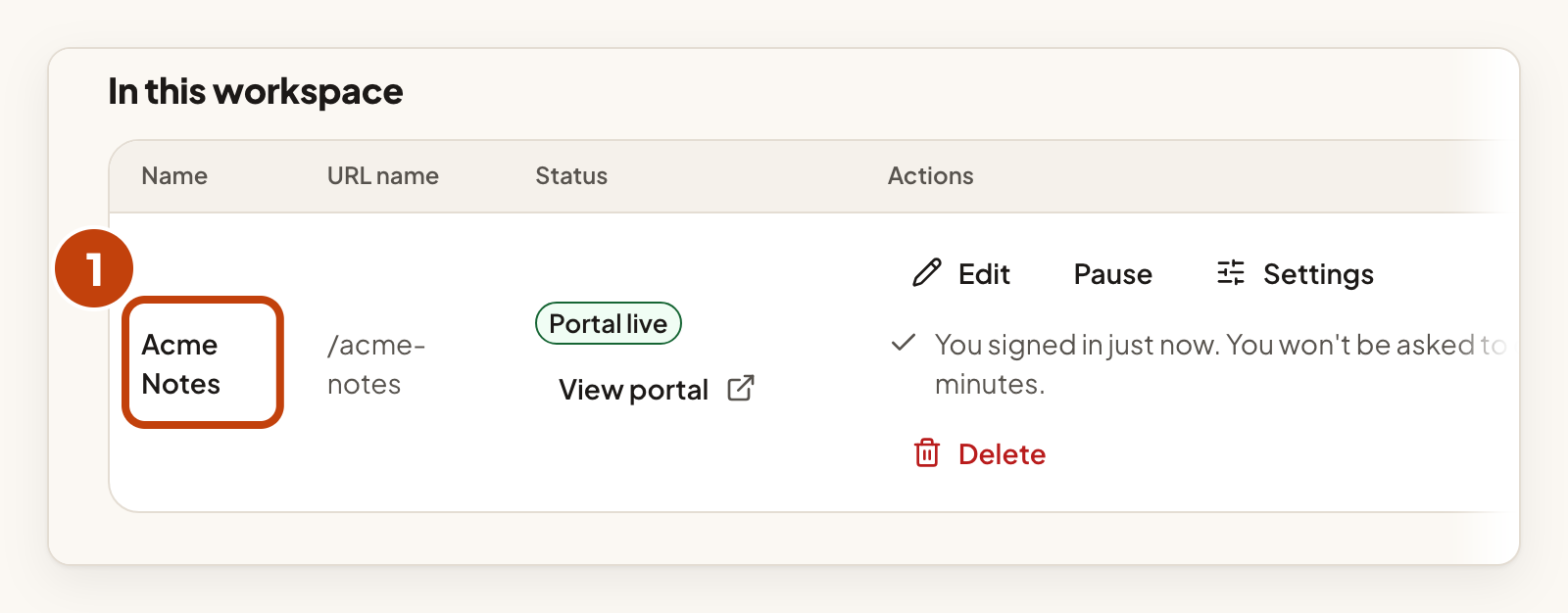
- Open your product.
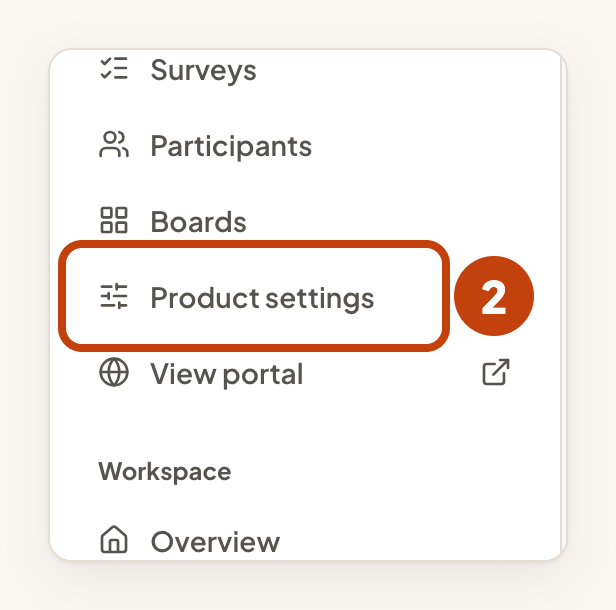
- Select Product settings in the console menu.
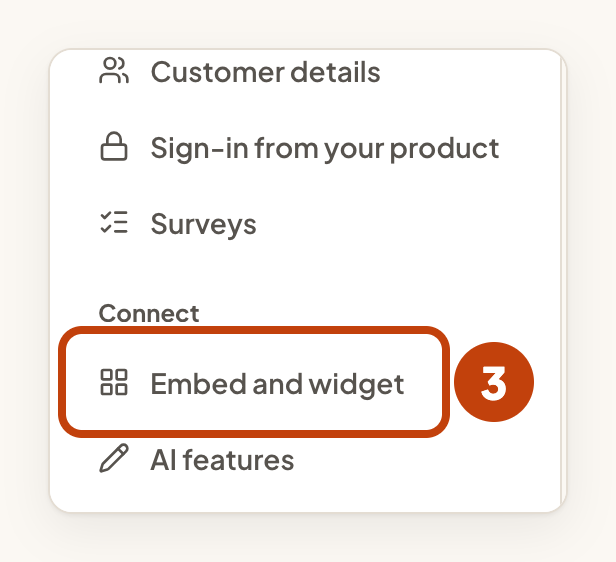
- Select Embed and widget.
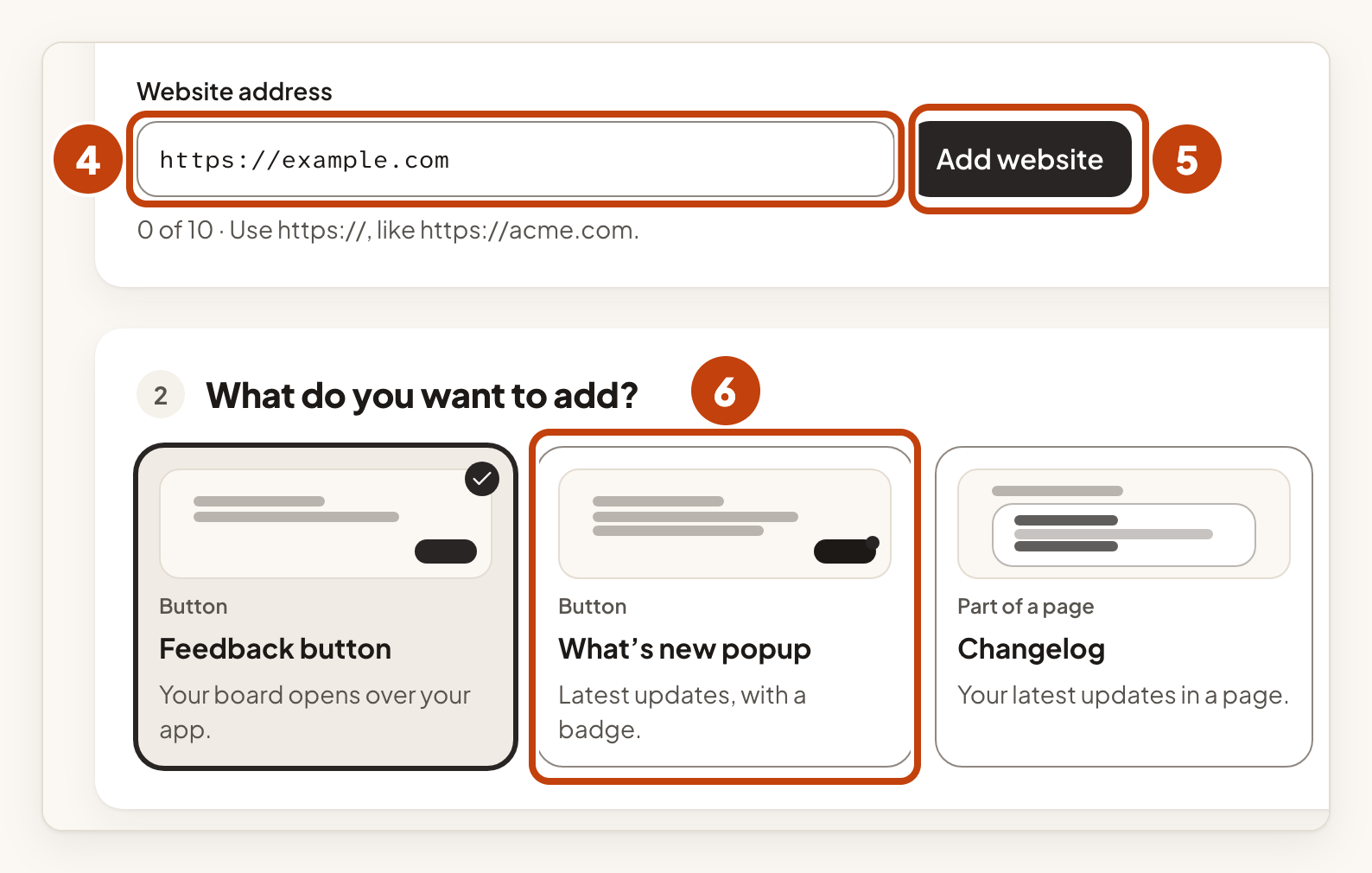
- Enter the full address of the site or app in Website address, such as
https://example.com. - Select Add website.
- Under What do you want to add?, select What’s new popup.
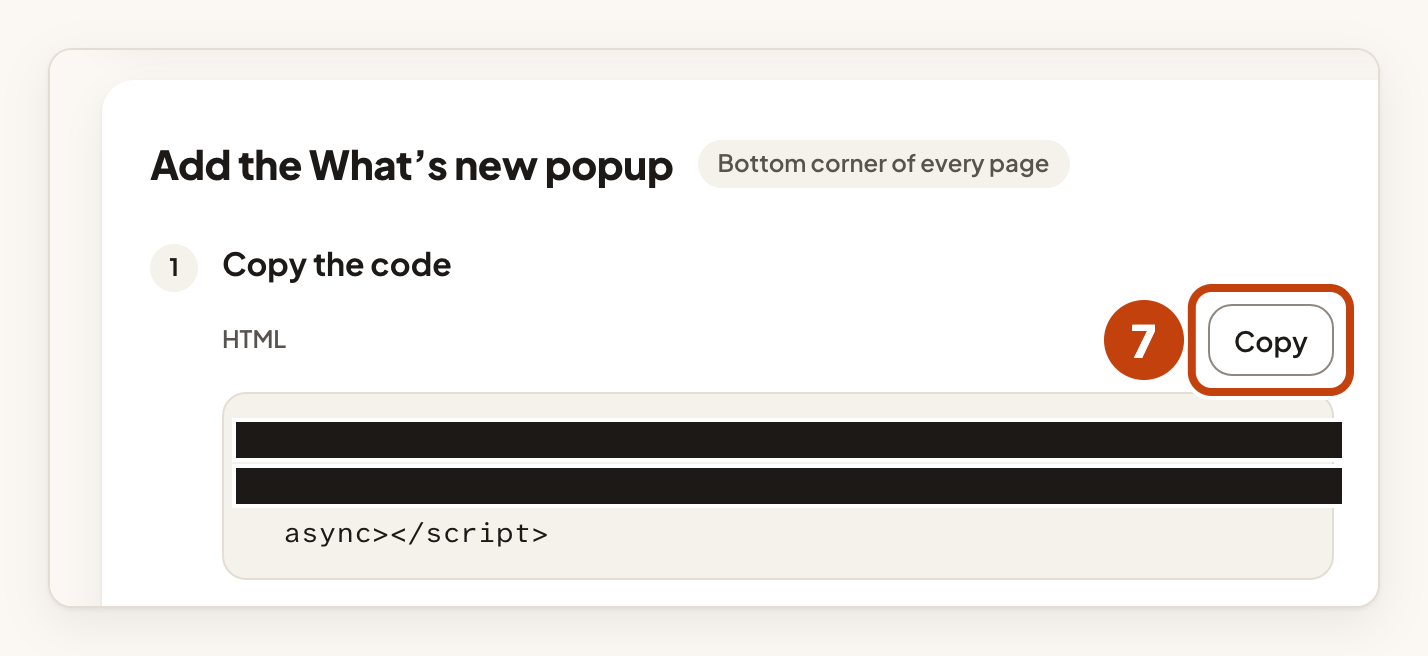
- Under Copy the code, select Copy.
- Paste the code before the closing
</body>tag on every page of your site or app. - Open your website. A What’s new button shows in the bottom corner.
The button shows only on the websites you added. If you add no website, nothing shows.
What visitors see
- The button shows a badge with the number of entries they have not seen. The badge reads 9+ when there are more than nine.
- The panel lists your five newest published entries. A link at the end opens your full changelog on your portal.
- Links open in a new tab, and pressing Escape closes the panel.
Use your own button
If you want your own button, select My own button under Button in the options. The script then draws no button of its own. The page shows a second code block with a button that has the attribute data-ivaboard-changelog-trigger. Paste that button where you want it on your page.
The attribute data-ivaboard-unread on your button holds the number of new entries, so you can style it as a badge.
Options
- Button side: Right is the default. If your site also shows the Feedback button on the right, this button moves to the left by itself, unless you tick Keep it on the right, even next to the Feedback button. Choose Left to move the button to the left.
- Language: Product default, Visitor’s browser, or a language you have switched on under Languages.
Privacy
The popup sets no cookies and needs no accounts. Your visitor's browser keeps only the date of the newest entry they saw. A visitor on a new browser, or in a private window, starts with every entry marked as new.
The popup shows published entries only. Publish an update first, as described in Publish a changelog update.
Example
For example, Sam adds https://example.com as a website and copies the What’s new popup code. Sam pastes it before the closing </body> tag on the home page. Visitors now see a What’s new button in the bottom corner, with a badge showing 2 when two entries are new.
