Send portal emails from your own domain
By default, emails to your customers come from IvaBoard's own address. With a verified sending domain, they come from your own address, such as [email protected].
Who can use it
- A sending domain needs White label. Growth, Scale and every Lifetime White-label plan include it. Starter and the Lifetime Hosted plans do not. See White-label.
- The product must also have White label switched on.
- Owners and admins can add, test, activate, switch off and remove sending domains. They also choose the sending domain for each product. A product manager cannot change these.
- A workspace can claim up to five sending domains.
Which emails use a sending domain
A product's sending domain is used for:
- Participant emails: comments, replies, status changes, releases, Done, and waitlist invitations.
- The sign-in code that customers get on your own custom domain.
These always come from IvaBoard's address:
- Account verification and password reset.
- Staff email and the weekly digest.
- Staff invitations and workspace deletion notices.
Add a sending domain
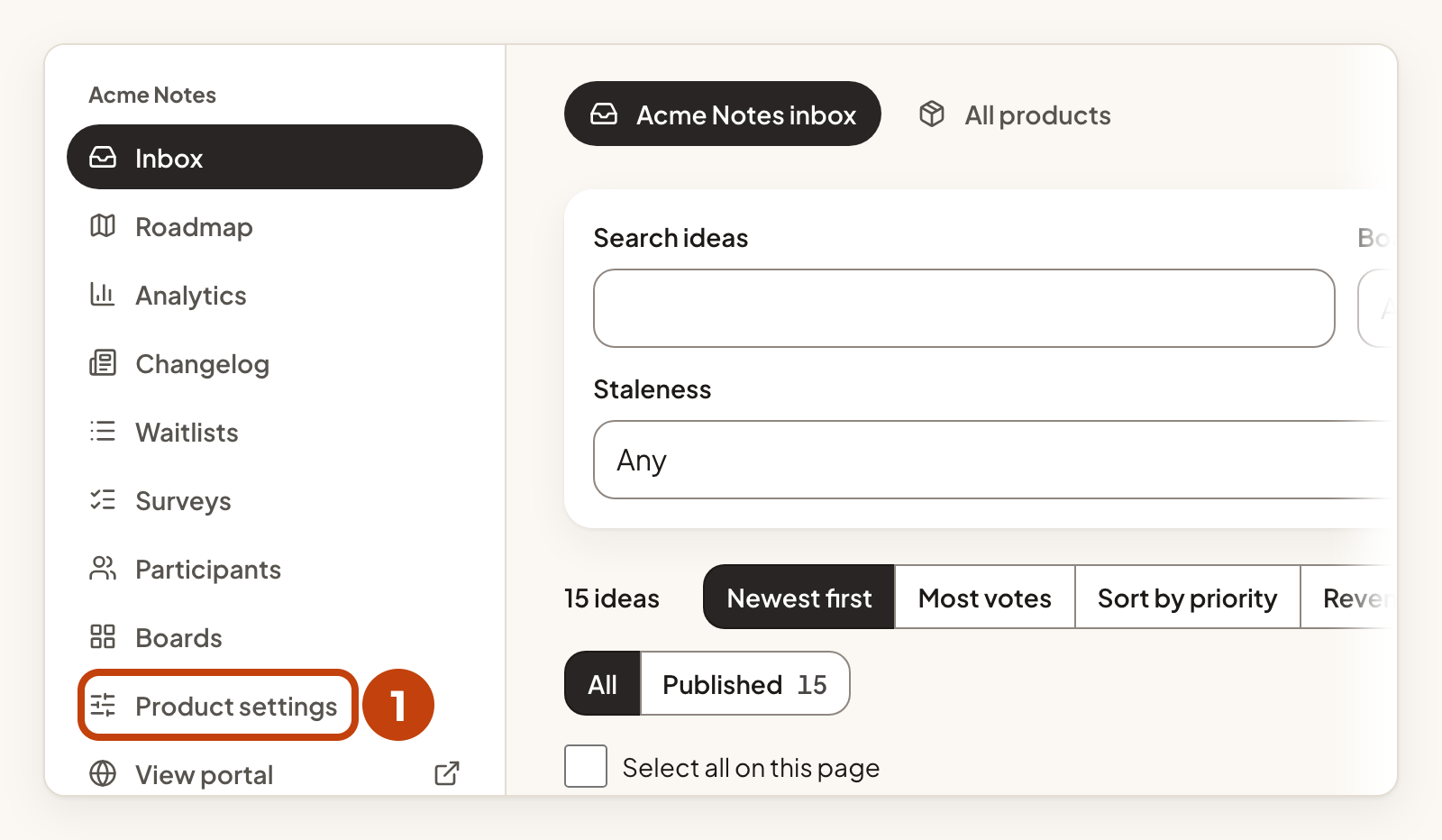
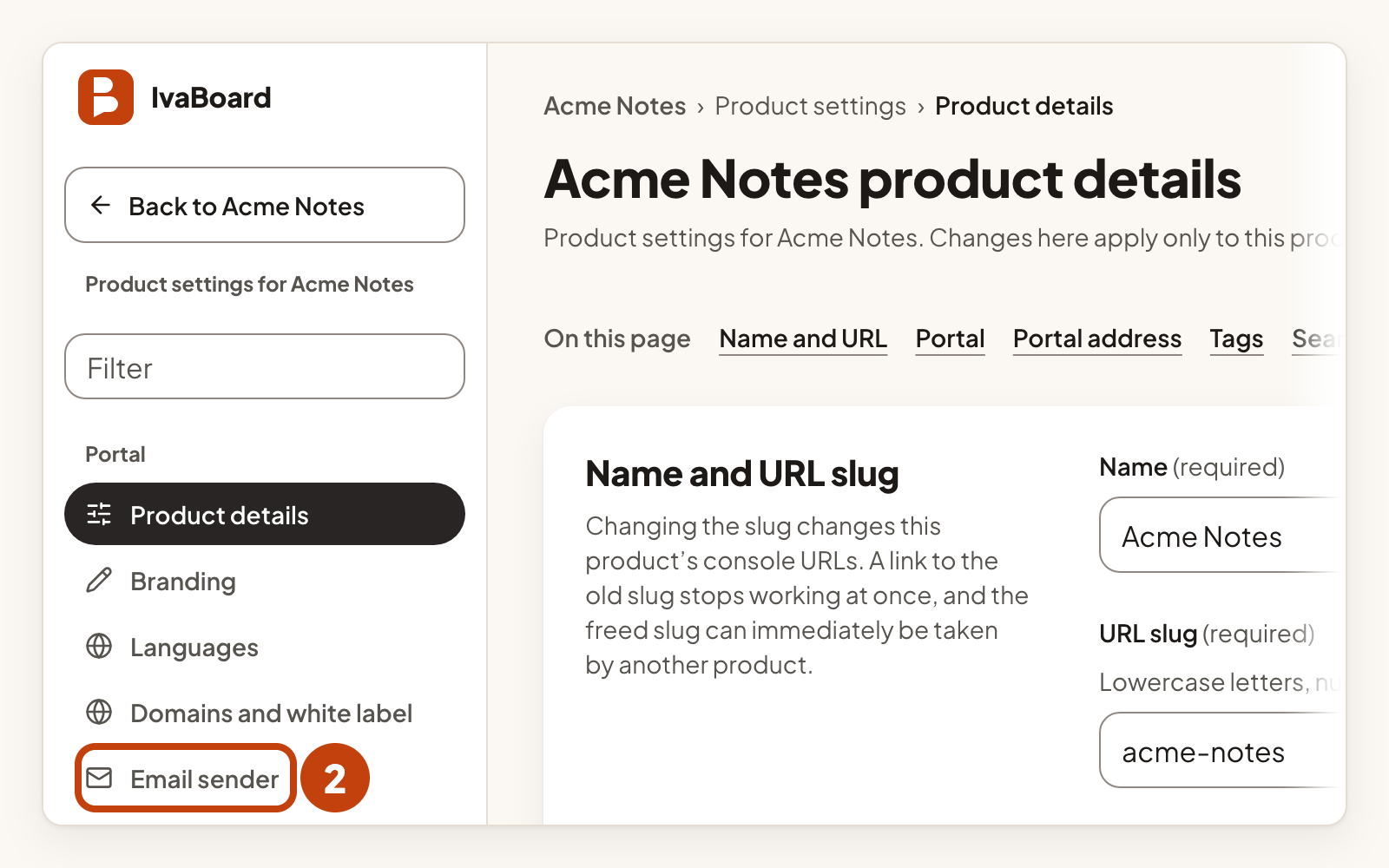
- Select Product settings for your product.
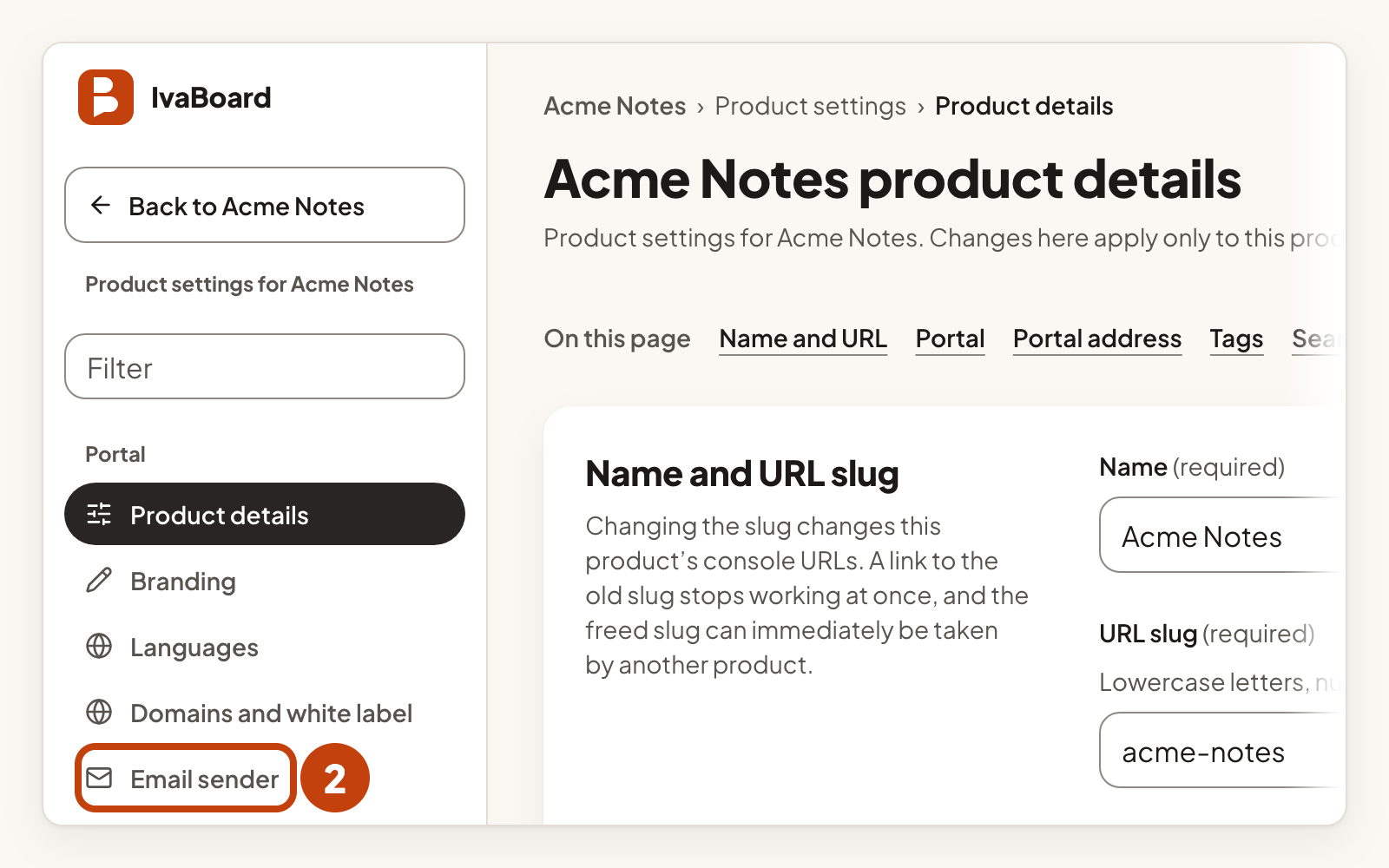
- Select Email sender in the settings menu.
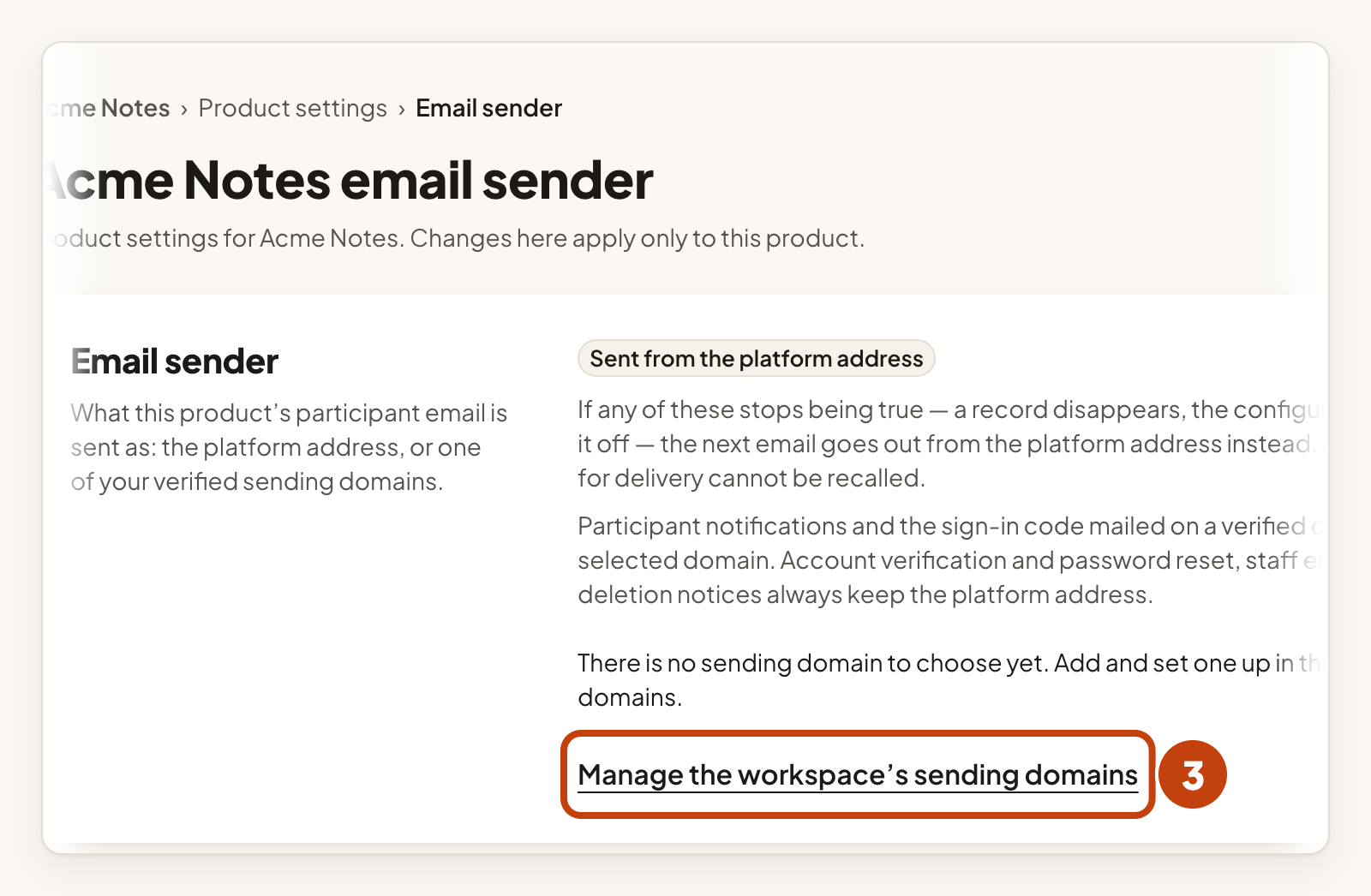
- Select Manage the workspace’s sending domains.
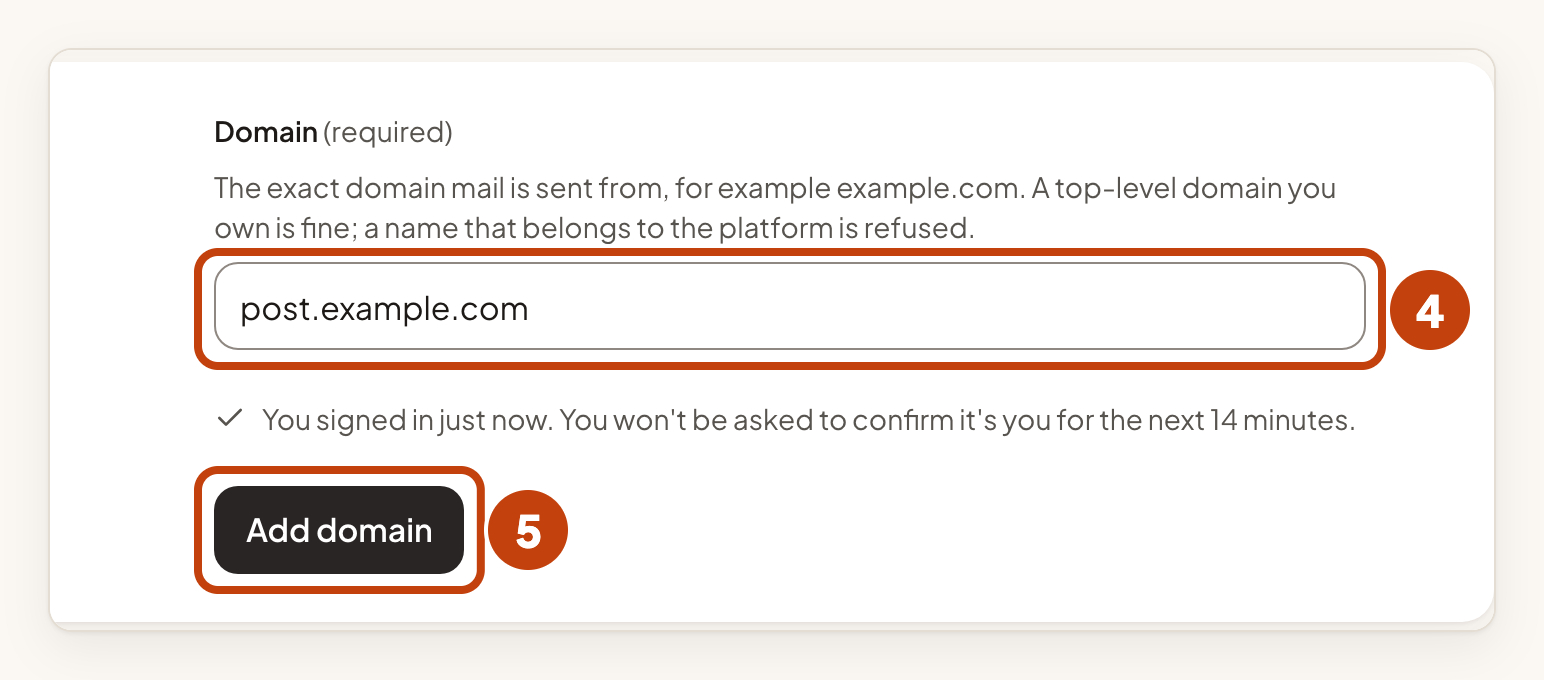
- In Domain, enter the domain you send from, such as
post.example.com. - Select Add domain.
The page is headed Email sending domains. Each domain then needs four steps before it sends.
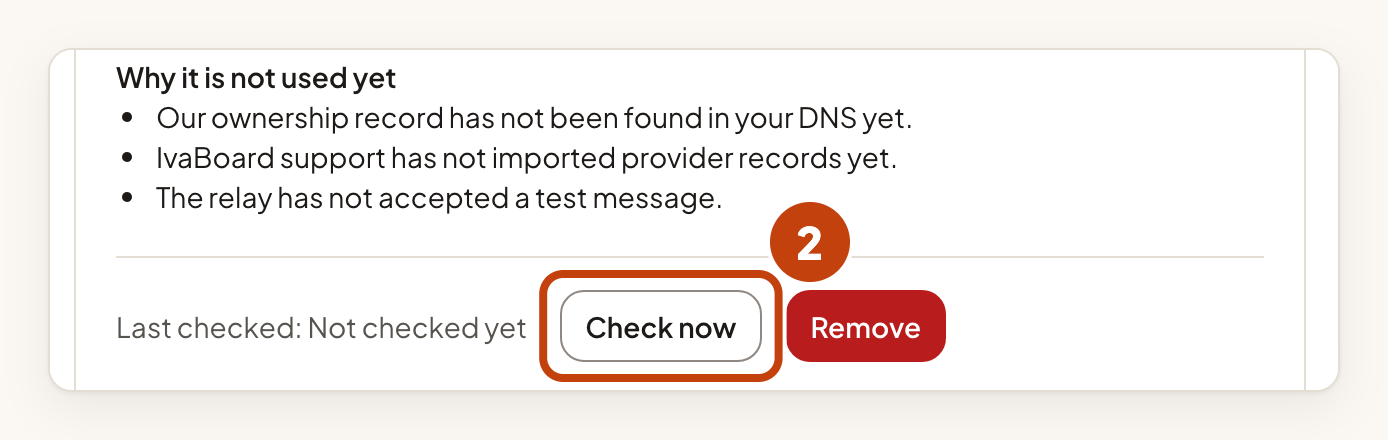
Prove that you own the domain
- At your DNS provider, create the TXT record shown under 1. Ownership of the domain.
- Select Check now.
Publish the provider records
IvaBoard support imports the records for your domain on request. Until it does, the section under 2. Provider records and signing shows Waiting for IvaBoard support.
- Select Email IvaBoard support.
- At your DNS provider, publish each record shown in section 2. Provider records and signing, exactly as shown.
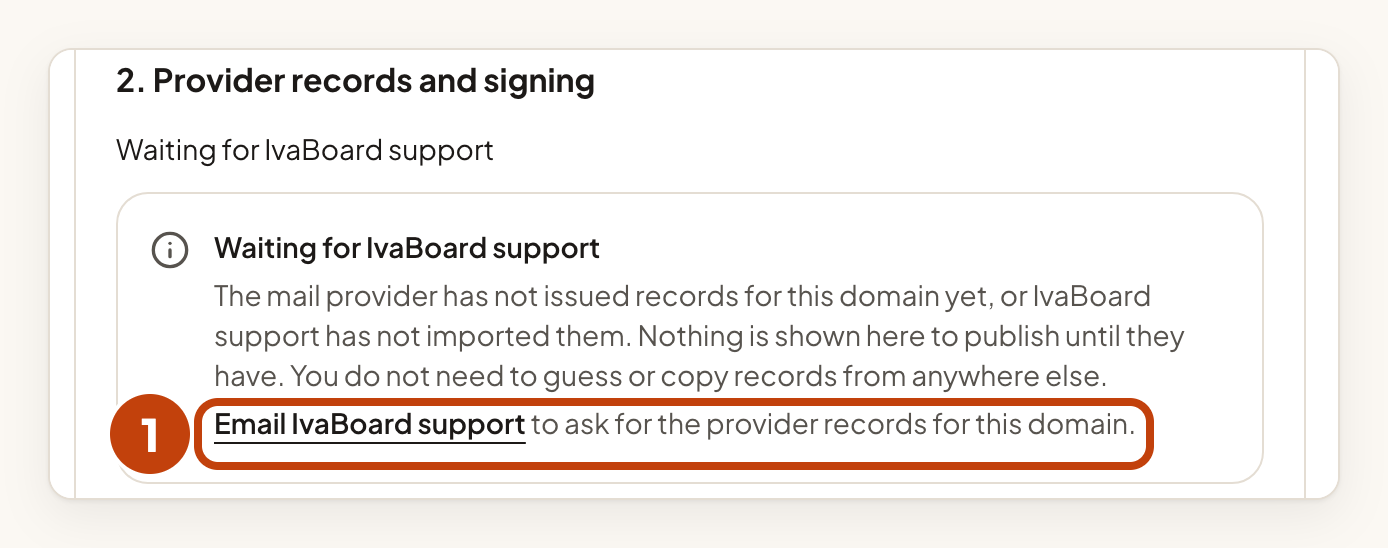
The page marks each record Published when it finds it in your DNS.
Send a test message
- Select Send a test message to me.
- Open the test message in your own inbox.
- In the message headers, check that Authentication-Results shows dkim=pass for this domain.
- Tick I opened the test message and its Authentication-Results show dkim=pass for this domain.
- Select Activate this domain.
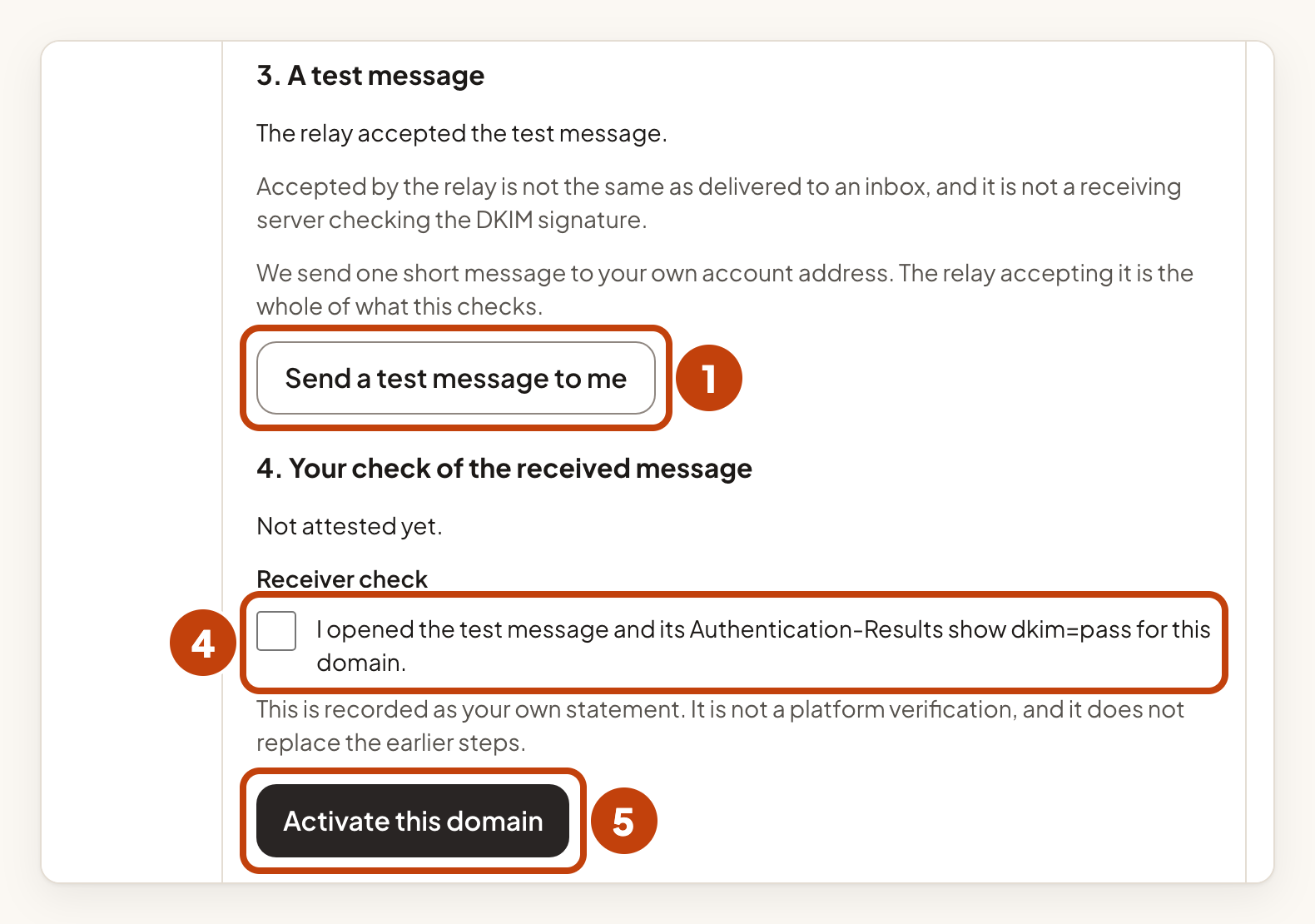
The test message goes to your own account address.
Publishing the DNS records is not enough. A domain sends only when all four steps are done. If any of them stops being true, the next email goes out from the platform address instead. An email already accepted for delivery cannot be recalled.
A message accepted by the mail relay is not the same as a message delivered to an inbox. Check your inbox before you tick the box.
Choose the sending domain for a product
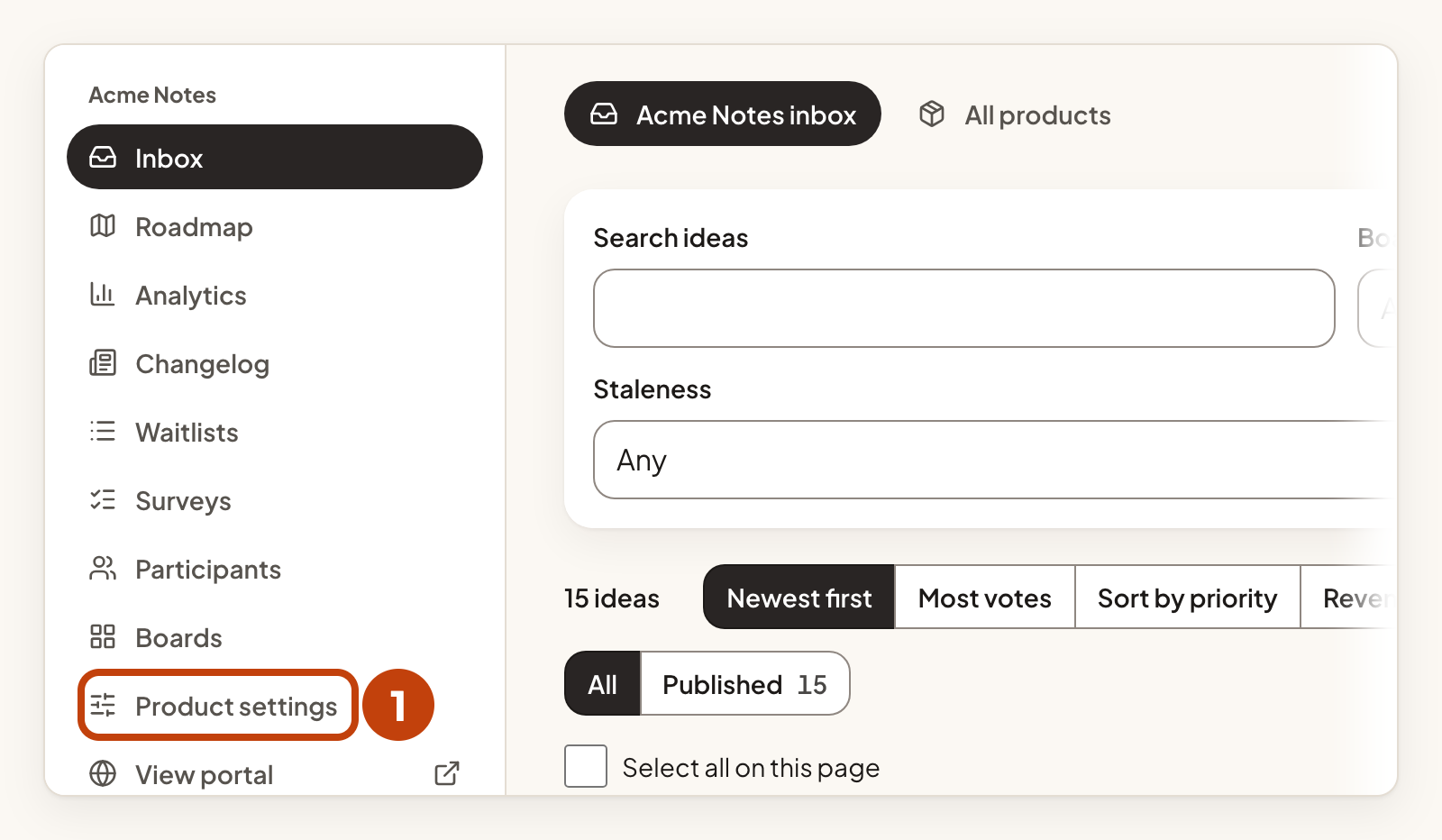
- Select Product settings for your product.
- Select Email sender in the settings menu.
- Select a domain in Sending domain.
- In Name before the @, enter a name such as
ideas. - Select Save sender.
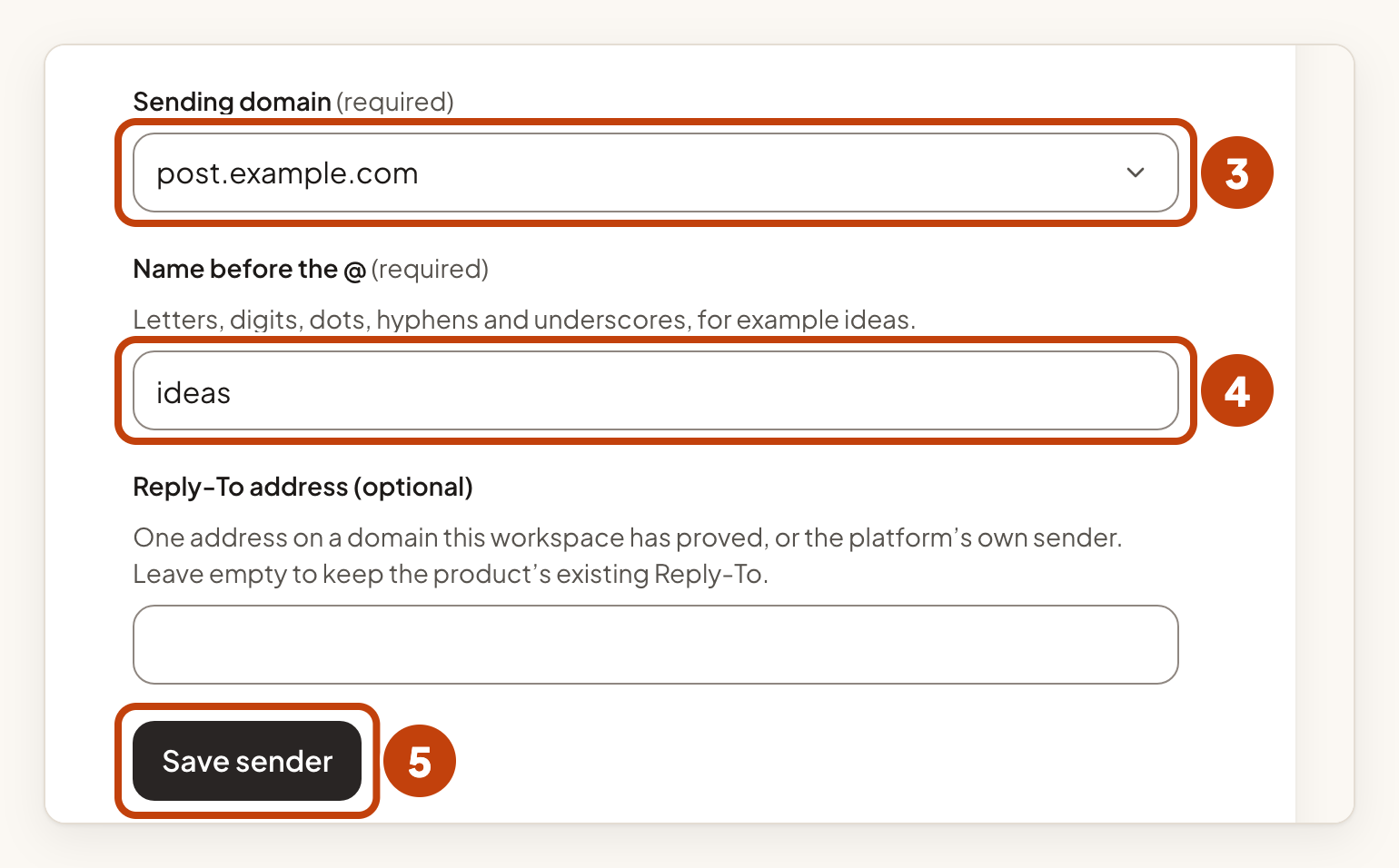
If you want a Reply-To address, enter it in Reply-To address (optional) before you select Save sender. It must be on a domain this workspace has proved, or be IvaBoard's own sender. Choosing a domain does not make it live by itself. It is used only while every step on the domain page holds.
The product's Email sender page then shows Sent from your sending domain, or Sent from the platform address when no domain is chosen.
Go back to the platform address
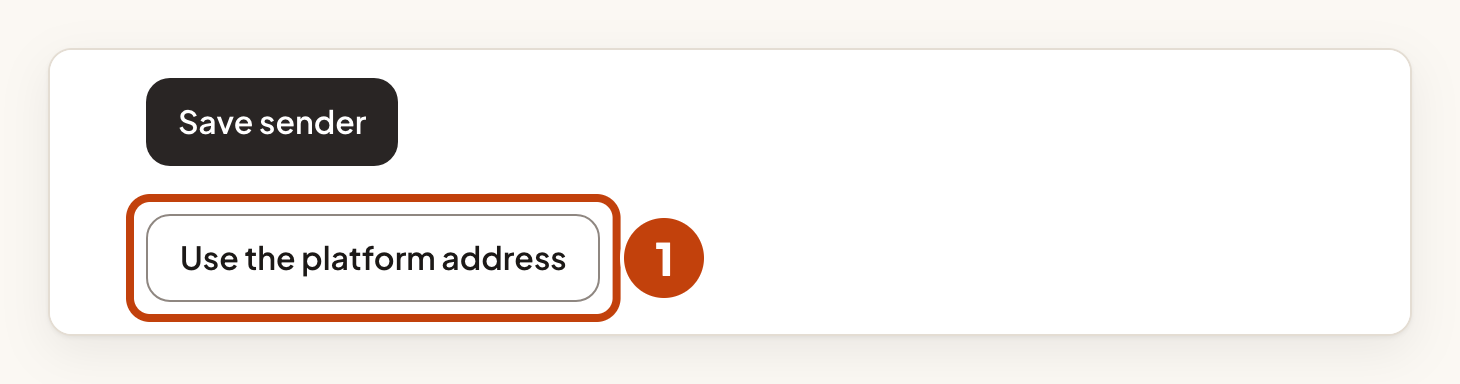
- Select Use the platform address.
Switch off or remove a domain
Both actions are on the Email sending domains page for the workspace.
- Select Switch off for the domain.
- Select Remove for the domain.
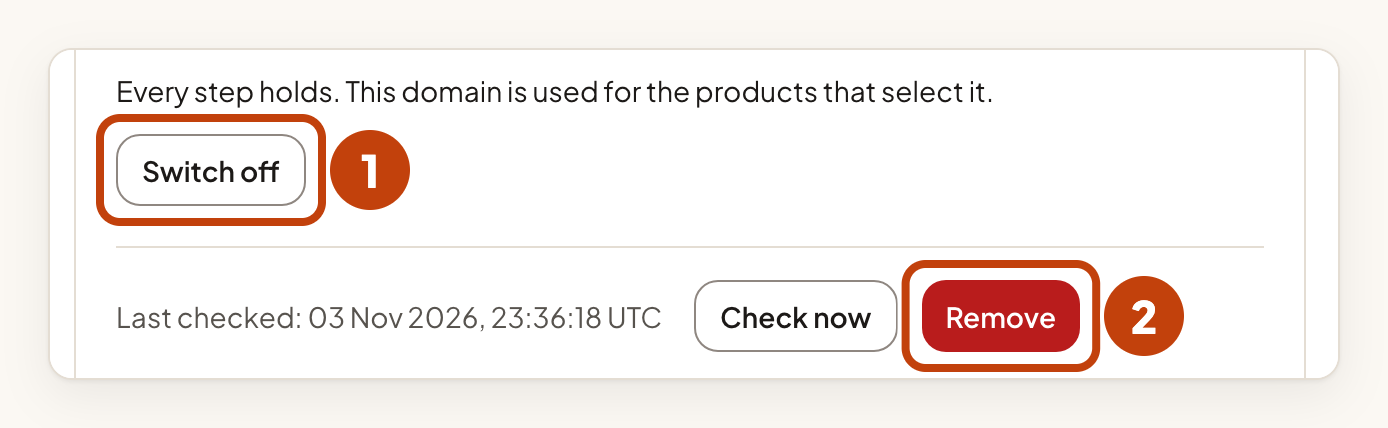
Switch off stops using the domain but keeps its setup. Activate it again when you want it used.
Remove stops every product using the domain straight away. Email then goes from IvaBoard's address. An email already accepted for delivery cannot be recalled.
Example
For example, Sam sets up [email protected] for Acme Notes. Sam adds post.example.com, creates the TXT record and asks for the provider records. Sam sends a test message, opens it in the inbox, ticks the box and selects Activate this domain. Then Sam chooses post.example.com as the Sending domain for Acme Notes, enters ideas in Name before the @ and selects Save sender. Comments on Acme Notes now come from [email protected].
