Link ideas to GitHub issues
Linear and Jira sync are in progress. They are not available yet, so this guide covers GitHub.
Link ideas to GitHub issues, create an issue from an idea in one step, and let an idea's status move when its issue starts or finishes. Nothing about your tracker is shown on your public portal.
Who can use it
Every plan. Only workspace owners and admins can connect a tracker, change its token or secret, link issues or create them.
Before you start
Create a fine-grained personal access token in GitHub for one repository, with Issues set to read and write and Metadata set to read-only. No app needs installing. Give the token as little access as possible. IvaBoard stores it encrypted and shows only the end of it afterwards.
Connect GitHub
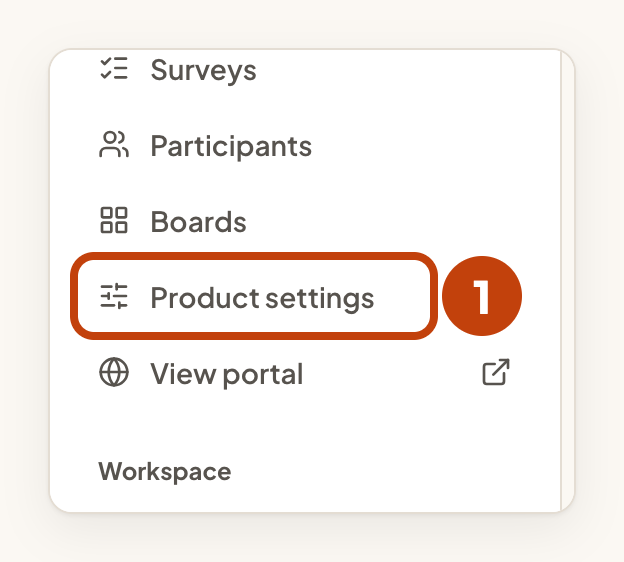
- Open Product settings for your product.
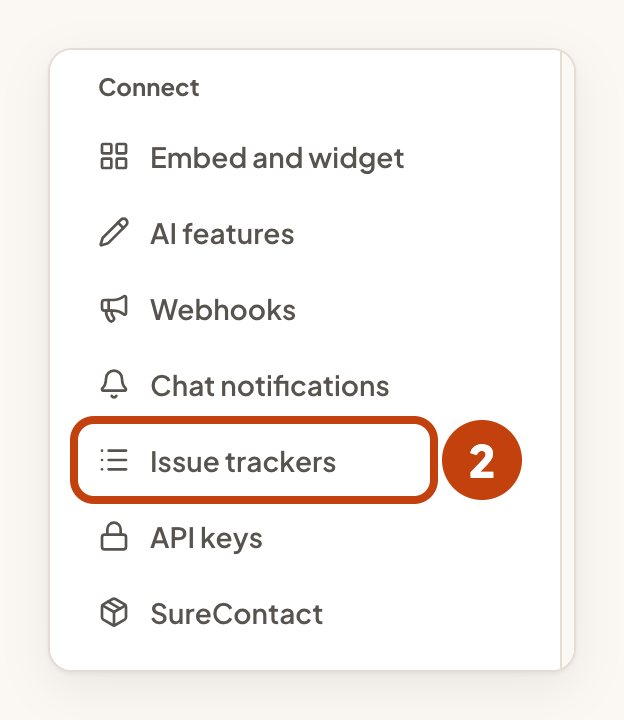
- Under Connect, select Issue trackers.
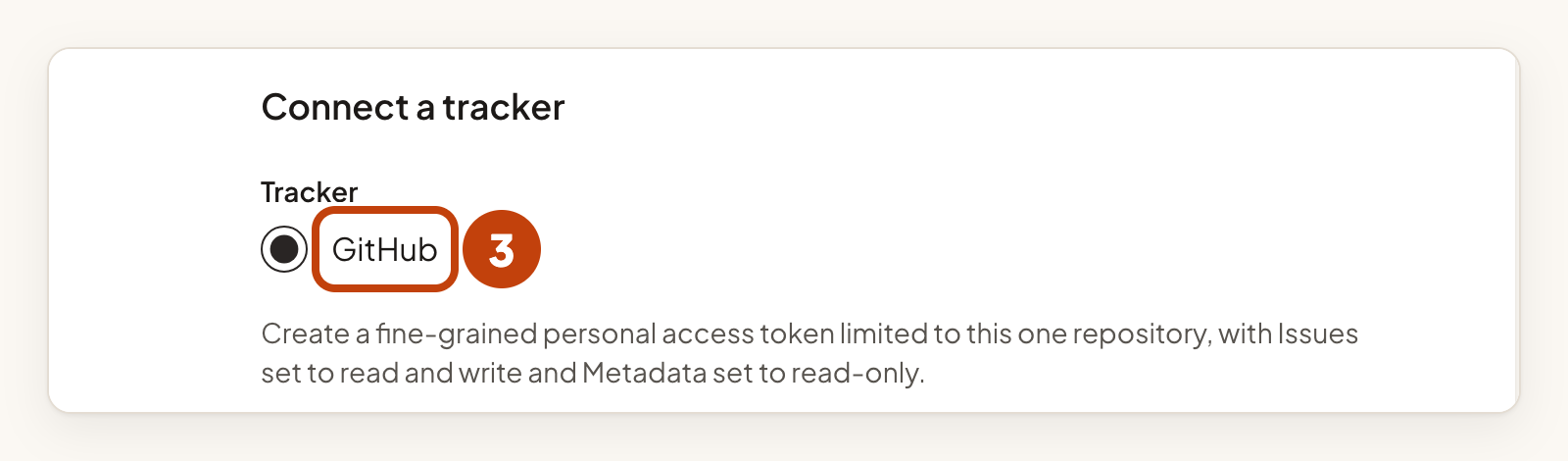
- Under Tracker, check that GitHub is selected. It is the only tracker offered for now.
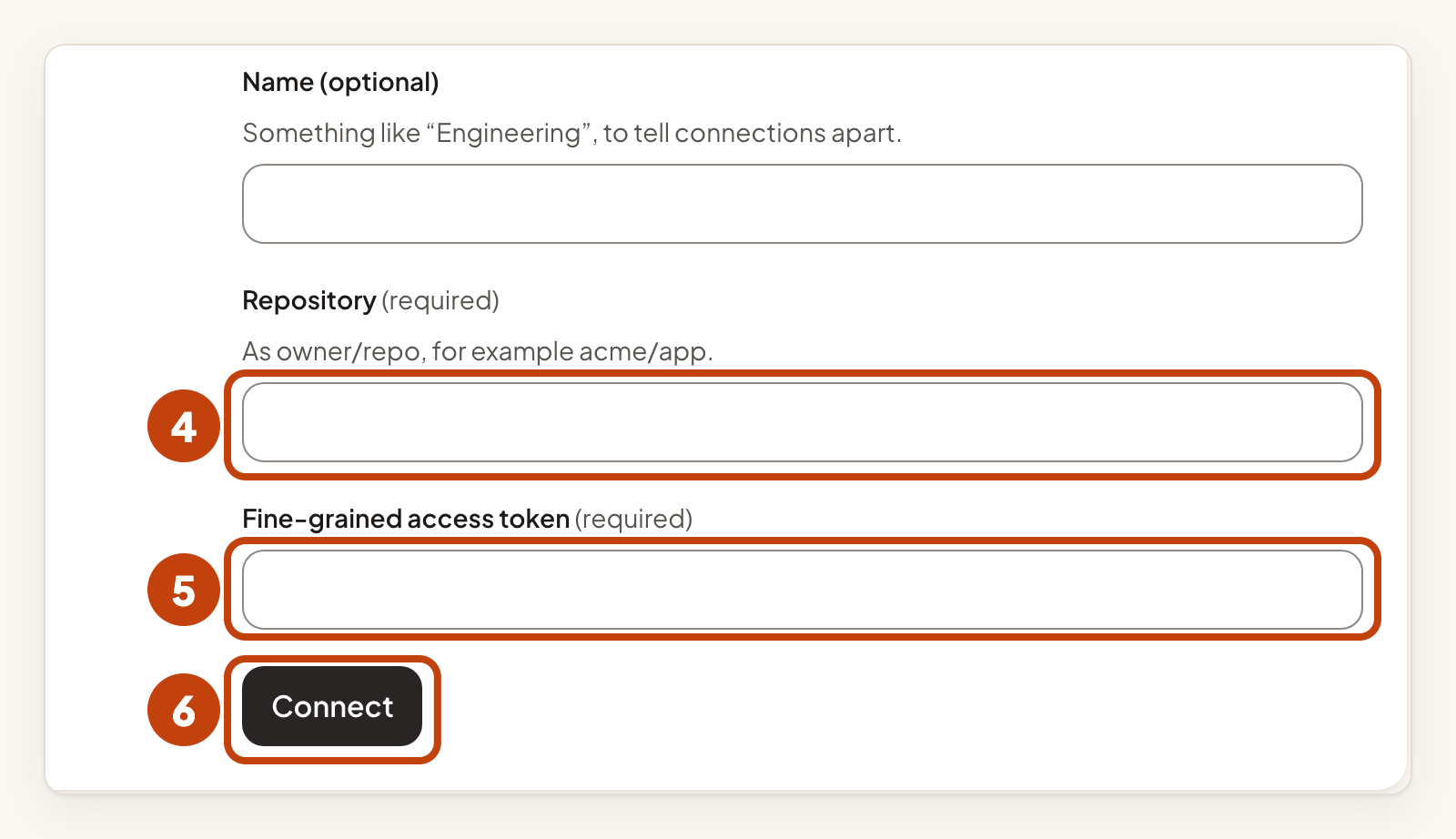
- Enter the Repository as owner and repository, for example
acme/app. - Paste the token into Fine-grained access token.
- Select Connect.
Only github.com repositories are supported.
After you connect, IvaBoard shows the Webhook secret once. Copy it, then select I have copied it.
Faster updates (optional)
Without a webhook, IvaBoard checks the tracker every 15 minutes. For changes within seconds, add the Webhook address from the connection's card to your tracker, with the Webhook secret you copied.
In GitHub, add a webhook with content type application/json, your secret, and the Issues event only.
Webhooks work only when your product's portal is public.
Link an issue to an idea
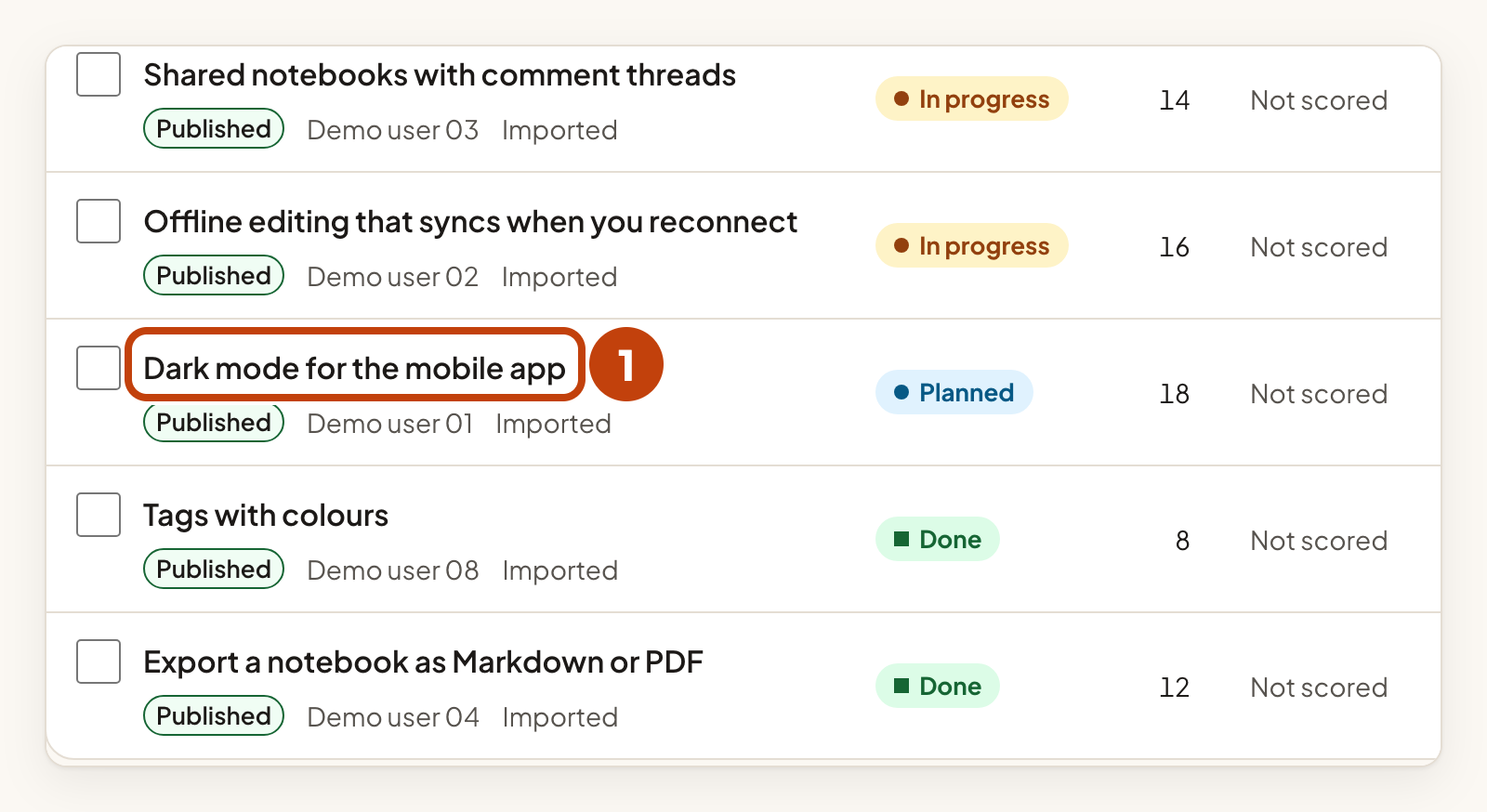
- Open the idea you want to link.
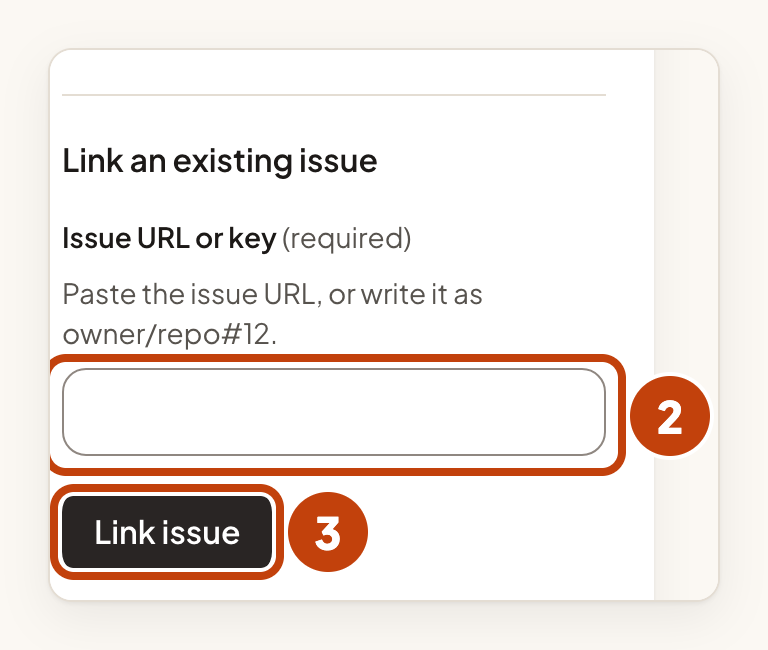
- Paste the issue's URL or key into Issue URL or key.
- Select Link issue.
An idea can link up to ten issues. The idea shows the state of each linked issue.
Create an issue from an idea
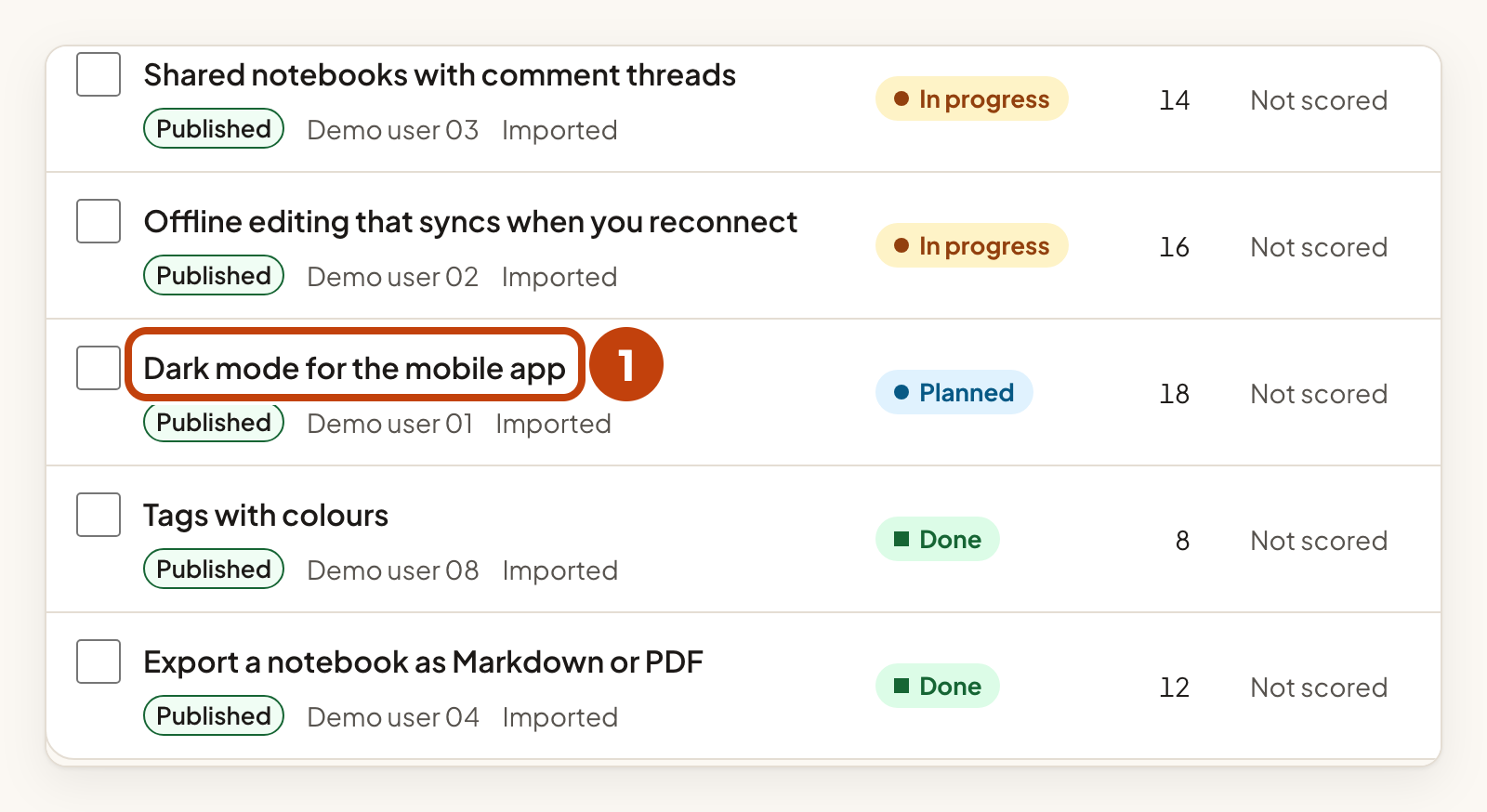
- Open the idea.
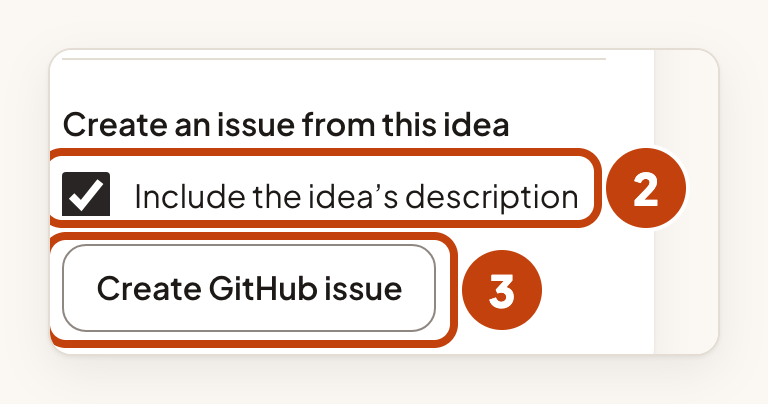
- Tick or untick Include the idea’s description, as you want.
- Select Create GitHub issue.
How issues move ideas
On the connection's card, How issues move ideas sets the status an idea takes for each kind of issue state. By default:
- When the issue is not started, the idea does not move.
- When the issue is in progress, the idea moves to your In progress status.
- When the issue is done, or closed as completed, the idea moves to Done. An issue closed as not planned does not move the idea by default.
To stop one of these moves, pick Do not move the idea on that line.
Two options are off by default:
- Email followers when an issue moves an idea. Off means the status changes quietly. It still shows on the roadmap and in the idea's activity.
- Let a reopened issue move a finished idea back. Off means reopening an issue never moves a finished idea back.
Ideas that are not public, such as ideas on private boards, are never moved.
Fix problems
| You see | What to do |
|---|---|
| Needs a new token | Open Replace the credential, paste a working token and select Replace credential. Then select Test connection. |
| Paused | Five checks in a row failed, or someone paused the connection. Fix the cause, then select Resume. |
To remove a connection, select Disconnect, then confirm. Ideas stop following its issues and every link to it is removed. The issues themselves are not touched.
Example
Sam Taylor links the idea Dark mode for the mobile app to a GitHub issue. Sam pastes acme/app#12 into Issue URL or key and selects Link issue. The idea then shows the issue's state.
