Participants
The Participants page lists everyone who has joined one product: on the portal, through a waitlist, from your app, by CSV import, or recorded by your team. Use it to find a person, see what they posted, and suspend someone who should not post.
The same person on another product is a separate record there.
Who can use it
- Anyone on your team who can see the product can open the Participants page and a person's page.
- Owners and admins see email addresses. A member sees them with Manager or Moderator access. A Viewer never sees an email address.
- Only an owner or an admin can suspend a participant or lift a suspension.
Open the Participants page
- Open your product.
- In the sidebar, select Participants.
Read the list
Each row is one person. The table (marked 1) has these columns:
- Display name: select it to open the person's page.
- Email: shown only when you may see addresses and a row has one.
- Waitlists: one chip for each waitlist the person is on, such as "Early access · Waiting".
- Signs in with: how the person joined.
- Status: Active, Erasure requested, Suspended or Erased.
- Joined: the date.
- Access: the Suspend or Lift suspension button. Owners and admins see this column.
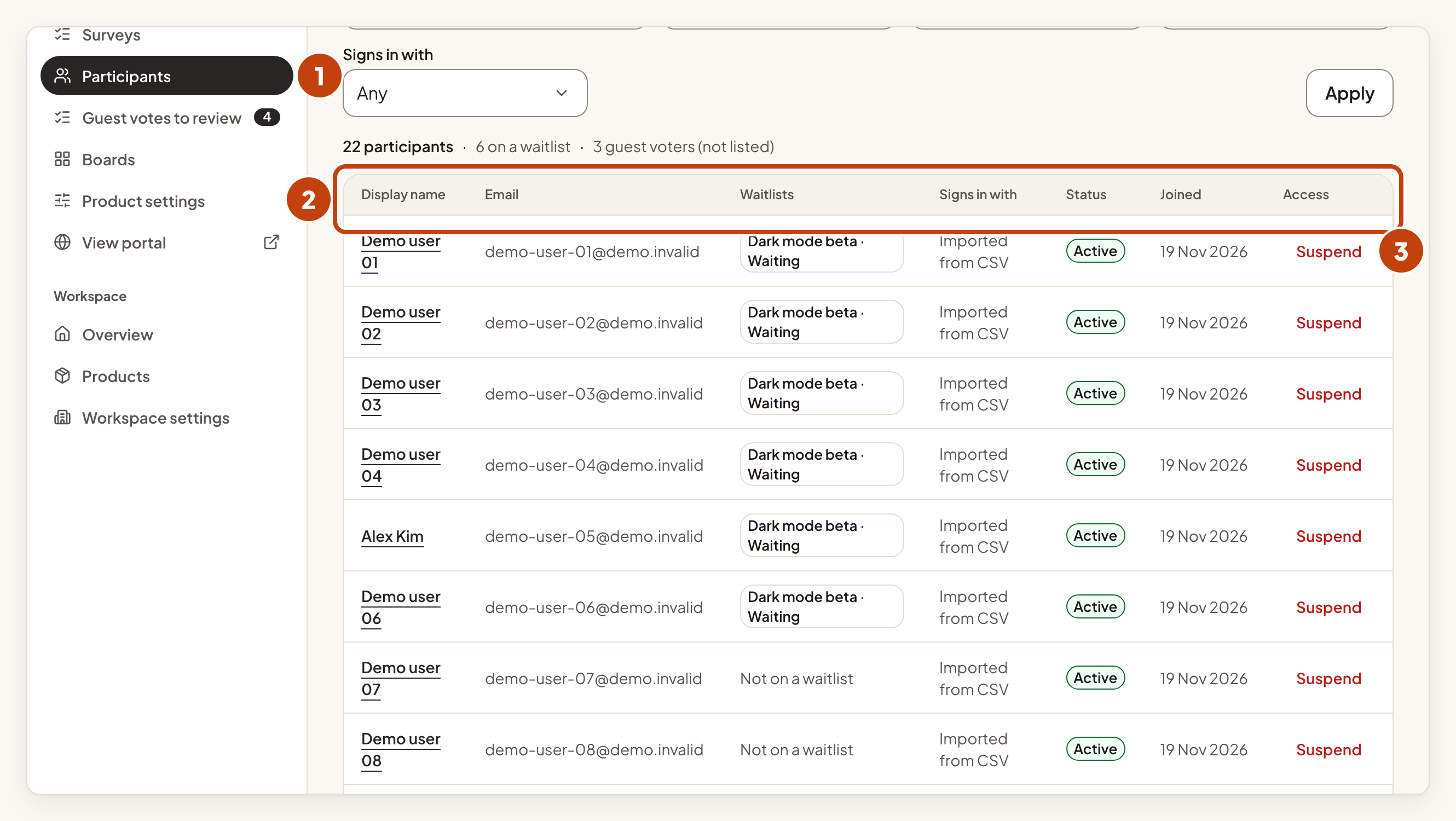
On a narrow window the table scrolls sideways, so Joined and Access sit to the right of what the picture shows.
The list shows 50 people at a time. Select Next 50 participants for the next page.
A person appears in this list when they sign in on your portal, join a waitlist, or come from your app or a CSV import. They also appear when a team member records an idea or vote for them. Signs in with says which. You cannot add a person on this page.
Find people
- Type part of a name in Search participants, then select Apply. If you may see emails, part of an email address works too.
- Choose how to order the list in Sort by: Newest first, Oldest first or Name, A to Z.
- Choose a Waitlist: Any, On a waitlist, Not on a waitlist, or one waitlist by its name.
- Choose a Status on the list (Waiting or Invited). It works together with a waitlist choice.
- Choose Signs in with: Portal account, Email code, From your app, Imported from CSV, Added by staff or Team member.
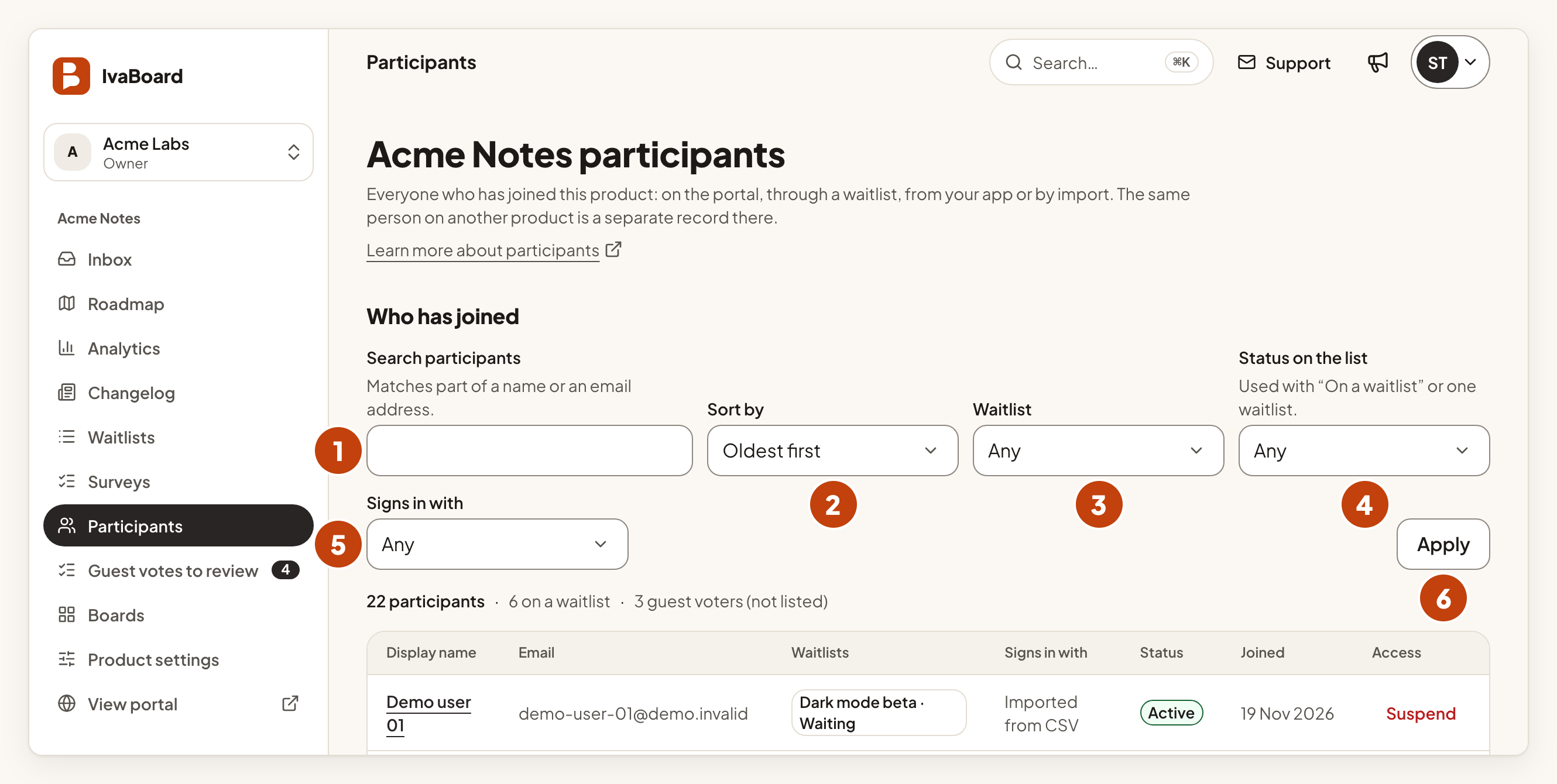
To start again, select Clear filters, or Clear search when you only searched.
Open a person
Select a person's name. Their page has these sections. Waitlists is marked 1 and Customer details is marked 2.
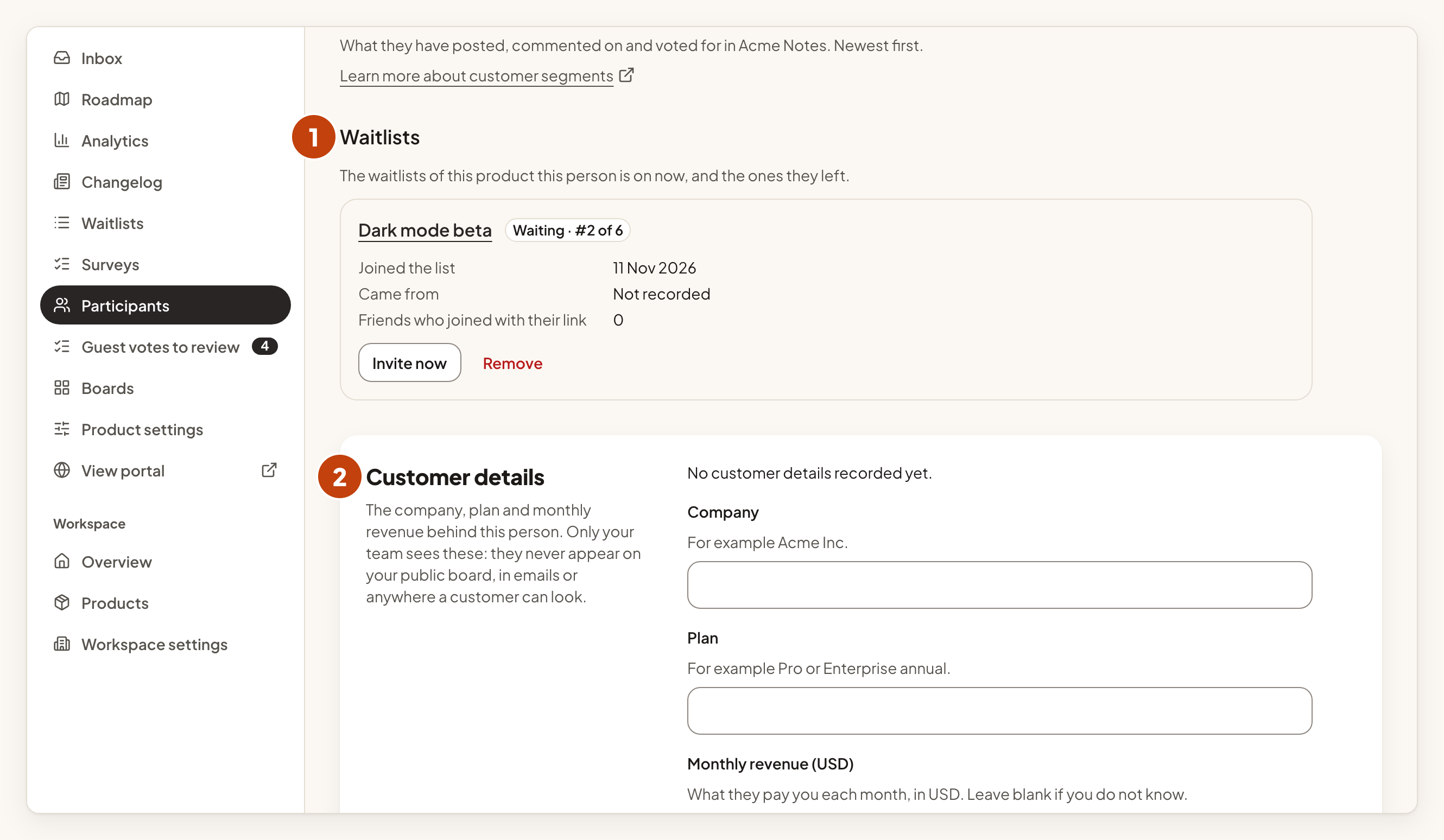
- Waitlists: the waitlists they are on now, and Earlier waitlists they left. See Waitlist people for inviting or removing someone.
- Customer details: the company, plan and monthly revenue you keep for them. See Customer segments.
- Ideas, Comments and Votes: everything they posted, newest first, with a link to each idea. A vote also says where it came from, for example On the portal or Imported from CSV.
The page shows no email address and no comment text. Use All participants to go back to the list.
Suspend someone
Suspend a person who should stop posting. A suspended person cannot post, comment or vote on this product until you lift the suspension. Their account on other products stays as it is.
- On the Participants page, find the person.
- Select Suspend in the Access column.
- Select Suspend participant in the box.
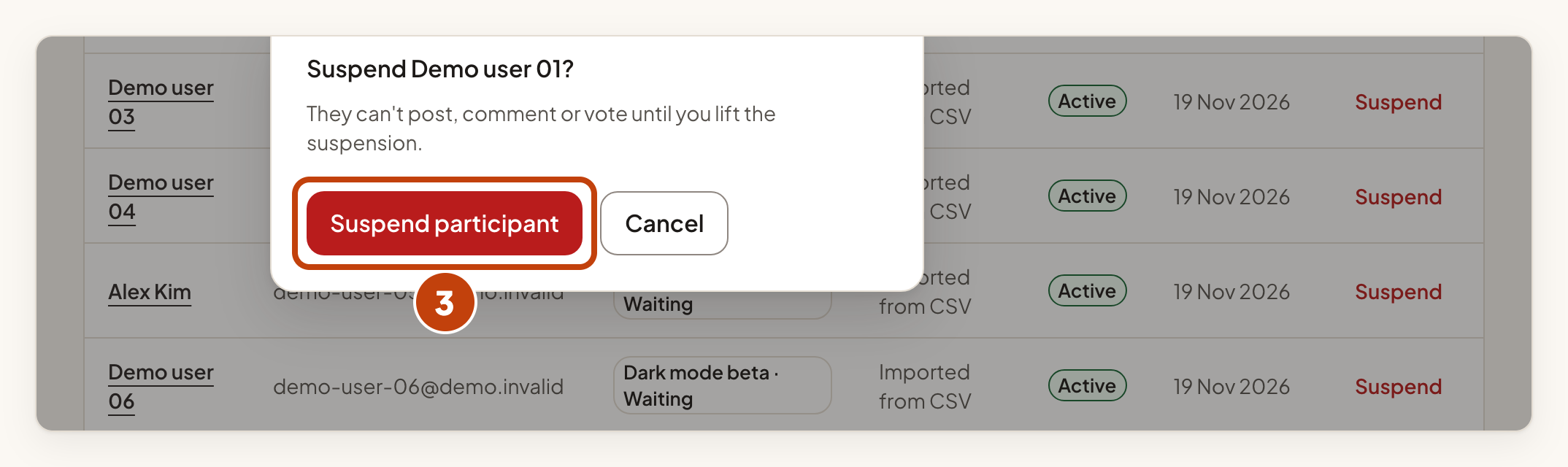
The page says the person is suspended, for example "Alex is suspended." To undo it, select Lift suspension, then Lift the suspension. The page says the suspension is lifted. The person can post, comment and vote again.
A suspended person can still ask for their own data to be erased. You cannot erase a person from this page.
Example
For example, a customer called Alex keeps posting spam on Acme Notes. Sam, an owner, opens Participants, types "Alex" in Search participants and selects Apply. Sam selects Suspend on Alex's row, then Suspend participant. Alex's Status now says Suspended.