Troubleshooting email
Start on Email providers in Workspace settings. Each provider's card says in words what state it is in and what to do next.
Who can use it
Only owners and admins can open the Email providers page and see these messages. Owners and admins also set how each product sends its emails.
Card states
- Active: the provider is checked and tested. A product can choose it.
- Waiting for a check: the provider is new, or you changed it. Select Check connection, then Send a test email.
- Paused: nothing is sent through it. The card says why.
- Needs attention: the provider refused the connection. The card says why.
Problems and fixes
- Paused by a person on your team. Select Resume.
- Paused automatically after five failed sends in a row. Check the provider's own status and activity, fix the cause, then select Resume. If the card then says Waiting for a check, select Check connection.
- The secure connection to the mail server could not be set up. Check the host name and the security setting.
- The provider refused the credential. Select Replace credential, enter a new key or password, then check the connection again.
- The provider refused the From address. Edit the address to one your provider has verified, then check and test again.
- "The provider refused the settings, such as the domain, region or server." This covers the domain, region or server. Edit the settings, then check again.
- We could not reach the provider. Try again in a moment.
- "The provider refused this credential when sending the test: it may be wrong or may not be allowed to send." Replace the credential.
- "The provider refused your address as the recipient." Check your provider's rules for recipients, then try again.
- The provider refused the test message. Check your provider's activity log for the reason.
- "The test may or may not have been sent: the provider’s answer was lost. Check your inbox before sending another." The provider's answer was lost. Check your inbox before you send another.
- "The test was not sent because your address is on a suppression list." Use an account whose address can receive email.
- "Your account has no verified email address to send the test to, so nothing was sent." Use an account with a verified address, then try again.
- "The connection could not be authorised, so nothing was sent." Check the connection, then try again.
- The provider accepted the test email. That does not prove delivery. Look in your own inbox.
Messages you may see
- After a check, wait about 30 seconds before you check again.
- After a test email, wait about a minute before you send another.
- "That From address cannot be used. Use an address on a domain you own and have verified with the provider, not an IvaBoard address."
- "That mail server cannot be used. Enter a host name such as smtp.example.com, not an IP address or an internal server." The Port field lists the allowed ports.
- "This workspace already holds the most email providers it can. Remove one first."
- "A product still sends its emails through this provider, so it cannot be deleted. Change that product's email sender setting first."
- "That provider changed while you were looking at it, or it cannot take that action in its current state. Reload the page and try again."
- "For your security, sign in again to change an email provider."
My users are not getting emails
Sign-in codes, security emails and team emails come from IvaBoard, not from your provider. If those do not arrive, contact support. For emails to your users, check these in order.
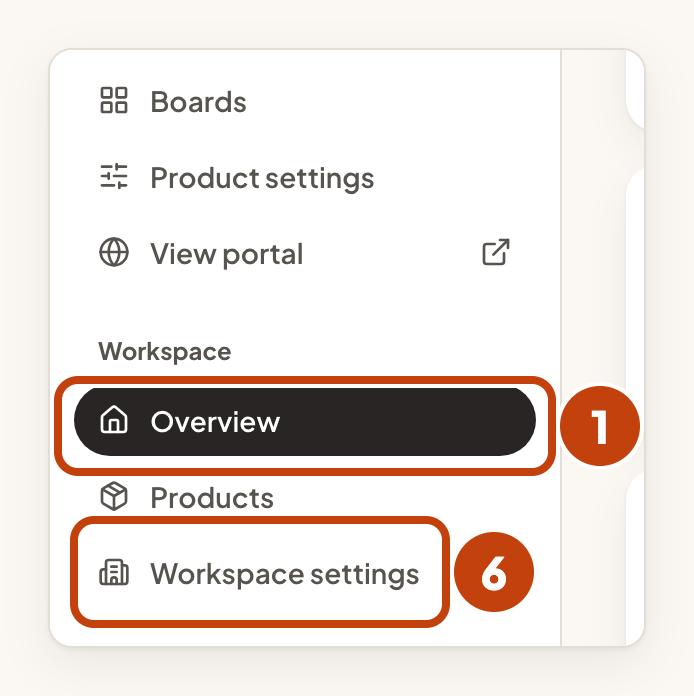
- Select Overview in the sidebar.
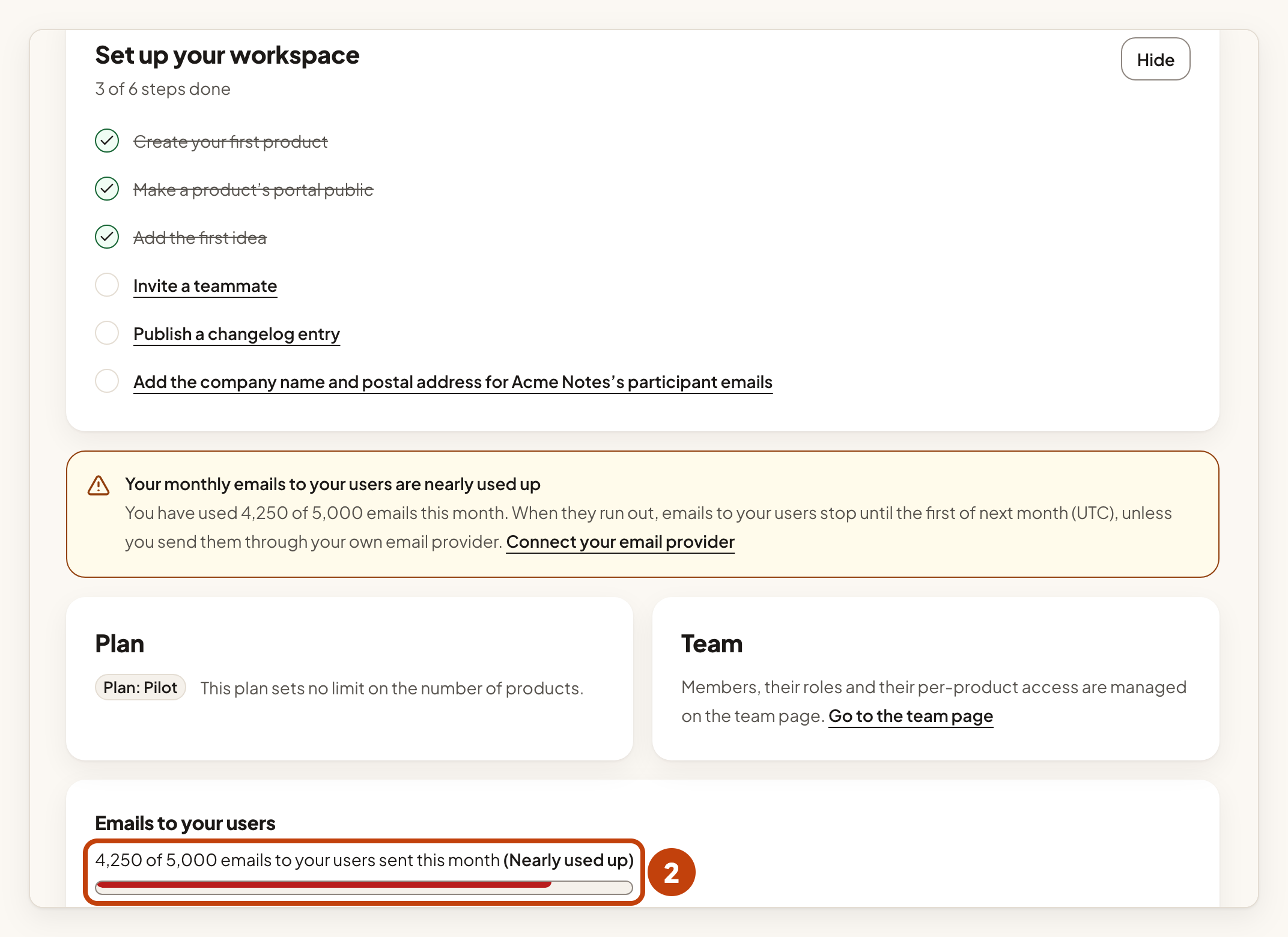
- Read the meter Emails to your users sent this month and any banner above it. If the emails are used up, they wait until the first day of next month (UTC), unless you send them through your own provider.
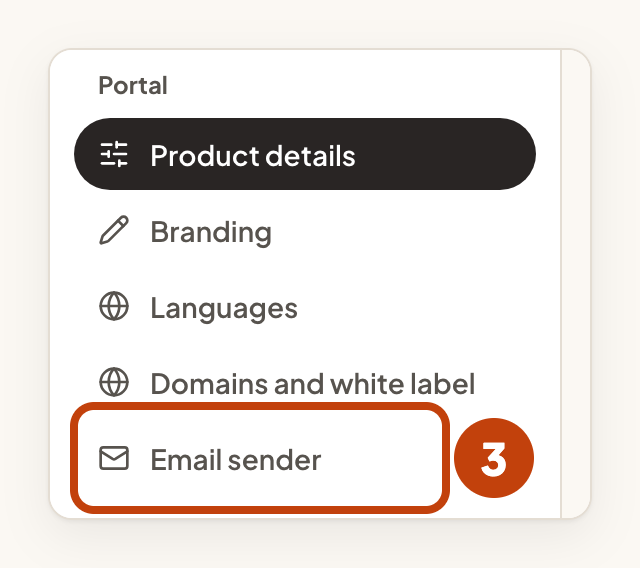
- Select Email sender in the product settings menu.
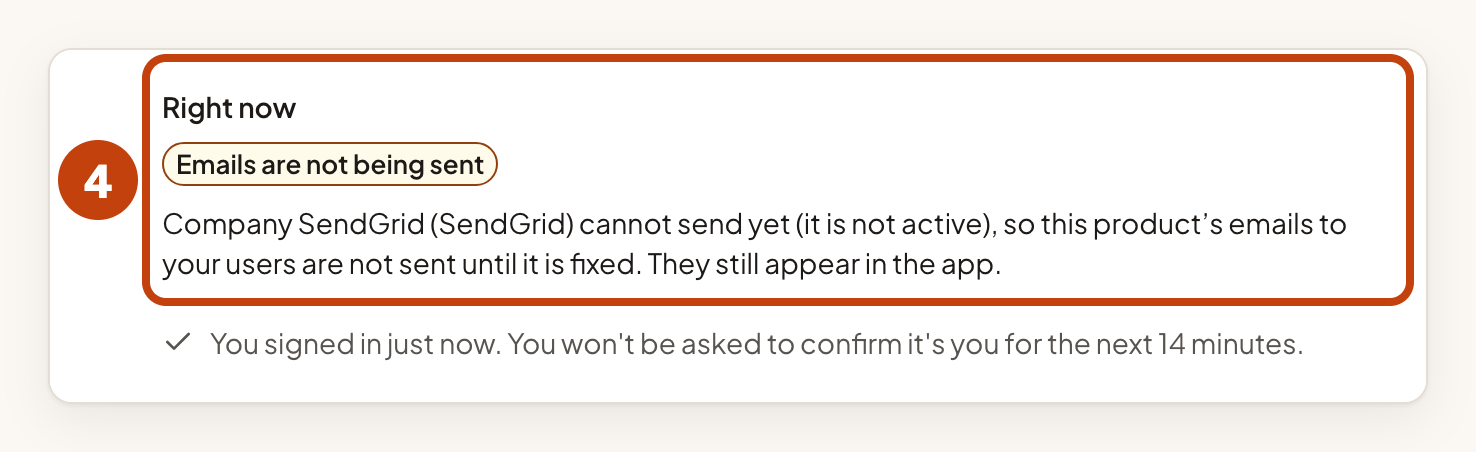
- Read what Right now says. It names the reason if the chosen provider is not ready.
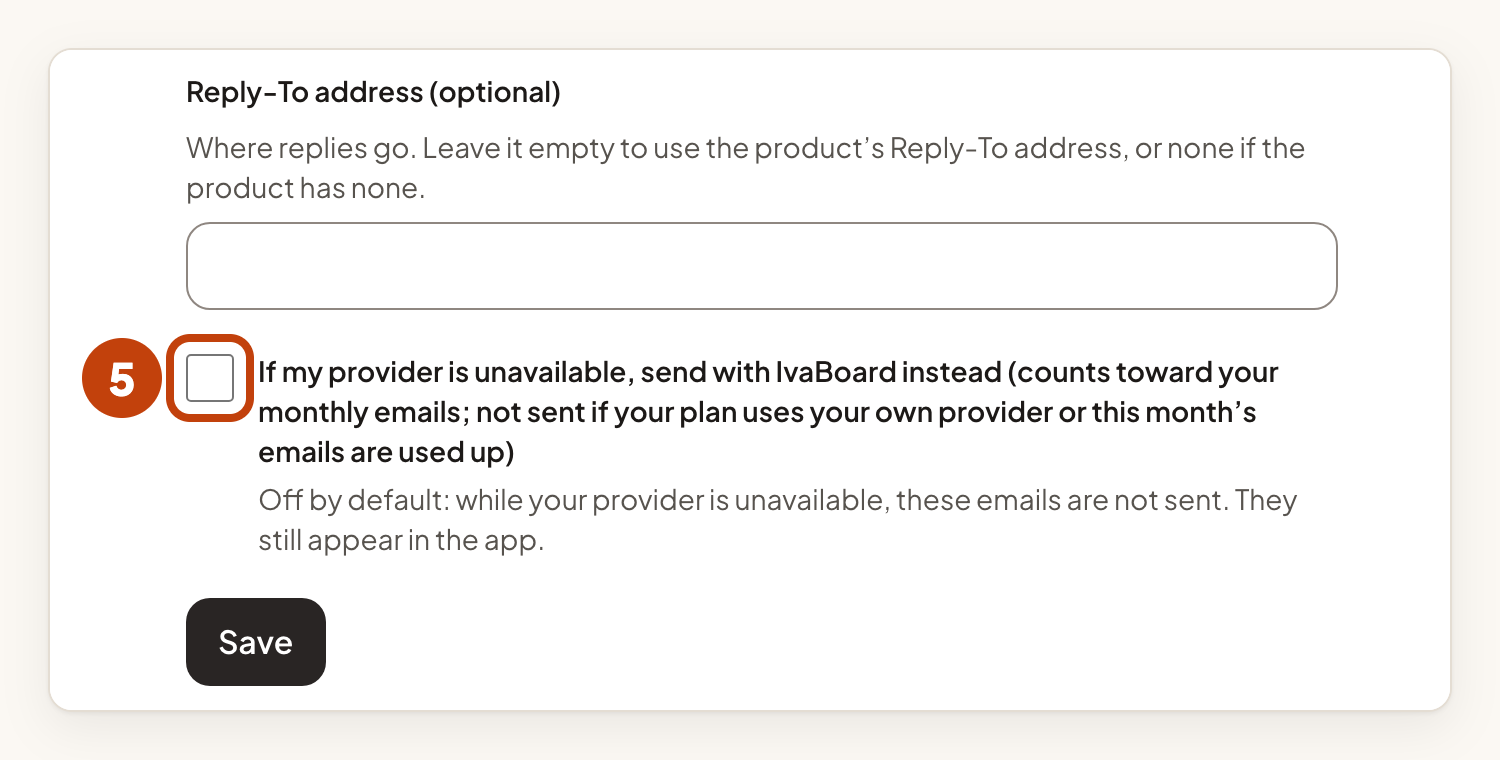
- Turn on the switch If my provider is unavailable, send with IvaBoard instead (counts toward your monthly emails; not sent if your plan uses your own provider or this month’s emails are used up) only if you accept IvaBoard sending those emails when your provider is unavailable.
- Open Workspace settings.
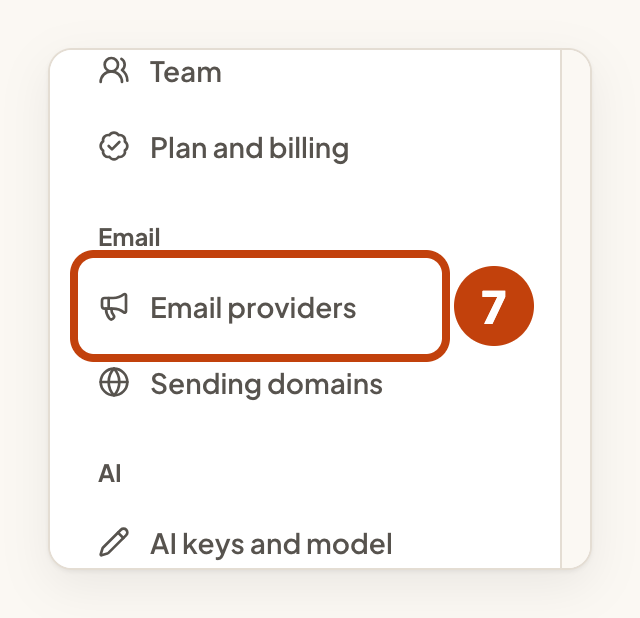
- Select Email providers. The card for each provider says what to do next.
If a person is not emailed, the changelog publish window shows an Email estimate. It lists who will not be emailed and why. An address that your provider reported as bounced for good, or as a spam complaint, is not emailed again.
If your provider accepted a message but IvaBoard never got the answer, IvaBoard does not send it again, so no duplicate goes out. Check your provider's activity log to see whether it was delivered.
Worked example
Acme Notes sends through Company SendGrid. On Monday, Sam sees that the card for Company SendGrid says Paused, with "Paused automatically after five failed sends in a row." Sam checks the provider's own status and activity, fixes the cause, then selects Resume. The next email to users goes out.
Still stuck
Contact support. Include the name of the provider card, the state it shows and the time of the problem. Never send a key or a password.
