Connect Resend
Connect your Resend account. The emails your users get then go out through Resend, from your own address.
Before you start, read Connect your email provider. This article covers what is specific to Resend.
Resend only sends mail from addresses and domains that you have verified in Resend. Verify your From address there before you connect. Create an API key at resend.com/api-keys first. Resend's guide to domains is at https://resend.com/docs/dashboard/domains/introduction.
Who can use it
Only a workspace owner or admin can connect a provider. Only workspace owners and admins can open Email providers.
Connect Resend
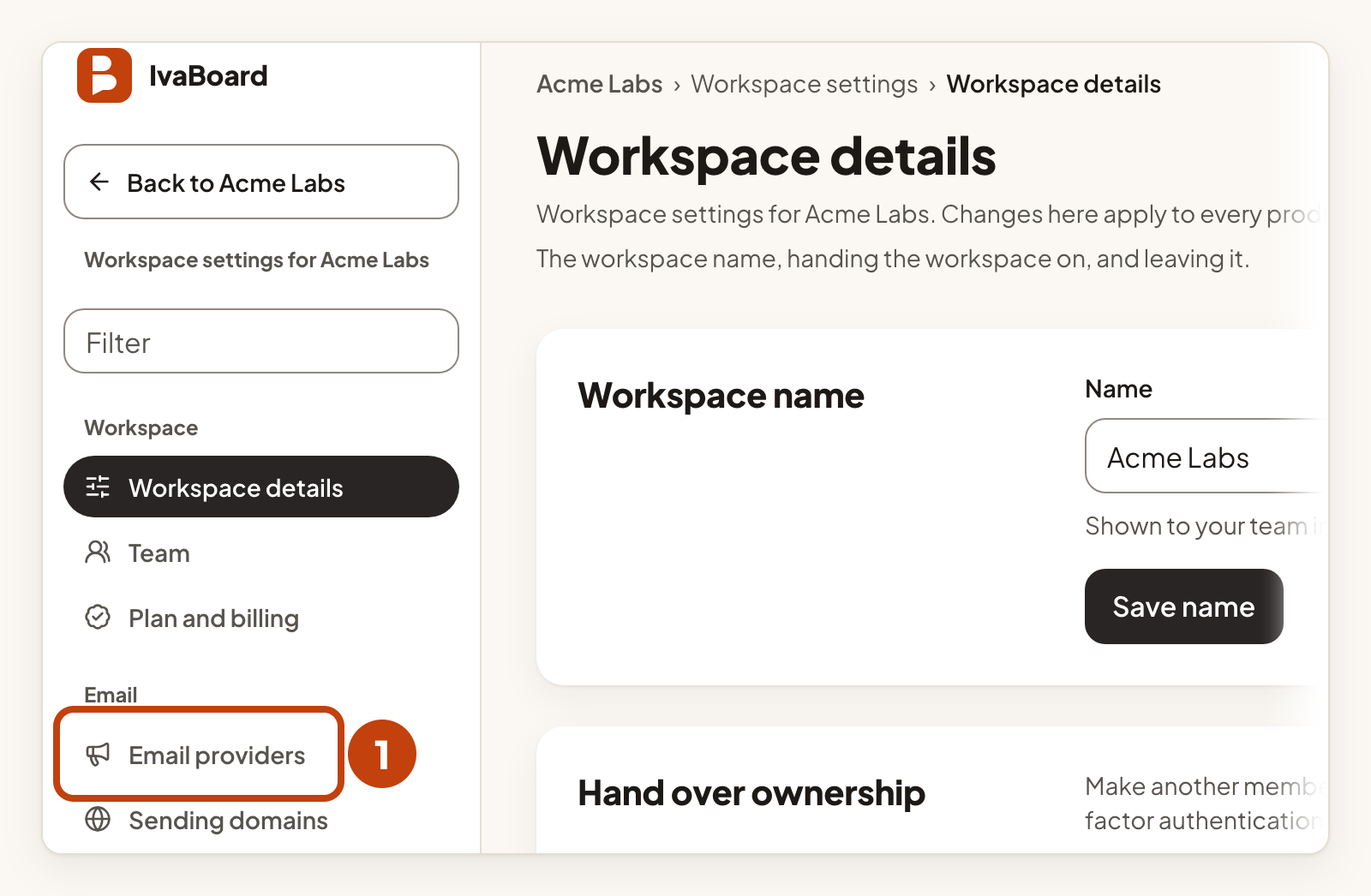
- Open Email providers in your workspace settings.
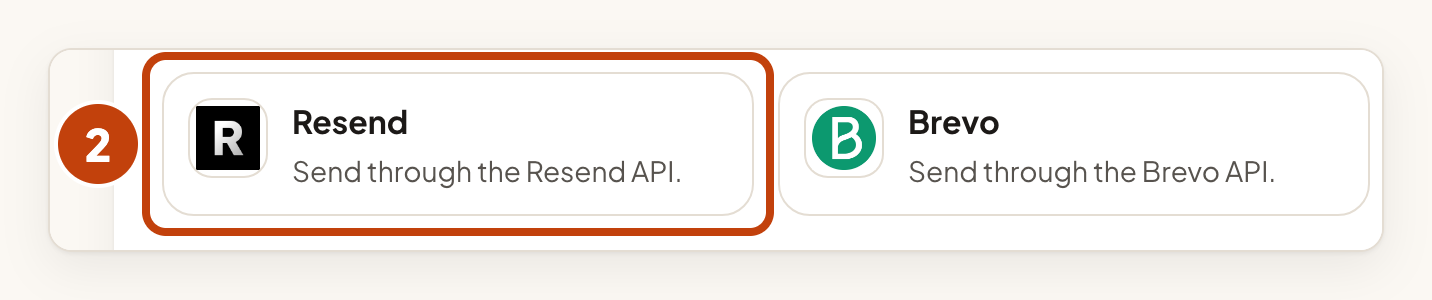
- Select Resend under Email services.
- Type a short name in Name, such as Acme Notes Resend.
- Type the address your users see in From address.
- Type your company name in From name (optional).
- Paste your Resend API key into API key.
- Select Connect provider.
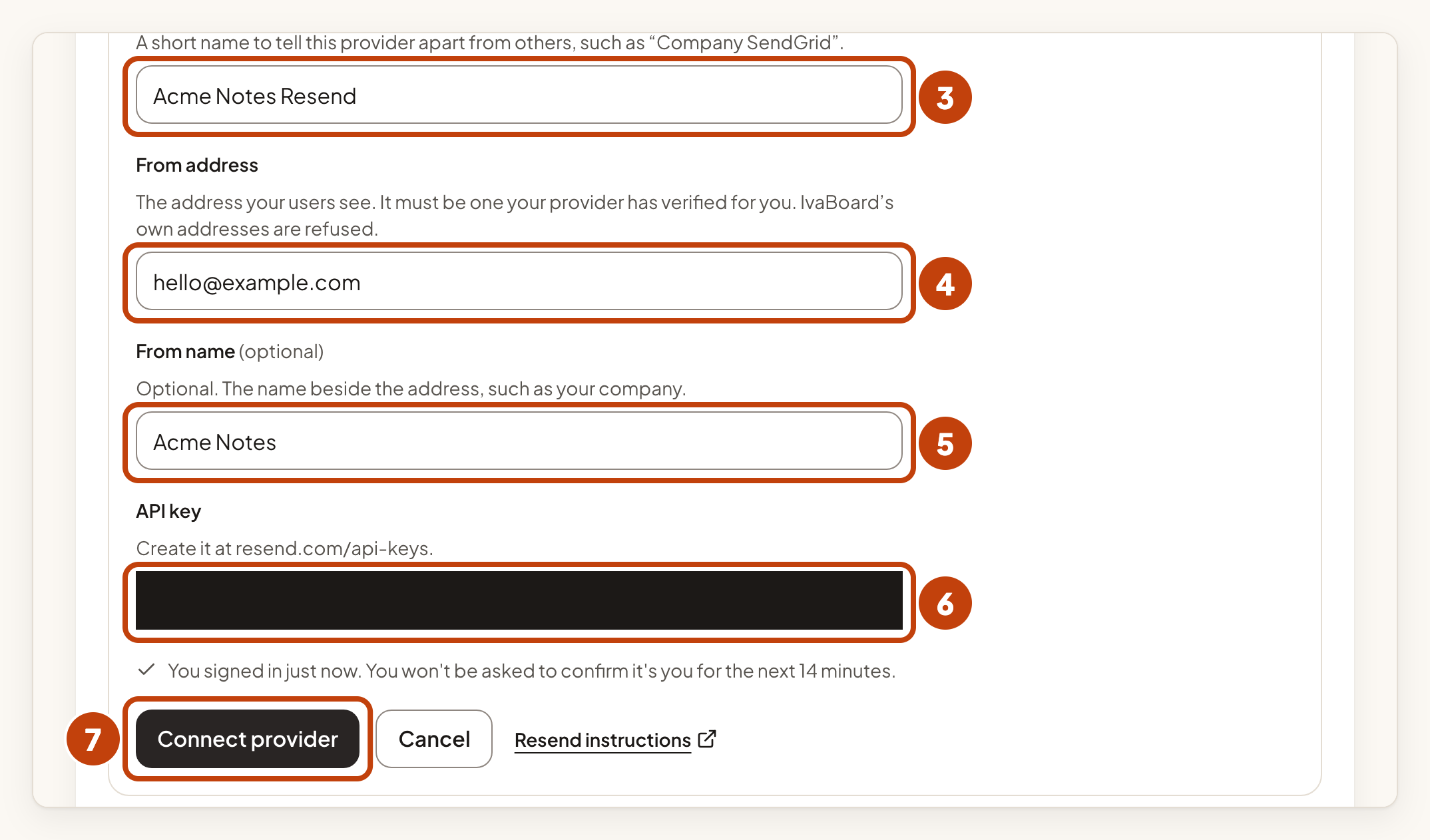
IvaBoard saves the key securely. After that it shows only its last few characters.
Check the connection and send a test email
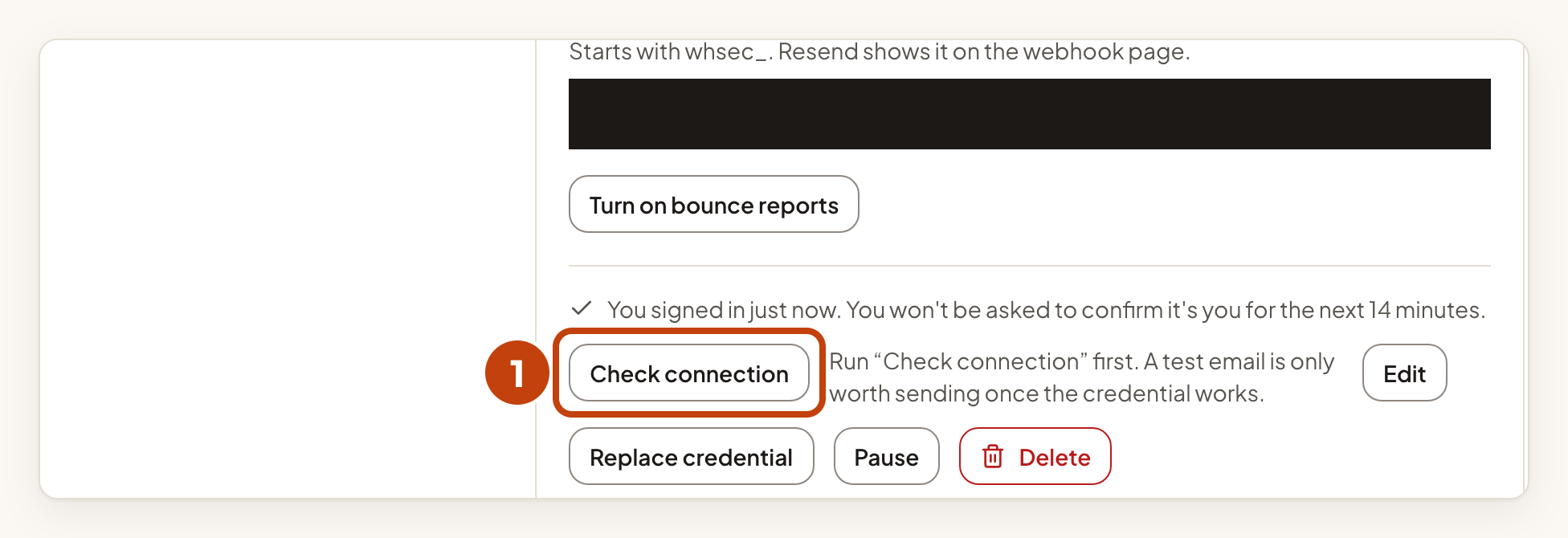
- Select Check connection on your Resend card.
- The result shows on the card within about a minute. If it does not, reload the page.
- Select Send a test email once the check has passed.
- Reload the page to see the result.
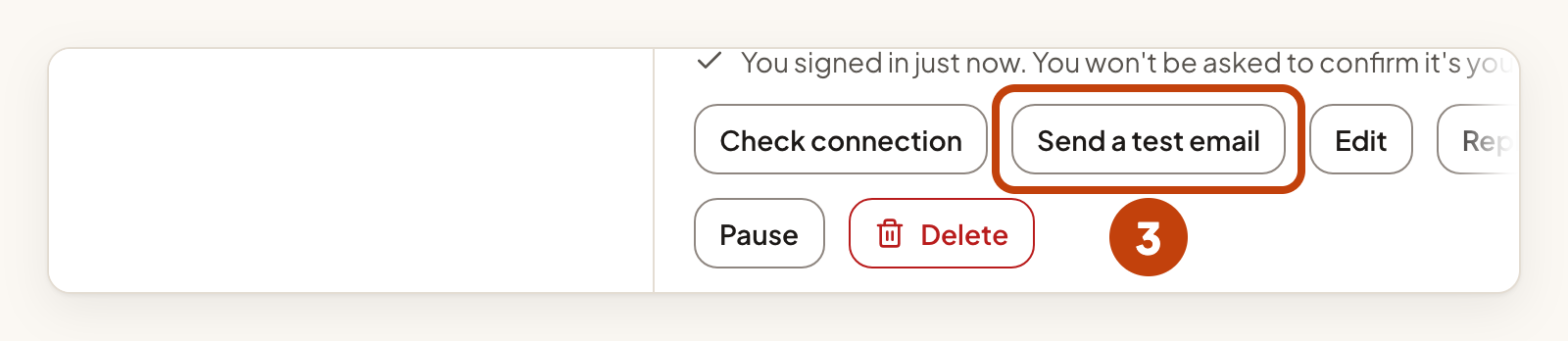
The test email goes to your own verified address, not to your users. When both pass, the card shows Active. Then choose Resend for a product in its email sender settings. Connect your email provider explains how.
If the card says "The provider refused the credential", select Replace credential on the card, paste a new key and check the connection again. If it says "The provider refused the From address", select Edit on the card and use an address that Resend has verified.
Turn on bounce reports
Resend can tell IvaBoard when an address bounces for good, or when someone marks your email as spam. IvaBoard then stops emailing that address for your workspace.
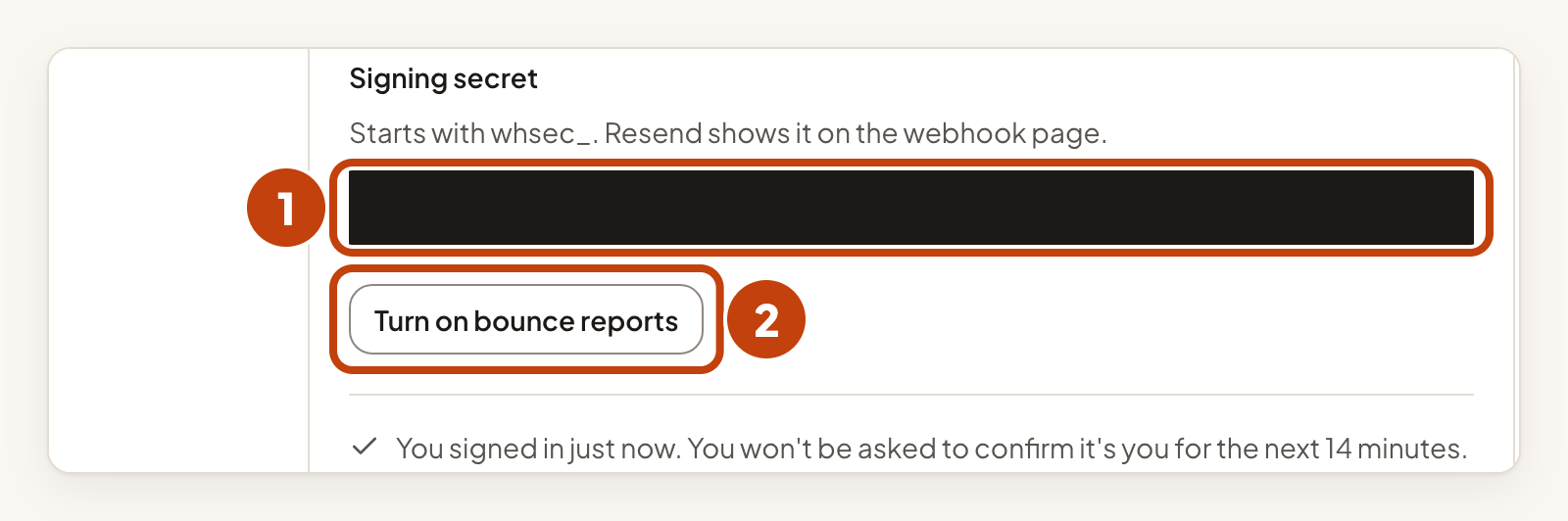
- Paste the signing secret into Signing secret. It starts with whsec_, and Resend shows it on its webhook page.
- Select Turn on bounce reports.
- Select Copy next to Webhook address.
- Add a webhook with the address you copied on Resend's Webhooks page.
- Select the events for bounced and complained email in the same webhook.
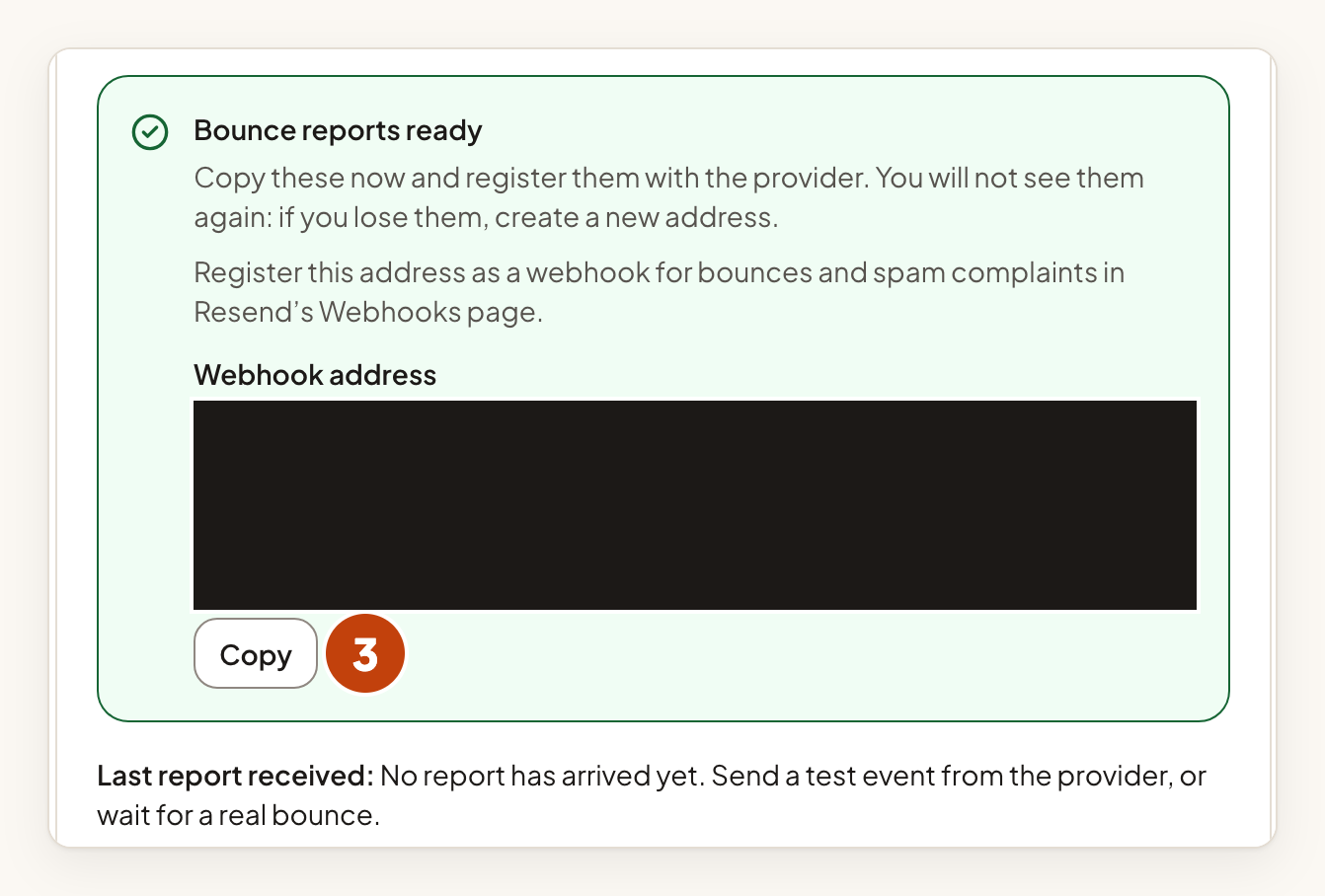
IvaBoard shows the webhook address once. If you lose it, select New address on the card to get a new one. The old address stops working at once.
Resend's guide to checking webhook requests is at https://resend.com/docs/webhooks/verify-webhooks-requests.
Example
For example, Sam connects Resend for Acme Notes. Sam types Acme Notes Resend in Name, [email protected] in From address and pastes the API key into API key. Then Sam selects Connect provider and checks the connection.
