Import ideas from a CSV file or another tool
You can bring ideas, votes and comments from another tool into one board by uploading a CSV file. The original dates and names are kept. If you are moving from Canny, FeedBear, Frill, Nolt or Upvoty, the import page can read that tool's export for you.
Who can use it
All plans. Owners, admins, and members with the Manager level on the product can import. Moderators and viewers cannot.
Open the import page
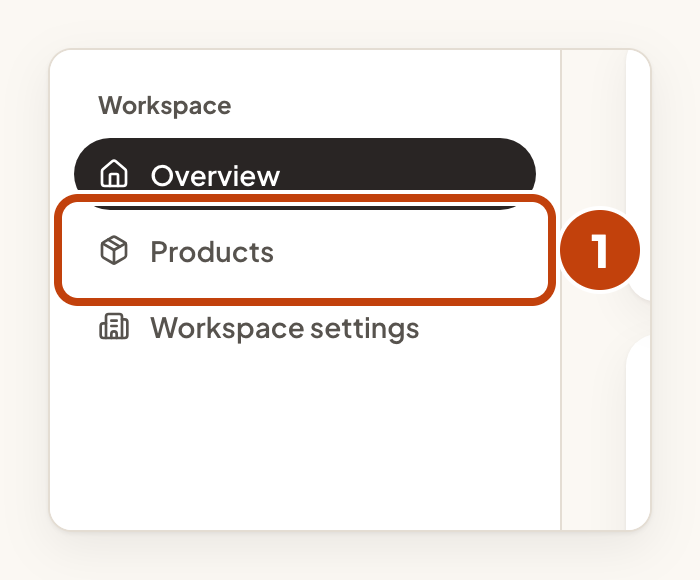
- Select Products in the sidebar.
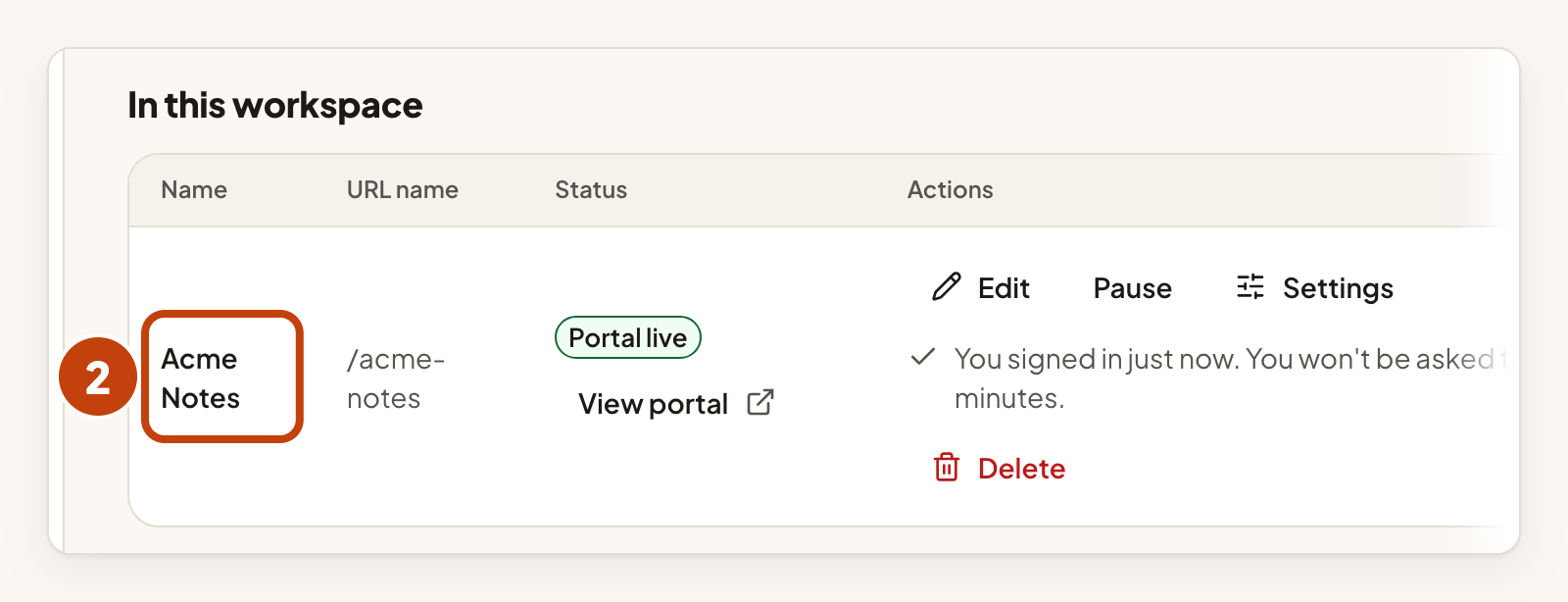
- Select your product's name.
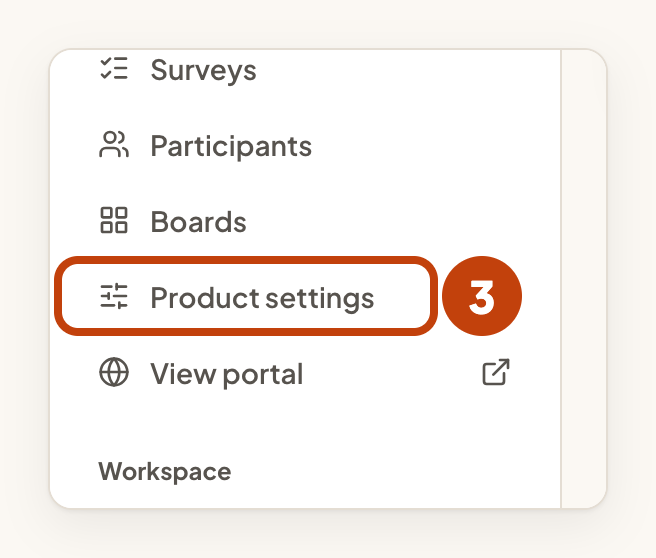
- Select Product settings in the sidebar.
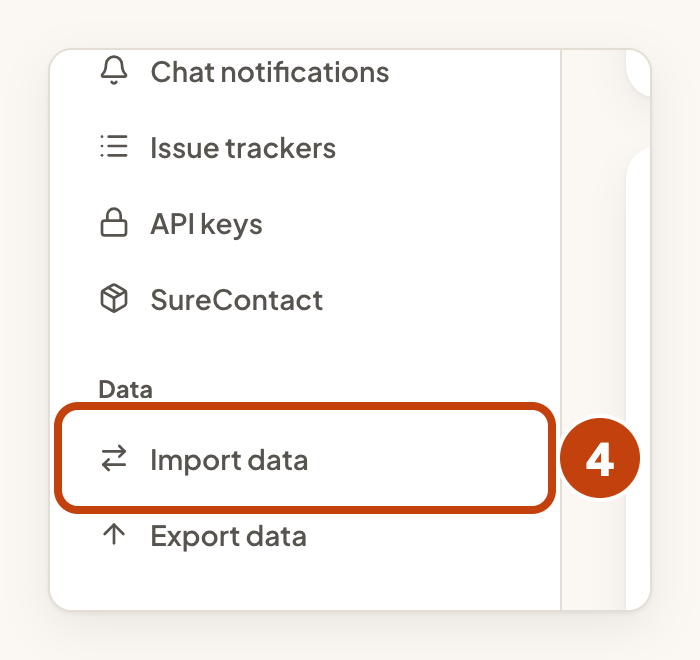
- Select Import data.
Import a CSV file
- Select Download the CSV template.
- Fill in one line for each idea, vote or comment.
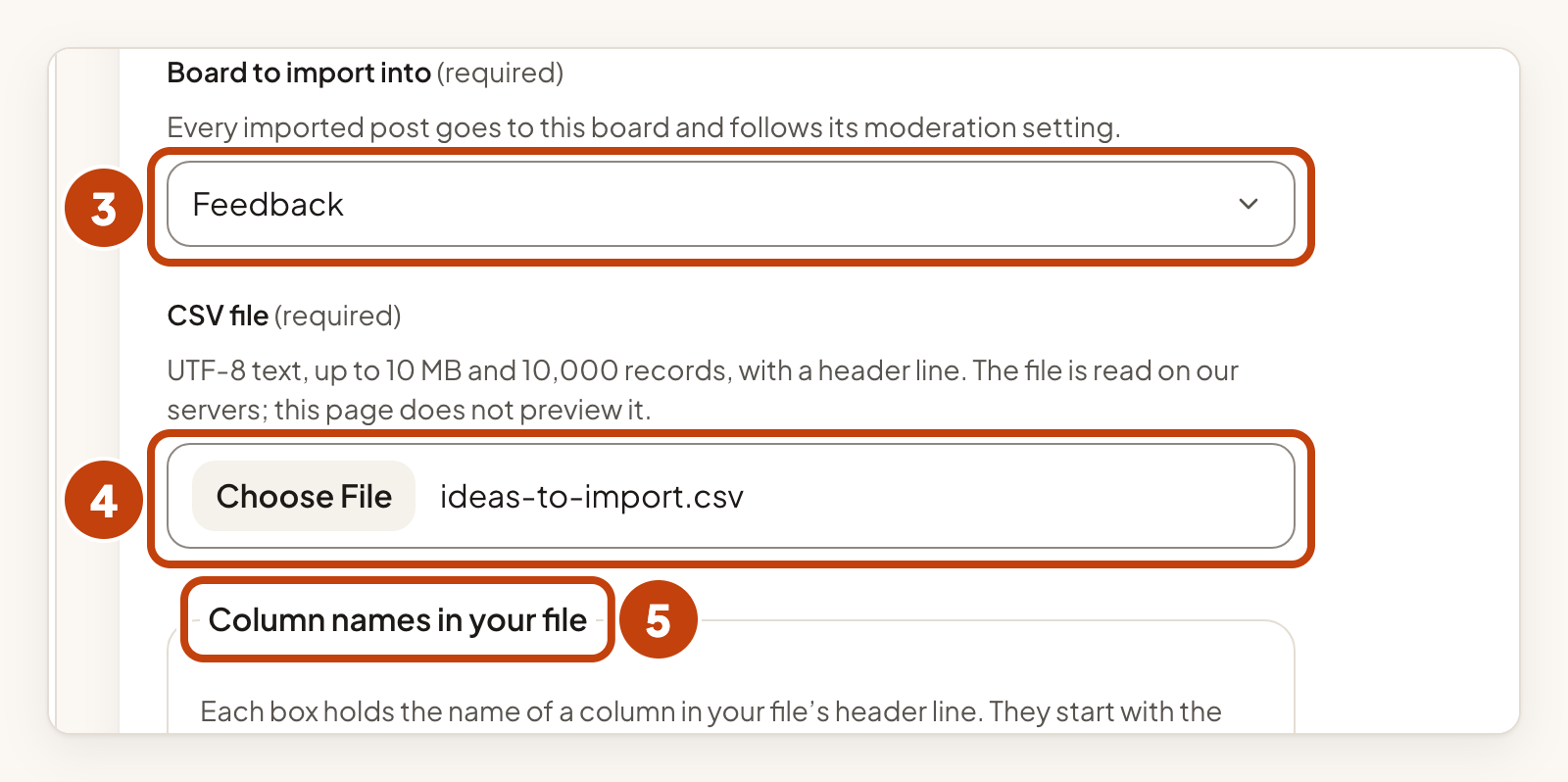
- Under Board to import into, choose the board.
- Under CSV file, choose your file.
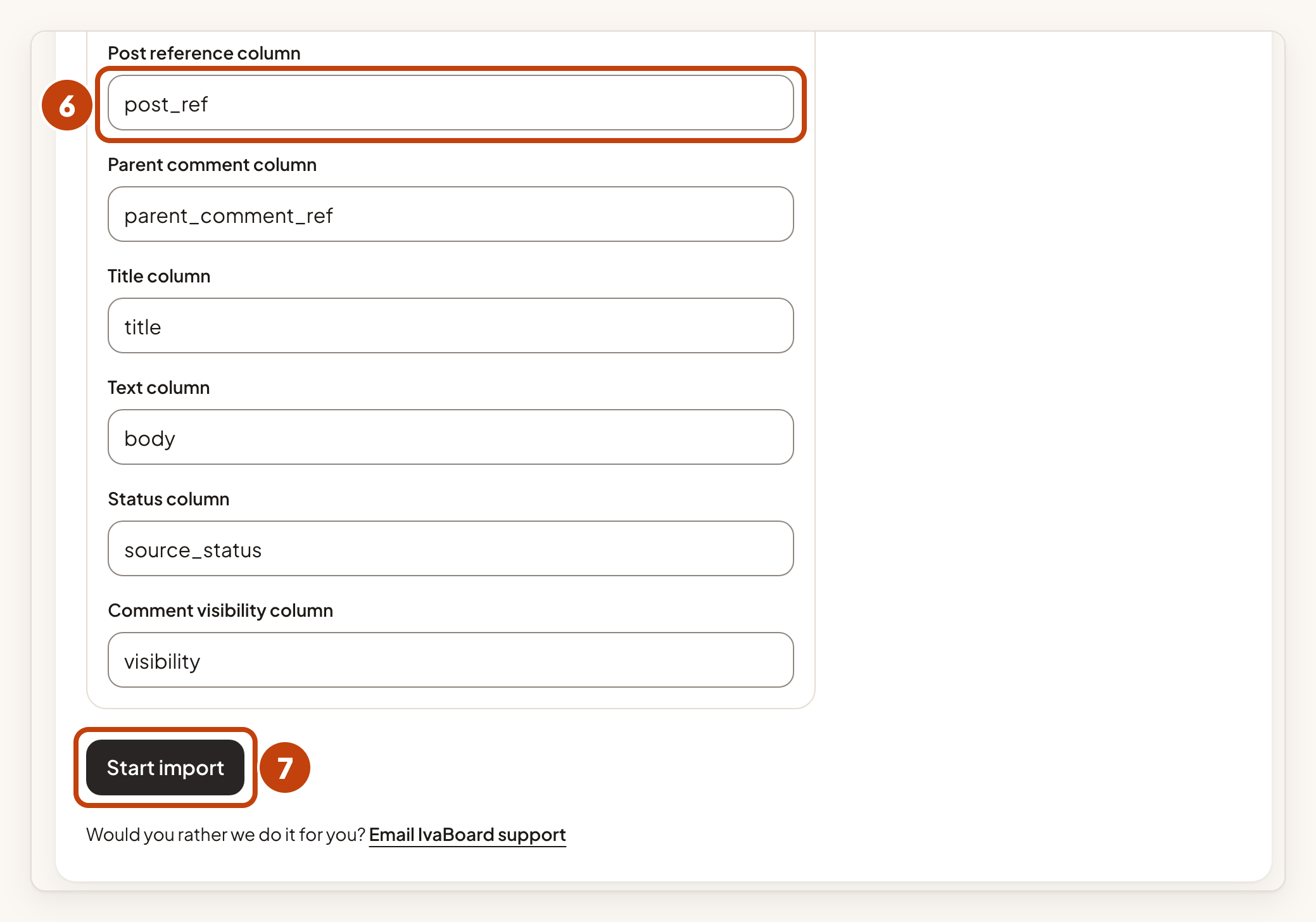
- Check each name under Column names in your file.
- Clear an optional box if your file has no matching column.
- Select Start import.
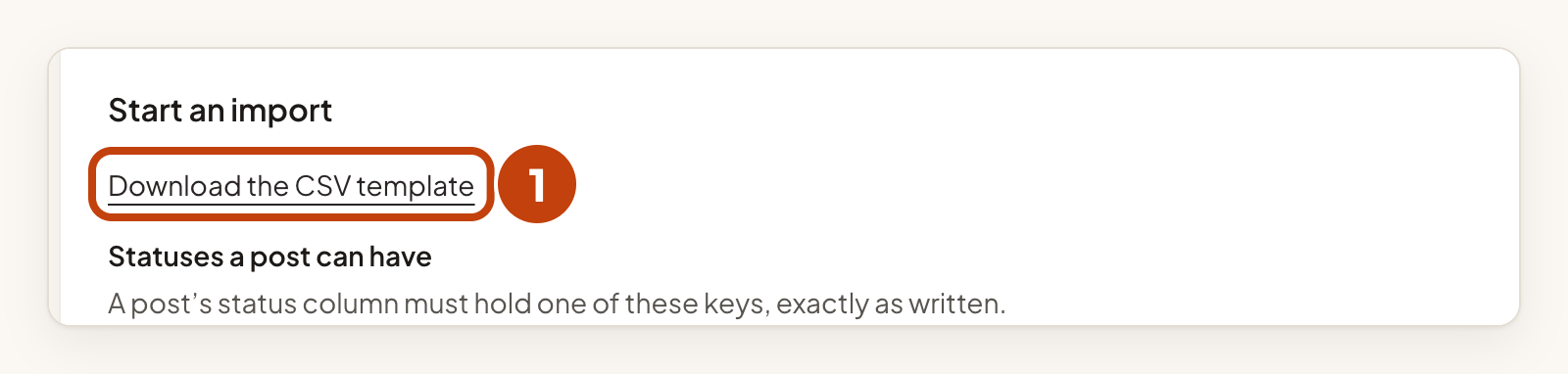
Lines of different types link to each other by ids inside the file. The page lists Statuses a post can have. A status column must use one of those keys, exactly as written.
The import is all or nothing. If one line is wrong, nothing is imported. Fix the file and upload it again.
Imported ideas follow the moderation setting of the board you choose. Imported people have a name but no email address. Nobody is emailed, and nobody becomes a follower.
Import from another tool
Add the comments and votes files only if you have them.
- Choose the tool in Tool your file came from.
- Select Use these settings.
- Choose your Ideas file.
- Choose your Comments file (optional).
- Choose your Votes file (optional).
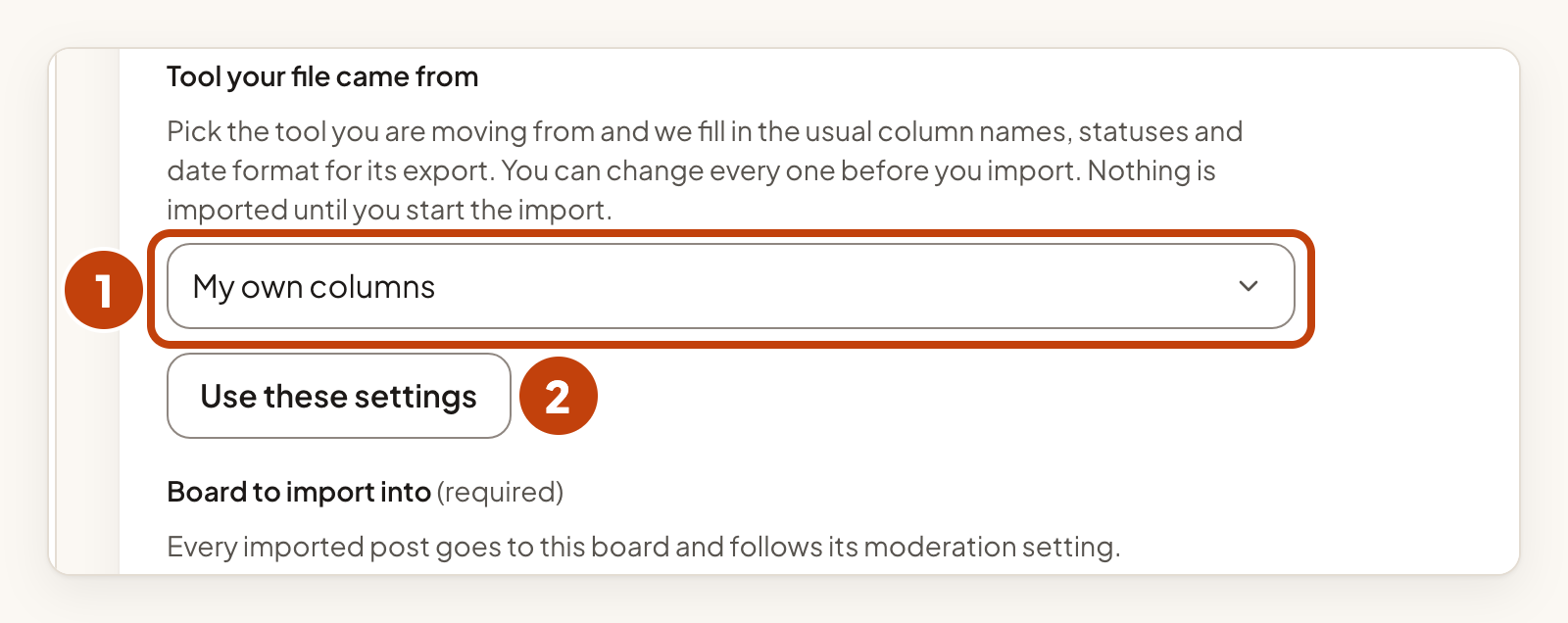
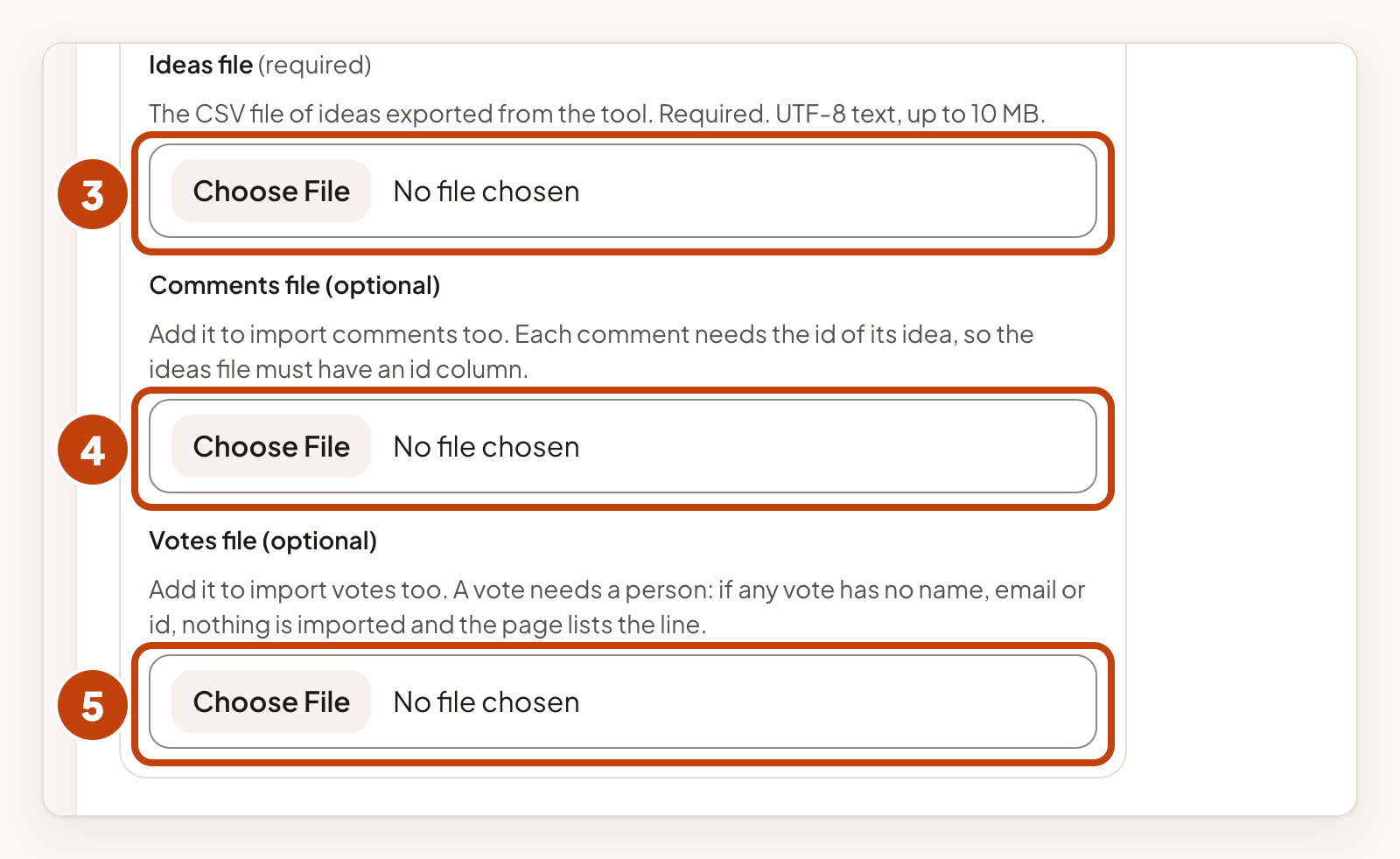
Set the options and start the import with these steps.
- Under How dates are written, choose the date format your file uses.
- Under Imported comments are, choose Team-only (recommended) or Visible on the portal.
- Under Statuses, choose which of your statuses each of the old tool's statuses becomes.
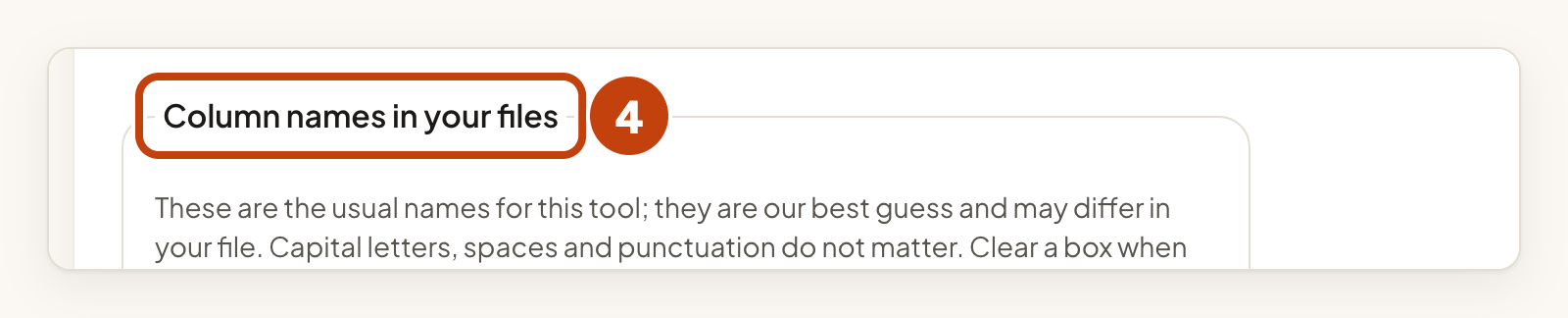
- Check the names under Column names in your files.
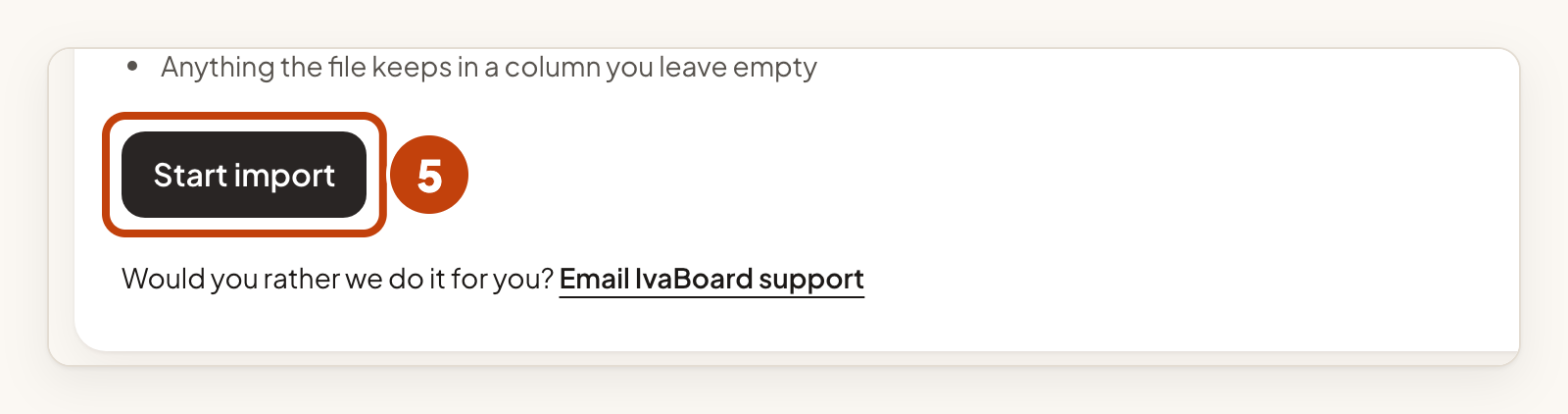
- Select Start import.
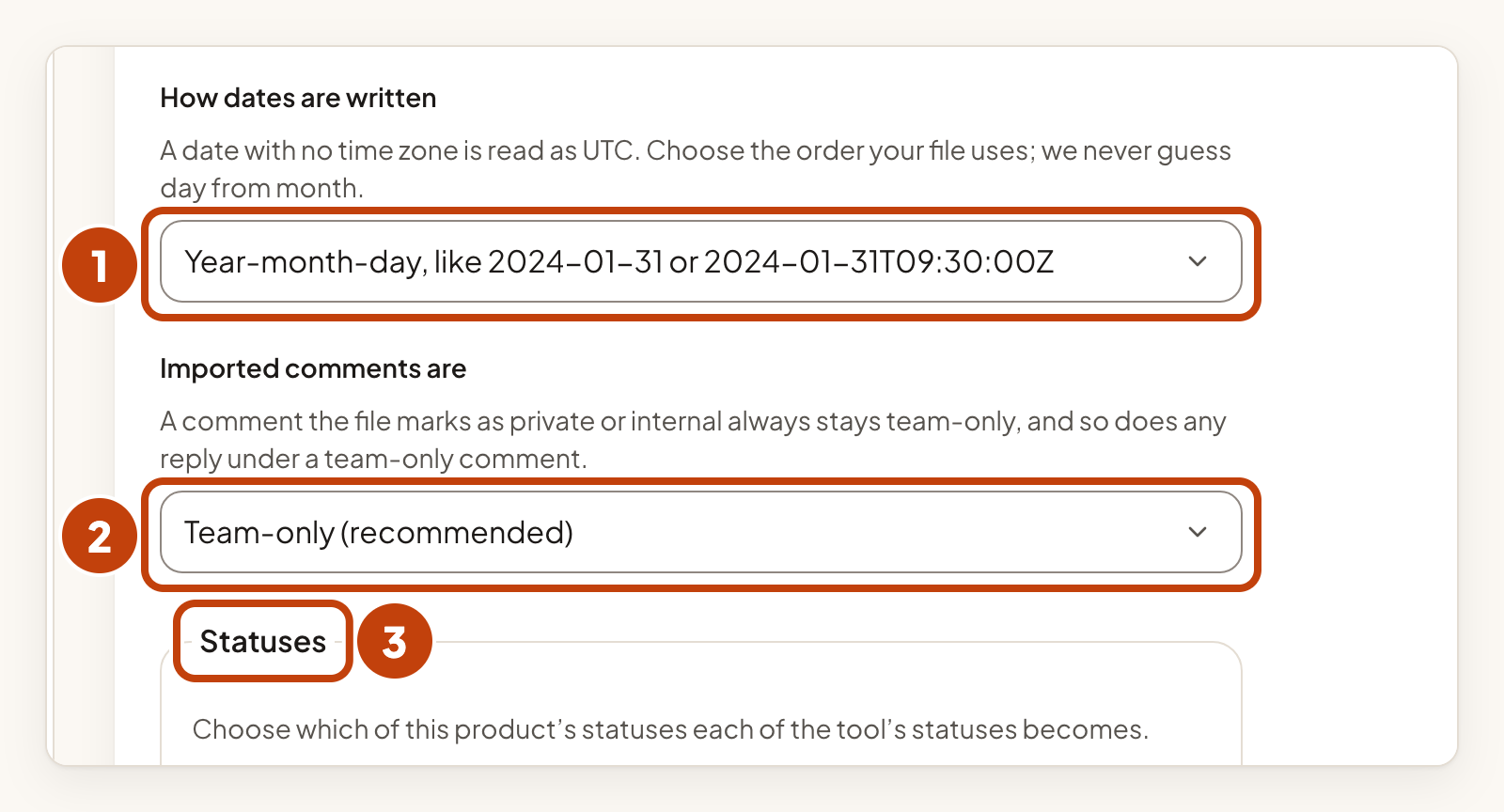
A date with no time zone is read as UTC. We never guess the day from the month. A comment that the file marks as private always stays team-only. A vote must say who cast it. If any vote has no name, email or id, nothing is imported. An idea with no author is kept under Imported user. The page lists what does not come across under What is not imported.
Check the result
Past imports lists each import with its state: Waiting to start, Importing, Completed, Failed or Expired. An import that does not start within 24 hours shows Expired within about an hour after 24 hours, when the hourly clean-up runs. While an import runs, select Refresh status to update it.
If an import fails, the page lists up to 100 problems by line number, each with a short reason. Fix the file and upload it again. After a successful import, select See the imported posts.
Example
For example, Sam fills in the template with three feature ideas, each with a date such as 2026-11-02T09:30:00Z. Sam chooses the board Feedback for Acme Notes, uploads the file and selects Start import. When the state shows Completed, Sam selects See the imported posts.
