API keys and the IvaBoard API
An API key lets your own server work with one product. This article shows how to create a key, choose what it can do, and rotate or revoke it. The full reference is on the developers page.
Who can use it
Every plan includes the API. Only workspace owners and admins can create, rotate and revoke keys. Other people see a note that says who can manage them.
Create a key
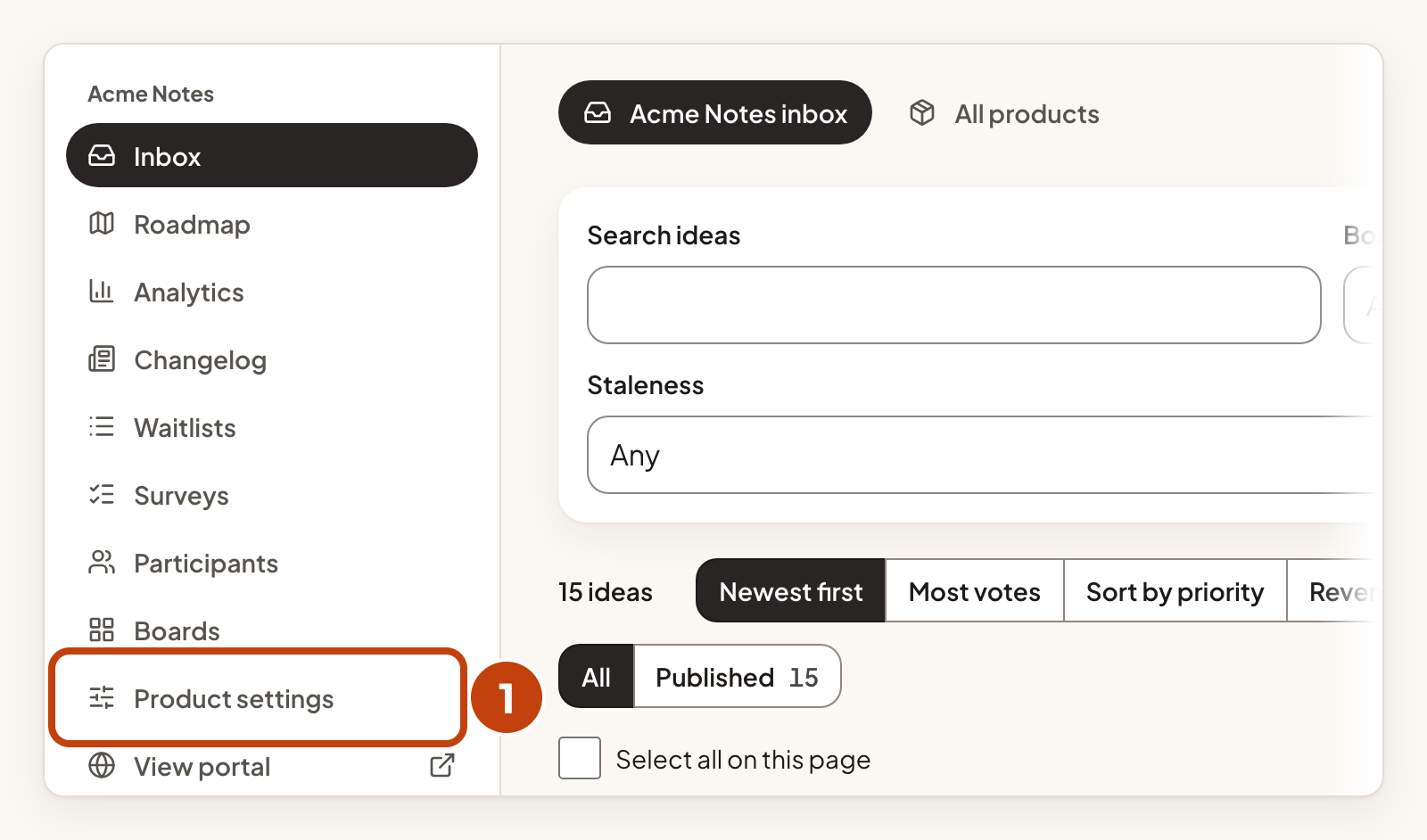
- Select Product settings under your product in the left menu.
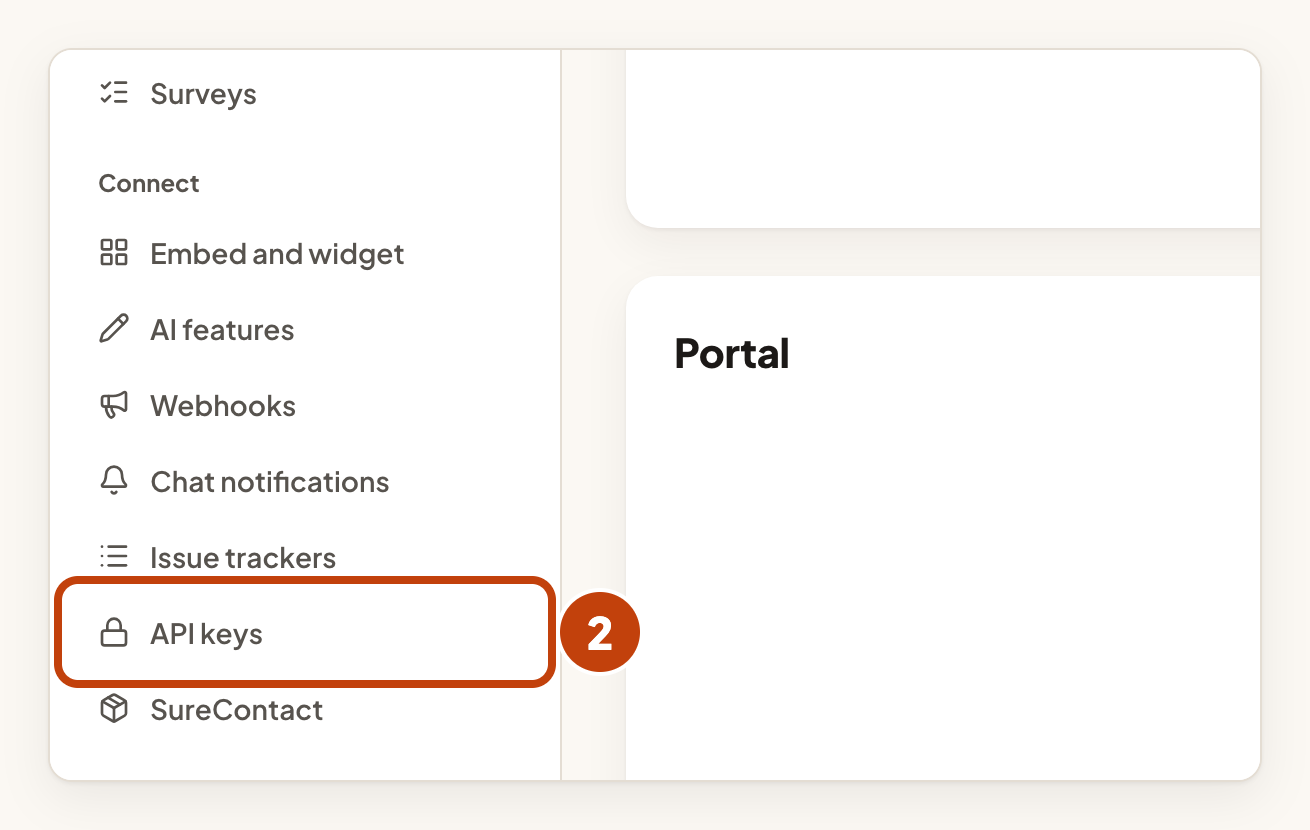
- In the Connect list, select API keys.
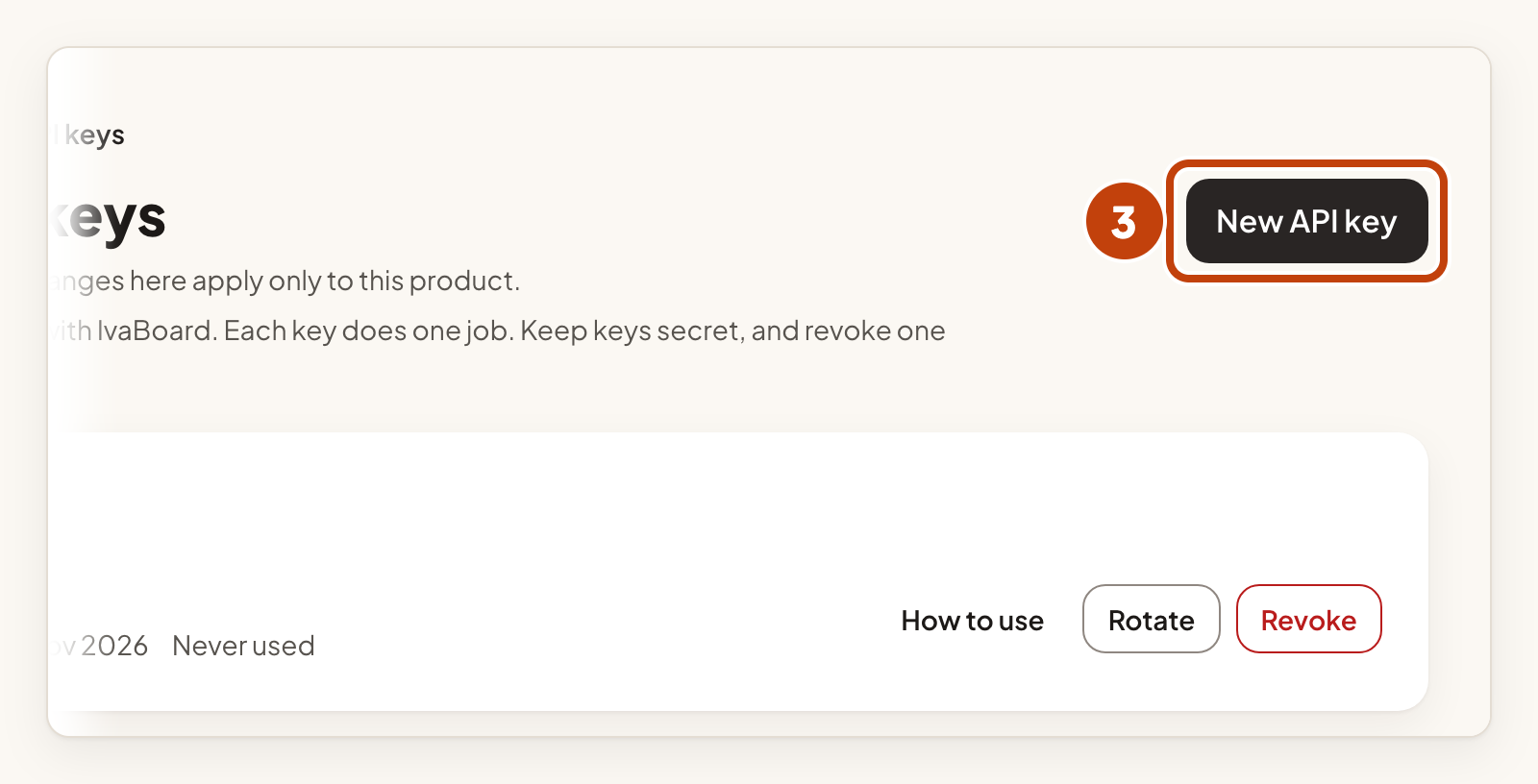
- Select New API key.
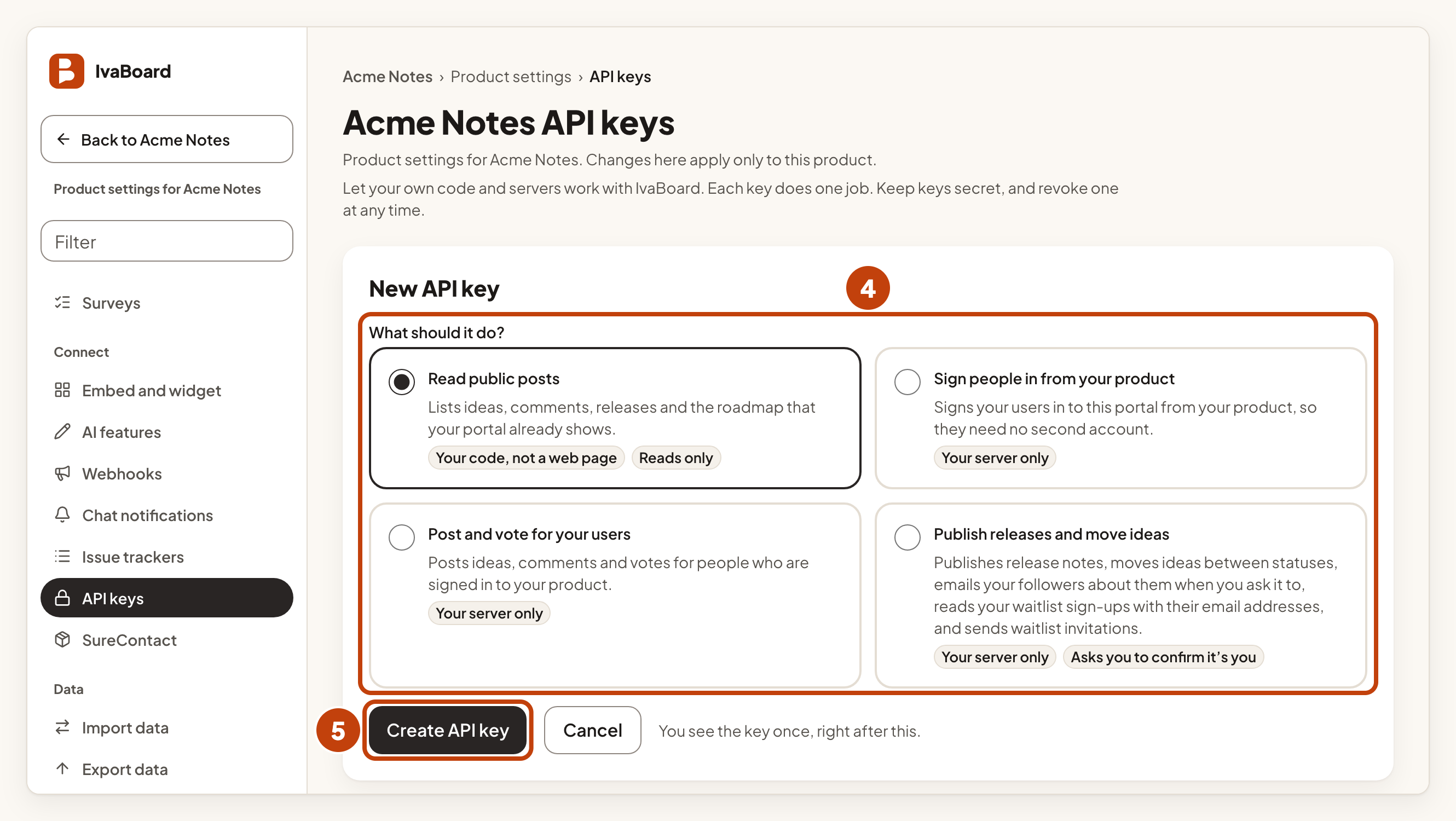
- Under What should it do?, select one of the four options.
- Select Create API key.
- Select Copy key.
- Save the key in your server's secret settings. It is shown only once.
- Select I saved it.
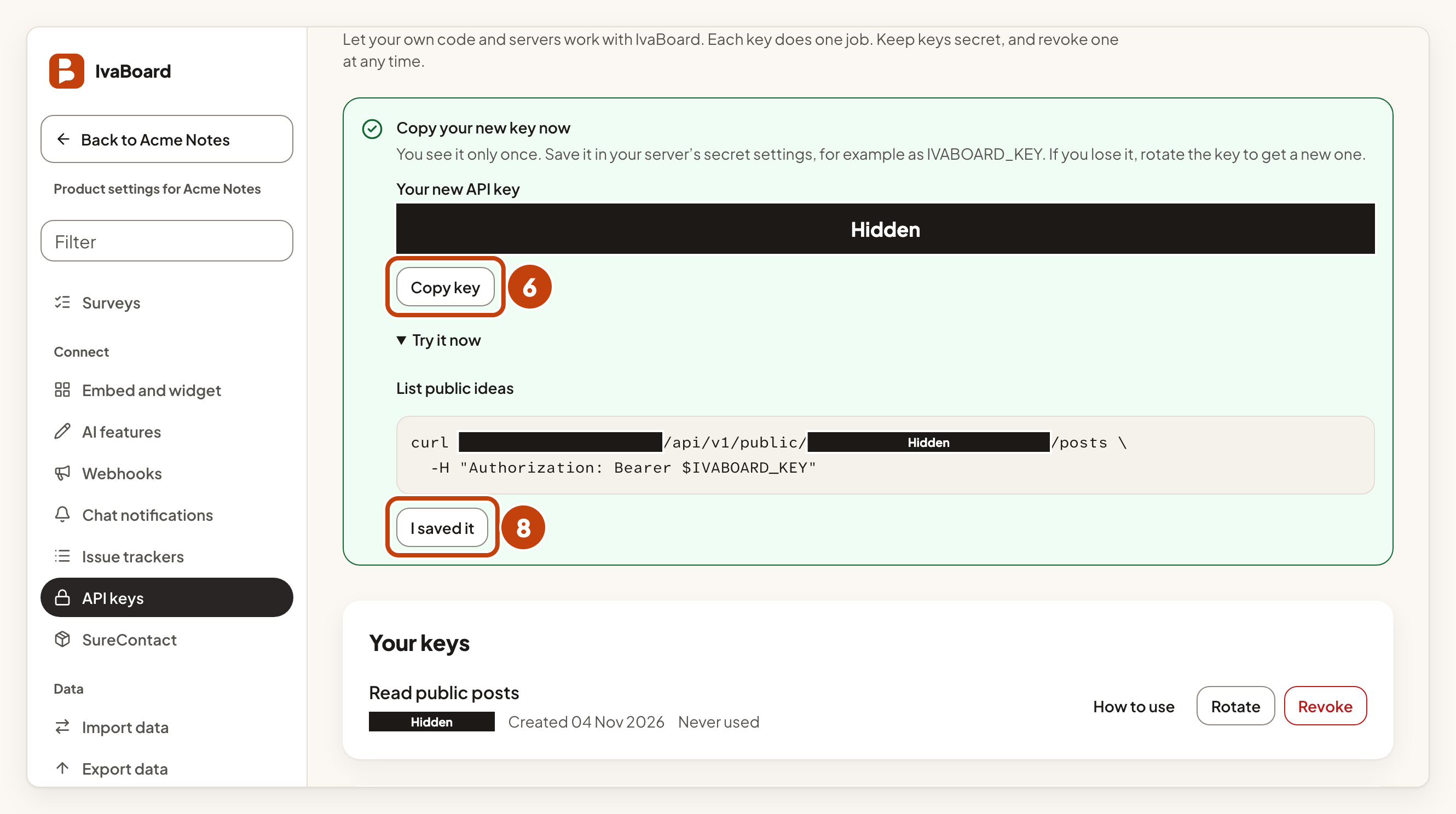
The key is shown once. IvaBoard does not keep the key itself. If you close the panel without saving the key, rotate the key to get a new one.
Choose what the key can do
| Option | What the key can do |
|---|---|
| Read public posts | Lists ideas, comments, releases and the roadmap that your portal already shows. |
| Sign people in from your product | Signs your users in to this portal from your product, so they need no second account. Set up Sign-in from your product first. |
| Post and vote for your users | Posts ideas, comments and votes for people who are signed in to your product. |
| Publish releases and move ideas | Publishes release notes, moves ideas between statuses, emails your followers about them when you ask it to, reads your waitlist sign-ups with their email addresses, and sends waitlist invitations. |
Each key does one job, and it works for one product only.
Call the API
Send the key in the Authorization header, never in the web address:
Authorization: Bearer YOUR_KEYEach address starts with https://app.ivaboard.com/api/v1/public/ and then your public product key. Sign-in calls use /api/v1/integrations/ instead. Your public product key is the part after /p/ in your portal address. It is public on purpose. It names your product and unlocks nothing.
The table lists the request for each job. Add it to your address.
| Job | Request |
|---|---|
| List public ideas | GET /posts |
| Read one idea | GET /posts/IDEA_ID |
| Comments on an idea | GET /posts/IDEA_ID/comments |
| Published releases | GET /changelog |
| Roadmap | GET /roadmap |
| Post an idea | POST /posts |
| Vote for an idea | PUT /posts/IDEA_ID/vote |
| Take a vote back | DELETE /posts/IDEA_ID/vote |
| Comment for a user | POST /posts/IDEA_ID/comments |
| Draft or publish a release | POST /manage/changelog |
| Move an idea to a status | PUT /manage/posts/IDEA_ID/status |
Reads return only what a signed-out visitor to your portal could see. An idea's voteCount is a number, or null when its board hides its vote totals. They never include a voter or an email address. A comment can show its author's public display name, as the portal does.
Posts, comments and releases need an Idempotency-Key header with a value you choose. Use a unique value for each new item. A retry within 24 hours with the same value and the same body posts nothing twice.
Writes name your user in the body, with your own externalUserId. API comments do not email followers. A status move or a release emails followers only when you ask it to.
Limits
Read keys allow 600 requests a minute per key. Keys for posting, sign-in and publishing allow 60 requests a minute per key.
Keep keys safe
Keys for posting, sign-in and publishing are refused when a request also carries a browser cookie. Use them on your server only.
Treat every key like a password. A key that can publish or read waitlist sign-ups can change your public changelog and roadmap, and can read email addresses.
Creating or rotating a key that can publish asks you to confirm it is you. If your sign-in is old, sign in again first.
Rotate a key
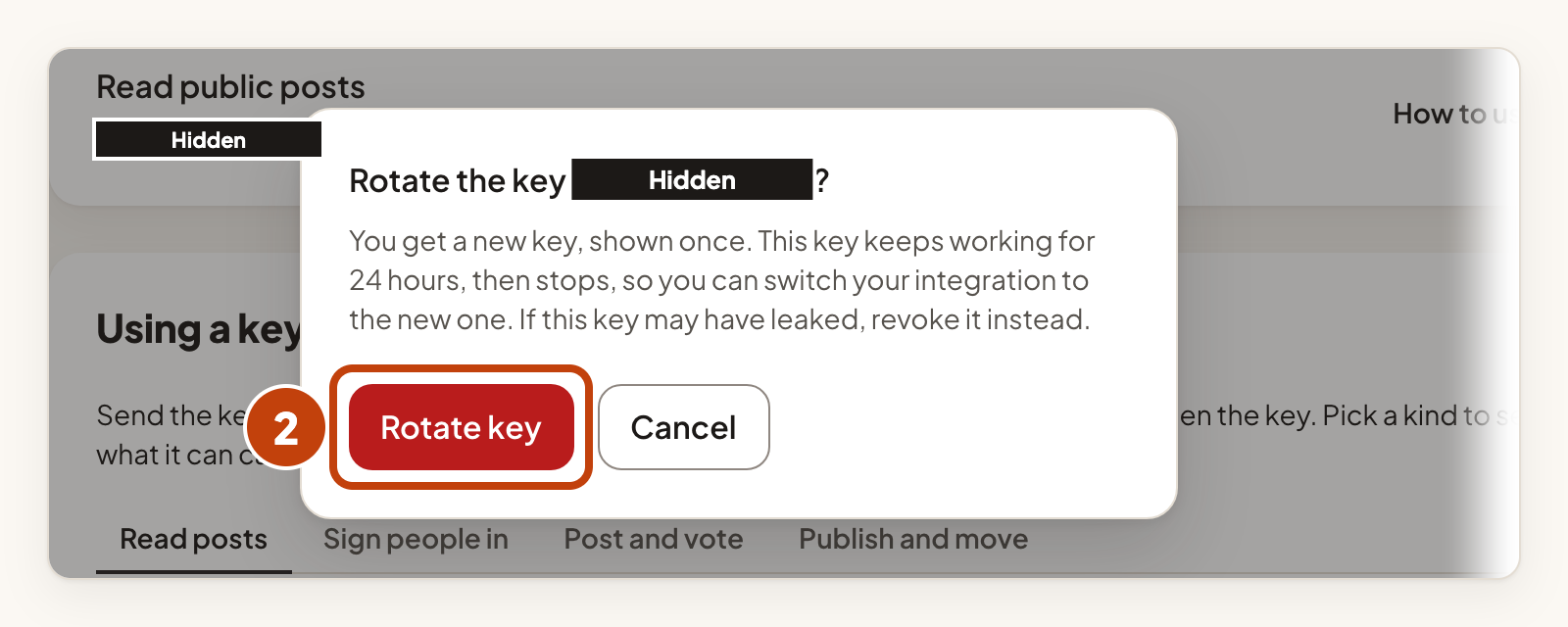
Rotating gives you a new key with the same job, without downtime. The old key keeps working for 24 hours. A key can be rotated only once. To rotate it again, rotate the new key.
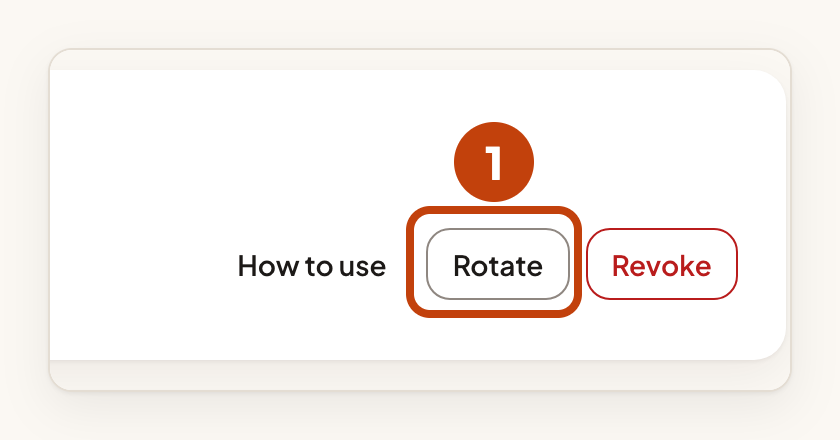
- Select Rotate on the key's row.
- Select Rotate key.
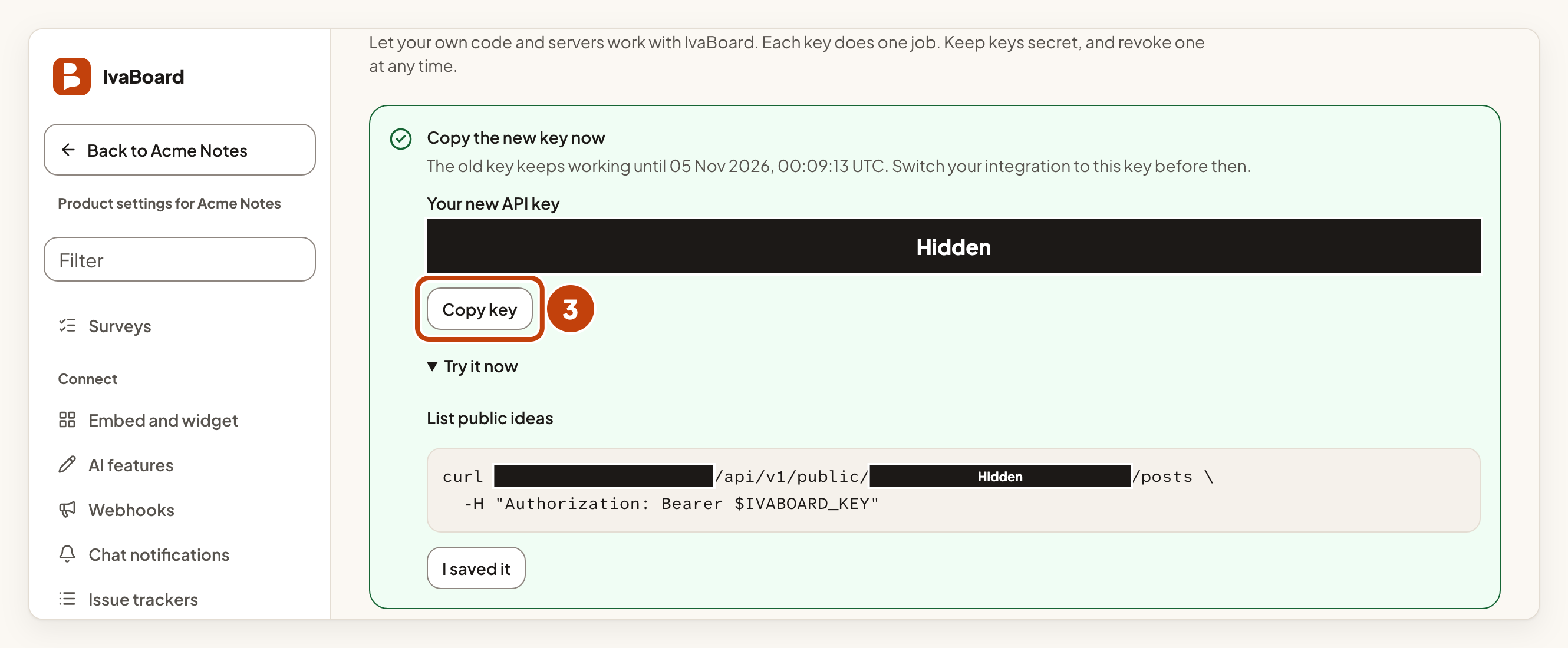
- Select Copy key.
- Save the new key in your server's secret settings.
- Switch your server to the new key within 24 hours.
Revoke a key
If a key may have leaked, do not rotate it. Revoke it instead. Rotating would keep the old key working for 24 hours.
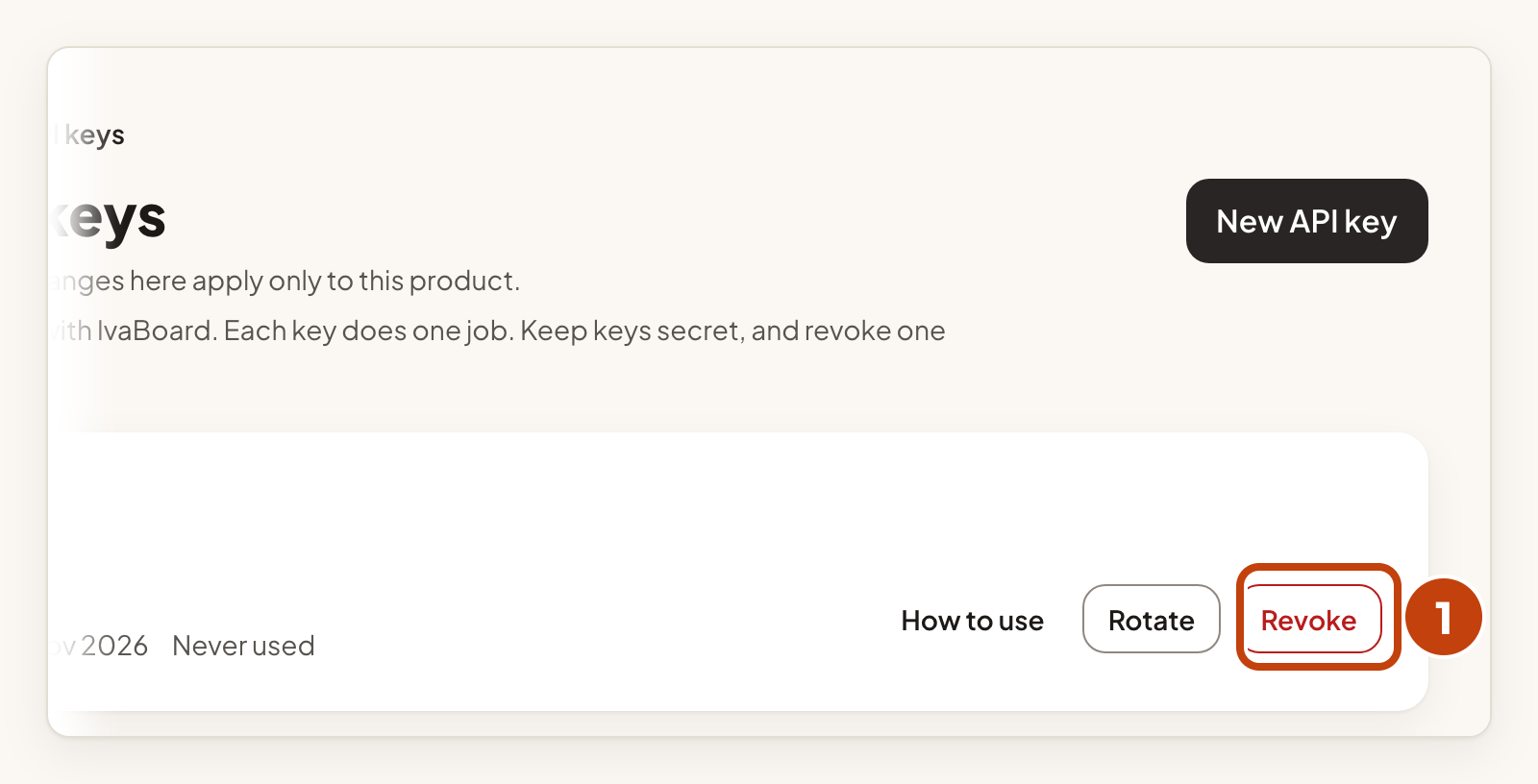
- Select Revoke on the key's row.
- Select Revoke key.
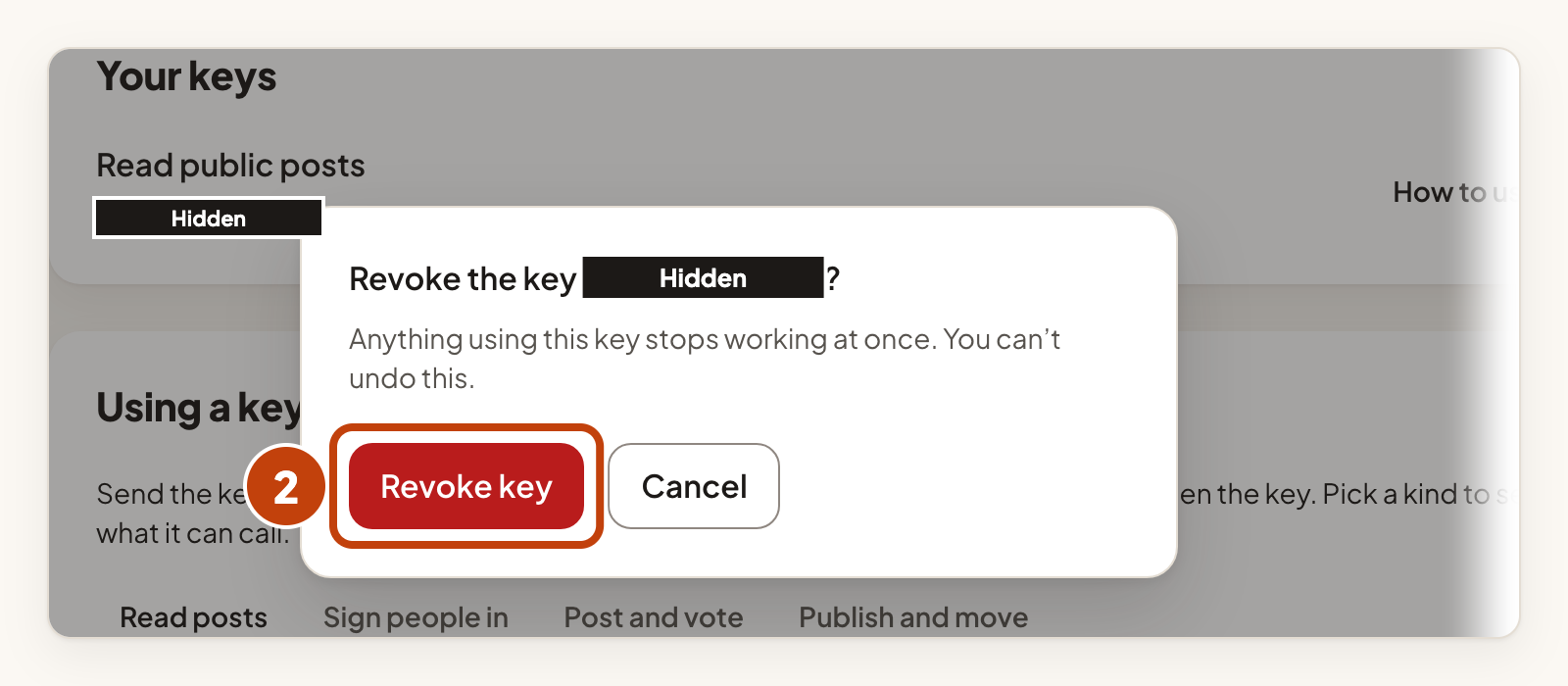
Revoking cannot be undone. Anything that uses the key stops working at once. Create a new key if you still need one.
Example
For example, Sam at Acme Notes wants his server to post ideas for customers. He selects New API key, chooses Post and vote for your users, and selects Create API key. He copies the key and saves it as IVABOARD_KEY in his server's secret settings.
