Share a board with chosen customers
You can show a board to only the customers you pick, or to everyone with a confirmed email address at a company's domain. They see the board and its ideas after they sign in to your portal. Everyone else sees the same "not found" page as for a board that does not exist.
Who can use it
All plans. Everyone who can see the product can read who sees each board. Only owners, admins, and members with the Manager level on the product can change it.
Make a board restricted
- Select Products in the sidebar.
- Select your product's name.
- Select Boards in the sidebar.
- Select the name of the board.
- Set Visibility to Chosen customers and email domains.
- Select Save board settings.
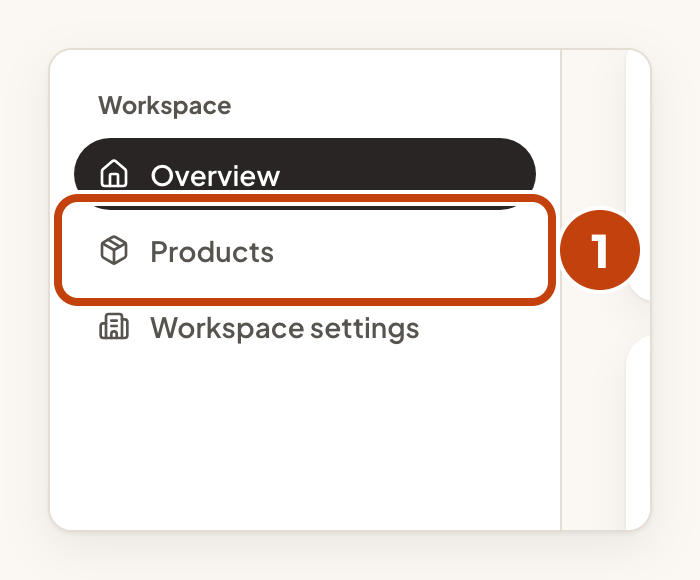
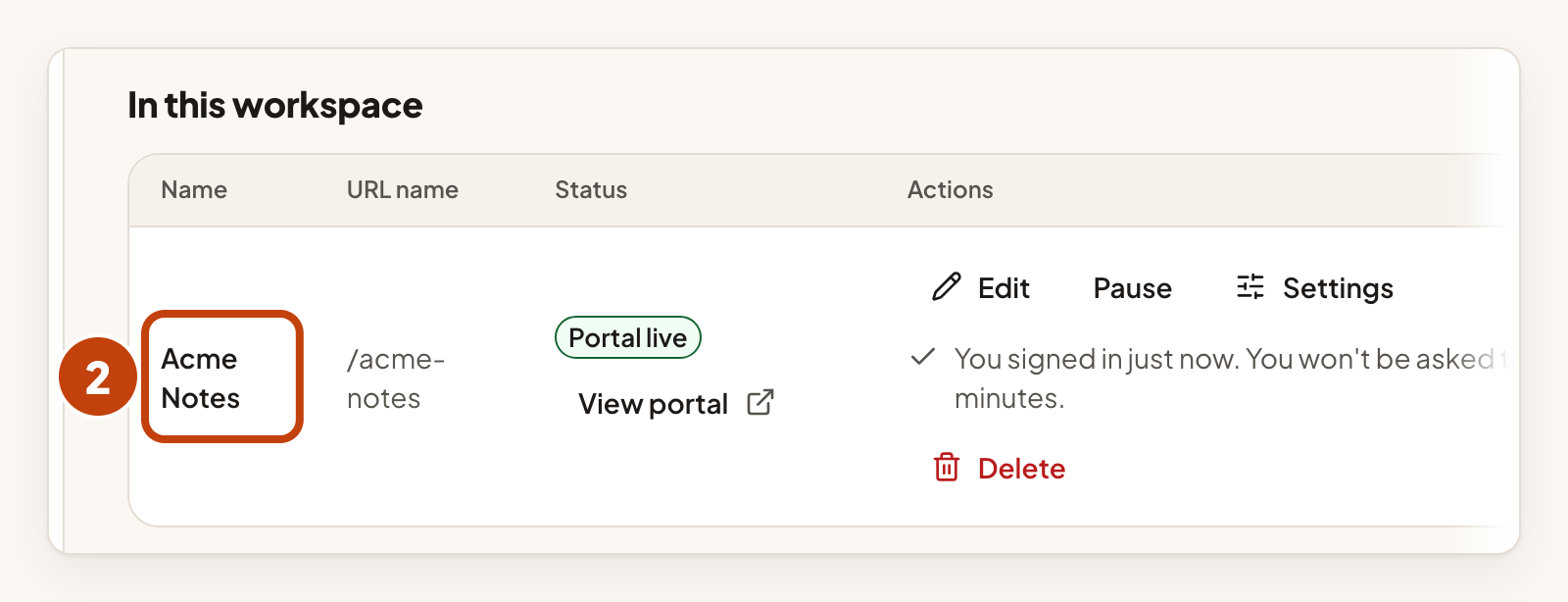
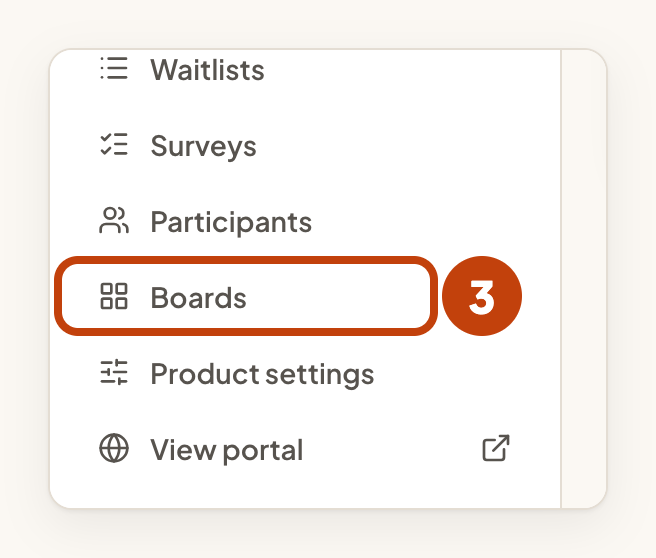
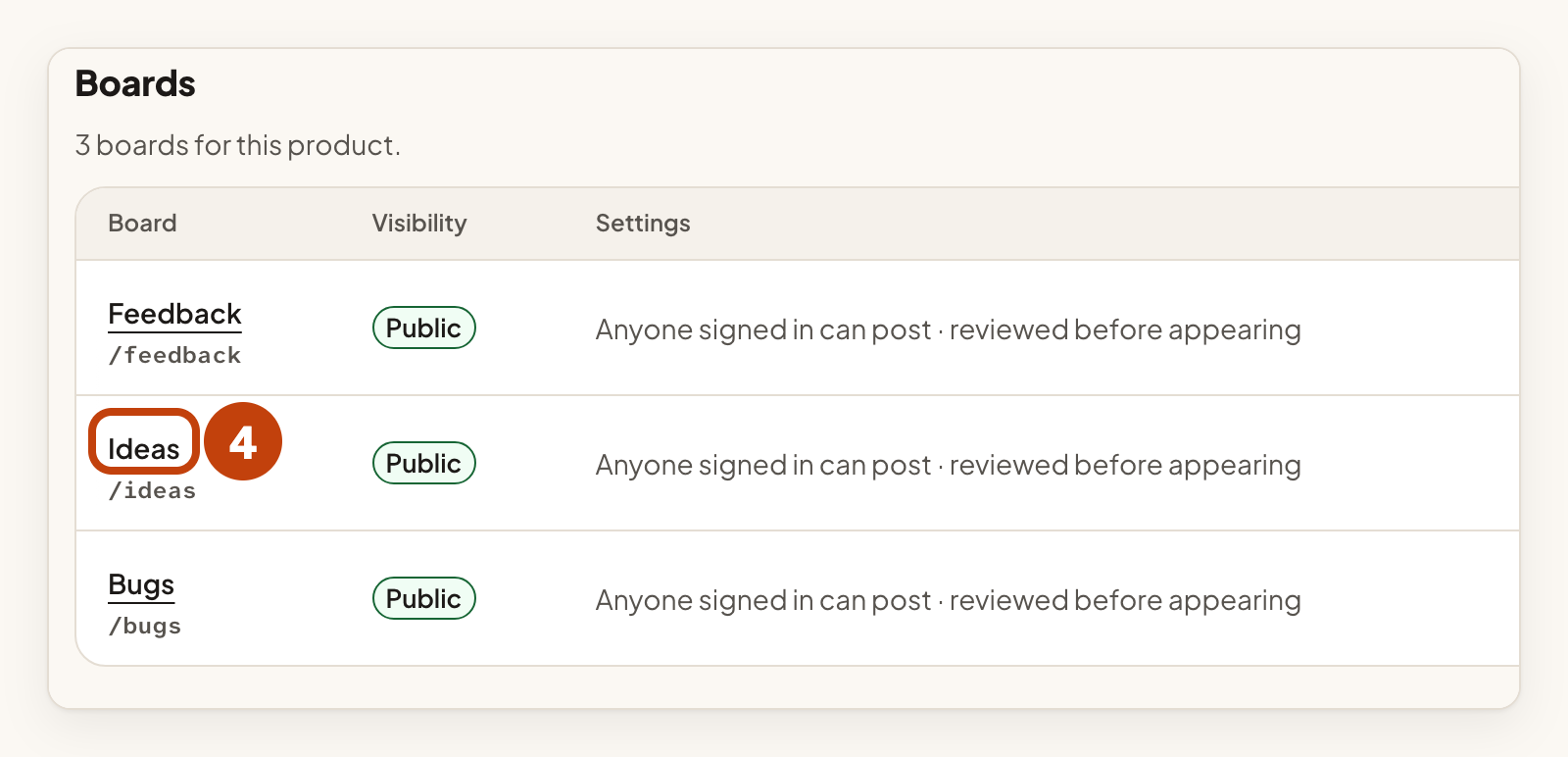
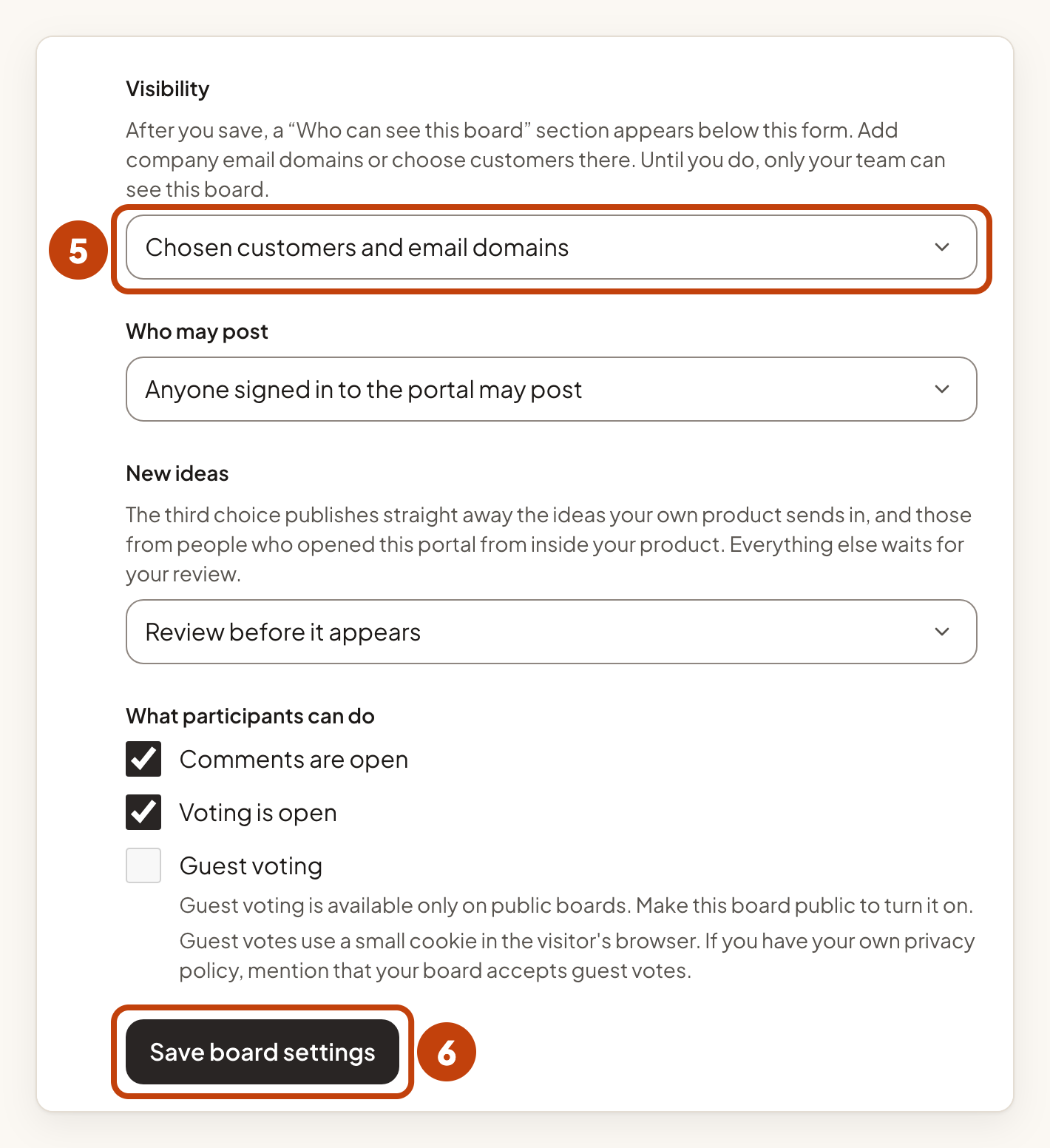
After you save, a section called Who can see this board appears under the form. Until you add someone, only your team can see the board.
Your team can always see a restricted board, even when nobody else can.
Add a company email domain
- Under Company email domains, type the domain in Company domain.
- Select Add domain.
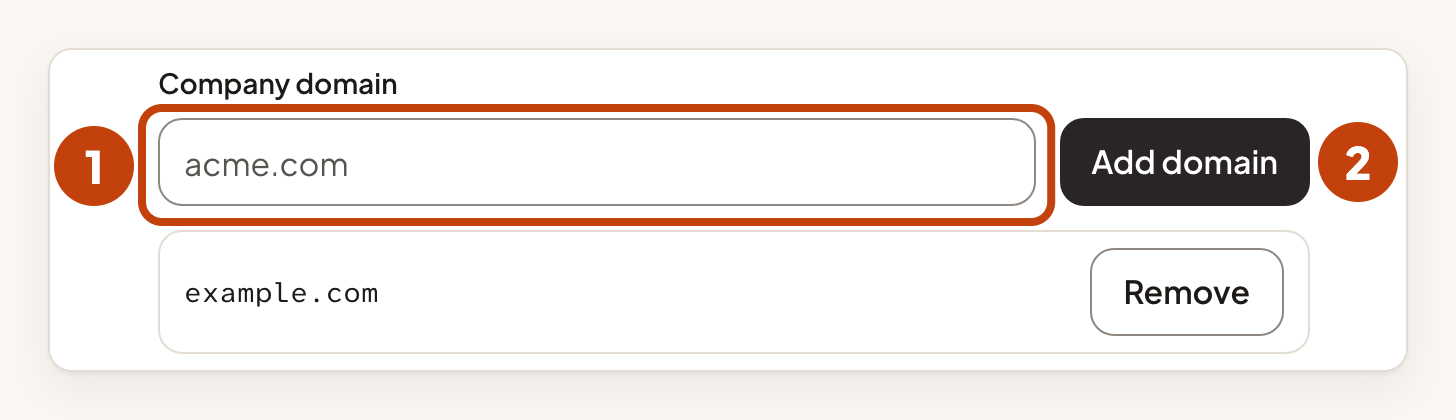
Everyone with a confirmed email address at that domain can see the board. Subdomains are not included, so add each one on its own. Public mail domains such as gmail are refused. A board can have up to 50 domains.
Choose customers by name
Customers who sign in through your own product, were imported, or were added by your team are not matched by email. Choose them by name. Search covers every active customer of this product, including people who were imported or added by your team. A board can have up to 200 chosen customers.
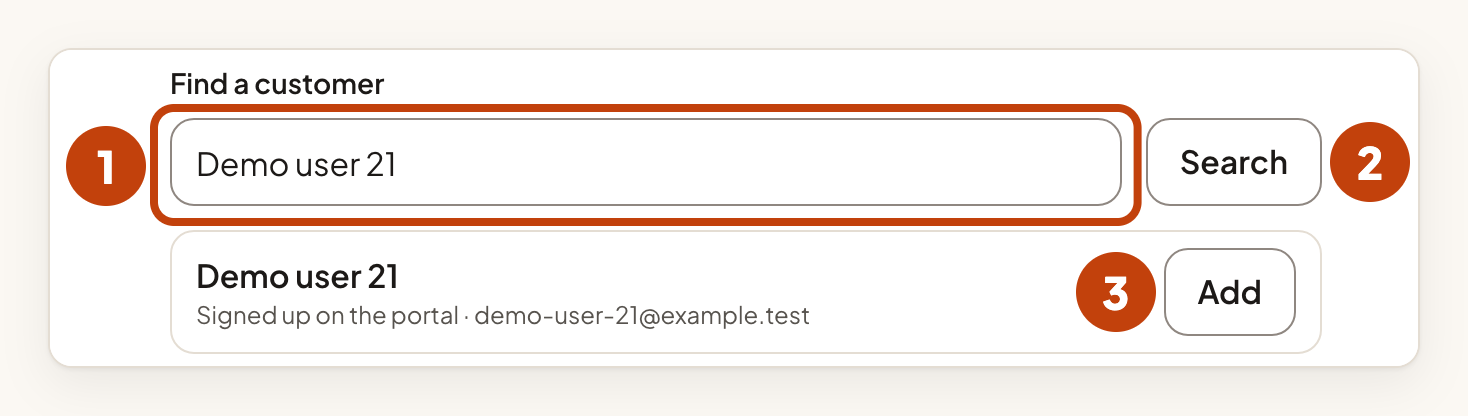
- Under Chosen customers, type a name or email in Find a customer.
- Select Search.
- Select Add next to the person.
Remove access
- Select Remove next to a domain or a customer.
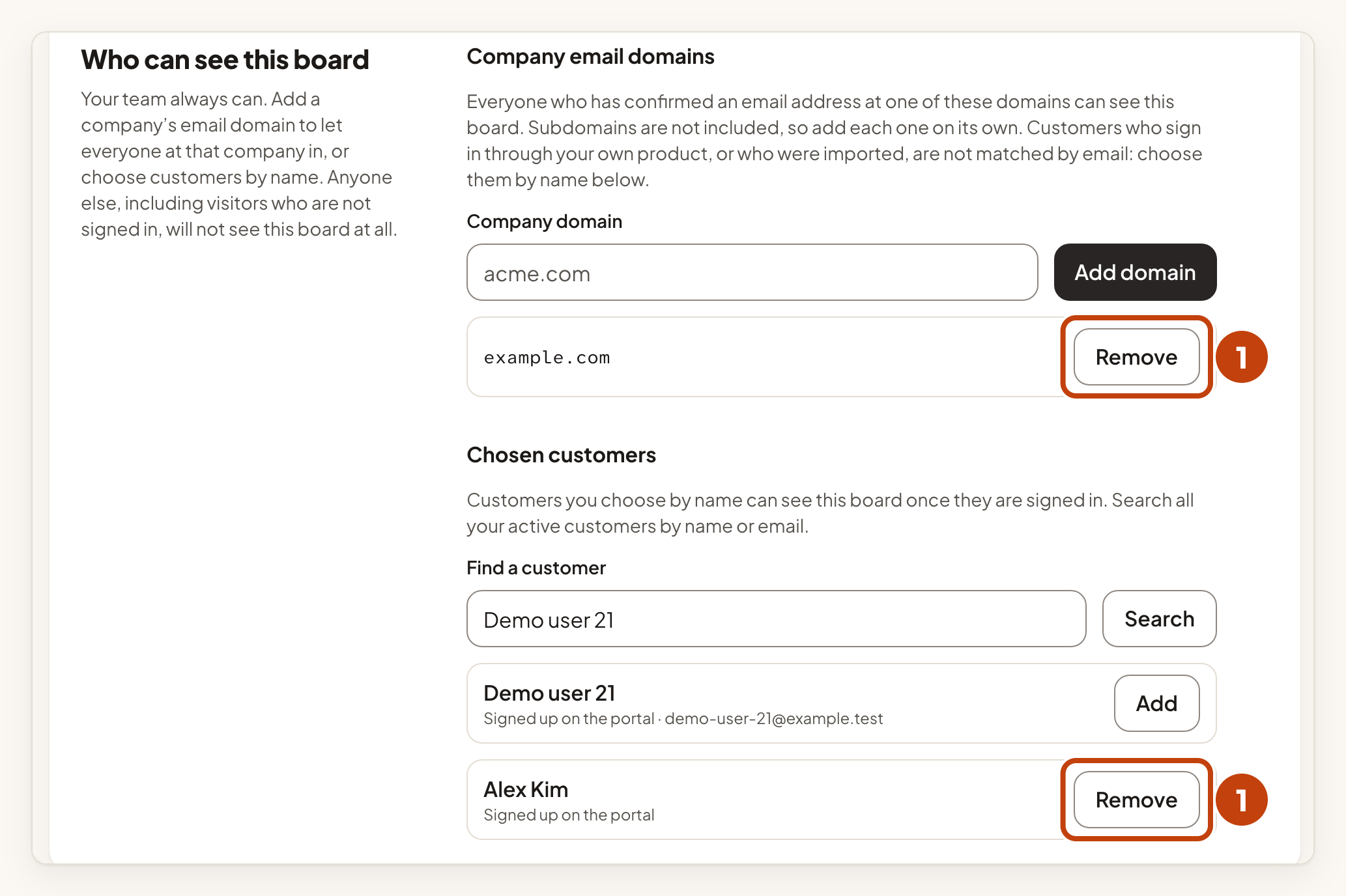
Access stops on the person's next request. IvaBoard sends no email when you add or remove someone.
What stays public
The roadmap, the public changelog, the public API and webhooks never include a restricted board. The feedback widget and the in-app embed show a restricted board to a signed-in customer who is on its list.
Merge ideas from boards with different visibility
If you merge ideas from boards with different visibility, the merge asks Which visibility does the merged idea keep? Choose the visibility you want, then finish the merge.
Example
For example, Sam wants the Ideas board of Acme Notes to be seen only by people at example.com and by Alex Kim. Sam types example.com in Company domain and selects Add domain. Alex signed in from your own app, so Sam searches for Alex Kim and selects Add next to the name.
