Add images to ideas and comments
Customers can add pictures, such as screenshots, to their own ideas and comments. A picture often explains a problem faster than words. This article covers what customers can add, and how your team removes a picture.
Who can use it
Every plan. Customers add images after they sign in to your portal, and only to their own ideas and comments. Owners, Admins, Managers and Moderators can remove any image. Viewers can see images but cannot remove them. Your team cannot upload images for a customer.
What customers can add
- PNG, JPEG or WebP files, up to 5 MB each.
- Pictures of at most 25 megapixels, which is the width times the height.
- Up to four images on each idea or comment.
- A description for every image, up to 200 characters. Customers must write one.
How a customer adds an image
Open your own idea or comment on your portal.
- Choose a file under Add an image.
- Write what the picture shows in Describe the image.
- Select Upload image.
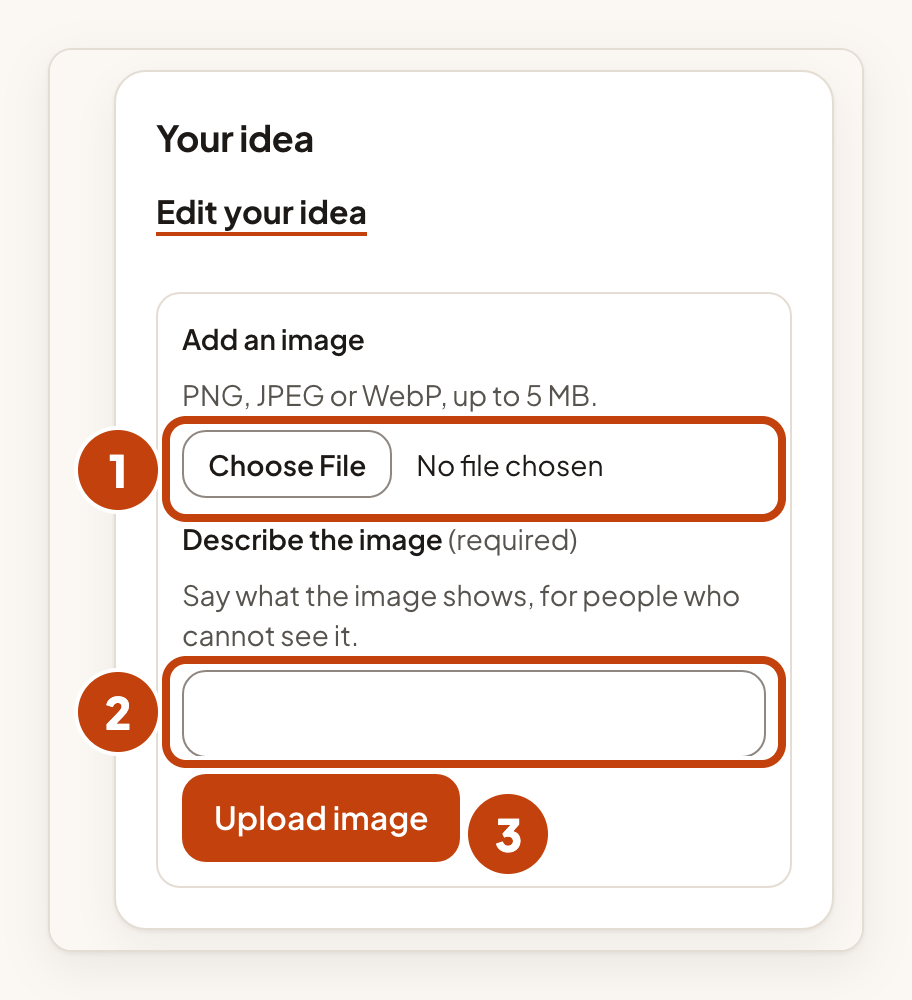
If the idea or comment already has four images, the page says it has the most images it can hold. To take a picture back, select Remove this image beside it.
Privacy
Pictures are cleaned before they are stored. Hidden details inside a photo, such as where it was taken, are removed. An animated WebP keeps only its first frame.
Picture addresses expire after about five minutes. A saved address stops working, and the portal gives a fresh one each time a page loads. When you hide or merge an idea, its pictures get no new addresses.
Remove an image as your team
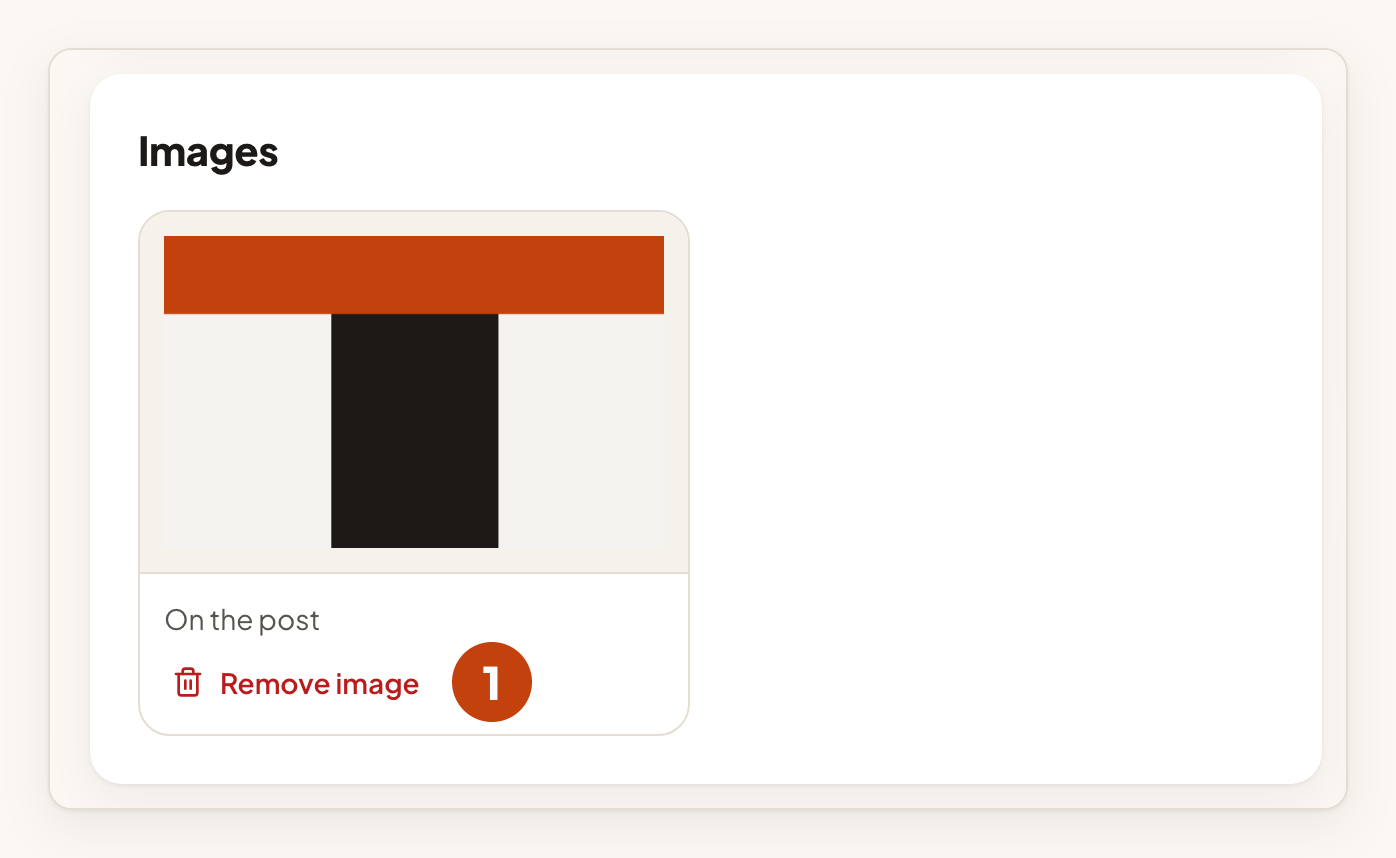
On the idea's page in the console, find Images. Each picture shows whether it is On the post or On a comment.
- Select Remove image under the picture you want to remove.
- Select Remove image permanently to confirm.
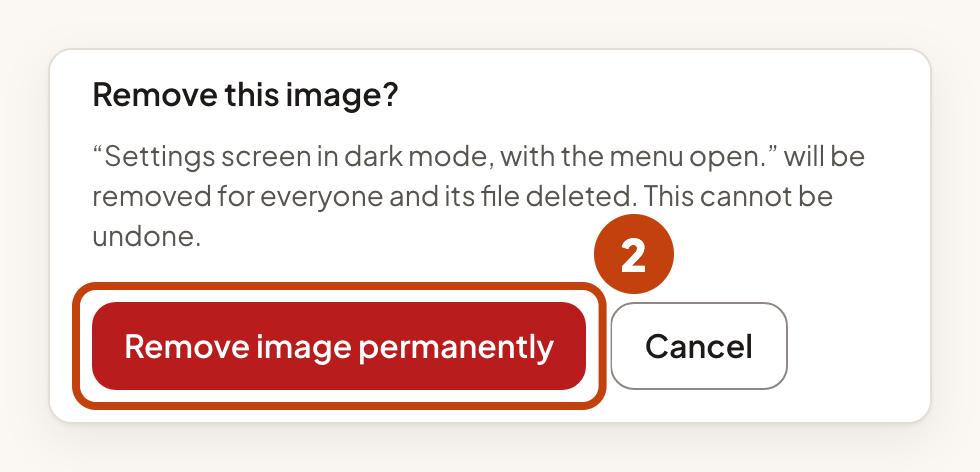
The image is removed for everyone. This cannot be undone.
Example
For example, Sam, a customer of Acme Notes, posts "Dark mode for the mobile app" and adds a screenshot. Sam writes "Settings screen in dark mode, with the menu open" in Describe the image and selects Upload image. Later, your team sees a picture with personal details on the idea. You select Remove image, then Remove image permanently.
