Search, filter and sort ideas
Customers can search a board on your portal. Your team can search the inbox across all products. This article shows how each one works, and how to change the language that search uses.
Who can use it
Every plan. Anyone who can read a board can search it. Your team searches the products they can see in the inbox. Only an Owner or an Admin can change a product's search language. A Manager can see the language but cannot change it.
Search on your portal
Customers use the search box on a board. Search finds ideas that match the words typed, including other forms of the same word. In English, a search for "running" also finds "run".
- Type what you are looking for in Search ideas.
- Select Search.
- Under Status, select a status to see only the ideas with that status.
- Under Sort, select Newest, Most voted or Best match.
- Under Tags, select a tag to see only the ideas with that tag.
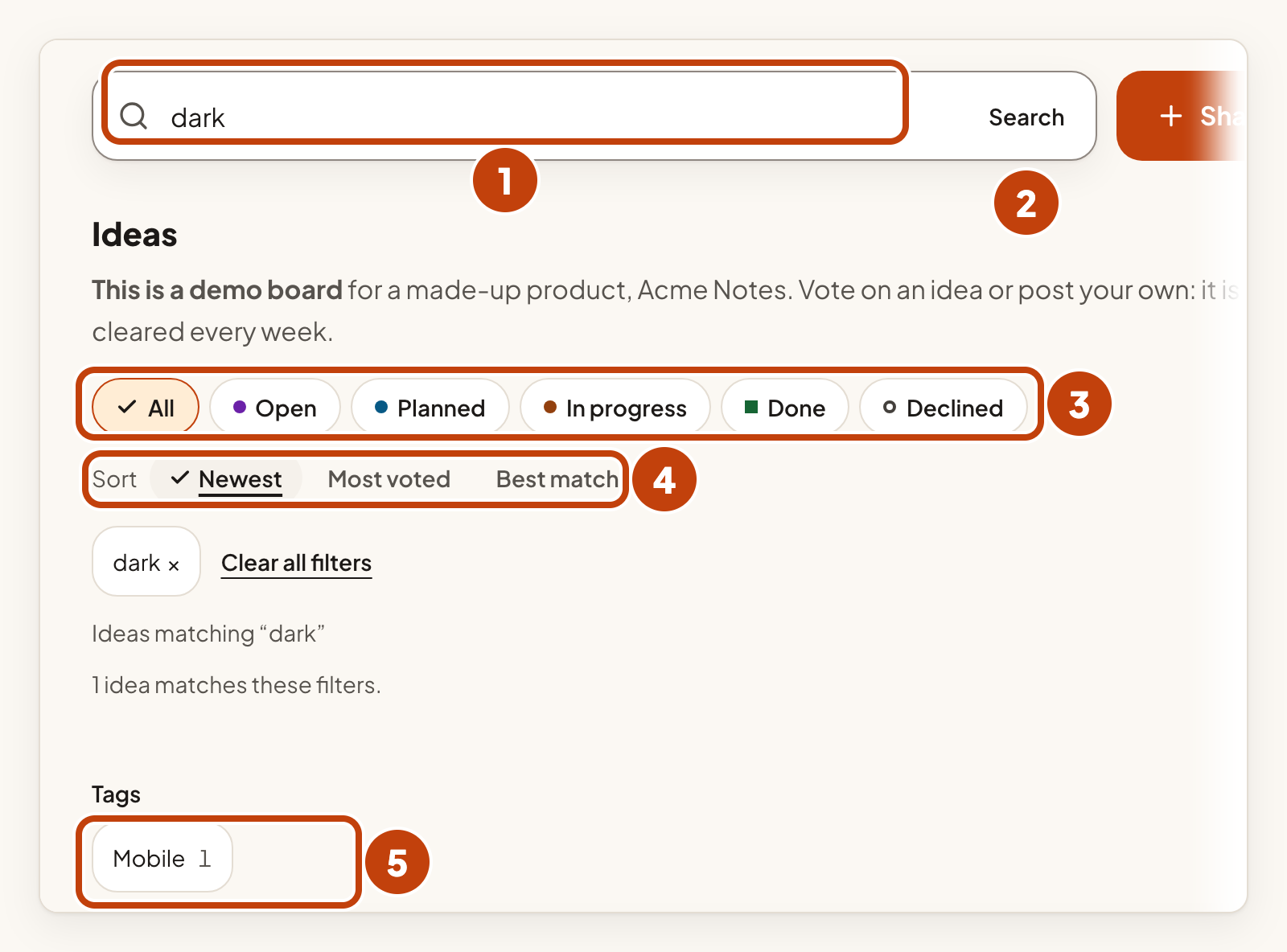
A search term can be up to 120 characters. Best match appears only when a search term is in use. Only public tags appear under Tags. Search only finds ideas the customer is allowed to see, so a hidden idea never shows up in results or counts.
Similar ideas when a customer posts
When a customer types the title of a new idea, the portal suggests up to five similar ideas. The customer can say they want one of them too, instead of posting a duplicate. Their draft stays as it is.
Search in the inbox
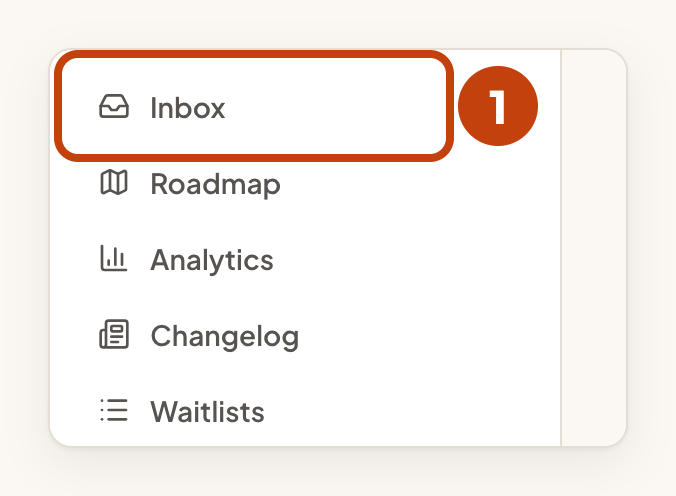
- Open the product's Inbox.
- Type part of a title in Search ideas.
- Choose one or more filters, such as Moderation state or Tag.
- Select Apply filters.
- Select Clear all filters to remove every filter.
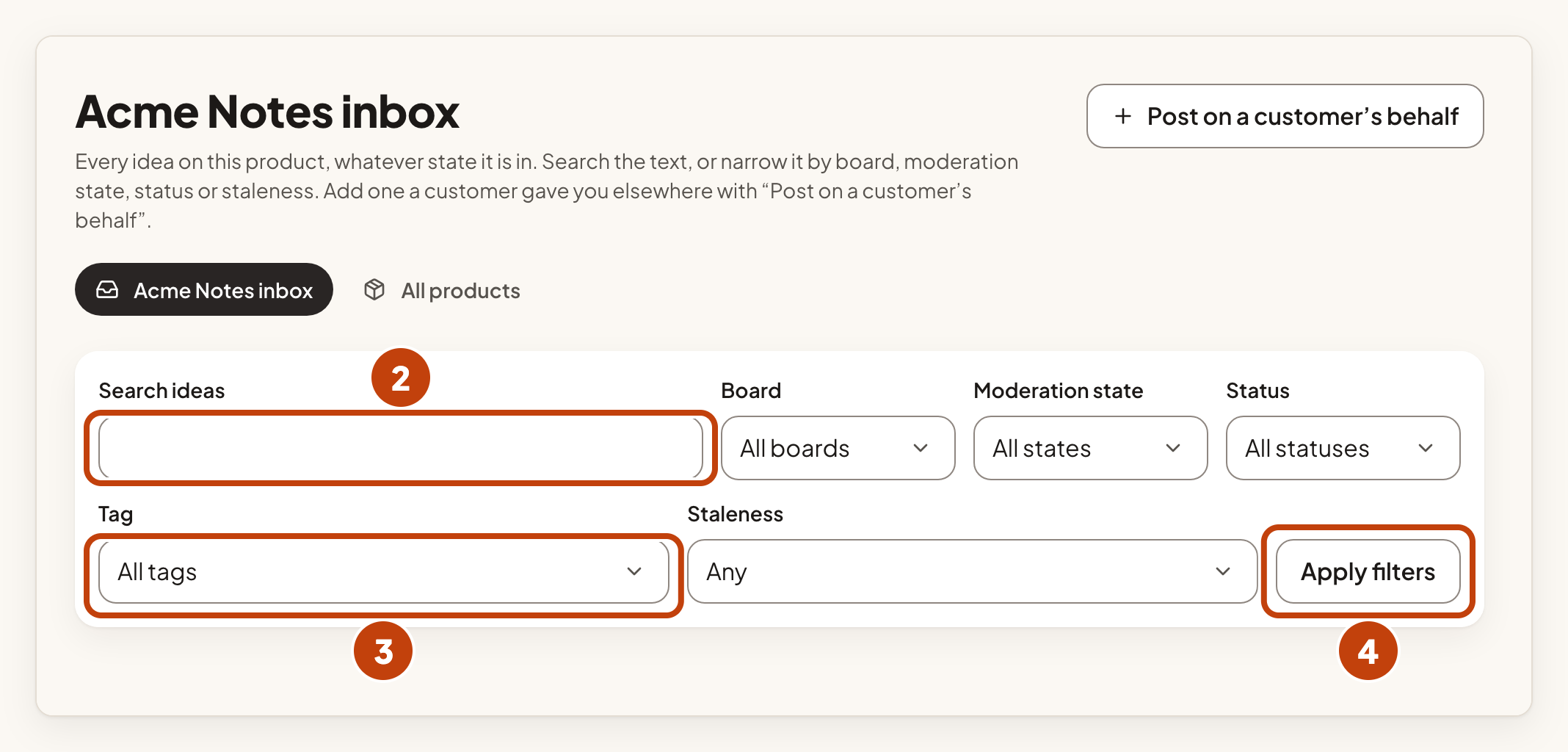

Choose a product first to filter by its boards, statuses or custom fields.
On a phone, the filters are folded away. Select Filters to open them.
Set the search language
Search uses your product's language to match word forms. Only an Owner or an Admin can change it.
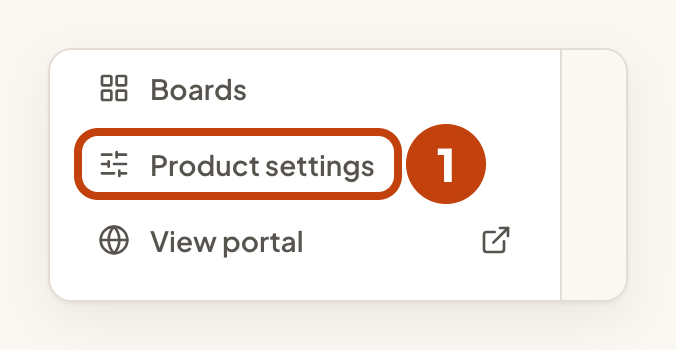
- Select Product settings in the sidebar.
- In Search language, choose the language your ideas are written in.
- Select Save search language.
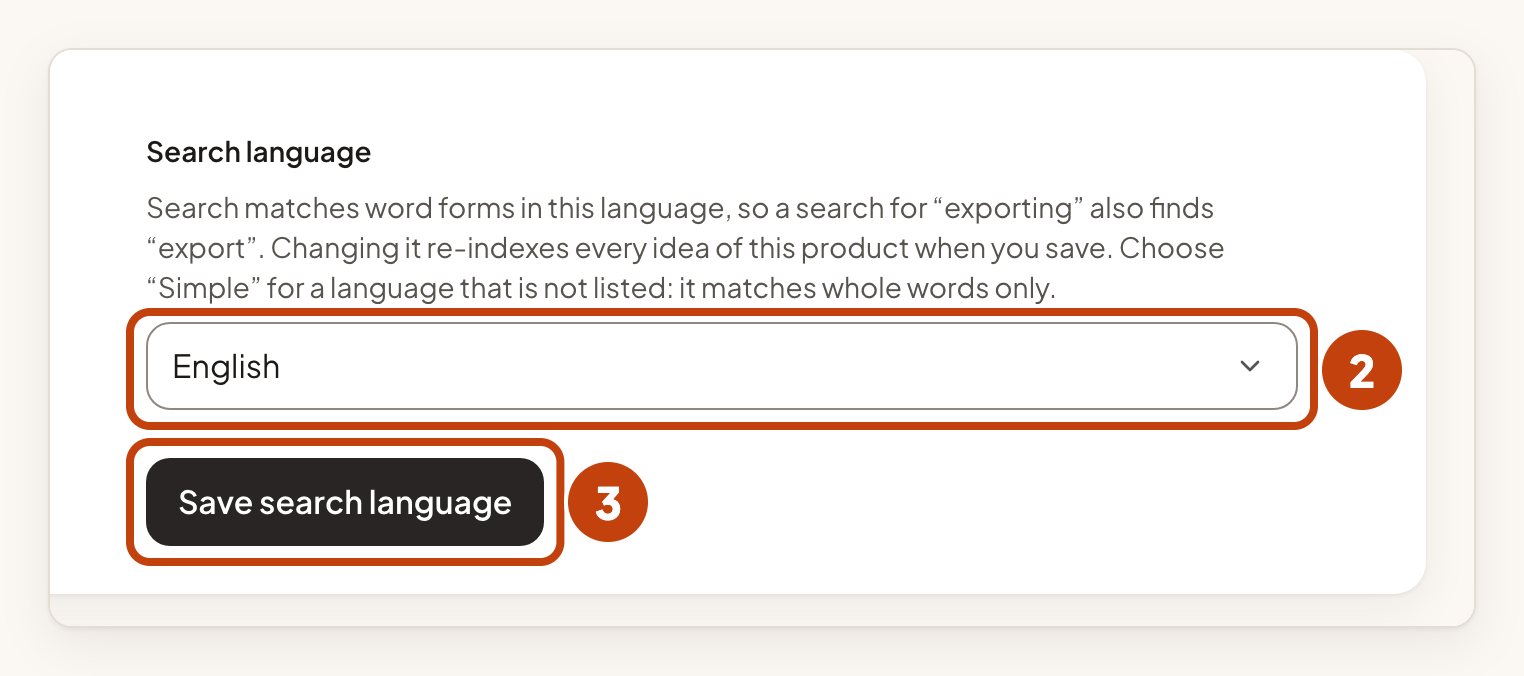
Saving re-indexes every idea in the product, so search works in the new language.
The list holds 30 choices. Choose Simple (whole words, any language) for a language that is not in the list. It matches whole words only, with no word forms.
Example
For example, Sam is a customer of Acme Notes. Sam types exporting in Search ideas and selects Search. Acme Notes searches in English, so the results also include "Export my notes to PDF". Sam then selects Best match under Sort to see the closest matches first.
