Organise ideas with tags
Tags are short labels, such as Mobile or Billing, that you put on ideas to sort and find them. A tag can be public, so customers can filter a board by it. An internal tag is only for your team.
Who can use it
All plans. Owners, admins and Managers can create, rename and delete tags. Owners, admins, Managers and Moderators can put tags on ideas and take them off. A Viewer can see the tags, but cannot change them.
Add a tag
- Open your product.
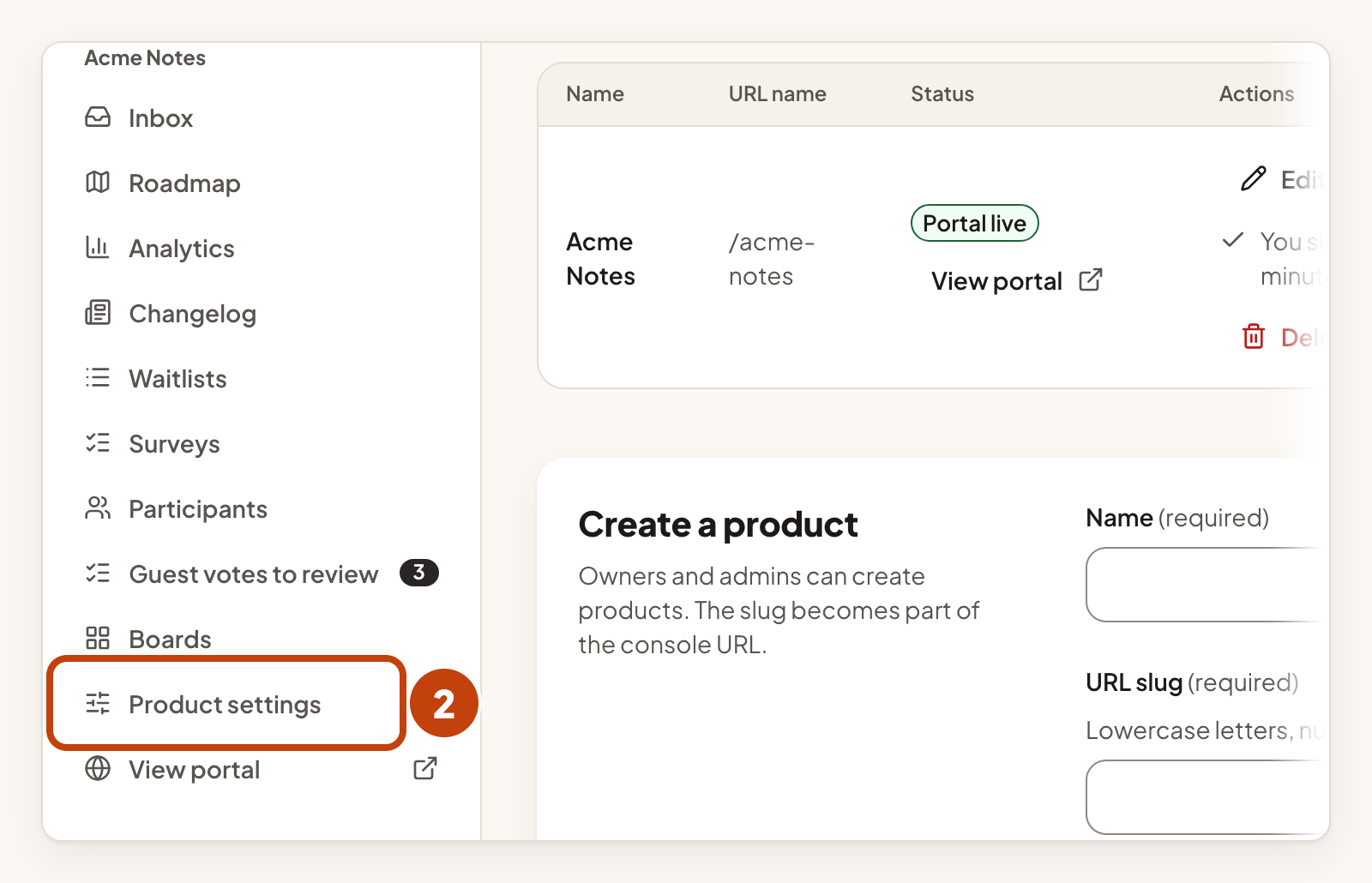
- Select Product settings.
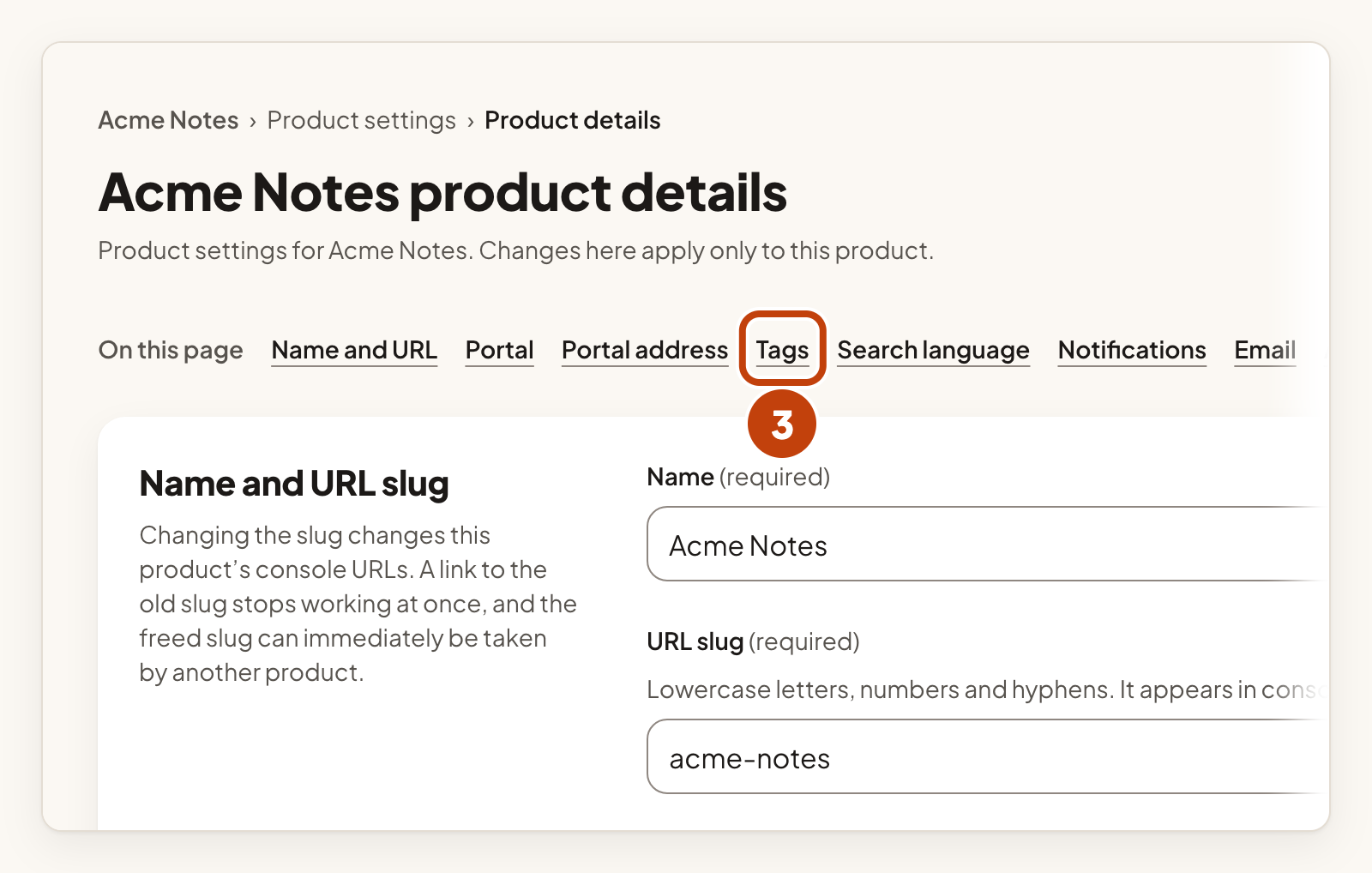
- Select Tags in the settings sections.
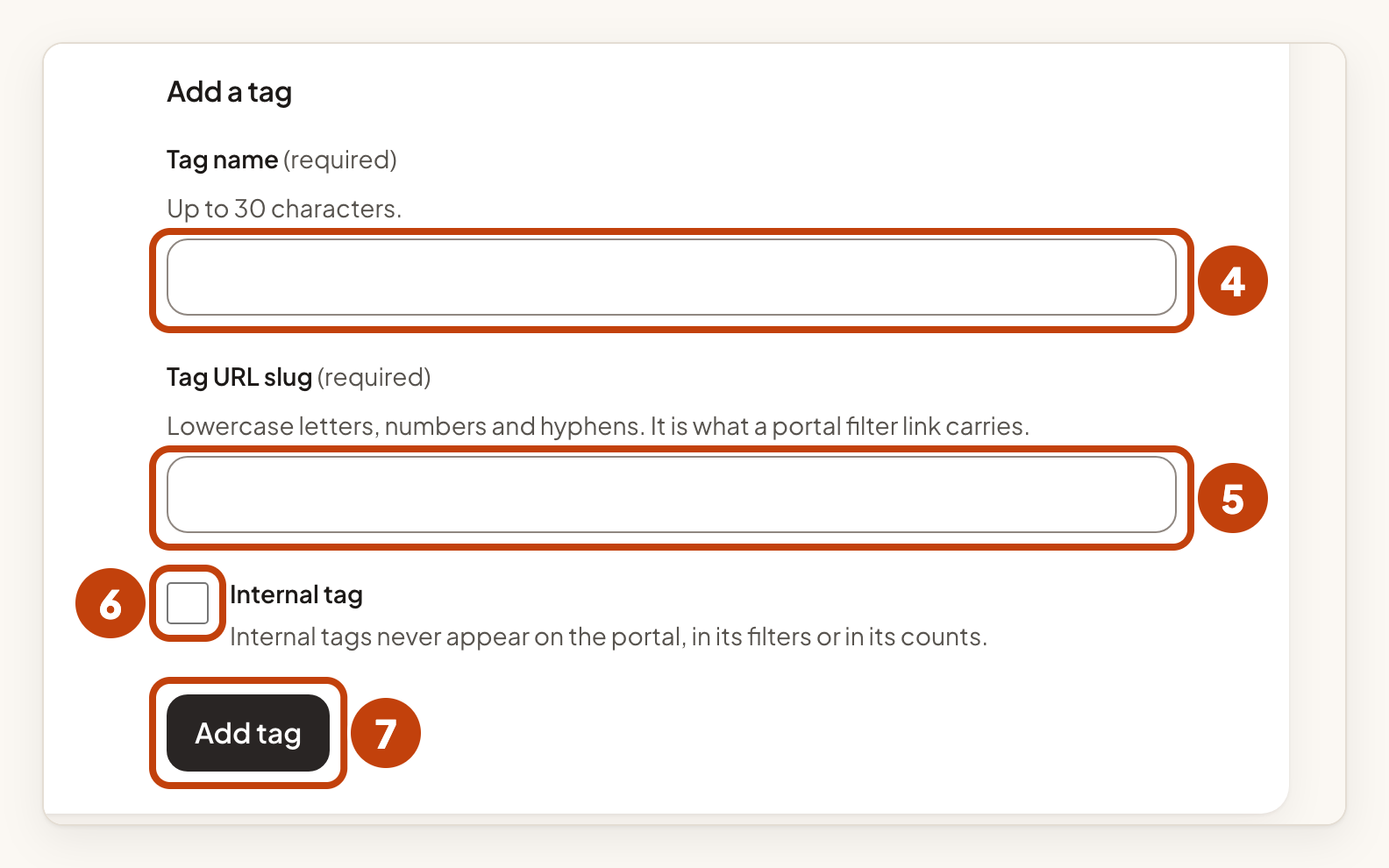
- Under Add a tag, type a Tag name. It can hold up to 30 characters.
- Type a Tag URL slug. Use lowercase letters, numbers and hyphens.
- Optional: tick Internal tag if only your team should see it.
- Select Add tag.
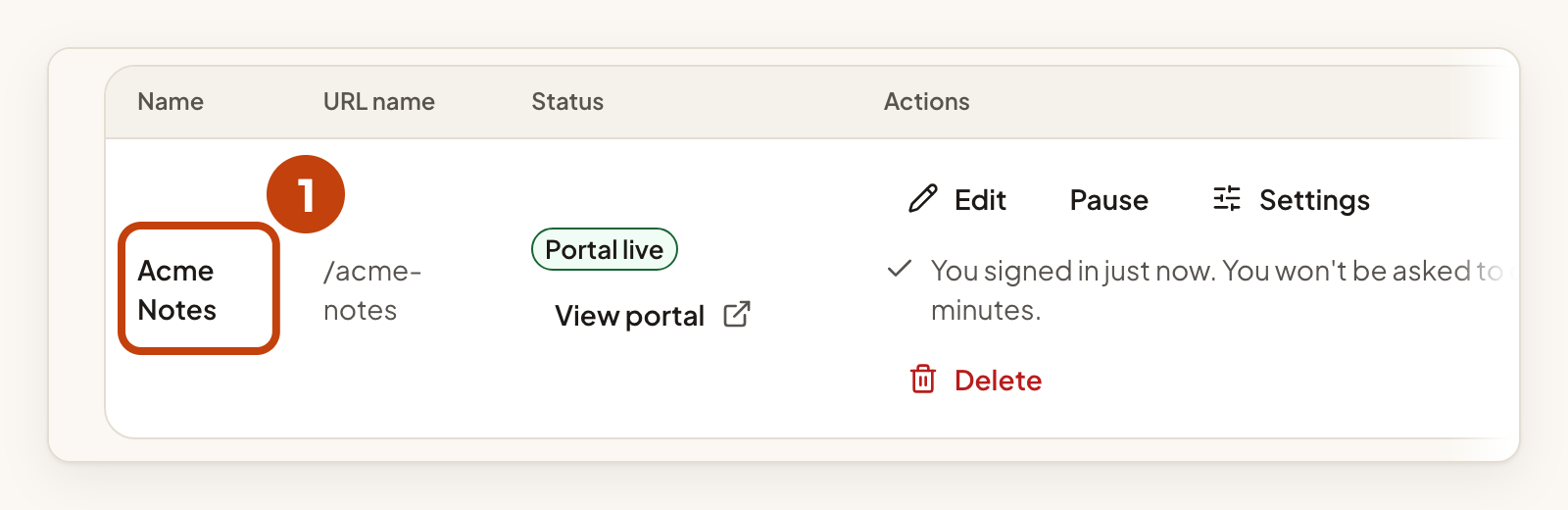
A product can hold up to 100 tags. The Tags list shows each tag's Name, URL slug and Visibility, which is Public or Internal.
Put a tag on an idea
- Open the idea.
- Choose a tag under Add a tag to this post.
- Select Add tag to post.

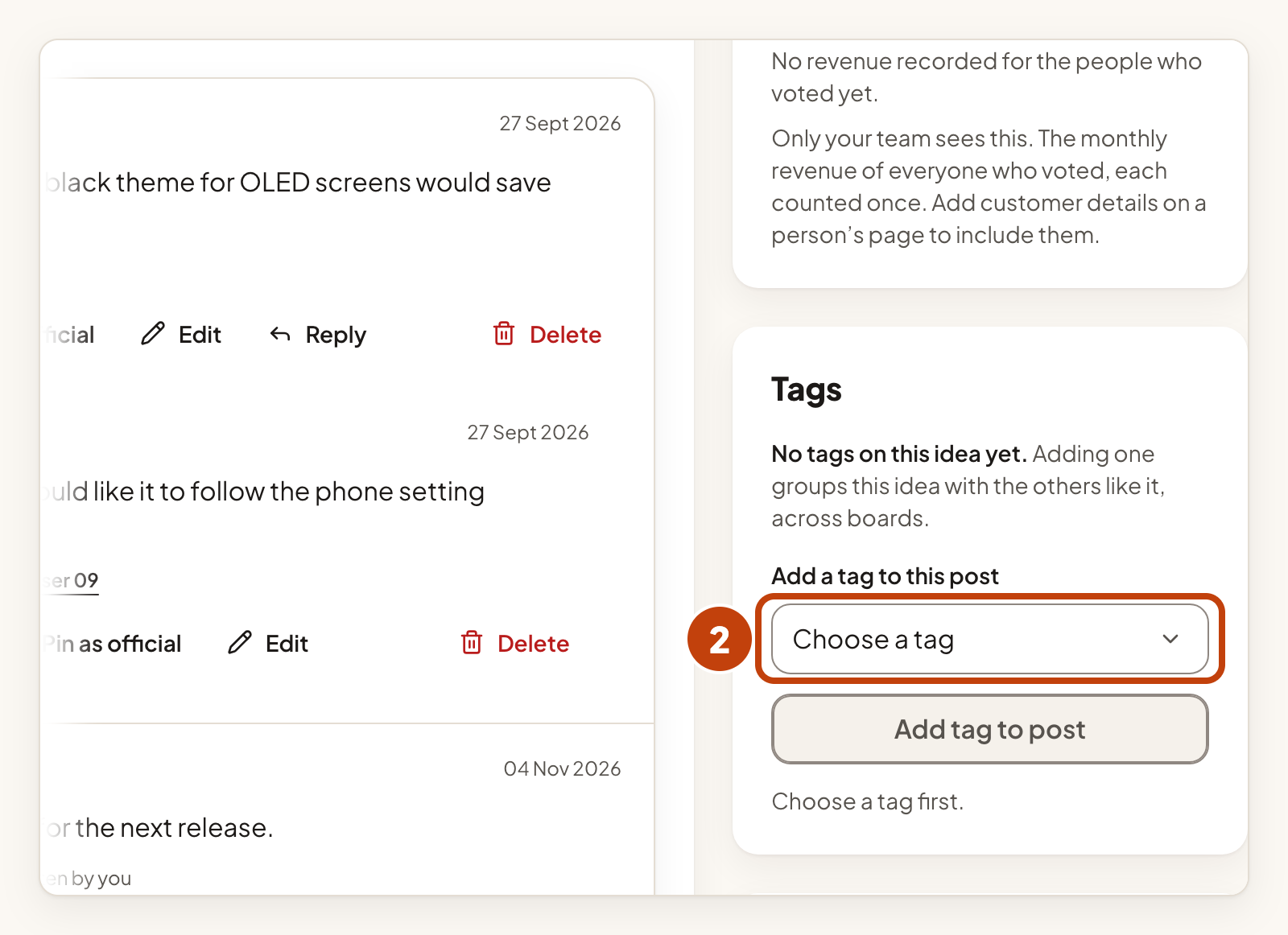
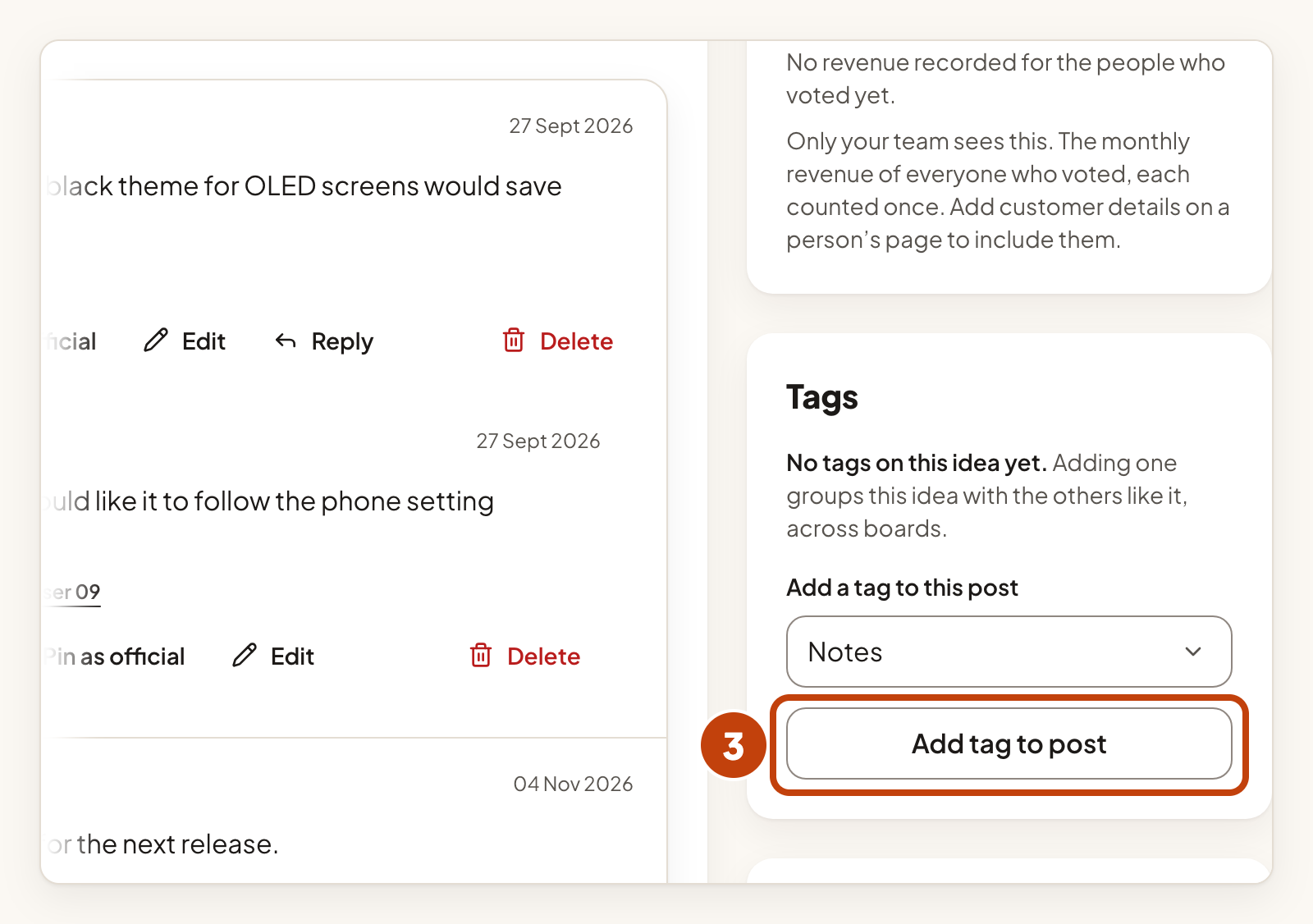
To take a tag off an idea, select the remove button next to it. Its label starts with the words Remove tag.
Rename or delete a tag
To rename a tag:
- In the Tags list, select Rename in the tag's row.
- Type a New name.
- Select Save tag name.
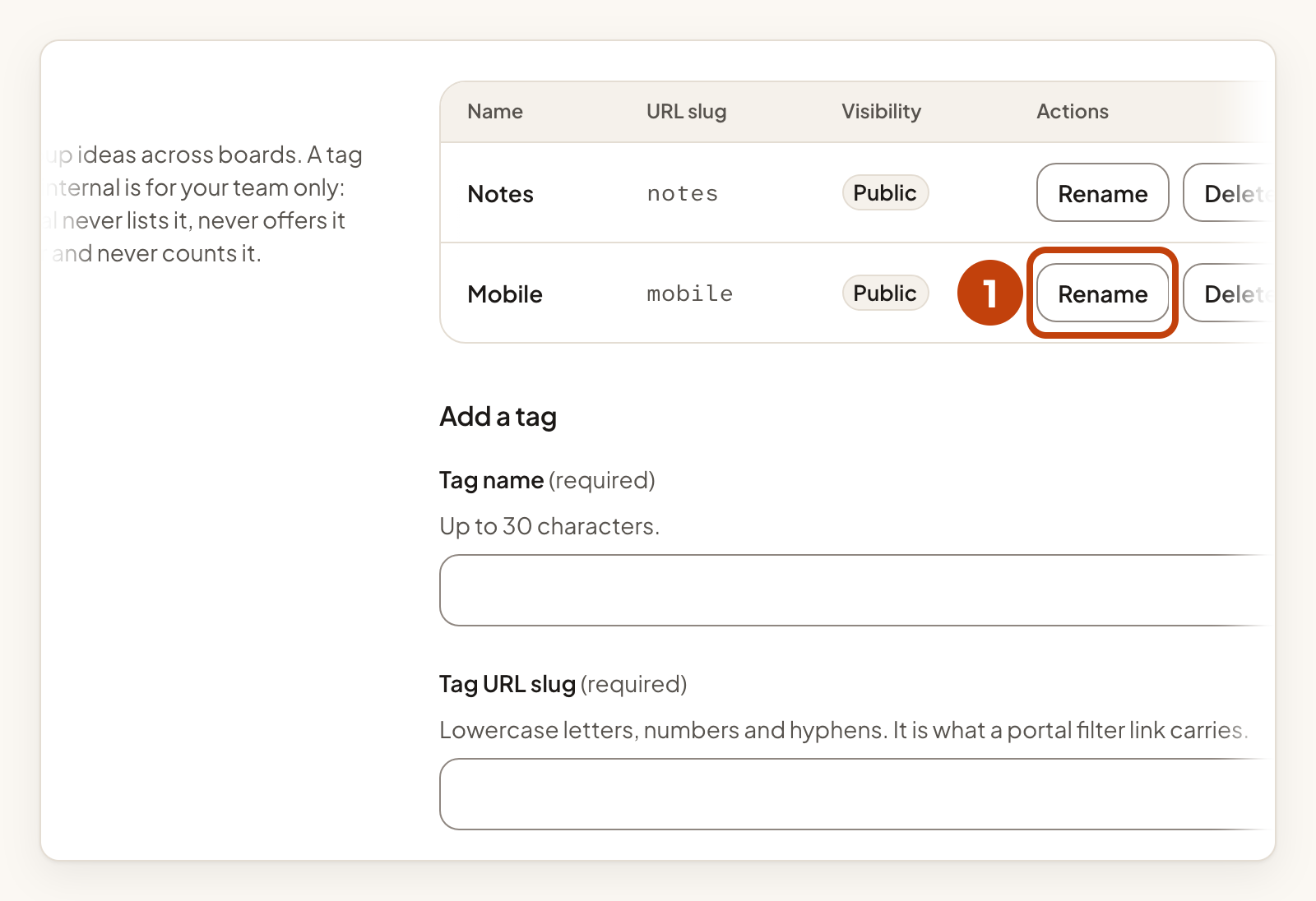
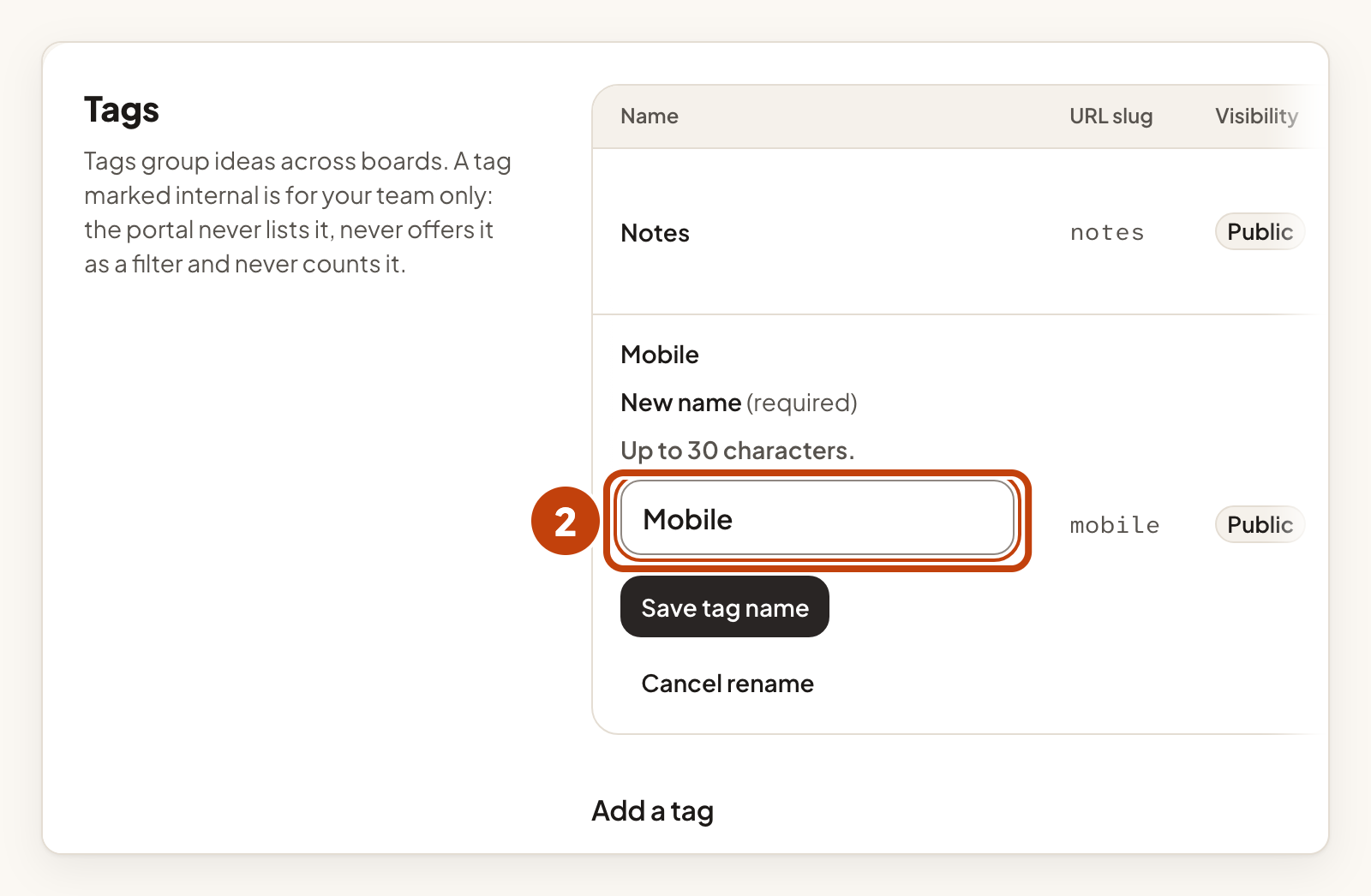
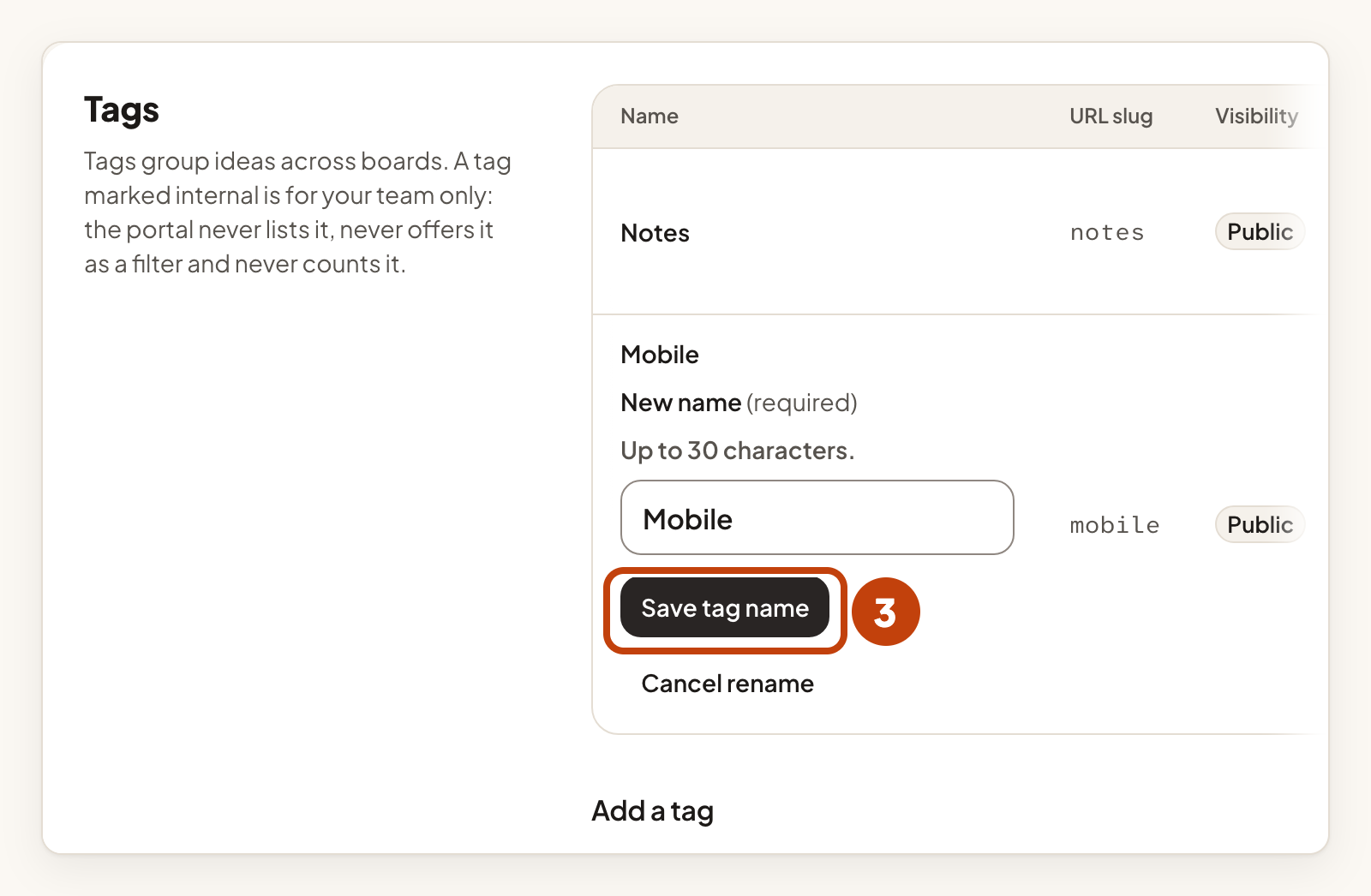
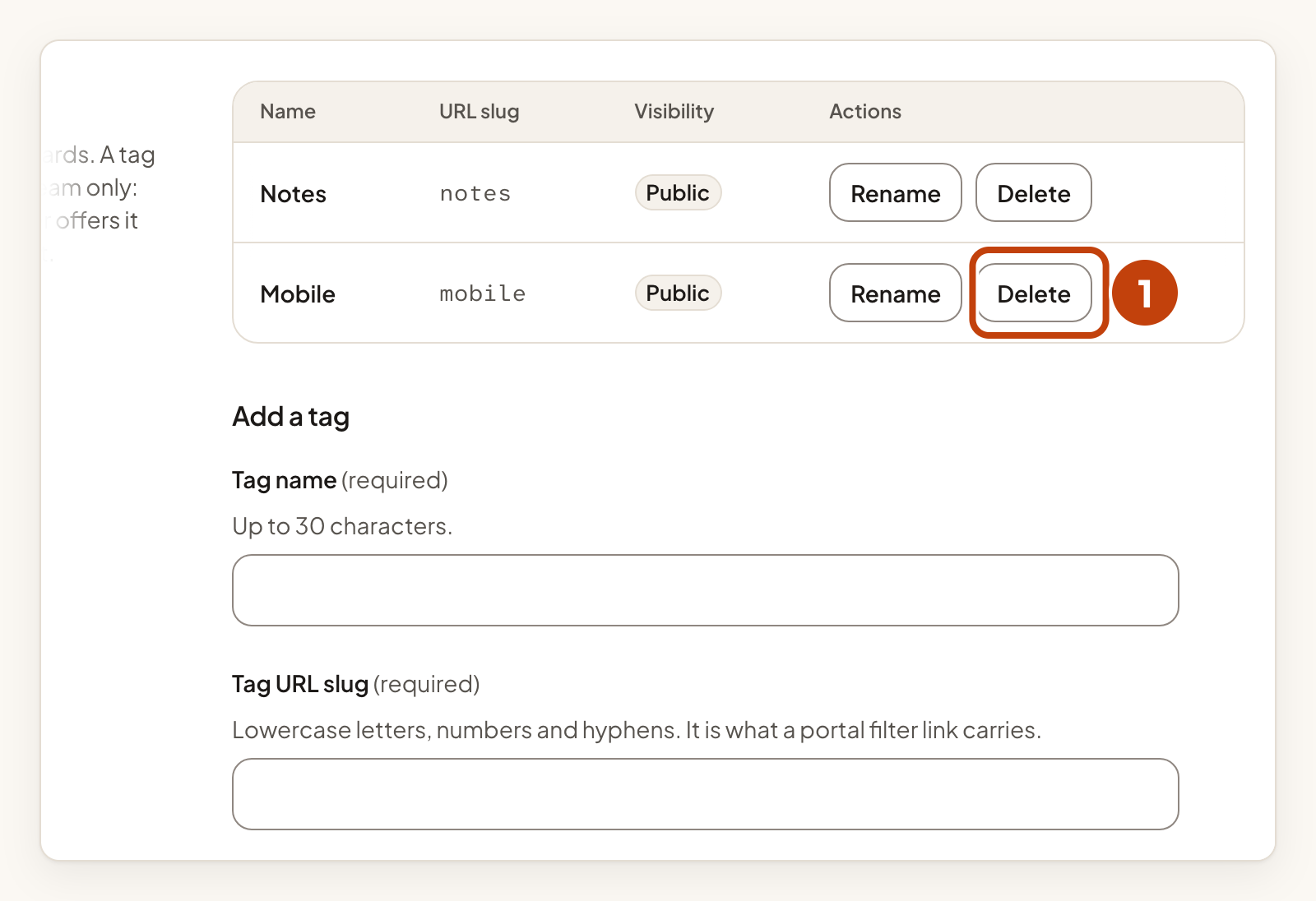
To delete a tag:
- In the Tags list, select Delete in the tag's row.
- Select Delete tag to confirm.
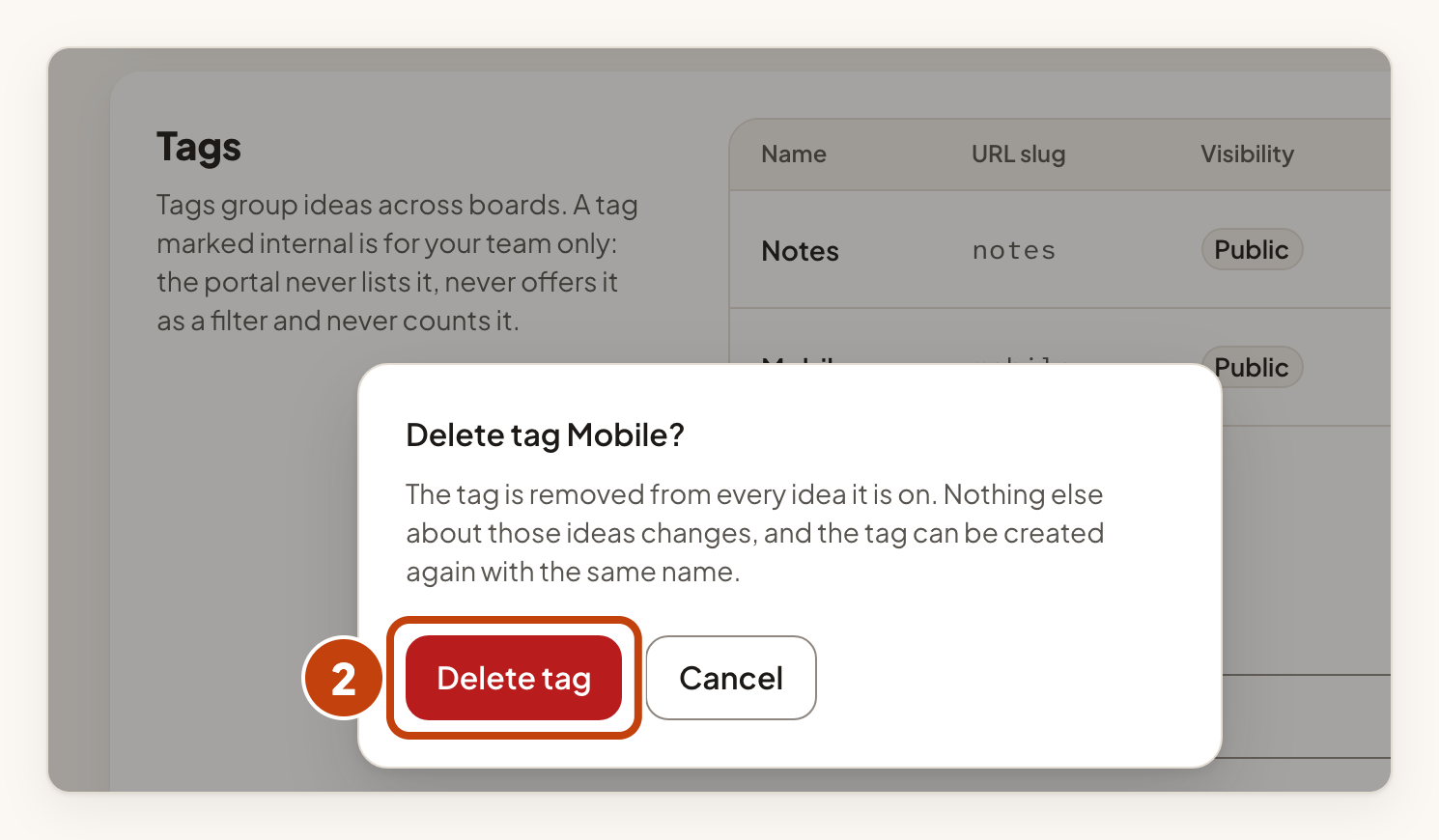
Deleting a tag removes it from every idea it was on. Nothing else about those ideas changes.
What customers see
Customers see public tags on ideas and can filter a board by them. Internal tags never appear on the portal, in its filters or in its counts.
Making a tag public, or putting a public tag on an idea, changes what visitors can find. Check before you do it.
Find ideas by tag
In your product's Inbox, select Filters and choose Tag. See Ideas and the review inbox.
Example
For example, Sam Taylor at Acme Notes creates a public tag named Mobile with the Tag URL slug mobile. Sam opens the idea Dark mode for the mobile app, chooses Mobile under Add a tag to this post, and selects Add tag to post. Visitors can now filter the board by Mobile.
