Comments
Customers can discuss an idea in comments. Your team can reply in public, or leave internal notes that only the team sees.
Who can use it
All plans. Customers comment after they sign in to your portal, when the board has comments turned on. Owners, admins, and the Manager or Moderator of a product can reply as the team and moderate comments. A Viewer can read all comments, including internal notes, but cannot write or moderate them.
Turn comments on or off
- Select the board's name in the Boards list.
- Tick or untick Comments are open.
- Select Save board settings.
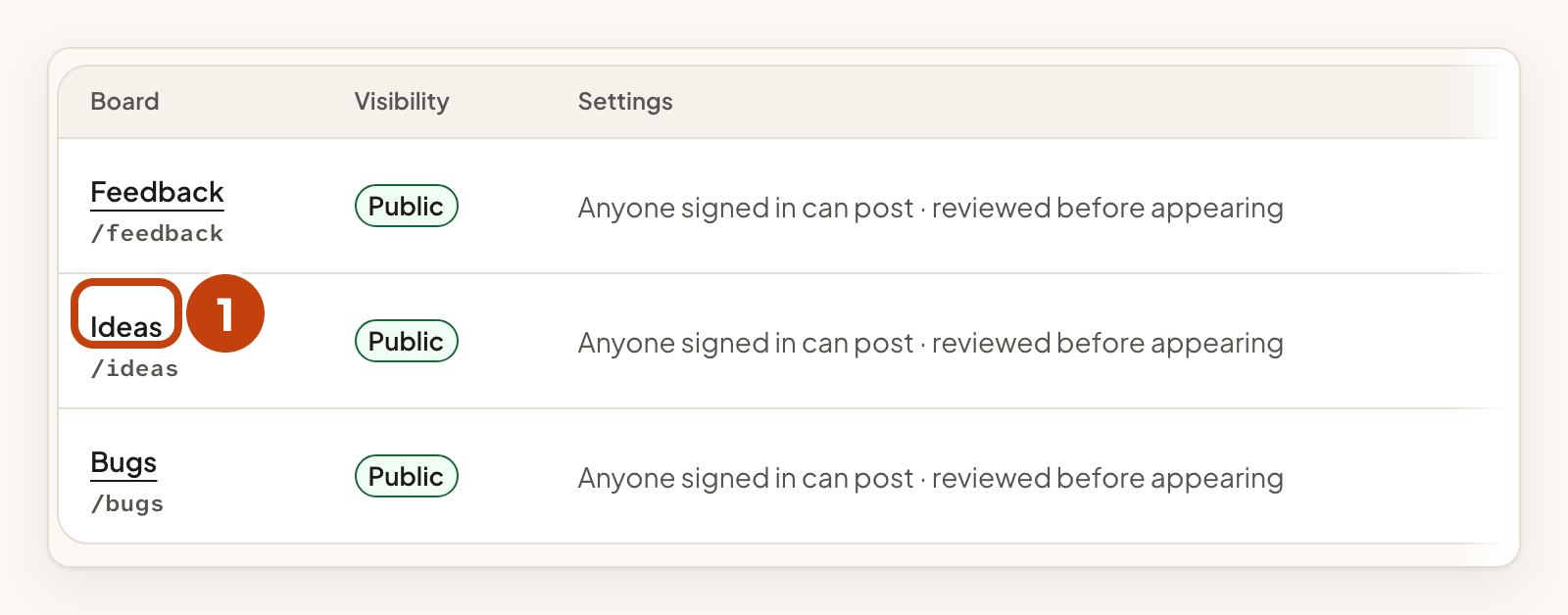
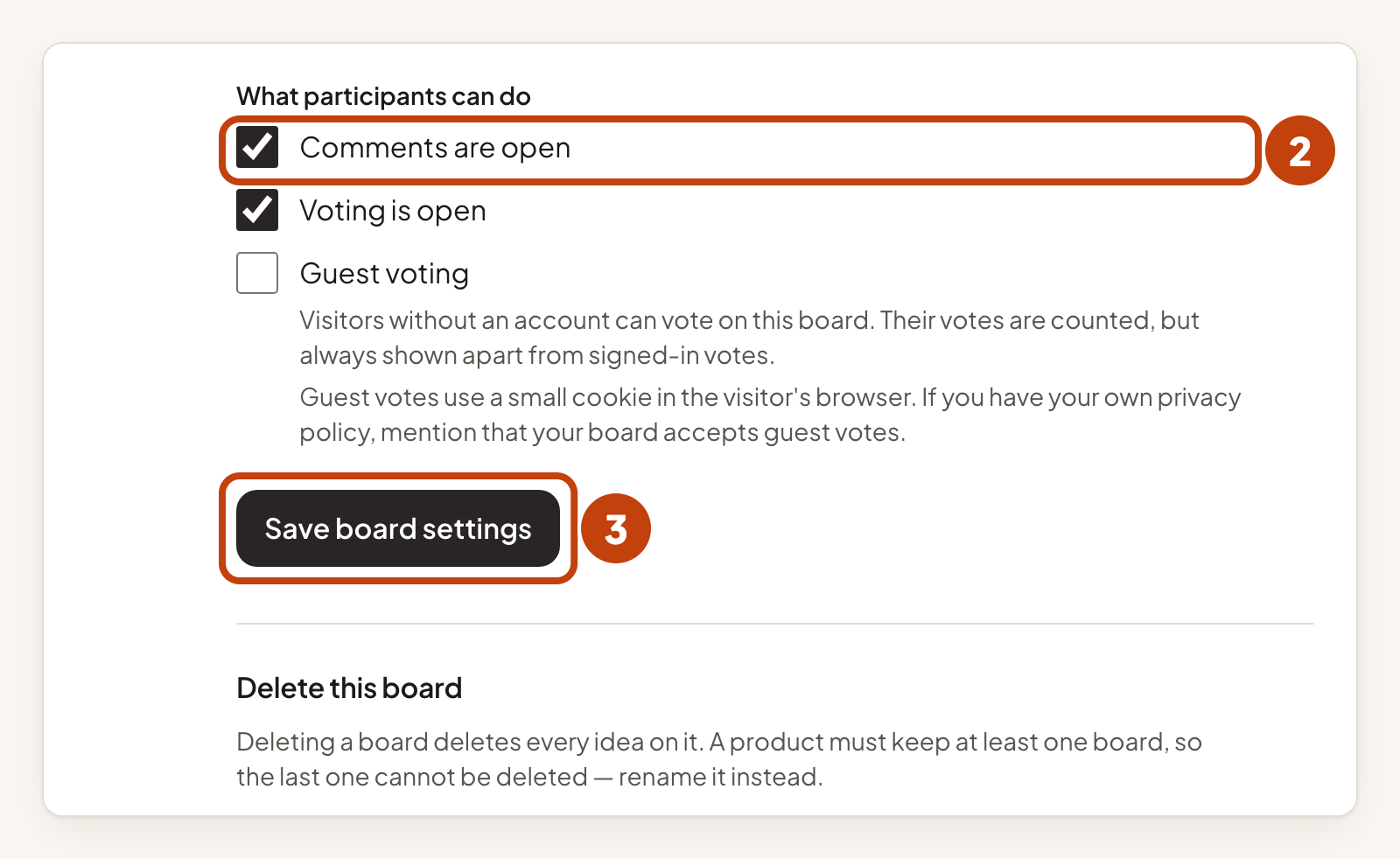
See Create and manage boards for more about board settings.
What customers can do
Customers write comments of up to 3000 characters. They can reply to a comment, but a reply cannot have replies of its own. A customer can edit their own comment for 15 minutes after posting. They can delete it at any time. Each customer can post up to 20 comments an hour on a product.
A deleted comment leaves a short note, such as Deleted by the author or Removed by the team, so the replies under it still make sense.
Reply as the team
- Open the idea.
- Scroll down to Add a comment.
- Type your text in Comment. Markdown is supported.
- Under Who can see this, choose Internal note or Public reply.
- Select Post comment.

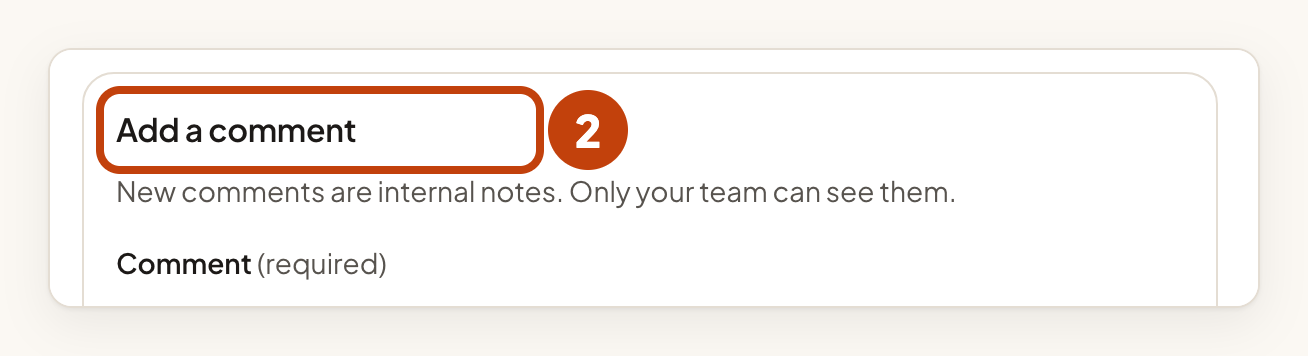
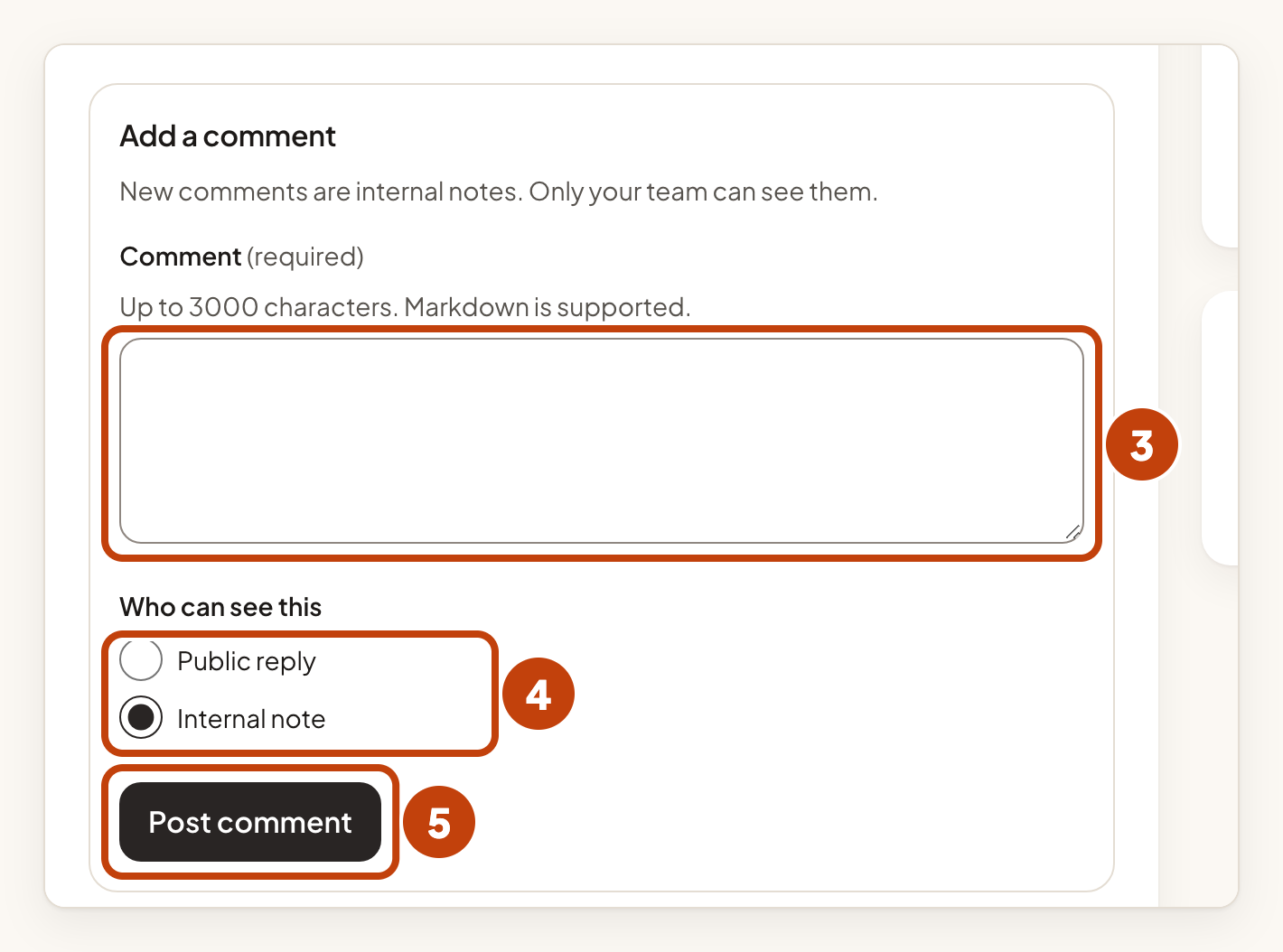
New comments start as internal notes, so only your team sees them until you choose Public reply. A public comment from your team shows From the product team.
Internal notes
An internal note is never shown to customers, and it is never counted in their totals. Use it to share context with your colleagues. A public comment notifies the people who follow the idea. An internal note notifies nobody.
Moderate comments
Next to each comment you can choose:
- Hide or Unhide, to take a comment off the portal without deleting it.
- Pin as official or Unpin official, to show one public comment at the top of the thread with the Official response label. Each idea can have one official response. An internal note cannot be pinned.
- Delete, to remove a comment. The portal shows Removed by the team, and the replies stay.
Example
For example, a customer asks on the idea Dark mode for the mobile app whether it is planned. Sam Taylor on your team types "We are looking at this for the next release." in Comment, chooses Public reply, and selects Post comment. The reply shows From the product team on the portal.
