Share an idea on a board
Use the Share an idea form at the top of a board to post a new idea for your team. This article shows each field, what happens after you post, and the limits. It takes about two minutes.
Who can use it
A customer posts with the form on a board. The customer must be signed in and must have joined the product. A visitor who is not signed in can still write an idea, and signs in when posting.
Customers see public boards. They also see a restricted board when your team has added them to it. A private board is not shown to customers. See Share a board with chosen customers.
Your team can post for a customer from the product Inbox. See Ideas and the review inbox.
Post an idea
Open the board where the idea belongs. Then:
- Type your idea in the Title box.
- Optional: type more detail in Details.
- Select Post idea.
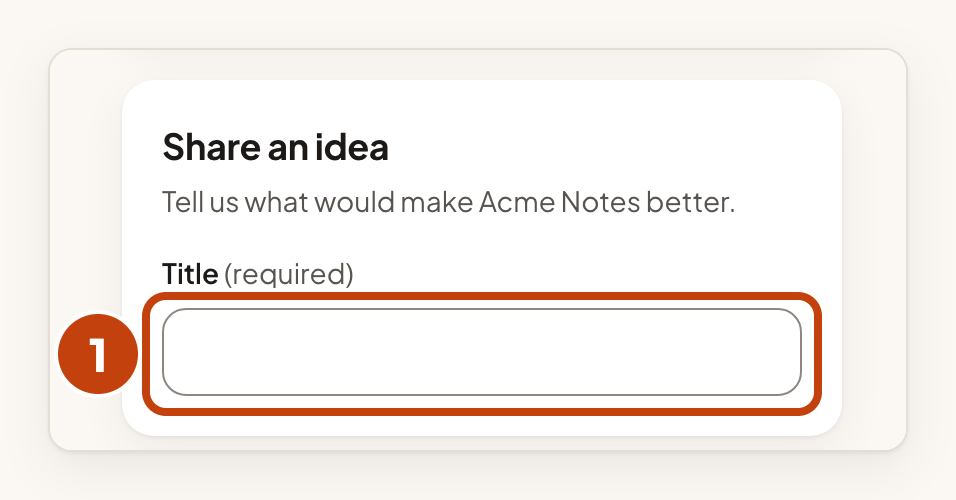
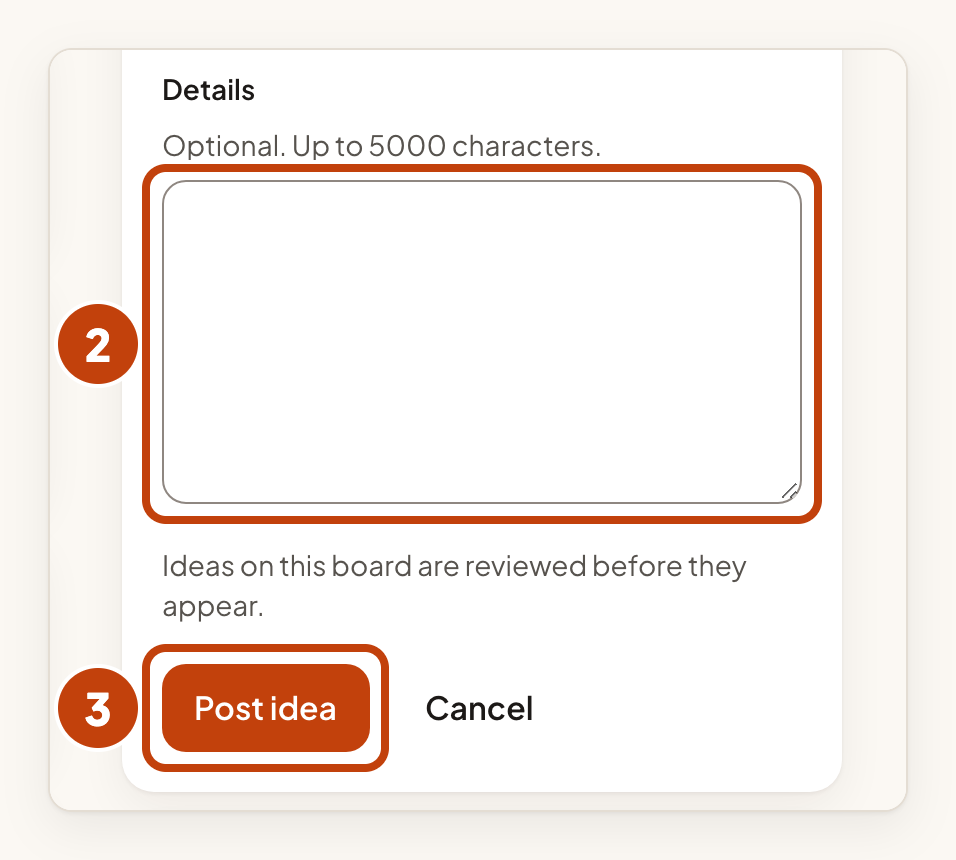
Typing in Title opens the rest of the form. Below Details, your team may ask a few more questions under the heading "A few more details". They are all optional. If your team wrote a template for the board, Details starts with it.
A line above the buttons says "Ideas on this board are reviewed before they appear." when the board reviews new ideas.
Similar ideas
As you type a title of 3 or more characters, a list of similar ideas can appear under the Title box. It shows up to five ideas. Use the arrow keys to move through the list. Use the link under the list to read an idea. Your draft stays as it is.
A signed-in customer who chooses a similar idea adds a vote to it. Choosing it does not make you follow that idea.
Signing in to post
If you are not signed in, the form says "You sign in when you post. What you wrote stays here." The button reads Sign in and post. Select it, then sign in on the next page. Your title and details are kept for 15 minutes.
After you sign in, the board opens with your idea in the form and says "You are signed in. Your idea is below: press Post idea to post it." Select Post idea to post it.
If the 15 minutes have passed, the board says "You are signed in. We could not keep what you wrote, so please write your idea again."
What happens after you post
Your idea opens on its own page. What the page says depends on the board.
- If the board publishes new ideas at once, the page says "Your idea is live. Thanks for posting." Other visitors can see the idea and vote for it.
- If the board reviews new ideas, the page says "Your idea has been sent for review. You will see it here once it is published." Only you can see it. The page shows "Waiting for review. Only you can see this." until your team publishes it.
On both kinds of board:
- You follow the idea you post, so you get updates about it. See Following ideas.
- You can edit your idea for 30 minutes after you post. The edit window closes when someone else votes on it or your team edits it. On a board that reviews new ideas, it also closes when your team publishes it.
- The people on your team who can moderate the product, such as owners and admins, get an email about each idea that waits for review. They can turn that off. You do not get an email when your team publishes your idea.
When the form is not shown
Instead of the form, the board shows one of these messages:
- "This board is closed to new posts." Your team has closed the board.
- "Only the product team posts on this board." Only your team can post on this board.
- "Join this product to post an idea." Select Join this product first.
- "Your access to this product is suspended. Contact the product team." Ask your team for help.
- "This account was erased from this product and cannot rejoin."
Limits
- Title needs 3 to 120 characters. Details can hold up to 5000 characters. The form stops you typing more.
- If the title is empty, too short or only spaces, the form asks you to fix it before you can post.
- Invisible or control characters, often pasted from another app, are refused. The form says "Remove the invisible or control characters. Retyping the text usually clears them."
- A customer can post up to 5 ideas an hour and 20 ideas a day on one product. After that, the form says "You have made too many of these requests. Try again later."
- If you send requests too quickly, the form says "Too many attempts. Try again in a moment."
- If the details are too long to keep while you sign in, the board says "Your details were too long to keep while we sent you back here. Please add them again."
- The form has no picture field. To add pictures, open your idea after you post it. See Add images to ideas and comments.
Example
For example, Alex is signed in and has joined Acme Notes on the Acme Labs portal. Alex opens the board, types Dark mode for the mobile app in Title, and selects Post idea. The board publishes new ideas at once, so the page says "Your idea is live. Thanks for posting."
