Roles and product access
Everyone on your team has a role in the workspace. Members can also be given access to specific products at one of three levels, optionally for a limited time.
Who can use it
Owners and admins change roles and product access. Only an owner can make someone an owner or change an owner's role. Every plan has no limit on team members.
The three roles
| Role | What they can do |
|---|---|
| Owner | Everything an admin can do. Also delete products and the workspace, and make other people owners. |
| Admin | See every product and create products. Invite and manage the team, manage API keys, webhooks and other integrations, and read the audit log. |
| Member | See only the products they have access to, and work at the level they hold for each one. |
A workspace must always keep at least one owner. If you try to remove or demote the last owner, the console asks you to make someone else an owner first.
Owners and admins must use two-factor authentication. See Sign in and two-factor authentication.
Product access levels
A member sees a product only if they have a level on it. Owners and admins see every product without needing one.
| Level | What it allows |
|---|---|
| Manager | Everything a moderator can do. Also manage the product's boards and tags, publish changelog entries, change the product's name and slug, and download the full export. |
| Moderator | Review and moderate ideas and comments, apply tags, change the status of ideas, and write changelog entries. A manager publishes them. |
| Viewer | See the product's ideas, roadmap and changelog. Change nothing, but they can ask for an export. |
The full export includes customers' email addresses and internal notes. Only owners, admins and managers can download it.
Change a role
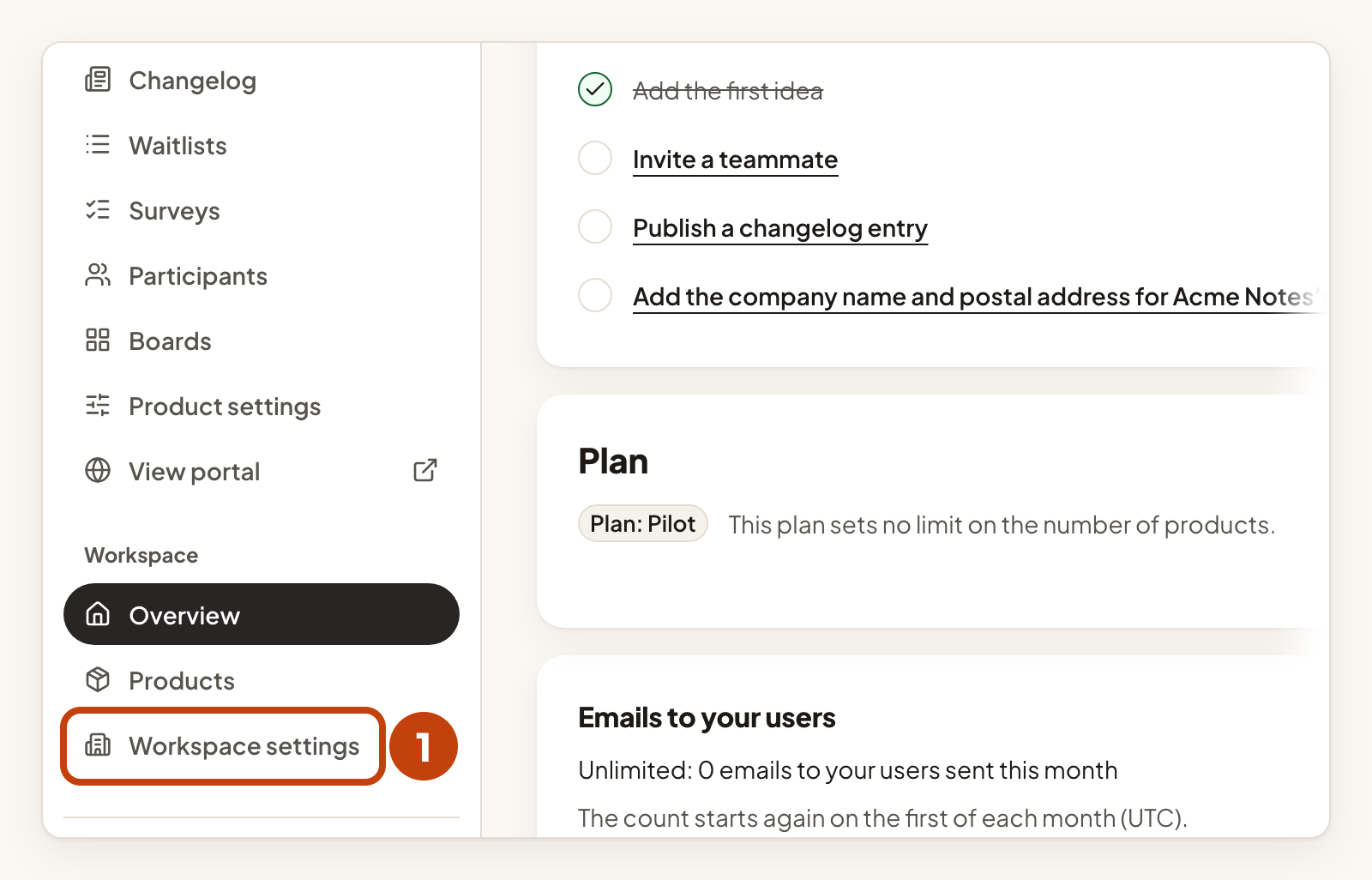
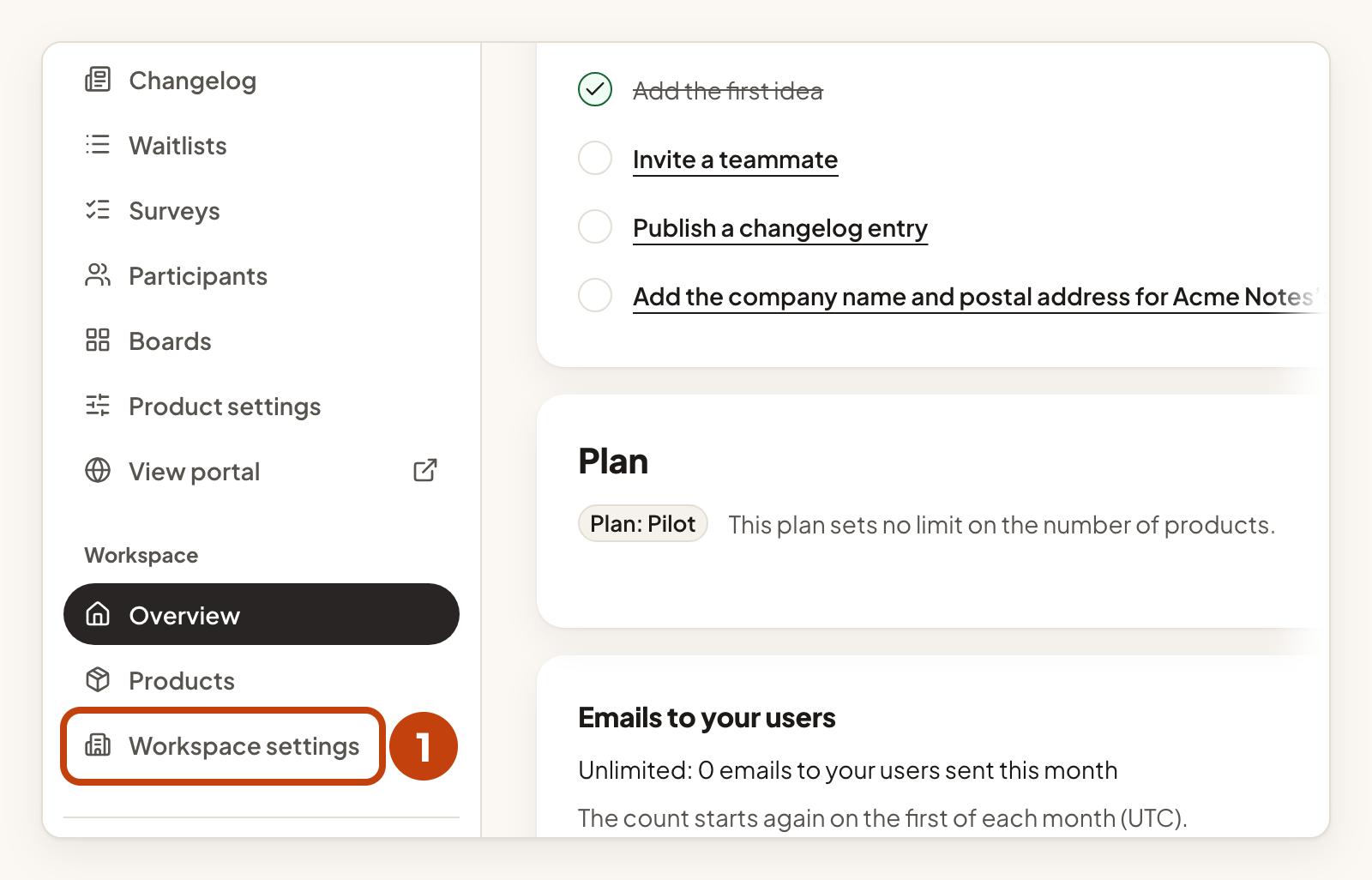
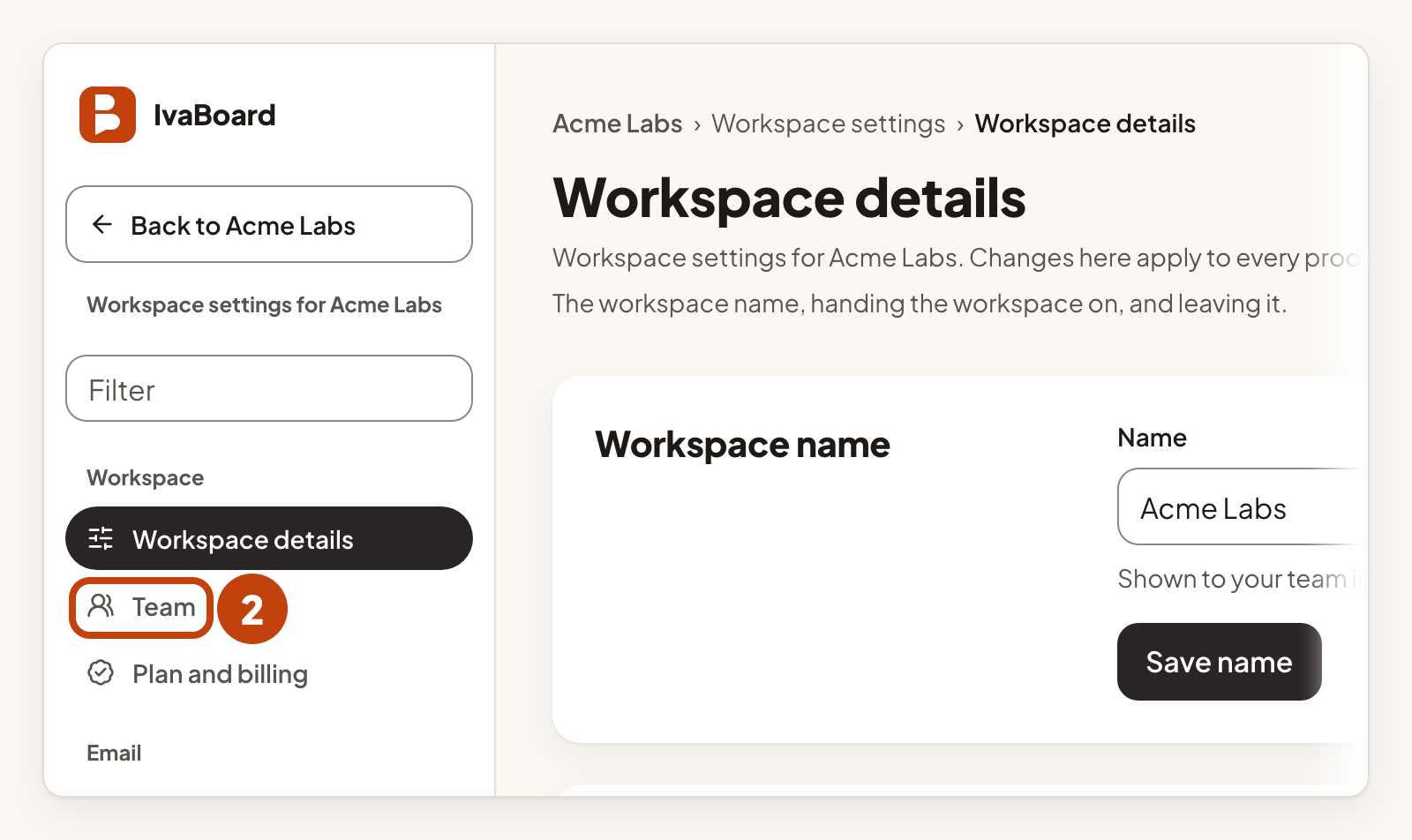
- Open Workspace settings in the sidebar.
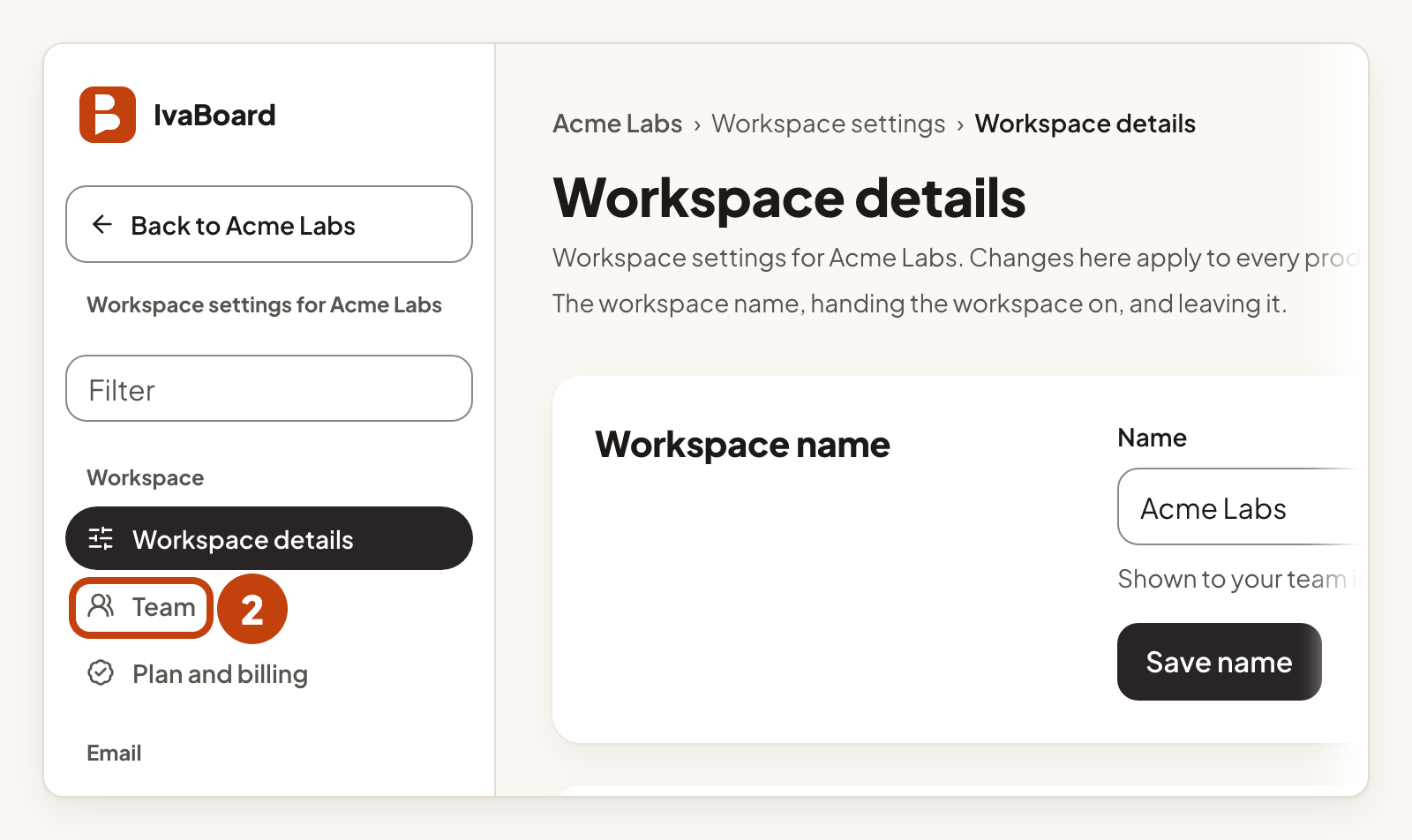
- Select Team in the settings menu.
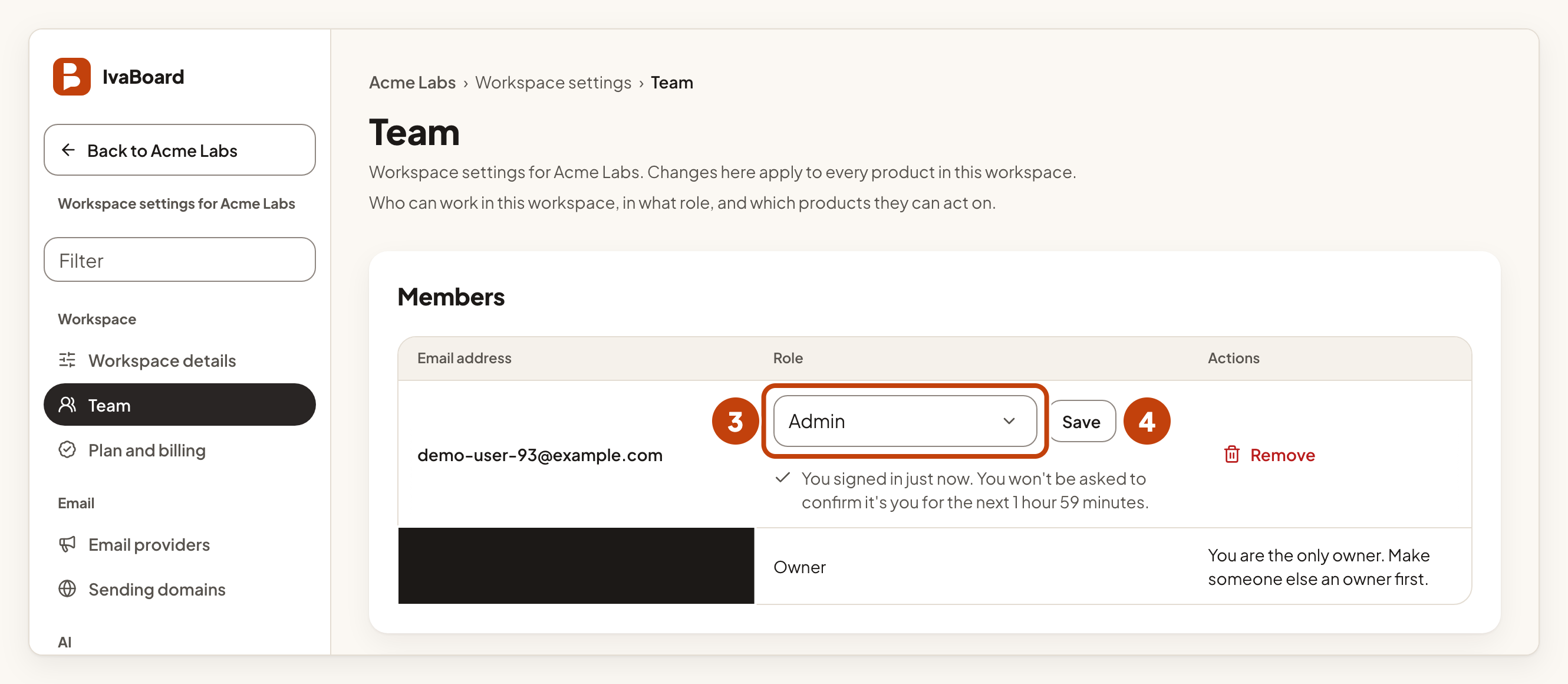
- In the Members list, choose the new Role for the person.
- Select Save on that person's row.
If someone else changed the same person at the same moment, the console tells you. Try again.
Give or remove product access
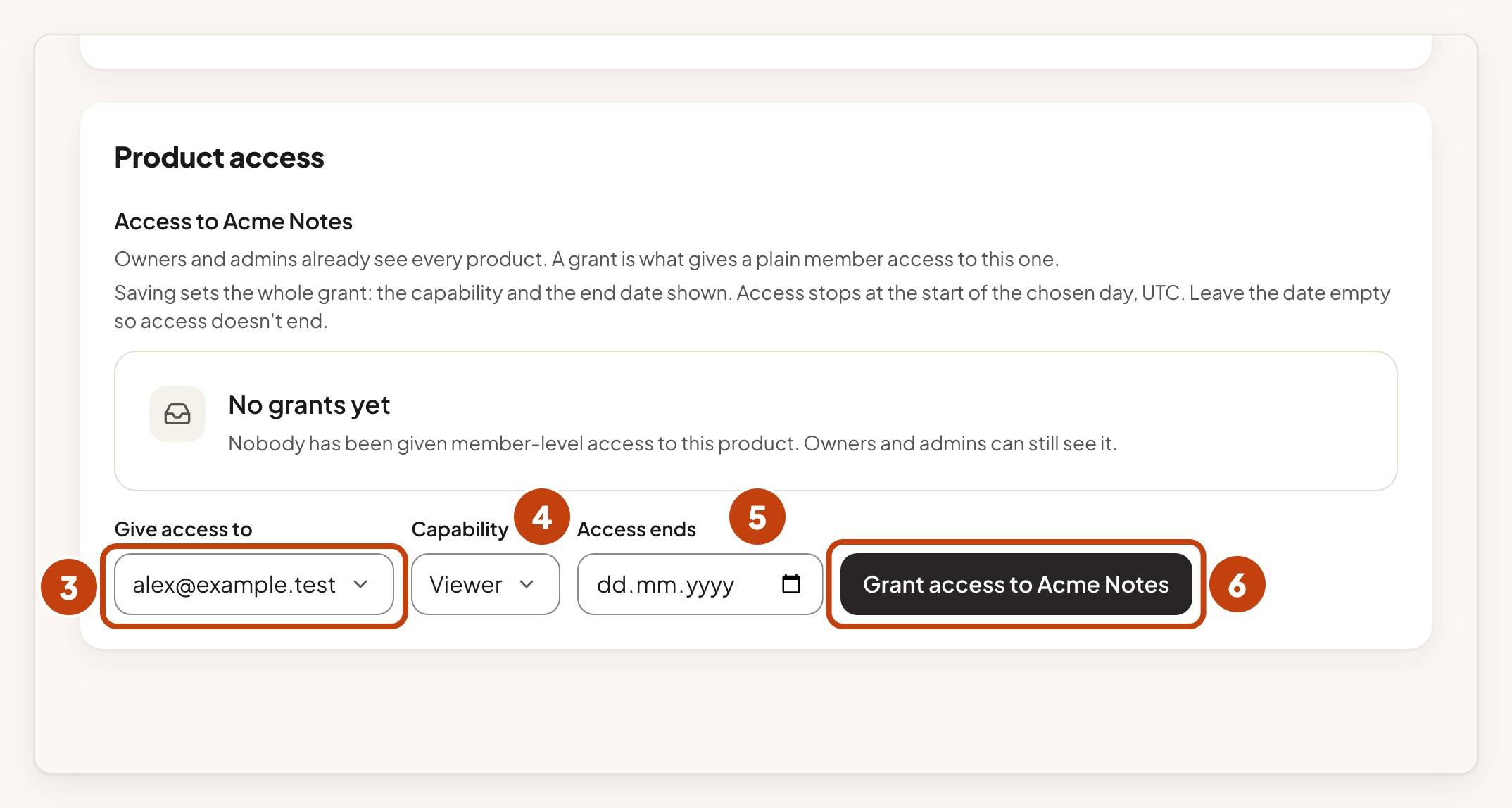
Each product has its own section under Product access. Its heading reads Access to and the product name.
- Open Workspace settings in the sidebar.
- Select Team in the settings menu.
- In the product's section, choose a member under Give access to.
- Choose a Capability: Manager, Moderator or Viewer.
- If you like, set Access ends to a date. Access stops at the start of that day, in UTC.
- Select Grant access to and the product name.
To remove access, select Revoke on that person's row. To change a level or a date, choose the new value. Select Save on the same row. Saving sets the whole grant again. It can also bring back access that has ended.
You can also set product access when you invite someone. See Invite your team.
Plan limits
Your plan sets how many products your workspace can have. Every plan has no limit on team members. See Add and manage products and the pricing page.
Example
For example, Sam Taylor ([email protected]) is a member of Acme Labs. Sam needs to moderate ideas in Acme Notes, but should not change its boards. Open Workspace settings. Select Team. Under Give access to in the Acme Notes section, choose [email protected]. Choose Moderator as the Capability. Leave Access ends empty. Select the Grant access to button in the Acme Notes section.
