AI help for your team
Your team can use four AI helpers in IvaBoard: release-note drafts, reply drafts, thread summaries and possible duplicates. Each one needs a working AI key, which you connect first in Connect an AI provider. An update goes public when someone selects Publish update, or at the date and time set under When and confirmed with Schedule. Nothing is posted until someone selects Post comment.
Who can use it
An Owner or an Admin can use every AI feature. A Manager or a Moderator can write release-note drafts, reply drafts and summaries in their product. Only an Owner, an Admin or a Manager can use Merge… and Not a duplicate.
What the notice says about each feature
The connect notice describes what each feature sends. These are its own words.
"Only the text that the features you switch on need:"
"Release-note drafts: the title and details of the ideas linked to the changelog entry that its readers can already see, the writing style you wrote and the product's language. Ideas on private boards, and ideas that are not public yet, are not sent."
"Reply drafts and summaries: the idea's title and details, and its latest public comments and staff replies. This can be any idea of the product, including ideas on private boards and ideas not approved yet. Internal notes are not sent."
"Possible duplicates: the title and details of each approved idea in the product, private boards included. You can also send your existing ideas once, after you see how many calls it takes. Only your team sees the matches."
Read the Privacy Policy.
Turn on the AI features for a product
Each switch works only while a working key is connected in Workspace settings › AI keys and model.
- Select Product settings in the product's menu.
- Select AI features under Connect.
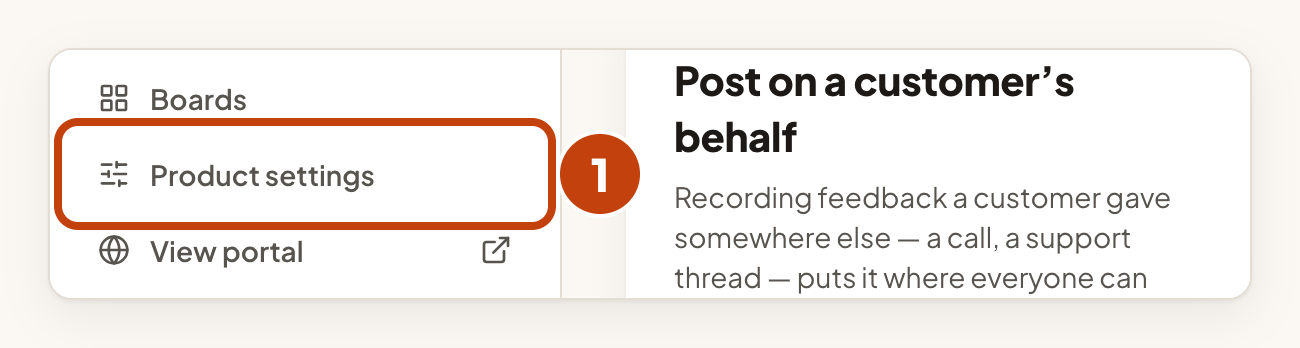
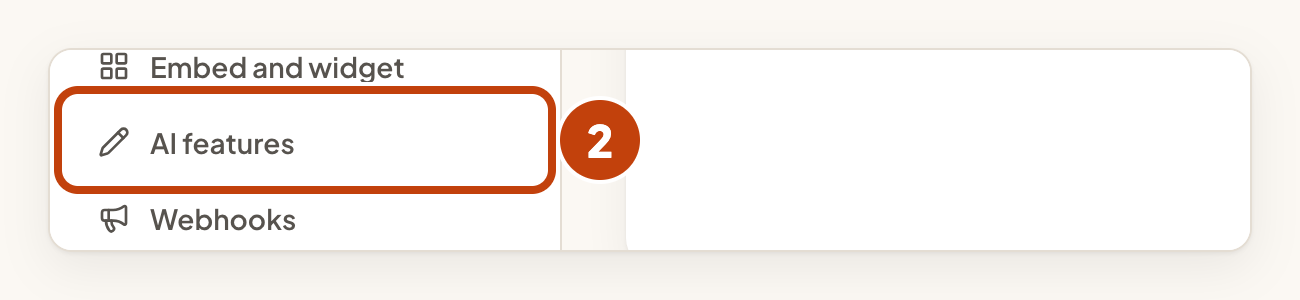
Then turn on the features you want for this product.
- Tick Release-note drafts.
- Tick Reply drafts.
- Tick Thread summaries.
- Tick Possible duplicates in the inbox.
- Select Save.
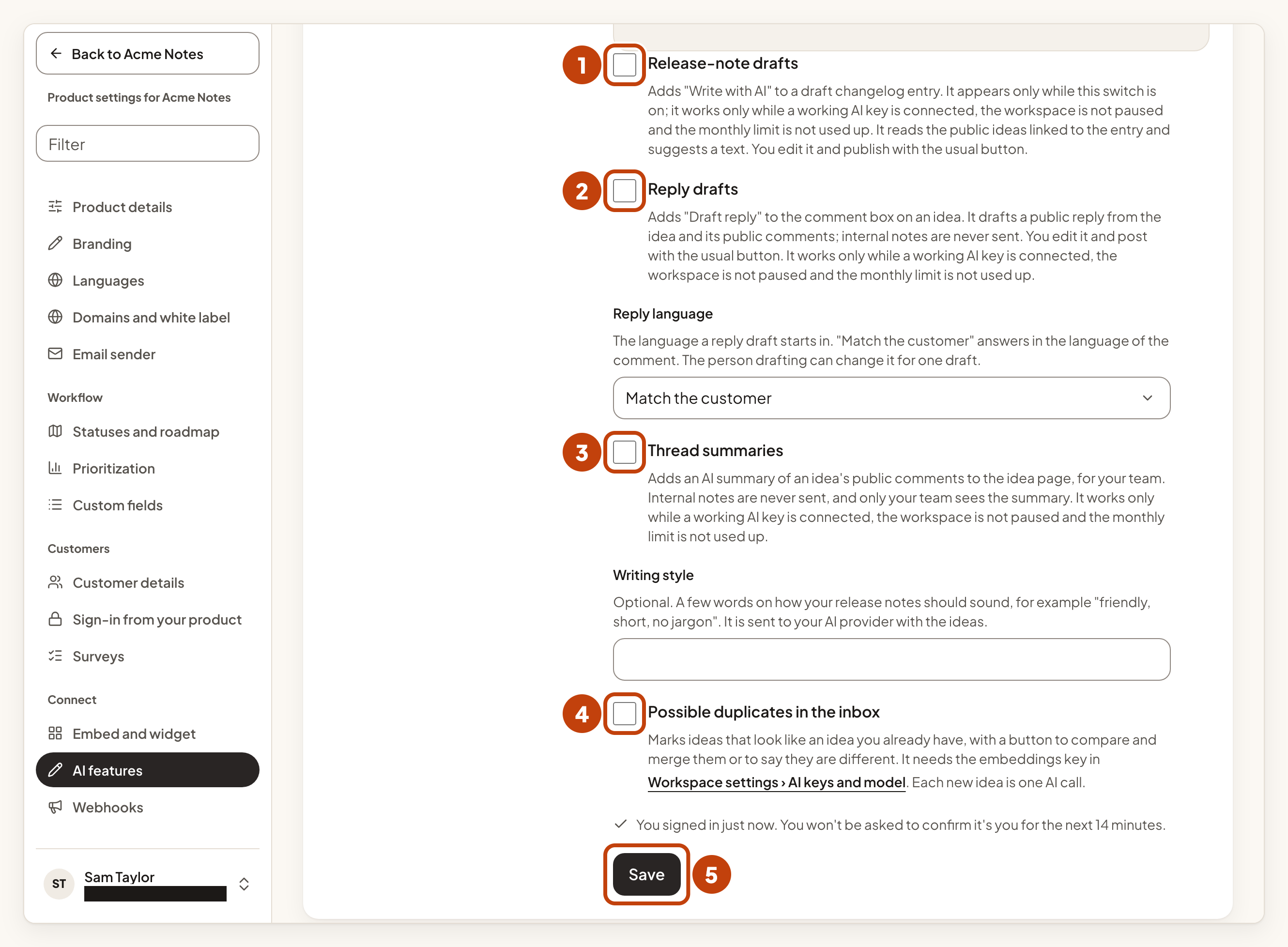
Note: Possible duplicates in the inbox needs a key that makes embeddings. Today that is an OpenAI key, connected under Duplicate matching in AI keys and model.
Write a release-note draft
Write with AI helps you draft a changelog entry from the ideas it answers. It appears on a draft entry when Release-note drafts is on.
First, create the entry.
- Select Changelog in the product's menu.
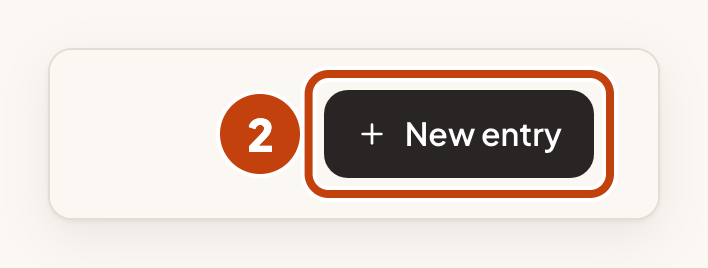
- Select New entry.
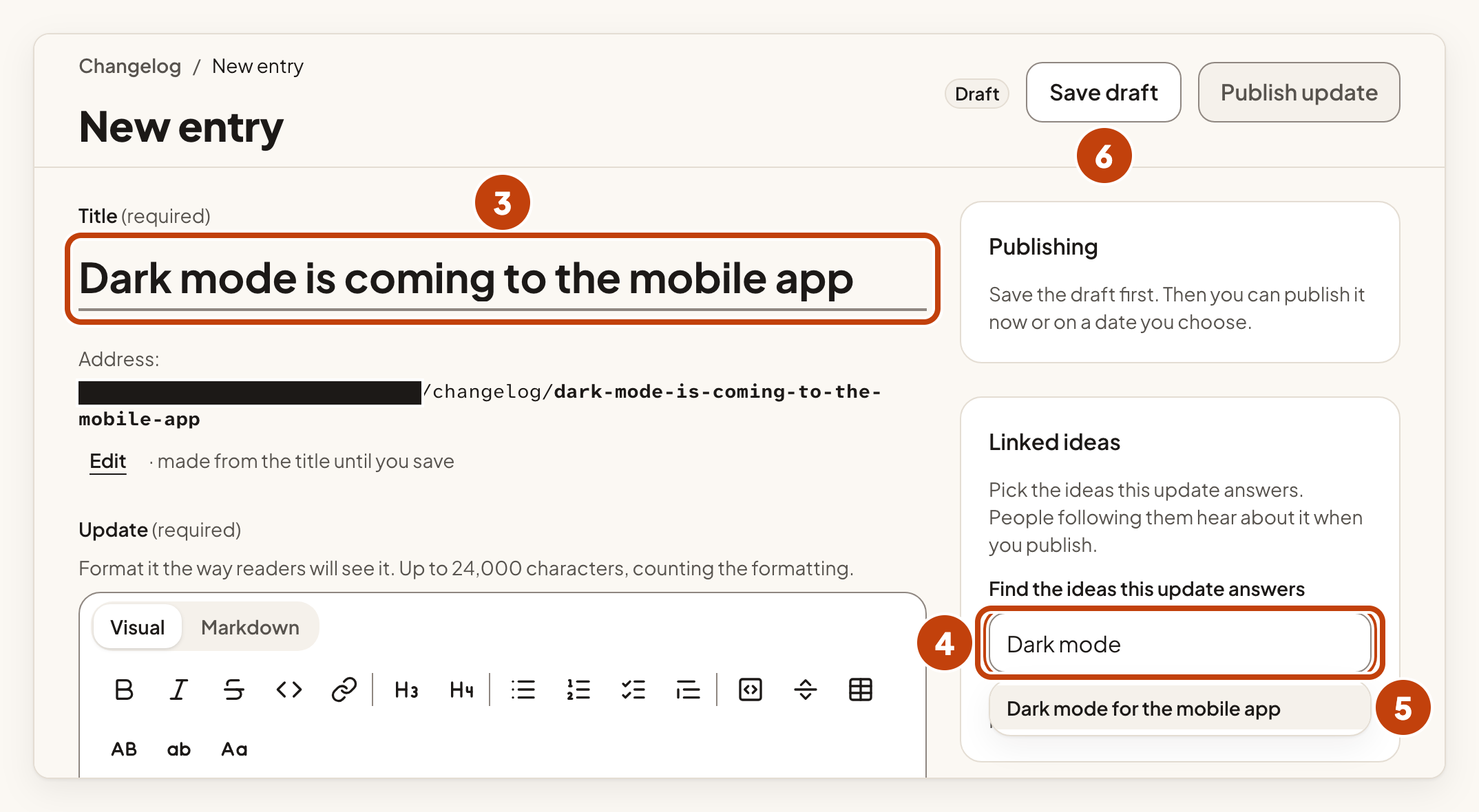
- Type the update's title in Title.
- Type part of an idea's title in Find the ideas this update answers.
- Select the idea in Matching ideas.
- Select Save draft.
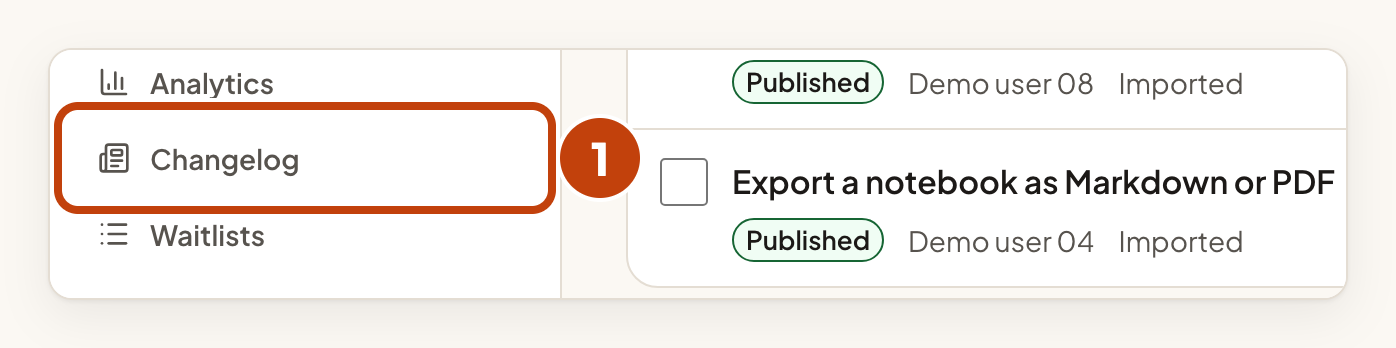
Then write the draft.
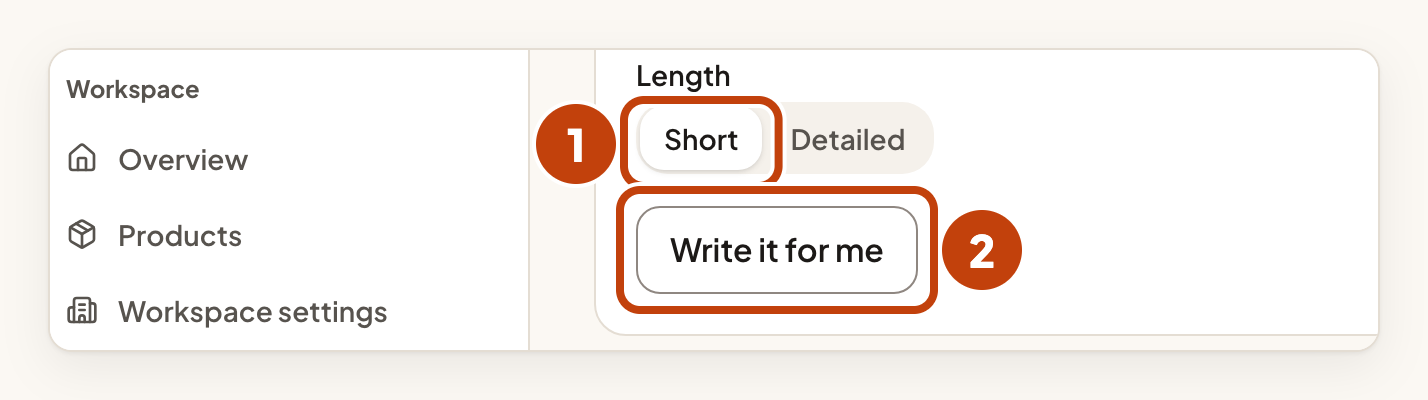
- Choose Short or Detailed under Length.
- Select Write it for me.
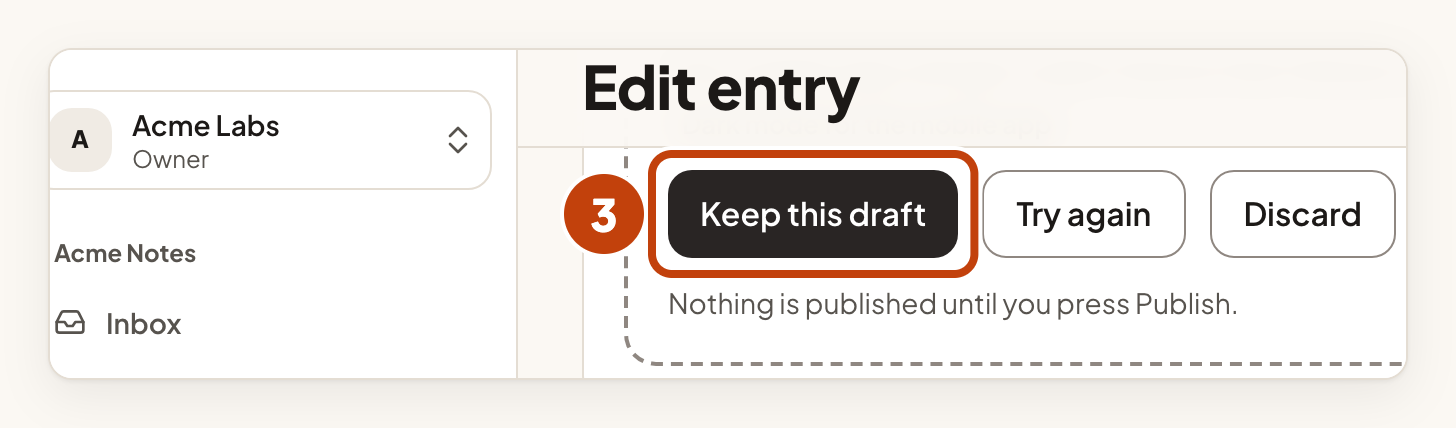
- Select Keep this draft after you read the text.
- Select Save draft.
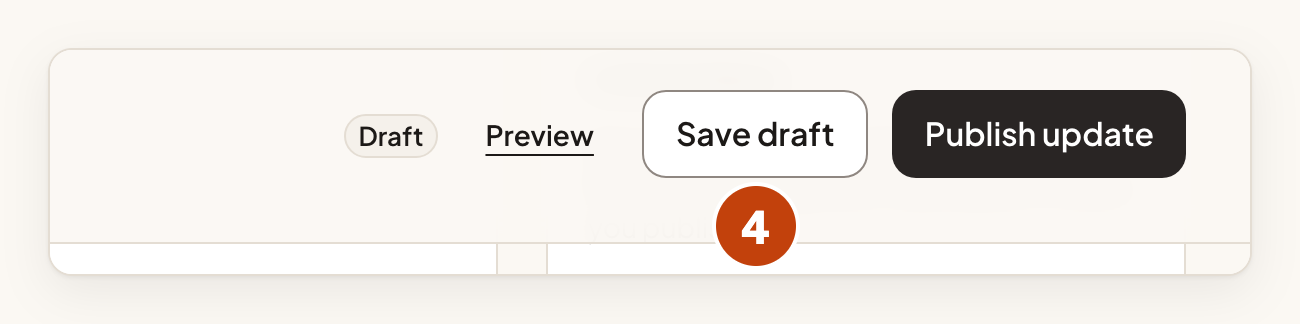
Important: Check the draft before you keep it. The update goes public when you select Publish update, or at the date and time you set under When and confirm with Schedule.
Draft a reply on an idea
Reply drafts appear above the comment box of an idea. They are for public replies that your team posts.
- Select the idea title in the Inbox, for example "Dark mode for the mobile app".
- Choose a value in Tone, for example Friendly.
- Select Draft reply.
- Under What is the reply for?, select the reason, for example Thank and acknowledge.
- Select Use draft.
- Select Post comment.

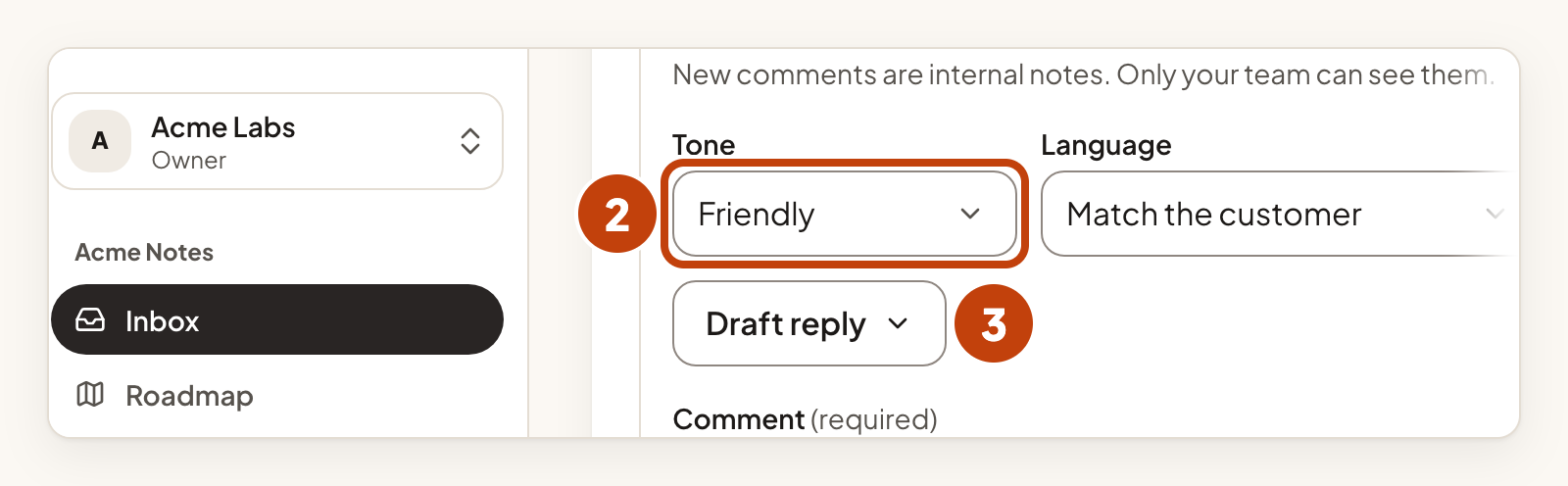
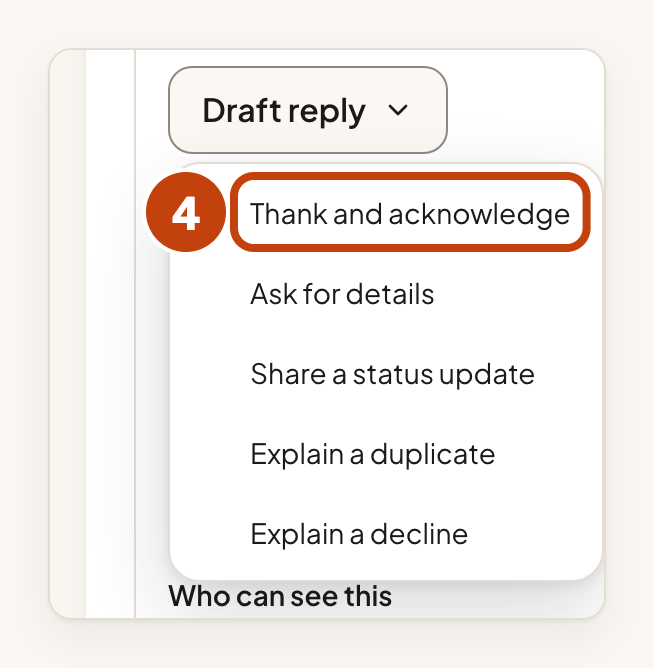
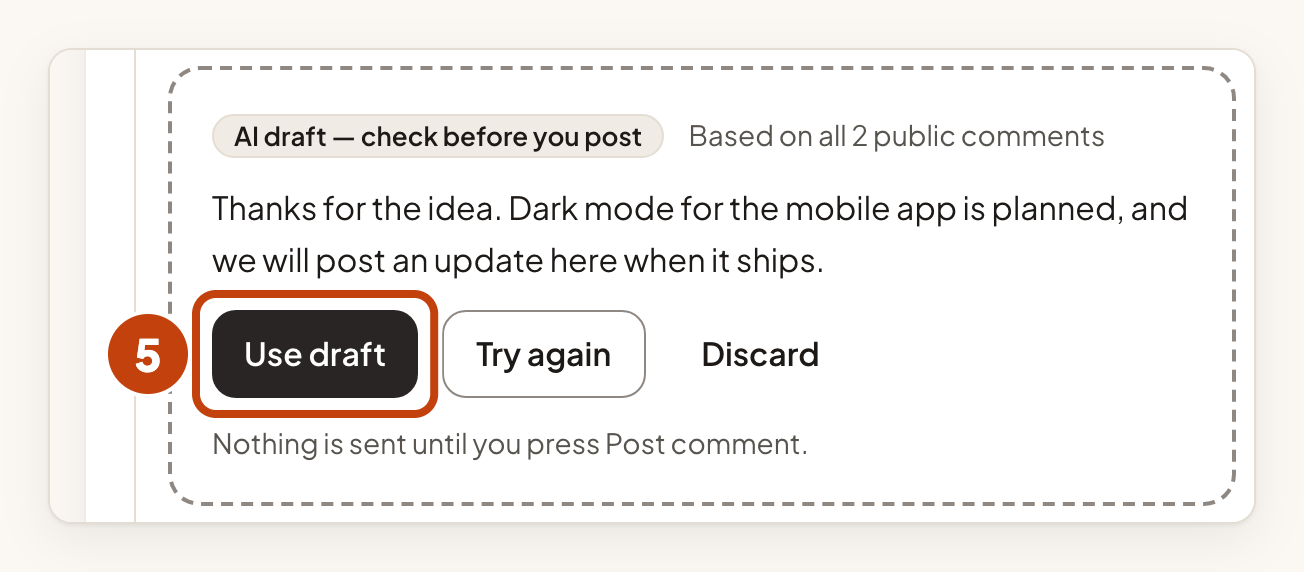
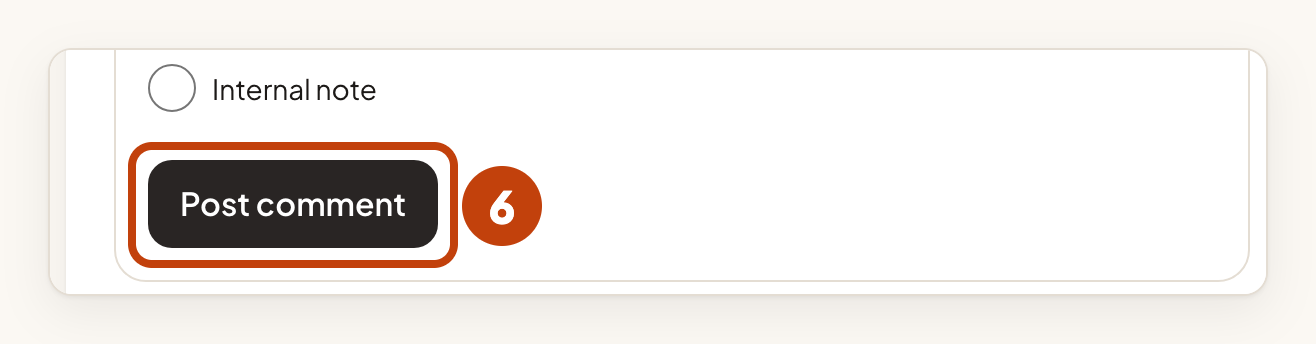
If the draft has a part in double square brackets, IvaBoard asks you to fill it in or remove it before you post.
Summarise an idea's comments
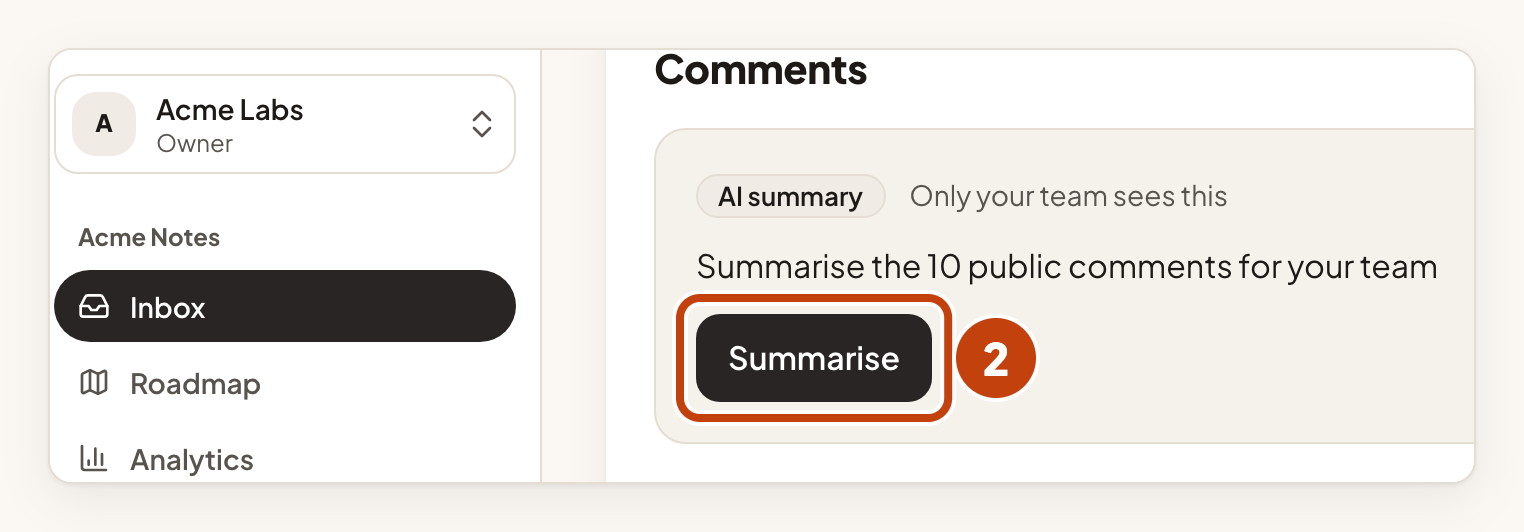
The AI summary card appears on an idea with ten or more public comments. The card says: "Only your team sees this."
- Select the idea title in the Inbox, for example "Dark mode for the mobile app".
- Select Summarise in the AI summary card.
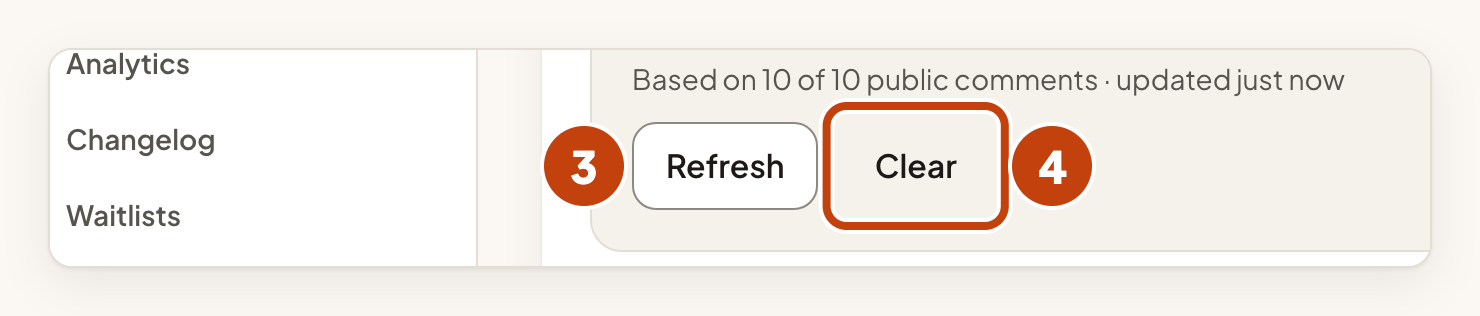
- Select Refresh when the card shows new comments.
- Select Clear to remove the summary.
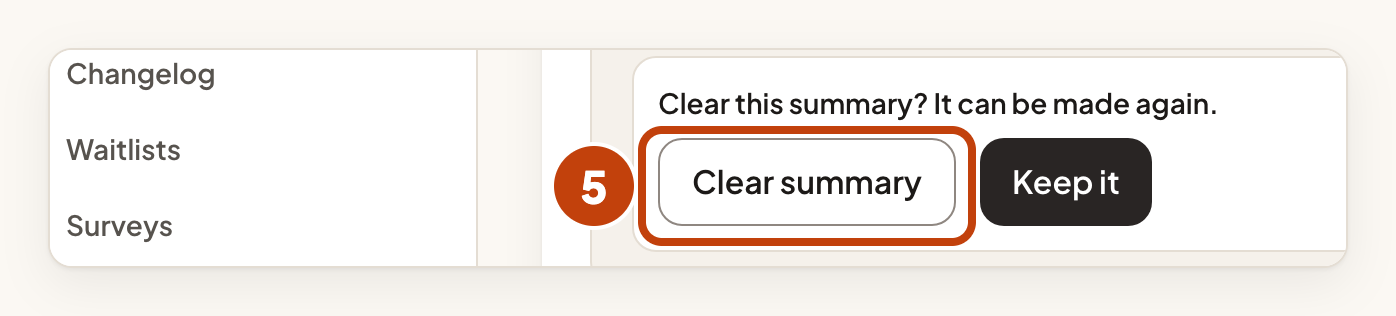
- Select Clear summary to confirm.

Check possible duplicates in the inbox
Possible duplicates mark an idea that looks like an idea you already have. The mark has the tag AI match. IvaBoard compares a new approved idea in the background, so AI match can appear a short while after the idea is approved.
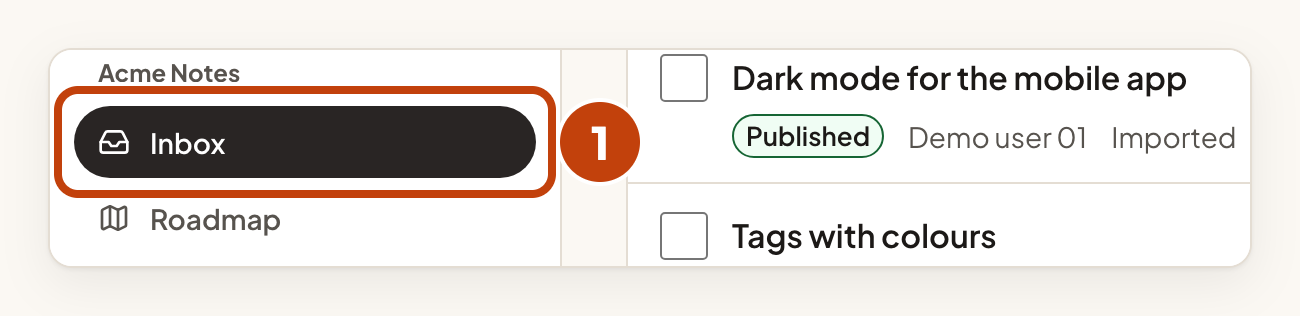
- Select Inbox in the product's menu.
- Select Possible duplicates above the list.
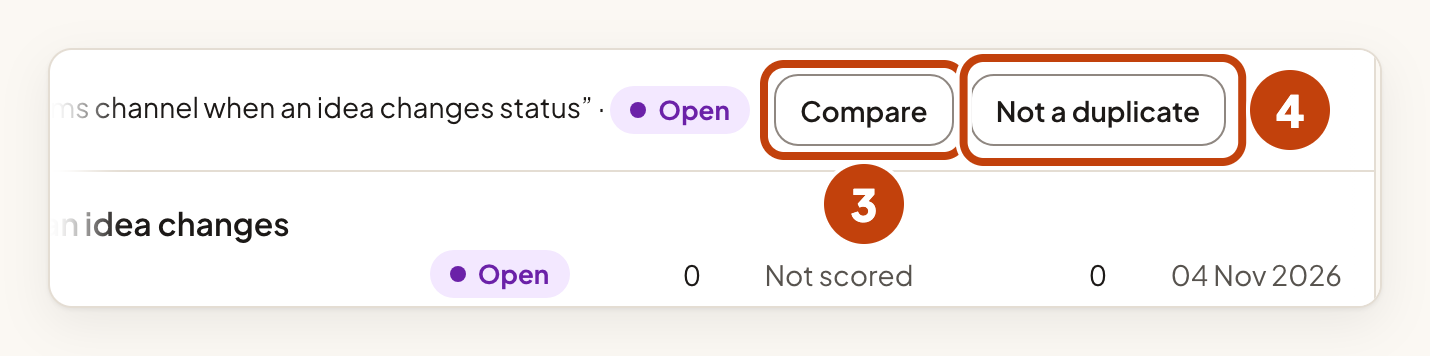
- Select Compare under the idea to see both ideas side by side.
- Select Not a duplicate if the two ideas are different.
- Select Merge… in the comparison to combine the two ideas.

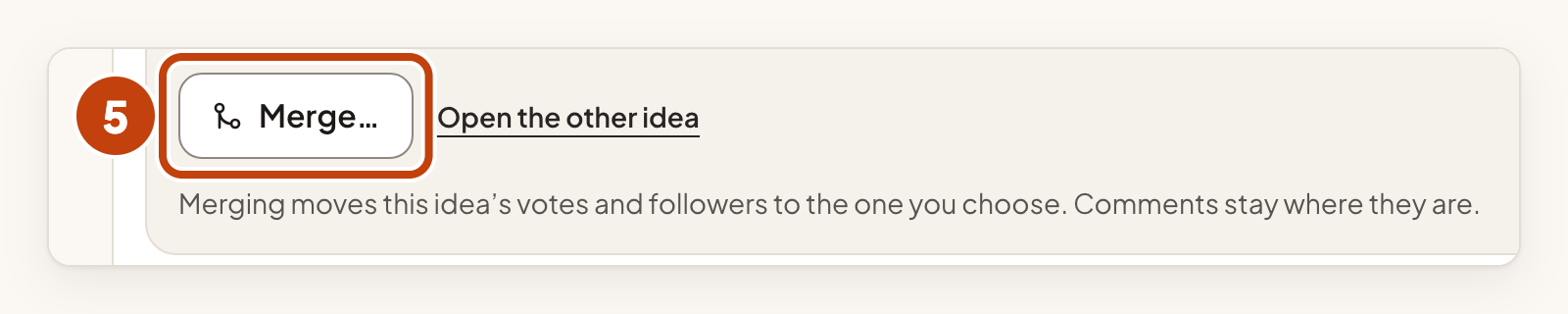
Merging moves the votes and followers to the idea you choose. Comments stay where they are.
