How your customers sign in to your portal
Anyone can read your public portal. To post an idea, vote or comment, a customer needs an account on your portal. This article shows how a customer creates an account and signs in.
Who can use it
Every plan includes portal accounts. Owners and admins choose how people sign in and can suspend a customer. Both are explained below.
Signing in with a code on your own domain needs white-label, a verified custom domain, and a sign-in method that is not Only through your product. See White-label: remove IvaBoard branding and Use your own domain for your portal.
Create an account
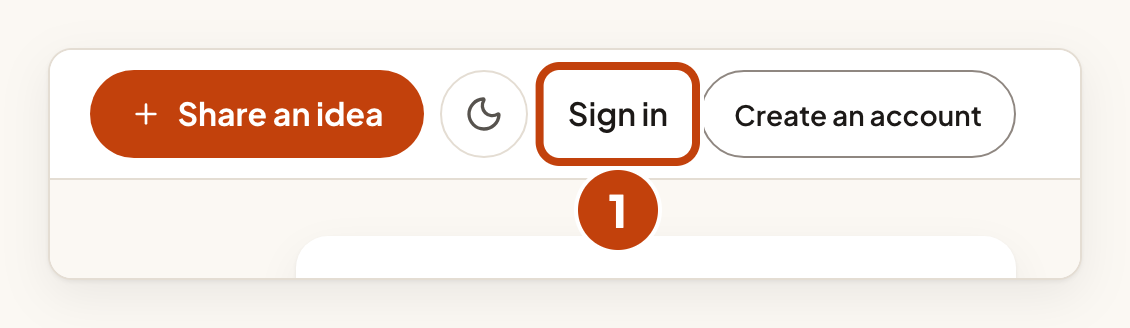
- Select Sign in at the top of your portal.
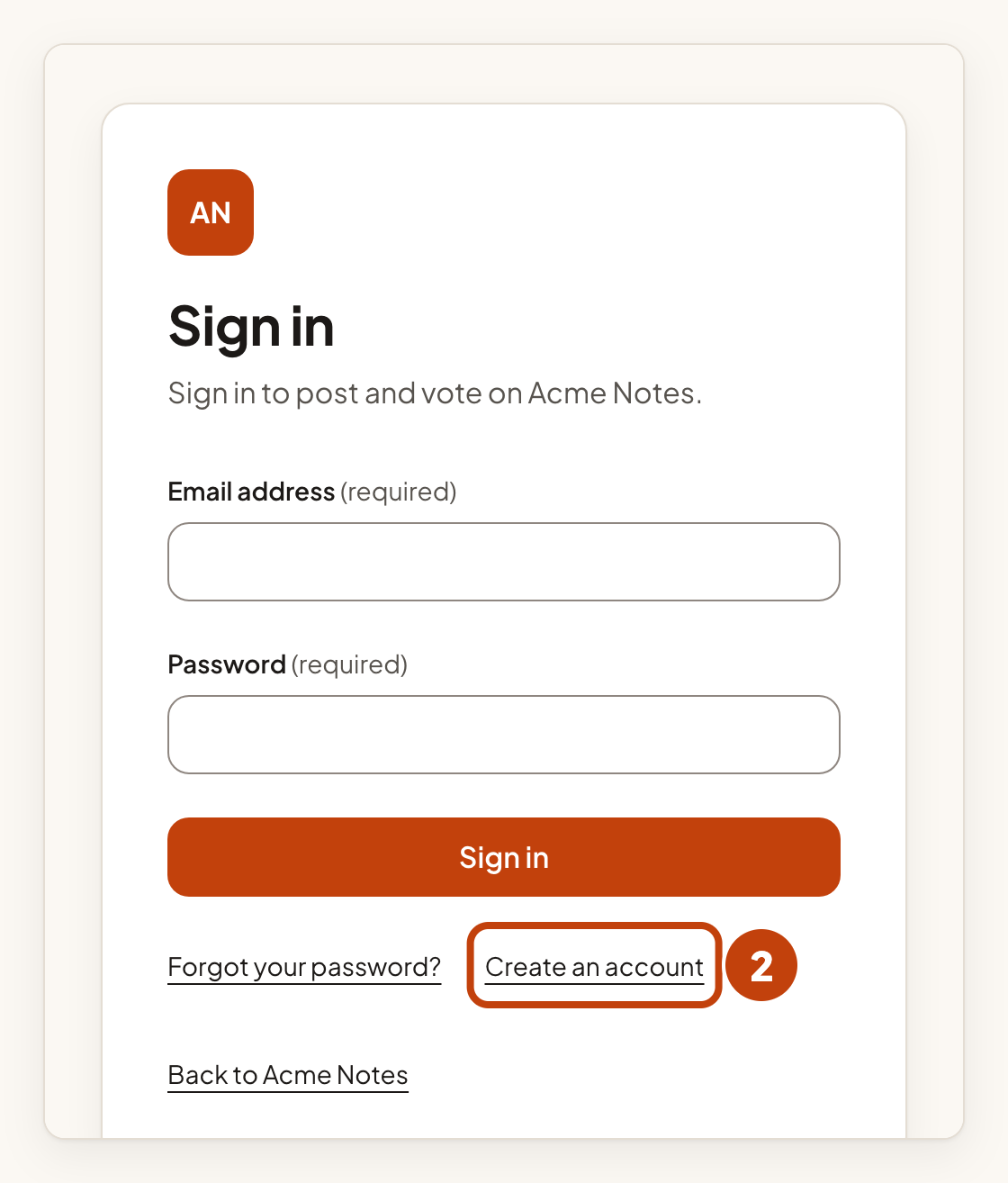
- Select Create an account.
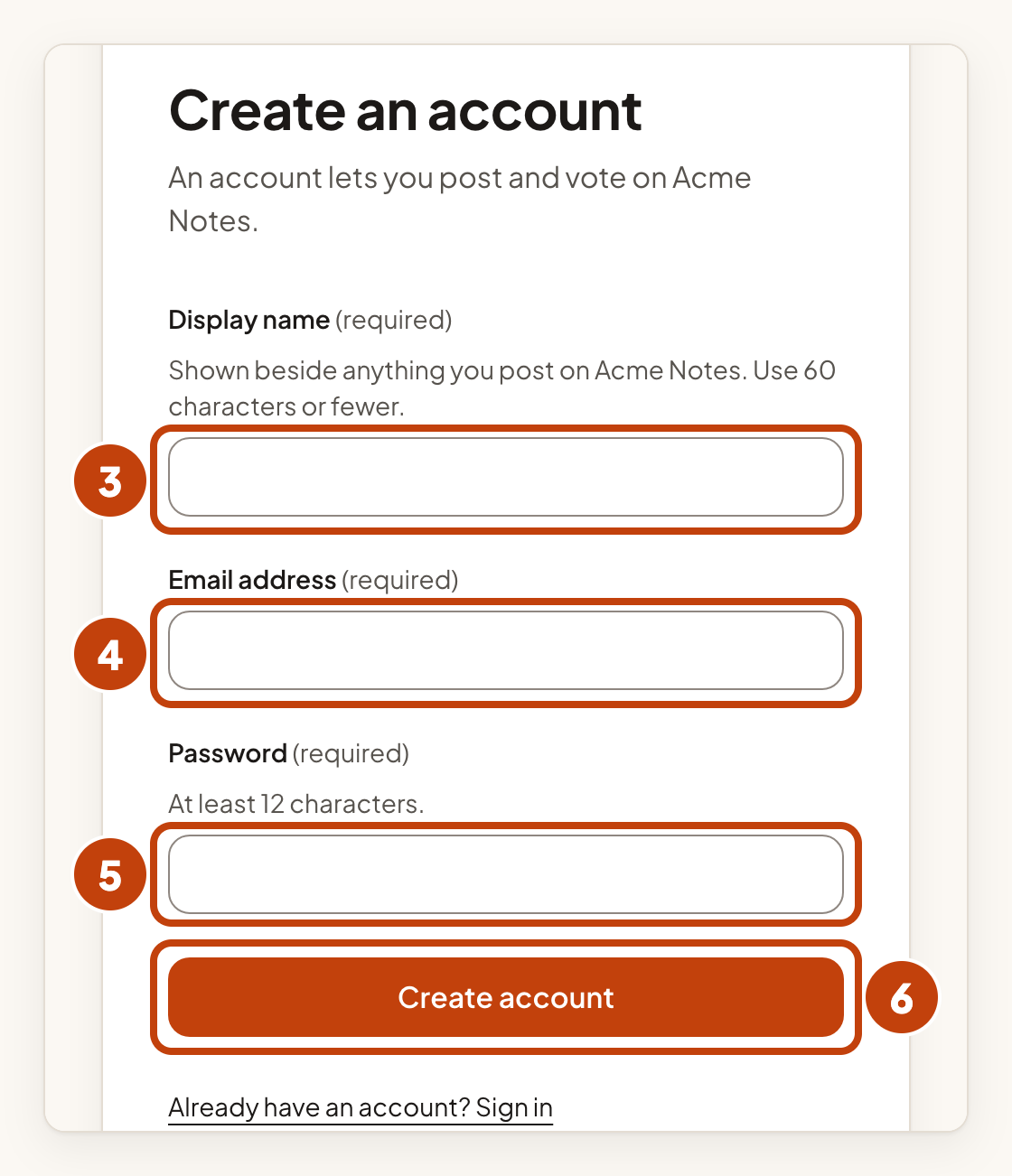
- Type your Display name. It is shown beside anything you post.
- Type your Email address.
- Type a Password. The form shows how long it must be.
- Select Create account.
Confirm the email address
IvaBoard then emails a link to confirm the address.
- Open the confirmation email from IvaBoard.
- Select the link in the email.
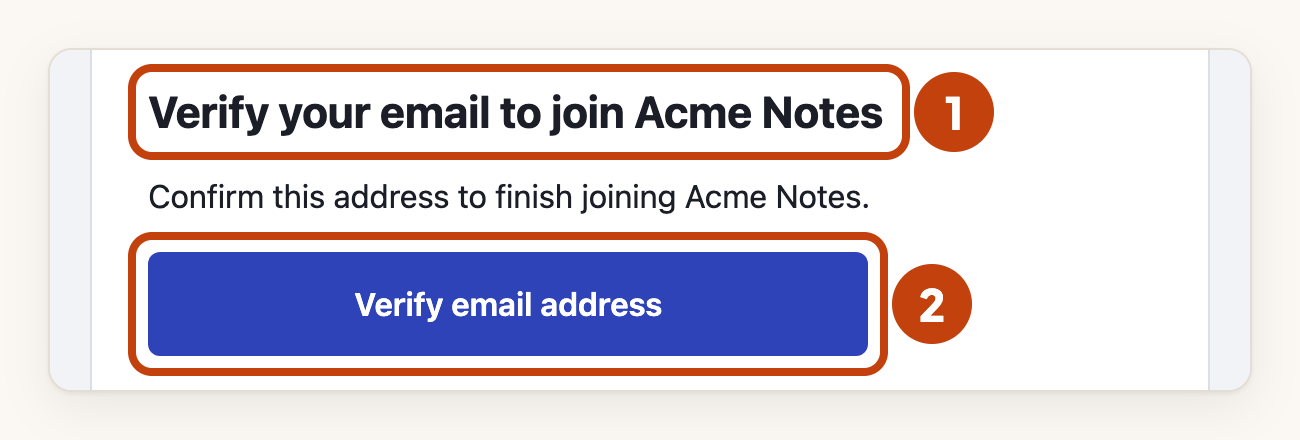
In the same browser, the link confirms the address and shows a Finish joining button with your product's name. The customer selects it to join your product. In another browser, the link confirms the address and asks the customer to sign in.
If a customer forgets their password, they select Forgot your password? on the sign-in page. IvaBoard emails them a link to choose a new one.
One account for each product
A customer has one account, but joins each product on its own. Joining one product never gives access to another. Two products do not merge people because their email addresses match.
Sign in on your own domain
By default, the sign-in page is on IvaBoard's address. The customer signs in there and comes back to your domain.
When white-label is on, your domain is active, and the sign-in method is not Only through your product, customers sign in on your domain without leaving it. They use a code sent by email, so there is no password on that address.
On your own domain, type your Email address and select Email me a code. Then type the code in Sign-in code and select Sign in.
The code expires after 10 minutes and works once. It works only in the browser that asked for it. A customer can ask for up to five codes an hour, and then must wait before asking again.
A new customer selects New here? Create an account first. After the code, they type a Display name and select Finish signing in.
Choose how people sign in
Owners and admins choose how people sign in. To use sign-in from your product, set it up first. See Sign your users in to the portal from your app.
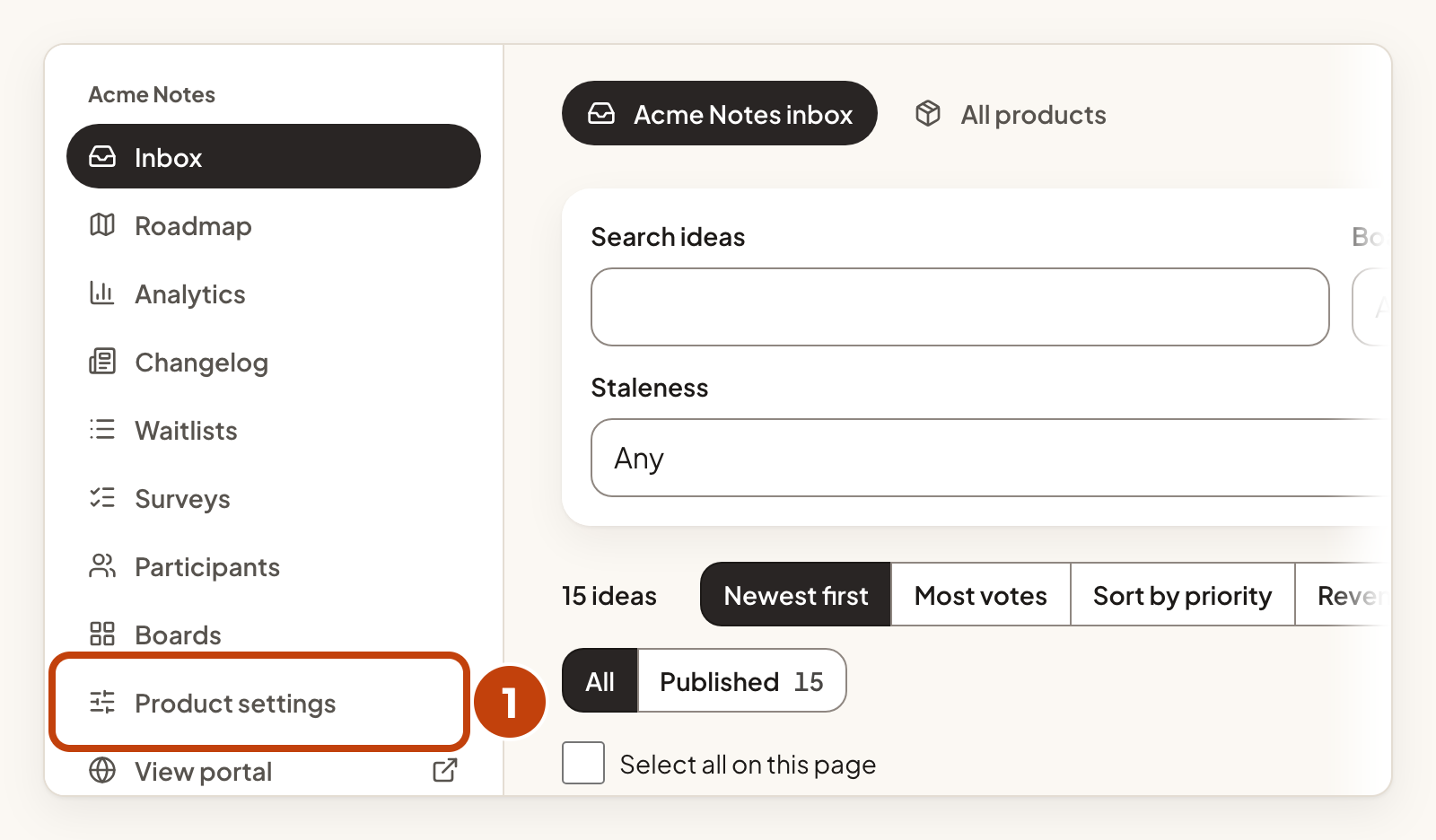
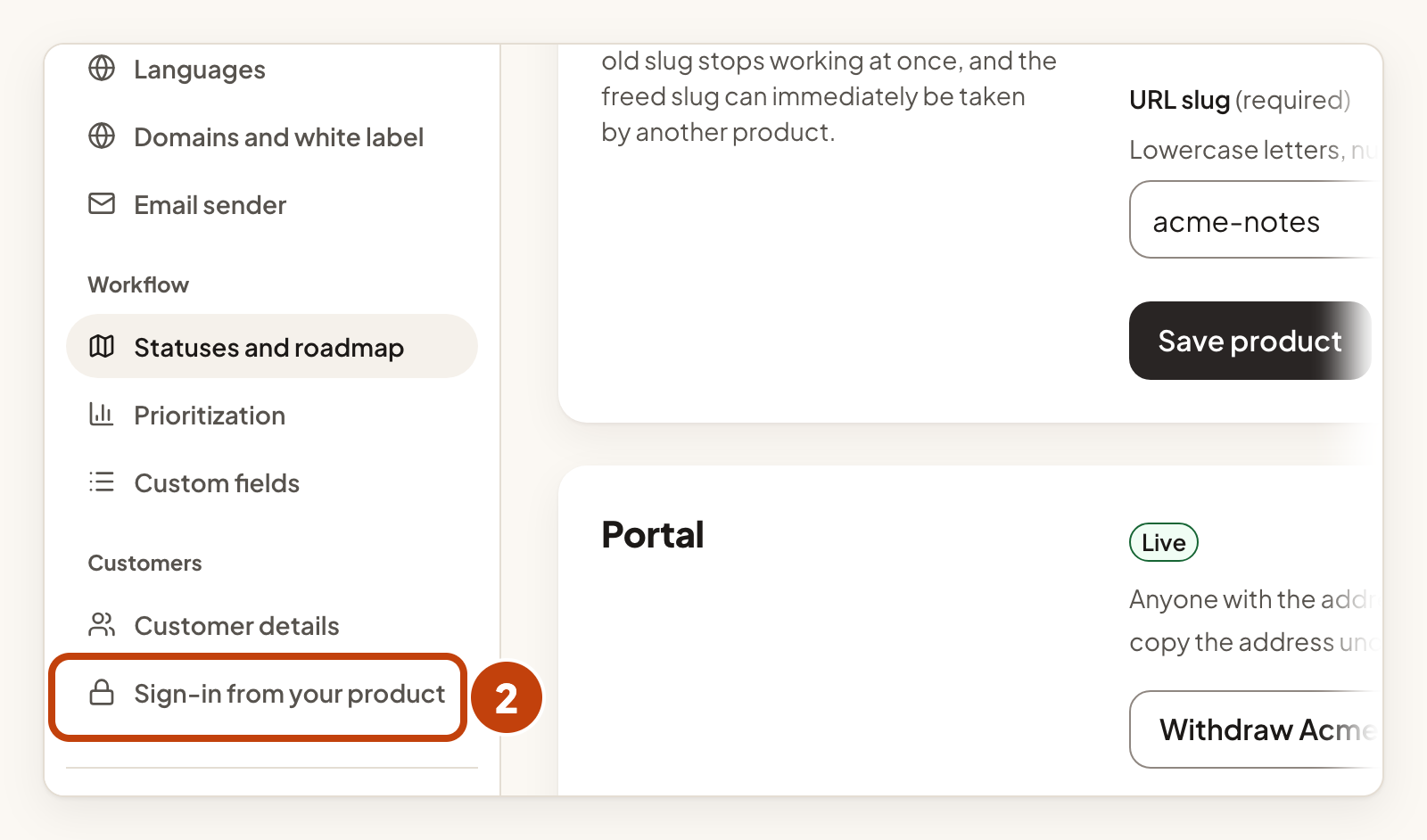
- Select Product settings in the sidebar.
- Select Sign-in from your product in the settings list.
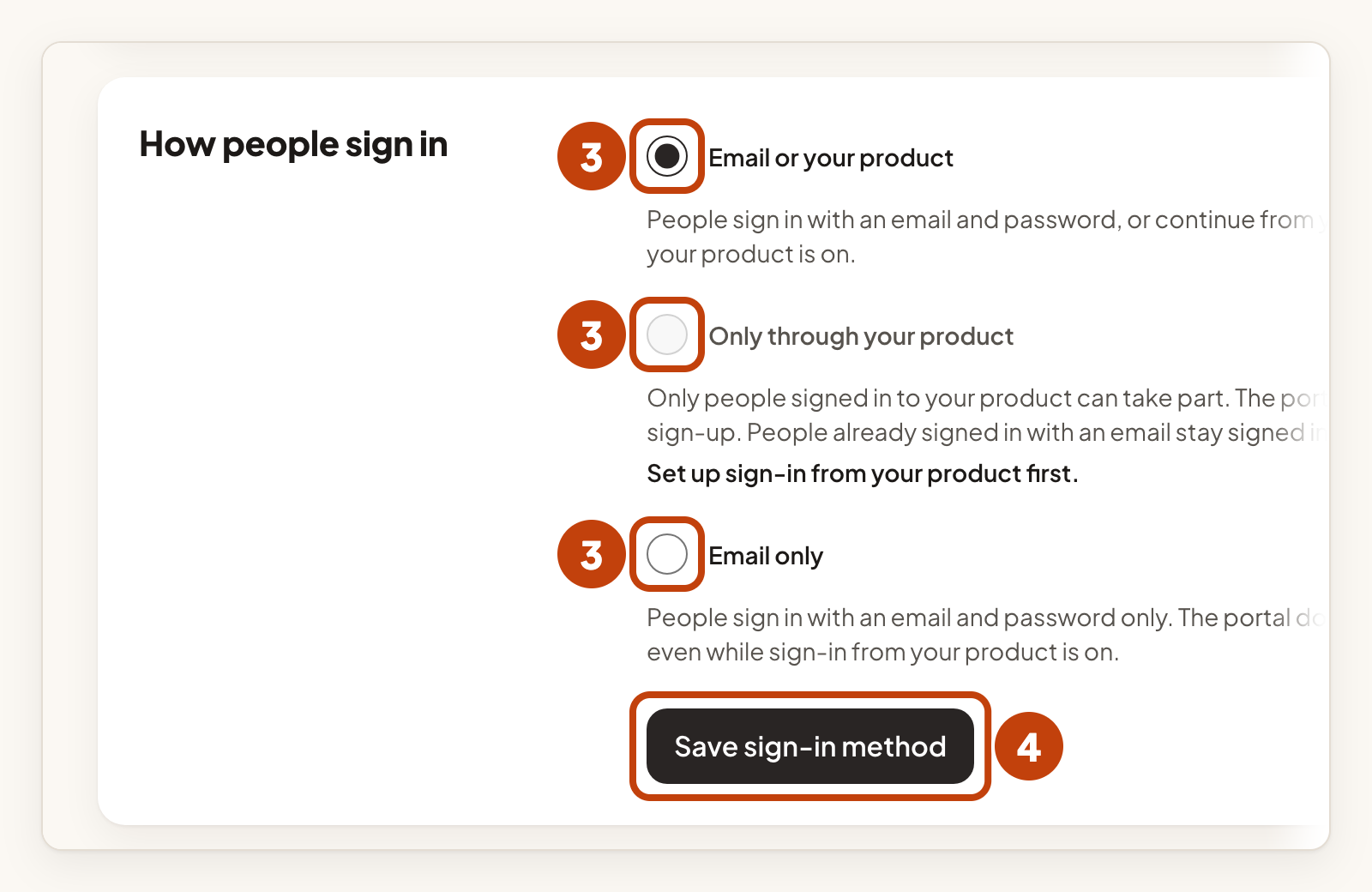
- Under How people sign in, choose one option.
- Select Save sign-in method.
| Option | What it means |
|---|---|
| Email or your product | People sign in with an email and password, or continue from your product. |
| Only through your product | Only people signed in to your product can take part. The portal hides its email sign-in and sign-up. |
| Email only | People sign in with an email and password only. |
Only through your product is greyed out until you set up sign-in from your product.
If you choose Only through your product and the provider is not active, nobody can start a sign-in. Make the provider active again, or change how people sign in.
Suspend a customer
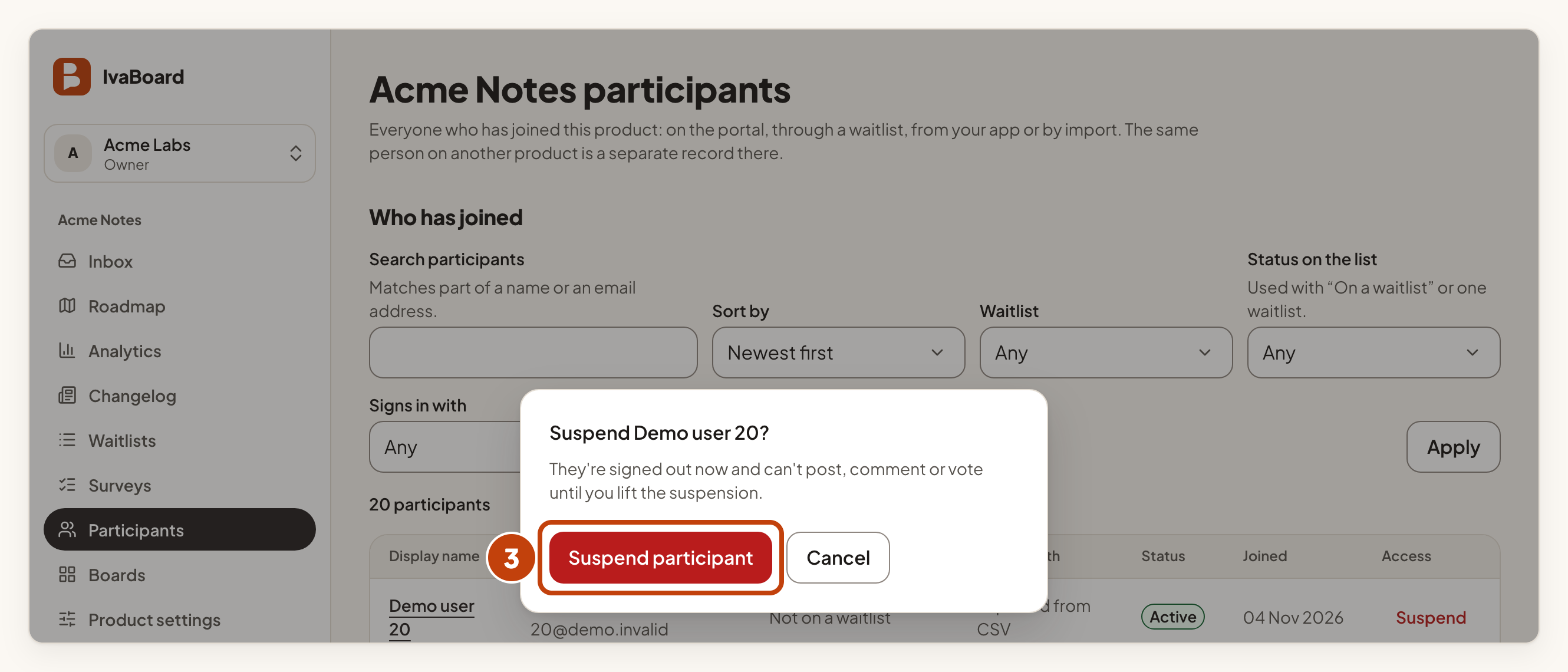
Owners and admins can suspend a person on a product. A suspended person cannot post, comment or vote. A person who signed in through your product is signed out straight away, and a portal account is refused on its next request. Other products are not affected.
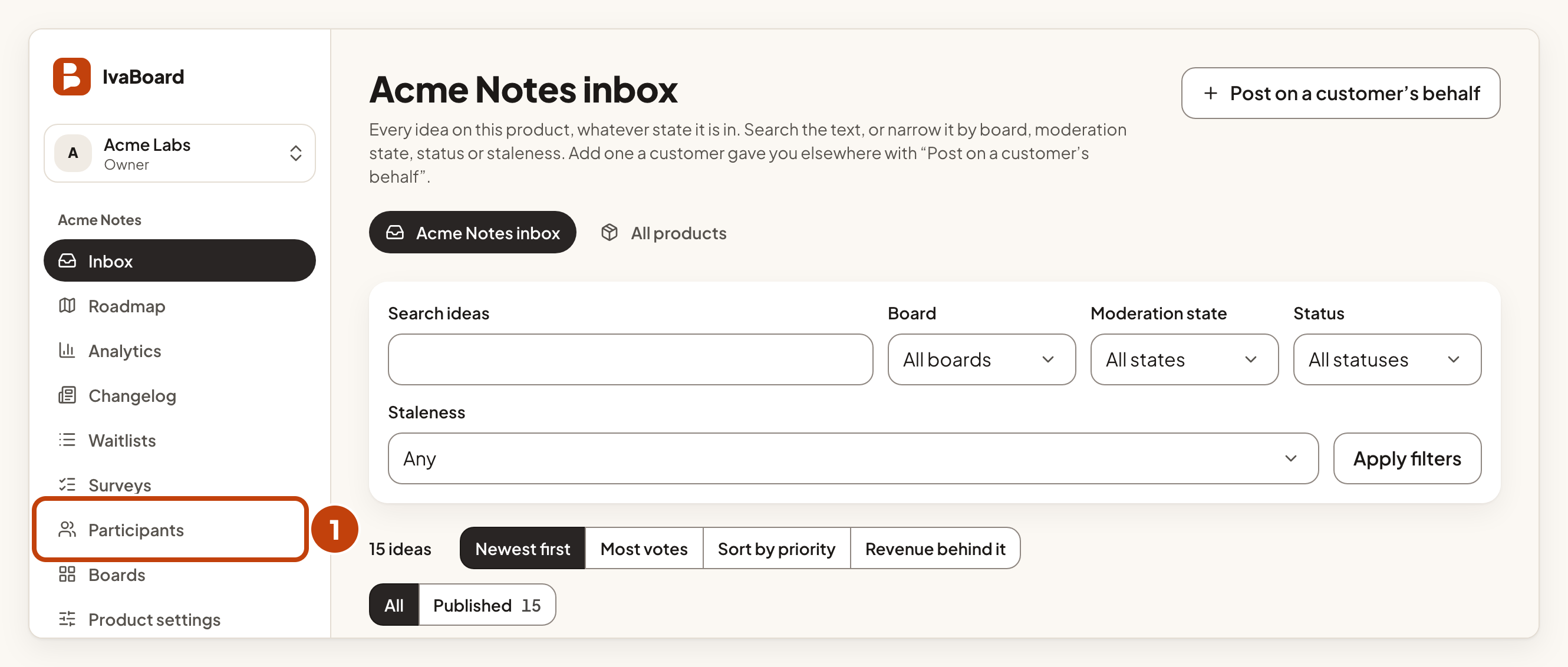
- Select Participants in the sidebar.
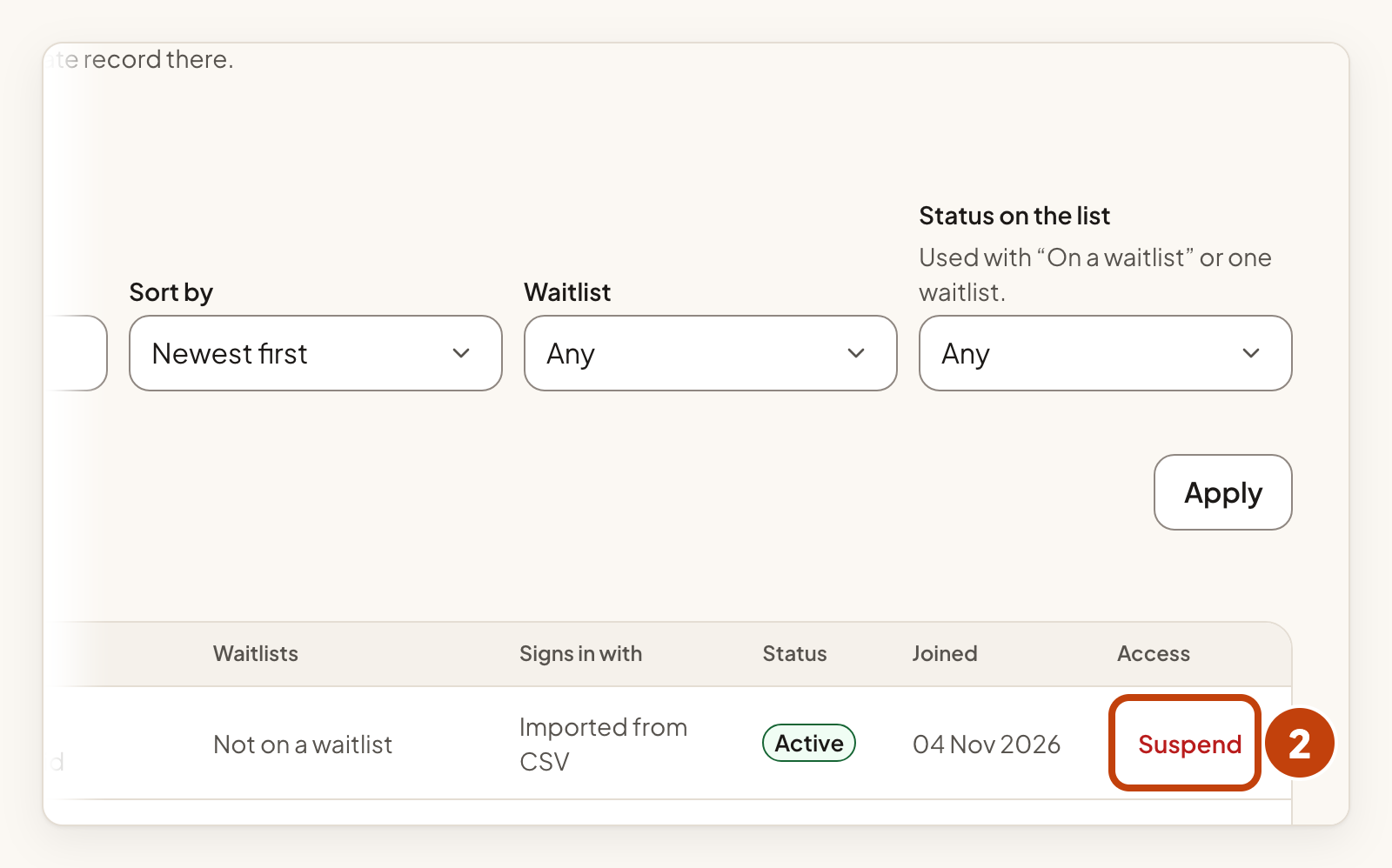
- Select Suspend on the customer's row.
- Select Suspend participant in the dialog.
To lift a suspension, select Lift suspension on the same row, then select Lift the suspension in the dialog.
Example
For example, Acme Notes wants only its own customers to take part. Sam sets up sign-in from the product, chooses Only through your product and selects Save sign-in method.
