Embed your changelog or roadmap on your website
You can show your latest release notes, or your public roadmap, inside a page on your own website. The panel is read-only. It links back to your portal for everything else.
Who can use it
Every plan includes embeds. An owner, an admin or a product manager can add websites and copy the code. Only these people can change the websites. Your portal must be launched. Until then, the panel shows nothing.
Add your websites
The panel shows only on websites listed under Your websites.
- Open your product.
- Select Product settings in the console menu.
- Select Embed and widget.
- Enter the full address of your site in Website address, such as
https://example.com. - Select Add website.
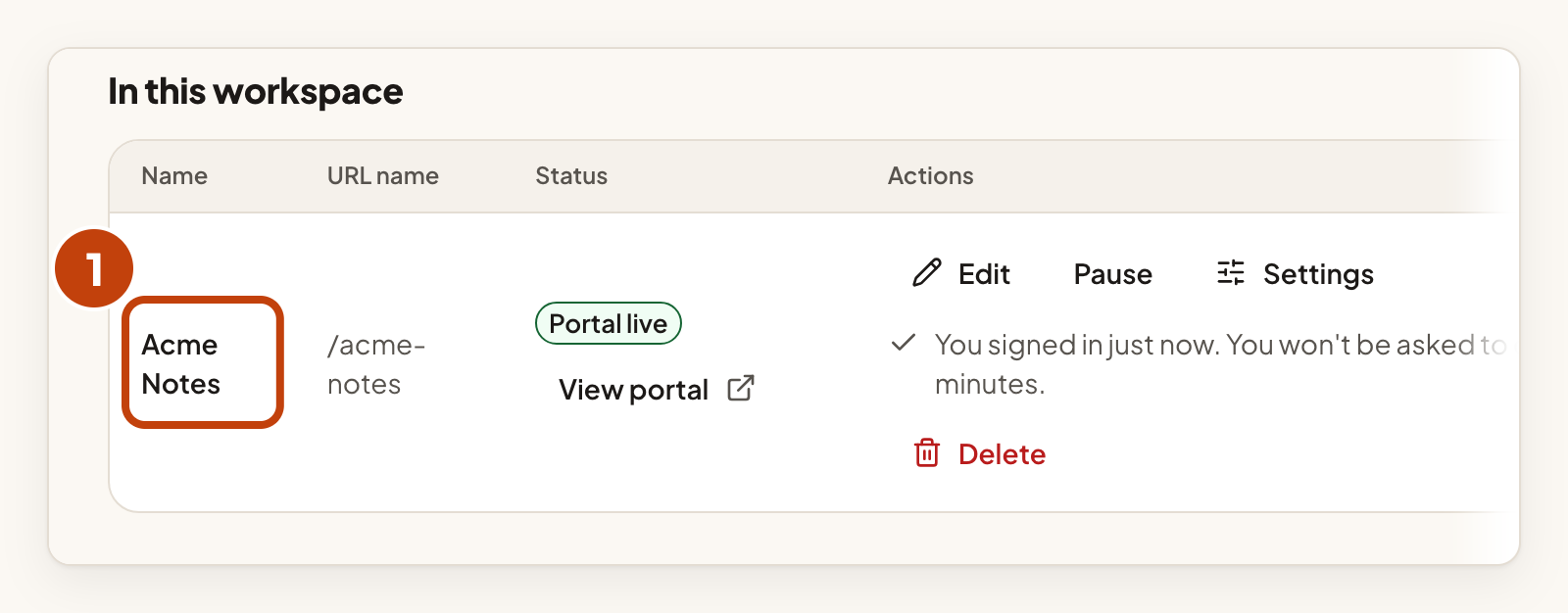
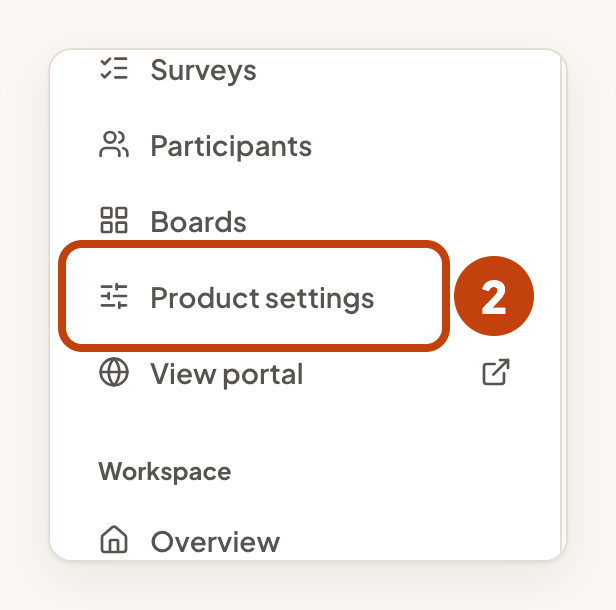
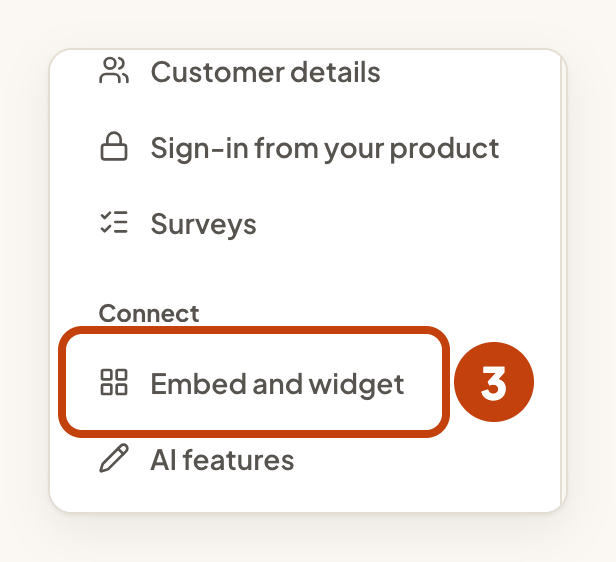
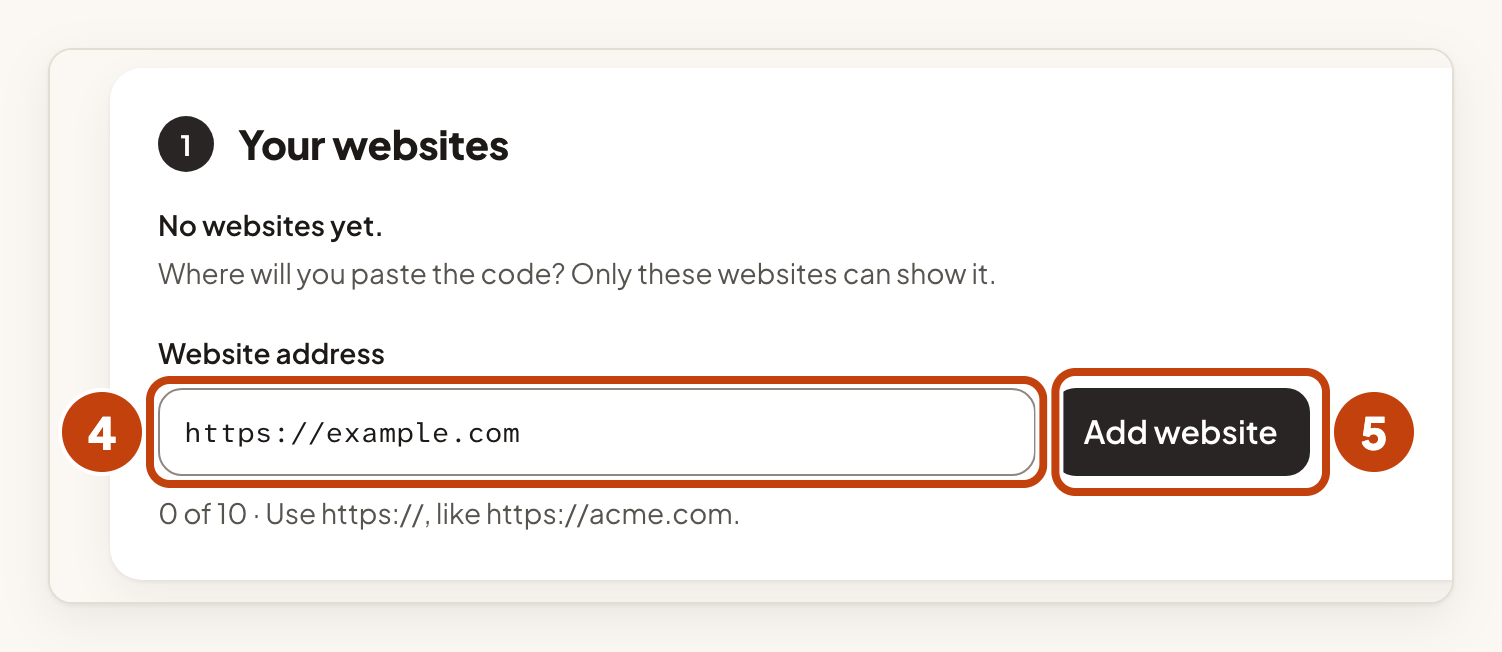
You can add up to 10 websites. Only these websites can show the panel, and any other site is refused. Nothing shows until you add at least one website.
Add a panel to your page
- Under What do you want to add?, select Changelog.
- Under Copy the code, select Copy.
- Paste the code where the list should show on your page.
- Open that page to check the panel.
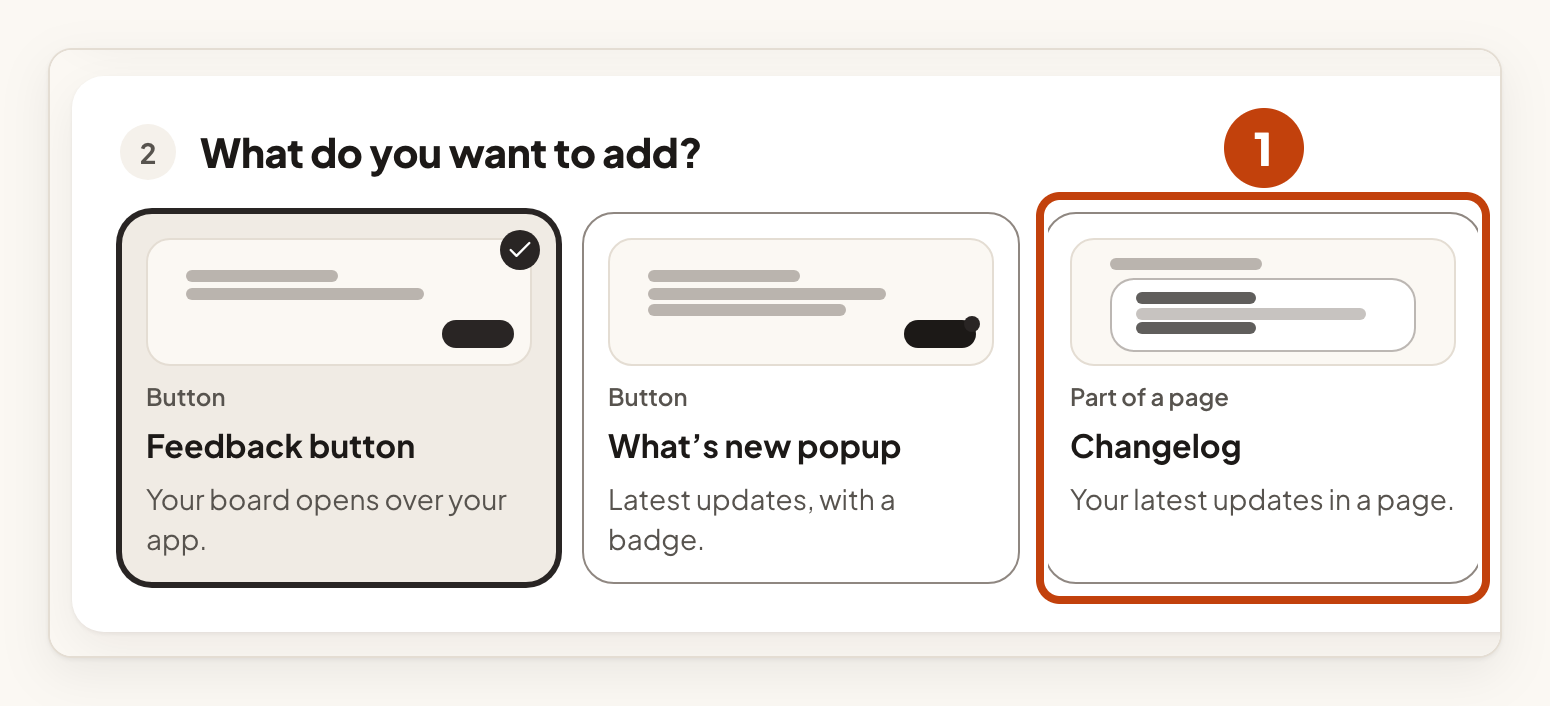
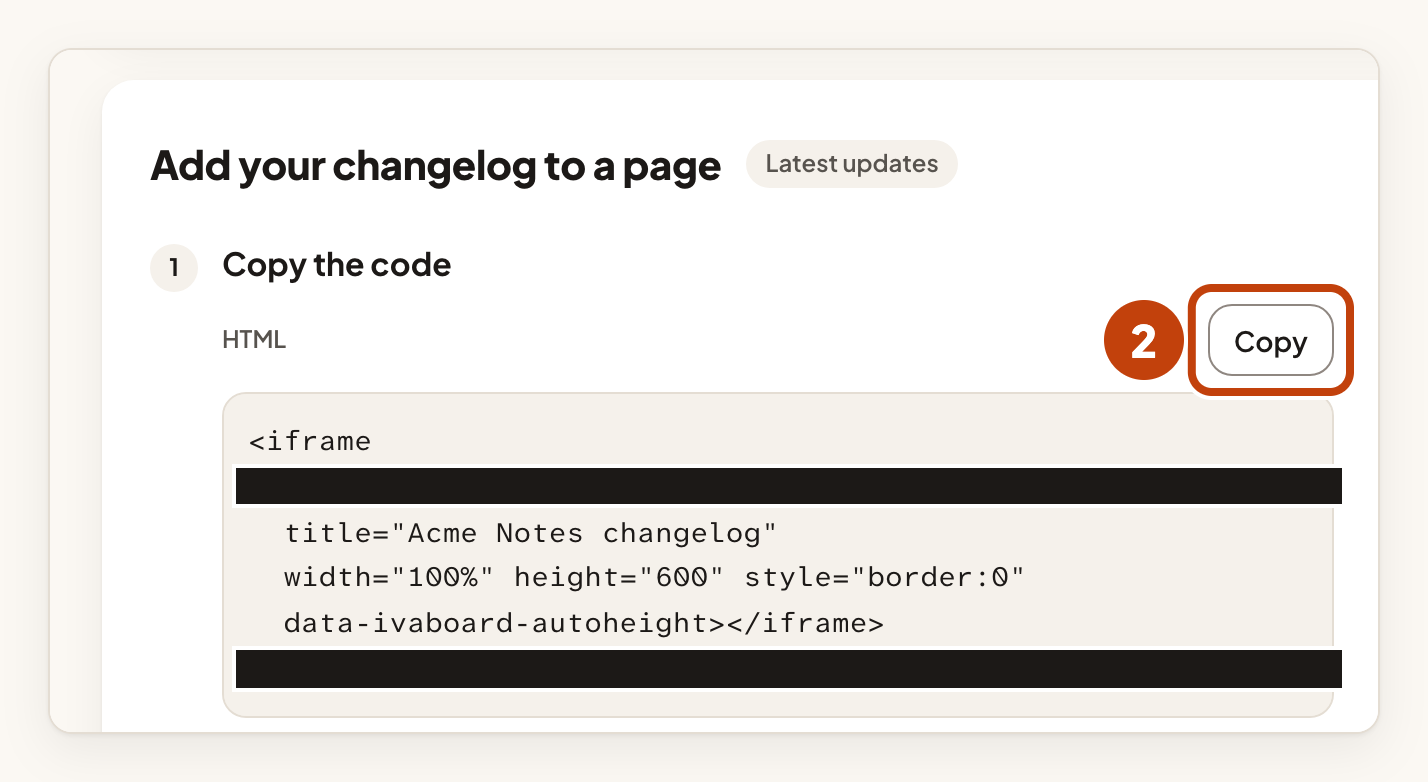
For the roadmap, select Roadmap in step 1 instead. The code is copied the same way.
Choose how the panel looks
The options sit beside the code. The code changes as you choose them.
- Height: Fit the content (recommended) lets the panel grow with what it shows, up to 4,000 pixels. Choose Fixed height for a page that cannot run a script, then choose a Height in pixels.
- How many updates: for the changelog, choose 5 latest, 10 latest or 20 latest. The code starts at 5. For the roadmap, Ideas per column sets 5, 10 or 20 ideas in each column. The code starts at 10.
- Layout: for the changelog, List shows one update under the other. Cards shows two or three updates side by side on wide pages.
What visitors see
The panel shows only what your public portal shows. It has no forms and no vote buttons. Older updates are one link away on your portal. A changed entry can take up to a minute to show.
If the panel does not appear
- Check that the address of the page is listed under Your websites. It must match exactly, including
https://and anywww.prefix. - Check that your portal is launched. A portal that is not launched shows nothing.
- If the panel shows its empty-state sentence, publish your first entry. An empty list still shows the panel.
Want a button instead of a panel? Show "What's new" inside your app opens your latest entries in a popup on the same websites.
Example
For example, Sam wants the latest changelog entries on https://example.com/updates. Sam adds https://example.com under Your websites, selects Changelog, keeps 5 latest and copies the code. Sam pastes the code on the updates page, and the five newest published entries show there.
