See who is on a waitlist
Open a waitlist to see everyone on it, their place in line and where they came from. You can search and filter the list, and open each person's page. This takes a few minutes.
Who can use it
Team members with a grant on the product can open its waitlists. Owners and admins can do everything a Manager can. What you can do depends on your grant:
- A Manager sees everyone, with their email addresses. A manager can also invite people, remove them from a waitlist and download the list.
- A Moderator sees everyone, with their email addresses. A moderator cannot invite, remove or download.
- A Viewer sees everyone, but email addresses show as Hidden.
A team member with no grant on the product cannot open these pages.
Open the People tab
- Open your product.
- Select Waitlists in the console menu.
- Select the name of the waitlist.
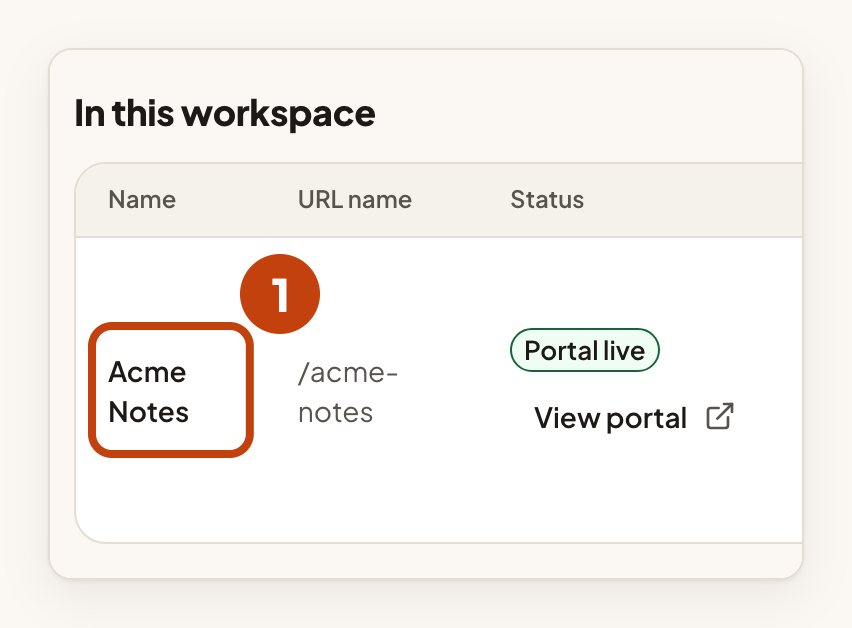
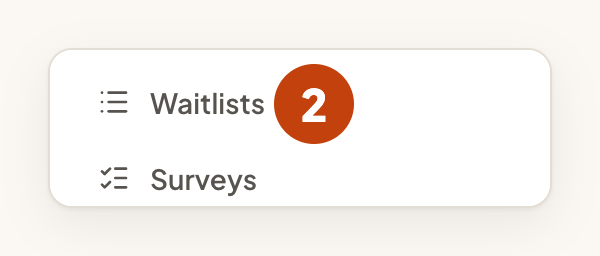
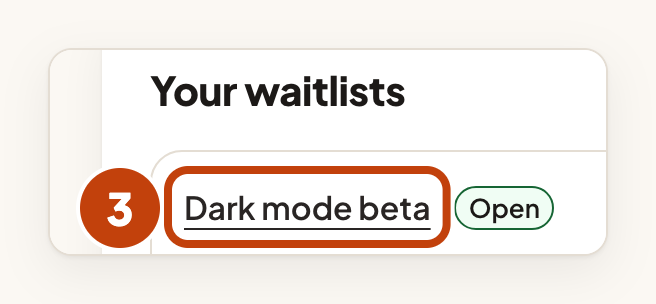
The waitlist opens on its People tab. It is the first tab.
Read the list
At the top of the tab, Waiting and Invited switch between two lists. Each one shows how many people it holds. Waiting lists people in line, by place. Invited lists people you invited, newest first.
Each row shows:
- Place: where the person stands in line. Only the Waiting list shows it. It can change as the list changes.
- Name: select it to open that person's page. An erased person's name is plain text, with no link.
- Email: the person's email address. A viewer sees Hidden.
- Came from: how the person joined. The values are Direct, Friend’s link, Idea page, Embed card and Not recorded. Not recorded means they joined before this was recorded. If the join link had a campaign or a source, its name follows, for example "campaign launch-week".
- Referrals: how many friends joined with this person's link.
- Joined: the day they joined, in UTC.
- Invited: the day they were invited. Only the Invited list shows it.
- One column for each question on the waitlist. An empty answer shows Not answered.
Managers also see check boxes to choose people, an Invite selected bar for the people they pick, a Remove button on each row, and Referred, Priority and "N held" badges. To invite people, see Waitlists for early access.
A Suspended badge next to a name means the person's access is paused. They are signed out and cannot post, comment or vote until the suspension is lifted. They keep their place, and an invitation does not email them. An owner or an admin suspends people and lifts suspensions on the Participants page.
Search the list
Use Search people to find someone by part of their name or by a written answer. Managers and moderators can also search by email address. The search takes up to 120 characters.
- Enter part of a name, an email address or a written answer in Search people.
- Select Search.
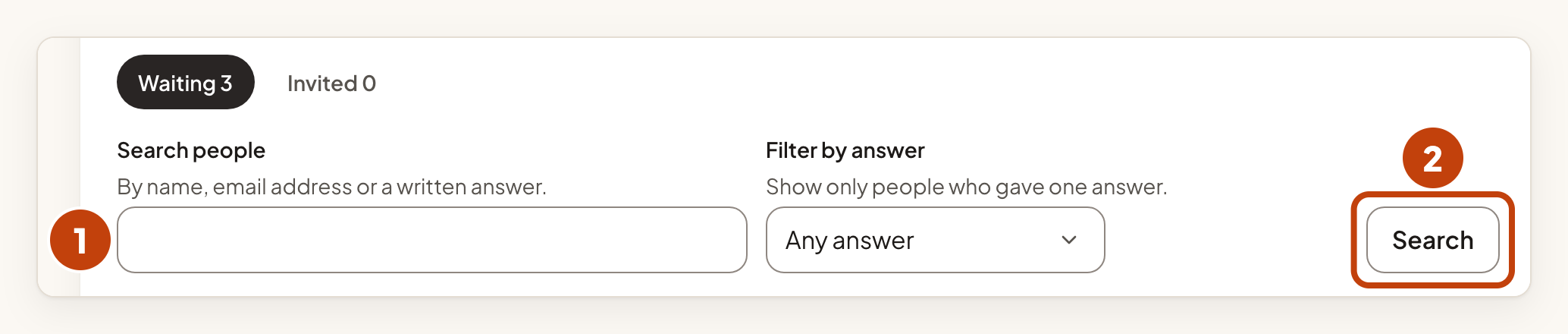
Select Clear search to remove the search. It keeps any answer filter, so to see everyone, select Clear search and Clear answer filter (whichever are shown).
Filter by answer
If the waitlist asks a question with choices, Filter by answer shows only the people who gave one answer. The choices are grouped under each question.
- Choose an answer in Filter by answer.
- Select Search.
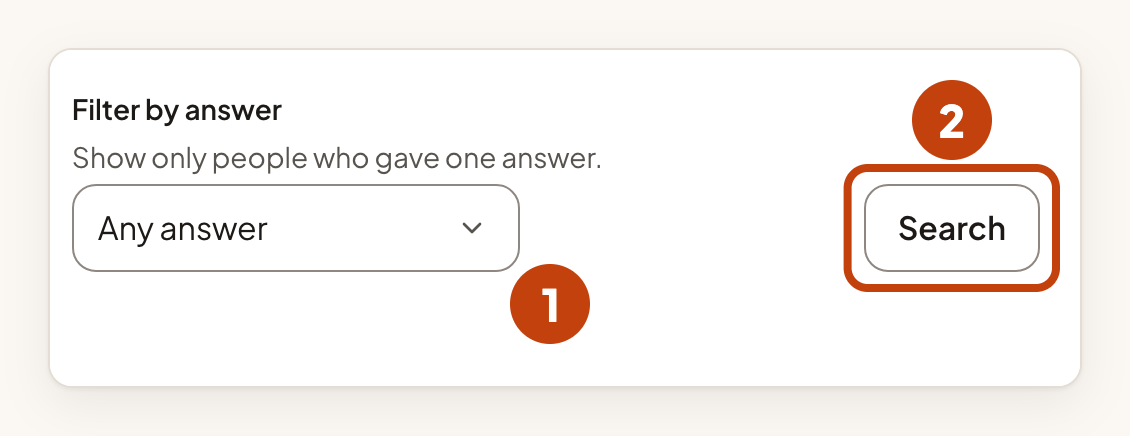
Select Clear answer filter to remove the filter. It keeps any search, so to see everyone, select Clear answer filter and Clear search (whichever are shown). Choose Any answer to turn the filter off.
Read more people
The list shows 50 people at a time, so a long list has more pages. Select "Next 50 people" at the bottom to see the next page, and Back to the first page to start again.
Find people on the Participants page
The Participants page lists everyone who has joined the product. Its filters show who is on a waitlist.
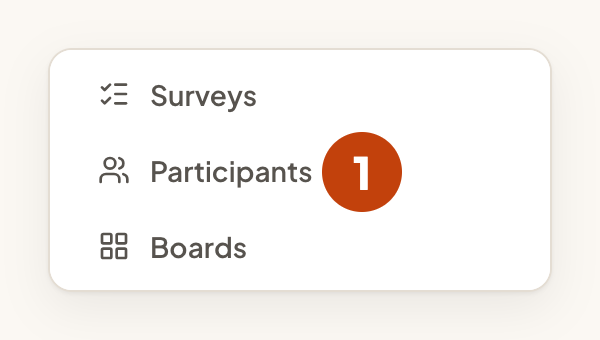
- Select Participants in the console menu.
- Choose On a waitlist in Waitlist.
- Choose Waiting in Status on the list.
- Select Apply.
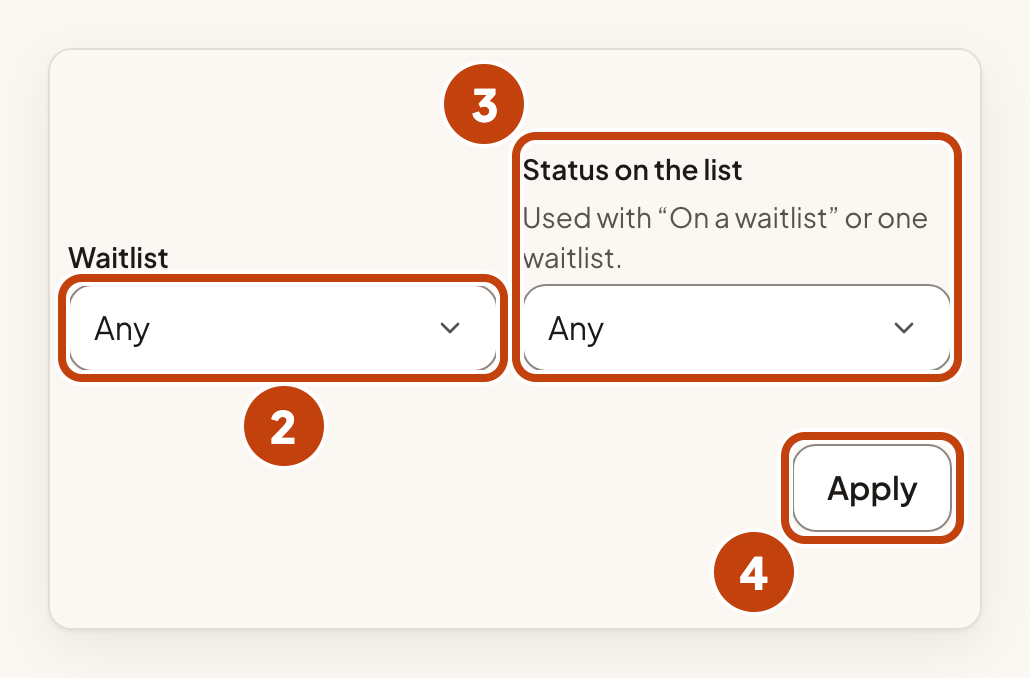
In Waitlist you can also choose Not on a waitlist, or one waitlist by its name. Status on the list works only with On a waitlist or one waitlist. Otherwise the page says: "Waiting or invited was not used: choose “On a waitlist” or one waitlist with it."
The Waitlists column shows each waitlist a person is on, with Waiting or Invited. For an invitation it also shows the date. A person on no waitlist shows Not on a waitlist. The Email column appears only when the list has an address to show, so a viewer does not see it.
Open a person's waitlists
- Select a person's name on the People tab.
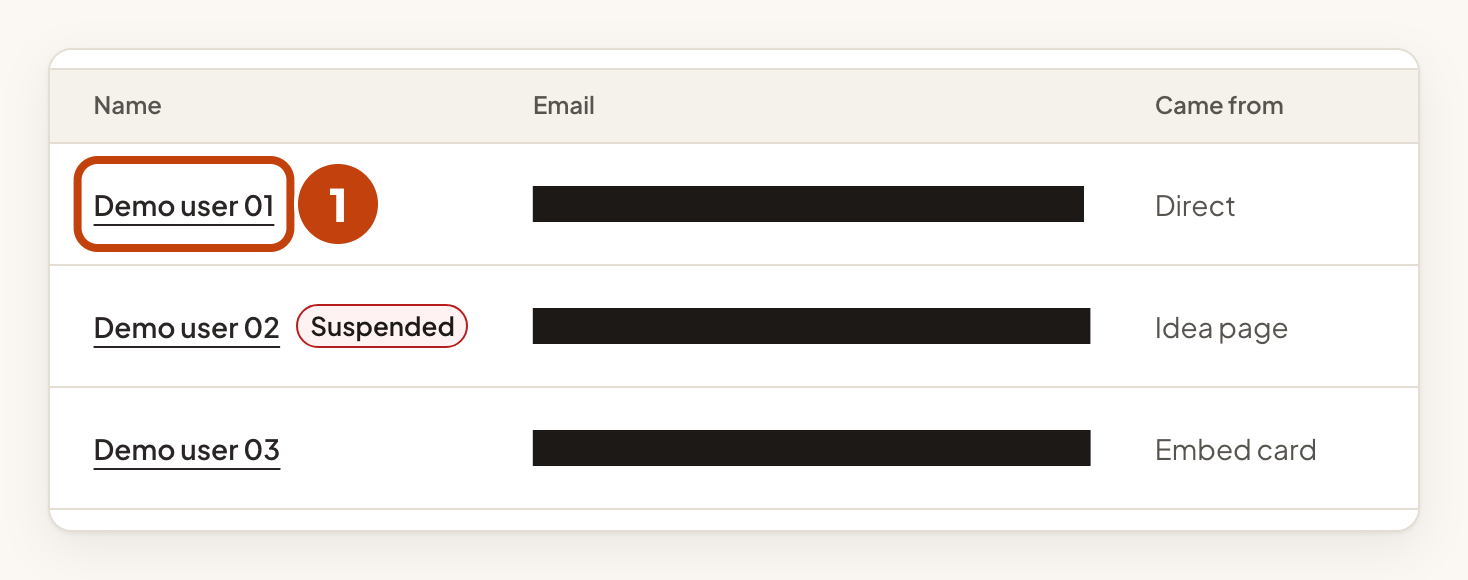
The person's page opens with a Waitlists section under their name. It lists each waitlist the person is on now, and the ones they left. For each one it shows when they joined, where they came from, how many friends joined with their link, and their answers. If a friend's link brought them, the friend's name follows, with a link to their page. Select a waitlist's name to open it.
Managers also see Invite now on a waiting entry, and Remove on each entry. Both ask first.
Removing a person takes away their place on that waitlist. This cannot be undone. If they join again while the waitlist is open, they start at the back. A removed person cannot rejoin a closed waitlist.
Download the list
Managers can download the list as a CSV file. The help text under Download CSV says: "Everyone on the waitlist, with their place, email, referrals and dates."
- Select Download CSV above the list.

The limit is 20 downloads a day for each workspace. When it is used up, the page says: "You can download 20 waitlist CSVs a day for each workspace, and that limit is used up. Try again tomorrow."
Example
For example, Sam Taylor, an admin of Acme Labs, opens the waitlist "Dark mode beta" in Acme Notes and enters [email protected] in Search people. Sam selects Search. Alex's row shows the place in line and the email address. Under Came from, it shows Idea page.
If nothing shows
- If nobody is waiting, the page says "Nobody is waiting yet." If nobody has been invited, it says "Nobody has been invited yet."
- A search or an answer with no match says so. Select Clear search and Clear answer filter (whichever are shown) to see everyone again.
- A search longer than 120 characters is not used. The page says: "That search is too long, so every person is shown."
- On the Participants page, a filter with no match says "No participants match your filters". Select Clear filters to see everyone.
