Connect an AI provider
Connect your own AI provider key once. Then your team can use the AI help described in AI help for your team.
Who can use it
An Owner or an Admin can connect a key, change its model or limit, test it, pause it and remove it. Other team members see this line: AI features need an AI key from your workspace owner.
Before you start
Create a key in your provider's account first. IvaBoard supports OpenAI and Anthropic keys today.
The connect form says who pays for the calls:
"IvaBoard pays for no AI. Your provider bills you for every call."
Open AI keys and model
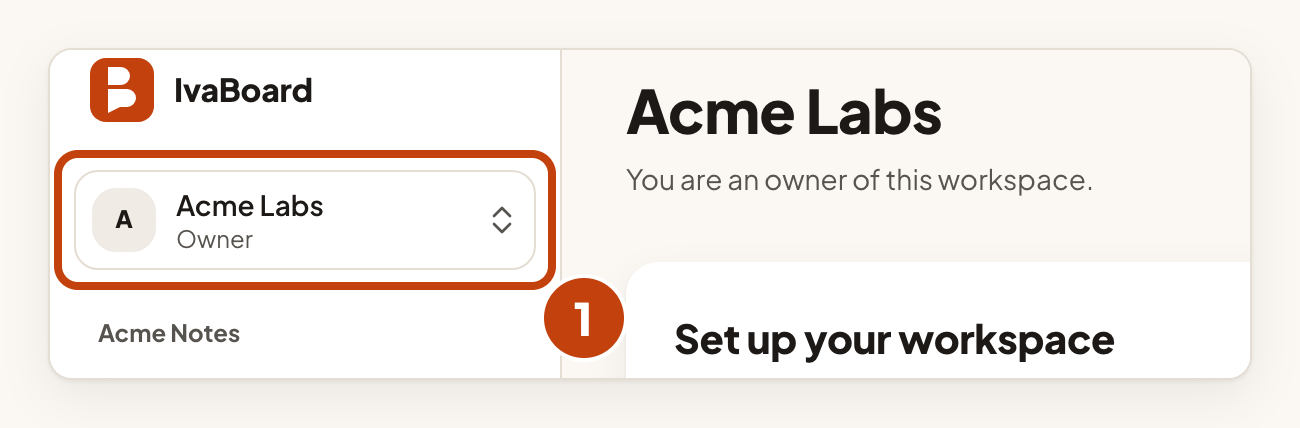
- Select your workspace name in the sidebar.
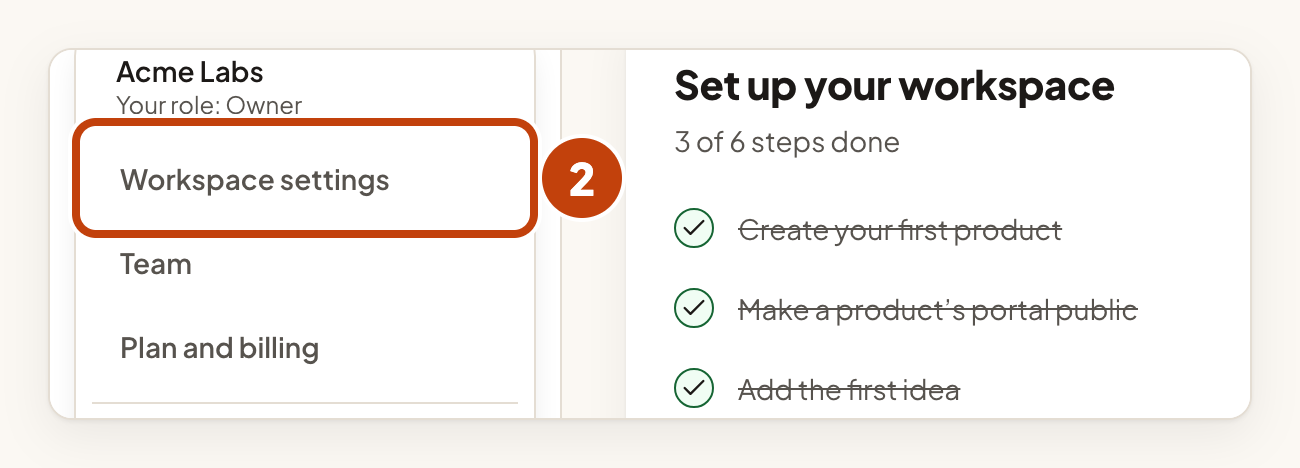
- Select Workspace settings.
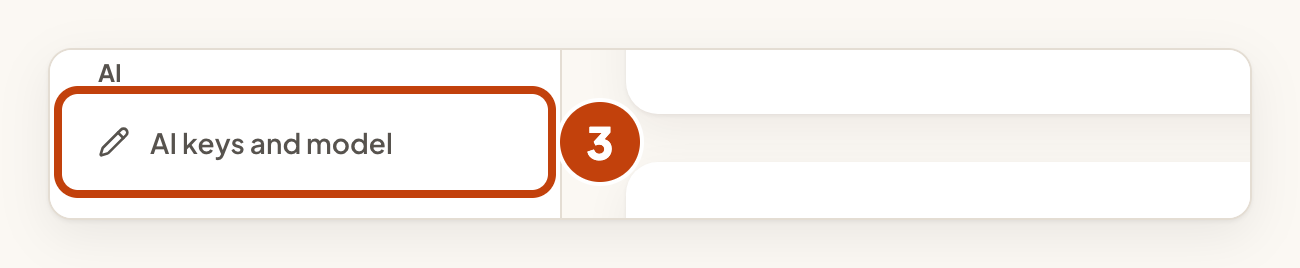
- Select AI keys and model.
Connect a key
Do these steps once for each provider.
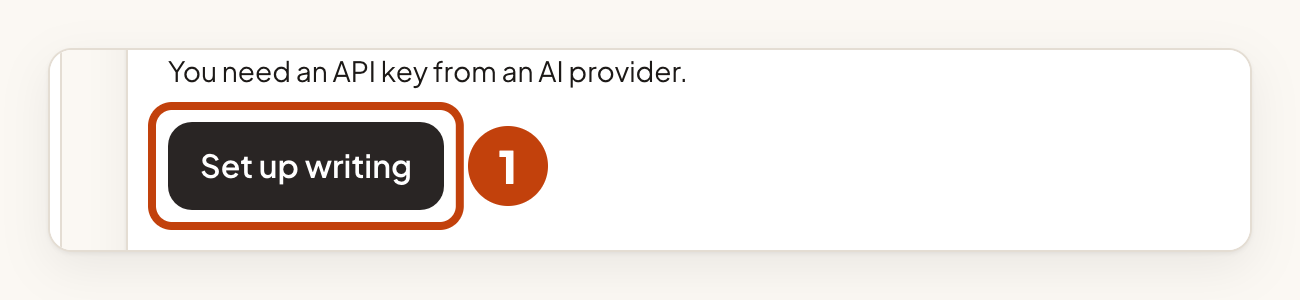
- Select Set up writing in the Writing drafts card.
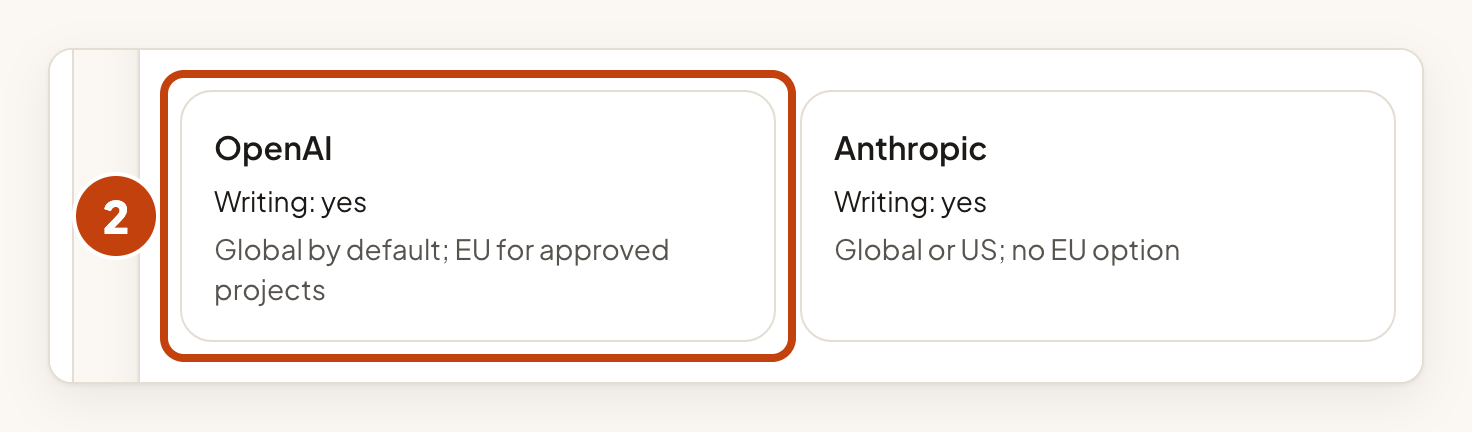
- Select the card for your provider, for example OpenAI.
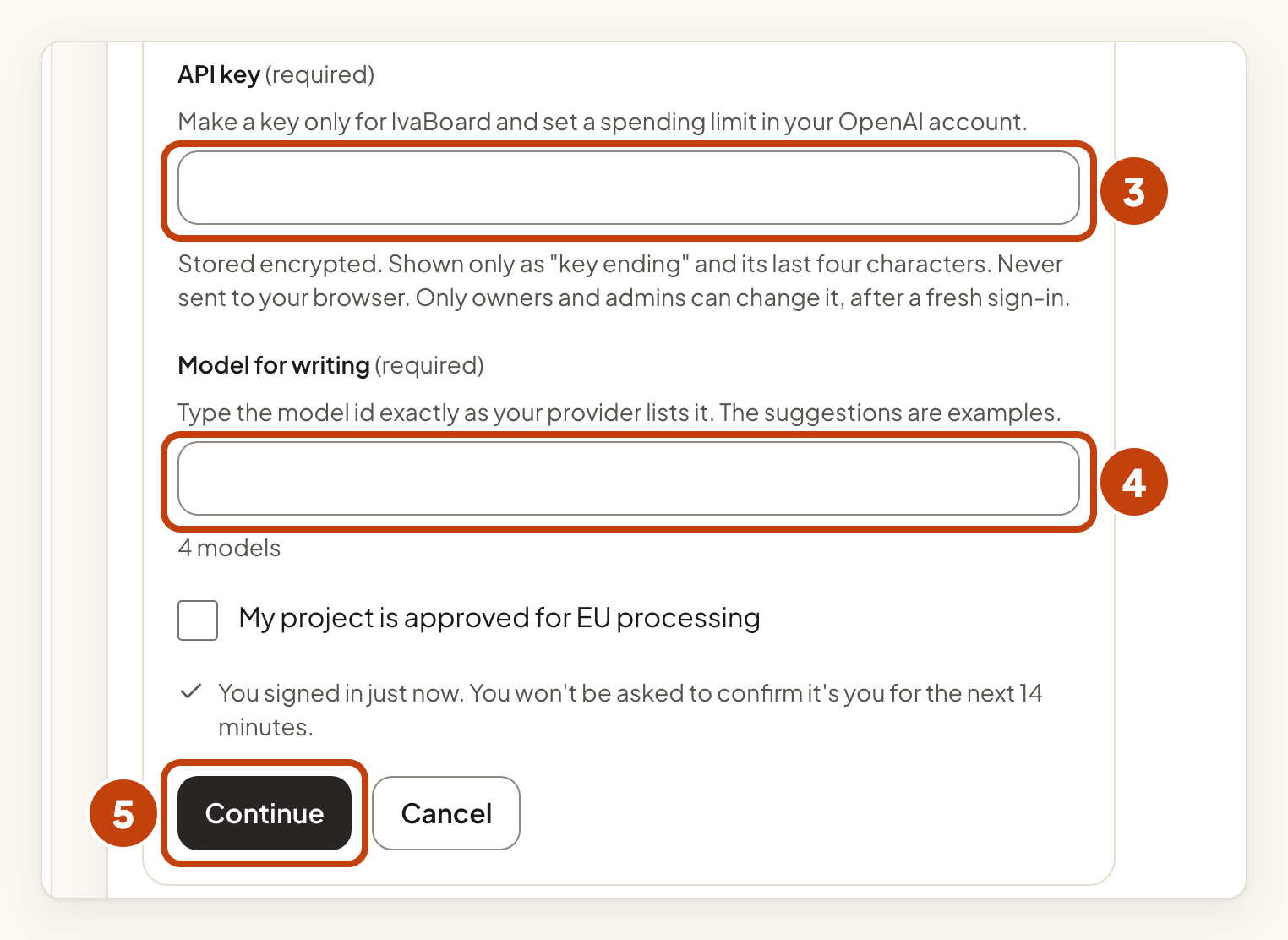
- Type your key in API key.
- Type a model id in Model for writing, exactly as your provider lists it.
- Select Continue.
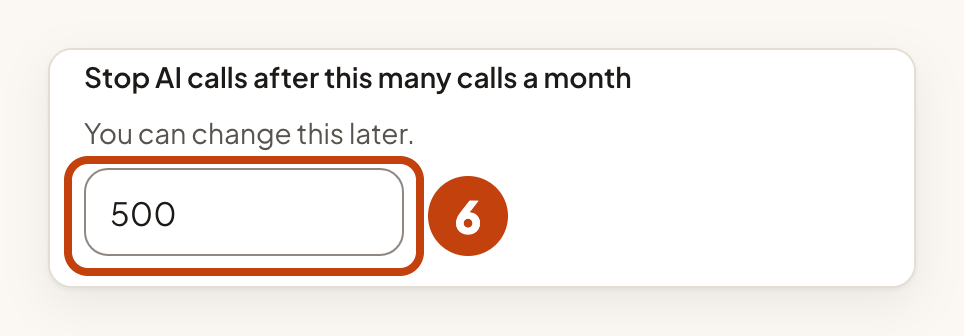
- Check the number in Stop AI calls after this many calls a month.
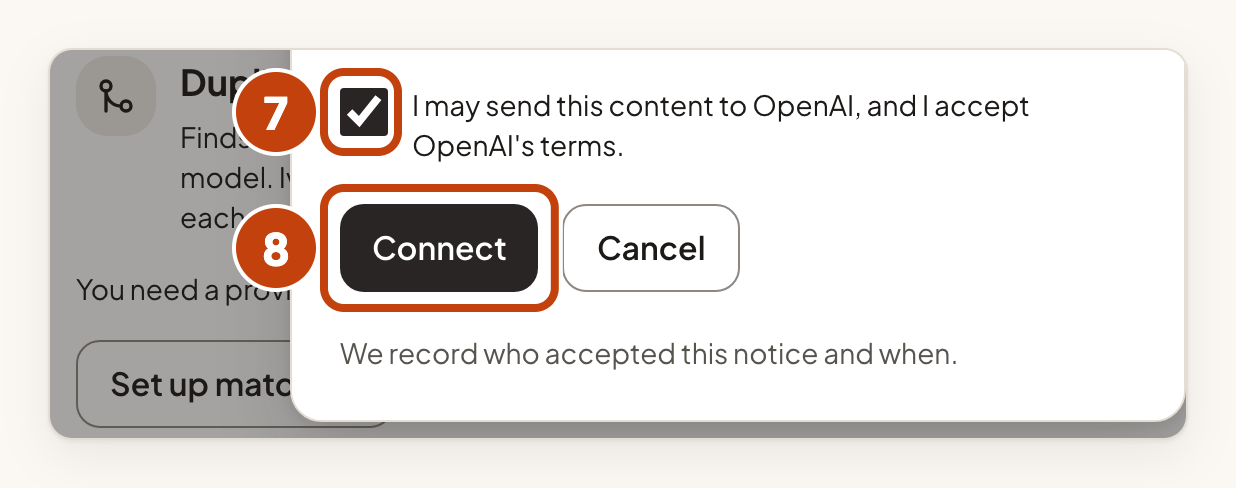
- Tick the box that starts "I may send this content" in the notice.
- Select Connect.
IvaBoard then checks the key in the background. The card shows Checking, then Working when the check passes. If the card still shows Checking after about a minute, it may say the check is taking longer than usual. Then select Check again. If the card shows Not working, read the sentence under it, then fix the key or the model.
Set a monthly limit
The notice says what the limit does, in these words:
"IvaBoard pays for no AI in your workspace. Set a monthly limit below; IvaBoard stops calling OpenAI when it is reached, and the features without AI keep working."
"Also set a spending limit in your OpenAI account."
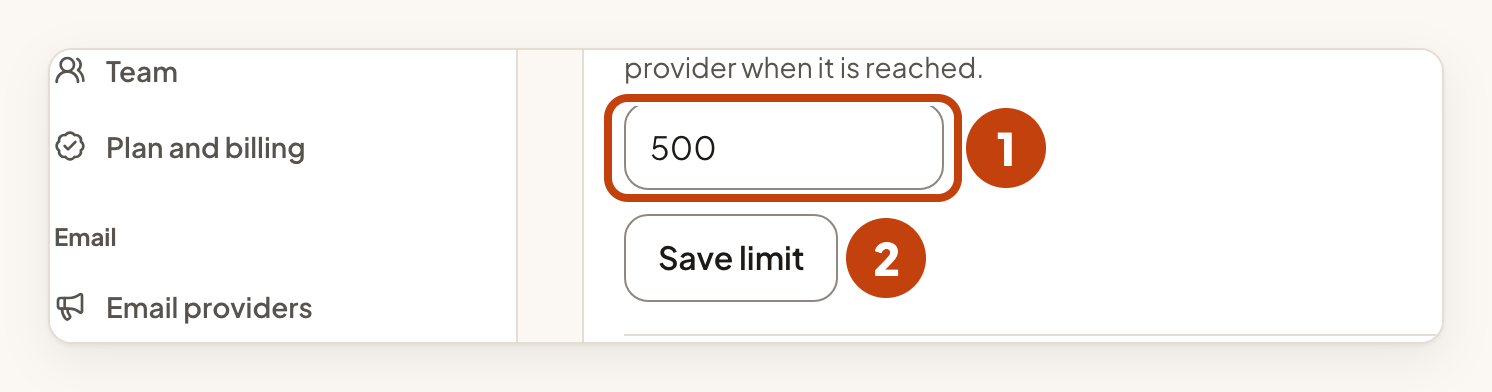
The limit starts at 500 calls a month. You can change it later, from 1 to 1,000,000 calls.
What the notice says
These are the notice's own words. Read them before you tick the box.
"No author names or email addresses are sent: an email address typed inside an idea is replaced first. What people wrote is otherwise sent as written and may contain personal data."
For OpenAI, the notice says:
"OpenAI does not train on API data by default and keeps it up to 30 days for abuse checks. It processes data globally by default, or in Europe for projects approved for EU processing."
For Anthropic, the notice says:
"Anthropic does not train on API data by default. It keeps it up to 30 days, and longer (up to 2 years) for content its safety checks flag. It processes data globally or in the US; there is no EU option."
The notice also says what happens when you remove a key:
"Removing the key stops new calls at once; a call already under way may still finish. IvaBoard deletes its record of each request after 30 days; text you kept in an entry stays."
The connect form says how the key is kept:
"Stored encrypted. Shown only as "key ending" and its last four characters. Never sent to your browser. Only owners and admins can change it, after a fresh sign-in."
Read the Privacy Policy.
Check, change or replace the key
Test the key
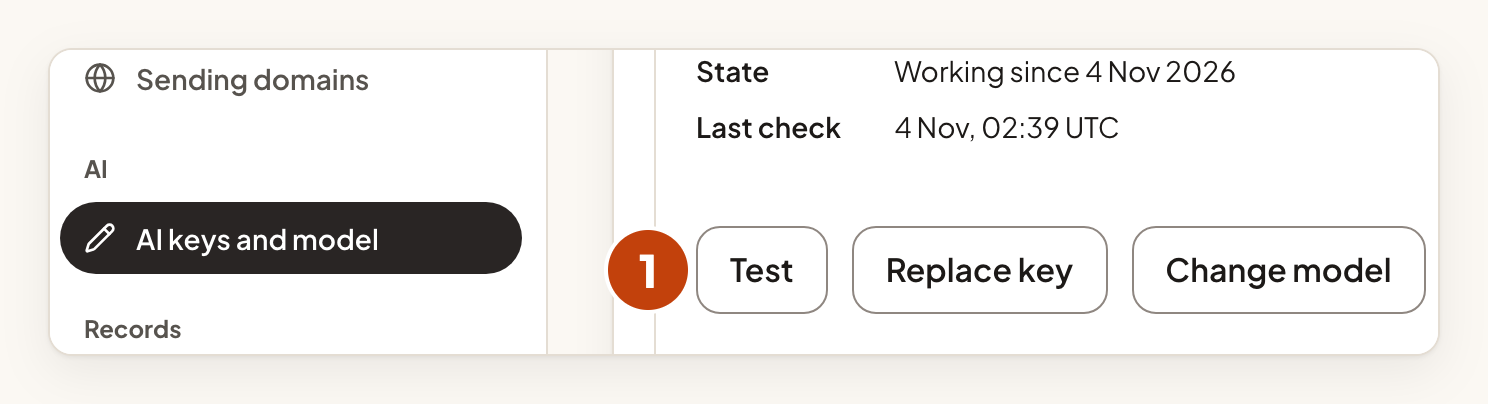
- Select Test on the connected card.
Change the model
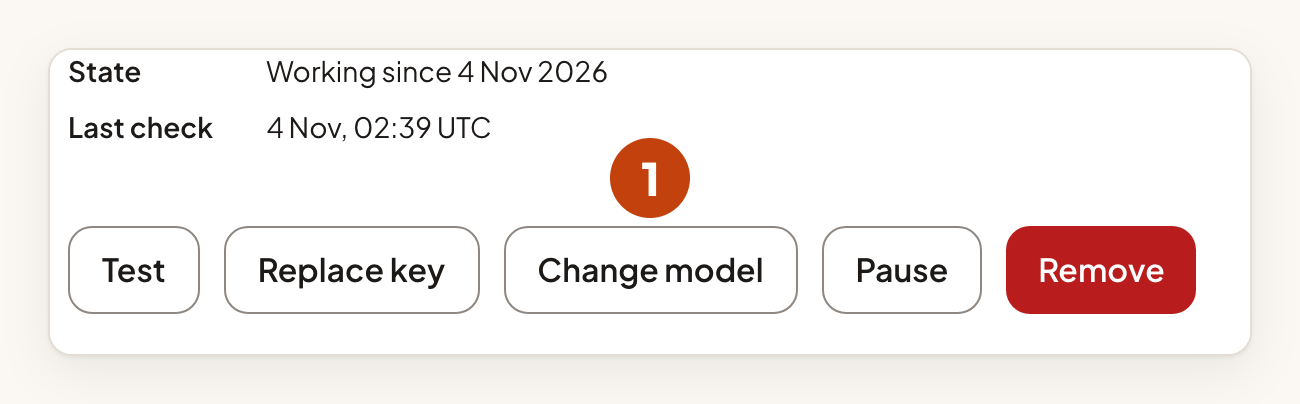
- Select Change model on the connected card.
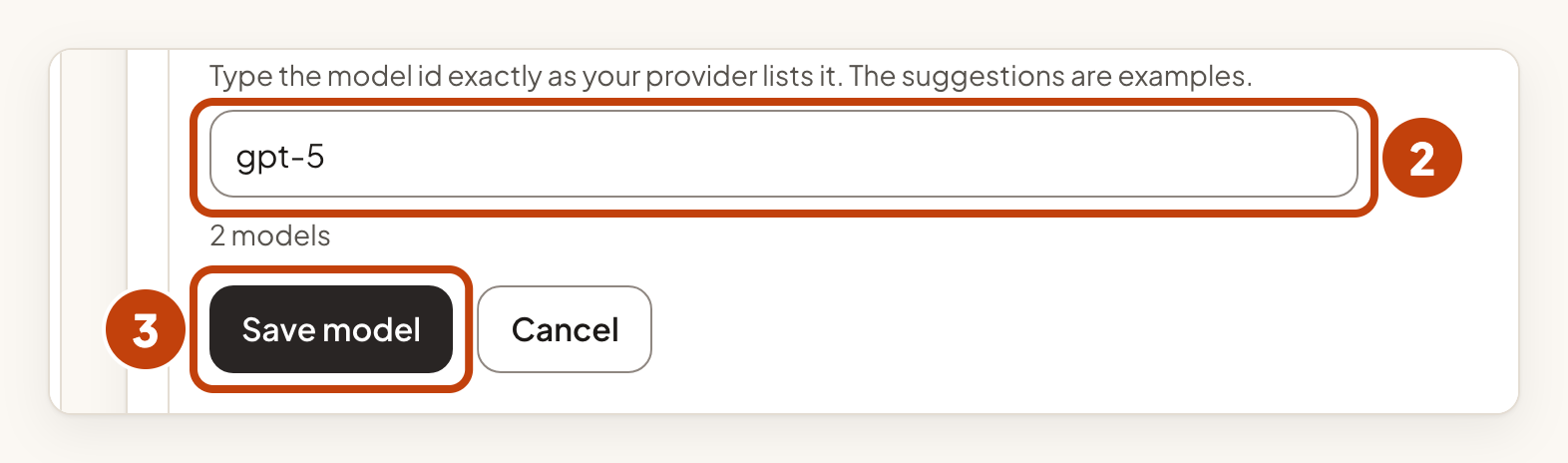
- Type the new model id in Model for writing.
- Select Save model.
Change the monthly limit
The usage card appears once a key is connected. It sits below the Duplicate matching card.
- Type a new number in Monthly call limit in the Usage this month section.
- Select Save limit.
Pause and remove a key
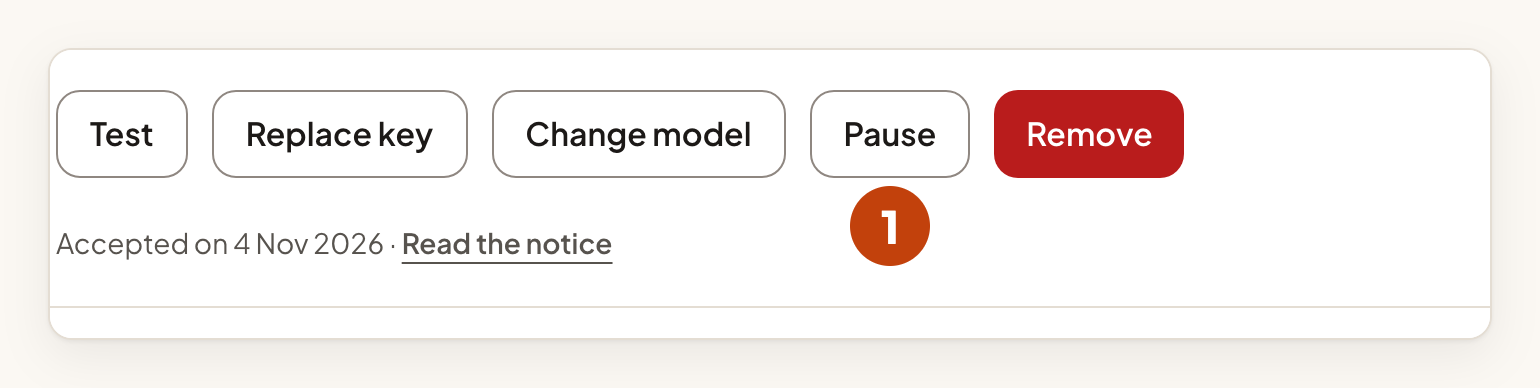
Pause a connection
- Select Pause on the connected card. IvaBoard starts no new AI calls while the connection is paused. A call already under way may still finish.
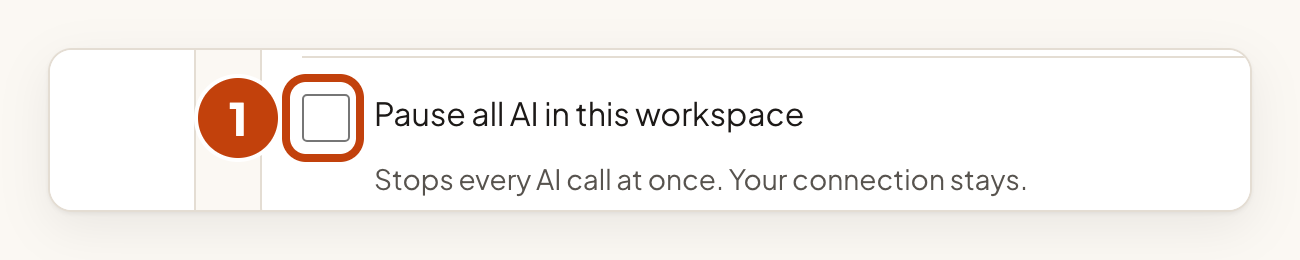
Pause AI for the whole workspace
- Tick Pause all AI in this workspace to stop new AI calls in the whole workspace. A call already under way may still finish.
Remove a connection
- Select Remove on the connected card.
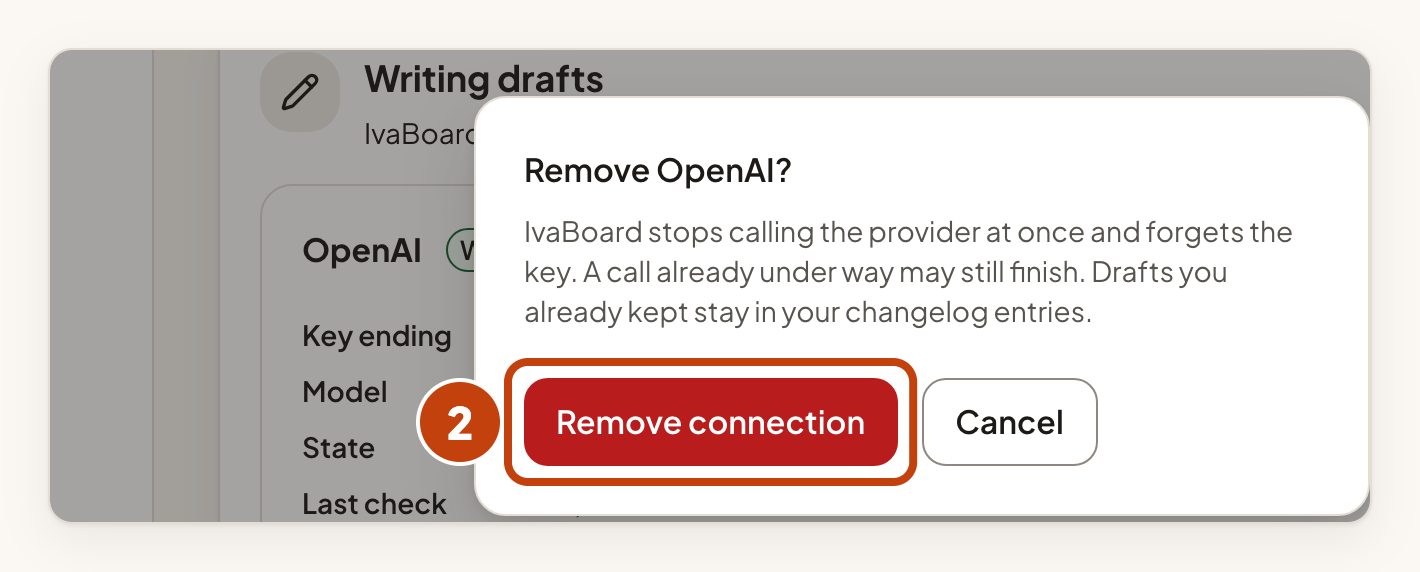
- Select Remove connection to confirm.