Style your portal with your own CSS
If the colour and layout settings are not enough, add your own CSS. It changes the look of your portal's pages only. It never changes the console, your emails or the feedback widget.
Who can use it
Custom CSS is part of the White-label plan: Growth, Scale and the Lifetime White-label plans. An owner, an admin or a product manager can add, change or remove it.
Without white-label, the Custom CSS section on the Branding page explains what it adds and links to the pricing page. If your workspace later leaves white-label, the CSS you saved keeps working. You can read it and remove it, but you cannot change it.
Add your CSS
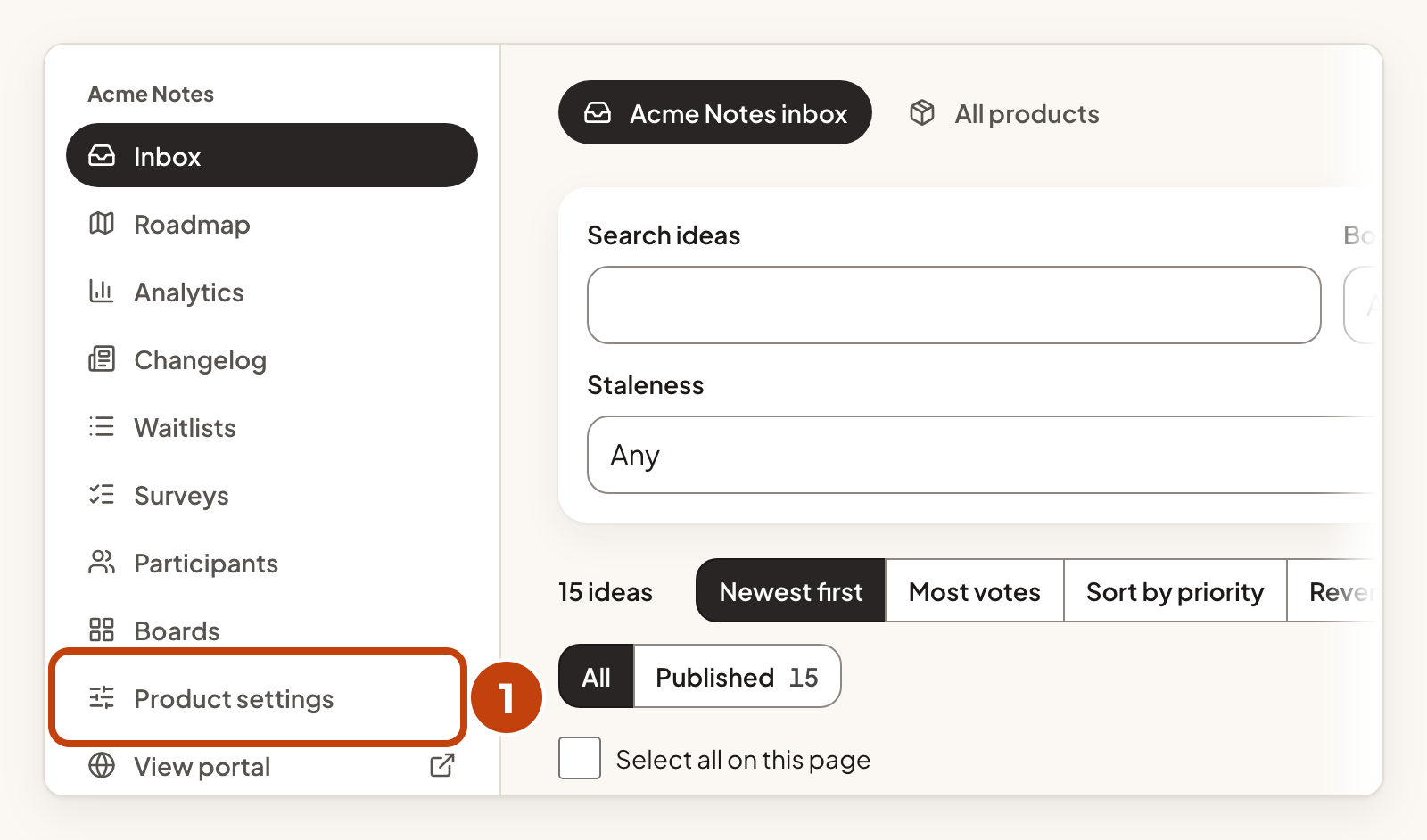
- Select Product settings in the sidebar.
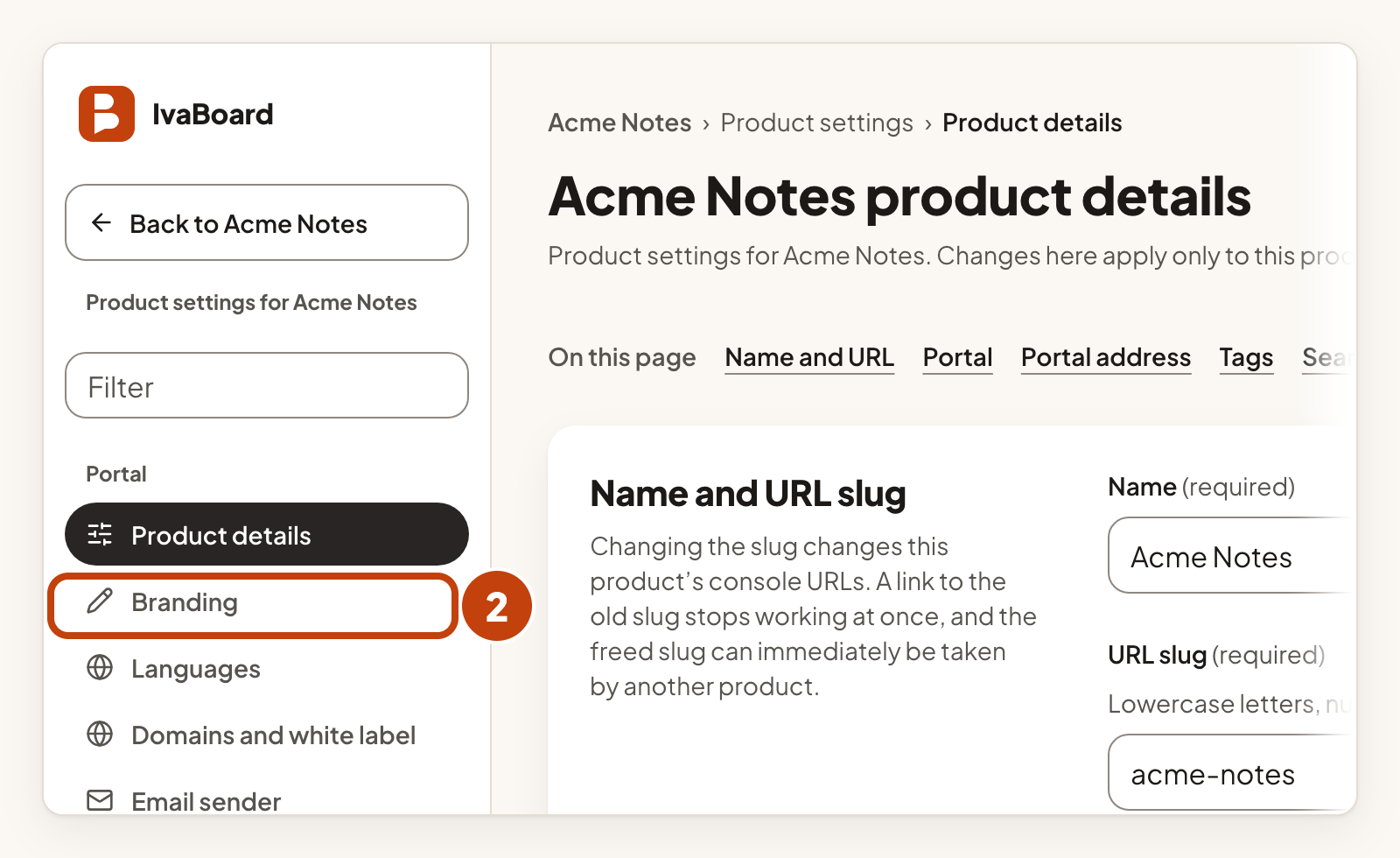
- Select Branding in the settings list.
- In the Custom CSS box, type your rules.
- Select Save custom CSS.
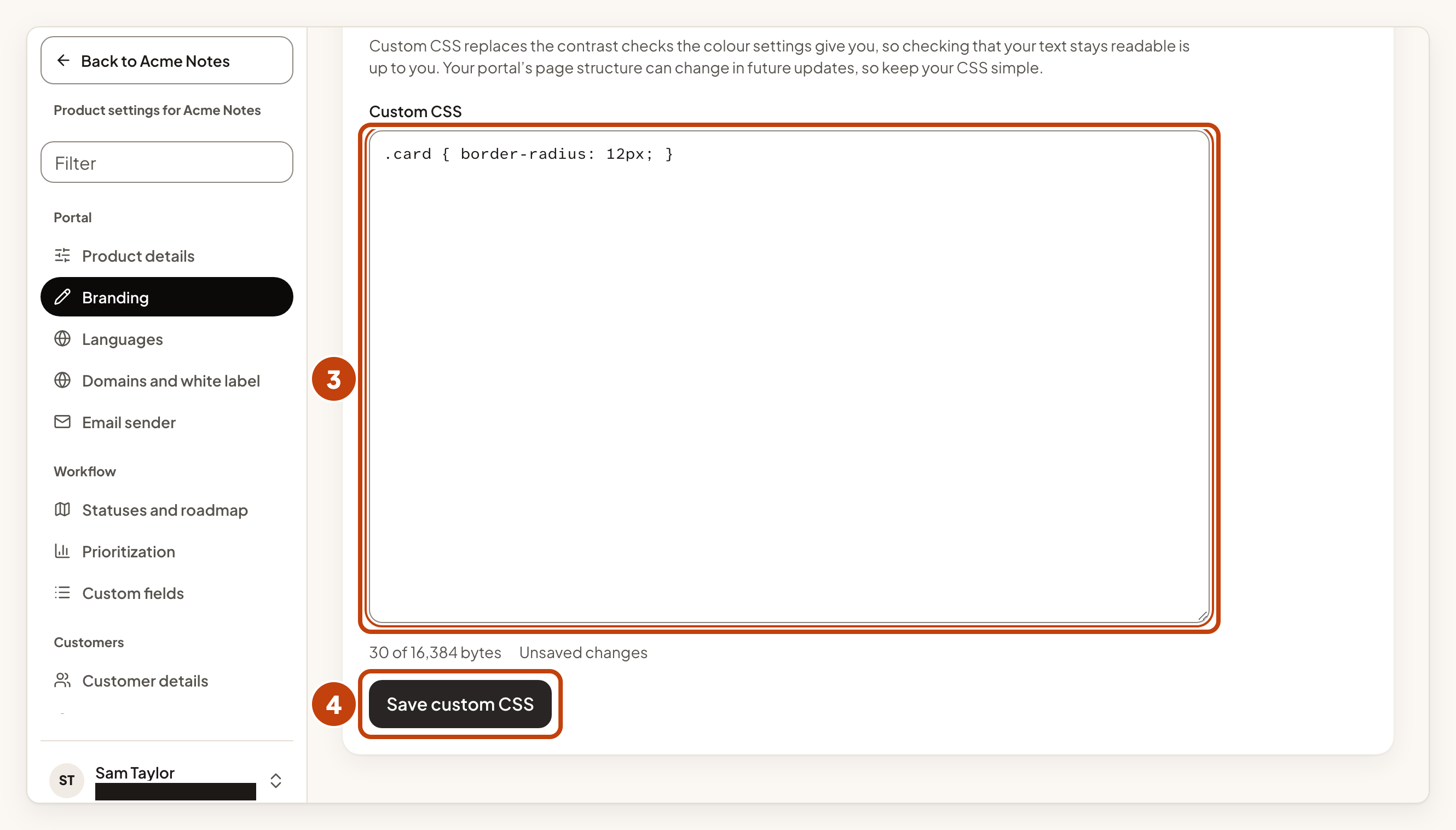
The box shows how many of the 16,384 bytes you have used. Your portal uses the new CSS straight away.
What you can write
- Use
:rootfor variables. Name your own with--x-, such as--x-brand. - Use
bodyfor the page background. - Use
@mediafor dark mode (prefers-color-scheme), reduced motion, and narrow screens (min-widthandmax-width).
What is not allowed
- Images, fonts and anything loaded from a file or an address:
url(),@importand@font-face. - Animations:
@keyframes. - Positioning and moving things:
position: fixedorabsolute,top,left,transformandfilter. !important, nested rules and the<character.
If your CSS breaks one of these rules, the editor lists the problem under Problems to fix, with its line and column. Select a problem to go to that place. Fix every problem, then save again.
Protected parts
Your rules cannot restyle the notices and the footer directly. Keyboard focus always shows a ring. If you hide a whole section that holds them, they stay hidden too, so look at your portal after you save.
Custom CSS replaces the contrast checks that the colour settings give you. Checking that your text stays readable is up to you. Your portal's page structure can change in future updates, so keep your CSS simple.
Remove your CSS
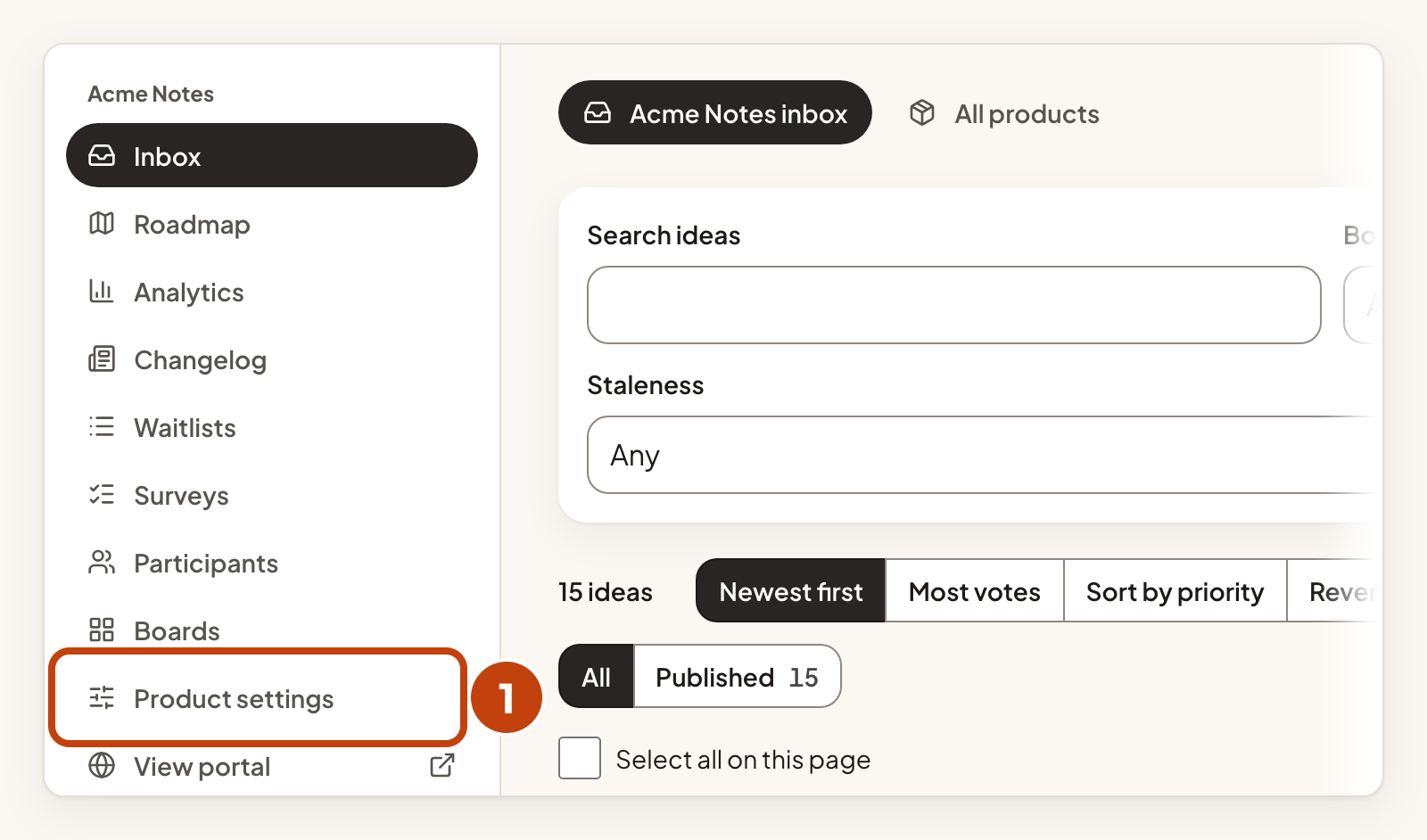
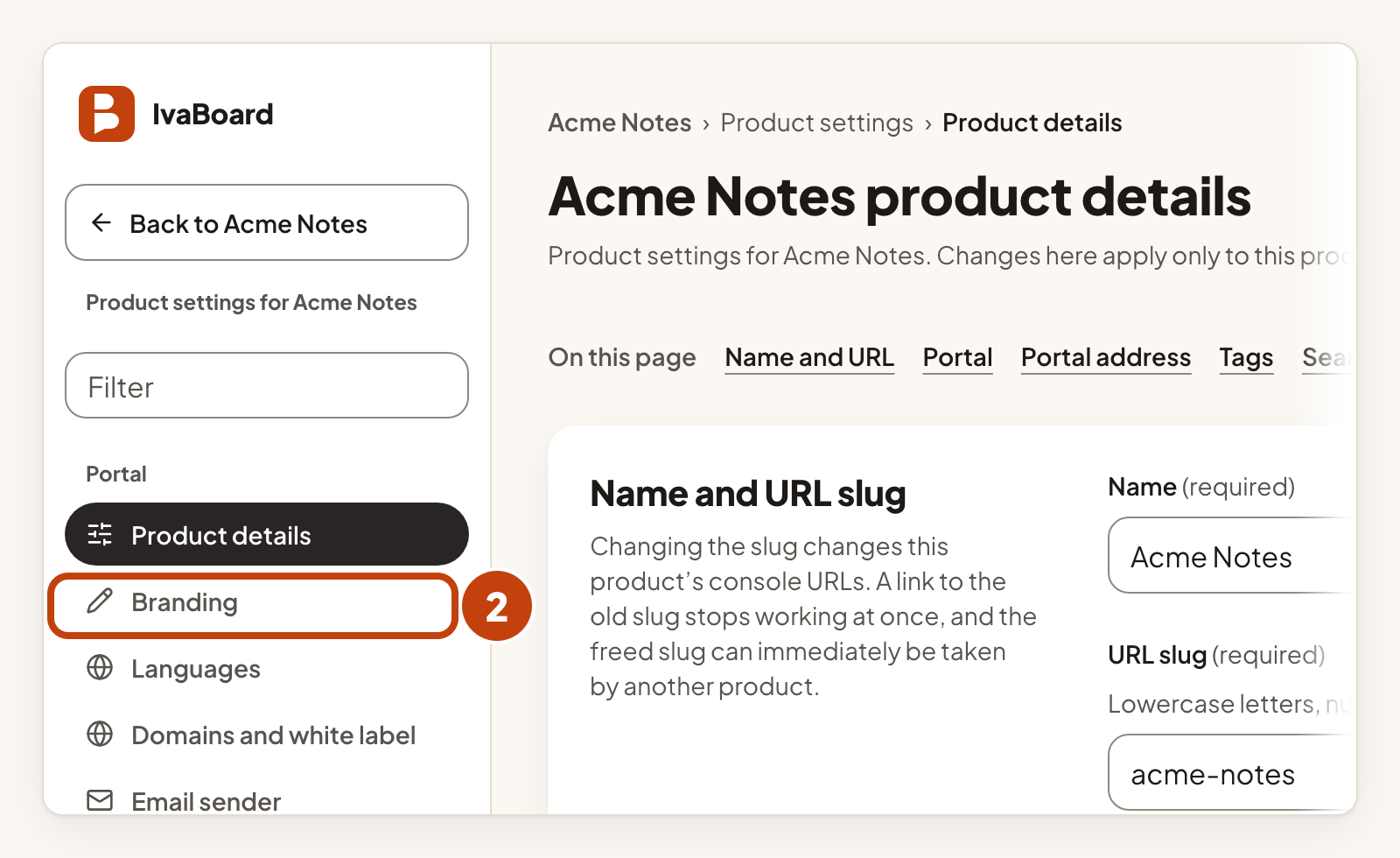
- Select Product settings in the sidebar.
- Select Branding in the settings list.
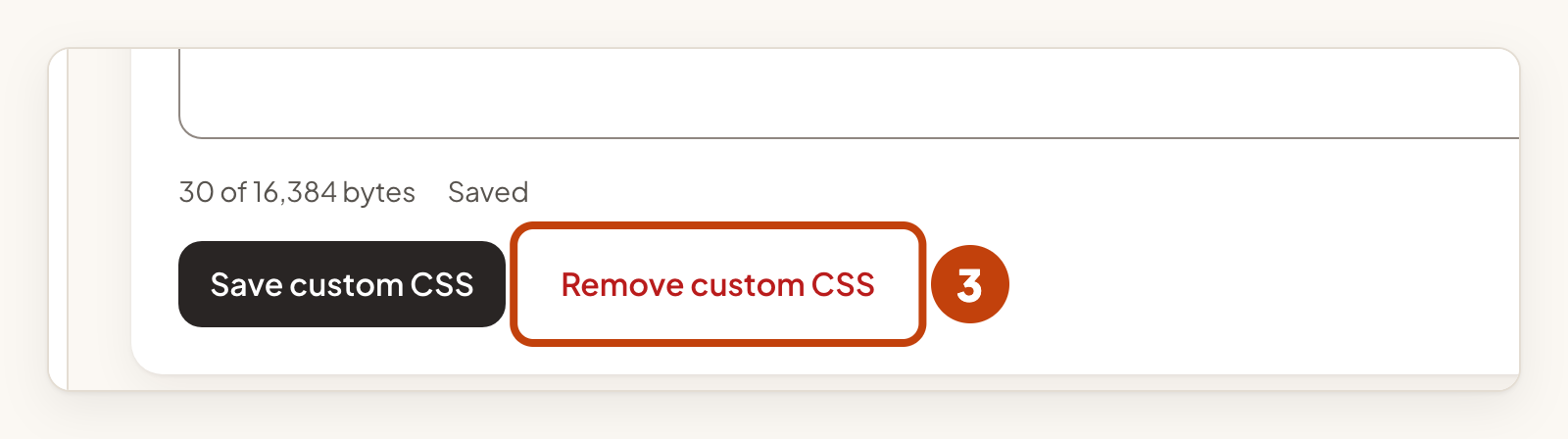
- Select Remove custom CSS.
- Select Remove custom CSS permanently in the dialog.
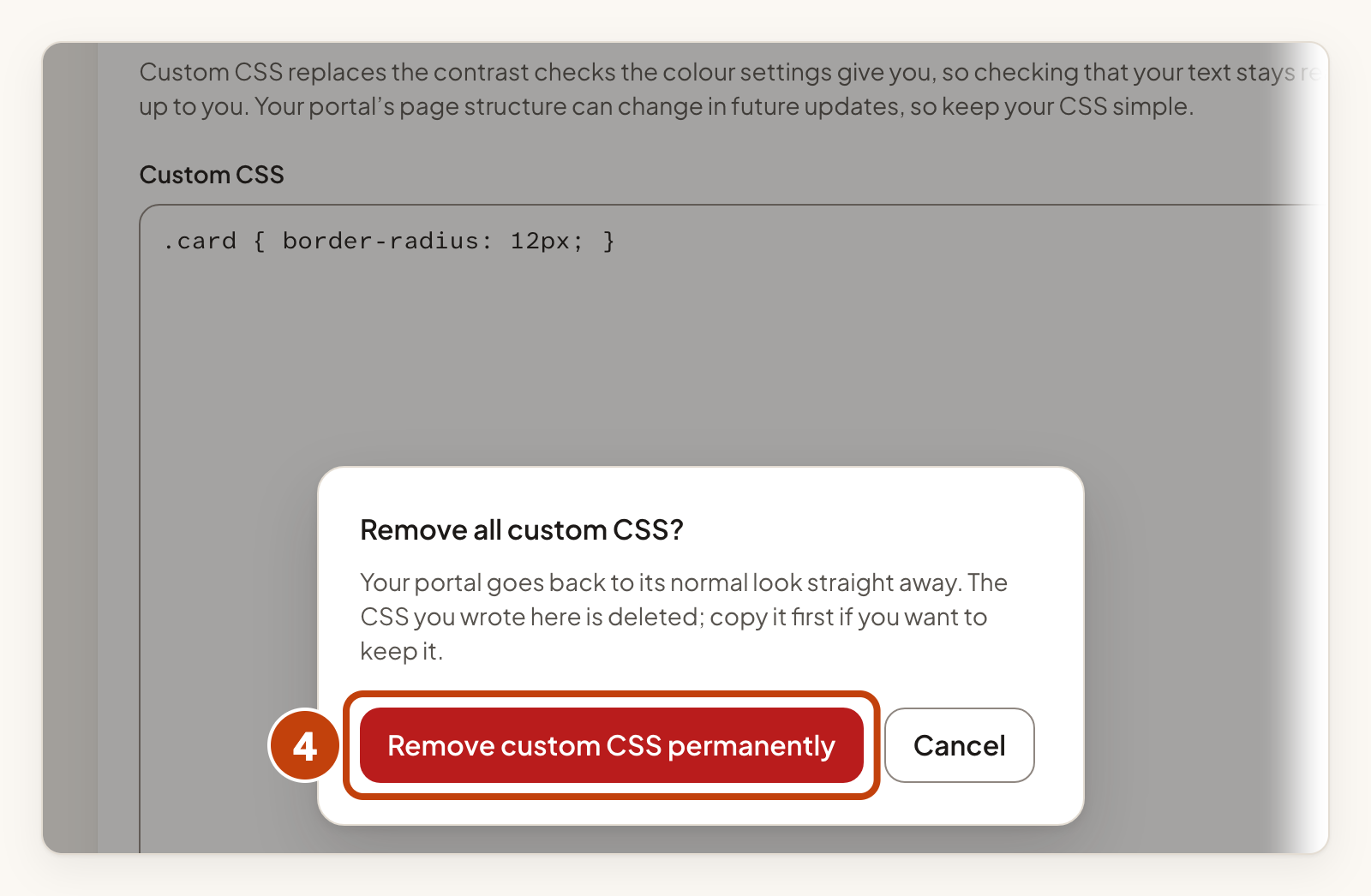
Your portal goes back to its normal look straight away. The CSS is deleted, so copy it first if you want to keep it.
Example
For example, Acme Notes wants rounder cards. Sam types .card { border-radius: 12px; } in the Custom CSS box and selects Save custom CSS.
